
USB Drive Has Space but Says “File Too Large”? Here’s Why
A USB drive can have plenty of space and still reject a large file. Check the FAT32 limit, choose a compatible format, and protect your files before changing it.
Contents
- Why free space does not settle this error
- Check three things before changing anything
- 1. Read the exact message
- 2. Check the destination volume’s format
- 3. Inspect the source file and available space
- Choose a fix around the device that will read the drive
- Back up and check the copy before formatting
- Format a backed-up USB as exFAT in Windows
- Format a backed-up USB as exFAT on a Mac
- Ways to transfer the file without reformatting this drive
- Use another destination when the file must remain intact
- Split an archive for transport between computers
- Reduce the actual file size only if changing the file is acceptable
- Treat conversion to NTFS as an advanced alternative
- Verify the large file after copying
- If the drive is already exFAT or NTFS

A USB drive can have enough free space and still reject a file because its file system limits the size of each individual file. If the drive uses FAT32, one file cannot reach 4 GiB, even when the drive has tens of gigabytes available. For ordinary transfers between current Windows PCs and Macs, backing up the drive and formatting it as exFAT is often the practical fix. Check the receiving device’s requirements first.
Do not format immediately. First confirm the drive’s file system, the exact file size, and whether you need the USB to keep working with a TV, car stereo, camera, or other appliance. Those checks decide whether changing the format will solve your problem or create a compatibility problem instead.
Why free space does not settle this error
Think of two separate limits: how much the drive can hold altogether, and how large one file may be. A drive with 20 GB free has room in total for a 6 GB video. But if the destination volume is FAT32, it cannot store that video as one file. Deleting another 10 GB will not remove the per-file restriction.
A folder is different. A 10 GB folder containing many small photos can fit on a FAT32 drive with sufficient free space. A folder containing one oversized video can fail partway through, after the smaller files have already copied. Check the largest individual file rather than treating the folder’s total as the file-size limit.
Microsoft’s file-system comparison distinguishes maximum file size from maximum volume size. Its table rounds FAT32’s file limit to 4 GiB. The precise upper bound is 4,294,967,295 bytes—one byte below 4 GiB—as reflected in Microsoft’s FAT32 file-size constraint.
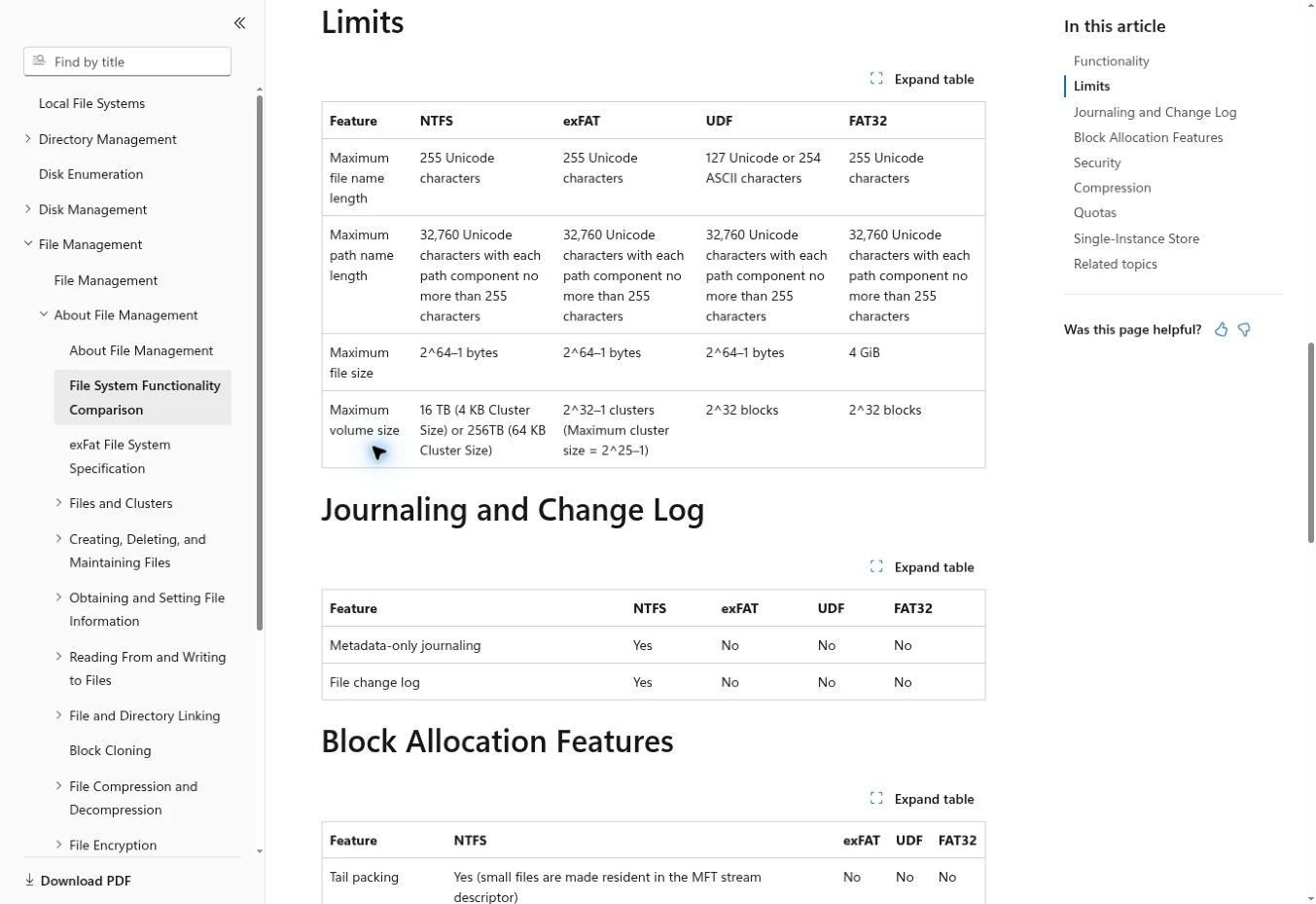
The distinction between GB and GiB also matters near the boundary: 4 GB in decimal units is 4,000,000,000 bytes, while 4 GiB is 4,294,967,296 bytes. A file described loosely as “4 GB” might fall on either side, depending on rounding and the application. Use the byte count when the result seems contradictory.
Check three things before changing anything
1. Read the exact message
“The file is too large for the destination file system” points toward a file-system constraint. “There is not enough space,” “Access denied,” “Write protected,” and “You need to format the disk” call for different checks. Write down the wording rather than treating every failed USB copy as the same fault.
If the drive asks to be formatted before you can open existing files, stop here and see what to do when a USB drive needs formatting. The priority is protecting the files already on it. This guide assumes you can read the drive normally and are troubleshooting an oversized new file.
2. Check the destination volume’s format
- In Windows, open File Explorer → This PC. Right-click the USB drive and select Properties. Read File system on the General tab. Do not select Format for this check.
- On a Mac, select the mounted USB volume in Finder and open File → Get Info. Read Format; Disk Utility can also show the volume’s format.
- If the drive has several partitions, check the specific volume you are copying to. A label such as “BACKUP” does not tell you its file system.
3. Inspect the source file and available space
Open the file’s Properties in Windows or Get Info on a Mac. Compare its actual size with the destination’s free space. On Windows, use Size for this comparison; “Size on disk” describes allocated storage and may differ. Inspect large files inside a folder individually.
Also open the original file before trying again. A source that cannot be read, or an online-only cloud file that has not downloaded, introduces another problem. Keep the source until you have verified a usable copy on the USB.
Choose a fix around the device that will read the drive
| Your intended use | Practical starting point | What to verify |
|---|---|---|
| Ordinary file transfers between modern Windows and macOS computers | exFAT | Both computers support it; any specialist application has no different requirement. |
| A drive mainly used by Windows PCs | NTFS or exFAT, depending on the task | A Mac normally cannot write to NTFS without additional support. |
| A TV, car stereo, console, camera, or recorder | Use the exact model’s manual | Supported file systems, partition layout, capacity, and media formats can differ. |
| An appliance that requires FAT32 | Keep FAT32 and change the transfer or media plan | Each file must stay below the FAT32 boundary; archive pieces may not be usable by the appliance. |
Apple lists MS-DOS (FAT) and exFAT among Windows-compatible formats. That is useful for computer-to-computer transfers, but it does not establish support on your television or car. Search the manufacturer’s manual for your exact model, not just the brand name.
If the drive is for a TV, separate storage compatibility from video compatibility. A TV may recognize an exFAT drive yet reject the video codec, or support the video format but not that drive’s partition layout. Our guide to a USB that works on a PC but not a TV covers that separate decision.
Back up and check the copy before formatting
Formatting removes the files on the selected volume. Copy everything you want to keep to a different drive or sufficient local storage. Open important files from that backup location. A folder name appearing in the backup is not enough if its contents never finished copying.
Avoid using the USB as both the source and backup destination. If you do not have enough space elsewhere, use another drive or postpone the change. A quick format is still destructive from the point of view of ordinary file access; it is not a way to preserve the files while switching formats.
- Identify the USB by its capacity, label, and current contents. Disconnect other removable drives if that makes the choice clearer.
- Finish the backup and inspect it before opening a formatting tool.
- Check the destination device’s required format and partition scheme.
- Close applications using the USB. Keep the computer powered during the operation.
Format a backed-up USB as exFAT in Windows
The following route follows Kingston’s Windows formatting guidance. Use it only after the backup and compatibility checks above.
- Connect the USB and open File Explorer → This PC.
- Right-click the correct USB volume and select Format. Recheck its capacity and label.
- Select exFAT under File system. If your verified use case requires NTFS instead, choose that deliberately.
- Leave Allocation unit size at its default for a normal file-transfer drive. Give the volume a recognizable label.
- For a healthy drive being reformatted for compatibility, Quick Format is the usual fast option. It does not establish that all flash memory is healthy.
- Read the erase warning and select Start only when the backup is complete and the selected drive is correct.
- After completion, open Properties again to confirm the new file system, then copy the large file.
If exFAT is missing, the reported capacity looks wrong, or Windows refuses to format, do not follow a random command sequence that deletes partitions. Resolve that condition separately. Changing drive letters, allocation units, or copy applications does not lift FAT32’s maximum individual file size.
Format a backed-up USB as exFAT on a Mac
Apple’s external-device initialization guide explains the Erase controls, while its partition-scheme guide explains why the scheme is a separate choice from the file system.
- Open Applications → Utilities → Disk Utility.
- Locate the external USB carefully. If you need to see the physical device and its volumes, choose View → Show All Devices.
- Select the intended external volume, then click Erase. Choosing the top-level device instead can affect its entire partition layout and every volume on it.
- Enter a name and select exFAT for an ordinary compatible Windows/Mac transfer drive.
- If you intentionally selected the whole device and a Scheme field appears, choose the partition scheme required by the equipment that will use it. Do not assume a modern Mac choice is suitable for every TV or appliance.
- Confirm Erase only after checking the target and backup. When it finishes, inspect the format and copy the file.
Disk Utility options depend on what you select. Erasing a volume and erasing a whole physical device are different scopes. If you only need one existing USB volume reformatted, do not delete unrelated partitions to make the screen match a tutorial.
Ways to transfer the file without reformatting this drive
Use another destination when the file must remain intact
If you need one unchanged video, disk image, or backup file, use another drive that already has a compatible file system and enough space. A network transfer between the computers is another option. This can be simpler than reorganizing a USB that must remain FAT32 for another device.
Split an archive for transport between computers
A split archive stores data in several smaller pieces. For example, a tool’s split-volume option set to 2 GB can keep each piece comfortably below the FAT32 boundary. Keep every part together and use a compatible archive tool at the receiving computer to reconstruct the original onto a destination that can hold it.
This is a transport method, not a change to FAT32. You cannot reconstruct the oversized original onto the same FAT32 volume. Nor should you expect a TV to play archive pieces as movie chapters. If playback is the goal, you need supported smaller video files, a supported alternative drive format, or another playback route.
Reduce the actual file size only if changing the file is acceptable
Compression may help documents or uncompressed data, but a video that is already compressed may shrink very little in a ZIP archive. Renaming its extension does not reduce its size. Re-exporting video at a lower bitrate or splitting it into playable segments changes the media and may affect quality. Preserve the original and verify the new version.
Treat conversion to NTFS as an advanced alternative
Microsoft’s archived Convert documentation describes converting FAT/FAT32 to NTFS while retaining existing files. This is distinct from formatting, but it still changes the file system and still deserves a verified backup. It produces NTFS, not exFAT, and is not a reversible toggle back to FAT32. Check compatibility before considering it; a conversion promise is not a substitute for another copy of important data.
Verify the large file after copying
A finished progress bar is a useful first check. For important data, go further: compare the copied file’s size with the source, eject the drive, reconnect it, and open the file from the USB. For a video, seek to several positions rather than watching only the opening seconds. Keep the original until the destination behaves as expected.
For a more precise content comparison in Windows, use the read-only Get-FileHash command. These are example paths, not commands that assume your USB is actually E:. Replace both paths with your source and destination files:
Get-FileHash -LiteralPath "C:\Transfer\video.mp4" -Algorithm SHA256 Get-FileHash -LiteralPath "E:\video.mp4" -Algorithm SHA256Compare the two Hash values. Matching SHA-256 values give strong evidence that the file contents match at the time they are read. A mismatch means you should keep the source and investigate. A matching hash does not certify the drive’s full capacity or promise it will never fail.
When finished, use Windows’ safe-removal procedure or eject the volume in Finder. Wait for copying and any other writes to finish before unplugging it.
If the drive is already exFAT or NTFS
An ordinary multi-gigabyte file rejected by an exFAT or NTFS USB is not explained by FAT32’s limit. Check that the failing destination really is that volume, compare actual free space, and read the new error message. A partition on the same physical USB may still use a different format.
If files disappear, become unreadable, or repeatedly fail after a similar amount of data has been written, preserve the source and any readable USB contents. Errors, a failing drive, or a falsely advertised capacity are possibilities to investigate; the symptom alone does not prove which one. Repeated formatting is not a reliable diagnosis.
If the real problem is that the drive looks empty while space remains occupied, use the missing USB space guide. For the specific large-file error, the reliable path is narrower: identify the destination format, choose a solution compatible with its next device, protect existing data, and verify the copied file before deleting your source.
You may also like
 Technology & How-To
Is Tesla Discontinuing the Cybertruck? What We Know
Tesla plans a Cybertruck production wind-down in Texas around mid-2027. See what is confirmed, what remains unknown, and…
 Technology & How-To
Are AI Toys Safe for Kids? Privacy Risks and Parent Checks
Are AI toys safe for kids? Explore the evidence, privacy risks, age advice and practical parent checks for…
 Technology & How-To
iPhone Trust This Computer Not Showing? Windows and Mac Fixes
Restore the iPhone computer-trust prompt with checks for unlocking, Apple Devices or Finder, USB data cables and targeted…