
How to Recover Files From a USB Drive That Asks to Be Formatted (Without Losing Data)
USB drive says it needs formatting? Learn what not to click, diagnose RAW or No Media errors, and safely recover files using TestDisk or PhotoRec.
Contents
- First five minutes: preserve the evidence
- What the format message actually means
- Step 1: rule out a connection problem without modifying the USB
- Step 2: inspect Windows Disk Management safely
- Do not run CHKDSK as your first recovery step
- Choose a recovery path by the condition of the drive
- Option A: inspect partitions and copy files with TestDisk
- Option B: recover file contents with PhotoRec or QPhotoRec
- When should you create a disk image first?
- What if the USB asks to be formatted on a Mac?
- Common scenarios and the best first action
- Scenario 1: a 64 GB USB suddenly shows RAW
- Scenario 2: the flash drive shows 0 bytes or No Media
- Scenario 3: the drive opens on a Mac but not Windows
- How to verify recovered files before reusing the USB
- When to stop DIY recovery
- How to avoid the problem next time
- Official documentation and further reading
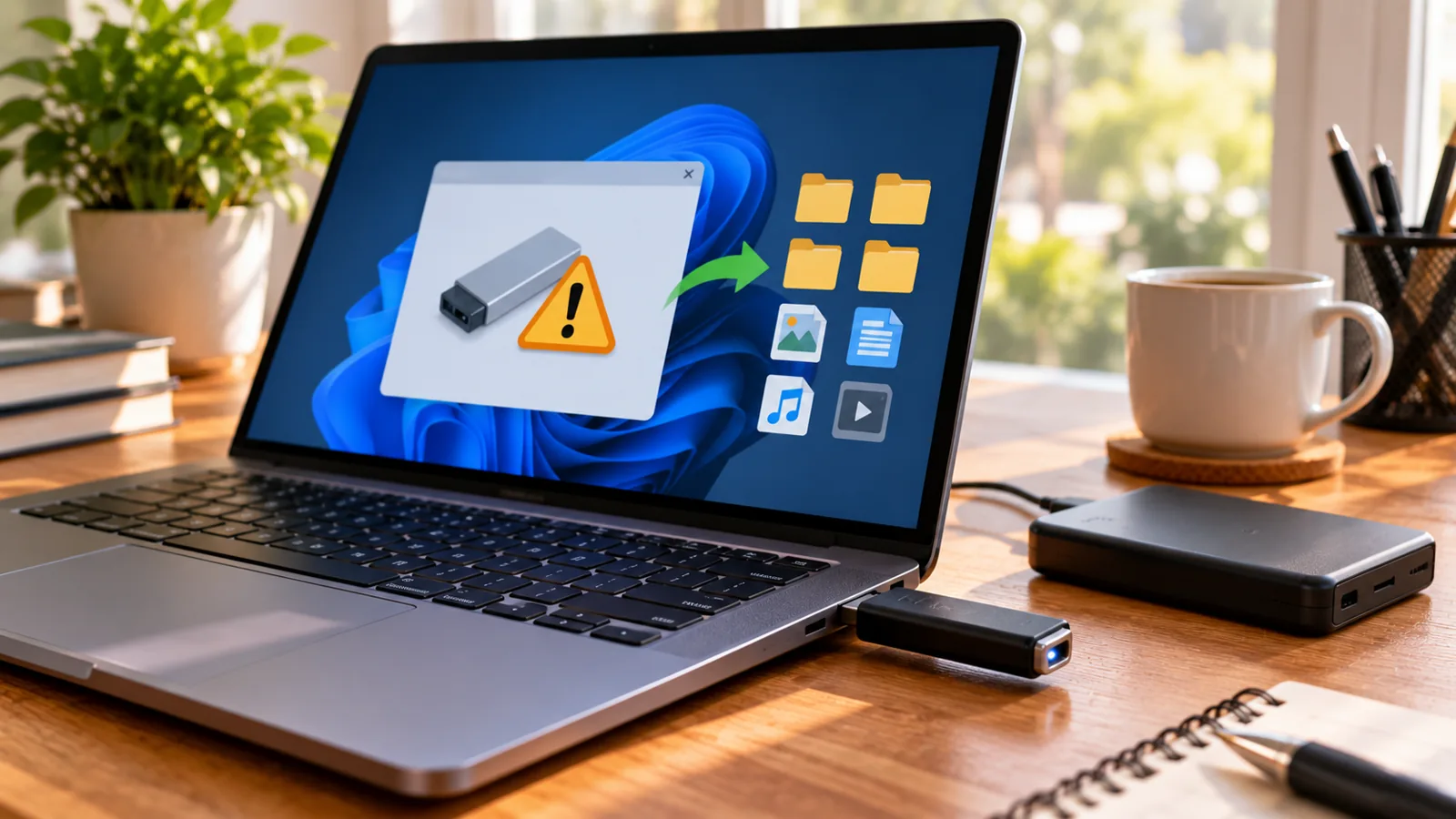
Windows says “You need to format the disk in drive X: before you can use it” just when you need an important document or family photograph. The most important first move is counterintuitive: do not click Format. That message means Windows cannot mount the file system normally; it does not prove your files have vanished. The right response depends on whether the device is detected reliably, whether the file system is damaged, and how valuable the contents are.
This guide covers USB flash drives, memory cards used through USB readers and external drives on Windows 10/11, with notes for macOS. It distinguishes low-risk checks from operations that can make recovery harder. No software can guarantee recovery, particularly when flash memory has failed internally or previously stored blocks have been overwritten.
First five minutes: preserve the evidence
- Cancel the format prompt. Do not initialize, repartition or erase the device.
- Stop copying new files to it, installing recovery software on it, or running automatic repair utilities.
- If it disconnects repeatedly, becomes unusually hot or makes mechanical noises (external hard drives), stop and consider a professional recovery service.
- Prepare a second healthy disk with enough free space to hold recovered files.
- Write down the exact error, device capacity and whether it appears in File Explorer or Disk Management.
Formatting can create a new file system and overwrite metadata; CHKDSK and other repair operations can modify the damaged source. For irreplaceable files, work from a sector-by-sector image where feasible, or consult a specialist before attempting writes. The developers of TestDisk explicitly advise against further use of the source media and recommend recovering onto a different disk.
What the format message actually means
| Correct capacity, RAW file system | Corrupted file-system structures or incompatible formatting | Stop writes; image or scan read-only |
|---|---|---|
| Correct capacity, healthy partition but no letter | Drive-letter or mount problem | Inspect Disk Management without formatting |
| Zero bytes / No Media | Controller or flash failure possible | Avoid repeated software scans; consider specialist |
| Repeated disconnects or read errors | Port, power, enclosure or hardware failure | Try one safe port/cable check; stop if unstable |
| Drive is readable on another computer | Host-side driver, permission or compatibility issue | Copy data immediately to another disk |
Step 1: rule out a connection problem without modifying the USB
- Remove hubs and connect directly to a known-working USB port.
- If the device uses a detachable cable, test a suitable known-good cable.
- Try a second computer once. If it opens, immediately copy the most important files to a separate disk.
- For a USB enclosure containing an external HDD/SSD, verify the enclosure and power supply; do not open a sealed flash drive.
- Avoid repeated plugging and unplugging if the device is unstable or physically damaged.
If a device is readable on one system but not another, investigate the host before treating the storage as corrupted. A drive formatted for a different operating system may be perfectly healthy yet unreadable in Windows. Never reformat solely because Windows does not understand its file system.
Step 2: inspect Windows Disk Management safely
Right-click Start and open Disk Management (or press Win+X and choose it). Locate the device by its reported capacity and removable/external status; do not assume its disk number or drive letter. Inspect whether the disk is Online, has a partition, displays RAW, shows Unallocated, or reports No Media.
- RAW: Windows cannot recognize the file system; do not format if files matter.
- Unallocated: partition information may be missing; do not create a new volume.
- Healthy partition, missing drive letter: a letter may be missing, but avoid changes if the device is unstable or the file system is not understood.
- No Media / 0 bytes: software recovery may not see usable storage; seek hardware assessment for valuable data.
Disk Management can identify the broad failure mode but cannot determine whether the actual file contents remain intact. Screenshots of the capacity and partition layout are useful when consulting a recovery technician.
Do not run CHKDSK as your first recovery step
Many online guides recommend chkdsk X: /f immediately. The /f switch attempts file-system repairs and writes changes. That can be appropriate for a backed-up drive, but it is not the safest first move when your only copy of valuable files is on a damaged USB. In addition, CHKDSK generally cannot repair a volume Windows identifies as RAW. Recover or image the data first; then decide whether repair is worthwhile.
Choose a recovery path by the condition of the drive
| Stable drive, missing partition | Read-only inspection with TestDisk; copy files out before any partition write | Partition changes can cause further damage |
|---|---|---|
| Stable drive, badly corrupted file system | PhotoRec / QPhotoRec scan to a different destination | Original folder names may not survive |
| Intermittent read errors | Create an image with a suitable tool or use professional help | Repeated scans can stress failing hardware |
| No Media or not detected at all | Hardware diagnosis by a specialist | Software cannot scan an inaccessible device |
Option A: inspect partitions and copy files with TestDisk
TestDisk is a free, open-source utility for finding lost partitions and working with certain damaged file systems. Download it only from its official project website and extract the program onto your computer’s internal drive or another healthy disk—not the affected USB.
- Connect the stable USB and launch TestDisk with appropriate permissions.
- Choose to create a log on the healthy computer drive.
- Select the USB by size and model; choosing the wrong disk is a serious risk.
- Let the program detect the partition-table type and use its analysis tools to inspect potential partitions.
- Where TestDisk can list the expected files, copy them to a separate healthy drive rather than writing a recovered partition table to the USB.
- Verify that copied documents, images and videos actually open before attempting any repair.
The official partition-recovery documentation explains that TestDisk can rewrite partition tables. Do not choose Write merely because a found partition looks familiar: changing the original media is a different, higher-risk action from inspecting or copying files. If the partition structure is ambiguous, stop and preserve the current state.
Option B: recover file contents with PhotoRec or QPhotoRec
PhotoRec reads file signatures instead of relying entirely on a working directory structure. That makes it useful when the file system is too damaged to browse normally. The trade-off is that original filenames, folder hierarchy and some fragmented files may not be recoverable. Its graphical interface is called QPhotoRec where available.
- Get PhotoRec from the official TestDisk/PhotoRec project and run it from a healthy drive.
- Select the affected device by size and model; double-check before proceeding.
- Choose the relevant partition or whole device according to what the tool detects.
- Select file types if you want to narrow the output, but remember that unusual formats might be missed.
- Set the output folder on another physical disk with adequate free space. Never save recovered files to the source USB.
- Run the scan, review recovered files and open a sample from each important file type.
The official PhotoRec manual warns that writing recovered files to the source can overwrite data. It also notes that FAT32 destination volumes cannot store individual files larger than 4 GB. For large videos, choose a destination with a suitable file system such as NTFS, exFAT or APFS as appropriate.
When should you create a disk image first?
A sector-level image preserves the readable state of a storage device so you can repeat analysis without continually scanning the original. It is especially useful when there are read errors or when the recovery is important enough to justify careful preparation. An image is not the same as dragging visible files into a folder: it copies addressable sectors, including metadata and areas the file system may not show.
Imaging requires adequate destination space and a reliable identification of the source device. If the USB frequently disconnects or reports a wildly incorrect capacity, consumer imaging attempts may not succeed. With irreplaceable data, a professional lab is safer than repeated experiments.
What if the USB asks to be formatted on a Mac?
On macOS, open Disk Utility and use View > Show All Devices to inspect the physical device and its volumes. If the files are important, avoid Erase and avoid using First Aid on the original until you have a backup or image: First Aid may make repairs that write to the disk. If another computer can read the USB, copy the files there first. Some Windows-only file systems and encrypted devices need compatible software or unlocking before macOS can read them.
Common scenarios and the best first action
Scenario 1: a 64 GB USB suddenly shows RAW
A student’s USB worked yesterday and now shows the format prompt. Disk Management reports approximately the expected capacity and RAW. The prudent path is to stop using it, avoid CHKDSK, and inspect with a read-only recovery workflow. If TestDisk can list folders, copy them to a separate drive. If not, PhotoRec may recover content without original names. This is an illustrative scenario, not a tested recovery result.
Scenario 2: the flash drive shows 0 bytes or No Media
An office USB appears in Device Manager but Disk Management shows No Media. File-recovery software may have no accessible sectors to scan. Reinstalling drivers or changing ports may rule out a host issue, but if the condition persists, professional assessment is more realistic than repeatedly running partition utilities.
Scenario 3: the drive opens on a Mac but not Windows
A photographer receives a Windows format prompt, but the drive mounts normally on a Mac. The likely issue may be file-system compatibility, not lost files. Copy the contents on the Mac before deciding whether to reformat the drive for cross-platform use. Reformatting is a later maintenance decision, never the first recovery step.
How to verify recovered files before reusing the USB
- Count recovered files and compare key folders against any available backup or inventory.
- Open representative documents, photographs, archives and videos; a matching filename alone does not prove file integrity.
- Check whether the latest versions of important files were recovered.
- Store a second backup of irreplaceable data before experimenting with the damaged drive.
- Only after data is safe, test the device with manufacturer-supported diagnostics and consider replacing it if reliability is questionable.
When to stop DIY recovery
Stop if the device is overheating, physically broken, intermittently vanishing, reporting a changing capacity, or containing unique business, legal or personal records whose loss would be severe. Flash-memory controller faults and physical damage are not solved by software formatting. A reputable data-recovery service should explain its diagnostic fees, confidentiality practices, likely costs and whether recovery is feasible before any destructive procedure.
How to avoid the problem next time
Keep at least two copies of important data on different devices, plus an off-site or cloud copy when practical. Eject removable drives properly, avoid removing them during writes, and replace flash drives that repeatedly disconnect or develop read errors. A USB stick is a convenient transfer medium, not a dependable sole archive. Periodically test backups by opening actual files.
Official documentation and further reading
- TestDisk and PhotoRec documentation — recovery modes and limitations.
- PhotoRec recovery manual — selecting media and a separate output drive.
- TestDisk partition recovery — partition inspection and the risks of writing changes.
- TestDisk undelete guidance — why to stop using affected storage.
You may also like
 Technology & How-To
 USB Drive Empty but Space Used? Find the Missing Data Safely
Find why an accessible USB looks empty while space remains occupied, using visibility checks, Trash review and device-versus-volume…
 Technology & How-To
 Windows 11 Clipboard History Not Working? Find What Failed
Separate Windows clipboard history failures from ordinary paste, app restrictions, cloud sync and Remote Desktop with a two-item…
 Technology & How-To
 Chrome Keeps Reloading Tabs? Stop the Right Kind of Refresh
Find why Chrome tabs reload with targeted Memory Saver settings, controlled comparisons, extension checks and diagnostics that protect…