
Windows 11 Clipboard History Not Working? Find What Failed
Separate Windows clipboard history failures from ordinary paste, app restrictions, cloud sync and Remote Desktop with a two-item Notepad test.
Contents
- Match the symptom to the right investigation
- Run a two-item Notepad test
- Enable history and distinguish a shortcut problem
- Check item formats, capacity, and restart behavior
- When only Word, Excel, a browser, or another app fails
- The Office Clipboard is a separate panel
- Clear or reset history only after preserving needed entries
- Separate local history from cross-device synchronization
- If the setting is gray or managed by your organization
- Restart the session, then inspect services if needed
- When copying fails only through Remote Desktop
- Check resource consent when opening an RDP file
- Check Windows updates and compare user sessions
- Choose the smallest repair and verify the original task
If clipboard history is not working in Microsoft Windows 11, open Settings > System > Clipboard, turn on Clipboard history, and copy a new, short line of text. Then press Windows logo key + V. Test ordinary Ctrl + V separately: pasting the newest item can work even when the history panel is unavailable.
Before clearing anything or changing services, identify which feature failed. Local history, cross-device synchronization, an application's own clipboard, and Remote Desktop copy and paste are different parts of the workflow. A fix for one may leave the others unchanged.
The quickest useful check is a two-item Notepad test. It shows whether Windows can copy, paste the newest item, retain two distinct snippets, and paste an older entry. Use harmless sample text rather than passwords, recovery keys, or customer information.
Match the symptom to the right investigation
Notice what actually happens when you copy and paste. Does the history panel never open, display a Turn on button, remain empty, or contain an item that will not paste into one particular application? Record the result before restarting or changing settings.
| What you observe | First area to check | A useful next test |
|---|---|---|
| Win + V offers Turn on | History has not been enabled for this use | Enable it, then copy a new plain-text snippet |
| Ctrl + V works but Win + V stays empty | History settings, item eligibility, or the user session | Run the two-item Notepad test below |
| Keyboard shortcuts fail but menu commands work | Keyboard input or shortcut handling | Compare with the On-Screen Keyboard |
| Notepad works but one app fails | That application, its content format, or its restrictions | Copy the same harmless sentence through another app |
| Local history works but another device receives nothing | Account, synchronization settings, or policy | Test a new plain-text snippet between the two PCs |
| Copying works inside each desktop but not between them | Remote-session clipboard redirection | Check the connection's allowed local resources |
These are investigation routes, not proof of a specific fault. A successful plain-text test does not establish that a large image or protected business document should be retained in history. Likewise, an empty list immediately after restarting may be expected behavior.
Write down whether you are testing on the physical PC or inside a remote session. With two desktops visible, it is easy to open Settings on one machine while evaluating copying on the other.
Run a two-item Notepad test
Start with local applications on the same PC, outside Remote Desktop or a virtual-machine console. Save existing work and open two blank Notepad documents. Use two different strings so you can tell which copied item you are seeing.
- In the first document, type
Clipboard test Alpha, select that text, and copy it. - Type
Clipboard test Betaon another line, select the second string, and copy it. - In the other document, use Ctrl + V. Check whether Beta, the most recently copied text, appears.
- Place the cursor on a blank line and press Win + V. Look for both test strings.
- Select Alpha from the history panel and check whether that older item pastes into Notepad.
- If a shortcut failed, repeat the relevant copy or paste through the application's menu before changing Windows settings.
The following interpretations are diagnostic suggestions. They describe what your observations can narrow down, rather than results measured on your computer by this guide.
| Result | What it supports | Next step |
|---|---|---|
| Beta pastes normally; both entries appear; Alpha pastes from history | The basic local history workflow works | Investigate the original app, item, sync link, or remote boundary |
| Beta pastes; the history panel opens but neither new entry appears | Ordinary copying works while history still needs investigation | Recheck the history toggle, policy, and user session |
| Menu Copy and Paste work while keyboard commands fail | The content can move without that shortcut | Investigate input handling and remapping |
| Copy and paste fail in both local documents using menus too | The problem extends beyond the Win + V shortcut | Restart the affected app/session, then consider broader Windows checks |
Keep the successful parts of the test in your notes. “Two text items appear in Notepad history, but a spreadsheet image does not” is much more specific than “the clipboard is broken.”
Enable history and distinguish a shortcut problem
Open Start > Settings > System > Clipboard and check Clipboard history. If Win + V presents the setup prompt, select Turn on. Microsoft's Windows 11 clipboard history guide documents these controls. Copy fresh test text afterward; do not use an old empty panel as the only result.
If the physical shortcut does nothing, try the Windows key with another familiar action, then compare mouse-based Copy and Paste in Notepad. Check whether a keyboard utility, gaming mode, or shortcut-remapping tool has changed the keys you are pressing. Treat those as possibilities to test, not assumptions about the cause.
For another input comparison, open Settings > Accessibility > Keyboard > On-Screen Keyboard. Select its Windows key and V to try the history shortcut, using Microsoft's On-Screen Keyboard instructions for the available layout and input controls.
A different result with the on-screen keys helps isolate the input path. It does not prove that the physical keyboard is defective; software can intercept or remap shortcuts. Keep the history setting and sample text the same during the comparison.
Check item formats, capacity, and restart behavior
Microsoft's clipboard support reference lists a 4 MB limit per history item and support for text, HTML, and bitmap formats. A file copied in File Explorer is not the same test as copying a short text string into history.
History retains up to 25 copied entries; older unpinned items make way for newer ones. Restarting Windows clears unpinned history. Pinning a useful, non-sensitive snippet keeps it available across restarts, but history should not be your only storage location for important information.
If only an image is missing, compare with a small image or a small screenshot region, then check whether it pastes directly into an image-capable app. Do not interpret one large or unusual item failing to appear as evidence that all history storage has failed.
Also separate a missing preview from missing content. If an entry exists but its preview is unclear, try selecting it into a suitable blank destination using harmless test data. Whether it pastes is a different observation from how its thumbnail looks.
Use a saved document for information you need to preserve. Finding yesterday's unpinned entries missing after a restart is not, by itself, a reason to edit the Registry or run system repair.
When only Word, Excel, a browser, or another app fails
Repeat the same short sentence in Notepad and the affected app. Compare both directions: from that app into Notepad, and from Notepad into the app. Check that the destination is editable and that you are placing the cursor in a field that accepts text.
If the app accepts plain text but fails with styled content, try its own supported plain-text or Paste Special option, where available. That separates a content-format problem from an inability to copy anything. Save the original document before restarting or repairing the application.
The Office Clipboard is a separate panel
The Microsoft Office Clipboard task pane is not the Windows Win + V history panel. Microsoft's Office Clipboard instructions explain how to open it from the Clipboard group on the Home tab and paste its collected entries into an Office file.
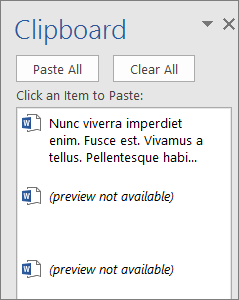
Microsoft's published Microsoft Word 2016 interface reference. This is the Office Clipboard task pane, not the Windows 11 history panel. Used with permission from Microsoft.
Check which panel contains the item you are trying to use. Clearing the Office pane or changing its collection options is not evidence that Windows history has been reset. The Notepad comparison remains useful even if Office shows its own collected clips.
Applications can also decide whether particular content should enter history. Microsoft's ClipboardContentOptions documentation exposes an option controlling that eligibility. An item being available for ordinary paste therefore does not guarantee that every application must retain it in history.
If one application remains the outlier, check for its updates and documented restrictions. Microsoft's app-repair guide provides Settings > Apps > Installed apps > Advanced options > Repair where supported. Not every program has this option. Review data consequences before using Reset, and keep an independent copy of your work.
Clear or reset history only after preserving needed entries
Paste important snippets into an appropriate saved document before removing anything. Review pinned entries separately. A clipboard list is temporary working state, not a backup of the source documents.
To remove one entry, open Win + V, use its item menu, and choose Delete. To clear the unpinned list, use Clear all or Settings > System > Clipboard > Clear clipboard data > Clear, following Microsoft's clipboard reference. Its clearing instructions distinguish pinned items from the rest.
Afterward, copy Alpha and Beta again and rerun the test. An empty panel immediately after clearing is expected; the relevant question is whether newly copied eligible items now appear and paste.
If you try turning history off and back on as a comparison, preserve needed information first and change only that setting. Record whether the behavior changes. Do not simultaneously clear history, switch accounts, restart multiple services, and modify policy values, because an improved result would not identify which change mattered.
Separate local history from cross-device synchronization
Local history and cloud synchronization have different purposes. A working local Win + V list does not establish that a second device should receive the entries. Diagnose the local two-item test first, then introduce the second PC.
On both supported Windows devices, inspect Settings > System > Clipboard and the Clipboard history across your devices or Sync across devices control. Microsoft's Windows 11 guidance ties synchronization to the same Microsoft account or work account and offers automatic synchronization of copied text.
If manual text synchronization is selected, Microsoft's clipboard support page says to choose the sync control on the individual item. Copy a new, harmless text token on one device and look for it on the other. Then test the opposite direction. Record which direction fails, rather than treating the two PCs as one clipboard.
An app can separately control whether content is allowed to roam to other devices, as Microsoft's IsRoamable documentation explains. A local entry therefore does not prove that the particular item is eligible for synchronization.
If the PC also has connection problems, our guide to Wi-Fi working on some devices but not others helps investigate that separate link. Another device being online does not establish that the affected PC can reach the services it needs.
Do not change a Windows sign-in account merely to repair local history. Keep account and synchronization changes tied to a demonstrated cross-device problem, especially on an organization-managed device.
If the setting is gray or managed by your organization
Microsoft documents an Allow Clipboard History policy under Computer Configuration > System > OS Policies. Disabling it prevents history storage and can leave the Settings control unavailable, according to the Experience policy reference.
On a work or school device, give IT the exact message and the local Notepad results. Ask whether local history and cross-device synchronization are permitted. Enabling a local setting cannot necessarily override a policy that the organization enforces.
If the restriction is unexpected on a personal PC, establish who manages the device and which configuration tools have been used. Avoid importing a downloaded Registry file that promises to enable every clipboard feature. Changing a policy value without understanding its source can leave you with a setting that is reapplied later.
Record the restriction separately from an application refusing to copy protected content. Both can limit a workflow, but they are different observations and may have different owners.
Restart the session, then inspect services if needed
Save open work and any clipboard snippets you need, then restart Windows and copy fresh test text. Check whether the fault returns immediately or only after opening a particular program. Unpinned history disappearing across the restart is expected; failure to collect new eligible items is the part to investigate.
Microsoft's per-user services documentation identifies Clipboard User Service, service name cbdhsvc, as supporting clipboard history and synchronization. Windows creates per-user service instances, so a name with an underscore and a changing identifier is not automatically suspicious.
For a read-only record, open Windows PowerShell and run:
Get-Service -Name 'cbdhsvc*' | Select-Object Name, Status, StartTypeThis uses Microsoft's Get-Service command to list matching services. It does not restart them, change startup configuration, or delete history. An access error or missing result belongs in your support notes; it is not a reason to force a configuration change.
Interpret the status with the Windows version, current user session, and policy. A single service snapshot does not establish the cause. Avoid changing every matching service or its Registry template because a generic tutorial assumes one fixed name and startup state.
When copying fails only through Remote Desktop
First test ordinary copying within the local PC, then within the remote desktop. If both work independently but moving text across the connection fails, investigate clipboard redirection. Enabling Win + V history locally does not establish that the remote connection shares clipboard contents.
Microsoft's clipboard-redirection documentation explains that host policy and connection configuration can restrict this feature. In managed environments, the most restrictive applicable setting determines the result. A client option alone may therefore be insufficient.
Check resource consent when opening an RDP file
Microsoft documents an additional connection-security dialog for RDP files on updated Windows builds. The dialog lists local resources, including the clipboard, with access off by default until you explicitly permit it. Review the expected computer and publisher before allowing the sharing you need, following Microsoft's RDP-file security guidance.
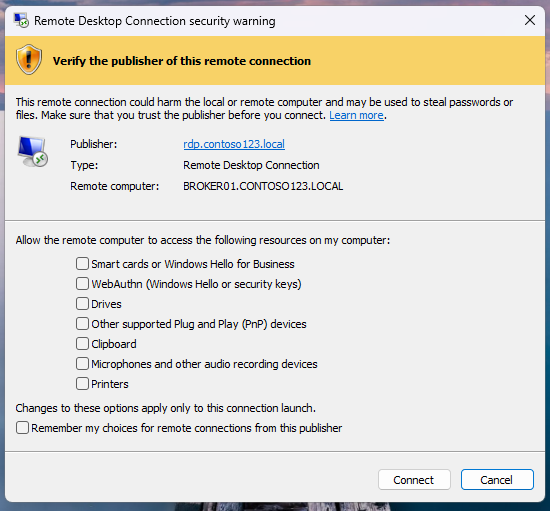
Official Microsoft Remote Desktop Connection example. The displayed publisher and computer belong to Microsoft's demonstration; this prompt concerns resource sharing, not local Win + V history. Used with permission from Microsoft.
This check applies to the documented RDP-file launch experience, not every remote client or browser-based session. Keep your organization's restrictions in place and use its supported connection method. Do not assume that restarting a remote clipboard process will repair an unrelated local history problem.
If the connection itself fails before a desktop opens, our Windows 11 Remote Desktop error guide addresses that different stage. Record whether your failure happens before connection, inside either desktop, or only across the connection boundary.
Check Windows updates and compare user sessions
Open Settings > Windows Update and check for applicable updates. Save work and complete a requested restart before rerunning the local test. Microsoft's Windows Update guidance explains checking status and managing the restart.
Record the Windows version, build, and installed-update timing if the problem began after an update. Timing alone does not establish which change caused it. Avoid uninstalling security updates because an unrelated article names a particular KB number without matching your build and symptom.
If the problem persists, compare another permitted Windows user session on the same PC. Microsoft's user-account guide explains separate accounts and settings. Keep the original account and files; do not delete them as a diagnostic step.
A different result narrows the investigation to differences between those sessions, including settings, policies, startup apps, and service state. It does not, by itself, prove that the original profile is corrupt or needs replacement.
If ordinary copy and paste also fail broadly after updating and restarting, Microsoft's System File Checker guidance provides a later system-repair route. Follow its prerequisites and DISM-then-SFC sequence if the evidence points to a wider Windows fault. These tools check system components; they do not recover old clipboard entries.
Choose the smallest repair and verify the original task
| Action you are considering | Preserve or record first | Evidence to check afterward |
|---|---|---|
| Delete or clear history | Needed snippets and relevant pinned entries | Two newly copied text items appear and paste |
| Restart Windows | Open work and unsaved clipboard-only text | New items collect after signing back in |
| Repair or reset one app | Documents, drafts, and the app's reset effects | The failing app passes the same text comparison |
| Change remote clipboard sharing | Approved host, client, and resource permissions | Harmless text crosses the intended boundary |
| Investigate service or policy configuration | Exact names, status, and management message | The local history test changes under a documented configuration |
Finally, repeat the task that originally failed. Test both ordinary paste and selecting an older history item. Add image, cross-device, or remote tests only when those features were part of the problem. Keep source, destination, account, and sample content comparable while checking each change.
If the issue remains, give support your Windows build, the two-item results, whether menu commands work, whether the setting is managed, and whether the problem is local, application-specific, cross-device, or remote. Include the exact error without exposing copied private content. That record gives the next person a concrete failure to investigate while preserving your work.
You may also like
 Technology & How-To
 USB Drive Empty but Space Used? Find the Missing Data Safely
Find why an accessible USB looks empty while space remains occupied, using visibility checks, Trash review and device-versus-volume…
 Technology & How-To
 Chrome Keeps Reloading Tabs? Stop the Right Kind of Refresh
Find why Chrome tabs reload with targeted Memory Saver settings, controlled comparisons, extension checks and diagnostics that protect…
 Technology & How-To
 Google Drive for Desktop Not Syncing? Find the Cause Without Losing Files
Diagnose Google Drive desktop sync failures with a two-direction file test, current interface guidance, and recovery steps that…