
Chrome Keeps Reloading Tabs? Stop the Right Kind of Refresh
Find why Chrome tabs reload with targeted Memory Saver settings, controlled comparisons, extension checks and diagnostics that protect unsaved work.
Contents
- Identify what is actually reloading
- Preserve the work inside the tab
- Adjust Memory Saver for the site you need
- Understand what the performance alert changes
- Compare active use, idle time, and workload
- Use chrome://discards as an observation tool
- Isolate extensions without overinterpreting Incognito
- Check memory pressure and page errors
- When only one website keeps refreshing
- Optional: check a visible page with the Network panel
- Update Chrome, then compare a separate profile
- Choose a repair with a clear scope
- Phones and managed browsers need different checks
- Verify the result under the original conditions

If Chrome keeps reloading tabs when you return to them, check Settings > Performance and add the affected site to Always keep these sites active. Memory Saver can deactivate an unused tab, which then reloads when selected. If the page reloads while you are actively using it, investigate a different cause before changing more performance settings.
The most useful first step is to record when the reload happens: after switching tabs, during a live session, after a crash, or only on one website. Those patterns lead to different fixes. A setting that helps an idle research tab may do nothing for an account repeatedly returning to its sign-in page.
This guide focuses on desktop Chrome on Windows and Mac. It also explains the limits of desktop instructions on phones and how to check a managed work browser. Save unfinished work before restarting, clearing site data, or testing changes.
Identify what is actually reloading
A tab can stay visible in the tab strip after Chrome has released its page from memory. Returning to it requires another load. A web application can also update a feed or dashboard without reloading the entire document. A visible change alone does not identify which event occurred.
Observe the page before changing settings. Does its loading indicator appear? Does the whole layout rebuild, or does only a price, message list, or chart change? Is there an error code? Does the browser itself disappear and reopen? Record these details even if you cannot yet interpret them.
| Observed pattern | First possibility to investigate | A useful comparison |
|---|---|---|
| A background tab reloads when you select it | Tab deactivation or resource pressure | Compare the same site with one active-site exception |
| A page reloads repeatedly while visible | The website, an extension, or browser instability | Keep an unrelated page open and observe both |
| Chrome shows Aw, Snap! or an error code | A page loading or crash problem | Record the exact code and whether other sites fail |
| One account repeatedly returns to login | Session, cookie, or site-specific behavior | Compare the same site in a separate browsing session |
| The entire browser restarted | An update, crash, or deliberate restart | Note whether every tab reopened together |
| A dashboard changes but its surrounding page stays intact | A normal application update may be occurring | Check whether a full navigation actually happened |
These are investigation routes, rather than diagnoses. For example, a tab returning to login may have both reloaded and lost an expired session. Fixing one does not necessarily fix the other.
Also distinguish freezing from discarding. Google's Page Lifecycle documentation describes freezing as suspending certain work, while discarding unloads the page. A pause in background activity does not automatically mean the document reloaded.
Preserve the work inside the tab
Use the website's Save, Save draft, or export feature before any test. For a long message, copy essential text to a separate document if the site permits it. For a payment, booking, or application, verify its status before resubmitting anything after an unexpected reload.
A bookmark preserves an address, not the text you typed into a form. Restoring the same tab after a restart likewise does not establish that its unsent content survived. Keep those two forms of recovery separate.
Google's developer guidance on Memory Saver explains why web apps must save state before a page disappears: a hidden page can be discarded without the final events a poorly designed app expects. Users cannot make every website save correctly through a browser setting.
For a practical check, confirm that the site's saved draft contains your last sentence, or that an exported file opens with the latest changes. This is more useful than trusting a saved indicator you have not checked. Do this before testing an extension change, restarting Chrome, or removing cookies.
Adjust Memory Saver for the site you need
On desktop Chrome, open Settings > Performance. Under Always keep these sites active, choose Add. Selecting an already open site through Add current sites avoids typing the wrong address. You can also enter its address manually. Google's current performance settings instructions document both methods.
Check the site's actual host. An editor may open at a different address from the company's homepage. Add the site you are using, then test it again. Making one targeted exception also gives you a clearer comparison than exempting every site you visit.
If many ordinary background tabs reload, review the Memory Saver level. Google's performance controls announcement describes Moderate, Balanced, and Maximum. Maximum deactivates tabs more quickly; Moderate and Balanced take a less aggressive approach using the factors Google documents.
You can temporarily turn Memory Saver off for comparison, but expect memory use to change. Keep your workload similar during that test. There is no single idle duration that proves the feature is broken or working for every computer.
An exception addresses deactivation associated with this control. It does not repair a website's login process, prevent every crash, or guarantee unlimited memory. If the page continues reloading while visible, move to the active-page checks below.
Understand what the performance alert changes
Chrome can suggest making resource-heavy tabs inactive through a Performance issue alert. Google's performance documentation describes accepting that suggestion with Fix now. If you recently accepted it, note which tabs were listed before interpreting a later reload.
Turning off the alert changes that notification behavior. It is a different control from Memory Saver or a site exception. Do not assume that hiding a notification keeps every tab resident in memory.
Some activities, including partially completed forms or ongoing media, can prevent ordinary deactivation under Google's documented conditions. Treat that as browser behavior, rather than a substitute for saving your work. It cannot make an unsaved draft immune to a crash or a website-initiated navigation.
Compare active use, idle time, and workload
Choose the affected page after preserving any work. Record its address, Chrome version, Memory Saver setting, approximate tab count, and the other substantial apps running. Keep one unrelated, simple page open as a comparison.
First, use the affected page normally while it remains visible. Then leave it in the background while you continue your usual work, returning after roughly the circumstances in which the fault normally appears. Do not impose an arbitrary five-minute timer and treat a quiet test as proof of success.
Next, change just one factor: add the site exception, or repeat with unnecessary tabs and heavy apps closed. Keep the same account and page where possible. Record whether the entire document reloads, whether the session remains signed in, and whether an error appears.
| Comparison you make | What a changed result supports | What it does not establish |
|---|---|---|
| Idle page with and without a site exception | The exception may help this background-page behavior | Every possible reload has been prevented |
| The same page under a lighter workload | Resource demand may contribute | A specific component or RAM module is faulty |
| Ordinary profile with optional extensions disabled | An extension may contribute | Which extension is responsible until you isolate it |
| Ordinary window compared with Incognito | Session, stored data, or extension differences matter | An extension is definitely the cause |
| Original profile compared with a separate profile | Something about the profile environment may matter | Your original profile must be deleted |
This is a proposed diagnostic method, not a benchmark performed on your hardware. A successful run under different conditions is useful evidence, but it is weaker than reproducing the same task after one deliberate change.
Write a short observation such as: “Same editor and account; idle return reloaded before the exception; no reload observed in two comparable work sessions afterward.” That records the limits of the evidence without promising the problem can never return.
Use chrome://discards as an observation tool
For an optional desktop check, enter chrome://discards. Find the affected title and URL. Where available, compare its lifecycle state and discard count before and after the behavior.

Philip Walton / Chrome for Developers, CC BY 4.0. Unchanged reference screenshot showing an older Chrome appearance; diagnostic columns can differ in your version.
A rising discard count supports that the tab was discarded during the observation. It does not by itself identify why, or explain every login redirect. No increase during one test does not rule out a later discard.
Read the page rather than pressing its discard or freeze actions while important work is open. Google's lifecycle documentation uses those actions for deliberate developer testing. Triggering a discard yourself cannot demonstrate that the original problem happened automatically.
Use Performance settings for lasting preferences. If the expected diagnostic information is unavailable, continue with the comparisons instead of using old experimental flags.
Isolate extensions without overinterpreting Incognito
Open Extensions > Manage extensions and look for optional auto-refresh, tab-suspension, session-management, or page-modification tools. Disable a suspected extension for a comparison, then test the same page. Google's extension management instructions explain the on/off control and the separate Allow in incognito permission.
If there are several candidates, record which were enabled before testing. You can temporarily disable the optional set, reproduce the task, and re-enable them one at a time if behavior improves. Save work before each change because an extension change can affect the page you are using.
Do not install an auto-refresh extension to stop unexplained refreshing. That adds another actor capable of reloading pages. First establish whether an existing extension already has a timer or rule for the site.
Incognito is a useful comparison, but it changes more than extensions. Google's Incognito guide explains that it starts a separate browsing session and does not automatically sign you into websites. Extensions explicitly allowed there may still run.
For example, a public homepage working in Incognito does not reproduce a signed-in reporting dashboard with a large dataset. If practical, compare the same workflow and account, then separately test optional extensions in the original profile. Record any remaining difference instead of declaring the cause from one successful Incognito visit.
Check memory pressure and page errors
Open Chrome's menu and choose More tools > Task Manager. Sort by the memory column and look for a tab or extension whose resource use stands out. Google's Chrome performance troubleshooting guide documents this tool and warns that ending a task loses its unsaved work.
Use it to observe first. Save and close an unnecessary resource-heavy task normally, then repeat your comparison. A high memory figure is a clue, not proof of a leak. Different websites perform different work, so there is no useful universal “normal megabytes per tab” threshold.
Also reduce competing work outside Chrome for one test: a video export, game, virtual machine, or large editing project can change the available resources. Record what you closed. If several unrelated apps also become unstable, broaden the investigation to the computer rather than endlessly adjusting browser exceptions.
If the computer is hot and noisy, our guide to a laptop fan running constantly helps investigate the wider workload and cooling context. Fan noise alone does not establish the reason a particular page reloaded.
For Aw, Snap!, an out-of-memory message, or another error page, record the exact wording and code. Google's connection and loading error guide distinguishes several possible causes, including memory, extensions, connection issues, and the website. Do not treat every error page as Memory Saver performing normally.
When only one website keeps refreshing
Compare that site with an unrelated page under the same conditions. A dashboard that refreshes on a schedule, a login redirect, and a full Chrome crash require different evidence. Note whether the address changes, whether you remain signed in, and whether the behavior happens while the page is visible.
If the connection also drops elsewhere on that computer, use our guide to Wi-Fi working on some devices but not others. Another device browsing normally does not establish that this machine has an uninterrupted connection.
If a site works in a separate session but fails in the original one, consider removing only that site's stored data after saving work and confirming you can sign in again. Under Settings > Privacy and security > Third-party cookies > See all site data and permissions, search for the site and remove the relevant entry, following Google's cookie-management instructions.
Deleting site data can sign you out and remove local state. Google's browsing-data reference also explains that site data includes browser storage used by applications. An offline draft may therefore need its own export before this step. A blanket deletion across all sites is a much broader change than this comparison needs.
Optional: check a visible page with the Network panel
For a page that repeatedly changes while you watch it, open More tools > Developer tools > Network. Enable Preserve log, leave the page visible, and inspect new Doc requests alongside Fetch/XHR activity. Google's Network panel reference documents those controls.
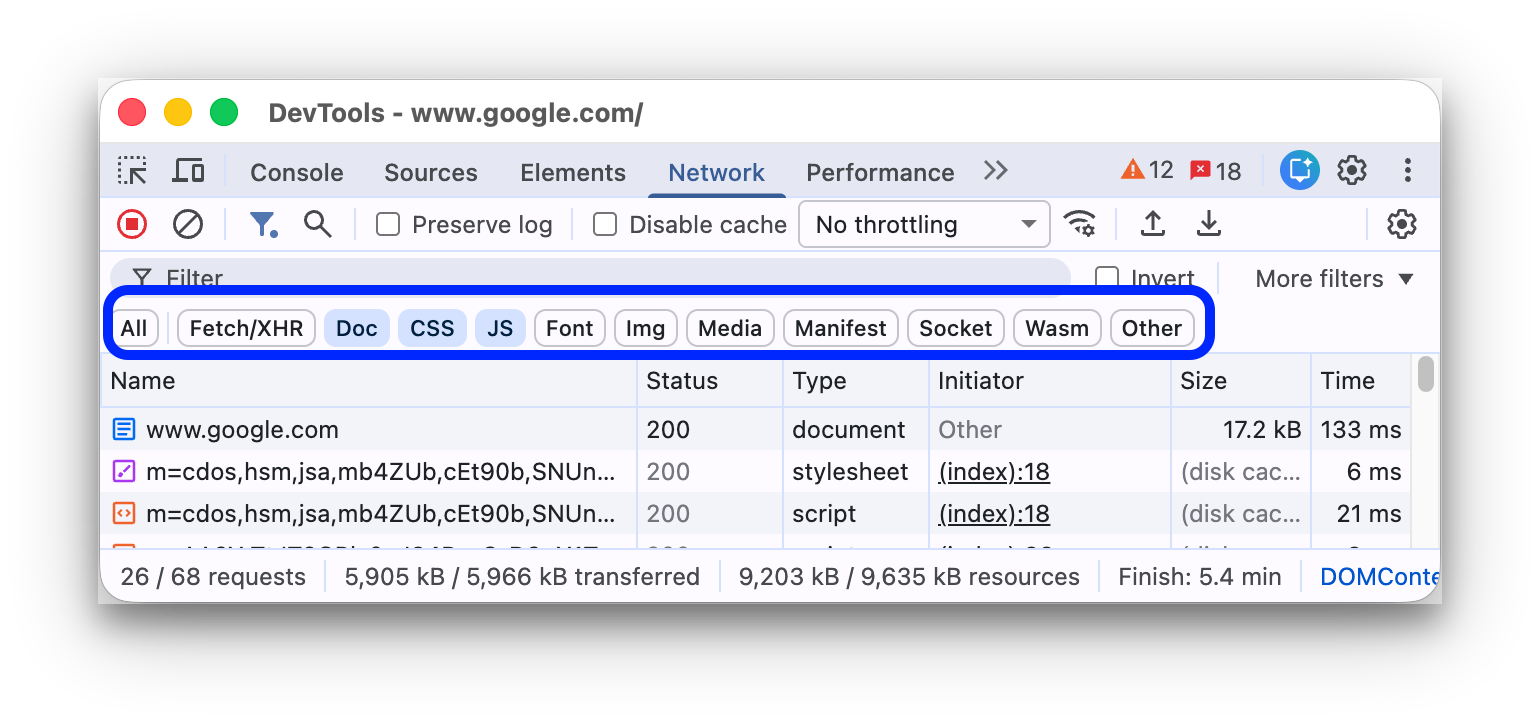
Kayce Basques and Sofia Emelianova / Chrome DevTools documentation, CC BY 4.0. Unchanged reference screenshot illustrating resource-type filters, rather than a log of your browsing.
Look for a new request for the main page itself. A Doc entry for an embedded frame is not necessarily a reload of the whole tab. Fetch/XHR updates can change content without replacing the main document. These observations help describe the behavior; they do not automatically identify the faulty script or account service.
Keep this separate from your idle-tab test and close Developer tools before repeating normal background use. You do not need to paste console scripts or export a network archive for this check.
Update Chrome, then compare a separate profile
Save your work, open Help > About Google Chrome, and apply any available update. Relaunch if requested. Google's update instructions explain that the version check happens on that page. Record the resulting version so a support report describes the installation actually tested.
A restart can clear a temporary problem, but one successful load immediately afterward is not a comparable long-work-session test. Return to the page and workload that normally trigger the fault.
If a profile-specific problem remains possible, add a separate Chrome profile through the profile menu, following Google's profile guide. Keep the original profile. Where permitted, test before bringing across all its extensions and browser settings; signing into a website is a separate choice from signing Chrome into an account.
A different result points to differences between the environments, not automatically a damaged profile database. Compare extensions, site data, account state, and performance settings. Do not delete the original profile to test that hypothesis: Google warns that removing it erases its local bookmarks, history, passwords, and other settings.
Choose a repair with a clear scope
If focused comparisons have not resolved the issue, Google's reset instructions describe Settings > Reset settings > Restore settings to their original defaults. Review the effects first. Resetting changes extensions and site-related settings, while preserving saved bookmarks and passwords; it is not equivalent to creating a completely fresh profile.
| Proposed change | What to preserve or record first | How to evaluate it |
|---|---|---|
| Add one active-site exception | Original rule and affected host | Repeat the usual idle-return scenario |
| Disable an optional extension | Its name and previous enabled state | Repeat the same page workflow, then isolate candidates |
| Delete one site's data | Drafts, exports, and sign-in access | Sign back in and repeat the previously failing task |
| Reset browser settings | Important custom settings and unfinished work | Recheck the original symptom before restoring customizations |
Make one change at a time. If you reset settings, remove cookies, switch profiles, and alter memory controls together, an improved result cannot tell you which action mattered. Keeping that distinction makes the repair easier to maintain when you resume normal browsing.
Phones and managed browsers need different checks
The desktop Performance controls described here are not available on Android and iOS in the same way. Do not follow a desktop flags tutorial expecting to find the same Memory Saver switch on your phone.
On Android, the operating system can reclaim memory by stopping background processes. That makes background resource pressure one possibility after switching apps, rather than proof that Chrome itself is faulty. Update the app, reduce unnecessary concurrent work for a comparison, and record whether the reload follows an app switch or also occurs while reading.
For a work or school browser, check the Chrome menu for Managed by your organization, or inspect chrome://management. Google's management guide explains that administrators can enforce settings and install extensions. If a relevant control is locked, give IT your observations instead of attempting to remove the policy.
Verify the result under the original conditions
Return to the same page, account, workload, and approximate idle circumstances that produced the problem. Confirm both that unwanted reloads have stopped during the observation and that the site still works: editing, saving, sign-in, notifications, or live updates may matter to your task.
Keep an honest result record: Chrome version, site host, active or background state, one setting changed, whether an error appeared, and what happened afterward. If a relevant discard count changed, record it alongside the observed reload rather than using it as a complete explanation.
If the issue remains, report that record to the website or browser support team, noting whether unrelated sites and a separate profile behave differently. Include the exact error and repeatable steps, while keeping private account contents out of any public screenshot. That gives the next person a specific failure to investigate and leaves your original work and profile available.
You may also like
 Technology & How-To
 USB Drive Empty but Space Used? Find the Missing Data Safely
Find why an accessible USB looks empty while space remains occupied, using visibility checks, Trash review and device-versus-volume…
 Technology & How-To
 Windows 11 Clipboard History Not Working? Find What Failed
Separate Windows clipboard history failures from ordinary paste, app restrictions, cloud sync and Remote Desktop with a two-item…
 Technology & How-To
 Google Drive for Desktop Not Syncing? Find the Cause Without Losing Files
Diagnose Google Drive desktop sync failures with a two-direction file test, current interface guidance, and recovery steps that…