
Why Your Laptop Fan Runs Constantly and How to Fix It
Diagnose a laptop fan that runs constantly with a repeatable Windows 11 and Mac troubleshooting workflow, safe cooling fixes and clear repair warning signs.
Contents
- First: Is the fan behavior normal or a warning sign?
- Quick diagnosis: match the symptom to the likely cause
- Step 1: Give the laptop proper airflow
- Step 2: Find background CPU usage in Windows 11
- Step 3: Check CPU activity on a MacBook
- Step 4: Check power and performance settings
- Windows 11
- macOS
- Step 5: Clean external vents safely
- Step 6: Install trusted updates and run diagnostics
- Step 7: Check for malware without disabling security
- Step 8: Understand heat, charging, and external monitors
- A practical 15-minute test to isolate the cause
- When thermal paste or fan replacement makes sense
- When to stop troubleshooting and seek repair
- The diagnostic principle: heat generation versus heat removal
- Build a repeatable baseline before changing settings
- A symptom-to-action decision guide
- Windows 11: investigate the process before ending it
- Understand browser and video-call workloads
- Reduce unwanted startup work without breaking protection
- Windows power modes: a reversible A/B comparison
- MacBook: separate Intel fan models from fanless Apple silicon models
- Charging, USB-C docks and external displays: isolate the hidden load
- When the fan keeps running after you close the lid
- Safe vent cleaning: what to do and what to avoid
- BIOS, firmware and thermal drivers: update safely
- Hardware diagnostics and the meaning of a passing test
- Thermal paste, heatsinks and fan replacement: avoid premature repairs
- A practical troubleshooting worksheet you can reuse
- What not to do when a laptop fan is loud
- How this guide goes beyond a generic fan-noise checklist
- Bottom line
- Official sources and further reading
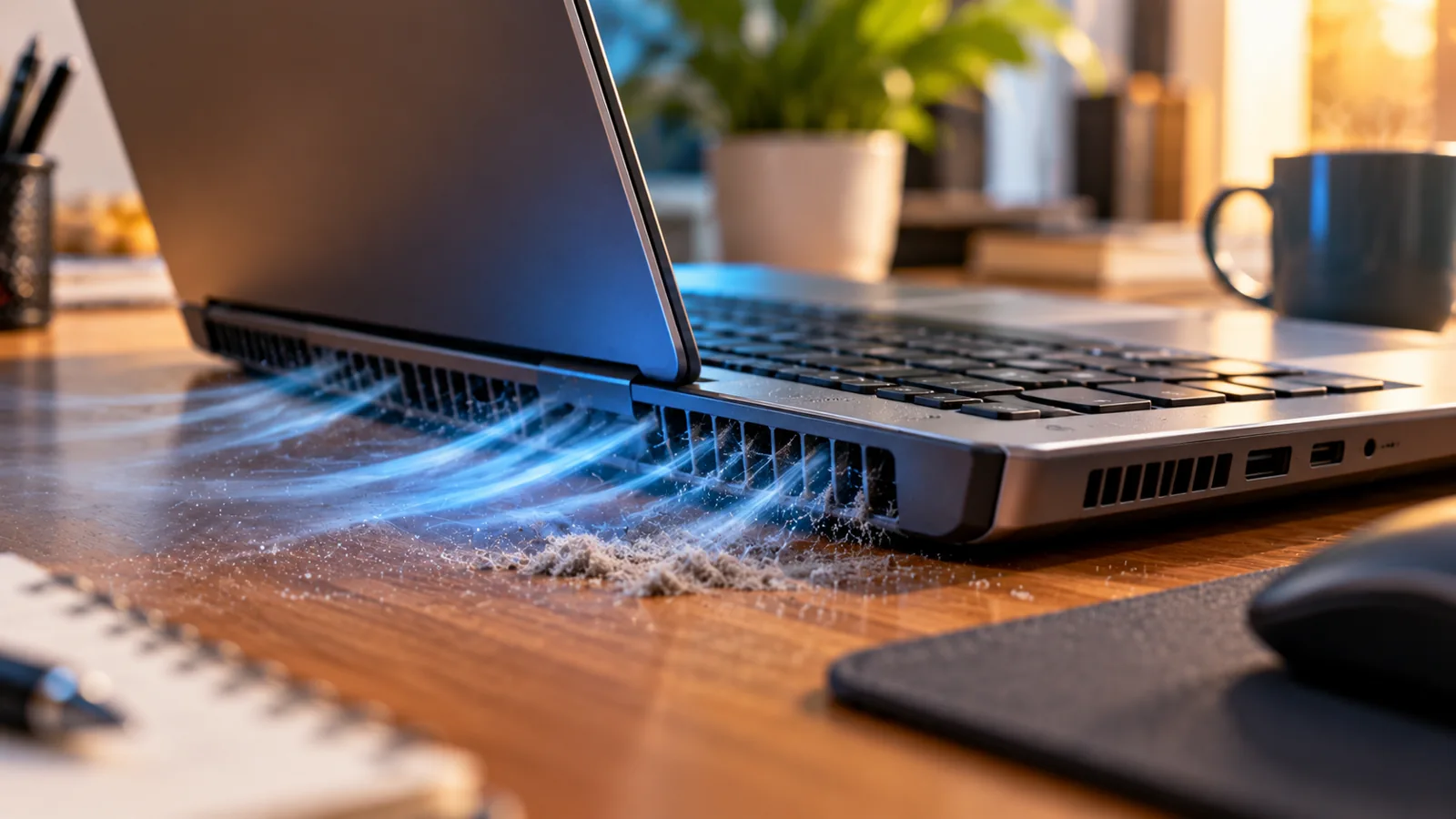
A laptop fan that runs constantly is not automatically broken. The cooling system may be responding to a busy processor, background updates, charging, or warm surroundings. But a fan that races while the computer is idle—especially with heat, slowdowns, or rattling—deserves investigation. This practical guide starts with safe checks and works toward hardware diagnosis without risky shortcuts.
First: Is the fan behavior normal or a warning sign?
- Usually normal: fan becomes louder during gaming, video calls, video editing, operating-system updates, or other sustained tasks.
- Investigate: fan stays unusually loud after the laptop has been idle for 10–15 minutes on a hard desk.
- Urgent: repeated unexpected shutdowns, burning smell, a swollen case or battery, or a device too hot to touch. Shut down and seek professional help.
Quick diagnosis: match the symptom to the likely cause
- Loud only while gaming: heavy CPU/GPU load and possibly an aggressive performance profile.
- Loud immediately after startup: login items, indexing, updates, or security scans.
- Loud while idle: stuck process, blocked airflow, firmware settings, or cooling fault.
- Grinding, ticking, or rattling: possible worn fan bearing or obstruction; arrange inspection.
- Hot and sluggish: possible thermal throttling; investigate airflow and workload.
Step 1: Give the laptop proper airflow
Move it from a bed, blanket, cushion, or your lap to a clean, firm desk. Locate intake and exhaust openings in the manufacturer manual and leave them unobstructed. Keep the device out of direct sunlight and away from heaters. Wait several minutes to see whether fan speed falls. A cooling stand may improve clearance, but it will not fix a blocked heatsink or defective fan.
Step 2: Find background CPU usage in Windows 11
- Press Ctrl + Shift + Esc to open Task Manager.
- Choose Processes, then click the CPU column to sort by usage.
- Observe usage for a few minutes after closing demanding apps. Check whether Windows Update, browser tabs, antivirus scans, or another program is active.
- Close or update an unnecessary app normally; do not end unfamiliar Windows system processes.
- Open Startup apps in Task Manager and disable only nonessential programs that you recognize, then restart.
CPU percentages are diagnostic clues, not a universal threshold. A brief spike is normal; sustained high usage while supposedly idle points to work occurring in the background. Do not disable antivirus protection to make the fan quieter.
Step 3: Check CPU activity on a MacBook
- Open Applications → Utilities → Activity Monitor.
- Select CPU and sort by % CPU.
- Identify apps doing substantial work, such as video editors, browser processes, photo analysis, or indexing.
- Quit a nonresponsive app using its normal menu or Force Quit only if necessary; save work first.
- Review System Settings → General → Login Items & Extensions and remove unnecessary background items.
Fanless MacBook models do not contain a mechanical cooling fan. If you hear buzzing from a fanless model, investigate another source of noise rather than attempting fan repair.
Step 4: Check power and performance settings
Windows 11
Go to Settings → System → Power & battery and review the available power mode. Try Balanced or a less performance-focused option, if supported. Manufacturer utilities such as Dell Optimizer, Lenovo Vantage, or MyASUS may offer Quiet, Balanced, or Performance thermal profiles; names vary by model. Avoid forcing a fan to stop or applying unverified third-party fan-control utilities.
macOS
Check System Settings → Battery for available energy settings. Some Mac models support Low Power Mode, which can reduce energy use and cooling demand. Options depend on the model and macOS version.
Step 5: Clean external vents safely
- Shut down the laptop, unplug power, and let it cool.
- Inspect vents using good lighting. Remove loose surface dust with a soft, dry brush where appropriate.
- Follow the manufacturer’s cleaning instructions before using compressed air; avoid forcing debris deeper or overspinning fan blades.
- Do not pour liquids into vents, insert metal objects, or use a household vacuum against internal electronics.
- If thick dust remains inside, use an authorized technician—especially if the device is under warranty.
Step 6: Install trusted updates and run diagnostics
Install pending operating-system updates and restart. For firmware, chipset, thermal-control drivers, and BIOS/UEFI updates, use the exact laptop model on the manufacturer’s official support site. Connect reliable power and follow the vendor’s instructions; a failed firmware update can prevent startup. On supported Dell laptops, the F12 → Diagnostics preboot test can check fan hardware. Other brands provide different built-in diagnostic tools.
Step 7: Check for malware without disabling security
If a mysterious process repeatedly consumes CPU or browser pop-ups appear, run the built-in Windows Security scan or another trusted security tool. Malware is only one possible cause of fan noise; do not assume infection from noise alone. Avoid so-called fan booster or instant-cooling download sites.
Step 8: Understand heat, charging, and external monitors
Charging can increase internal heat, and some laptops switch to higher-performance modes when plugged in. High-resolution external displays, multiple monitors, games, and video calls may activate a discrete GPU, increasing fan speed. Compare fan behavior under the same light workload on battery and AC power, without intentionally draining the battery to zero.
A practical 15-minute test to isolate the cause
- Minute 0–3: Save work, restart, place the laptop on a hard surface, and note whether the fan is already loud.
- Minute 3–6: Open Task Manager or Activity Monitor; record the busiest processes.
- Minute 6–9: Close unnecessary apps and browser tabs; observe whether CPU load and noise fall.
- Minute 9–12: Switch from a performance profile to Balanced or Quiet, if supported.
- Minute 12–15: Inspect external vents and check for updates. If fan noise persists while idle, arrange model-specific diagnostics.
How to interpret the test: Noise falling after closing an app suggests a workload issue. Noise improving after restoring airflow suggests a ventilation issue. Persistent loud noise with low reported CPU usage is not proof of a broken fan: GPU load, sensor readings, firmware, and internal dust may still be involved.
When thermal paste or fan replacement makes sense
Thermal paste deterioration, clogged internal fins, damaged fan bearings, or a loose heatsink can cause persistent heat problems. These repairs involve disassembly and are not first-line fixes. Consult the manufacturer or a qualified repair technician, particularly for thin laptops, sealed batteries, or warranty-covered devices. Do not disconnect the fan to silence it.
When to stop troubleshooting and seek repair
- The fan makes scraping or grinding noises.
- The device shuts down unexpectedly, repeatedly overheats, or reports a thermal/fan diagnostic error.
- The battery or chassis looks swollen, or there is a burning or chemical smell: shut down, unplug if safe, and stop using it.
- The fan remains at maximum speed during light use after software, airflow, and official diagnostic checks.
The diagnostic principle: heat generation versus heat removal
A laptop fan responds to a thermal control system, not simply to the number of windows on your screen. The processor, graphics chip, charging circuitry and surrounding components generate heat; the heatsink, heat pipes, vents and fans move it away. When either heat production increases or cooling becomes less effective, the same fan may run harder. That is why reducing CPU load helps one computer while cleaning a clogged vent helps another.
A useful distinction is fan duty versus fan condition. A healthy fan can run almost continuously during video exports, software installation or gaming. Conversely, a failing fan may make a scraping or rattling sound even at low speed. A hot laptop with little airflow is a different problem from a cool laptop with a steady, quiet airflow sound. Do not assume all three require a new fan.
Build a repeatable baseline before changing settings
The following is a reader-performed diagnostic protocol, not a benchmark we have run on a specific machine. Its purpose is to compare the same laptop under controlled conditions, so one change can be assessed at a time. A short observation is not proof that a component is healthy; persistent symptoms deserve additional checks.
- Record the laptop model, operating system, whether the charger is connected, room conditions and whether an external display or dock is attached.
- Place the computer on a firm desk with unobstructed intake and exhaust openings. Save work, then restart.
- After sign-in, allow ordinary startup activity to settle for several minutes. Do not judge fan speed during the first moments of boot.
- Observe the sound: smooth rushing air, pulsing airflow, buzzing, grinding or clicking. Note whether warm air is leaving the exhaust.
- Open the operating-system activity tool, sort by CPU use and note the top three processes. Repeat after closing unnecessary applications.
- Change only one variable—such as unplugging a dock, switching to Balanced mode or moving to a cooler room—then compare under similar conditions.
You can keep a simple log: condition / top CPU process / fan sound / airflow / temperature warning / outcome. Do not treat arbitrary CPU temperature numbers as universal pass-or-fail limits. Different processors, firmware policies and sensor locations behave differently, and third-party readings may be incomplete or mislabeled.
A symptom-to-action decision guide
- Fan loud immediately after login, CPU busy: investigate startup applications, cloud synchronization, antivirus scans and update activity first.
- Fan loud only while gaming, exporting or video calling: consider the behavior potentially normal; improve airflow and review graphics/performance settings.
- Fan loud while apparently idle, CPU low: inspect airflow, ambient temperature, charger/dock effects and manufacturer thermal profiles; check whether GPU or background tasks are active.
- Hot chassis, weak exhaust airflow: stop heavy workloads, move to a hard surface and inspect vents. Persistent symptoms warrant a cooling-system inspection.
- Grinding, scraping or repeated clicking: suspect a physical fan or bearing issue rather than a Windows power setting. Arrange professional diagnosis.
- Unexpected shutdown, burning smell, battery swelling or severe heat: stop using the laptop, disconnect power if safe and seek qualified service. Do not keep stress-testing it.
Windows 11: investigate the process before ending it
Press Ctrl + Shift + Esc to open Task Manager. In Processes, select the CPU column to sort usage. Watch the list for a few minutes rather than reacting to a single spike. A browser tab, meeting app, file indexer, game launcher, synchronization client or system update may explain a burst of fan noise. Microsoft documents Task Manager as the built-in way to examine CPU, memory, disk and network activity: Windows system configuration tools.
If a recognizable application is consuming resources, save your work, close its heavy task and see whether CPU use and fan noise settle. If a process is unfamiliar, identify its publisher and file location before taking action. Do not terminate security software, system services or Windows Update merely to make the fan quieter. Some system processes perform essential maintenance and may restart automatically.
Understand browser and video-call workloads
A browser can appear idle while background tabs play media, run scripts or keep video meetings alive. In a controlled comparison, close unused tabs, pause video playback and exit a conferencing app completely. If noise falls, reopen one workload at a time. During calls, virtual backgrounds, screen sharing, high-resolution video and multiple monitors may increase CPU or GPU demand. A fan that speeds up only under these conditions is not by itself evidence of a hardware defect.
Reduce unwanted startup work without breaking protection
Open Settings → Apps → Startup or Task Manager → Startup apps. Disable automatic launching only for optional programs you recognize, such as nonessential launchers or messaging clients. Microsoft explains both interfaces in Configure startup applications. Restart, then check whether the fan settles sooner. This changes startup behavior, not whether the application can be opened later.
Windows power modes: a reversible A/B comparison
Go to Settings → System → Power & battery → Power mode. Compare Balanced with Best power efficiency during the same light task. Some devices show separate settings for plugged-in and battery operation. Microsoft confirms that the available modes trade off battery life and performance: Change the power mode. The menu can differ by manufacturer and custom power plan.
A quieter result in an efficiency-oriented mode suggests the fan responds to workload or power policy; it does not prove the heatsink is clean. Avoid undocumented registry tweaks, disabling thermal protection or forcing the fan off. Some laptops also have a manufacturer app with Quiet, Balanced and Performance thermal presets; check the official manual because these profiles may control both CPU power and fan response.
MacBook: separate Intel fan models from fanless Apple silicon models
Not every MacBook contains a fan. Some Apple silicon MacBook Air models use passive cooling, so an apparent “fan noise” on those devices must come from another source, such as a connected accessory or external cooling pad. Identify the exact model using Apple menu → About This Mac before following advice about fan replacement or resets.
For a Mac that does have fans, open Applications → Utilities → Activity Monitor → CPU, sort by % CPU and look for sustained demand. Apple explains the CPU pane in its Activity Monitor guide. A high percentage for one process can reflect intensive work; interpretation varies across multicore processors, so compare activity and symptoms rather than assuming a single universal threshold.
Spotlight indexing after a data migration, video rendering, graphics-intensive apps and high room temperatures can legitimately increase fan speed. Apple recommends a hard, flat surface and unobstructed vents. On Apple silicon Macs with fans, Apple suggests closing and reopening the lid or restarting when fans run fast unexpectedly; for applicable Intel-based Macs, it documents an SMC reset. Use the model-specific instructions rather than generic reset key combinations: Apple fan and fan-noise guidance.
Charging, USB-C docks and external displays: isolate the hidden load
Some owners notice that the fan becomes louder as soon as they plug in power, connect a monitor or attach a USB-C dock. This observation alone cannot establish a fault. Charging creates heat, and external displays or high-resolution video can increase graphics work. Manufacturer performance policies may also change when the laptop is plugged in.
- Compare the same light workload on battery and with the original or manufacturer-approved charger.
- Disconnect nonessential USB-C devices, docks and external displays one at a time; do not interrupt active file transfers.
- Check whether a connected monitor is driving a game, animated wallpaper or high-resolution video.
- If a specific dock or charger correlates with overheating, verify its compatibility and firmware with the device manufacturer.
- Do not continue using a damaged, unusually hot or visibly swollen charger or battery.
A change after unplugging a dock is a clue, not a diagnosis. The cause could be extra graphics work, power delivery, firmware or an accessory problem. Record the condition and consult the manufacturer’s compatibility documentation before buying a replacement.
When the fan keeps running after you close the lid
A laptop with a dark screen is not necessarily shut down. Sleep behavior depends on hardware, operating-system configuration and connected devices. On Windows, review Settings → System → Power & battery and the screen/sleep timeouts. Microsoft distinguishes Sleep, Hibernate and full shutdown in Shut down, sleep, or hibernate.
If the laptop is warm in a bag, remove it, place it on a ventilated surface and allow it to cool. For travel, use a verified shutdown or Hibernate when supported rather than assuming that closing the lid has stopped all activity. A persistent fan during supposed sleep should prompt checks of the lid action, updates, wake events and manufacturer firmware. Do not put a running, hot laptop into a tightly enclosed bag.
Safe vent cleaning: what to do and what to avoid
Dust can restrict airflow through external grilles and internal heatsink fins. Turn the laptop off, unplug the adapter and disconnect accessories before cleaning. Follow the manufacturer’s model-specific maintenance instructions. Use short, controlled bursts of appropriate compressed air only if the manufacturer permits them, keeping the nozzle at the recommended distance. Avoid liquid cleaners entering vents, household vacuum nozzles and inserting objects through grilles.
Do not open a laptop just because a fan is loud. Internal disassembly may expose a battery, fragile ribbon cables or warranty seals. If the device remains hot with poor airflow after external cleaning, a technician may need to inspect the heatsink, fan assembly or thermal interface. A cooling pad may improve external airflow on some designs, but it cannot repair a failed fan or a blocked internal heatsink.
BIOS, firmware and thermal drivers: update safely
A manufacturer update may change fan curves, sensor interpretation, charging behavior or thermal management. First identify the exact model and installed firmware version. Then use the manufacturer’s official support app or support page; install only updates applicable to that model. Keep the laptop on reliable power and follow the vendor’s instructions, especially during BIOS or firmware installation.
Do not download a “fan booster,” unofficial BIOS image or random driver bundle from a search advertisement. If a problem started immediately after a firmware update, note the update version and date and consult the vendor before attempting a rollback; not all systems support one safely. A BIOS update is a targeted maintenance step, not a guaranteed fix for physical cooling damage.
Hardware diagnostics and the meaning of a passing test
Many laptop manufacturers provide built-in diagnostics. For supported Dell systems, restart and press F12 at the Dell logo, choose Diagnostics and follow the available fan tests. Dell notes that fans may run at high speed during preboot diagnostics by design; that behavior alone does not mean the test failed. Record any error and validation code: Dell overheating and fan diagnostic guide.
A passed fan test shows that the specific tested function worked under test conditions. It does not rule out intermittent noise, dust accumulation, a faulty sensor, a poor thermal contact or an issue that appears only under sustained load. Conversely, a clear fan error, physical grinding or repeated thermal shutdown deserves professional attention even if an app reports low CPU usage.
Thermal paste, heatsinks and fan replacement: avoid premature repairs
Thermal interface material helps transfer heat from a chip to the cooling assembly. Over time, cooling performance can deteriorate for several reasons, including loose mounting, damaged heat pipes, obstructed fins or degraded thermal contact. However, constant fan operation alone is not evidence that thermal paste must be replaced. Opening the system unnecessarily can create new problems.
A qualified technician should evaluate sustained overheating after software and airflow causes have been excluded. Ask for the diagnostic finding, the condition of the fan and heatsink, and whether the proposed repair is supported by the model’s service manual. For older machines, compare the quoted repair cost with age, performance and replacement value. If the fan makes mechanical noise, replacing paste without addressing the fan will not solve the root cause.
A practical troubleshooting worksheet you can reuse
- Case A — loud after startup: log the busiest process, wait for legitimate update activity, review optional startup apps, then retest after reboot.
- Case B — quiet on battery, loud on charger: compare identical tasks, check power mode and manufacturer thermal profile, then inspect charger compatibility.
- Case C — quiet alone, loud with monitor: disconnect the monitor and dock separately; note whether graphics-intensive apps are running.
- Case D — loud with low CPU: inspect airflow and room temperature, consider GPU or charging heat, and run manufacturer diagnostics.
- Case E — loud mechanical rattle: stop stress testing, back up data and arrange a fan inspection.
- Case F — fan runs in bag or with lid closed: check sleep/hibernate configuration and use a full shutdown for transport if necessary.
For each case, record what changed and what did not. If two variables change together, repeat the comparison with only one altered variable. This method is more informative than trying a dozen random “quiet fan” utilities. It also gives a repair technician useful evidence without claiming an unperformed lab test.
What not to do when a laptop fan is loud
- Do not block the vents or tape over an intake to reduce noise.
- Do not disable antivirus protection or terminate unfamiliar system processes indiscriminately.
- Do not install unverified fan-control utilities that override safety limits.
- Do not flash firmware intended for another model.
- Do not place a hot, operating laptop in a closed bag.
- Do not assume a temperature reported by one third-party tool is accurate for every sensor.
- Do not replace thermal paste or the fan without a plausible diagnosis and appropriate skills.
How this guide goes beyond a generic fan-noise checklist
Most basic guides list cleaning vents, closing apps and changing power settings. Those steps are useful but do not tell the reader which problem to investigate first. The workflow above adds a reproducible baseline, a symptom-to-action decision guide, separate charging and external-display comparisons, sleep-state troubleshooting, distinctions between fanless and actively cooled MacBooks, and clear boundaries for hardware repair. These are diagnostic methods for readers to perform, not claims that we tested particular laptops.
Bottom line
Start with workload and airflow, then check power settings, trusted updates, and diagnostics. A constantly spinning fan can be a normal response to heat; the goal is not to stop cooling but to find and remove unnecessary heat sources. Hardware symptoms and safety warnings require professional attention.
Official sources and further reading
You may also like
 Technology & How-To
 USB Drive Empty but Space Used? Find the Missing Data Safely
Find why an accessible USB looks empty while space remains occupied, using visibility checks, Trash review and device-versus-volume…
 Technology & How-To
 Windows 11 Clipboard History Not Working? Find What Failed
Separate Windows clipboard history failures from ordinary paste, app restrictions, cloud sync and Remote Desktop with a two-item…
 Technology & How-To
 Chrome Keeps Reloading Tabs? Stop the Right Kind of Refresh
Find why Chrome tabs reload with targeted Memory Saver settings, controlled comparisons, extension checks and diagnostics that protect…