
USB Drive Empty but Space Used? Find the Missing Data Safely
Find why an accessible USB looks empty while space remains occupied, using visibility checks, Trash review and device-versus-volume measurements.
Contents
- Choose the route that matches the evidence
- Preserve missing data before trying to free space
- Check hidden files in Windows 11
- Optional: list hidden and system entries without changing them
- Inspect the correct Mac volume and its contents
- Review deleted items before emptying them
- Compare the physical USB device with the opened partition
- Windows: inspect Disk Management
- Mac: show the full device structure
- Understand what attribute commands really change
- Keep file-system repair separate from recovery
- If the files still do not appear
- Check capacity differences without inventing missing files
- A failed large-file copy may be a different problem
- Verify the outcome before reusing the USB

If your USB drive looks empty but shows used space, first confirm that you opened the correct volume, then check hidden files, deleted items, and the drive's partition layout. Avoid formatting or running repair commands while important files are missing. A storage meter showing occupied space does not prove that your documents are intact or recoverable.
There are two different goals: finding files you still need, and reclaiming space from files you intentionally deleted. Decide which applies before clearing anything. A step that frees space can also remove the very items you wanted to recover.
This guide focuses on a USB drive that is detected and opens in Windows or macOS. If it asks to be formatted, shows RAW or No Media, or cannot be opened at all, use our USB formatting-prompt recovery guide for that different condition.
Choose the route that matches the evidence
Note the drive's label, capacity, file system, used space, free space, and current letter or mount location. Open the drive itself rather than a recent-folder shortcut or a search result. Check that the address belongs to the removable device you intended to inspect.
| What you observe | What to investigate first | What to avoid for now |
|---|---|---|
| The volume opens, but its file list is empty | Hidden items, the exact folder, and deleted items | Formatting or deleting unfamiliar system folders |
| A small volume opens on a much larger USB device | Other partitions or unallocated capacity | Assuming the difference is occupied by files in that volume |
| Space stayed occupied after intentional deletion | Trash or Recycle Bin retention, where supported | Emptying everything before reviewing needed items |
| One large file will not copy despite free space | Its size and the destination file system | Treating every failed copy as a full-drive problem |
| Files are missing and reads produce errors | Preservation and recovery options | Repeated repairs or test writes |
| The drive disconnects or reports zero capacity | Connection or device failure | Repeated full scans as a routine visibility check |
Use these as starting points, not guarantees. Hidden content, a damaged directory, and a partition mismatch can look similar in a file browser. The next checks separate observations that are often bundled together as “USB full but empty.”
Preserve missing data before trying to free space
If wanted files disappeared, stop adding data to the USB. Install recovery software somewhere else and save recovered files to another healthy storage device. Microsoft's Windows File Recovery guidance explains that new activity can overwrite space left by deleted files.
If files become visible and the drive reads normally, copy the important ones to a separate device before experimenting. Open the copies and inspect their contents. A folder with the expected name is not enough evidence that a document or video survived intact.
If the device repeatedly disconnects, returns I/O errors, or becomes unreadable during copying, stop routine troubleshooting. For irreplaceable data, a recovery specialist can help choose an imaging or recovery approach before further access. Even a read operation is not a reason to keep stressing an unstable device.
The viewing commands below do not themselves repair the USB or change file attributes. However, a normal Windows or Mac connection is not a forensic write-blocking setup. If preserving the exact original state matters, arrange the appropriate recovery process before ordinary mounting and browsing.
Check hidden files in Windows 11
Open the USB in File Explorer, clear any search filter, and choose View > Show > Hidden items. Microsoft documents this setting in its File Explorer guide. Inspect the root and any recognizable folders before changing attributes.
If your files appear with faded icons, copy the ones you need to another device and verify the copies. Their appearance explains the visibility issue, but it does not tell you why they became hidden or establish that the drive is healthy.
Hidden files alone are not evidence of malware. Conversely, an unexpected shortcut or executable is not a substitute for your missing documents. Do not launch unfamiliar programs in the hope that they will reveal the folders.
Optional: list hidden and system entries without changing them
Confirm the USB's current letter in File Explorer. Open Command Prompt, not a different shell, and use the following example only after replacing E: with the actual USB letter:
dir E:\ /a /pMicrosoft's dir reference explains that /a includes hidden and system entries, while /p pauses the display a screen at a time. This lists the root directory; it does not recursively total every folder or reclaim space.
An unfamiliar managed folder or an Access denied message is a clue to record. It is not permission to delete the folder or take ownership of the whole device. Copy recognizable personal files through their normal locations rather than altering every protected entry.
Inspect the correct Mac volume and its contents
Select the external volume in Finder and choose File > Get Info. Record its format and capacity. Apple's external-drive guidance documents that location and explains that a format such as NTFS can be readable on a Mac without being writable. A write restriction is different from an empty directory.
For an optional listing that includes dot-prefixed names, open Terminal and use the actual volume path:
ls -la "/Volumes/Your USB Name"Replace the example name with the mounted volume's real name, keeping quotes around a path containing spaces. Apple's published ls manual source documents the all-entry and long-listing options. The command lists entries; it does not delete them, change permissions, or calculate all occupied space.
If the path is wrong or access is denied, record that result rather than adding a broad administrator command. The absence of visible personal files in one listing still does not establish what occupies the rest of the volume.
Review deleted items before emptying them
If the drive was used on a Mac, connect it and inspect Finder's Trash for recognizable items from the USB. Restore wanted files before considering permanent deletion. Apple's Trash instructions explain reviewing the Trash and deleting an individual item, rather than emptying everything indiscriminately.
Moving a file to Trash and permanently removing it are different stages. Apple also notes in its storage guidance that space is not made available merely by moving a file to Trash. After deliberately removing only reviewed, unwanted items, recheck the affected external volume's figures.
On Windows, inspect the Recycle Bin for the files you intentionally deleted, where that deletion method and device support retention. Microsoft's storage-cleanup guidance distinguishes deleting files from emptying the Recycle Bin. Do not assume every removable-drive deletion goes there.
Restore or copy needed material first. A permanent deletion that makes the storage meter fall is not a successful outcome if you also removed the only recoverable copy of a wanted file.
Compare the physical USB device with the opened partition
A device can contain more than one partition, and a file browser normally shows a mounted volume rather than every byte of the physical device. Record these measurements separately:
| Measurement | What it describes | What it cannot establish by itself |
|---|---|---|
| Physical-device capacity | The size reported for the entire connected device | That every reported byte is reliable or belongs to one volume |
| Selected-volume capacity | The space assigned to the volume you opened | That all remaining device capacity contains missing files |
| Used and free space in that volume | The file system's accounting for that volume | Which specific files occupy it or whether they are intact |
For example, an 8 GB volume on a larger device does not make the rest of the device “used files” inside that volume. Other partitions or unallocated space require a different explanation. This is a hypothetical comparison, not a measurement of your USB.
Windows: inspect Disk Management
Right-click Start > Disk Management. Locate the removable device by its capacity and identity, then compare its partitions with the volume letter you opened. Microsoft's Disk Management overview explains the device and partition display.
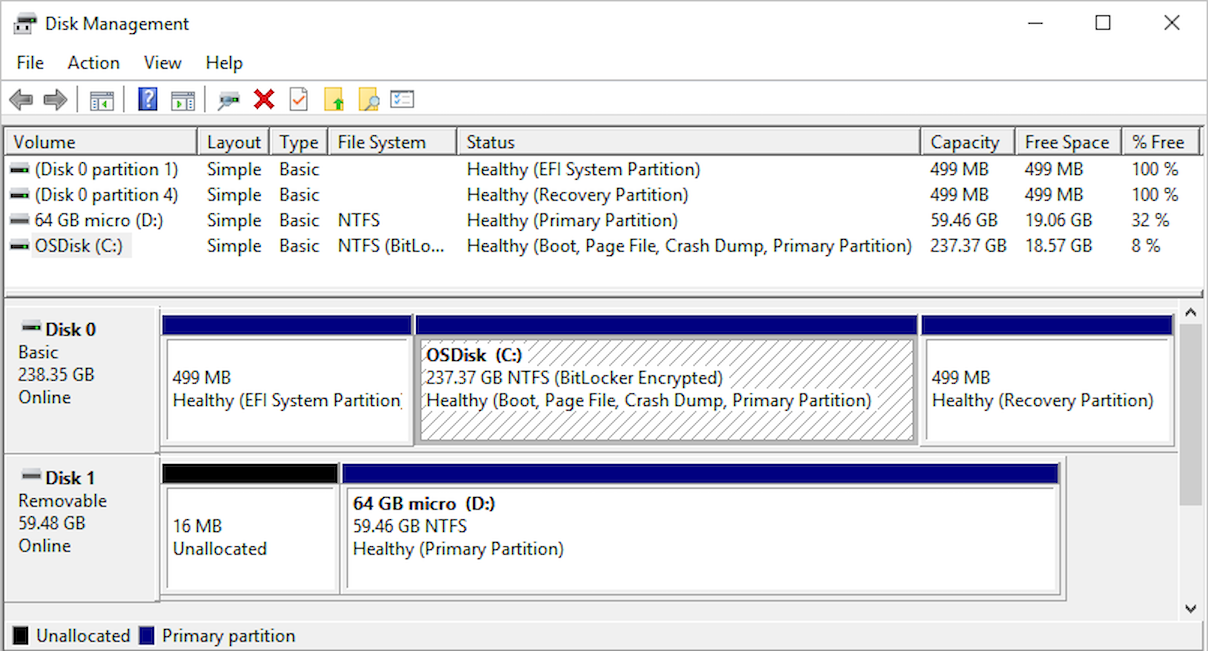
Official Microsoft Disk Management reference. Its disks, letters, and capacity figures are examples, not readings from your USB. Used with permission from Microsoft.
Inspect without choosing Initialize, New Simple Volume, Delete Volume, or Format while needed data is missing. Note the file system and any RAW, unallocated, or unusual-capacity result. A Healthy label does not verify the contents of every file.
If the device is absent from the browser or cannot be identified reliably, our external-drive detection guide for Windows and Mac addresses that earlier stage.
Mac: show the full device structure
Open Applications > Utilities > Disk Utility, then choose View > Show All Devices. Apple's view-options guide explains the distinction between showing only volumes and displaying the device, containers, and volumes beneath it.
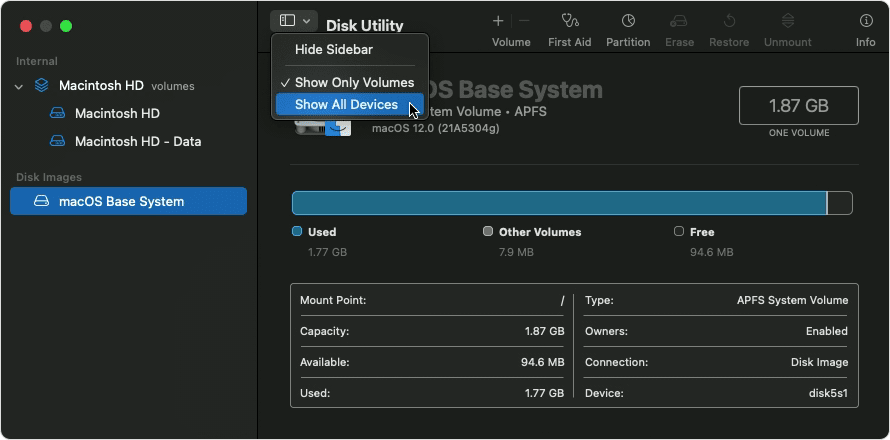
Apple's published Disk Utility reference uses an older macOS Recovery screen to demonstrate the view control. For an ordinary external USB inspection, open Disk Utility normally; do not select the internal disk shown in this example.
Select your actual external device and its volume separately, recording their figures. On APFS, volumes can share space within a container, as Apple's file-system guide explains. An empty-looking volume is therefore not necessarily an empty container.
Understand what attribute commands really change
Many tutorials recommend a recursive command that removes hidden, system, and read-only attributes from everything on the USB. Microsoft's attrib documentation makes the distinction clear: displaying attributes and changing them are different operations.
Removing attributes across a tree is not a read-only listing. It can change entries unrelated to your missing files, and it does not repair a damaged directory or reconstruct deleted content. Administrator privileges do not make that a universal recovery method.
If you have verified backups and identify a particular personal folder whose attributes were intentionally changed, a targeted correction may be appropriate. First establish that the folder is the one you want. Avoid a whole-drive attribute reset simply because the storage meter looks wrong.
This distinction matters even when a command does not intentionally delete file contents: a visibility adjustment still changes file-system metadata. Diagnose first so the change has a clear purpose.
Keep file-system repair separate from recovery
Microsoft's CHKDSK reference says that repair switches such as /f modify the volume, and /r includes repair behavior. It also notes that repairs to FAT file systems can change the allocation table and sometimes cause data loss.
That does not mean CHKDSK is never useful. It means repairing a file system and preserving the best opportunity to recover missing files are different goals. Do not begin with repair switches when the USB contains the only copy of important data.
On a Mac, First Aid is also a checking and repair tool, rather than a file-recovery browser. Apple's Disk Utility repair instructions begin with having a current backup. If repair is appropriate after data preservation, follow Apple's order through volumes, containers where present, and the device.
Likewise, Erase, Format, Initialize, and partition-creation operations are not ways to reveal hidden documents. Use those only after needed data has been recovered or you have decided it is disposable, and after confirming the exact target device.
If the files still do not appear
For a stable, readable drive, choose a recovery method appropriate to its condition and file system. Microsoft's Windows File Recovery is one option for deleted files on supported local devices, including USB storage. Its documentation specifies a different source and destination and uses Extensive mode for FAT and exFAT recovery.
Install it on healthy storage and recover to a separate healthy device. Do not create a new partition on the affected USB to hold the recovered files. If the device asks to be formatted or has an inaccessible partition, use the recovery guide linked at the start instead of treating it as a simple hidden-file problem.
Be cautious about the difference between a scan result, a preview, and a verified recovered file. A familiar filename is useful, but open the saved copy from the destination and check its contents before declaring success.
If reading becomes unstable, stop repeated scans and reconsider the preservation route. An image or specialist-assisted process may be preferable to repeatedly examining the original device. No application can promise recovery merely because the used-space figure is nonzero.
Check capacity differences without inventing missing files
An advertised capacity and an operating system's displayed capacity can use different units. Seagate's capacity explanation distinguishes decimal manufacturer figures from binary reporting.
As a calculated example, 64,000,000,000 bytes is about 59.6 GiB before considering the file-system layout. That reporting difference does not represent hidden documents, and it does not explain a volume that reports nearly all its available space as used. Keep unit conversion separate from actual allocation.
Reported capacity alone also does not establish that a device is genuine or reliable. If files repeatedly fail to read back after copying, assess reliability after the wanted data is safe. A manufacturer or a write-and-read validation tool can test storage; the F3 documentation describes tests that write data and explains their limitations.
Capacity testing belongs after recovery on an empty or otherwise disposable device. It is not the first diagnostic step for the only copy of your files, and a suspicious meter alone does not prove that the USB is counterfeit.
A failed large-file copy may be a different problem
If small files copy successfully but a large video or disk image will not, inspect the file system and the exact error. Microsoft's file-system comparison lists FAT32's roughly 4 GiB single-file limit. Free space does not remove that per-file restriction.
For a drive you intend to share between Windows and Mac, Apple documents MS-DOS (FAT) and ExFAT as Windows-compatible formats. Choose a format according to the devices and files you actually use, after backing up. Formatting to change that choice erases data; it should not be used as a test of why files are missing.
Also distinguish “not enough space” from “read-only,” a permission error, or an unsupported format. Record the wording. Those outcomes can occur even when the storage meter shows available room.
Verify the outcome before reusing the USB
| What the investigation found | Appropriate next action | Evidence to keep |
|---|---|---|
| Personal files were hidden | Copy and verify them before targeted cleanup | Original location and the saved, readable copies |
| Reviewed deleted items occupied space | Restore wanted items; permanently remove only unwanted ones | The selected items and updated volume figures |
| The opened volume was only part of the device | Preserve data before any layout change | Device capacity, volume capacity, and partition layout |
| Files remained missing or reads failed | Use a suitable recovery or specialist route | Errors, recovery destination, and verified saved files |
| Data is safe and the device is disposable | Reformat or validate capacity only after identifying the target | Backup confirmation and test results from later reuse |
Check recovered documents, photos, and videos from the separate destination. Verify a useful selection across folders and file types, including the items you most need. Confirm file contents rather than relying only on the number of recovered names.
Once the data is safe and any cleanup or reformat is complete, recheck capacity and free space. Only then test copying harmless files, safely ejecting, reconnecting, and reading them back. If errors or unexplained disappearances recur, retire the USB from storing the only copy of important data.
Keep a short record of the device identity, file system, partition layout, errors, changes made, and where the recovered files were verified. That turns an ambiguous “empty but full” complaint into a specific finding you can act on.
You may also like
 Technology & How-To
 Windows 11 Clipboard History Not Working? Find What Failed
Separate Windows clipboard history failures from ordinary paste, app restrictions, cloud sync and Remote Desktop with a two-item…
 Technology & How-To
 Chrome Keeps Reloading Tabs? Stop the Right Kind of Refresh
Find why Chrome tabs reload with targeted Memory Saver settings, controlled comparisons, extension checks and diagnostics that protect…
 Technology & How-To
 Google Drive for Desktop Not Syncing? Find the Cause Without Losing Files
Diagnose Google Drive desktop sync failures with a two-direction file test, current interface guidance, and recovery steps that…