
External Hard Drive Not Showing Up? Fix It on Windows 11 and Mac Without Losing Data
External hard drive not detected on Windows 11 or Mac? Diagnose USB, Disk Management, drive letters, RAW partitions, and Finder without risking your files.
Contents
- Quick diagnosis: what exactly is missing?
- Step 1: protect the files before troubleshooting
- Step 2: check the cable, port, and power supply
- Step 3: check Disk Management in Windows 11
- How to interpret common Disk Management statuses
- Step 4: assign a missing drive letter only when appropriate
- Step 5: check Device Manager without risky changes
- Step 6: diagnose a drive that appears but asks to be formatted
- Why CHKDSK is not always the first fix
- Step 7: external hard drive not showing up on Mac
- Use Disk Utility to see the full device hierarchy
- Should you run First Aid on macOS?
- Step 8: understand file-system compatibility
- Step 9: check whether the enclosure or USB adapter is failing
- Step 10: know when to stop troubleshooting
- Step 11: data recovery options before repair
- Optional: identify the disk safely with PowerShell
- Only after your files are safe: prepare a reusable drive
- Prevention: keep your external storage reliable
- A practical troubleshooting checklist
- Final takeaway
- Official sources and further reading
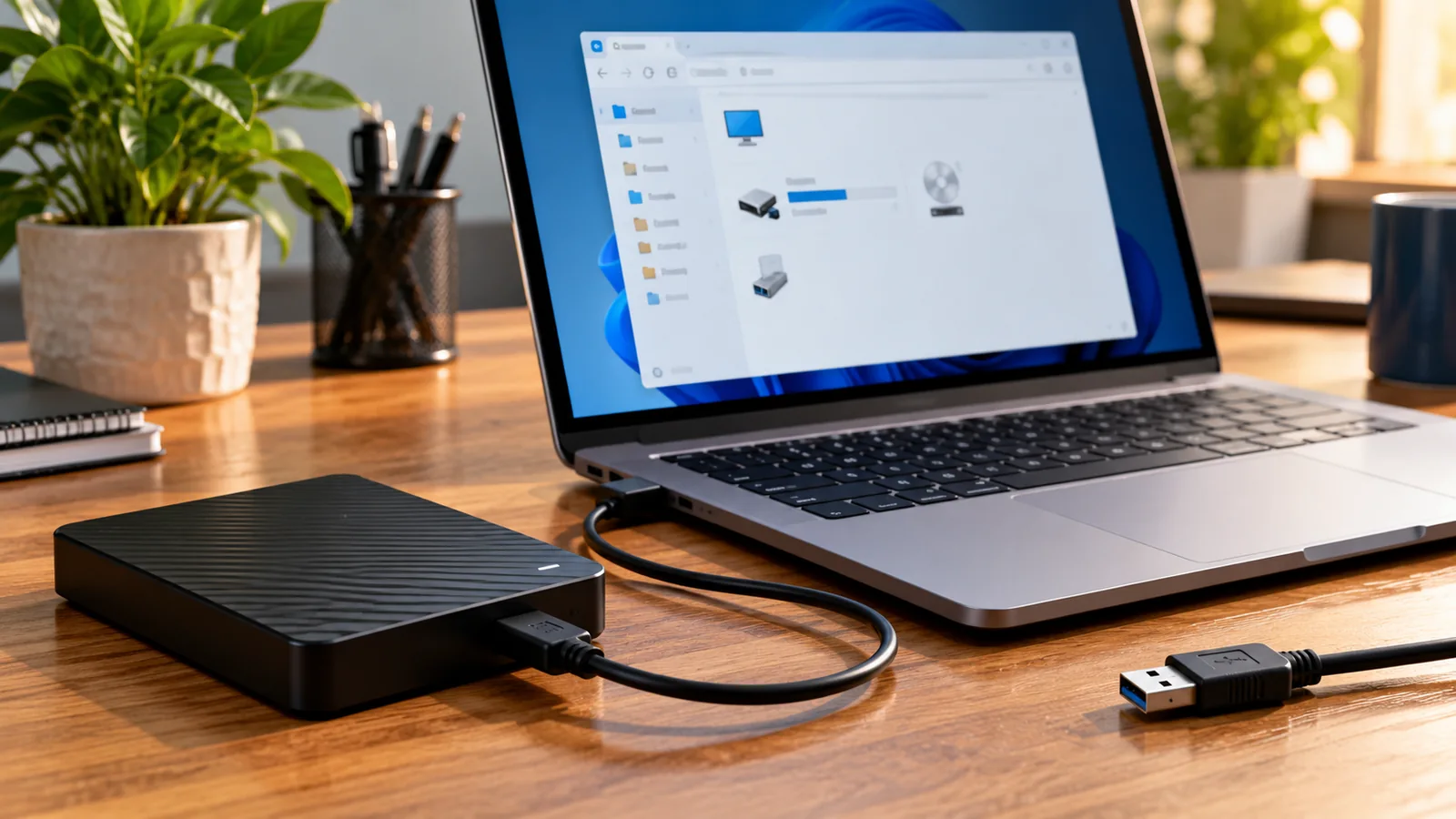
An external hard drive that does not appear in File Explorer or Finder can be alarming, particularly when it holds the only copy of family photos, work projects, or backups. Do not assume the drive is dead—and do not format it to find out. The cause might be as simple as a damaged USB cable, insufficient power, a missing drive letter, a hidden volume, or a file system your computer cannot read. Other cases involve physical damage or failing storage hardware.
This guide follows a data-first troubleshooting order for Windows 11, Windows 10, and macOS. It explains what each symptom means, which checks are safe, and when to stop trying fixes and consider professional data recovery. It also covers external HDDs, portable SSDs, desktop USB drives, and USB enclosures.
Before you do anything: If the drive contains irreplaceable data, do not click Initialize, Format, Erase, New Simple Volume, or Repair without a verified backup or recovery plan. Those actions can modify or overwrite information needed for recovery.
Quick diagnosis: what exactly is missing?
| Symptom | Likely area to investigate | First safe action |
|---|---|---|
| No lights, sound, or detection | Cable, USB port, external power, enclosure | Check power and a known-good cable |
| Lights on, but no File Explorer drive | Drive letter, mount, partition, file system | Inspect Disk Management without changing anything |
| Disk appears as RAW or unallocated | Damaged or missing file-system metadata | Do not format; assess recovery options |
| Mac sees device in Disk Utility but not Finder | Mount status, Finder settings, unsupported format | Use Show All Devices and inspect details |
| Repeated disconnects or clicking | Unstable power, cable, or physical failure | Stop repeated tests if data is important |
| Drive works on one computer only | Host USB port, driver, OS compatibility | Compare ports and operating systems |
Step 1: protect the files before troubleshooting
Start by deciding whether the drive contains data you need. If the answer is yes, your goal is to recover or copy the data, not to make the drive reusable at any cost. Some repair commands write new file-system information. Even when a utility reports success, that does not prove every original file survived unchanged.
- If the drive still opens occasionally, copy the most important files immediately to a different healthy disk.
- If the drive clicks repeatedly, becomes unusually hot, smells burnt, or disconnects during every read, stop using it.
- If the data is irreplaceable and the device is unstable, ask a reputable recovery specialist about non-destructive evaluation.
- If the drive is empty or you have a verified complete backup, later steps involving formatting may be appropriate—but only after you positively identify the correct disk.
Step 2: check the cable, port, and power supply
A loose or charge-only cable, damaged USB connector, unpowered hub, or inadequate power supply can prevent a drive from appearing. Seagate’s official external-drive troubleshooting guide recommends trying another port, another cable, another computer, and checking the power indicator. These simple checks can separate an operating-system problem from a physical connection issue.
- Disconnect the drive safely if it is responding; shut down a drive that is behaving erratically.
- Connect directly to a computer USB port instead of a hub or dock.
- Try another known-good data-capable USB cable with the correct connector.
- For a desktop 3.5-inch external drive, verify the supplied power adapter is connected and appropriate.
- Try a different port, then one other computer if the drive is stable.
- Record whether the drive spins, its indicator lights, or the computer makes a device-connected sound.
Important distinction: A portable 2.5-inch HDD may need more current than a weak hub supplies. A desktop 3.5-inch HDD usually needs its own power adapter. Do not improvise with random adapters of unknown voltage or polarity.
Step 3: check Disk Management in Windows 11
On Windows, a drive can be detected by the system but remain absent from This PC. The safest next step is to inspect its state in Disk Management. Microsoft documents this utility for viewing disks, partitions, and drive letters. See Microsoft’s Disk Management guide.
- Press Windows + R, type
diskmgmt.msc, and press Enter. - Wait for the lower disk list to populate; compare the capacity with your external drive.
- Find whether the disk is Online, Offline, Not Initialized, Unallocated, RAW, or has a healthy volume without a letter.
- Do not approve an automatic Initialize Disk prompt if the drive previously contained files.
- Take a screenshot of the disk status before making any changes; it helps with further diagnosis.
How to interpret common Disk Management statuses
| Disk Management status | Meaning | Safe next move |
|---|---|---|
| Healthy partition, no letter | Volume may be intact but not mounted with a letter | If files are backed up, consider assigning a free letter |
| Offline | Windows has marked the disk offline | Investigate why; do not change blindly on shared/critical disks |
| RAW | Windows cannot recognize the file system | Do not format if you need files |
| Unallocated | No recognized partition is present | Avoid creating a new volume on a previously used disk |
| Not Initialized | Partition information may be missing or unreadable | Do not initialize a drive with important data |
| Not shown at all | USB bridge, power, controller, or hardware issue possible | Return to cable/power tests; consider hardware help |
Step 4: assign a missing drive letter only when appropriate
If Disk Management displays a healthy, recognizable volume but no drive letter, assigning one can make it appear in File Explorer. This is different from initializing or formatting the disk. However, if Windows calls the volume RAW or unallocated, do not create a partition or format it merely to obtain a drive letter.
- Right-click the existing healthy volume (not the entire disk label).
- Choose Change Drive Letter and Paths.
- Choose Add if no letter is assigned, then select an unused letter.
- Open File Explorer and check whether the volume appears and your files are accessible.
- If Windows requests formatting or shows file-system errors, cancel and switch to a data-recovery assessment.
Drive-letter changes may not be available for every type of partition. On work-managed computers, mapped drives, policies, or security software can also affect visibility.
Step 5: check Device Manager without risky changes
Open Device Manager from the Start menu, then expand Disk drives and Universal Serial Bus controllers. A drive that appears there but not in Disk Management points to a different problem from a device not recognized by USB at all. Check for warning icons and read the device status in Properties.
Restarting Windows and installing normal Windows updates can resolve some temporary USB enumeration problems. Be cautious about random “driver updater” websites and unofficial firmware files. External storage normally uses built-in system drivers, and Seagate notes that bundled backup software is generally not required for basic detection.
Step 6: diagnose a drive that appears but asks to be formatted
A message such as “You need to format the disk before you can use it” does not prove the drive is empty. It means Windows cannot mount the file system in its current state. Possible causes include corrupted metadata, an unsupported format, damaged sectors, or a failing enclosure.
- Click Cancel on the format prompt.
- Check whether the disk capacity appears plausible in Disk Management.
- Think about the last computer or device that used the disk; an APFS or HFS+ volume will not normally open natively in Windows.
- If the disk is stable, consider a sector-level image or a trusted recovery tool that writes recovered files to another disk.
- If the disk is unstable, clicking, or disconnecting, prioritize a recovery specialist over repeated scans.
Why CHKDSK is not always the first fix
The Windows chkdsk tool can examine file-system structures; repair switches such as /f can write changes. On a disk with the only copy of important data, do not use repair mode before backup or imaging. A scan that appears to fix directory structures may not preserve every damaged file. If the drive is healthy and all files are backed up, file-system repair can be considered later as a maintenance step.
Step 7: external hard drive not showing up on Mac
On macOS, begin with Finder settings. Apple explains that external disks may be hidden from the desktop or Finder sidebar even when connected. Open Finder → Settings → General and Sidebar, and enable the relevant external-disk display options. Apple’s Finder device visibility instructions explain the settings.
Use Disk Utility to see the full device hierarchy
- Open Disk Utility from Applications → Utilities or Spotlight.
- Choose View → Show All Devices.
- Look for the physical external device, its container (if any), and volumes underneath.
- If the volume is present but not mounted, inspect its details and available mount options.
- If the physical device is absent, return to cable, port, power, and alternate-computer checks.
Apple’s Show All Devices guide explains that Disk Utility’s default simplified view can show only volumes. Do not click Erase to make an existing drive visible. Erase is a destructive reformatting operation.
Should you run First Aid on macOS?
Disk Utility’s First Aid can check and repair certain file-system and directory errors, but it cannot fix every problem. Apple explicitly recommends having a current backup before running it. For a disk with irreplaceable files and no backup, an image-first or professional-recovery approach is safer. Read Apple’s repair and backup guidance.
Step 8: understand file-system compatibility
| File system | Windows 11 | macOS | What to know |
|---|---|---|---|
| NTFS | Native read/write | Normally read-only without additional software | Common on Windows external drives |
| exFAT | Native support | Native support | Often chosen for cross-platform use |
| APFS | No native mounting in File Explorer | Native support | Used by modern Apple storage |
| HFS+ (Mac OS Extended) | No native mounting in File Explorer | Supported | Common on older Mac-formatted drives |
| ext4 | Not directly shown as a normal Windows drive | No native Finder support | Common on Linux systems |
A drive formatted on another operating system can be physically healthy but unreadable in your current file manager. Do not reformat it just to change compatibility until you have copied its data on a system that supports the original format. Also note that encrypted drives may require unlocking or proprietary software.
Step 9: check whether the enclosure or USB adapter is failing
Some external drives contain a standard SATA disk behind a USB bridge, while others integrate the USB interface into the drive board. If the USB bridge fails, the internal disk might still be intact—but opening the enclosure can void a warranty, damage the device, or interfere with hardware encryption. Do not assume that removing the disk and connecting it directly will make the data readable.
For an inexpensive enclosure holding replaceable media and no critical data, a technician may test the enclosure separately. For a sealed, encrypted, or irreplaceable drive, ask the manufacturer or a professional recovery service first. Never open the sealed metal hard-disk mechanism itself.
Step 10: know when to stop troubleshooting
| Warning sign | Why it matters | Recommended response |
|---|---|---|
| Repeated clicking or grinding | Possible mechanical HDD failure | Power down; contact a recovery professional |
| Repeated disconnects during reads | Possible failing hardware or power instability | Stop stress tests and avoid repeated scans |
| Burning smell or extreme heat | Potential electrical failure | Disconnect power and do not reconnect |
| Incorrect capacity such as 0 bytes | Controller, bridge, or firmware fault possible | Avoid formatting and seek specialist evaluation |
| Drive holds the only copy of critical files | Any write operation increases risk | Use non-destructive recovery planning |
Step 11: data recovery options before repair
If the drive is detected consistently and reports the expected size, software-based recovery may help with accidental deletion or logical file-system damage. The safest general workflow is to preserve a sector-level image of a stable drive, analyze the image rather than repeatedly scanning the original, and restore recovered files to a separate healthy disk. Image creation can still stress failing hardware; if the drive is physically unstable, specialist equipment is more appropriate.
For Windows, Microsoft provides Windows File Recovery for certain file-recovery scenarios. For signature-based file carving, the open-source PhotoRec can be useful on readable media. Neither is a guaranteed fix for a disk that cannot be detected, has severe physical damage, or uses inaccessible encryption.
Optional: identify the disk safely with PowerShell
Advanced Windows users can list storage devices without modifying them by opening PowerShell and using this read-only command:
Get-Disk | Select-Object Number, FriendlyName, BusType, PartitionStyle, OperationalStatus, SizeCompare the reported size and bus type before taking any action. Do not copy commands from the internet that use Clear-Disk, Initialize-Disk, diskpart clean, or format unless the disk is definitely empty or its contents are fully backed up.
Only after your files are safe: prepare a reusable drive
If the drive is new, intentionally blank, or its files have been recovered and verified, you can consider initializing, partitioning, or formatting it using Microsoft Disk Management or Apple Disk Utility. These operations change disk structures and can destroy existing data. For a Windows-only drive, NTFS is common; for broad Windows/Mac exchange, exFAT is often convenient; for Mac-specific workflows, APFS may be appropriate.
If the drive showed mechanical noises, intermittent detection, repeated corruption, or severe errors, replace it rather than relying on a successful format. Formatting does not repair a damaged motor, controller, cable connector, or worn storage cells.
Prevention: keep your external storage reliable
- Maintain at least two independent copies of important files, including an off-site or cloud backup.
- Use the operating system’s safe-eject procedure before unplugging a drive during or after transfers.
- Keep portable HDDs stationary while spinning and protect them from impact.
- Use high-quality, short data cables and the manufacturer-specified power adapter.
- Check backup files periodically by opening sample documents and photos, not just looking for folder names.
- Monitor unusual noises, disconnections, and recurring file-system errors; replace unreliable hardware early.
A practical troubleshooting checklist
- Confirm whether the files are backed up or irreplaceable.
- Check the USB cable, direct port connection, and power supply.
- Try a second compatible computer only if the drive is stable.
- Inspect Disk Management on Windows or Disk Utility with Show All Devices on Mac.
- If a healthy volume merely lacks a drive letter or Finder visibility, correct that specific setting.
- If the disk shows RAW, Unallocated, Not Initialized, or asks for formatting, stop before destructive changes.
- If hardware failure is suspected, avoid repeated scans and contact a professional.
- Only format or initialize after confirming that the drive is empty or all needed files are safe.
Final takeaway
An external drive missing from File Explorer or Finder is a symptom, not a diagnosis. Start with cable and power checks, inspect the drive status without writing to it, and distinguish a visibility problem from an unreadable file system or failing hardware. Protect the data first; repair or replace the drive afterward.
Official sources and further reading
Microsoft — Disk Management in Windows
Seagate — USB External Troubleshooter
Apple — View All Devices in Disk Utility
Apple — Repair a Storage Device with Disk Utility
Apple — See Devices Connected to Your Mac
You may also like
 Technology & How-To
 USB Drive Empty but Space Used? Find the Missing Data Safely
Find why an accessible USB looks empty while space remains occupied, using visibility checks, Trash review and device-versus-volume…
 Technology & How-To
 Windows 11 Clipboard History Not Working? Find What Failed
Separate Windows clipboard history failures from ordinary paste, app restrictions, cloud sync and Remote Desktop with a two-item…
 Technology & How-To
 Chrome Keeps Reloading Tabs? Stop the Right Kind of Refresh
Find why Chrome tabs reload with targeted Memory Saver settings, controlled comparisons, extension checks and diagnostics that protect…