
Google Drive for Desktop Not Syncing? Find the Cause Without Losing Files
Diagnose Google Drive desktop sync failures with a two-direction file test, current interface guidance, and recovery steps that protect unsynced work.
Contents
- Start with the symptom you can verify
- Protect unsynced work before making account changes
- Check the account and the folder's destination
- Read sync activity in the current interface
- Run a small test in both directions
- Understand Stream files, Mirror files, and offline access
- Check cloud storage and local disk space separately
- When only one file or shared folder will not sync
- Separate connection failures from desktop configuration
- Check the current Windows or Mac location
- Treat an explicit ransomware pause as a security event
- Reconnect or reinstall only after preserving the files
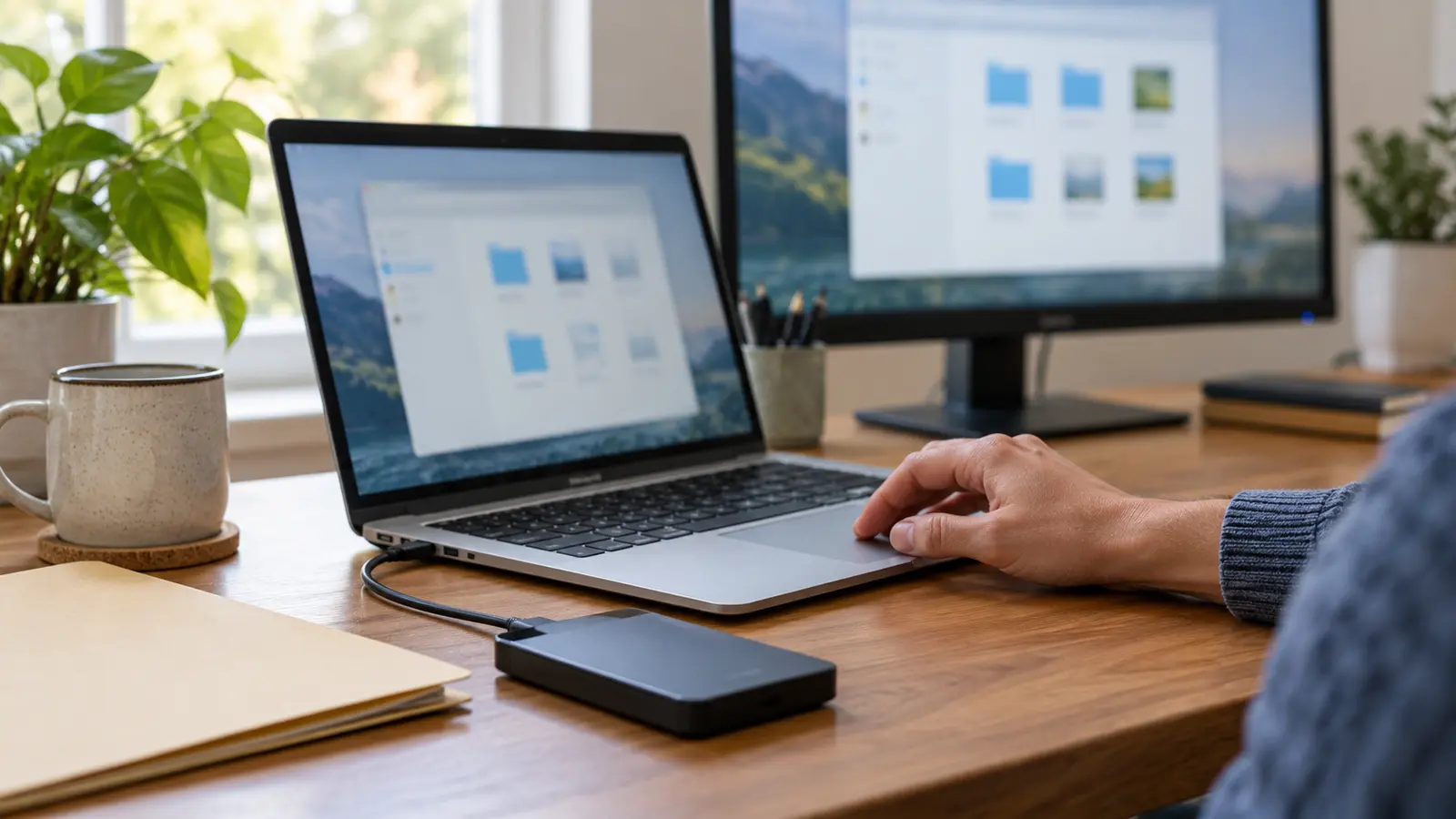
When Google Drive for desktop is not syncing, start by checking the account, the folder you are actually using, and the app's sync activity. Then test a small file in each direction. This separates an upload problem from a download problem before you change anything substantial.
An old document opening successfully does not prove that today's changes reached the cloud. Likewise, a file appearing on the website does not mean a complete offline copy exists on your computer. The useful question is which specific change failed to arrive, and where.
Before disconnecting an account, reinstalling Drive, or changing sync modes, protect important local changes that have not uploaded. If Drive displays an explicit ransomware warning, follow the security section below before attempting to resume anything.
Start with the symptom you can verify
Open the affected file in its original location and compare it with the same file on Google Drive on the web. Check the signed-in email address on both. A work account and a personal account can have identical folder names while containing completely different files.
Use this table to choose your first investigation. These are starting points, rather than guarantees about the cause.
| What you can verify | What to investigate first | Useful next action |
|---|---|---|
| New local changes never appear online | The selected account, monitored folder, and upload activity | Create a uniquely named text file in that exact folder |
| A web upload never appears on the computer | The account, current Drive location, and download activity | Open the location through the Drive app instead of an old shortcut |
| Only one file or shared folder fails | That item's error, access rights, and editing application | Record the filename and message before changing settings |
| Files appear but will not open without internet | Streaming and offline availability | Check whether their contents have downloaded |
| Everything stopped and a ransomware alert appears | The security warning | Stop ordinary troubleshooting and follow Google's recovery guidance |
Keep a short record: account email, full local folder path, web folder location, filename, last successful change, and the exact error. These details are more useful than repeatedly trying different fixes without knowing what changed.
Protect unsynced work before making account changes
For an ordinary sync failure, use the editing application's Save As or export command to preserve important unsynced work outside every synchronized folder. A separate local recovery folder or backup device can be suitable. Open the saved copy and check that its newest contents are present.
For example, save a presentation as project-recovery-before-drive-repair.pptx and confirm the final slide is there. A differently named file makes it easier to distinguish your recovery copy from the document whose sync status you are investigating. Copying a shortcut alone does not preserve the document's contents.
Google's advanced Drive for desktop guide explains that unsynced changes to streamed files can remain in the local cache. Clearing or corrupting that cache can lose those changes. Treat bulk cache deletion as a potential data-loss action, especially when the cloud copy is older.
If Drive offers Open Lost & Found, inspect it before disconnecting. Google's desktop troubleshooting guidance says to copy files from that recovery location somewhere safe first: disconnecting the account deletes its Lost & Found folder. If you cannot preserve a needed file, stop at this point and seek support.
This preservation step applies to ordinary failures. Suspected ransomware needs the separate response described below; do not reconnect or carry suspicious files between computers to perform a routine sync test.
Check the account and the folder's destination
Use Drive's account selector to verify the full email address, rather than relying on a profile picture. Check the browser account separately. Google's Drive for desktop guide covers signing in and switching between accounts.
Next, open Preferences and inspect the folder configuration. Files in My Drive and folders synchronized from your computer have different destinations. A folder selected under Folders from your computer can appear under Computers on the website. Searching only My Drive can therefore make a successful upload look missing.
Do not add the entire Documents folder just to test an unrelated file. First establish whether the file belongs in an existing monitored folder. Adding a large folder creates a new upload workload and makes it harder to see whether the original problem has changed.
Also separate Google Drive files from Google Photos. Google's advanced guide now notes that Google Photos backup is no longer available through Drive for desktop. Older tutorials may show that option, but Photos backup is not a destination for arbitrary PDFs, spreadsheets, or project files in Drive.
If the folder was renamed, moved, restored from backup, or replaced, compare its complete path with the configured path. Two folders named Client Work can sit on different disks. A shortcut to the retired folder can remain usable while no longer pointing to the location you intended to synchronize.
Read sync activity in the current interface
Open Drive from the Windows system tray or the macOS menu bar. In the redesigned interface, inspect Sync status, then Sync activity or View all sync activity. Open notifications for errors affecting specific items. Google's interface guide explains that this replaces the older Activity view.
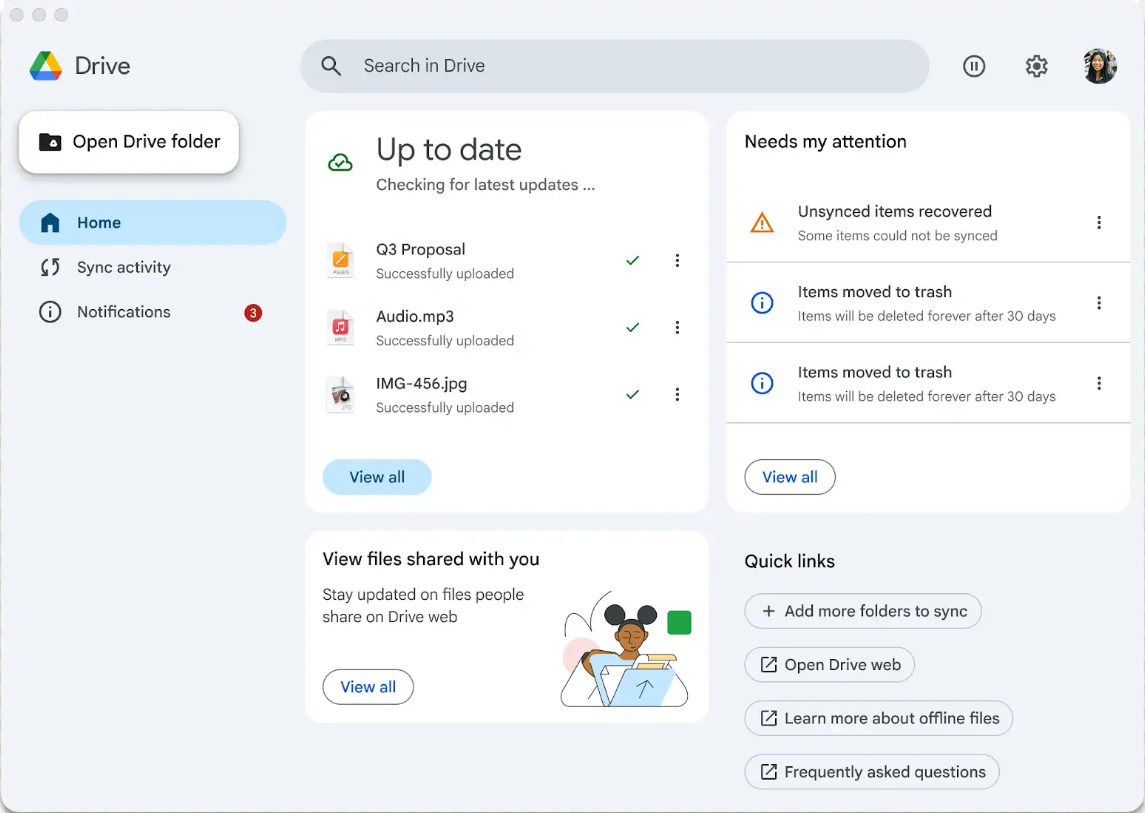
Official Google screenshot from the July 2025 interface announcement. The demonstration shows sync results alongside notifications; it does not report your account's status. Wording and appearance can differ by app version.
For an ordinary user-initiated pause, resume through the visible sync control or Settings > Resume syncing, depending on your interface. Google's settings reference documents the pause and resume controls. An explicit security alert requires a different response.
If the app appears stalled without a useful error, quit Drive from its own menu and reopen it. Restart the computer if needed. Keep the affected account and test folder the same while doing this, so the next result remains comparable.
Distinguish progress from repetition. A queue processing different filenames is different from one item failing repeatedly. Note the failing filename and message. Avoid treating a long initial upload as broken merely because the entire library has not finished yet; there is no universal completion time for every connection and library.
Run a small test in both directions
Use a folder you own in My Drive for the baseline. Create a new, uniquely named text file inside that folder's actual desktop location, such as drive-check-local-20261025.txt. Save one recognizable sentence, close the editor, and look for the file in the matching web folder.
Then create a second small text file in an ordinary temporary folder outside Drive. Upload it into the same web folder through New > File upload. Google's file-upload instructions cover that browser operation. Give it a different name, then look for it in the desktop folder.
Use harmless sample text rather than private business material. If your account or folder is managed, use a test location your organization permits. This test is a diagnostic suggestion; the following outcomes are examples of how to interpret your observations.
| Test result | What the result suggests | Next investigation |
|---|---|---|
| Local file reaches the web; web file reaches the desktop | The baseline folder works in both directions | Compare the original failing item's permissions, path, and error |
| Local file stays local; web file arrives | The failure may affect local uploads or that source folder | Check upload activity, source access, and cloud storage |
| Local file uploads; web file stays absent locally | The failure may affect the local view or incoming changes | Reopen the current Drive location and inspect download activity |
| Neither direction works | A broader account, app, connection, or configuration issue remains possible | Check sign-in, ordinary pause state, connection, and storage |
These results narrow the search; they do not conclusively diagnose a component. A successful test in a folder you own does not establish that a shared drive permits the same actions. Repeat the small test in the originally affected folder only after checking your access there.
If both files arrive, open them and verify the sentence inside. A matching filename is weaker evidence than matching contents. Record that successful result before investigating a larger file, so you retain a working comparison.
Understand Stream files, Mirror files, and offline access
Google's streaming and mirroring guide describes two ways to work with My Drive. Both synchronize changes; they differ in how much content lives locally.
| Behavior | Stream files | Mirror files |
|---|---|---|
| Ordinary file storage | Primarily in the cloud, with local content as needed | A full My Drive copy on the computer and in the cloud |
| Local disk use | Depends on opened and offline content | Requires space for the mirrored content |
| Offline preparation | Select required files or folders and allow downloads | Ordinary mirrored files are stored locally |
| Scope | My Drive, plus streamed shared drives and other supported locations | My Drive; shared drives remain streamed |
Inspect Preferences > Folders from Drive > My Drive syncing options; some versions label the section Google Drive. Changing this option is not a general cure for sync errors. When switching from Mirror to Stream, the previous mirrored folder stops syncing, so old shortcuts can become misleading.
A particularly confusing example is a project edited in yesterday's mirrored folder after the active location changed. Inspect the path and cloud contents before moving anything. Confirm all changes have uploaded before switching modes or removing an old folder.
For offline use, select only the files you actually need and let their download complete while connected. Google's offline access instructions distinguish desktop files from Google Docs, Sheets, and Slides, which use Google's browser-based offline workflow. A .gdoc pointer is not a complete independent backup of the underlying document.
Keep offline availability separate from upload success. A document can be safely present online while unavailable offline, or accessible locally while its newest edits are still waiting to upload. Check each condition independently.
Check cloud storage and local disk space separately
Google Account storage and your computer's storage are different limits. Google's storage management guide explains that a full account prevents new uploads and file creation. For a personal account, inspect usage across the Google services sharing that allowance.
On a work or school account, ask the administrator to check the relevant organizational or user limit. Purchasing personal storage is not automatically the appropriate answer for a managed account. If an error names a file owner's storage, the owner may need to resolve it even when your own allowance is available.
Check the local disk separately, including the disk used for downloaded or mirrored content. Streaming still needs room for local data. Buying additional cloud capacity does not create more space on the computer, and clearing the computer's Downloads folder does not increase a full cloud allowance.
If you already removed cloud files but the storage figure remains confusing, use our guide to Google storage still being full after deleting files. Verify what occupies the allowance before removing more material, especially recovery copies or shared work.
Make one targeted change and rerun the small-file test. If the error concerned an inaccessible folder rather than capacity, unrelated cleanup is unlikely to explain the failure.
When only one file or shared folder will not sync
Open the affected item on the website and check your role. Google's sharing permissions guide distinguishes viewing from editing. A document opening successfully does not establish permission to upload changes to it. Ask the owner or administrator to correct the relevant access.
Local access is a separate question. Can your editing application save a new file in the source folder? Is its external disk connected? Has the file been moved since the application opened it? Record any operating-system error and avoid changing permissions across an entire disk to repair one document.
Save and close the editing application, then inspect the item's Drive activity again. For a complicated project, compare a simple text file in the same folder with the failing document. If the simple file works, preserve that useful distinction when requesting help.
Do not discard a duplicate or conflict copy solely because its name looks older. Open both, identify the latest valid changes, and preserve them before deciding what to keep. Google's activity and file-version guidance explains how to inspect earlier versions of uploaded files; Google Docs, Sheets, and Slides have a separate version-history system.
If the message concerns a Google document shortcut, use the actual document on the web. Google's administrator setup guide explains that .gdoc, .gsheet, and similar pointer files are links to cloud documents, rather than the documents' full contents. Uploading the pointer again cannot reconstruct an independent file backup.
Separate connection failures from desktop configuration
Try the same small browser upload from the same computer and account. A successful browser upload is a useful comparison, but it does not prove the desktop client has the same network access. A failed browser upload means a broader connection, account, storage, or service issue still needs investigation.
If other services also fail on that computer, follow our guide to Wi-Fi working on some devices but not others. Another device browsing successfully does not establish that this computer's connection is healthy.
Check the Google Workspace Status Dashboard while the problem is happening. It reports service incidents; it cannot rule out an individual account or local app issue. A status check is a time-specific observation, rather than permanent evidence that Drive is operating normally.
For office networks, provide IT with the failed test and exact time. Google's firewall and proxy documentation lists the required destinations and special proxy considerations. Ask for a policy-compliant investigation instead of disabling security tools or changing organization-managed settings.
If transfers move slowly rather than fail, inspect any upload or download bandwidth limit in Drive's advanced settings. Evaluate that alongside your connection and the queue. Keep the computer awake and connected during the observation; repeatedly restarting an active transfer can make its behavior harder to interpret.
Check the current Windows or Mac location
On Windows, open the folder through Drive itself and compare it with File Explorer. The streaming location can use a drive letter or folder configured in Preferences. Do not assume every installation uses G:. A saved shortcut or another app's recent-file list can point somewhere different.
On Mac, Google's macOS guidance explains File Provider integration for streamed files. Open the current Drive location in Finder instead of relying on a mount path copied from an old tutorial. Where macOS controls the folder location, Drive may not offer the old location-changing controls.
If Drive lacks access to a selected Desktop, Documents, Downloads, or external-device folder, inspect System Settings > Privacy & Security > Files and Folders and the relevant permission. Restart Drive if required after changing it. Grant access relevant to the affected location rather than adjusting unrelated privacy controls.
Also check Google's current system requirements and supported file systems. The content cache supports NTFS on Windows and APFS or HFS+ on macOS; network volumes such as SMB and NFS are unsupported for this purpose. A cache moved to a network share is therefore a configuration issue worth correcting with support.
Treat an explicit ransomware pause as a security event
If Drive specifically reports ransomware, do not apply the ordinary resume instructions. Google's ransomware detection documentation explains that detection can pause desktop synchronization to limit damaged files spreading into Drive. Feature availability and organizational settings affect this protection.
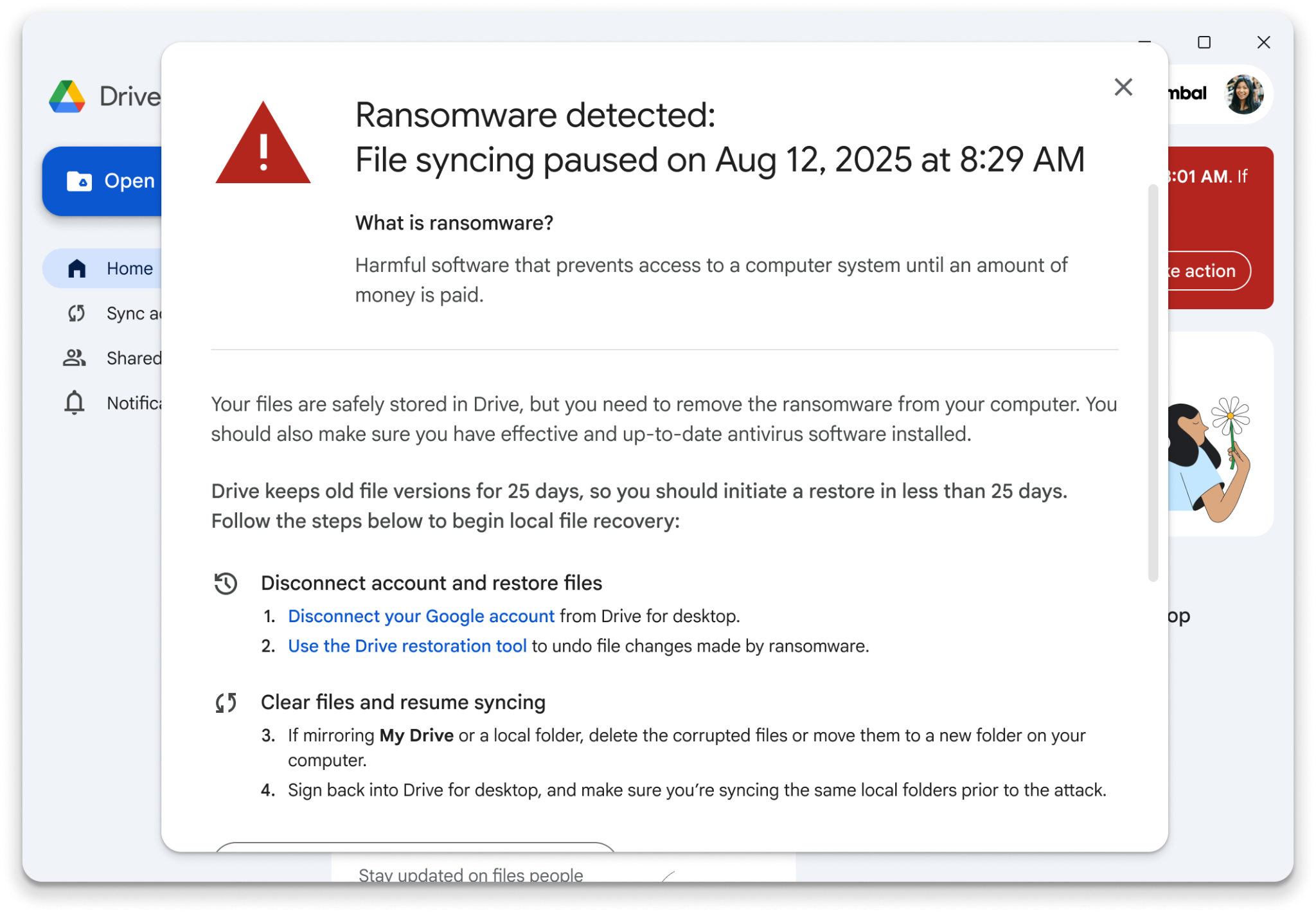
Official Google screenshot, published with the March 2026 ransomware protection announcement. Its date and example account belong to Google's demonstration, not to your computer.
Contact your organization's administrator if applicable and follow Google's ransomware recovery instructions. They cover disconnecting the affected desktop account, restoring eligible cloud versions, removing the infection, and preparing local files before reconnecting. Do not reconnect an infected computer simply to test whether the queue restarts.
A suspected false positive also deserves deliberate review. The administrator documentation says recognizing a flagged file temporarily turns off detection for that account for 24 hours. Do not select that option just to make the warning disappear.
An ordinary stuck queue does not by itself establish ransomware. This branch applies when the warning or other evidence specifically raises that concern.
Reconnect or reinstall only after preserving the files
If the account, folder, permissions, storage, network, and small-file results still point to the desktop app, reconnecting or reinstalling can be a later troubleshooting step. Before proceeding, verify your separate recovery copies and any files saved from Lost & Found.
In the current troubleshooting instructions, account disconnection is under Settings > Preferences > Advanced settings. Select the intended account, disconnect it, and sign back in. Read the location choices carefully, because reconnecting can alter which folder you use. Obtain installers through Google's official support download links.
Avoid a simultaneous account reset, mode change, folder migration, and cache cleanup. If several variables change together, you may lose track of which copy contains your work. Perform one documented action, reopen the current folder, and repeat the same two-direction test.
Before considering the problem resolved, check all four points:
- The local test file reaches the matching web folder with the correct contents.
- The independently uploaded web test file reaches the intended desktop location.
- The original affected file contains the latest valid changes online and locally where expected.
- Sync activity has no unresolved error for that item, and required offline files open after their downloads complete.
If the fault remains, send support the account type, operating system, Drive version, sync mode, exact message, affected path, and both test results. State whether the files are preserved separately. That evidence gives the next person a concrete failure to investigate while keeping your recovery options intact.
You may also like
 Technology & How-To
 USB Drive Empty but Space Used? Find the Missing Data Safely
Find why an accessible USB looks empty while space remains occupied, using visibility checks, Trash review and device-versus-volume…
 Technology & How-To
 Windows 11 Clipboard History Not Working? Find What Failed
Separate Windows clipboard history failures from ordinary paste, app restrictions, cloud sync and Remote Desktop with a two-item…
 Technology & How-To
 Chrome Keeps Reloading Tabs? Stop the Right Kind of Refresh
Find why Chrome tabs reload with targeted Memory Saver settings, controlled comparisons, extension checks and diagnostics that protect…