
Why Does Wi-Fi Work on Some Devices but Not Others? A Safer Diagnostic Guide
Wi-Fi works on some devices but not others? Use a three-connection test to separate a device problem from a router, band, DHCP, DNS, VPN, mesh or access-control problem without resetting everything.
Contents
- The short answer: run this five-minute test first
- Wi-Fi is not the same thing as internet access
- Identify the exact symptom before changing settings
- Forget and rebuild only the affected Wi-Fi profile
- Windows 11 and Windows 10
- Android
- iPhone or iPad
- Why the 2.4 GHz, 5 GHz and 6 GHz bands matter
- WPA2, WPA3 and security-mode compatibility
- Check router access controls and private Wi-Fi addresses
- Check IP configuration and DHCP before changing DNS
- Wi-Fi is connected but websites do not load: test DNS carefully
- VPNs, proxies, ad blockers and security apps can affect one device
- Windows 11 and Windows 10: a safe repair order
- Android: isolate the phone from the home network
- iPhone or iPad: check the device and router separately
- Smart TVs, printers, cameras and game consoles
- Mesh Wi-Fi, extenders and the close-range test
- Hotels, offices and captive portals
- When only one app or website fails
- IPv6 and sleep-related failures
- Four examples that show how to read the evidence
- Example 1: phone works, laptop says Connected but no internet
- Example 2: new phone connects, old television cannot see the network
- Example 3: laptop works beside the router but not upstairs
- Example 4: hotel Wi-Fi works on one device but not another
- When to restart, reset or replace something
- When to contact your ISP, device maker or network administrator
- Final checklist before declaring the problem solved
- Official sources and further reading
- Conclusion: troubleshoot the failing device, not just the router
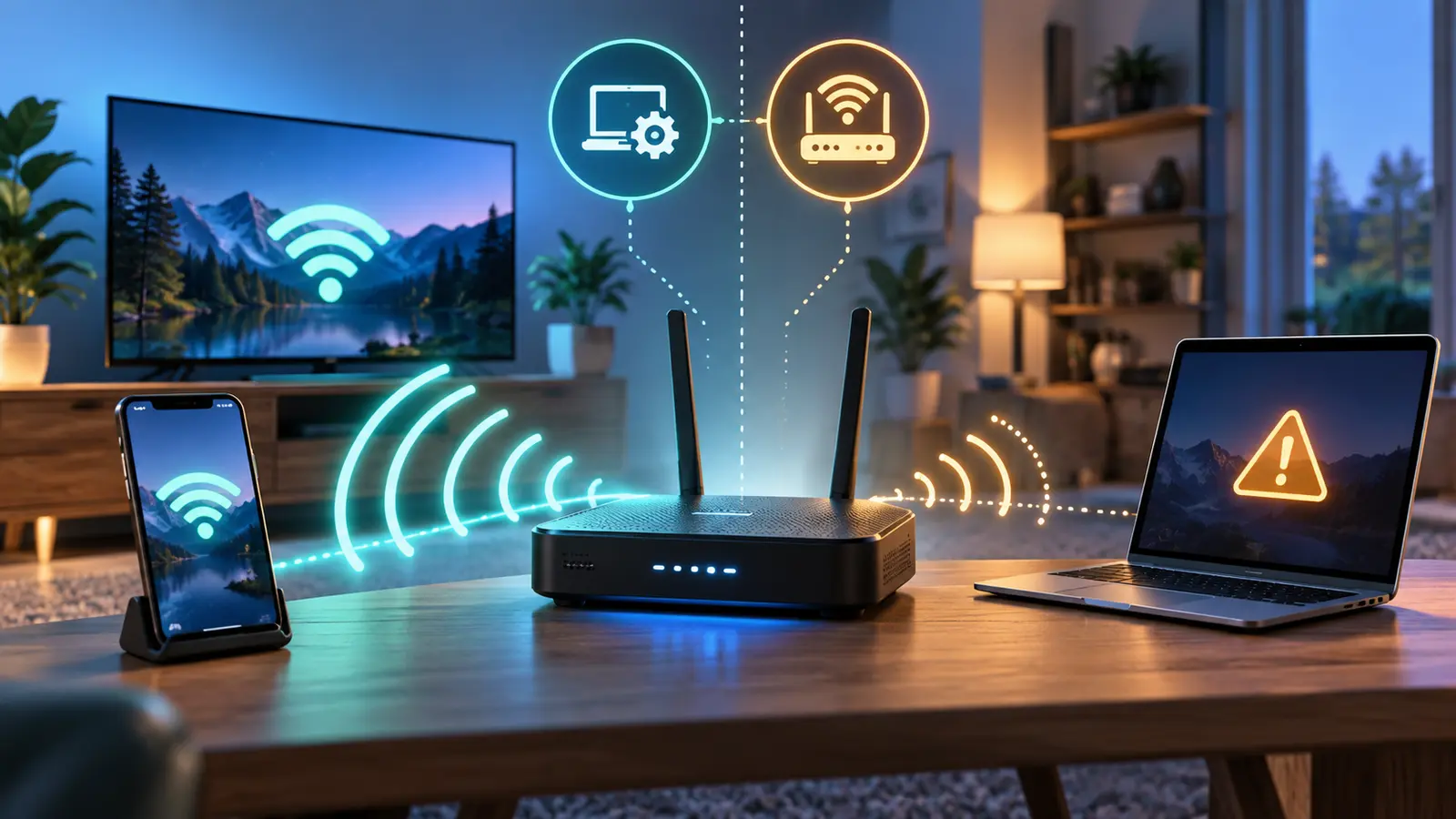
Updated October 24, 2026. If Wi-Fi works on your phone and television but not your laptop, or one phone refuses to join while the rest of the house works, do not begin by factory-resetting the router. The first job is to identify which part of the connection failed: the device, the wireless band, the router’s access policy, the local IP/DHCP exchange, DNS, or the internet service upstream.
The fastest safe diagnosis is a three-connection comparison: test a working device on the same Wi-Fi, test the failing device on a trusted different network such as a mobile hotspot, and test the failing device close to the router. Those results usually tell you whether to focus on the device or the home network before you change advanced settings.
The short answer: run this five-minute test first
| What happens | More likely scope | First useful next step |
|---|---|---|
| Every device fails on the same Wi-Fi | Router, modem, access point, ISP, captive portal or upstream service | Check the router/ISP path and a second connection before changing one device. |
| Only one device fails at home but works on a trusted hotspot | Home-router compatibility, saved profile, band, WPA, DHCP or access rule | Compare bands, forget only the affected network, and inspect the router’s device list. |
| The same device fails on several known-good Wi-Fi networks | Device adapter, saved settings, VPN/proxy, software or hardware | Inspect the device’s profile, IP/DNS and wireless driver or firmware. |
| The device works beside the router but fails in its normal room | Coverage, interference, band selection, mesh roaming or extender backhaul | Test placement and band before reinstalling software. |
| Wi-Fi says connected but websites do not load | IP/DHCP, DNS, proxy/VPN, captive portal or a service-specific problem | Test two unrelated sites, inspect the gateway/DNS, and check for sign-in requirements. |
| Only one app or website fails | App, service, browser, DNS/IPv6 path or filtering | Compare another app, another device and mobile data before changing the router. |
- On a device that already works, open two unrelated HTTPS websites and, if practical, play a short video. A full Wi-Fi icon alone does not prove that internet access works.
- On the failing device, test a trusted mobile hotspot or another authorized Wi-Fi network. Cellular data by itself does not test a phone’s Wi-Fi radio, so use an actual alternate Wi-Fi connection when possible.
- Move the failing device close to the main router or access point and test again. A close-range improvement points toward coverage, interference, roaming or band selection.
- Toggle Wi-Fi off and on and restart only the affected device before restarting every piece of network equipment. Change one variable at a time.
- Write down what worked, what failed and when the problem began. That small record prevents repeated guesses and helps your ISP, device maker or network administrator.
This decision-first order is more useful than a list of unrelated resets. It also protects other household devices: if only one client is affected, changing the router’s security or DHCP settings for everyone can create a second problem.
Wi-Fi is not the same thing as internet access
Wi-Fi is the wireless link between a client and an access point. Internet access is the longer path from that access point through the router, modem or gateway, internet provider, DNS service and the destination website. A device can associate with Wi-Fi successfully while having no usable route to the internet.
| Layer | Typical symptom | Useful evidence |
|---|---|---|
| Wireless association | Network is missing or the password is rejected | SSID visibility, band support, security mode and authentication result |
| Local IP/DHCP | Connected but no valid address or gateway | IP address, subnet, gateway and DHCP state |
| DNS | Web names fail while the connection looks active | DNS server and an intentional lookup test |
| Routing or VPN/proxy | Some apps or destinations fail | Routes, proxy state, tunnel status and comparison on another network |
| Captive portal or policy | Connected but sign-in or approval is required | Browser sign-in page, device access list or managed-network notice |
| Upstream service | Several devices lose access | Router WAN state, a second wired/wireless test and provider status |
Identify the exact symptom before changing settings
- The SSID does not appear: check distance, the device’s supported bands, whether the network is hidden, and whether the radio is enabled.
- The SSID appears but joining fails: check the saved profile, password, WPA compatibility, access controls and certificate requirements on managed networks.
- The device joins but says no internet: investigate IP configuration, DNS, VPN/proxy settings, captive portals and router-side restrictions.
- Some sites work but others do not: compare a second browser or app and consider DNS, IPv6, filtering, extensions or a service-specific outage.
- The device works only near the router: focus on coverage, interference, band selection, mesh roaming and extender placement.
- The failure starts after sleep or movement: investigate power management, drivers, roaming and access-point handoff.
Forget and rebuild only the affected Wi-Fi profile
A saved network profile can preserve an old password, security mode, proxy expectation or network configuration after a router replacement or firmware change. Forget only the affected network—not every saved network—then reconnect using the current credentials. Make sure you know the password first, especially on a device that has no alternate connection.
Windows 11 and Windows 10
- Open Settings → Network & internet → Wi-Fi → Manage known networks.
- Select the affected SSID and choose Forget.
- Return to the available networks list, select the SSID, enter the current password, and test two websites.
Android
- Open Settings → Network & internet → Internet, or Connections → Wi-Fi on many Samsung devices.
- Open the network details and choose Forget, then reconnect. Menu names vary by manufacturer and Android version.
iPhone or iPad
- Open Settings → Wi-Fi and tap the information button beside the affected network.
- Choose Forget This Network only if you know the password, then join it again.
On workplace, school or certificate-based Wi-Fi, forgetting a network may remove a managed configuration or fail to restore it. Ask the administrator before deleting a profile that was installed by policy.
Why the 2.4 GHz, 5 GHz and 6 GHz bands matter
A router can broadcast more than one wireless band, and a client cannot use a band its hardware or software does not support. A device that sees the 2.4 GHz network but not the 5 GHz or 6 GHz network may have a compatibility, channel, range or regulatory-channel issue rather than a broken internet connection.
| Band | Typical strength | What to test |
|---|---|---|
| 2.4 GHz | Longer range and better obstacle penetration; more congestion | Older phones, printers, cameras and smart-home devices often need a compatible 2.4 GHz SSID. |
| 5 GHz | More capacity and often higher throughput; shorter effective range through walls | Test it close to the router and check whether the device supports the selected channel. |
| 6 GHz | Modern high-capacity band with stricter device and local availability requirements | Do not expect older phones, TVs or laptops to see a 6 GHz-only network. |
| Band steering | One SSID may move clients between bands automatically | Temporarily separate supported SSIDs only as a controlled diagnostic, then restore the intended design. |
- Check the failing device’s official specifications for supported Wi-Fi standards and bands.
- Test the device on a compatible 2.4 GHz or 5 GHz SSID if the router exposes both.
- If a 5 GHz network is invisible, try a supported non-DFS channel allowed in your region rather than choosing an arbitrary country setting.
- Do not force advanced 6 GHz or Wi-Fi 7 modes on legacy devices that cannot support them.
Microsoft’s Windows guidance also recommends testing another frequency band when a router offers 2.4 GHz and 5 GHz. A separate troubleshooting SSID can reveal a compatibility problem, but it is not automatically faster or safer. Measure reliability before making a permanent change.
WPA2, WPA3 and security-mode compatibility
Newer phones may connect to a WPA3-only network while an older printer, camera, television or smart bulb cannot. A correct password does not overcome unsupported authentication or encryption. Check the client’s official support information and router firmware before changing security.
- Confirm which WPA mode the affected device supports.
- Update the router and client firmware through official channels when reliable updates are available.
- If necessary, use a separate restricted compatibility or IoT network with the strongest mode that the old device supports.
- Avoid WEP, old WPA/TKIP and open networks as permanent workarounds. Do not weaken the entire home network to connect one outdated device.
Check router access controls and private Wi-Fi addresses
A router can pause, block or isolate one device while every other device continues to work. Inspect parental controls, device schedules, MAC allowlists, guest-network isolation, quotas, security filtering and paused-device lists. Use the device’s current Wi-Fi address: phones and tablets may use a private or randomized address that differs from an older entry in the router app.
- Identify the failing device by its current name and Wi-Fi MAC address, not by name alone.
- Check whether the device is paused, blocked, assigned to a restricted profile or connected to a guest network.
- If you administer the network, remove only the specific restriction for a controlled test. Re-enable the correct policy afterward.
Do not disable all parental controls, firewall protection or device isolation just to make one client connect. If the network belongs to a workplace, school, hotel or landlord, contact its administrator instead of changing controls you do not own.
Check IP configuration and DHCP before changing DNS
DHCP normally gives a home device an IP address, subnet mask, default gateway and often DNS servers. If one client receives an invalid address or no gateway, it may show Wi-Fi connected while failing to reach the internet. On Windows, open Terminal or Command Prompt and inspect the active Wi-Fi adapter.
ipconfig /all- Locate the Wi-Fi adapter that is currently connected; ignore inactive Ethernet and virtual VPN adapters.
- Record the IPv4 address, default gateway, DHCP state and DNS servers without posting private network details publicly.
- An address beginning with
169.254.often means that Windows did not obtain a normal DHCP address; investigate the local network before editing DNS. - On a personal home network, automatic IP configuration is usually appropriate. On a managed or static network, do not replace approved settings without instructions.
If the evidence points to a stale DHCP lease, you can reconnect or renew it on a personal device. Avoid releasing an address during a remote support session over that same connection; you may disconnect yourself.
ipconfig /release ipconfig /renewWi-Fi is connected but websites do not load: test DNS carefully
DNS translates a website name into an address. A device can have a valid Wi-Fi connection and IP address while DNS resolution fails. Test more than one destination and do not treat a single ping result as proof that the internet is down; some networks and servers block ICMP.
nslookup example.com- Check whether the lookup returns an answer or a timeout, and note which DNS server handled the request.
- Compare the result with two unrelated websites and another app. One unavailable service is not proof of a home DNS failure.
- On Android, inspect Private DNS and return it to Automatic for a controlled test when a custom provider is unreachable or misconfigured.
- On a browser, review Secure DNS or extension settings only after checking the device and router DNS path.
Do not change DNS on a managed network simply because a public DNS address is popular. Corporate filtering, parental controls, hotel portals and school policies may rely on the approved resolver. Record the original setting before a personal diagnostic change.
VPNs, proxies, ad blockers and security apps can affect one device
A VPN tunnel, system proxy, filtering profile, ad blocker or endpoint-security app can make one device look offline while the Wi-Fi signal and IP address appear normal. Some VPNs use an always-on or kill-switch mode that intentionally blocks traffic when the tunnel is disconnected.
- Check whether the failure follows the device across two networks.
- Review the VPN or proxy status and test only in a way allowed by the owner or administrator.
- Do not uninstall corporate security software, bypass a kill switch or disable endpoint protection as a generic Wi-Fi fix.
- If disconnecting a personal VPN restores browsing, investigate its server, DNS, routing or kill-switch state instead of changing the router for everyone.
Windows 11 and Windows 10: a safe repair order
For a Windows-only failure, Microsoft’s built-in troubleshooting flow is a sensible starting point. If your symptom is specifically “Windows 11 connected to Wi-Fi but no internet,” use our separate Windows 11 Wi-Fi guide for a deeper gateway, DNS, proxy and driver decision path.
- Run the available Windows network troubleshooter and record what it reports.
- Forget and rejoin only the affected Wi-Fi network.
- Inspect
ipconfig /all, gateway and DNS before running broad reset commands. - Use
ipconfig /flushdnsonly when the evidence points to cached DNS behavior, then test the original symptom again. - Check proxy, VPN and captive-portal behavior, then update or roll back the Wi-Fi adapter using the computer maker’s official driver when appropriate.
- Reserve Network reset for persistent failures after documenting VPNs, virtual adapters, saved networks and custom settings; it reinstalls adapters and may require reconfiguration.
ipconfig /flushdns netsh winsock resetThe commands above can change how Windows networking behaves. Run them on a personal device only when their purpose is clear, restart when required, and do not use them as a blanket response to one unavailable website. On a managed or remote computer, coordinate with IT first.
Android: isolate the phone from the home network
- Open Settings → Network & internet → Internet, or the manufacturer’s equivalent, and toggle Wi-Fi off and on.
- Turn Airplane mode on for about ten seconds, turn it off, and retest.
- Forget the affected network and reconnect if the saved profile may be stale.
- Test the phone on another trusted Wi-Fi network and test another device on the original router.
- If it connects but has no internet, inspect Private DNS, VPN, IP settings and work-profile restrictions.
- Use a network-settings reset only after reading what it removes; it is not the same as erasing the phone, but it can remove saved Wi-Fi and Bluetooth information.
Google’s Android guidance also recommends comparing the device with another network and checking signal and Wi-Fi settings. Menu names differ between Pixel, Samsung, Xiaomi and other phones, so follow the closest equivalent rather than assuming every screenshot or path matches your model.
iPhone or iPad: check the device and router separately
- Open Settings → Wi-Fi, verify Wi-Fi is on, and confirm the blue checkmark is beside the intended network.
- Tap the information button and review the network details, private Wi-Fi address behavior, and any unexpected proxy or configuration.
- Forget and rejoin the network only if you know the password and it is not a managed profile.
- Check whether other devices connect. Apple uses that comparison to separate a device issue from a router or network issue.
- Remove or test VPN/security software only under the provider’s instructions; restart and test after each controlled change.
- Use Reset Network Settings only after simpler checks, understanding that saved networks and other network preferences will need to be set up again.
Smart TVs, printers, cameras and game consoles
Older or specialized devices commonly fail for a different reason from a modern phone. Check 2.4 GHz availability, WPA2/WPA3 support, current firmware, the router’s guest or IoT isolation, and whether the device is close enough for setup. If Ethernet is available, a temporary wired test can separate a wireless compatibility problem from an upstream internet problem.
| Device | High-value first checks | Avoid first |
|---|---|---|
| Smart bulb or camera | 2.4 GHz SSID, phone permissions, setup mode and local discovery | WPA or firewall changes across the whole home network |
| Older printer | 2.4 GHz, WPA compatibility, firmware and exact SSID | Repeated factory resets without preserving the network settings |
| Smart TV | Close-range test, band, date/time, firmware and Ethernet comparison | Assuming streaming-app failure is always a Wi-Fi failure |
| Game console | Built-in network test, NAT result, band and access rules | Indiscriminate port forwarding or disabling the router firewall |
| Work laptop | Managed profile, VPN/proxy, driver and policy | Removing certificates or endpoint controls |
Mesh Wi-Fi, extenders and the close-range test
A mesh system adds more points where a device can fail: the client may associate with a nearby node while that node has a weak backhaul, inconsistent security, stale firmware or a roaming problem. Strong signal bars between the device and a node do not prove that the node has a healthy connection to the main gateway.
- Test the failing device beside the primary router, then beside the nearest mesh node.
- Check the manufacturer’s app for node health, backhaul quality and firmware status.
- If the device works at the main router but not the node, investigate that node’s placement, backhaul and configuration.
- Temporarily test without advanced roaming or band-steering features only when the system documents the option; restore the intended configuration afterward.
An extender placed inside a dead zone often repeats a weak signal. Move it where its connection to the main router is still reliable, or use wired backhaul where the equipment supports it.
Hotels, offices and captive portals
Public Wi-Fi can show connected before the user accepts terms or signs in. Open a browser and look for the venue’s official sign-in page; do not enter credentials into a suspicious or misspelled domain. A device limit, MAC registration requirement, VPN, Private DNS or security app can also prevent the portal from appearing.
- Forget and rejoin the authorized SSID if the profile is stale.
- Temporarily use the device’s normal browser with approved settings so the sign-in page can load.
- Complete the venue’s terms or device-registration process, then restore your normal privacy and VPN settings as appropriate.
On a company or campus network, contact the administrator for certificate, 802.1X, proxy and device-registration problems. Do not install an unknown certificate or bypass access controls because another personal device connects successfully.
When only one app or website fails
If two unrelated sites and several apps work, the Wi-Fi link may be healthy. The failure could be the service itself, an app permission or update, a browser extension, a DNS/IPv6 path, content filtering, or an account problem. Compare the same service on another device and over mobile data before changing router settings.
- Check the service’s official status or support page when only that service fails.
- Test another browser or app, but do not clear app data unless you understand that it may sign you out or remove local settings.
- If only some destinations fail, compare DNS, VPN, proxy, IPv6 and filtering behavior instead of declaring the whole network offline.
IPv6 and sleep-related failures
A device may have a valid Wi-Fi connection but experience selective failures when a router advertises IPv6 that is not working upstream, or when the client handles IPv4 and IPv6 differently. Do not disable IPv6 globally as a first response. Compare the affected service on another device and ask the ISP or network administrator whether the network is intended to use IPv6.
If Wi-Fi breaks after a laptop wakes from sleep, test a full restart, then check the manufacturer-supported wireless driver and power-management behavior. Some adapters expose a setting that allows Windows to turn off the device to save power; changing it can increase battery use and is not available on every adapter.
Four examples that show how to read the evidence
Example 1: phone works, laptop says Connected but no internet
Test the laptop on a trusted hotspot. If it works there, check the home router’s band, security mode, access controls, DHCP and the laptop’s saved profile. If it fails on the hotspot too, focus on the laptop’s IP/DNS, VPN/proxy, driver or hardware. The phone working at home proves that the whole internet service is not necessarily down, but it does not prove that every band or client configuration is compatible.
Example 2: new phone connects, old television cannot see the network
Check whether the router is broadcasting 2.4 GHz, whether the television supports the selected security mode, and whether its firmware is current. Do not reduce security on the primary network permanently; use a restricted compatibility network or Ethernet when the equipment supports it.
Example 3: laptop works beside the router but not upstairs
This pattern points toward coverage, interference, band selection, mesh roaming or extender placement. Measure the connection where the laptop is normally used and check the mesh backhaul. Reinstalling Windows or changing DNS is unlikely to fix a radio signal that cannot reliably reach the access point.
Example 4: hotel Wi-Fi works on one device but not another
The second device may be waiting for a captive-portal sign-in, blocked by a VPN or Private DNS setting, or counted against the venue’s device limit. Use the venue’s official sign-in flow, avoid suspicious login pages, and contact the venue if the device must be registered manually.
When to restart, reset or replace something
| Action | Use it when | Important consequence |
|---|---|---|
| Toggle Wi-Fi or restart the affected device | The issue may be temporary or tied to a stale radio state | Low disruption; retest the original symptom. |
| Forget and rejoin one network | The saved profile or password/security state is suspect | You need the current password and may lose that saved profile. |
| Restart modem/router normally | Several devices fail and the equipment’s documented restart may clear a temporary state | Everyone disconnects briefly; do not press factory reset. |
| Reset network settings | Less disruptive checks failed and you accept re-entering network details | Saved networks, Bluetooth pairings, VPNs or virtual adapters may need setup again. |
| Factory reset a device or router | Only after backup, documentation and support guidance | Can erase settings/data and should not be a first Wi-Fi fix. |
| Replace hardware | A device fails across several known-good networks or the router has a repeatable hardware fault | Confirm the diagnosis and warranty path first. |
A network reset is not the same as a factory reset, but it is still a configuration change. Document VPNs, static IPs, virtual switches and custom DNS before using it. On a work computer, let IT decide whether the reset is appropriate.
When to contact your ISP, device maker or network administrator
- Contact the ISP when multiple devices fail, the router reports a WAN/service fault, or the upstream connection remains down after approved checks.
- Contact the device manufacturer when one device fails across several known-good Wi-Fi networks, especially with adapter, firmware or hardware warnings.
- Contact the router or mesh manufacturer for repeatable firmware, band, DHCP, access-control or backhaul problems.
- Contact workplace or campus IT for managed Wi-Fi, certificates, 802.1X, captive portals, mandatory VPNs and policy-controlled devices.
When asking for help, provide the affected device and operating-system version, router model, which devices work, whether the failing device works on another network, the exact error message, and the tests already completed. Remove passwords, account numbers, serial numbers, public IP addresses and private logs before sharing.
Final checklist before declaring the problem solved
- The affected device joins the intended network and receives a valid IP configuration and gateway.
- At least two unrelated HTTPS websites load, and the app or service that originally failed works again.
- The connection remains stable after a restart or wake-up cycle and works in the room where the device is normally used.
- Any router, VPN, DNS or access-control changes were documented and restored to the intended secure state.
- Other household or workplace devices still work after the change.
Official sources and further reading
- Microsoft Support — Fix Wi-Fi connection issues in Windows: bands, troubleshooting, IP/DNS checks, drivers and network reset.
- Microsoft Support — Wi-Fi and your home layout: signal, channel and placement considerations.
- Google Android Help — Fix internet connection problems: Android Wi-Fi, signal and comparison checks.
- Google Android Help — Connect to Wi-Fi networks: connecting, disconnecting and managing saved networks.
- Apple Support — If you can’t connect to Wi-Fi on iPhone or iPad: device-versus-router checks, VPN/security software and reset boundaries.
- Apple Support — Connect to Wi-Fi on iPhone or iPad: official connection steps.
No live device, router, ISP account or managed network was tested for this article. Menu labels, band availability, security support and router firmware vary by model, operating system, country and network policy. The procedures above are evidence-guided troubleshooting steps, not a claim that one fix works for every device.
Conclusion: troubleshoot the failing device, not just the router
When Wi-Fi works on some devices but not others, the fastest path is to compare the failing device with a working device, a trusted alternate network and a close-range test. That three-way comparison separates router compatibility from device configuration, coverage, DHCP, DNS, VPN, security mode and access-control problems. Fix the narrowest cause supported by the evidence, preserve the home network’s security, and reserve network or factory resets for situations where the lower-risk checks have already failed.
You may also like
 Technology & How-To
 USB Drive Empty but Space Used? Find the Missing Data Safely
Find why an accessible USB looks empty while space remains occupied, using visibility checks, Trash review and device-versus-volume…
 Technology & How-To
 Windows 11 Clipboard History Not Working? Find What Failed
Separate Windows clipboard history failures from ordinary paste, app restrictions, cloud sync and Remote Desktop with a two-item…
 Technology & How-To
 Chrome Keeps Reloading Tabs? Stop the Right Kind of Refresh
Find why Chrome tabs reload with targeted Memory Saver settings, controlled comparisons, extension checks and diagnostics that protect…