
Google Storage Still Full After Deleting Files? Here’s Where Your Space Is Going
Storage still full after deleting Google files? Check Trash, Gmail attachments, Drive, Photos, backups and the 48–72-hour update delay.
Contents
- First: understand what shares your quota
- Step 1: Empty Trash and Spam in the right account
- Step 2: Give the storage meter time to update
- Step 3: Find the largest Gmail attachments
- Step 4: Review large Drive files and ownership
- Step 5: Check Google Photos carefully
- Step 6: Review WhatsApp and Android backups
- Step 7: Make sure you're not viewing the wrong account
- What if storage still shows full after 72 hours?
- Frequently asked questions
- Why did deleting thousands of photos free no Google storage?
- Does emptying Gmail Trash free Drive storage?
- Does removing a “Shared with me” file free my quota?
- Should I immediately pay for more Google One storage?
- Sources and further reading
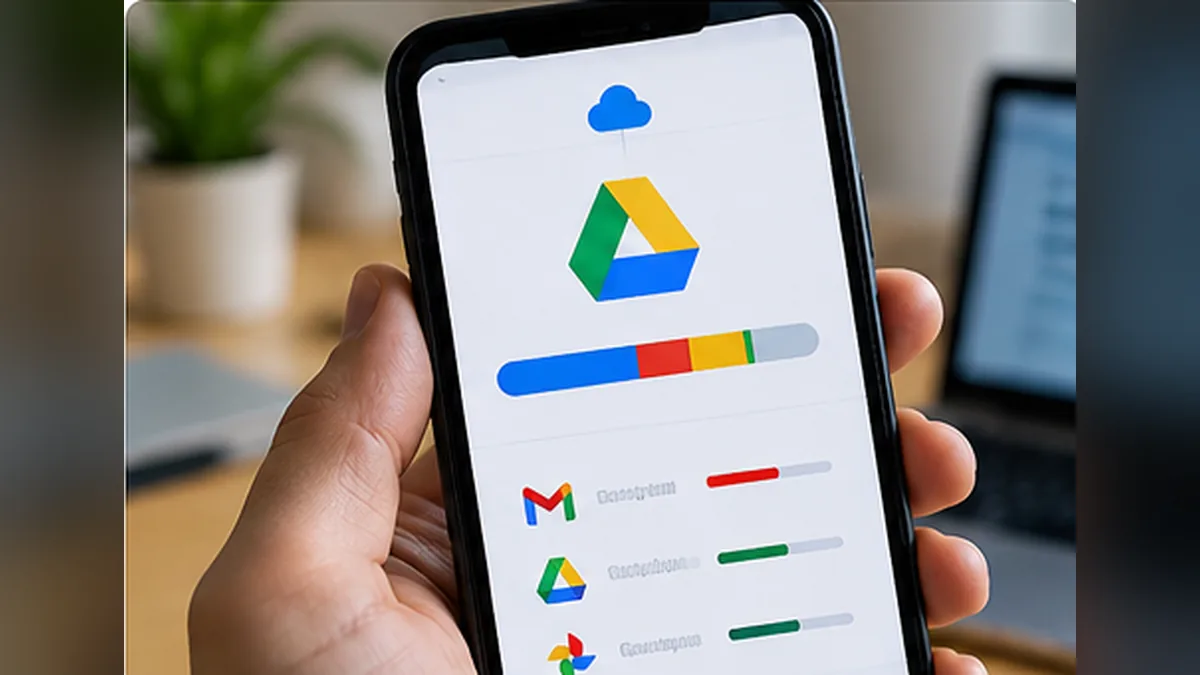
You deleted hundreds of emails, removed old Drive files and cleaned up Google Photos—yet Google One still says your storage is full. That can happen for several different reasons: content remains in Trash or Spam, an Android WhatsApp backup still takes up space, a different Google service is using the quota, a file was never counted in the first place, or Google’s storage display has not finished updating.
Before purchasing more storage or deleting irreplaceable pictures, use this account-by-account troubleshooting workflow. The goal is to identify what actually counts against your quota, remove only what you can afford to lose and understand when waiting is the correct next step.
First: understand what shares your quota
For most personal Google Accounts, the familiar free allowance is shared across several products, including Google Drive, Gmail and Google Photos; certain backups, such as WhatsApp backups on Android, also count. Paid subscriptions change the total allowance, not the basic principle of shared storage. Account type and product rules can vary.
Open Google One Storage while signed into the affected account. Identify the largest category and write down its approximate usage. Do not guess from the size of the Drive folder alone. If the categories do not explain what you see, check backup storage and the services listed in the storage manager.
If your storage jumped suddenly rather than staying full after cleanup, our related article Why Is My Google Storage Suddenly Full? Android Backups Now Count examines the backup side in more detail. This guide focuses specifically on storage that appears not to drop after deletion.
Step 1: Empty Trash and Spam in the right account
Deleting a file normally sends it to a recovery area first. Until it is permanently removed, it may continue to count toward your quota. Check these locations:
- Gmail: open Trash and Spam; remove items permanently only if you no longer need them.
- Google Drive: visit Trash, review large items and empty it only after confirming there are no important files.
- Google Photos: check Trash/Bin before permanently deleting anything.
Warning: emptying Trash can make recovery impossible. Check for tax documents, family photos, account recovery messages and other content before you do it. Google says permanently clearing Trash and Spam is often the fastest way to make space available.
Step 2: Give the storage meter time to update
Google’s help guidance says that after deleting large numbers of files, accurate storage calculations can take up to 48–72 hours to update. A delay does not automatically mean your deletion failed. If you have already emptied the relevant bins and no new backups are running, avoid repeatedly deleting other things just to force an immediate visual change.
Record the starting storage figure and recheck after a reasonable interval. Compare the same Google Account each time. Try signing out and back in if your browser appears to show stale account information.
Step 3: Find the largest Gmail attachments
In Gmail search, try the following supported search operators:
has:attachment larger:10M— messages with attachments larger than about 10 MB.filename:.pdf larger:5M— larger messages containing PDF attachments.older_than:2y has:attachment— older mail with attachments you may no longer need.
Sort through results manually. The storage used by a message includes more than its visible text; deleting one large unnecessary attachment-heavy thread can be more effective than removing thousands of short plain-text messages. Confirm that important attachments have been saved securely elsewhere before deleting email.
Step 4: Review large Drive files and ownership
Go to Google Drive Storage, where your account may show files by size. Look for old videos, duplicate exports, archives and large files you own. Files listed in Shared with me generally count against their owner’s quota, not yours, unless you create your own copies. Removing someone else’s shared file may therefore have no effect on your storage.
Also check whether old device exports or backups reside in Drive or connected account storage. Be cautious before deleting backups used for restoring a phone.
Step 5: Check Google Photos carefully
Videos often use more space than individual photos. Google Photos’ storage manager can help you identify large items. But check the storage policy under which an item was backed up: Google’s help notes that some older “Storage saver”/“High quality” items uploaded before June 1, 2021 do not count toward the quota. Deleting such items may free zero cloud storage even if the photo itself looks large.
For photos that disappear unexpectedly or seem missing after backup, use our companion Google Photos troubleshooting guide once published. Do not remove sentimental pictures on the assumption that local and cloud copies are always independent.
Step 6: Review WhatsApp and Android backups
Google documents that WhatsApp backups on Android can use significant storage in the connected Google Account, with included videos often making the biggest difference. From WhatsApp, check your chat backup settings and whether videos are included. Excluding videos may help future backups, but it changes what can later be restored.
Do not delete an existing WhatsApp backup unless you have a separate safe recovery path and understand the consequence. Deleting a backup can mean losing your chat history when changing phones or reinstalling WhatsApp before a new successful backup has been made.
Step 7: Make sure you’re not viewing the wrong account
Many people have more than one Google Account. A personal address, a work account and an older backup address may each have separate storage and Photos libraries. Verify the account address shown in Gmail, Drive, Photos and Google One. A deletion in Account A cannot free quota in Account B.
What if storage still shows full after 72 hours?
Take a screenshot of the storage breakdown and the approximate time you emptied the bins. Check whether a new backup or upload is actively adding data. Revisit Google's official storage help and support options for your account type. If a paid plan upgrade is not reflected, Google notes that activation can take time; verify subscription status before buying another plan.
Avoid third-party “storage cleaners” requesting broad access to your Google Account. Prefer native Google storage-management tools.
Frequently asked questions
Why did deleting thousands of photos free no Google storage?
They may have been uploaded under an older storage policy that did not count them toward quota, or the storage calculation may be delayed.
Does emptying Gmail Trash free Drive storage?
It can reduce your overall shared Google Account usage, but the breakdown may display the change under Gmail rather than Drive.
Does removing a “Shared with me” file free my quota?
Usually no, because the file typically counts toward its owner’s allowance unless you also own a copy.
Should I immediately pay for more Google One storage?
Only after checking whether the quota reflects real needed content. Buying more capacity is reasonable if you genuinely need the files, not necessarily because the display has not updated yet.
Sources and further reading
Storage cleanup works best when you target the category that actually uses your quota, protect irreplaceable data and allow the system’s accounting time to catch up.
You may also like
 Technology & How-To
 USB Drive Empty but Space Used? Find the Missing Data Safely
Find why an accessible USB looks empty while space remains occupied, using visibility checks, Trash review and device-versus-volume…
 Technology & How-To
 Windows 11 Clipboard History Not Working? Find What Failed
Separate Windows clipboard history failures from ordinary paste, app restrictions, cloud sync and Remote Desktop with a two-item…
 Technology & How-To
 Chrome Keeps Reloading Tabs? Stop the Right Kind of Refresh
Find why Chrome tabs reload with targeted Memory Saver settings, controlled comparisons, extension checks and diagnostics that protect…