
iPhone Trust This Computer Not Showing? Windows and Mac Fixes
Restore the iPhone computer-trust prompt with checks for unlocking, Apple Devices or Finder, USB data cables and targeted privacy settings.
Contents
- Choose the right starting point
- 1. Unlock the iPhone, then reconnect
- 2. Open the appropriate Apple app
- Windows: Apple Devices
- Mac: Finder
- 3. If the phone is absent, test the cable and port
- 4. Complete approval on both devices
- 5. Restart, then reset location and privacy if needed
- 6. Check accessory policy on managed devices
- 7. Treat a network reset as a later step
- Confirm access, then test the task you actually need
- Sources and image notes
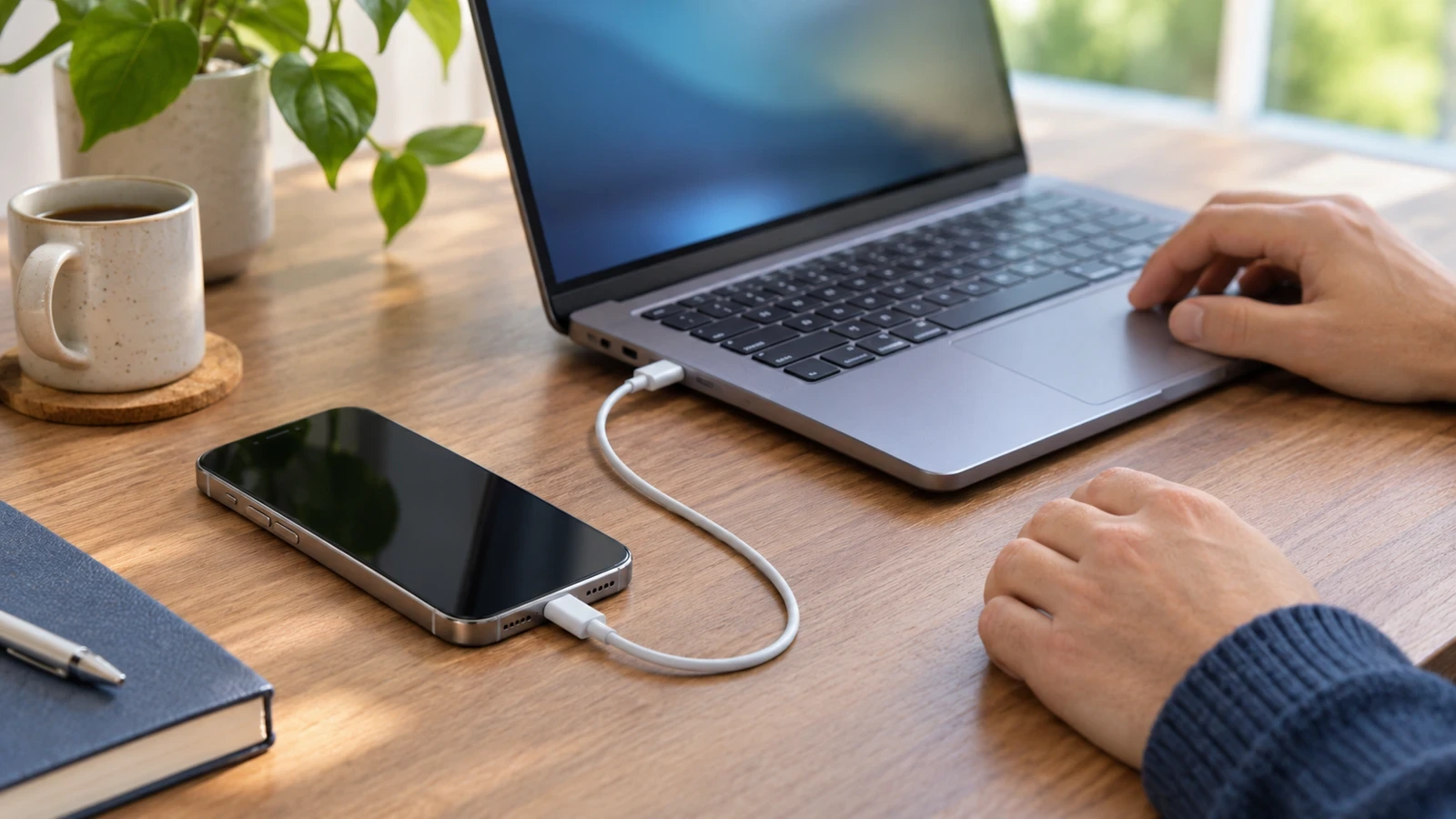
If your iPhone is not showing the computer-trust prompt, unlock it, open Apple Devices on Windows or Finder on a current Mac, and reconnect with a working data cable. If the phone is detected but authorization still fails, try the targeted trust reset below after updating and restarting. Start by separating a missing prompt from a missing USB connection.
A missing pop-up alone does not tell you which component has failed. If the computer already accesses the phone and the task you need works, do not reset settings simply to make an alert appear again.
Choose the right starting point
| What happens | Check first | Next useful test |
|---|---|---|
| Phone charges but is absent from the Apple app | Unlock state, data cable and USB port | Try a known working data cable and another port |
| Phone appears, but access is awaiting approval | Computer-side approval and iPhone screen | Select the phone and check both devices for prompts |
| You previously declined trust | Remembered trust choices | Follow the location/privacy reset after basic checks |
| Phone works on another computer | First computer’s app and software | Update the Apple app and operating system |
| Phone is visible, but only photos are missing | The import or cloud-photo workflow | Investigate that task separately |
1. Unlock the iPhone, then reconnect
Disconnect the cable, unlock the iPhone with its passcode, leave the Home Screen visible and reconnect. Apple explains that, by default, wired communication requires an unlocked device; if an accessory is not recognized, it recommends disconnecting, unlocking and connecting again. See Apple’s wired-accessory guidance.
Watch both screens during this test. A phone lying face down can hide an authorization request, while an unopened computer app makes it harder to tell whether the device was detected. Use a computer you own or are authorized to use.
2. Open the appropriate Apple app
Windows: Apple Devices
Open Apple Devices, connect the phone and look for it in the sidebar. Select it if it appears. Apple’s device-location guide shows where to look. On an older setup that still uses iTunes, follow the iTunes controls rather than expecting the Apple Devices layout.
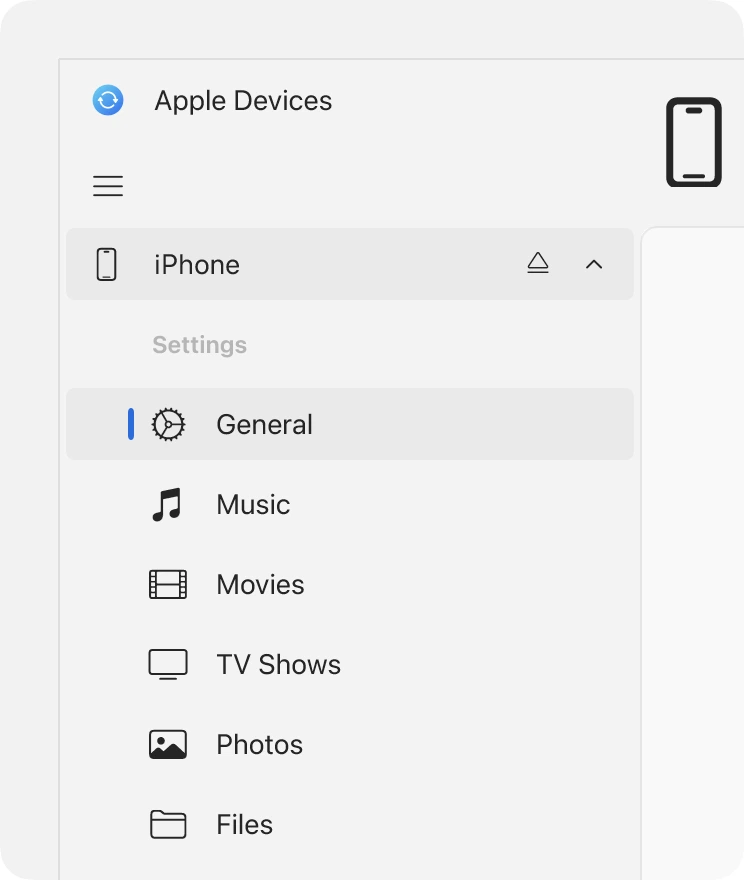
Update the Apple app you are actually using. Apple additionally says that, for iTunes installed from Microsoft Store, iTunes Mobile Device Helper should be enabled as a startup item. That is an iTunes-specific check, not a reason to install iTunes beside every Apple Devices setup.
Mac: Finder
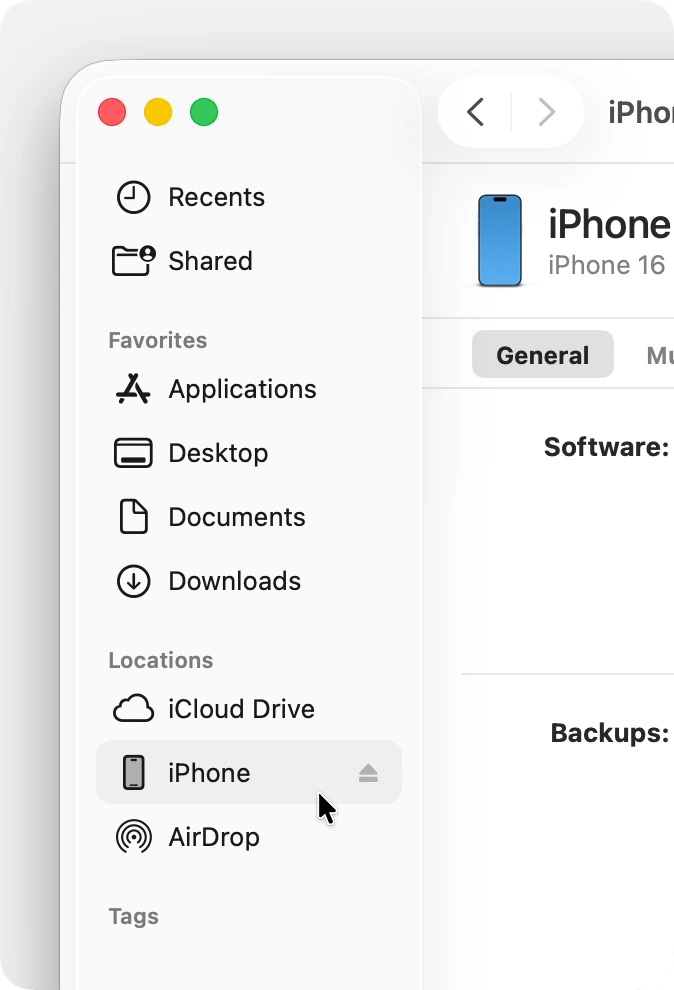
On macOS Catalina or later, open Finder and look under Locations. If the sidebar is hidden, select View → Show Sidebar. Earlier Mac configurations use iTunes. Do not judge detection solely from whether the phone appears on the desktop.
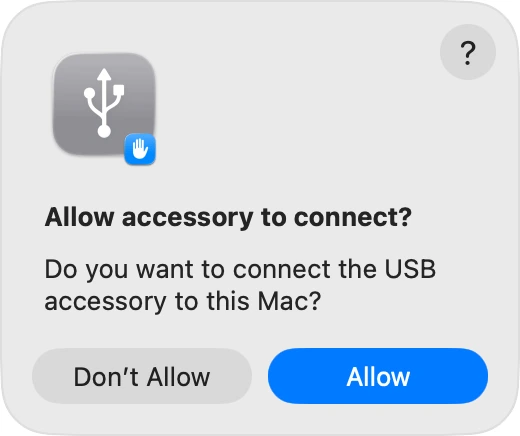
If macOS asks to allow the connected accessory, approve that connection only when it is the device you intended to connect. This Mac-side request is separate from granting trust on the iPhone. Apple illustrates both in its computer-recognition instructions.
3. If the phone is absent, test the cable and port
A charging indicator does not establish that the USB data path works. Apple specifies a cable supporting both charging and data, and recommends trying another cable, port or computer.
- Keep the same phone and computer, but try a known working data-capable cable.
- If it remains absent, test another computer port, preferably with a direct connection rather than a hub.
- If possible, test the same phone and cable on another computer you are permitted to use. Record whether it appears in the correct Apple app.
Change one variable at a time. If replacing only the cable makes the phone appear, the original cable or its connection is implicated. If the same phone and cable work elsewhere, investigate the first computer. Neither result proves that every other component is fault-free.
For the broader cable issue, see our USB charging versus data-transfer guide. Its Android USB-mode instructions do not apply to iPhone.
4. Complete approval on both devices
When the computer offers Trust, select it for your connected iPhone; iTunes may instead show Continue. Then approve trust on the iPhone and enter its passcode if requested. Apple’s trust-alert guide explains the sequence and the access a trusted computer receives.
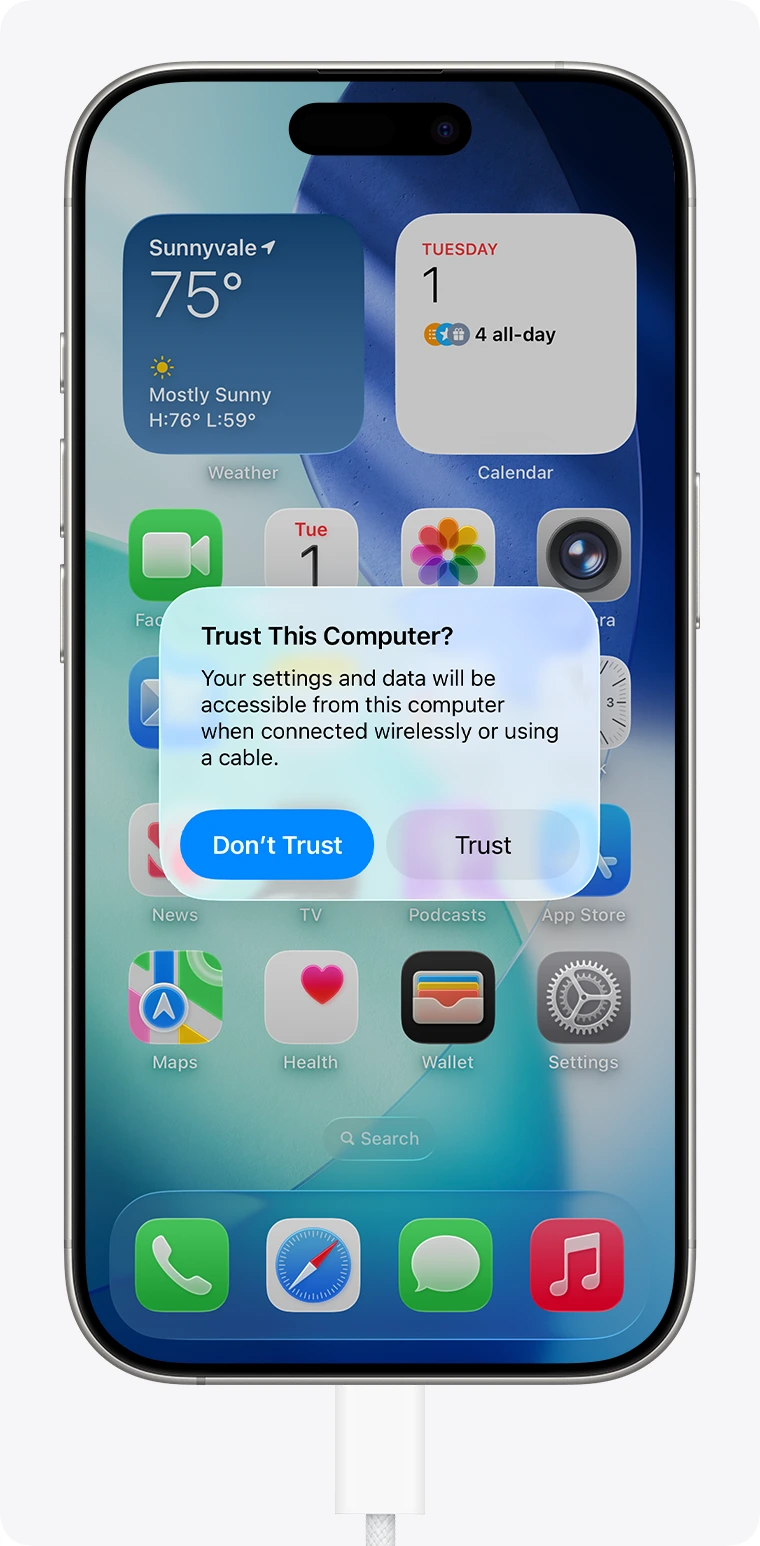
Trust allows the computer to access device content, including photos and other information. It is an access decision, not a repair button to press on any unfamiliar computer. If you already approved the connection, check whether the phone’s details now load before making another change.
5. Restart, then reset location and privacy if needed
If approval does not register or the prompt remains absent, update the relevant software and restart both devices before changing settings. Reconnect and test again. If that fails, Apple lists this targeted reset for trust problems:
- On iPhone, open Settings → General → Transfer or Reset iPhone → Reset.
- Choose Reset Location & Privacy and follow the device’s confirmation prompts.
- Reconnect to your intended computer, unlock the phone and complete the trust request again.
What changes: the phone forgets its computer-trust choices. Location/privacy settings also return to their defaults. Apple says apps stop using Location Services information until you grant permission again; see its privacy and Location Services guidance. Review renewed permission requests according to what each app needs.
Choose the named reset carefully. Restore iPhone in a computer app is a different operation: Apple’s factory-restore instructions state that it removes the device’s information and settings. It is not a routine next step for a missing trust prompt.
6. Check accessory policy on managed devices
Current Apple guidance places wired-accessory options under Settings → Privacy & Security → Wired Accessories. Available choices differ between USB-C and Lightning devices. Start with the unlock-and-reconnect test rather than changing the setting to allow every accessory.
On a supervised work or school phone, an administrator can control accessory access. Ask IT to review the policy if the option is unavailable or restricted; do not remove a management profile to attempt this fix. The official accessory article explains the model differences and management controls.
7. Treat a network reset as a later step
Apple lists Reset Network Settings after the location/privacy reset in its trust troubleshooting. It resets saved Wi-Fi networks and passwords, cellular settings, and previously used VPN/APN settings. Have the necessary connection details before considering it; consult IT for a managed configuration.
Do not use a weak Wi-Fi signal as proof of the cause of a USB authorization problem. First record the outcomes of the app, cable, port and trust checks. A network reset has wider consequences than reconnecting a cable.
Confirm access, then test the task you actually need
Use this reader checklist to verify progress; no connected-iPhone test was performed for this article:
- The intended iPhone appears in Apple Devices or Finder.
- Selecting it loads the device view without an unresolved trust request.
- Your intended operation works—for example, you can access the appropriate photo-import or backup controls.
- If you start a backup, separately confirm its completion. A visible phone icon is not proof that a backup exists.
If only iCloud photos fail to reach Windows after device access works, use our iCloud Photos troubleshooting guide. Cloud synchronization and USB trust are separate checks.
If detection still fails across known working cables and another computer, contact Apple Support or an authorized service provider. Provide the iPhone model, software versions, exact messages and the results of your comparisons. Describe what changed rather than requesting a guaranteed software fix for an unconfirmed hardware fault.
Sources and image notes
Official Apple documentation reviewed November 6, 2026. Inline images are Apple’s original product illustrations from its computer-recognition support page, dated August 12, 2026; their iOS 26/macOS 26 interface may differ from your installed version. Apple interface imagery: © Apple. The lead image illustrates a wired connection and is not evidence of a hardware test. Horus Valley is independent of Apple.
You may also like
 Technology & How-To
Is Tesla Discontinuing the Cybertruck? What We Know
Tesla plans a Cybertruck production wind-down in Texas around mid-2027. See what is confirmed, what remains unknown, and…
 Technology & How-To
Are AI Toys Safe for Kids? Privacy Risks and Parent Checks
Are AI toys safe for kids? Explore the evidence, privacy risks, age advice and practical parent checks for…
 Technology & How-To
Chrome Keeps Showing Fake Virus Notifications? Stop Them Safely
Stop deceptive Chrome website notifications on Windows, Mac and Android. Identify the sender, revoke permission and check whether…