
Chrome Keeps Showing Fake Virus Notifications? Stop Them Safely
Stop deceptive Chrome website notifications on Windows, Mac and Android. Identify the sender, revoke permission and check whether further action is needed.
Contents
- Identify the message before changing settings
- On Windows or Mac: block the sending site in Chrome
- On Android: unsubscribe or revoke the website permission
- If it is a pop-up window, use the separate pop-up setting
- Check whether the change worked
- If warnings continue, investigate extensions and apps
- If you already interacted with the warning
- Why Chrome’s own protection may look different
- Image sources and review
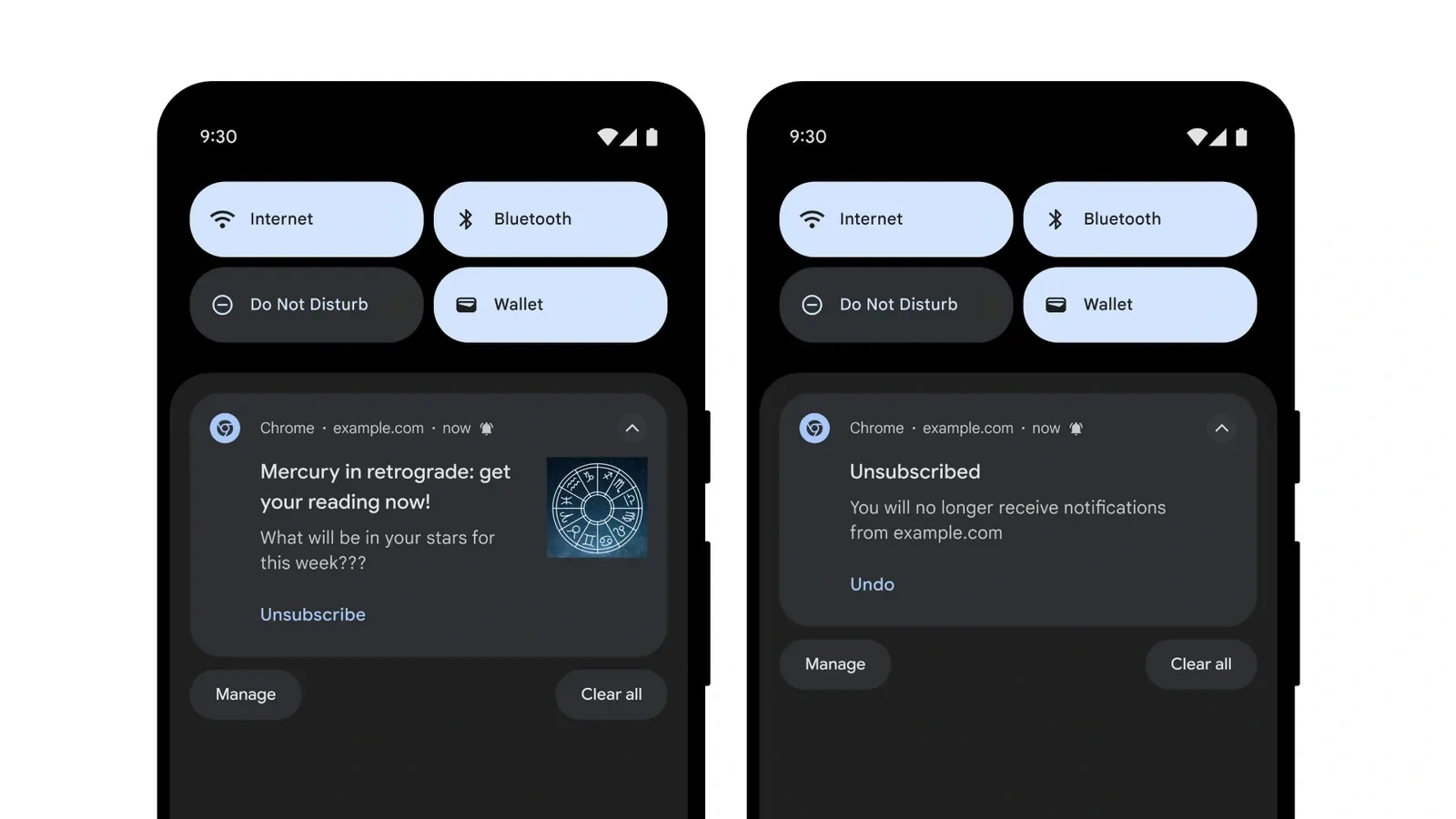
If Chrome keeps showing fake virus notifications, identify the sending website and block its notification permission. Do not click the warning’s scan, payment or support buttons. A website notification can imitate a security alert; its appearance alone does not establish that your device is infected or clean.
The steps below cover desktop Chrome on Windows and macOS, plus Chrome on Android. Start with the source of the message, then check for unwanted software if the symptoms or your actions justify it.
Identify the message before changing settings
| What you see | What to inspect | Next action |
|---|---|---|
| A notification card labelled Chrome with a website address | The sending domain | Block that site’s notification permission |
| A warning inside a tab or a new browser window | The tab and address bar | Close the tab using browser controls; review pop-up settings |
| A warning inside your installed security application | The application opened independently | Review its detection details there |
| Ads or redirects continue after permission changes | Extensions, installed apps and other browsers | Investigate beyond website notifications |
For example, a notification may display a familiar antivirus logo while the sender is an unrelated website. Treat the logo and threat count as claims made by that sender. Open your security application through the operating system to check its actual status.
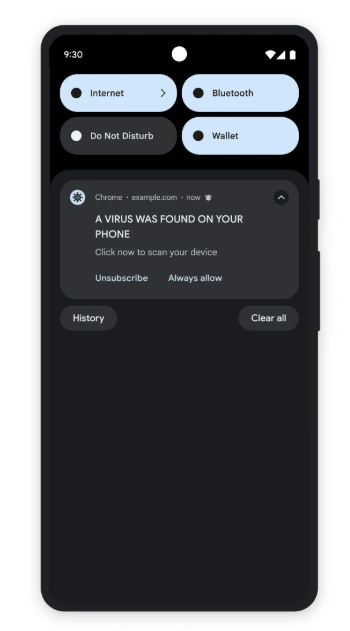
Google published the example above to demonstrate a deceptive notification. The sample domain belongs to the demonstration; it is not evidence of an incident on your device. See Google’s explanation of unwanted notifications.
On Windows or Mac: block the sending site in Chrome
- Open Chrome’s three-dot menu and select Settings → Privacy and security → Site settings → Notifications.
- Review the websites allowed to send notifications. Match the domain to the sender shown on the unwanted card.
- Change that site’s notification permission to Block. If your interface offers only Remove, revoke its allowed entry and do not grant permission again.
- Check that the domain is no longer allowed. Review any other entries you do not recognize individually.
You can also type chrome://settings/content/notifications directly into Chrome’s address bar. It is an internal settings address, not a website to search for. Google documents that shortcut in its notification-security guidance; the desktop help page explains permission controls.
If you want fewer future permission requests, review the default option on the same page. Also inspect existing allowed entries: changing a default is not a substitute for checking the particular sender. Keep notifications you intentionally use, such as a trusted work service, if you still need them.
On Android: unsubscribe or revoke the website permission
- Expand the notification shade. If Chrome provides an Unsubscribe control, use that browser control rather than tapping the warning’s message or advertised scan button.
- If that control is absent, open Chrome yourself and go to three-dot menu → Settings → Site settings → Notifications.
- Find the sending site in the permitted entries, open its permission controls and turn its notifications off. Layout and labels can differ by version.
This settings route avoids reopening the suspicious page. Google’s Android notification instructions cover notification controls and unsubscribe availability. Turning off every Chrome notification at the Android system level also affects legitimate sites; target the sender when possible.
If Chrome replaces a notification with a possible-spam warning, choose the unsubscribe option if you do not trust the sender. Google also offers a spam-report action; reporting shares the notification content and site URL with Google. You do not need to reveal the suspicious content merely to unsubscribe.
If it is a pop-up window, use the separate pop-up setting
A new window and a website notification use different controls. On desktop, open Settings → Privacy and security → Site settings → Pop-ups and redirects. Review the default and block an unwanted site listed as allowed. Google’s pop-up guide explicitly distinguishes pop-ups from notification subscriptions.
Close a deceptive tab with Chrome’s own tab-close control. Do not use a close button drawn inside the page. Avoid restoring that suspicious tab when reopening the browser. Blocking pop-ups does not by itself show that you revoked the notification sender’s permission.
Check whether the change worked
Use this suggested verification sequence. It is a reader test, not a malware-removal test performed for this article:
- Record the sender’s domain without opening its link.
- Confirm its notification permission is blocked or its previous allowance has been removed.
- Dismiss old cards already in the notification centre; these are not evidence of a new delivery.
- Resume ordinary browsing without returning to the suspicious page. If a new card arrives, compare its sender with the one you blocked.
If the domain differs, investigate that new sender. If it appears to be identical, check whether another Chrome profile, another browser or an installed app is responsible. A quiet few minutes is useful feedback, but it does not prove the entire device is free of unwanted software.
If warnings continue, investigate extensions and apps
On desktop Chrome, use Extensions → Manage extensions to review additions you did not intend to install. Google’s extension guide explains disabling and removing them. On a managed work or school device, involve your administrator before changing organization-controlled software.
Google lists persistent redirects, returning extensions and unexplained homepage changes among signs that warrant checking for unwanted software. These symptoms justify a wider investigation; they do not identify a specific infection by themselves.
- Windows: open Windows Security → Virus & threat protection yourself and run the available scan. If another antivirus is your active provider, use that product’s own interface. Microsoft documents the scanning options.
- Android: open Google Play Store, select your profile and review Play Protect. Keep its app scanning enabled and follow any actual findings. Google explains what Play Protect checks.
Do not begin by erasing all Chrome data. Google distinguishes cached files from site permissions. If broader unwanted changes persist, a desktop Chrome settings reset is a later option: it changes content settings, extensions and other preferences while retaining saved bookmarks and passwords. It is not a substitute for checking installed software.
If you already interacted with the warning
- Only opened the page: close it, revoke the notification permission and check whether anything downloaded. Do not run a downloaded installer to investigate it.
- Installed software or granted remote access: ending the notifications is insufficient. Stop the remote session and seek help through your device vendor, security provider or workplace IT using independently obtained contact details.
- Entered a password: use a trusted device to open the genuine service, change the exposed password and review account access. For a Google Account, follow our account access and security checks.
- Paid or supplied card details: contact your bank or payment provider through its official app or the number on your card.
Never use the warning’s support number to verify the warning. Microsoft’s scam guidance says genuine Microsoft error messages do not include a telephone number to call.
Why Chrome’s own protection may look different
Google documents automatic permission revocation and Android warnings for potentially deceptive notifications. Feature availability and layout can vary, so a missing warning does not certify a sender. Review Settings → Safety Check if available to see permissions Chrome has removed; do not restore an unfamiliar site simply because it appears in that list.
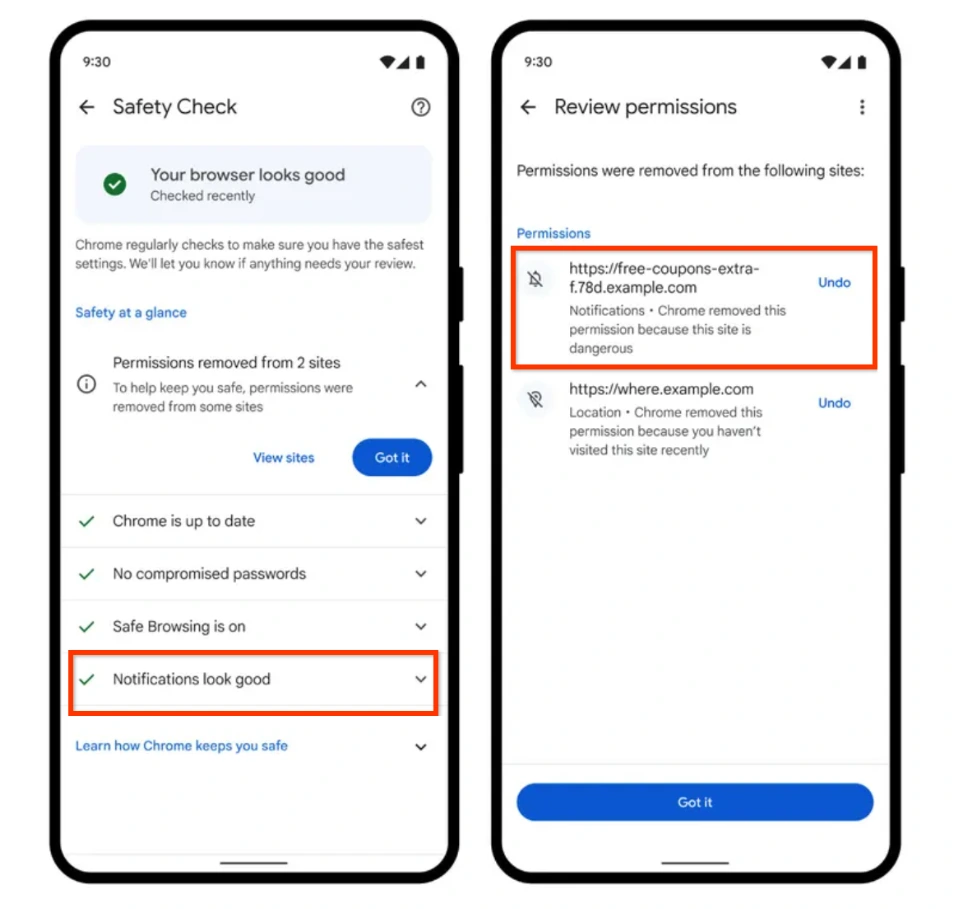
Image sources and review
Instructions reviewed November 6, 2026. Images are original Google product demonstrations from September 2024 and May 2025, not screenshots captured on a current reader’s device. Google interface imagery: © Google. Horus Valley is independent of Google. No malicious website, notification subscription or malware sample was used to test this guide.
You may also like
 Technology & How-To
Is Tesla Discontinuing the Cybertruck? What We Know
Tesla plans a Cybertruck production wind-down in Texas around mid-2027. See what is confirmed, what remains unknown, and…
 Technology & How-To
Are AI Toys Safe for Kids? Privacy Risks and Parent Checks
Are AI toys safe for kids? Explore the evidence, privacy risks, age advice and practical parent checks for…
 Technology & How-To
iPhone Trust This Computer Not Showing? Windows and Mac Fixes
Restore the iPhone computer-trust prompt with checks for unlocking, Apple Devices or Finder, USB data cables and targeted…