
How to Know If Someone Has Access to Your Google Account: 25 Security Checks and Recovery Steps
Step-by-step Google Account security guide: check signed-in devices, suspicious Gmail activity, forwarding, filters, delegates, app permissions, recovery settings and passkeys.
Contents
- 1. First, distinguish a security warning from confirmed unauthorized access
- 2. Open the official list of devices signed in to your Google Account
- 3. Understand why the same phone or computer appears several times
- 4. Sign out of an unknown device or an old device you no longer own
- 5. Check recent security activity for account changes you did not make
- 6. Run Google's Security Checkup from your own browser
- 7. Inspect Gmail's Last account activity report on a computer
- 8. Learn what an unfamiliar IP address can and cannot prove
- 9. Review third-party apps connected to your Google Account
- 10. Know the difference between Sign in with Google and data-access permissions
- 11. Examine Gmail forwarding: someone may be receiving copies of your mail
- 12. Look for Gmail filters that quietly forward, delete, or hide security emails
- 13. Check whether Gmail delegation gave someone else mailbox access
- 14. Check Gmail's Send mail as and linked-mail settings
- 15. Investigate messages you did not send and messages that disappeared
- 16. Verify that your recovery email and phone number still belong to you
- 17. Inspect two-step verification methods, passkeys, and security keys
- 18. Turn on strong authentication without locking yourself out
- 19. Check for unfamiliar app passwords and older integrations
- 20. Check your Google Account's password and password reuse
- 21. Review Chrome sync and saved-password exposure when relevant
- 22. Inspect Google Drive sharing and other data exposure
- 23. Examine your phone and computer for malware or unwanted extensions
- 24. Respond correctly to suspicious Google prompts and verification codes
- 25. Secure a lost phone, stolen laptop, or shared family computer
- 26. What to do in the first 15 minutes if you suspect an intruder
- 27. What if someone changed your password and you cannot sign in?
- 28. How to investigate a suspicious login alert without being tricked by phishing
- 29. Signs that someone might have accessed Gmail without stealing your Google password
- 30. What Google's activity and security pages cannot tell you
- 31. A realistic example: an unfamiliar Android session after changing phones
- 32. Another example: no unknown devices, but password-reset emails never arrive
- 33. A third example: a connected app you do not remember installing
- 34. Long-term habits that make account takeovers less likely
- 35. Conclusion: use multiple checks, not a single 'hack detector'
- Official sources and further reading
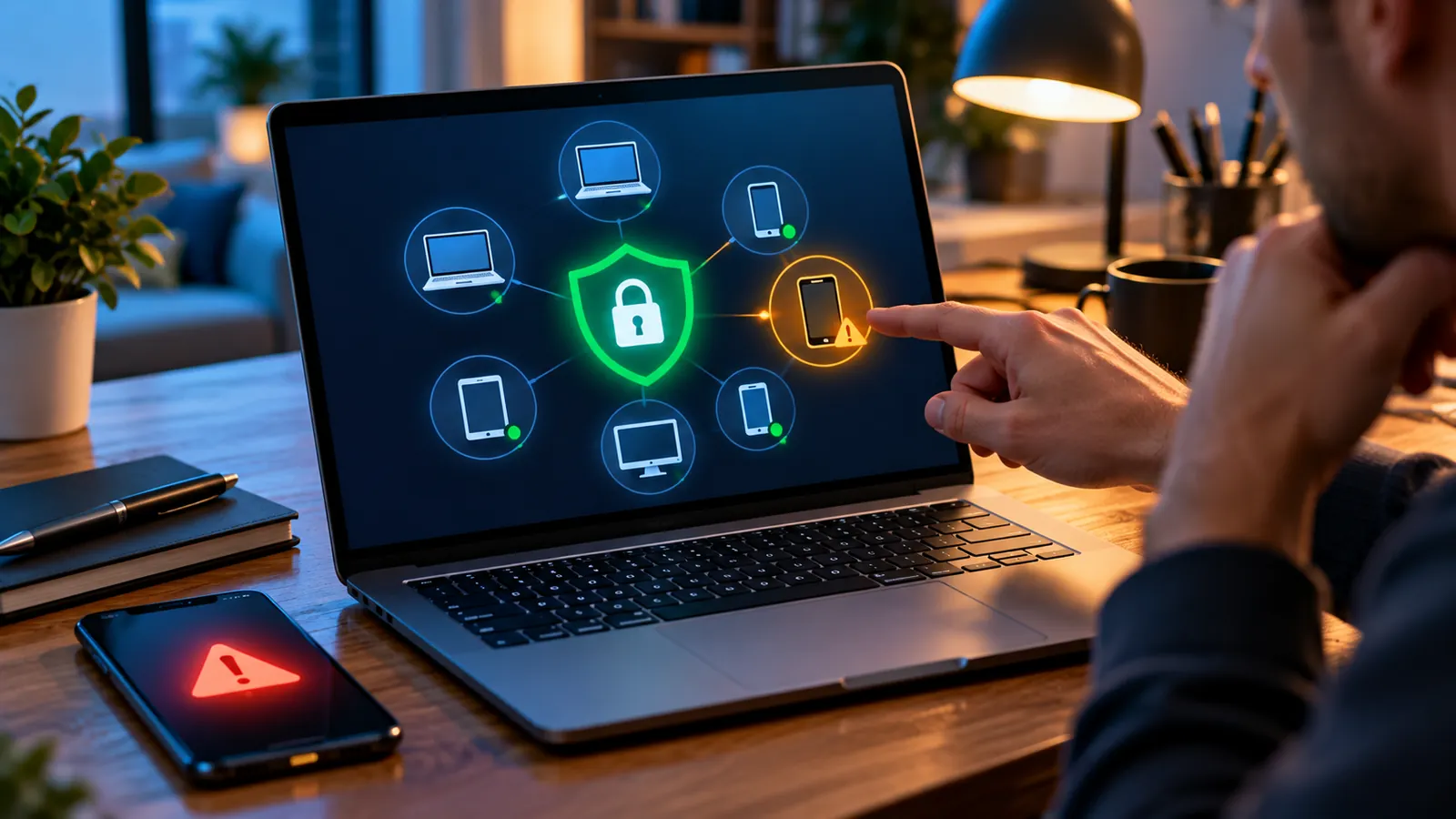
A Google Account is more than an email address. Depending on what you use, it can be the key to Gmail conversations, Google Drive files, saved photos, Calendar appointments, contacts, passwords, YouTube activity, and sign-ins to other websites. An unfamiliar login therefore deserves attention. But one strange-looking location or repeated device entry is not proof of a breach.
The fastest useful check is to open Google's device activity page, inspect your sessions, and then run Security Checkup. That is only the beginning: an intruder may have created a mail-forwarding rule, added a Gmail delegate, obtained access through an authorized third-party app, or altered recovery settings. This guide explains how to find those less-obvious access paths, remove what you do not recognize, and protect yourself without accidentally losing access to your own account.
The steps below are based on Google's published help instructions. Menus may be labeled slightly differently depending on your language, account type, device, and ongoing interface changes. Follow official links rather than trusting unsolicited emails or advertisements that imitate a Google security screen.
1. First, distinguish a security warning from confirmed unauthorized access
A notification about a new sign-in may be legitimate if you signed in on a replacement phone, used a browser's private window, reset a device, installed a new mail app, or traveled. Device activity can also show approximate locations based on internet routing rather than your precise position. Background synchronization may make the reported activity time more recent than when you last touched the device.
Still, several clues together warrant urgent action: a device you have never owned, a password-change notice you did not trigger, an unexpected recovery email or phone number, sent messages you did not write, missing messages, new forwarding rules, or security prompts you repeatedly did not initiate. Treat them as possible signs of compromise rather than definitive proof of a specific attacker.
If you are currently seeing an unexpected Google sign-in prompt, deny it. Do not approve it to make the notification disappear and never share a verification code with someone who contacts you. If your password may be known to someone else, use a trusted device to change it immediately.
2. Open the official list of devices signed in to your Google Account
The quickest starting point is google.com/devices, which leads to the device management area of your Google Account. You can also open myaccount.google.com, choose Security & sign-in, find Your devices, and select Manage all devices. You may be asked to verify your identity.
Review every phone, computer, tablet, and session shown. Google may list devices where you are currently signed in as well as those used within the previous few weeks. Entries marked Signed out are historical information, not necessarily live access. Select each unfamiliar entry to see available details.
Write down the device type, browser, approximate location, and activity time before taking action. Do not assume that an Android phone is suspicious simply because its model name is abbreviated or unfamiliar. Compare the details with your actual devices and your recent logins. Google's device-activity guidance explains the limits of these signals.
3. Understand why the same phone or computer appears several times
Google sometimes displays separate sessions rather than one entry per physical device. A session represents an authenticated period in a browser, app, or service; multiple sessions with similar device descriptions might come from one device or several. Signing in through Chrome, a mail client, or another browser can create different entries.
A phone that was factory-reset and later reconfigured may also leave a historical entry. If you recognize the hardware but not every session, check the sign-in details rather than guessing. If you are unsure whether all sessions bearing a device name belong to you, Google's guidance recommends signing out of every session under that name.
Important distinction: removing an unfamiliar session is useful, but it is not a substitute for changing a compromised password, checking other sign-in methods, and reviewing third-party authorization. Someone with a still-valid way to sign in may regain access later.
4. Sign out of an unknown device or an old device you no longer own
At google.com/devices, choose the suspicious device or session and select Sign out. Repeat for other unfamiliar sessions. Also sign out from devices that were lost, sold, shared with strangers, or left at a workplace you no longer use.
If you recently sold a phone without properly wiping it, prioritize revoking access from that device and changing the password. If someone knows your password, signing them out may not prevent a fresh login. Review security alerts afterward to see whether additional attempts occur.
Do not confuse signing out with remotely erasing the entire device: these are different actions, and device-finding services have their own requirements. Avoid wiping a family member's phone because you misinterpreted a session description. Save evidence if you need it for an employment, stalking, or fraud investigation.
5. Check recent security activity for account changes you did not make
Open Google Account Security and look for Recent security activity or a similarly named security-events area. Review notices about newly recognized devices, password changes, recovery-information changes, verification-method changes, and other sensitive account events.
Some events offer a way to say the activity was not yours. Follow the official on-screen recovery and protection steps, especially if Google asks you to review a recent sign-in. If you receive a push notification asking whether you just signed in, tap No, it's not me when the activity is unfamiliar. Google's documented response may sign out other devices and require extra verification for future sign-ins.
The absence of a warning does not prove that no one has access. Alerts and event histories are useful evidence, but they are not an exhaustive forensic record. An authorized app, a forwarding rule, or an already-unlocked shared computer may require separate checks.
6. Run Google's Security Checkup from your own browser
Visit myaccount.google.com/security-checkup. Review the recommendations Google presents for your particular account: sign-in methods, recovery contacts, devices, account permissions, and other settings that may need attention.
Complete each recommended action deliberately. For example, update an old recovery telephone number, remove a connection you no longer use, or check a device that has not been active for months. If a recommendation sends you to another part of your account, finish that review and return to the checkup.
A clean checkup is reassuring but not a guarantee of total safety. It does not replace checking Gmail forwarding and filters when you suspect that another person has been reading your messages. It also cannot examine every piece of software installed on your computer.
7. Inspect Gmail's Last account activity report on a computer
Sign in to Gmail on a desktop browser and scroll to the bottom of the inbox. In the lower-right area, look for Last account activity and click Details. According to Google's Gmail help, this report can show access types, recent IP addresses, approximate locations, and concurrent Gmail sessions.
Google says the report normally shows the last ten IP addresses that accessed your mail, with additional entries possible for certain suspicious activity. The access type may show a browser, device, or POP/IMAP mail service. This is a Gmail-specific view, not a complete log of every action in Drive, Photos, or every other Google service.
If a location seems strange, compare it with your internet provider, VPN, travel history, and mobile carrier. An IP address associated with a distant network hub is not necessarily an attacker. But an unexplained mail-service connection together with unauthorized outgoing email deserves investigation.
8. Learn what an unfamiliar IP address can and cannot prove
IP-based location is approximate. Mobile carriers, corporate networks, VPN services, internet gateways, and cloud-based integrations may produce locations far from where you are physically sitting. Two people can also appear behind the same public IP when a network uses address translation.
Look for combinations of evidence rather than a single map pin. Ask whether the browser, device, access type, timestamp, and security notification match activities you remember. If you use Outlook, Apple Mail, a work email client, or a legitimate third-party tool, it may explain some entries.
An IP address by itself does not reliably identify a person. Do not post another user's alleged IP address online or attempt to retaliate against a device you think is responsible. Preserve the details privately, secure your account, and use appropriate reporting channels if financial fraud or other harm occurred.
9. Review third-party apps connected to your Google Account
Open the official third-party connections page while signed in. You may see applications that use Sign in with Google as well as applications granted permission to access certain Google data. These are not necessarily the same thing.
A website you signed in to using Google might know your basic profile information without having permission to read Gmail. Another application might have requested access to Drive files, contacts, Calendar events, or Gmail functions. Inspect each entry and its permissions rather than judging risk from the app name alone.
For anything you do not recognize or no longer trust, open its details and use the option to remove or stop access. Google's third-party access guidance describes this process. Removing access can interrupt an app's features. It also does not automatically erase information the app already obtained; contact the app provider if you need previously shared data deleted.
10. Know the difference between Sign in with Google and data-access permissions
Sign in with Google helps you authenticate to a separate service without providing that service your Google password. The service may retain its own session after you disconnect the Google connection, depending on its setup. Therefore, removing a Google connection does not always close a separate account or delete data held by that service.
Google data-access permissions can permit an application to interact with specific Google services on your behalf. The scope matters: viewing basic profile information is different from reading email or accessing files. Read the description of each permission carefully, especially when the connected application is an email organizer, backup tool, calendar service, or automation platform.
If you find an unknown app with broad permissions, revoke it, record what it could access, and check the affected service for unusual activity. When sensitive documents or account-reset emails may have been exposed, consider securing related accounts too.
11. Examine Gmail forwarding: someone may be receiving copies of your mail
In desktop Gmail, choose Settings → See all settings → Forwarding and POP/IMAP (the exact tab label may differ). Inspect the Forwarding section for an address you did not add. If forwarding is active and unauthorized, choose Disable forwarding and Save Changes.
Email forwarding can be particularly serious because a person may continue receiving new messages without appearing as an ordinary signed-in device. Google's forwarding instructions explain both full-mailbox forwarding and forwarding controlled by filters.
If you discover unauthorized forwarding, secure your account password, check recovery options, inspect filters, and preserve evidence of the address and changes before removal when it is safe to do so. Remember that disabling forwarding stops future automatic forwarding through that rule; it cannot recall copies already sent to another mailbox.
12. Look for Gmail filters that quietly forward, delete, or hide security emails
Still in desktop Gmail, open Settings → See all settings → Filters and Blocked Addresses. Review every filter, not just those with an obvious external address. A malicious rule could forward only bank messages, delete account-security notices, archive particular messages, or mark alerts as read.
Check for filters using actions such as Forward it, Delete it, Skip the Inbox (Archive it), or Mark as read, particularly when the matching conditions target financial services, password-reset messages, or verification alerts. If you do not recognize a rule, record its details and remove it.
Some filters are perfectly legitimate and useful. Removing all filters blindly may break your inbox organization. Google's Gmail security checklist specifically recommends examining forwarding and deletion filters when investigating suspicious activity.
13. Check whether Gmail delegation gave someone else mailbox access
On a computer, go to Gmail → Settings → See all settings → Accounts and Import (or Accounts). Locate Grant access to your account, if available. A listed delegate can read or manage mail within the permissions of Gmail delegation without knowing your Google password.
If you see someone you did not authorize, use Delete next to the delegate. Then investigate how the delegation was granted, change your password, and review recovery options and other settings. Google provides the removal steps in its delegation help page.
Delegation availability and menu labels can vary for personal versus managed accounts. If the option is missing, that alone does not indicate wrongdoing. For work or school accounts, organization administrators may control access and the settings available to you.
14. Check Gmail's Send mail as and linked-mail settings
Within Accounts and Import, review Send mail as, and any available sections for accessing or importing messages from other accounts. Check that addresses and configurations are ones you recognize. Also inspect your Gmail signature and vacation responder under General for unexpected changes.
An unauthorized sender configuration or deceptive signature could cause recipients to believe messages came from you or point them to an attacker-controlled link. Unexpected linked-mail settings might explain surprising traffic or access reports; each finding needs context before you call it malicious.
Google's Gmail security guidance also recommends verifying POP and IMAP access settings, if those options appear. Disable unneeded legacy connections cautiously: applications that depend on them may stop receiving mail. Where possible, prefer current, supported authentication methods and only trusted apps.
15. Investigate messages you did not send and messages that disappeared
Open Gmail's Sent, Trash, Spam, All Mail, and archived-message views. Look for replies you never wrote, password-reset messages, invoices, forwarded documents, or notices of changed account details. Search for relevant sender names and time ranges rather than relying only on the inbox.
Unexpected content does not automatically mean your Google password was stolen. Account impersonation can involve spoofed email addresses; malicious filters can hide messages; another authorized mailbox user could also have sent something. Compare full message details where available and check actual account activity.
If attackers may have used your email to reset passwords elsewhere, secure those dependent accounts, prioritizing banking, shopping, cloud storage, and social media. Contact affected recipients if fraudulent instructions were sent in your name. Save copies of relevant evidence before deleting suspicious mail.
16. Verify that your recovery email and phone number still belong to you
In Google Account Security, open the recovery-information and sign-in areas and check every recovery phone number and email address. Remove unfamiliar recovery methods and replace obsolete details with methods you control. Google may require additional identity verification before allowing changes.
A recovery address matters because it can receive notices or play a role in regaining account access. Protect that secondary inbox with its own strong authentication. A recovery phone matters too; a deactivated number might later be reassigned by a carrier, creating avoidable account-recovery risks.
After changing recovery information, check recent security activity for modifications you did not request. Do not remove your only working recovery method before you have a secure replacement; doing so can lock you out after a lost phone or account challenge.
17. Inspect two-step verification methods, passkeys, and security keys
Go to Google Account Security, find How you sign in to Google, and review 2-Step Verification, passkeys, security keys, trusted devices, and available backup methods. Remove sign-in methods that belong to devices or people you do not recognize.
Passkeys use a device or security key with local verification such as a screen lock or biometrics. They reduce exposure to phishing, but a passkey associated with a lost or shared device must still be reviewed. Google's passkey instructions describe how to inspect existing passkeys. Creating a passkey also does not automatically delete all older authentication or recovery methods.
If someone previously handled your unlocked phone, examine whether it contains sign-in methods you did not authorize. And if you share a computer, never create a passkey for your personal Google Account on a device that another person can unlock.
18. Turn on strong authentication without locking yourself out
Google recommends enabling 2-Step Verification, or using a passkey where appropriate. Hardware security keys and passkeys can offer stronger protection against phishing than entering SMS codes into a website. Keep a recovery option and, if supported, securely stored backup codes.
Do not treat two-step verification as proof that no intrusion is possible. Someone who controls an already authenticated device, abuses a granted app permission, or tricks you into approving a sign-in can still cause harm. Strong authentication is one layer of defense, not the whole review.
After enrolling a new method, confirm that you can access your account from your trusted device and that backup methods work. Store backup codes privately, not in a publicly shared file or an email inbox accessible to other people. Never provide a one-time code to unsolicited support callers.
19. Check for unfamiliar app passwords and older integrations
Some account configurations still support app passwords for older software. If the app-password section is available in your Google sign-in settings, inspect whether any such credentials were created for apps you do not know or no longer use. Revoke suspicious or obsolete app passwords.
An app password is different from a code used once to verify a login. It may allow a compatible application to access an account until the credential is revoked or otherwise invalidated. Google says app passwords are not recommended for most modern applications and some authentication setups do not offer them.
If revoking an old app password stops a legitimate mail client from working, check whether the software supports a modern Google sign-in flow. Avoid restoring a long-lived credential until you understand why it is required.
20. Check your Google Account's password and password reuse
If you suspect unauthorized access, change the Google Account password from a device you trust. Use Google Account Security rather than a link in a surprise email. Choose a long, unique password not reused on another website; a password manager can generate and store one.
Password reuse is dangerous because a breach at an unrelated service can give criminals a credential to try against your Google Account. If you used the old Google password elsewhere, change it on those services as well, beginning with accounts that store payment data or personally sensitive information.
Do not merely add an extra digit to a compromised password or rotate among similar variants. If you used a password manager, check its account and device security too. A changed password is a strong step, but you must still review sessions, recovery methods, app permissions, forwarding, and potentially infected devices.
21. Review Chrome sync and saved-password exposure when relevant
If you use Chrome with Google Account sync or Google Password Manager, consider what the account and your signed-in devices can access. Review your Chrome profiles and any computer you recently shared. Inspect Google Password Manager for saved credentials, security recommendations, and unfamiliar activity where those features are available.
Do not assume that opening your Google Account on one device automatically means every saved password has been extracted. Sync, encryption, local device access, and password-manager settings affect what can be seen and used. Nevertheless, access to an unlocked computer or an already-signed-in browser can create risks that the device list alone does not explain.
If you believe passwords were exposed, prioritize changing credentials for your main email, financial services, password manager, and other critical accounts. Review browser extensions too; remove unfamiliar extensions and update the browser.
22. Inspect Google Drive sharing and other data exposure
If your Google Account stores sensitive documents, open Google Drive and inspect recent activity, important files, and sharing settings. Pay attention to financial files, identity documents, account exports, or private folders. You may find authorized shares you forgot about or links with broader permissions than you intended.
Google Drive file sharing and account authentication are related but distinct. A collaborator who legitimately has access to a shared file does not necessarily have access to your Google Account. Conversely, revoking a device session will not undo a document that was already downloaded or shared elsewhere.
Where practical, restrict unnecessary sharing, replace links with access for named people, and check related files in Photos and other services. Be careful before bulk-removing collaborators from shared workspaces; confirm ownership and business requirements first.
23. Examine your phone and computer for malware or unwanted extensions
An account can appear to have been accessed through an ordinary device when the real issue is a compromised browser, malicious extension, remote-control application, or stolen session data. Review recently installed apps and extensions; remove anything you do not recognize or trust.
Update the operating system, browser, and security software from their official update mechanisms. On supported devices, run reputable built-in security checks and scan for threats. If a device is seriously compromised, use a separate trusted device to change your Google password and other critical passwords; changing them only on infected hardware may expose the new credentials.
Avoid downloading random 'Google account hacker detector' tools that ask for passwords or broad permissions. Google does not require an unofficial app to show you your signed-in devices or account security recommendations.
24. Respond correctly to suspicious Google prompts and verification codes
If a Google prompt appears when you are not signing in, select the option indicating it was not you. If a verification code arrives unexpectedly, do not share it and do not enter it on a page reached through a suspicious message. Multiple codes can reflect someone trying to sign in or recover an account, but they do not by themselves prove the attacker successfully entered it.
Open Google's security pages independently and examine activity. Change your password if compromise is plausible, verify your recovery options, and make sure your phone number and email account remain under your control. Google's guidance on unfamiliar activity documents a response to unexpected sign-in notifications.
If somebody phones you claiming to be 'Google security' and asks you to read out a code, end the call. Google warns that it does not request passwords or verification codes over email, telephone, or messages. Only enter them through Google's legitimate sign-in flow.
25. Secure a lost phone, stolen laptop, or shared family computer
A lost device can contain an active session, saved passwords, or a usable passkey even if the Google Account password itself remains secret. From a trusted device, review the lost hardware at google.com/devices and sign it out. Change your password if unauthorized use is possible and remove any passkey or security key associated with hardware you no longer control.
If available and appropriate, use your device manufacturer's locating or remote-lock features. Review other apps on the lost device, payment methods, cellular service, and messaging accounts. If the phone number itself is compromised, speak to your mobile carrier about protecting or replacing the SIM/eSIM.
For a shared household computer, create separate operating-system profiles and require individual screen locks. Avoid staying signed in on public or borrowed devices. Logging out from the browser and reviewing the Google session afterward is safer than assuming closing a tab ended the session.
26. What to do in the first 15 minutes if you suspect an intruder
When you still control your account, use this order as a practical starting point. Work on a trusted device, especially if you suspect malware on your usual computer.
- Open Google Account Security directly and review urgent alerts.
- Deny any sign-in prompts you did not initiate.
- Change your Google password to a unique one if compromise is plausible.
- Review signed-in devices and sign out suspicious sessions.
- Review recovery phone, recovery email, passkeys, security keys, and two-step verification methods.
- Remove suspicious third-party connections.
- In desktop Gmail, check forwarding, filters, delegation, and the Details activity report.
- Review sensitive Drive files and other connected services if you see evidence of data access.
- Secure other accounts that may have been reset through your email.
- Keep evidence and monitor security events for new attempts.
The steps may need a different order if you are currently locked out, cannot trust your device, or face an immediate financial or personal safety threat. For those situations, start with a clean device and Google's account recovery process, and seek appropriate specialist support if necessary.
27. What if someone changed your password and you cannot sign in?
Go directly to Google Account Recovery. Try from a device, browser, and location you routinely used with that account, and answer as many prompts as you can. Google's recovery tips explain why familiar sign-in context and accurate answers can help.
Use the newest previous password you remember when asked, but do not provide any password or recovery code to an individual who claims they can recover accounts for a fee. Google does not authorize social-media strangers to bypass its account recovery checks. Be especially careful with paid 'recovery agents' who request remote access to your device.
If the Google Account belongs to a workplace or school, contact the organization's administrator instead of assuming the personal-account recovery flow is your only option. Recovery is not guaranteed, and it may take time for Google to verify ownership in some circumstances.
28. How to investigate a suspicious login alert without being tricked by phishing
Attackers often imitate security warnings to convince people to type credentials into a fake site. A threatening message may claim that an unknown person logged in, that your account will be deleted within an hour, or that you must call a telephone number immediately.
Rather than clicking the button in a suspicious email, open your browser and manually visit myaccount.google.com/security. Check whether the described event actually appears there. Review the sending address and message details, but do not rely on a familiar logo, sender display name, or padlock symbol alone.
Never install remote-control software, disclose screen-lock codes, or move money because a purported Google representative asked you to. Legitimate security checks can be completed through your own Google Account settings and official help pages.
29. Signs that someone might have accessed Gmail without stealing your Google password
Access can occur through mechanisms that users intentionally enable and later forget. Examples include a delegated mailbox, an approved application with mail permissions, an email-forwarding address, or an email client that remains authenticated. Someone with physical access to an unlocked device might also read the mailbox directly.
That is why a clean list of unfamiliar devices is not absolute proof that no one has read your email. A complete review includes Gmail's account-activity report, settings, approved connections, recovery methods, and the security of devices that you own or share.
At the same time, do not assume that every third-party connection represents spying. Many are necessary for calendar scheduling, document workflows, email clients, or account sign-in. The questions are who approved the connection, what permissions it has, whether it remains needed, and whether its activity is consistent with your expectations.
30. What Google's activity and security pages cannot tell you
A Google Account security review does not provide a complete, real-time list of every person who might have seen your data. The device page shows sessions and recent devices, not a verified human identity behind every connection. Gmail's IP report covers email access, not all Google services, and any data already downloaded may be outside your control.
Some account activity can come from legitimate automation; some attackers use an existing authenticated device or an authorized integration. In a Google Workspace environment, administrator rules and audit tools can add information beyond what ordinary account holders see. If the stakes involve a workplace dispute, harassment, identity theft, or major financial loss, document events and consult qualified support instead of drawing conclusions from one dashboard.
The safest interpretation is evidence-based: check several independent indicators, correct unsafe settings, and monitor future changes. Security is a process of reducing risk, not a promise that a single page can certify an account as '100% unhacked.'
31. A realistic example: an unfamiliar Android session after changing phones
Imagine you replace your Android phone, restore apps, and sign in to Gmail. A few days later, your Google device list shows two sessions with similar Android names and a location in a different city. This looks alarming, but the entries may reflect the previous phone, a fresh session after restoration, and an approximate mobile-network location.
Check the last-used dates, session status, and whether the original phone was sold or reset. If one session corresponds to hardware you no longer own, sign it out. If the remaining details fit your new phone and your own activity, no breach has been established. Still complete Security Checkup if you are uncertain.
Now imagine the same device list is accompanied by a new recovery address and mail forwarding to an unknown inbox. The combined evidence is substantially more concerning. Remove the unauthorized access paths, change the password, and investigate related accounts.
32. Another example: no unknown devices, but password-reset emails never arrive
Suppose your device list contains only your own laptop and phone, yet messages from a bank disappear and several account-reset emails do not reach your inbox. First search Gmail's All Mail, Trash, Spam, and archived messages to rule out simple organization or spam filtering.
Next examine Gmail filters and forwarding. An unfamiliar rule that automatically archives or deletes emails matching financial keywords may explain the behavior. Check whether a delegate or app has mailbox access. Note the rule details, remove unauthorized settings, change your password, and contact affected service providers to secure their accounts.
The lesson is that a normal-looking device list cannot substitute for inspecting the ways mail is processed and shared. That does not mean you should assume malicious activity without evidence; misconfigured filters are common and may be accidental.
33. A third example: a connected app you do not remember installing
You open Third-party connections and find an application whose name is unfamiliar. Select it and inspect when it was linked, whether it only uses Sign in with Google, and what Google permissions it holds. Search your own subscription records or app history if necessary.
If the application is a former productivity service you intentionally used, removal may simply break a connection you no longer need. If it requests broad access to Gmail or Drive and you cannot identify it, revoke access and review the relevant data for unusual activity. Keep in mind that a service could retain earlier copies of information it lawfully received while connected.
Do not use an unknown application's website to 'verify' your Google password. Perform access removal through Google's official account settings first.
34. Long-term habits that make account takeovers less likely
Use unique passwords and strong authentication, keep your recovery methods current, lock devices, and install system updates promptly. Avoid sharing accounts with family members or colleagues; separate user profiles and delegated access are safer than passing around one password. Review connected applications when you stop using services.
A few minutes of periodic maintenance can prevent trouble from being discovered months later. Set a reminder to review the devices list, Gmail forwarding and filters, third-party permissions, and recovery contacts several times a year, and immediately after a lost device, suspicious alert, or relationship change that affects shared access.
For people at elevated risk—such as journalists, activists, public figures, or those who regularly handle sensitive documents—Google's Advanced Protection Program may be worth evaluating. Its stronger safeguards can involve additional setup and compatibility trade-offs.
35. Conclusion: use multiple checks, not a single 'hack detector'
You can discover much of the access to your Google Account by reviewing devices, recent security activity, third-party connections, and Gmail's detailed settings. The most revealing findings are often not dramatic maps of foreign countries but overlooked forwarding addresses, broad app permissions, old sessions, and recovery methods that no longer belong to you.
If you find convincing signs of unauthorized access, act on a trusted device: deny unexpected prompts, change the password, remove unrecognized sessions and permissions, repair recovery settings, inspect Gmail rules, and secure other accounts that depend on your email. If you are locked out, use Google's official recovery flow.
Most importantly, distinguish unusual from malicious. A different IP address, multiple sessions, or a security email is a reason to investigate—not proof that someone has read your messages. A careful, repeatable security review gives you more useful protection than any service promising to reveal every 'person inside your account' with one click.
Official sources and further reading
- Google Account Help — See devices with account access.
- Google Account Help — Protect your account if there's unfamiliar activity.
- Google Account — Security Checkup.
- Gmail Help — Last account activity.
- Google Account Help — Share some access to your Google Account with third-party apps.
- Gmail Help — Automatically forward Gmail messages to another account.
- Gmail Help — Delegate and collaborate on email.
- Gmail Help — Gmail security tips.
- Google Account Help — Sign in with a passkey instead of a password.
- Google Account Help — Turn on 2-Step Verification.
- Google Account Help — Fix common issues with 2-Step Verification.
- Google Account Help — Tips to complete account recovery.
- Google Account Help — Make your account more secure.
You may also like
 Technology & How-To
 Android Auto Keeps Disconnecting? How to Fix USB and Wireless Dropouts
Android Auto keeps disconnecting? Separate USB, wireless and app failures, check Galaxy USB mode, compare connection methods and…
 Technology & How-To
 Netflix Says Your TV Isn’t Part of the Household? How to Fix It
Fix a Netflix household warning by separating home verification, permanent household updates and temporary travel access, with genuine…
 Technology & How-To
 Google Photos Stopped Backing Up from Your PC? What Changed and How to Fix It
Google Photos stopped backing up your computer folders? Understand the Drive for desktop change, configure browser folder backup…