
Google Photos Stopped Backing Up from Your PC? What Changed and How to Fix It
Google Photos stopped backing up your computer folders? Understand the Drive for desktop change, configure browser folder backup and verify real uploads with a small test.
Contents
- What changed in Google Drive for desktop?
- Start with the symptom you can verify
- 1. Set up computer folders in Google Photos
- 2. Treat folder permission and app activity as separate checks
- Understand the browser’s access prompt
- Understand access on later visits
- 3. Keep Photos running, or use its web app
- 4. Run a three-file test before trusting a whole library
- Test A: one manual import
- Test B: one new file in the selected folder
- Test C: another file after reopening
- 5. Check the folder path and individual files
- 6. Review storage and upload quality deliberately
- On a Mac, export from Apple Photos instead of selecting its library package
- If the pictures are already in Google Drive
- Avoid changing several things during one troubleshooting attempt
- Before you rely on the new backup routine
- Sources, image credits and verification limits
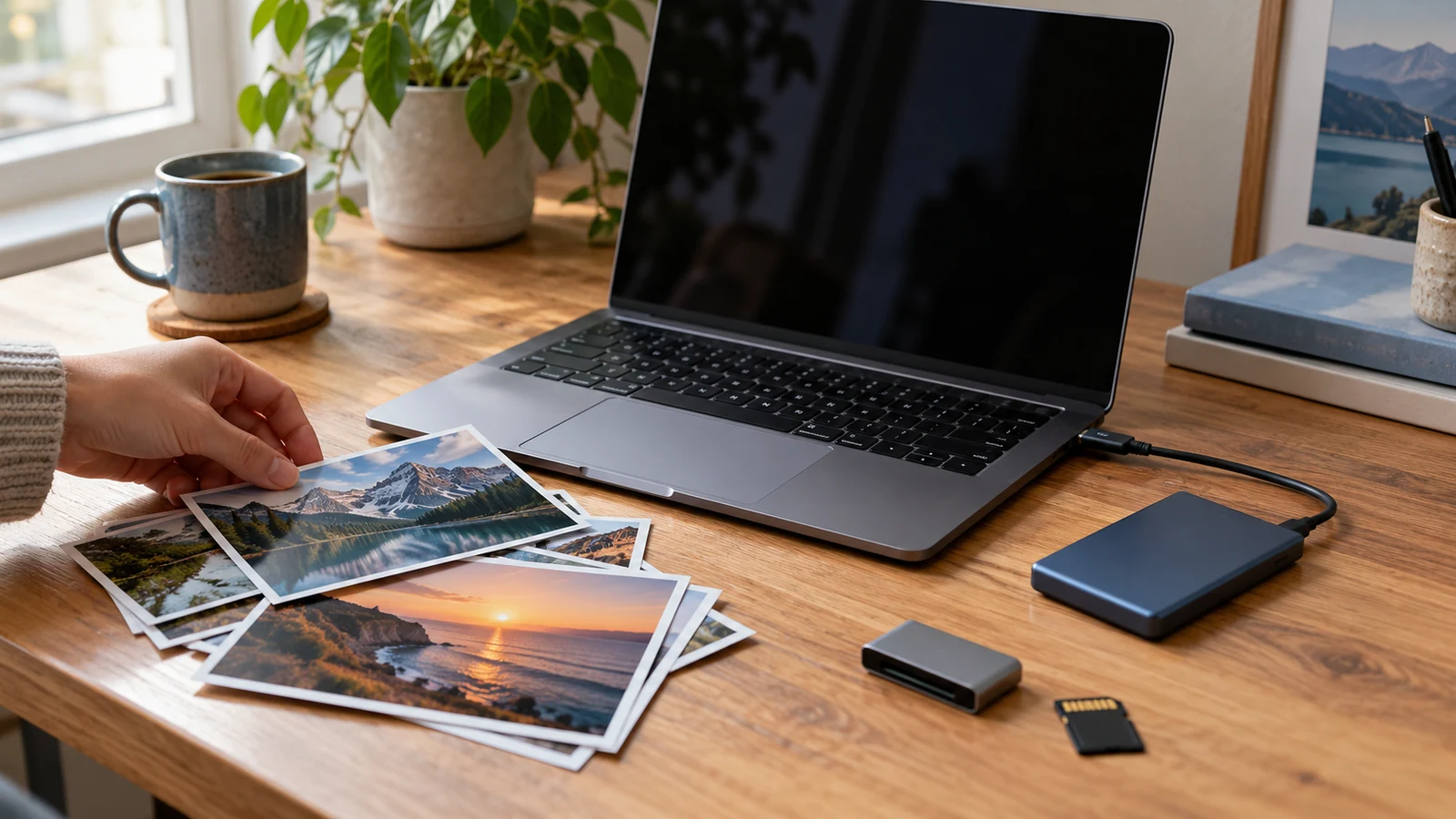
If Google Photos stopped backing up from your PC and you previously used Google Drive for desktop, check the backup method first. Google ended that app’s Google Photos backup support on 10 August 2026. Continuing to repair the old Photos setting in Drive will not restore a service that has been retired.
The replacement is folder backup through Google Photos on the web. You select the folders again, approve access and keep the Photos tab or web app running. If you have already made that change, the next checks are the browser, folder permission, Google Account, available storage and the individual files.
This guide focuses on ongoing uploads from a Windows PC or Mac. If Photos reports a completed backup but you cannot find an older picture, use our separate guide to finding missing Google Photos pictures. Finding an existing upload and configuring a continuing computer backup are different tasks.
What changed in Google Drive for desktop?
Google’s Drive for desktop settings documentation gives two transition dates. As of this guide’s review on 25 October 2026, both have passed.
| Date | Change | What it means now |
|---|---|---|
| 15 June 2026 | Transition notifications began and configuring new Photos backup folders in Drive for desktop ended | An older tutorial’s Add folder steps may no longer match the app |
| 10 August 2026 | Drive for desktop ended Google Photos backup support | Reselect the folders through the Google Photos interface to continue that backup workflow |
Google says items already backed up remain in Google Photos. The retirement does not mean that those existing uploads were deleted, nor that ordinary file synchronization to Google Drive was discontinued. If documents or project folders are failing to sync to Drive, follow our Google Drive for desktop troubleshooting guide for that separate destination.
Start with the symptom you can verify
| What happens? | First thing to check | Useful next action |
|---|---|---|
| Drive still syncs documents, but new pictures do not reach Photos | Whether you still rely on the retired Photos integration | Set up folder backup in Photos itself |
| Back up folders is missing or the browser is unsupported | Browser compatibility and version | Use an updated supported Chromium browser |
| Uploading works until you close the Photos window | Whether the backup application remains running | Keep the Photos tab or installed web app open |
| You are asked for folder access again | The permission offered for the selected folder and site | Review the current request and browser context |
| A small photo uploads manually, but a folder does not | The selected path and automatic folder configuration | Test one folder with a different new photo |
| Only certain pictures or videos fail | File readability, format and size | Compare a working file with a failing one |
| Uploads fail across several folders | The account, storage and displayed error | Resolve the shared problem before rebuilding every folder selection |
Record the actual error and the time of a failed attempt. “Preparing backup”, a permission request and an unsupported browser message do not describe the same failure. A screenshot of the message and the complete folder path are more useful than repeatedly restarting unrelated software.
1. Set up computer folders in Google Photos
Google’s Computer backup instructions describe the current route:
- Open Google Photos in a supported browser and check the account shown.
- Select Create and add photos, usually represented by the plus control near the top right.
- Under Add photos, choose Back up folders.
- Select the computer folder you want to monitor.
- Read the access prompt and choose the appropriate Allow option for that folder.
- Keep the Photos tab or Photos web app running while backup is required.
Begin with a small folder whose contents you recognize. Note its complete path and the account you selected. Once you have verified that example, add the larger photo collection. Selecting every archive, export folder and temporary directory at once makes it harder to identify the source of an error.
Google specifies a Chromium-based browser, such as Chrome or Edge, for automatic folder backup. If the control is absent in another browser, test the documented browser requirement before assuming that your Google Photos library is damaged.
2. Treat folder permission and app activity as separate checks
Selecting a folder does not tell you whether the browser granted the requested access. Likewise, granting access does not tell you that the app is still running. Those are two independent conditions to record when a backup starts once and then appears to stop.
Understand the browser’s access prompt
The browser may ask whether the site can view a selected folder. Check the requesting site and the folder name before approving it. Choose the photo location you intended, rather than a broader directory simply to avoid seeing another prompt.
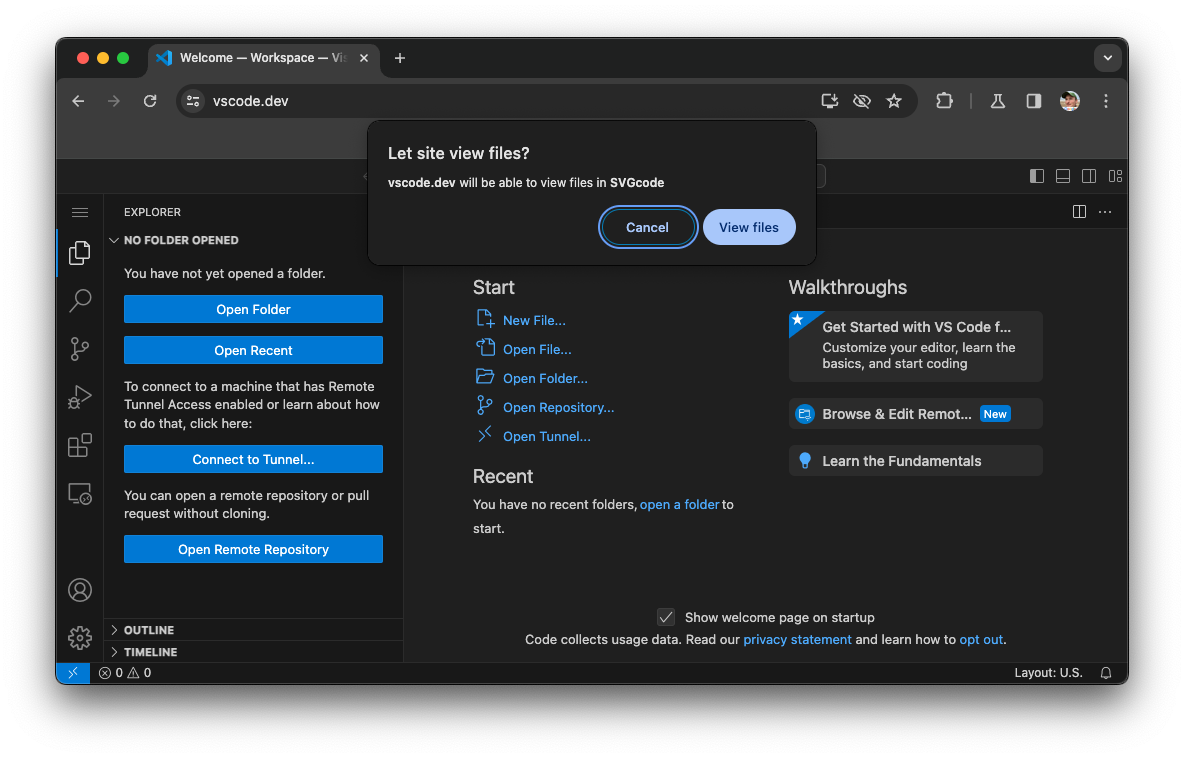
This is a genuine example from Chrome’s documentation, demonstrated with VS Code. It illustrates browser-controlled folder access. Follow Google Photos’s own request and the folder named on your screen; the pictured application and menu are different.
Understand access on later visits
Chrome’s persistent file-permission documentation distinguishes temporary access from Allow on every visit. Persistent access can continue until it is revoked. The exact prompt depends on browser behaviour and the application’s previous permission state.
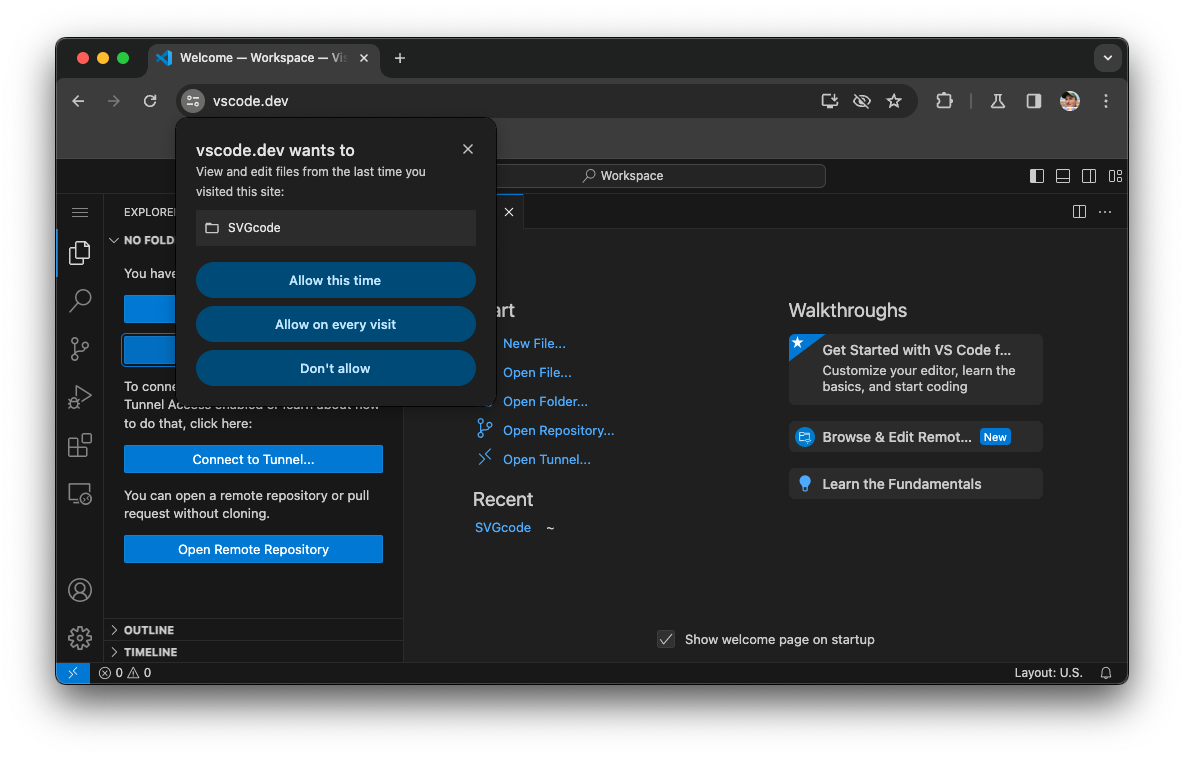
The published example includes editing permissions because it demonstrates a code editor. It illustrates the permission choices, rather than establishing that Google Photos needs permission to edit your files. Read the actual scope requested by Photos.
If a browser update, another profile or a different computer changes what you see, start from the current Photos folder selection and permission request. Avoid clearing all browser data as an opening experiment. First record the account, selected paths and error so you can tell what changed after any troubleshooting step.
3. Keep Photos running, or use its web app
Google says closing the Photos tab stops automatic folder backup unless the Photos web app remains running. Permission to read a folder does not keep an application alive by itself. If uploads reliably stop when you close the window, compare that behaviour with the documented runtime requirement before treating it as an unexplained outage.
Chrome’s web app instructions describe installing a website through the browser’s Install control or More menu, then Cast, save, and share and Install page as app. The wording can differ by Chrome version. Open Photos first and use the installation control available for that site.
Chrome also documents launching an installed web app at startup through chrome://apps. If you choose that convenience, verify that Photos actually opens after you next sign in to the computer. A shortcut on the desktop is only a way to launch an app; its presence is not evidence that a backup is currently active.
For an initial check, keep the computer awake and connected, with Photos visibly running. Observe the result under those known conditions before investigating what happens during sleep, restart or an interrupted network connection. There is no need to change every power or security setting to perform this small test.
4. Run a three-file test before trusting a whole library
This diagnostic procedure separates basic uploading, automatic folder monitoring and behaviour after reopening. Use small, non-sensitive images you own and retain the originals. Choose a different previously unuploaded photo at each stage so an existing cloud copy does not confuse the result.
Test A: one manual import
Use Create and add photos, then Import photos, and select one ordinary local image. Record the account, filename and time. After the upload completes, find that specific image and inspect its information. If this fails, do not immediately rebuild automatic backup: establish the basic upload error first.
Test B: one new file in the selected folder
With the folder configured and Photos running, add a second eligible image to that folder. Check its full path in File Explorer or Finder. Watch whether the backup status changes and verify the corresponding cloud item when processing finishes.
Test C: another file after reopening
Reopen Photos using the same browser context and account, respond to any legitimate folder access request, and try a third new image. This checks whether your usual return-to-the-computer routine gives the app the access and runtime it needs. It does not demonstrate uploading while the app is closed.
| Observed result | What to investigate | What to record |
|---|---|---|
| Manual Test A fails | Account storage, connection, file eligibility or the displayed service error | The error, account and file properties |
| A works, but automatic Test B fails | Folder selection, permissions, browser support and whether Photos is active | The selected path and current backup status |
| B works, but Test C requires another approval | How folder access is granted on return and which browser context you reopened | The permission prompt and whether access resumes |
| All three work, but an older item appears missing | The particular item, account and library location | That item’s details before uploading it repeatedly |
| Photos work, but one video does not | The video’s size, format and whether it opens locally | A working comparison file and the failed file’s properties |
Google documents overall status at the top of the library and per-item information through Info. Use both: an overall completion message describes the current workload, while the individual item helps establish what happened to the test you actually selected. Keep the original files until you have verified the cloud copies you need.
5. Check the folder path and individual files
A folder can have the right name and still be the wrong location. Compare the complete path, especially if you have moved an archive to an external drive, created another Pictures folder or restored files from another computer. Open a test image directly from the location selected for backup.
If the source is on a removable drive, confirm that the drive is connected and the files are readable during your test. Do not treat a thumbnail in another application as proof that the original image is available from the selected directory.
Google’s backup troubleshooting guidance lists limits of 200 MB or 200 megapixels for photos, and 10 GB for videos. Its Computer guide also lists eligible types. Use a straightforward supported image for the first test, then investigate unusual formats or large videos separately.
Changing a filename extension does not convert the file into a supported format. If a file needs exporting or conversion, keep the original and verify the newly exported copy before adding it to the monitored folder. Avoid using a large mixed archive as your only test of whether the basic setup works.
6. Review storage and upload quality deliberately
If your account has no available storage, solve that shared constraint before changing individual folders. Review the account’s usage through Google’s storage management guidance. A local disk with plenty of space does not establish that the destination Google Account has capacity.
Google’s backup quality guide distinguishes Original quality from Storage saver. Original quality preserves the uploaded resolution and quality; Storage saver can compress photos and reduce higher-resolution video. Both can use account storage under the current rules, with historical exceptions described by Google.
Choose the setting according to the copy you want to keep. If the cloud library is meant to preserve original camera files, evaluate the quality choice before a large upload. Keep an independent original archive when that matters to you.
Changing future upload quality and converting existing cloud items are separate actions. Do not select a storage-recovery conversion merely to see whether a stopped upload restarts. If you are considering deleting cloud pictures while retaining device copies, read our Google Photos deletion guide before making that separate change.
On a Mac, export from Apple Photos instead of selecting its library package
Google states that Apple Photos Library is unsupported for the web folder-backup route. An ordinary folder of exported image files is a different source from the Photos library package. Do not start rearranging the package’s internal files to make it resemble an upload folder.
Apple’s Photos export instructions give two useful choices:
- Export Photos: choose the output format and other options for the version you want to export.
- Export Unmodified Original: export the original file format. Apple notes that a Live Photo exports as a still image and a separate video file.
Select a small set in Apple Photos, use File, then Export, and save into an ordinary folder you can locate in Finder. Open the exported results and check whether they are the versions you wanted. Then test that folder with Google Photos before exporting the whole library.
Retain the Apple library while verifying the exported collection. Copying a set of image files does not by itself establish that you preserved every album, edit or application-specific feature. Choose the export method based on the files and versions you need, rather than assuming every library structure transfers unchanged.
If the pictures are already in Google Drive
Google has a separate Drive-to-Photos import procedure. For eligible personal accounts, its instructions use Add, then Google Drive, followed by selecting the items and uploading them. This copies selected content into Photos; it is not a continuing replacement for monitoring every future file added to Drive.
Google notes that changes in one service apply to that service, and that the new Photos copy can also count against storage. For a work or school account, the documented route is to download from Drive and upload to Photos, subject to your organization’s permitted use of the service.
| Your actual goal | Relevant route | What to verify |
|---|---|---|
| Continue backing up a computer’s photo folder | Google Photos Back up folders | New-file upload while the app is running |
| Upload a selected set once | Google Photos manual import | The selected items in the intended account |
| Copy eligible existing pictures from Drive to Photos | Google’s Drive-to-Photos import workflow | The resulting separate copy and storage effect |
| Synchronize documents and other general files to Drive | Drive for desktop | The files and configured Drive destination |
| Upload items stored inside an Apple Photos library | Export suitable files, then use a supported upload route | The export version and cloud result before a larger migration |
Avoid changing several things during one troubleshooting attempt
If one small test fails, record the result and change one relevant condition. For example, compare a manual upload with a monitored folder while keeping the same account, browser and network. If you simultaneously reinstall Drive, switch accounts, move the source folder and clear the browser profile, a later success will not tell you which action mattered.
Likewise, do not delete and re-upload an entire library to test an automatic upload problem. Keep the original collection and work with the small test folder until you can explain what happens. That makes the process easier to reverse and reduces unnecessary upload work.
If the error remains, prepare a short support description: operating system, browser and version, Google Account type, selected folder path, exact message, and the results of Tests A, B and C. Include whether the same file opens locally and whether Photos was running at the time. Share examples through the official support route without exposing a private photo library in a public post.
Before you rely on the new backup routine
- The destination account is the one you intended.
- The monitored folder is the location where you actually save new pictures.
- A newly added test item has a verified cloud copy.
- Your usual startup and reopening routine leaves Photos able to run and access the folder.
- You have reviewed the upload quality and available storage.
- The original archive remains available while you verify a larger upload.
The useful result is a repeatable routine: add a new file, observe processing and confirm that specific item. A familiar Drive icon or an old backup setting is not sufficient evidence that the replacement Photos workflow is active.
Sources, image credits and verification limits
Reviewed on 25 October 2026 against Google’s Drive transition documentation, Photos Computer backup guide, Drive import guide, and the linked Chrome, quality, storage and Apple export documentation.
The two browser screenshots are original published examples by Thomas Steiner, Chrome for Developers, from Persistent permissions for the File System Access API, used under CC BY 4.0 without visual alteration. They demonstrate Chrome permissions using VS Code. The Google Photos menu instructions come from its Computer documentation.
The test procedure and decision tables are editorial troubleshooting aids. We did not upload a reader’s pictures, inspect a private account or demonstrate a completed backup in this article. Menu availability can change, and an account or organization may have additional restrictions. No upload speed, completion deadline or guaranteed recovery outcome is implied.
You may also like
 Technology & How-To
 Android Auto Keeps Disconnecting? How to Fix USB and Wireless Dropouts
Android Auto keeps disconnecting? Separate USB, wireless and app failures, check Galaxy USB mode, compare connection methods and…
 Technology & How-To
 Netflix Says Your TV Isn’t Part of the Household? How to Fix It
Fix a Netflix household warning by separating home verification, permanent household updates and temporary travel access, with genuine…
 Technology & How-To
 Samsung Secure Folder Forgot PIN and No Reset Option: What You Can Do
Forgot your Samsung Secure Folder PIN with no reset option? Follow the supported account recovery checks, preserve accessible…