
Samsung Secure Folder Forgot PIN and No Reset Option: What You Can Do
Forgot your Samsung Secure Folder PIN with no reset option? Follow the supported account recovery checks, preserve accessible files and understand data loss and backup limits.
Contents
- Choose the next step from what you can actually see
- Make sure you are trying to reset the right credential
- Why the Forgot PIN or reset option can be missing
- If the Forgot option appears, use Samsung’s supported reset flow
- If Samsung account verification is the part that fails
- If your verification phone number has changed
- If your fingerprint still opens the folder, preserve files before changing the lock
- If there is no reset option and no working access method
- Do not confuse starting again with recovering the original contents
- Backups and Smart Switch: check the version before relying on a restore
- Actions that can turn an access problem into data loss
- If the icon is missing, locate the folder before diagnosing a forgotten PIN
- What to send Samsung Support before considering removal
- Once access is restored, make the recovery plan independent of the locked folder
- Sources and verification limits
If you forgot your Samsung Secure Folder PIN and there is no reset option, the supported recovery route depends on whether Samsung account reset was enabled before you lost access. Samsung says that when this setting was not activated, the Forgot prompt will not appear and you cannot recover access through that route. Removing Secure Folder and creating a new one is a different operation; it does not unlock the original files.
Start by identifying what still works. A visible Forgot prompt, a Samsung account sign-in error, a working fingerprint, and a missing app icon lead to different next steps. This guide helps you choose between them, protect any accessible copy, and understand when a suggested “fix” would erase the thing you are trying to recover.
We checked Samsung’s regional support guidance on 25 October 2026. Menu names and available features vary by model, carrier, region and software version. The screenshots below are Samsung’s published examples, rather than a recovery performed on a reader’s device.
Choose the next step from what you can actually see
| Your situation | What it suggests | Next step |
|---|---|---|
| Forgot PIN, Forgot password or Forgot pattern appears | The account recovery route is being offered | Follow Reset and authenticate with the associated Samsung account |
| The reset flow opens, but account verification fails | Account access is a separate obstacle | Use Samsung’s account recovery guidance before removing anything |
| No Forgot option, and account reset was never enabled | The documented prerequisite is missing | Protect other copies; ask Samsung to confirm options for your exact software |
| Fingerprint still opens Secure Folder | You still have useful access to at least some content | Preserve the files first, then review the lock and recovery settings |
| Secure Folder has disappeared from the Apps screen | Its shortcut may be hidden or customized | Locate the folder through Settings; this does not remove its lock |
| The only available action is Uninstall | You are looking at a removal path | Stop if the original contents matter and have no verified replacement copy |
A prompt is better evidence than an old tutorial. If your phone shows a waiting period, an account message or a removal warning, record its wording. Repeatedly entering guesses to force a different screen is not a dependable data recovery method.
Make sure you are trying to reset the right credential
Secure Folder, the phone’s main lock screen and your Samsung account can each ask for credentials. Remembering one does not establish that you remember the others. Before changing anything, identify the screen that is rejecting your input and the kind of credential it requests.
| Credential | What it normally controls | What a reset does not establish |
|---|---|---|
| Phone screen PIN, pattern or password | Access to the phone’s main interface | That the same code opens Secure Folder |
| Secure Folder lock | Entry to the protected folder | That you can sign in to the associated Samsung account |
| Samsung account password and verification | Authentication to Samsung account services | That account reset was previously enabled for this folder |
Samsung’s access troubleshooting guide makes the prior setting central to recovery. Simply signing in to an account now is not the same as having activated that recovery setting earlier. Likewise, changing your account password addresses account authentication; it is not evidence that the folder’s local recovery condition has changed.
Why the Forgot PIN or reset option can be missing
Samsung’s guide specifically about the missing reset menu identifies a disabled account reset setting as a key cause. It also discusses account sign-in and version-dependent lockout behaviour. Its instructions for older Android versions should not be treated as a universal attempt count for every current Galaxy.
The practical distinction is between a feature that was enabled but is failing to authenticate and a recovery route that was never enabled. A network check can be relevant to an account sign-in error. It does not retroactively create permission to reset a folder whose recovery setting was off.
If you do not remember your previous setting, record that as unknown. The missing prompt alone is not a reason to declare a specific software update faulty. Tell Samsung your model and software version, and ask whether the reset menu should be available on that configuration.
If the Forgot option appears, use Samsung’s supported reset flow
Samsung’s Australian passcode guide illustrates the account reset route and explicitly requires the recovery setting to have been enabled beforehand. Its screenshots show a pattern lock; your phone may instead display PIN or password wording.
- Open Secure Folder and follow the current lock prompt. If a code you believe is correct is rejected, look for Forgot PIN, Forgot password or Forgot pattern.
- Select the Forgot option if it is offered. If it is absent, return to the decision guide rather than continuing to guess.
- Choose Reset on the confirmation prompt and complete authentication with the Samsung account associated with the folder.
- Complete any required account verification through Samsung’s own interface.
- Choose and confirm the new folder lock method when prompted.
- Open the folder with the new credential and check the files you expected to find.
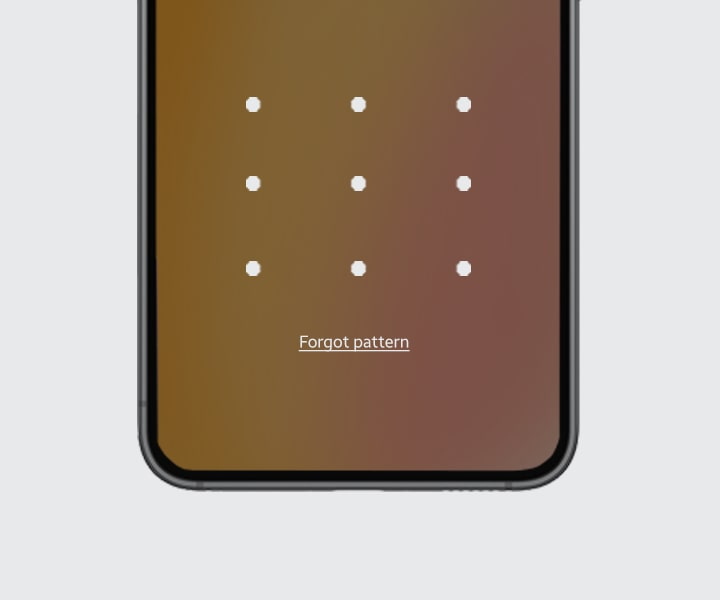
The screenshot shows where the Forgot pattern link appears in Samsung’s example. It does not mean that every locked folder will show it. A guide that starts at this link cannot supply the missing prerequisite when the link is unavailable.
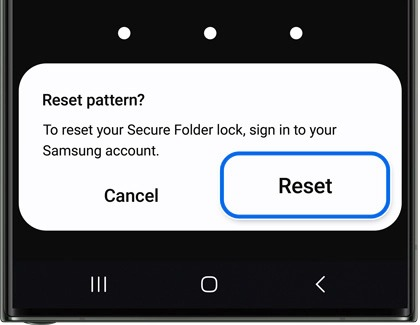
The Reset button in this example belongs to account-based lock recovery. Read the whole dialog on your own phone. An action labelled Uninstall, Delete data or Factory data reset has a different purpose, even if another tutorial loosely calls all of them a “reset”.
If Samsung account verification is the part that fails
Use Samsung’s account sign-in troubleshooting to recover the correct account. Its documented options include finding the account ID, resetting a forgotten account password, and using available verification methods such as a backup code. Follow the methods actually offered for your account.
Check whether you can identify the associated account and receive its verification messages. If an account sign-in page reports a connection problem, record that error separately from the folder’s lock message. Keep an existing working session available while you establish which recovery method you can complete.
If your verification phone number has changed
Samsung has a separate procedure for changing the two-step verification number. Its US guidance says the security process can take up to two weeks and that submitting a fresh request before the existing one completes restarts the waiting period. Follow the status shown by Samsung rather than repeatedly submitting the same request.
An account recovery delay and a folder lockout are two different things. Completing the account process may let you finish an already available reset flow. It does not establish that you can reset an original folder for which account recovery was never enabled.
If your fingerprint still opens the folder, preserve files before changing the lock
If an already configured fingerprint still gives you access, use that opportunity to protect the content you need. Start with the irreplaceable files, not with a settings experiment. Being able to open the folder now does not guarantee that every security settings screen will accept the same authentication.
Samsung’s Canadian Secure Folder guide documents moving files out through My Files or Gallery:
- Open Secure Folder using the access method that still works.
- Open My Files inside the folder, or Gallery for the relevant photos and videos.
- Select the files, open the More menu and choose Move out of Secure Folder.
- Find the destination outside the folder and open a sample file to check it.
- Create an appropriate protected backup of the exported copy before removing or reconfiguring the original folder.
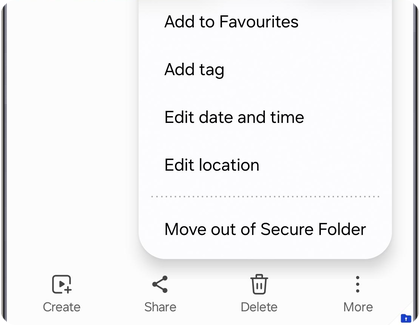
Moving content out changes where it is protected. Choose a private destination and avoid leaving sensitive material in an ordinary shared photo library or folder. Also distinguish media files from app data: exporting a picture does not establish that you exported an app’s conversations, notes or account state.
If you then try to change the lock type, be prepared for the current folder credential to be requested. Samsung’s Australian instructions include that verification step. If you cannot complete it, return to the supported account recovery path if available; do not assume working fingerprint access automatically permits every credential change.
If there is no reset option and no working access method
The realistic next step is to establish whether any accessible copy exists and to confirm the device-specific situation with Samsung. The company’s US access guide says that recovery is unavailable when the account reset setting was not activated. It does not publish a replacement recovery code that support can issue for that missing setting.
Make a short inventory: which files existed only inside the folder, which were copied into it from somewhere else, and which may still exist on an older device or in a separate app account. A verified earlier copy can be useful even when it is not the newest version. An assumption that something “must be in the cloud” is not a verified copy.
Do not confuse starting again with recovering the original contents
Some Samsung regional guides describe uninstalling and setting Secure Folder up again, including removal paths after failed attempts. Those instructions explain how to create a usable folder again. They do not demonstrate recovery of the previous locked container.
If the files matter, do not deliberately exhaust attempts to reveal an Uninstall option. Ask support what the current screen means for your version. The absence of an offered recovery route is a limitation to establish before removal, not a reason to expect removal will reveal the files afterwards.
If you have already removed the folder, focus on copies that existed elsewhere before removal. Creating another folder with the same name or Samsung account should not be treated as proof that the deleted local contents will return.
Backups and Smart Switch: check the version before relying on a restore
Samsung’s dedicated Secure Folder backup troubleshooting page says new Secure Folder backups are no longer available. It also states that the older restore functionality is unavailable on devices running Android 16 with One UI 8 or higher, and points to Smart Switch for transfer.
This is a material limit when an older general guide shows Restore from backup. A screenshot of that menu is not evidence that your current software has it. The specific version note should guide your expectations, and Samsung can confirm how it applies to your regional device.
| Possible source | What to verify | Limit to keep in mind |
|---|---|---|
| An older Samsung cloud backup | Whether a relevant backup exists and your device offers a supported restore route | The legacy restore feature is unavailable on Android 16 with One UI 8 or higher according to Samsung’s US guidance |
| An older Galaxy with accessible Secure Folder content | That the files open and are the versions you need | Transfer is useful only if the available method and required permissions can be completed |
| A Smart Switch transfer | That Secure Folder is included and the destination content opens afterwards | Samsung documents this as transfer; do not assume it bypasses a forgotten folder credential |
| A separate photo, document or app account | That the specific file or record exists in that account | A signed-in account or a general backup indicator does not prove the item was uploaded |
| A copy previously moved outside Secure Folder | Its location, readability and modification date | It may be older or incomplete, and its privacy protection needs reviewing |
Before clearing an old phone for sale or trade-in, open the destination folder and check representative files, their dates and any important app content. Keep the source device until you are satisfied with the result. This is a verification step, not a claim that Smart Switch can extract any locked folder.
Actions that can turn an access problem into data loss
Samsung distinguishes clearing an app’s cache from clearing its data in its app storage guidance. Clearing data removes the app’s saved information and returns it to its initial state. Do not follow a generic storage cleanup instruction as though it were a Secure Folder password recovery procedure.
| Suggested action | What to understand first | Practical decision |
|---|---|---|
| Clear cache | This is a temporary-file cleanup, not a documented way to enable forgotten-lock recovery | Do not expect it to manufacture a missing Forgot option |
| Clear data or clear storage | App data can be removed; some system apps restrict the action | Do not use it as a speculative recovery test on the only copy |
| Uninstall Secure Folder | Removal can delete its contents; an available media export option is not proof that locked content has been saved | Verify the required copies and read the current warning before removal |
| Factory reset the phone | This is a device erasure operation, not recovery of the existing folder | It does not serve the goal of keeping the original local files |
| Root the phone or install a custom ROM | Samsung warns these changes can lock Secure Folder and prevent access | Do not treat modification of the security environment as a supported recovery method |
Samsung’s general folder guide describes an option to move media out before uninstalling on supported screens. Do not interpret that as a guarantee that all apps and files can be exported while you are locked out. The deciding evidence is a copy you can actually open, not the existence of an option in somebody else’s screenshot.
For the same reason, a Windows USB connection should not be mistaken for direct access to a locked Secure Folder. Samsung’s Australian guide describes authorized export as the appropriate route. Our Android-to-Windows USB troubleshooting guide is useful for transferring files already accessible outside the folder; it does not remove the folder’s authentication.
If the icon is missing, locate the folder before diagnosing a forgotten PIN
Samsung documents a Settings route through Security and privacy, More security settings, then Secure Folder. On older software, the security menu may have a different name. You can also use Settings search to look for the feature rather than assuming its original Apps screen icon still exists.
Finding the folder and unlocking it remain separate tasks. If the Settings route opens the same PIN prompt, you have located the protected folder but have not solved the credential problem. If it offers setup instead, ask Samsung to help establish whether the original folder was removed or whether the feature is unsupported on that configuration.
What to send Samsung Support before considering removal
Use Samsung’s official support contact page, selecting your country if needed. A concise description helps support distinguish a missing prerequisite from an account error or a different device issue.
- Phone model, country of purchase, Android and One UI versions, and Secure Folder version if you can view it.
- The exact prompt and whether Forgot, Reset, a waiting timer or Uninstall is visible.
- Whether fingerprint access still works and whether you know if account reset was enabled previously.
- Whether the associated Samsung account can be accessed and which verification step fails.
- Whether important files exist only in this folder, plus any confirmed older copies.
- Changes already made, including updates, account sign-out, data clearing or removal.
You can write: “My Galaxy model is …, running Android … and One UI … . Secure Folder shows … and I cannot see a Forgot option. Account reset was enabled / disabled / unknown. Fingerprint access does / does not work. Before any removal, please confirm the supported recovery or export options for this version and the effect on existing data.”
Use the option that matches your actual situation. Send screenshots of prompts through the official support channel without displaying private folder content. Support can clarify a documented route and its limitations; do not interpret a service appointment as a promise that inaccessible content will be recovered.
Once access is restored, make the recovery plan independent of the locked folder
First check that your important content is present. Then review the folder lock settings. Samsung’s Australian instructions show Secure Folder, the three-dot menu, Settings, then Lock type, with the current lock required for verification. The exact placement of recovery controls can differ on your version.
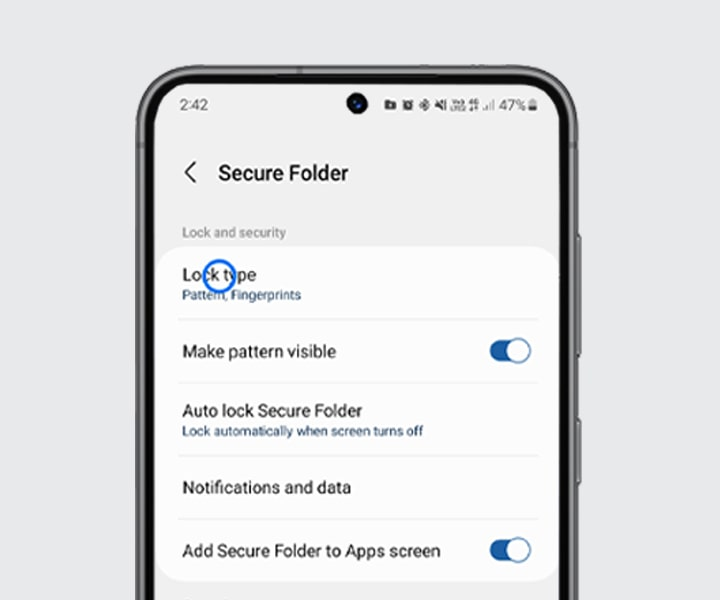
If your device offers account-based reset, decide whether to enable it and make sure you can recover that Samsung account too. Keep a record of the folder credential in a trusted password manager that remains accessible outside this folder. A recovery note stored only inside the container cannot help while it is locked.
Keep a separate, appropriately protected copy of irreplaceable documents and photographs. After copying or transferring, open the copy and check it. For apps, review their own export, sync and backup options instead of assuming a media transfer covers their private databases. If the concern is chat history, see our separate guide to WhatsApp recovery and usable copies.
Sources and verification limits
This guide uses Samsung’s access troubleshooting, US Secure Folder guide, Gulf missing-menu explanation, Australian passcode instructions, and Canadian file-management guide. Account, backup and app-data sources are linked beside the relevant steps.
Reviewed on 25 October 2026. The version-specific backup limitation comes from Samsung’s dedicated US troubleshooting page; older regional examples may show different menus. The decision tables and support template are editorial aids. We did not unlock a test device, verify a reader’s account settings, or demonstrate recovery without the required credentials. No recovery success rate or guaranteed outcome is implied.
You may also like
 Technology & How-To
 Android Auto Keeps Disconnecting? How to Fix USB and Wireless Dropouts
Android Auto keeps disconnecting? Separate USB, wireless and app failures, check Galaxy USB mode, compare connection methods and…
 Technology & How-To
 Netflix Says Your TV Isn’t Part of the Household? How to Fix It
Fix a Netflix household warning by separating home verification, permanent household updates and temporary travel access, with genuine…
 Technology & How-To
 Google Photos Stopped Backing Up from Your PC? What Changed and How to Fix It
Google Photos stopped backing up your computer folders? Understand the Drive for desktop change, configure browser folder backup…