
Android Phone Not Recognized by Windows PC? Fix USB File Transfer
Android phone charging but not showing up on Windows 11 or 10? Follow a safe diagnostic guide for USB cables, MTP mode, Samsung permissions, Device Manager and Quick Share.
Contents
- The fastest way to identify why Windows cannot see your Android phone
- Before you troubleshoot: protect your data
- Step 1: Unlock the phone and switch USB from charging to file transfer
- Understand MTP, PTP and charging-only modes
- Step 2: Test the cable, port and adapter before touching drivers
- How to interpret the cross-test
- Step 3: Fix Samsung Galaxy phones that charge but show empty folders
- Step 4: Find out whether Windows detects the phone at all
- Step 5: Repair an affected Windows device driver safely
- Step 6: The phone is detected, but Internal Storage is empty
- Step 7: Fix transfers that stop halfway or repeatedly disconnect
- Step 8: What to do when a phone works with one computer but not another
- Samsung, Pixel, Xiaomi and other Android brands: what changes?
- Do you need to enable USB debugging or Developer options?
- When Windows shows the phone as a camera instead of a storage device
- If the phone screen is broken or the device cannot be unlocked
- Transfer files without USB using Quick Share
- Advanced checks: only after the simple tests fail
- How to copy your photos and documents after the connection is restored
- A practical decision tree for the last stubborn cases
- Official documentation and further reading
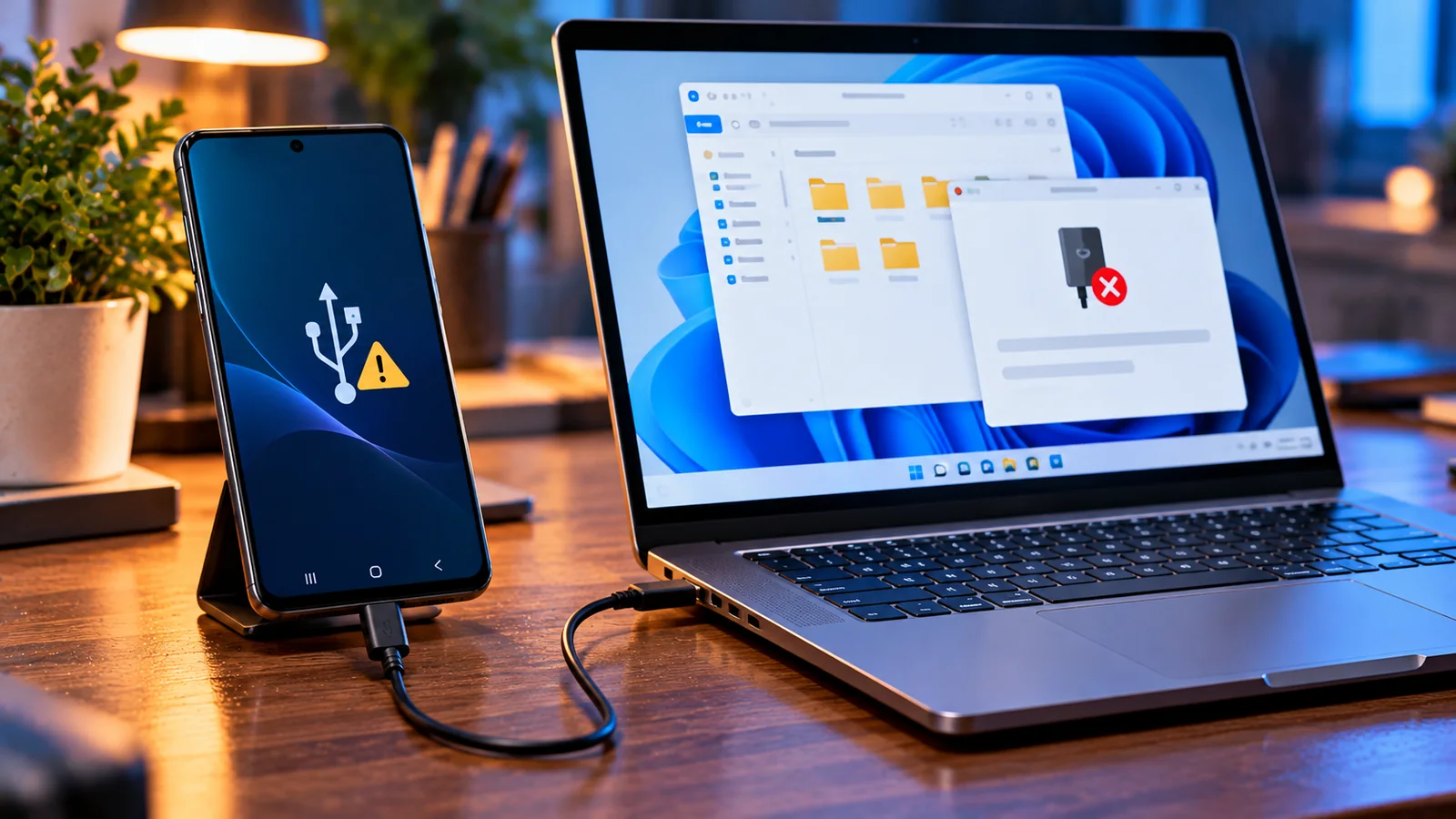
The fastest way to identify why Windows cannot see your Android phone
You plug your Android phone into a Windows 11 or Windows 10 computer. The battery icon starts charging, yet the phone never appears under This PC. Sometimes Windows plays the USB connection sound but shows empty folders. Sometimes Device Manager reports an unknown USB device. These symptoms look similar, but they point to different causes—and most can be investigated without deleting a single photo.
This guide starts with safe, reversible checks, then moves through USB connection modes, Windows device detection, Samsung-specific permissions, driver repair, and wireless alternatives. Menu labels differ by Android version and manufacturer; follow the closest equivalent on your device.
| What happens | Most likely place to investigate | First safe action |
|---|---|---|
| Phone charges but never appears in File Explorer | Charging-only cable or USB mode | Unlock phone and select File transfer; try a known data cable |
| Phone name appears, but folders are empty | Phone locked or access not allowed | Unlock and approve access to phone data |
| Windows says USB device not recognized | Cable, port, connector or enumeration/driver failure | Connect directly to another port and inspect Device Manager |
| Photos show up but other files do not | PTP/photos mode instead of MTP/file transfer | Change USB use to File transfer |
| Connection repeatedly drops | Loose connector, cable or USB hub | Replace cable; avoid hubs; inspect ports safely |
| Another PC recognizes the phone | Windows-side driver, port or policy | Check Device Manager and Windows updates |
Before you troubleshoot: protect your data
A USB detection problem is not a reason to factory-reset the phone, format its storage, or wipe app data. If you have important photos, documents, authenticator codes, or unsynced messages, confirm a separate backup before making any major change. Standard USB file-transfer troubleshooting should not require a reset.
- Do not use “Format,” “Erase,” or “Factory reset” to fix an MTP connection.
- Avoid third-party driver packs and “one-click repair” apps from untrusted websites.
- Do not insert metal objects into the phone charging port; if moisture or physical damage is suspected, stop and seek manufacturer guidance.
- Disconnect only after file copying finishes; do not unplug in the middle of a transfer.
Step 1: Unlock the phone and switch USB from charging to file transfer
Google’s official Android instructions begin with unlocking the device, connecting a USB cable, opening the Charging this device via USB notification, and selecting File transfer. This is the single most useful fix when the phone charges but does not show its files. Google: Transfer files between your computer and Android device.
- Wake and unlock the phone using its PIN, password, fingerprint, or face unlock.
- Plug the phone directly into a USB port on the PC using a cable that supports data.
- Swipe down from the top of the phone to open notifications.
- Tap the USB notification, which may read “Charging this device via USB,” “USB for charging,” or “Android System.”
- Under “Use USB for,” choose File transfer or Transferring files / Android Auto.
- On Windows, open File Explorer with Windows + E, choose This PC, and look for your phone.
- Open the phone and then Internal shared storage; test by copying a small, nonessential file first.
If the notification is not visible, open Android Settings and search for USB or USB preferences while the cable is connected. Some devices display these controls only during an active USB connection. A greyed-out option can mean the PC has not established a compatible data connection—not necessarily that the phone is defective.
Understand MTP, PTP and charging-only modes
| USB mode | What Windows usually gets | Use when |
|---|---|---|
| File transfer / MTP | Access to shared folders exposed by Android | Copying downloads, documents, videos and many photos |
| Photo transfer / PTP | Camera-like access, often photos only | A PC recognizes cameras but not general storage |
| Charging only / No data transfer | Power without normal file browsing | Charging without exposing phone files |
| USB tethering | A network connection from phone to PC | Sharing mobile internet; not browsing files |
| MIDI | Musical-device data | Connecting supported music equipment |
Modern Android devices normally use Media Transfer Protocol (MTP) to expose selected shared storage rather than acting as a removable disk. You should not expect Windows Disk Management to show the phone as a drive with a letter. Similarly, Windows may display only folders that Android makes available, not protected application data.
Step 2: Test the cable, port and adapter before touching drivers
A cable can charge perfectly while its data conductors are missing or damaged. USB-C describes the connector shape, not a guarantee of data-transfer capability. A charging-only cable is therefore one of the simplest explanations for a missing phone. Google explicitly recommends trying another USB cable and testing the phone on another computer. Android Help.
- Use a cable you have previously used to transfer files, preferably one supplied or recommended by the manufacturer.
- Plug directly into a USB port on the computer, not a monitor, keyboard, docking station or hub.
- Try another USB-A or USB-C port on the computer.
- If you use a USB-C adapter, try a different known-good adapter or a direct cable.
- Try the same phone and cable with another trusted computer.
- Try a different phone or USB data device in the original PC port to separate phone problems from PC problems.
How to interpret the cross-test
If the phone works on another PC with the same cable, focus on Windows drivers, security policies or the original PC’s port. If a different data cable fixes the issue, replace the cable. If no computer can establish a data connection with the phone despite multiple known-good cables, the phone connector or its software may need attention. A single test cannot prove which component failed; look for a consistent pattern.
Step 3: Fix Samsung Galaxy phones that charge but show empty folders
Samsung documents two common causes of an invisible Galaxy storage folder: the phone is locked, or the user has not approved access to its data. Connect with a compatible data cable, unlock the phone, and tap Allow if the phone asks whether the connected computer may access phone data. Then open the USB notification and choose Transferring files / Android Auto. Samsung: How to ensure your Galaxy is detected on a PC.
On Samsung models, USB options may appear in the expanded notification shade or in Settings while connected. If you see the Galaxy device name in File Explorer but cannot open its internal storage, unlock it again and look for a new permission prompt. Do not confuse Samsung DeX, Smart Switch, and ordinary USB file transfer: they serve different purposes.
Step 4: Find out whether Windows detects the phone at all
Open Device Manager by right-clicking Start or searching its name. Keep the phone connected and unlocked. Watch the list as you disconnect and reconnect the cable. A device entry appearing and disappearing suggests Windows sees an electrical USB connection, even if the file-transfer interface is not working.
- Expand Portable Devices and look for the phone name or an MTP-related entry.
- Check Universal Serial Bus controllers for an “Unknown USB Device” or a warning icon.
- Look in Other devices for an entry with a yellow warning triangle.
- Right-click the relevant entry and choose Properties; record the Device status and error code before changing anything.
- If no new entry appears anywhere when reconnecting, return to cable, port, adapter and phone-side checks first.
| Observation | What it suggests | Next check |
|---|---|---|
| Portable device visible, no warning | Basic enumeration may be working | Unlock phone, allow access, select MTP |
| Unknown USB Device / descriptor error | USB handshake, cable, port or controller problem | Swap cable/port and remove hubs before driver repair |
| MTP device with yellow warning icon | Driver binding or configuration issue | Record code, try Windows update or reinstall affected device |
| No entry changes on connect | No usable data connection detected | Test another PC and known-good cable |
| Phone appears then disappears repeatedly | Unstable physical or power connection | Check connector and direct USB port |
Step 5: Repair an affected Windows device driver safely
If Device Manager identifies the phone or an MTP/USB entry with an error, try a normal restart first. Then run Settings → Windows Update → Check for updates. Windows may obtain a compatible driver through its standard update channels. For a persistent device-specific error, Microsoft documents uninstalling the affected device and scanning for hardware changes so Windows can detect it again. Microsoft: Error codes in Device Manager.
- Unplug the phone, restart Windows, and reconnect the phone with a known-good data cable.
- Open Device Manager and identify the specific entry that changes when the phone connects.
- Read its Properties → Device status; note any error code.
- If it shows a driver error, right-click that affected device and select Uninstall device.
- Do not remove unrelated USB controllers, storage devices, or keyboard/mouse entries.
- In Device Manager select Action → Scan for hardware changes, or disconnect and reconnect the phone.
- Restart Windows if requested, unlock the phone, reselect File transfer, and test File Explorer.
Some manufacturers provide official USB drivers or desktop utilities for particular devices. Obtain these only from the phone maker’s official support site, and install them only when your model and the manufacturer’s instructions require them. Avoid random “MTP driver download” sites. If this is a work or school PC, device-access policies may prevent USB file browsing; contact the administrator rather than bypassing those controls.
Step 6: The phone is detected, but Internal Storage is empty
This is often an access-state problem rather than a missing driver. Leave the phone unlocked while you open File Explorer, and approve any prompt asking to allow access to data. Switch away from Photo transfer if you need general files. If you see folders but cannot find particular app data, remember that Android restricts access to protected application directories; the absence of those directories is not necessarily an error.
- Reconnect after unlocking and keep the screen awake for the first test.
- Check the phone notification for File transfer/MTP and any data-access permission prompt.
- Browse common shared folders such as DCIM, Pictures, Movies, Music, Documents and Download.
- Check whether your files exist locally: cloud-only photos may not be stored on the phone.
- If a folder appears empty, open the relevant app on the phone and confirm the content has actually been downloaded.
Step 7: Fix transfers that stop halfway or repeatedly disconnect
Intermittent transfer failures deserve a different approach from total non-detection. A loose plug, strained cable, overloaded hub or unstable connector can interrupt an otherwise working MTP session. Copy a small test file first. If it succeeds, copy a few folders at a time rather than attempting a single massive transfer that is difficult to diagnose.
- Set the phone on a stable surface so the cable does not move.
- Use a short, known-good data cable and a direct computer port.
- Avoid bending or twisting the connector while copying.
- Check available space on the destination drive before copying large videos.
- Try smaller batches and verify the copied files open correctly.
- If the phone gets unusually hot, stop the transfer and let it cool before trying again.
If the USB port is visibly damaged, wet or corroded, do not force a connector into it. Follow the manufacturer’s safety instructions or use an authorized repair provider. Do not use compressed air, sharp tools or liquid cleaners unless your device manufacturer explicitly recommends them.
Step 8: What to do when a phone works with one computer but not another
This comparison is extremely useful. The working computer proves the phone can establish at least one successful data session, so replacing the phone should not be your first move. On the failing PC, test another port, restart, review Device Manager, and check whether Windows is managed by an organization. Security software and endpoint policies can block removable or portable device access even when charging works.
For a corporate laptop, document the phone model, Android version, Windows version, cable tested, Device Manager error code and the exact time of the failure. This gives IT a clear starting point without asking you to disable security protections.
Samsung, Pixel, Xiaomi and other Android brands: what changes?
| Phone family | Common label or behavior | Best initial check |
|---|---|---|
| Samsung Galaxy | Transferring files / Android Auto; Allow access to phone data | Unlock and approve data access |
| Google Pixel | Charging this device via USB; File transfer | Open USB notification while connected |
| Xiaomi / Redmi / POCO | USB connection notification and transfer-mode selector | Select File transfer rather than Charge only |
| OnePlus / OPPO / realme | USB preferences may vary by OS version | Use Settings search for USB preferences |
| Motorola / other Android phones | MTP mode may require unlocking | Try Google’s standard USB file-transfer sequence |
These are interface patterns, not promises that every model shows the same wording. Manufacturers change their settings screens over time. If your phone offers an option to remember a USB preference, use it only if you understand the security trade-off of allowing data access whenever the device is connected.
Do you need to enable USB debugging or Developer options?
No, not for normal photo or file transfers. USB debugging is designed for developer tools such as Android Debug Bridge (ADB), not ordinary Windows File Explorer access. Turning it on does not fix a charging-only cable and may create unnecessary security exposure if you authorize an untrusted computer. Keep debugging off unless a trusted, specific development workflow requires it.
When Windows shows the phone as a camera instead of a storage device
If the phone exposes only photographs, the USB connection may be in PTP / Photo transfer mode. Switch to File transfer / MTP on the phone, then reopen File Explorer. Windows Photos importing can be useful for pictures, but it is not equivalent to general access to Downloads, Documents and other shared folders.
If the phone screen is broken or the device cannot be unlocked
A locked Android phone typically does not expose its files simply because it is connected to a PC. This protects private data. If the screen is damaged, use a previously configured backup or the manufacturer’s legitimate recovery and repair options. USB debugging, generic unlocking utilities and recovery software cannot be assumed to bypass screen locks safely or lawfully. Do not factory-reset a phone if the only copy of important files is still on it.
Transfer files without USB using Quick Share
If you need your photos or documents immediately, Quick Share for Windows can move files wirelessly between supported Android phones and Windows PCs. Google says Windows compatibility includes supported 64-bit Windows 10 and Windows 11 systems, with Wi-Fi and Bluetooth enabled; the devices must be nearby. Samsung PCs may use Samsung’s Quick Share app instead. Android: Quick Share for Windows.
- Install the official Quick Share app for Windows from the Android/Google page or the appropriate Samsung distribution for a Samsung PC.
- Enable Wi-Fi and Bluetooth on the PC and phone; keep both nearby.
- On the phone, select a photo or file, tap Share, and choose Quick Share.
- Make the PC discoverable according to your preferred visibility setting.
- Select the PC, confirm the transfer if prompted, and verify the received file.
- Turn off broad device visibility when you are finished.
Quick Share is a workaround for moving files, not proof that the USB connector is healthy. If the phone also fails to charge reliably, address the physical connection separately. Cloud services such as Google Drive can also help with smaller files, but uploading consumes internet data and requires adequate cloud storage.
Advanced checks: only after the simple tests fail
If you have tested a known-good cable, several ports, a second computer and the phone’s transfer mode, collect more precise evidence. Check whether the phone connects only after a reboot, whether Windows reports a specific Device Manager code, and whether the problem began immediately after an update. Avoid indiscriminate registry edits, unsigned drivers, USB debugging tricks or uninstalling every USB controller.
- Record your phone model, Android version and security patch level.
- Record Windows version from Settings → System → About.
- Note whether the PC plays a connect sound and whether Device Manager changes.
- Photograph or transcribe the exact error message or code.
- Check your phone maker’s official support page for a model-specific USB issue.
- If hardware failure is suspected, request a port inspection without consenting to a data wipe unless absolutely necessary.
How to copy your photos and documents after the connection is restored
Once File Explorer can open the phone, create a dated folder on the PC and copy, rather than move, important files. Start with DCIM for camera media, then Pictures, Movies, Download, and Documents as relevant. Confirm several files open successfully on the PC before deleting anything from the phone. App-specific data and chat histories often require their own export or backup procedures.
If you are making a backup, remember that a copied DCIM folder is not a complete Android backup. Contacts, authenticator accounts, app databases, encrypted messages and settings may need separate backup mechanisms. Store a second copy of irreplaceable files when possible.
A practical decision tree for the last stubborn cases
- Charges only: unlock → USB notification → File transfer → replace cable.
- Nothing happens: direct port → another cable → another computer → inspect hardware.
- Device Manager warning: record code → restart → Windows Update → reinstall only the affected device.
- Phone listed but empty: unlock → approve access → switch from PTP/charging to MTP.
- Transfers drop: stabilize cable → bypass hub → use smaller batches.
- Need files today: use Quick Share or a verified cloud backup while troubleshooting continues.
Official documentation and further reading
- Google Android Help — Transfer files between your computer and Android device.
- Samsung Support — How to ensure your Samsung Galaxy is detected on a PC.
- Microsoft Support — Error codes in Device Manager.
- Android — Quick Share for Windows.
Bottom line: most Android-to-Windows file-transfer failures are best approached as a connection-mode, cable, permission or driver-detection problem—not a reason to reset the phone. Start with the unlocked device and MTP setting, then use cross-testing to isolate the failing component. If the hardware connection remains unreliable, a wireless transfer can help protect your files while you arrange a proper repair.
You may also like
 Technology & How-To
 Android Auto Keeps Disconnecting? How to Fix USB and Wireless Dropouts
Android Auto keeps disconnecting? Separate USB, wireless and app failures, check Galaxy USB mode, compare connection methods and…
 Technology & How-To
 Netflix Says Your TV Isn’t Part of the Household? How to Fix It
Fix a Netflix household warning by separating home verification, permanent household updates and temporary travel access, with genuine…
 Technology & How-To
 Google Photos Stopped Backing Up from Your PC? What Changed and How to Fix It
Google Photos stopped backing up your computer folders? Understand the Drive for desktop change, configure browser folder backup…