
Android Auto Keeps Disconnecting? How to Fix USB and Wireless Dropouts
Android Auto keeps disconnecting? Separate USB, wireless and app failures, check Galaxy USB mode, compare connection methods and prepare a useful support report.
Contents
- Identify what is actually disconnecting
- Check compatibility before changing the setup
- For USB disconnects, establish a simple cable connection
- Galaxy phones: check whether USB is set to charging only
- For wireless disconnects, verify the pairing path
- When the failure follows a place or a particular sequence
- Use a wired-versus-wireless comparison
- Restart and update the phone and receiver deliberately
- A documented 2026 fix is not a universal version target
- Clear Android Auto’s cache before considering a larger reset
- If only music, calls, or live maps stop
- Check heat when dropouts develop later in a session
- Record one variable at a time
- Send the right information to support
- Sources and image credits
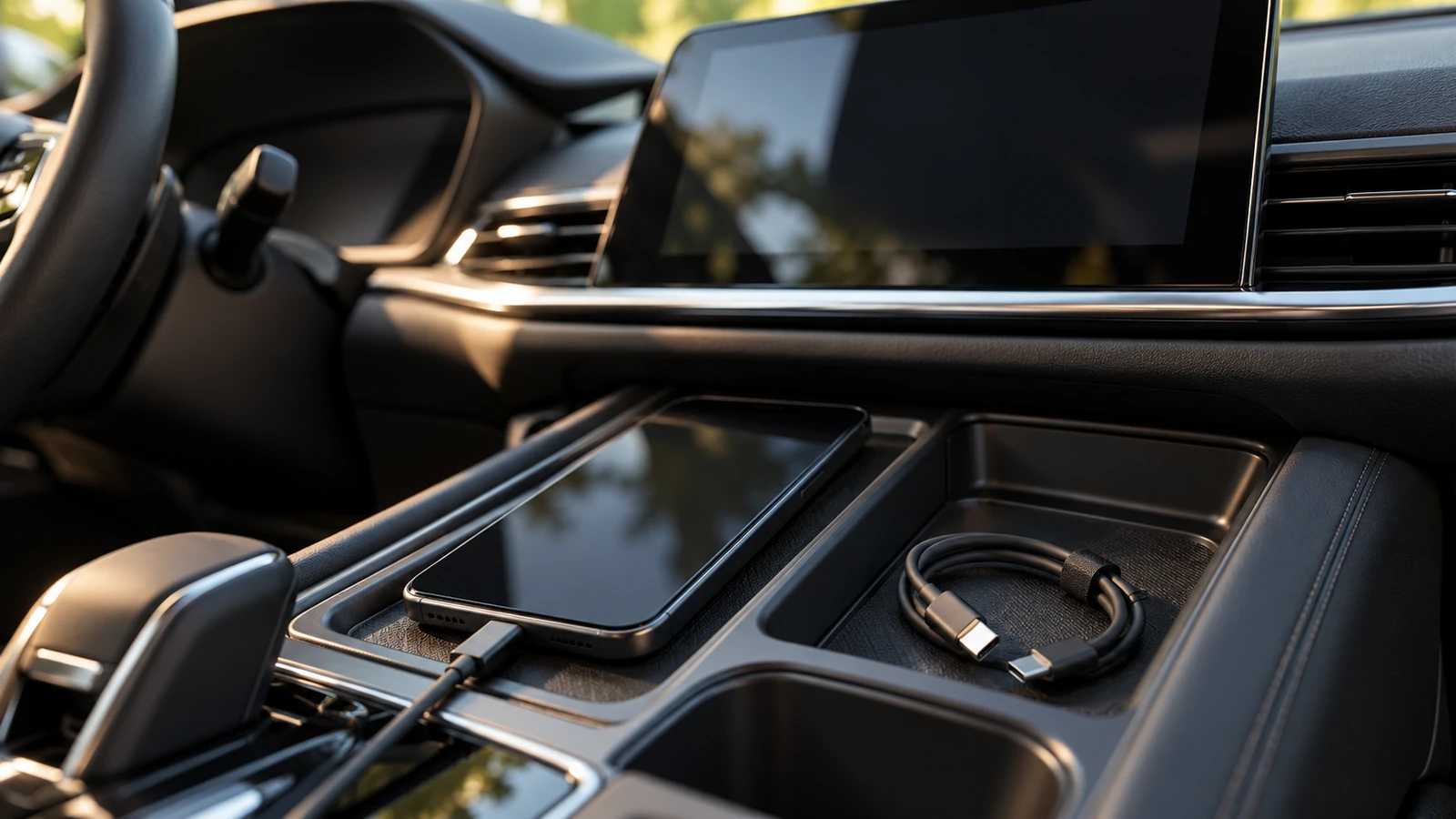
If Android Auto keeps disconnecting, first check whether the whole car-screen session closes or only an app stops working. For USB, test the car’s documented data port with a short, known-working data cable. For wireless, confirm compatibility and complete the car’s Bluetooth-based setup with Wi-Fi enabled. Then compare the two connection methods, where supported, before resetting anything.
The most useful clue is what continues working during the failure: charging, ordinary Bluetooth audio, the Android Auto screen, or the phone’s own internet connection. This guide turns those observations into a troubleshooting sequence, with genuine Samsung support images and a result sheet you can use with your phone maker or car dealer.
Complete setup and settings changes while safely parked. If a failure happens on a journey, record its circumstances after stopping, or have a passenger note what happened. Use your vehicle’s instructions for restarting its infotainment system.
Identify what is actually disconnecting
A frozen music app and a complete projection failure can feel similar from the driver’s seat. They become different support cases when you describe the display, the phone, and the connection separately. Start with the visible symptom instead of assuming every interruption has the same cause.
| What you observe | What to investigate first | Useful detail to record |
|---|---|---|
| The car returns to its own radio or home screen. | The projection session, cable or wireless connection, and head-unit software. | Whether Android Auto restarts automatically. |
| The phone keeps charging, but Android Auto disappears. | The USB data connection and projection software. | Whether another data cable changes the result. |
| The Android Auto interface remains, but music stops. | The media app, audio route, and internet access. | Whether another app still responds. |
| The interface remains, but live maps or streaming stop loading. | The phone’s data connection and the affected app. | Whether the phone has service at that location. |
| Wireless fails while a direct USB connection works. | The wireless setup or adapter path. | Whether wireless is native or supplied by a dongle. |
Charging is especially easy to misread. It shows that power is reaching the phone; it does not establish that the data connection is healthy. Likewise, successful Bluetooth calls do not complete a test of Android Auto’s entire projection path.
If the actual complaint is music starting unexpectedly when you enter the car, use our separate guide to Android Auto playing music automatically. That is a different symptom from a session dropping after it has connected.
Check compatibility before changing the setup
Google’s current Android Auto requirements, reviewed on 25 October 2026, specify Android 11 or later, an active data plan, and a compatible car or stereo. Wireless projection also requires suitable 5 GHz Wi-Fi support and a compatible wireless receiver. Android Auto is integrated into supported phones.
Confirm the exact vehicle year, trim, and infotainment system. A model name alone may not identify its equipment. Check separately whether it supports USB projection and native wireless projection. If you added a wireless adapter, record its make and model as a separate component.
Compatibility is a starting condition, not a promise of a fault-free connection. Once you have confirmed it, keep the hardware details with your results so that a support adviser does not have to infer which system you own.
For USB disconnects, establish a simple cable connection
Google’s connection troubleshooting guide recommends a quality USB cable under one metre, without hubs or extensions. It also recommends checking that Android Auto is enabled in the receiver and checking the receiver manufacturer’s software guidance.
- Locate the port your vehicle manual identifies for Android Auto or smartphone data.
- Connect the phone directly with one known-working data cable.
- Keep the phone securely supported so its connector is not under tension.
- Complete the prompts, then check whether the session stays connected while parked.
- Change one component and repeat the same check if the problem returns.
Samsung’s car-connection guide notes that some vehicles have separate charging and Android Auto ports. A port that charges successfully may therefore be the wrong port for projection. Use the vehicle manual to settle this rather than trying to identify capability from the connector’s shape.
Next, swap only the cable. If the replacement works on the same phone and car port, the original cable or its fit becomes a stronger suspect. If both fail, retain that result and move on. A second failed cable is useful evidence, but it does not establish which remaining component is faulty.
Inspect the accessible connections for damage, poor seating, or debris, following the phone and vehicle makers’ care instructions. If a case prevents the plug from seating normally, compare the fit with the case removed while parked. Avoid repeatedly bending a connection to make it work; a stable setup should not depend on holding the cable at a particular angle.
Galaxy phones: check whether USB is set to charging only
Samsung documents a relevant change in One UI 8.0 USB behaviour: the default can be charging only. On affected Galaxy devices, open the USB notification after connecting, then choose the file-transfer/Android Auto mode shown below.
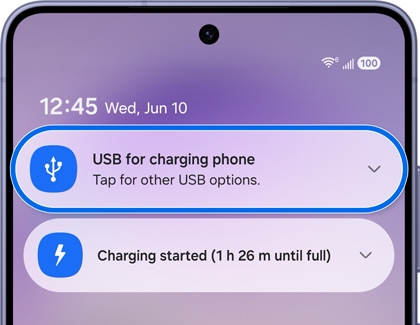
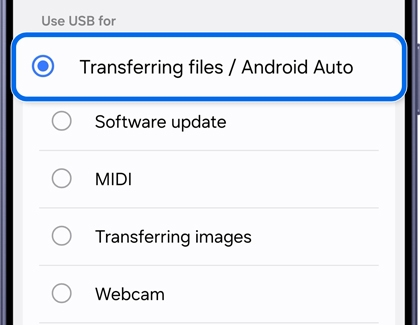
These are Samsung’s original published screen examples. They show where to open the USB options and which data mode to select. Menu appearance depends on the phone and software version; the screenshots are not a universal layout for Pixel, Motorola, or every Galaxy model.
Repeat the direct-cable check after making the change. Record whether the USB mode remains selected and whether Android Auto opens. If the phone offers no USB data notification with either cable, that observation is worth passing to the phone maker alongside the cable and port comparisons.
A successful first connection is only the first result. Check a later normal reconnection before concluding that the problem has gone. This distinguishes completing a one-time prompt from finding a configuration that reconnects consistently.
For wireless disconnects, verify the pairing path
Google’s wireless setup instructions begin with Bluetooth pairing between the phone and car. During setup, keep Bluetooth, Wi-Fi, and Location Services enabled, and follow the prompts while parked. Use the receiver’s own instructions to enter its phone-pairing menu.
Check which phone the receiver is trying to use. If another previously paired phone is nearby, make one connection attempt with only the intended phone participating. Record that temporary comparison and restore the other person’s normal setup afterward.
Also identify the actual receiver. Native wireless Android Auto and a USB wireless adapter add different components to the path. For an adapter-equipped car that supports USB Android Auto, bypass the adapter and compare a direct cable connection. You are testing whether the extra path matters, not proving which part of the adapter is defective.
If wireless fails repeatedly but direct USB stays usable, you have a practical comparison to show support. It can justify focusing on pairing, receiver firmware, adapter support, or phone-specific wireless compatibility. It does not mean that every radio setting should be changed at once.
When the failure follows a place or a particular sequence
Note whether the issue follows a location, an incoming call, screen locking, or selecting one app. A repeated pattern is useful evidence. It does not, by itself, establish interference, battery management, or a specific update as the cause.
Compare the sequence during a parked session where possible. For a location-related incident, make a note afterward and compare it with the connection type used. Keep the report descriptive: “wireless disconnected at this location on two journeys” is stronger than announcing a radio-channel fault without further evidence.
Use a wired-versus-wireless comparison
The following matrix applies only to connection methods your phone and receiver support. It is a way to interpret your observations, not a claim that we tested your hardware or that every vehicle supports both methods.
| Observed result | What it helps narrow | Next useful comparison |
|---|---|---|
| USB works; wireless fails. | The issue follows the wireless path in this setup. | Native wireless versus adapter use, pairing, and receiver firmware. |
| Wireless works; USB fails. | The USB path deserves closer attention. | The documented data port, cable, fit, and phone USB mode. |
| Both fail with the same phone. | A shared phone, app, or receiver issue remains possible. | A second compatible phone, with its own completed setup. |
| Two compatible phones fail in the same receiver. | A shared receiver or connection component becomes more relevant. | The receiver’s exact software version and manufacturer support guidance. |
| Only one media app fails while projection remains. | The app or its playback path needs separate investigation. | Another media app and the phone’s internet connection. |
Keep the comparison fair. Changing the phone, cable, car port, app, and wireless method simultaneously may produce a working session, but it tells you little about which change mattered. Write down the configuration that worked before adding other components back.
Restart and update the phone and receiver deliberately
Samsung’s Android Auto troubleshooting steps include restarting the phone, clearing Android Auto’s cache, and checking software updates. Google’s bug-report preparation guide also calls for updating Android Auto and Google Play services.
Record the versions before updating. Then check the phone’s app updates and system updates, and consult the car or receiver manufacturer for its update procedure. Restart the receiver using its documented method; the correct controls vary across vehicles.
After each completed change, repeat your simplest connection check. This makes “it started after an update” a useful timeline instead of a conclusion. A failure appearing after an update establishes timing; a support team still needs the versions and a repeatable description to investigate cause.
A documented 2026 fix is not a universal version target
In an Android Auto team reply dated 18 August 2026, a community specialist advised version 17.4 or later for a reported connection-loss issue. That is evidence of a specific addressed problem, not a guarantee that this version fixes every phone and receiver.
Use the current update offered through the supported store route and check Google’s known-issues page for a matching case. Record the full installed version rather than labelling it simply “latest.” Rollouts and device combinations make that shorthand hard for support to interpret.
Clear Android Auto’s cache before considering a larger reset
On Galaxy devices, Samsung’s documented path is Settings → Apps → Android Auto → Storage → Clear cache. Other manufacturers may use different wording. Search the phone’s settings for Android Auto and open its app-storage controls if the path differs.
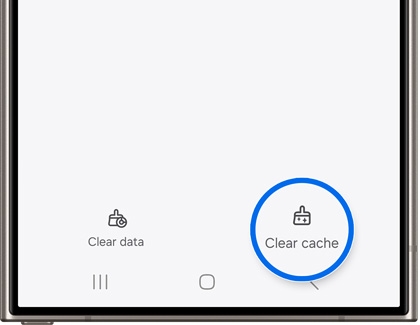
Samsung’s cache-and-data explanation distinguishes clearing temporary cache from clearing an app’s stored data, which resets its settings. Treat those as different actions. Begin with the smaller change, reconnect, and record what happened.
If you later need to rebuild the pairing, Google’s connection guide includes removing previously connected cars. Check the scope of the control before using it: an option to forget every car affects more than today’s test vehicle. Keep any necessary setup information available before starting again.
A complete phone reset is a much larger change than this connection test requires. Take your observations to support first, so any broader reset has a clear purpose and the appropriate backup preparation.
If only music, calls, or live maps stop
Check whether the Android Auto launcher still responds and whether another supported app works. If the projection interface stays available, investigate the affected service separately. Make the distinction in your report even if reconnecting the phone temporarily restores everything.
For streaming failures, check the phone’s ordinary data access while parked. For a single app, inspect its current permissions, updates, and background settings. Keep the test limited to that app, so you can tell whether the change helped.
Google explains that Battery Saver can limit background activity. If interruptions follow screen locking or a power-saving change, compare one session with that mode off. Google also recommends keeping normal battery optimisation enabled on Pixel phones generally; disabling every battery control is not a universal Android Auto repair.
For Bluetooth calls or audio specifically, Samsung’s troubleshooting page directs users to the paired car’s call and audio controls. Those settings help investigate that audio connection; they do not establish that the entire Android Auto projection link is healthy.
Check heat when dropouts develop later in a session
Google’s Pixel temperature guidance explains that heavy use while charging can warm a phone and that thermal protection can limit functions. A temperature warning therefore belongs in the troubleshooting record, alongside whether the phone was charging and where it was placed.
If the phone reports overheating, follow its manufacturer’s cooling guidance before further testing. When comparing sessions, record conditions such as direct sunlight and simultaneous charging. The useful finding is whether the problem follows those conditions; warmth alone does not identify a defective cable or prove a particular Android Auto bug.
Record one variable at a time
This worksheet is intended for your own observations. Its examples are prompts, not results from tests performed by Horus Valley. Keep the phone, receiver, connection method, and selected app consistent except for the item you are checking.
| Check | Change one item | Record the actual outcome |
|---|---|---|
| Direct USB baseline | Use the documented data port without an adapter. | Whether setup completes and the session remains available. |
| Cable comparison | Replace only the cable. | Whether the same failure still occurs. |
| Supported wireless comparison | Change only the connection method. | Whether projection, media, and reconnection behave differently. |
| Second compatible phone | Complete setup with another phone. | Whether the problem follows the original phone. |
| After one software change | Record the updated component and version. | Whether the original symptom recurs under comparable conditions. |
For example, “two cables failed” is incomplete. A useful result adds the phone model, car data port, connection method, and whether the display closed or only audio stopped. That gives a technician something to reproduce without assuming you performed a different test.
A successful parked session also has a limit: it does not establish that an intermittent fault is permanently solved. Record the next normal reconnection and any later recurrence. Stop changing settings once you have a stable configuration, so you retain a meaningful baseline.
Send the right information to support
An Android Auto team support reply requests details including the phone and receiver models, Android and app versions, connection type, frequency, and when the issue began. Collect those before opening a case with the phone maker, receiver manufacturer, adapter maker, or Google.
| Information | What to include |
|---|---|
| Phone software | Phone model, Android version, build number, Android Auto version, and Google Play services version. |
| Vehicle equipment | Vehicle model year, receiver model, firmware version, and any wireless adapter. |
| Failure description | USB or wireless; full session loss, frozen display, audio interruption, or data failure. |
| Useful comparisons | What happened with another cable, another supported connection method, and another compatible phone. |
| Timing | When it started, recent updates, recurrence pattern, and any temperature warning. |
You can adapt this report: “My phone connects to this receiver using this connection method. After this sequence, the Android Auto screen closes or remains visible, as applicable. Charging and ordinary Bluetooth audio continue or stop. I compared these components one at a time and recorded these outcomes.”
For a software investigation, follow Google’s official bug-report instructions. Read the preparation steps in advance and operate the phone only when safely parked. Diagnostic files can contain device and account information, so use the support channel requested by the investigating team.
The aim is a reliable connection whose behaviour you understand. A short cable test, a supported wireless comparison, and a clear version record can narrow the problem much more effectively than a collection of unrelated setting changes.
Sources and image credits
Reviewed 25 October 2026. This guide uses current Google setup requirements, Samsung’s published troubleshooting instructions, and a specifically dated Android Auto team response. Device menus and software availability vary. It does not claim hands-on testing of every phone, car, or adapter.
- Google: requirements, setup, and connection troubleshooting.
- Samsung: Galaxy USB mode, Android Auto troubleshooting, and car ports and connection guidance. Google’s current requirements take precedence over older Android-version references in some device guides.
- Google: thermal protection, Battery Saver, and bug reporting.
The three inline phone images are original, unmodified screenshots published in Samsung’s support documentation; copyright Samsung. They illustrate Galaxy USB and cache controls, with their relevant model limitations explained above. The main image is an expressive parked-car illustration, separate from those official screen examples.
You may also like
 Technology & How-To
 Netflix Says Your TV Isn’t Part of the Household? How to Fix It
Fix a Netflix household warning by separating home verification, permanent household updates and temporary travel access, with genuine…
 Technology & How-To
 Google Photos Stopped Backing Up from Your PC? What Changed and How to Fix It
Google Photos stopped backing up your computer folders? Understand the Drive for desktop change, configure browser folder backup…
 Technology & How-To
 Samsung Secure Folder Forgot PIN and No Reset Option: What You Can Do
Forgot your Samsung Secure Folder PIN with no reset option? Follow the supported account recovery checks, preserve accessible…