
Android Auto Keeps Playing Music Automatically? Google Is Rolling Out a Fix
Android Auto still starts music even with autoplay disabled? Google has confirmed a startup bug and is rolling out a fix. Here’s what changed and what to try now.
Contents
- What Google is changing in Android Auto
- Where is the Android Auto autoplay setting?
- Update Android Auto first
- Why does music still start briefly when autoplay is off?
- Autoplay and resume playback are not always the same thing
- Test whether Bluetooth is causing the autoplay
- Check the music app itself
- Try another media app
- Clear Android Auto cache
- Restart both the phone and infotainment system
- Wireless Android Auto can make troubleshooting harder
- Remove and reconnect the car only if simpler steps fail
- What if Android Auto starts a completely different app?
- The new one-tap opt-out may appear automatically
- Do you need the Android Auto beta?
- Should you sideload a newer Android Auto APK?
- What if the car itself forces playback?
- What if Spotify keeps starting automatically?
- What if YouTube Music starts automatically?
- A simple test to identify the real source
- How long will the fix take to reach everyone?
- Frequently asked questions
- Why does Android Auto start music automatically even when autoplay is off?
- Where is the Android Auto autoplay setting?
- What does Google's new autoplay fix change?
- Which Android Auto version fixes autoplay?
- Should I clear Android Auto data?
- Could the car itself be causing music to play?
- Do I need to reinstall Spotify or YouTube Music?
- Will Google's fix stop every kind of auto-resume?
- The bottom line
- Sources
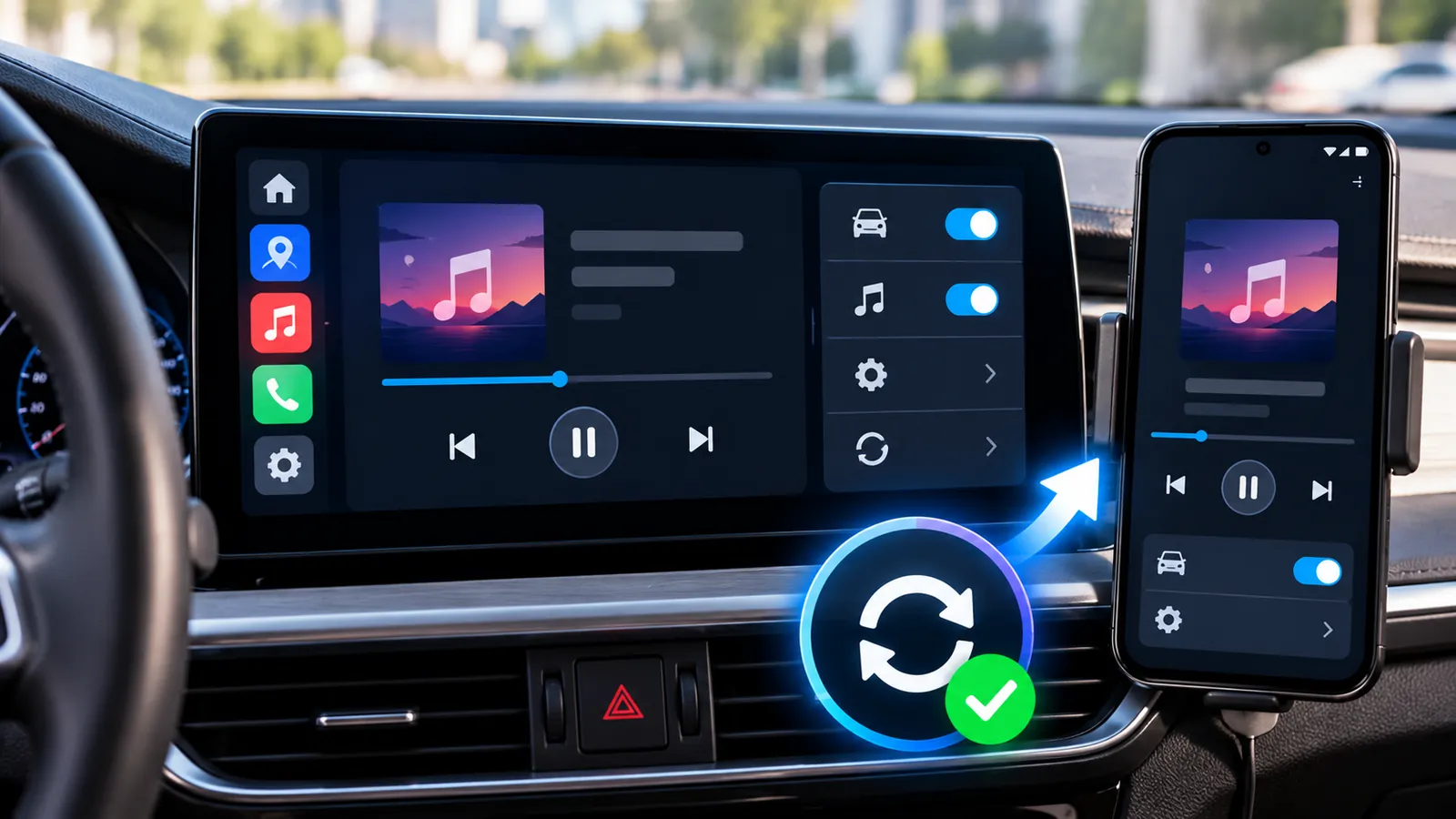
Last reviewed: October 10, 2026. If Android Auto starts playing music the moment your car connects even though you turned autoplay off, Google has now confirmed that the behavior was not always working as intended.
Google says it is rolling out a fix so Android Auto will stop sending unsolicited play commands during startup when autoplay is disabled. The change is part of a broader update designed to make media autoplay more predictable and better match the way each driver listens.
The rollout is gradual. Google has not tied the fix to one clearly announced Android Auto version for every device, so some drivers may receive it before others.
This guide explains what changed, where to check the autoplay setting, what to do if music still starts by itself, and how to tell the difference between Android Auto autoplay and your car or music app simply resuming the previous session.
What Google is changing in Android Auto
- Better app selection: apps you have not used recently—or have never used—should no longer be selected for autoplay.
- One-tap opt-out: if Android Auto notices that you repeatedly pause autoplay shortly after it begins, it can offer a notification that lets you disable autoplay quickly.
- Startup handling fix: Android Auto is rolling out a fix intended to stop unsolicited play commands when autoplay is already turned off.
The third change is the important one for users who had already disabled autoplay but still heard a song or podcast begin briefly every time the car started.
Where is the Android Auto autoplay setting?
The exact path varies slightly by phone, but the setting is generally inside Android Auto preferences.
- Open Settings on your Android phone.
- Search for Android Auto, or open Connected devices / Connection preferences and choose Android Auto.
- Open Android Auto settings.
- Find Start music automatically.
- Turn it off if you do not want media to begin automatically.
If the setting is already off and music still begins for a few seconds at startup, your symptoms closely match the bug Google says it is fixing.
Update Android Auto first
- Open the Google Play Store.
- Search for Android Auto.
- If an Update button appears, install it.
- Restart the phone.
- Reconnect to the car and test again.
Some Android Auto changes are rolled out gradually and may not arrive for every user at exactly the same time.
Why does music still start briefly when autoplay is off?
This was the behavior Google acknowledged. Android Auto could send a playback command during infotainment startup even though automatic music playback was disabled.
For some drivers, media started briefly and stopped after a few seconds. For others, it appeared that the setting simply did nothing.
The new startup-handling fix is intended to prevent that unwanted play command from being sent.
Autoplay and resume playback are not always the same thing
Several different systems can tell music to resume.
- Android Auto itself.
- The car’s infotainment system.
- A Bluetooth auto-resume setting.
- The music or podcast app.
- A phone automation or routine.
- The previous media session restored when the phone reconnects.
If the Android Auto autoplay toggle is off but music continues starting after the fix reaches your phone, identify which system is actually sending the play command.
Test whether Bluetooth is causing the autoplay
Disconnect Android Auto temporarily and connect the phone only as a basic Bluetooth audio device. Turn the car off and back on.
If the same app resumes even without Android Auto active, the car’s Bluetooth profile or media system may be responsible rather than Android Auto.
Check the infotainment system for options such as auto resume, last source, media on startup or Bluetooth autoplay.
Check the music app itself
Music and podcast apps can preserve their own playback state.
- Stop playback manually before turning the car off.
- Pause or close the media app.
- Start the car and reconnect Android Auto.
- See whether the app launches and begins playback anyway.
If only one media app behaves this way while others remain silent, update that app and check its own playback settings.
Try another media app
Google says the new autoplay logic also improves app selection so Android Auto does not choose apps you have never used or have not used recently.
If one music player starts automatically but another music or podcast app does not, the issue may be app-specific rather than Android Auto-wide.
Clear Android Auto cache
- Open Settings > Apps.
- Find Android Auto.
- Open Storage & cache.
- Tap Clear cache.
- Reconnect to the car and test again.
Avoid clearing storage or data as your first step because that can reset app state and may require reconfiguration.
Restart both the phone and infotainment system
A stale media session can survive longer than expected after app or Android Auto updates.
Restart the phone, then fully restart the vehicle’s infotainment system if your car supports a proper reboot. Test again with Start music automatically disabled.
Wireless Android Auto can make troubleshooting harder
Wireless Android Auto uses Wi-Fi and Bluetooth together to establish the projection session.
If the connection is unstable, Android Auto may reconnect several times during startup and your media app can receive repeated state changes.
If your car supports both wired and wireless Android Auto, test a wired connection temporarily. If unwanted autoplay only occurs wirelessly, the connection sequence may be contributing.
If your phone also shows Wi-Fi connected but no internet outside the car, see Wi-Fi Connected but No Internet? 11 Fixes That Actually Work.
Remove and reconnect the car only if simpler steps fail
Deleting the car from Android Auto and pairing it again can help with corrupted connection state, but it is more disruptive than updating the app or clearing cache.
If needed, remove the car from Android Auto’s previously connected cars list, delete the phone from the car’s Bluetooth/device list, and pair again from scratch.
What if Android Auto starts a completely different app?
Google says apps you have never used or have not used recently should no longer be selected automatically.
If Android Auto launches an old podcast or media app you rarely use, update Android Auto and wait for the new app-selection logic to reach your device.
You can also customize the Android Auto launcher and hide media apps you never use.
The new one-tap opt-out may appear automatically
Google says Android Auto can notice a pattern where a driver repeatedly pauses autoplay as soon as it begins.
When that happens, Android Auto may show a one-tap notification offering to disable autoplay.
If you already disabled autoplay manually, you should not need this prompt once the startup fix has reached your device.
Do you need the Android Auto beta?
No. Google says the autoplay fix is rolling out, which means ordinary users should receive it without joining a beta program.
Beta builds can introduce unrelated bugs, so installing one solely to chase this fix is not necessary for most drivers.
Should you sideload a newer Android Auto APK?
For most users, no.
Because Google has not identified one single build as the universal fix, sideloading may not solve the problem and can complicate future updates.
Update through Google Play and allow the staged rollout time to reach your device.
What if the car itself forces playback?
Some infotainment systems resume the last audio source automatically whenever the car starts.
- Auto resume.
- Media on startup.
- Last audio source.
- Bluetooth automatic playback.
- USB media playback.
- Startup source.
The labels vary by manufacturer, so the owner’s manual may be more useful than changing Android settings repeatedly.
What if Spotify keeps starting automatically?
First determine whether Spotify is the only app affected.
Pause it before switching off the car, test another media app, and check whether Android Auto is selecting Spotify or whether the car is simply resuming the last Bluetooth source.
Update both Spotify and Android Auto. If the behavior only affects Spotify after the Android Auto fix reaches your phone, the issue may be app-specific.
What if YouTube Music starts automatically?
Use the same troubleshooting logic: turn off Start music automatically, update both apps, pause playback before shutting down the car and test another media player.
If Android Auto itself remains silent but YouTube Music resumes when Bluetooth connects, the trigger may be the media session or infotainment system rather than Android Auto autoplay.
A simple test to identify the real source
- Turn Start music automatically off in Android Auto.
- Update Android Auto and your main media app.
- Pause all media before switching off the car.
- Start the car and connect normally.
- If music starts, disconnect Android Auto but leave basic Bluetooth connected and restart the car.
- If it still starts, inspect the car, Bluetooth and media-app settings.
- If it stops without Android Auto, wait for the rollout and retest after future Android Auto updates.
How long will the fix take to reach everyone?
Google has not given a precise date for every user.
The company described the change as rolling out, so availability can differ by device, account, Android Auto build and rollout wave.
If your settings are correct and your symptoms match the acknowledged startup bug, waiting for the rollout may be more useful than repeatedly resetting the phone.
Frequently asked questions
Why does Android Auto start music automatically even when autoplay is off?
Google confirmed a startup-handling bug where unsolicited play commands could still be sent when autoplay was disabled. A fix is now rolling out.
Where is the Android Auto autoplay setting?
On most phones, open Android Auto settings and turn off Start music automatically. The exact Settings path varies by phone manufacturer.
What does Google’s new autoplay fix change?
Google says app selection is becoming smarter, frequent manual pausing can trigger a one-tap opt-out prompt, and startup should stop sending unsolicited play commands when autoplay is off.
Which Android Auto version fixes autoplay?
Google has not publicly tied the fix to one single version for every user. The company says it is rolling out gradually.
Should I clear Android Auto data?
Not as a first step. Update the app, verify the autoplay setting, restart and clear cache first.
Could the car itself be causing music to play?
Yes. Some infotainment systems resume the previous Bluetooth or USB source automatically, which can look like Android Auto autoplay.
Do I need to reinstall Spotify or YouTube Music?
Usually not. Update the apps and test another media player first.
Will Google’s fix stop every kind of auto-resume?
No. It is designed to stop Android Auto’s unsolicited startup play commands when autoplay is off. A car’s own auto-resume behavior or a media app’s independent logic can still be separate causes.
The bottom line
If Android Auto keeps starting music even though Start music automatically is turned off, Google says a startup fix is rolling out.
Update Android Auto through Google Play, make sure the autoplay toggle is off, restart the phone and test again. If the problem continues after the rollout reaches your device, test Bluetooth without Android Auto and check the car’s own startup-media settings.
The key is to identify who is sending the play command—Android Auto, the infotainment system or the media app—before resetting everything.
Sources
9to5Google — Google confirms Android Auto autoplay startup fix is rolling out.
9to5Google — Google confirms recent Android Auto media updates.
Android Auto Community — reports of autoplay with the setting disabled.
You may also like
 Technology & How-To
 Google Find Hub Trackers Get NFC Support — How to Identify Lost Tags and Set Left-Behind Reminders
Google Play services v26.39 adds NFC support for compatible Find Hub tracker tags and a new setup flow…
 Technology & How-To
 Android 17 Advanced Protection Adds 6 Powerful Security Features — Should You Turn It On?
Android 17 expands Advanced Protection with encrypted intrusion logs, USB protection, accessibility restrictions, WebGPU blocking and stronger authentication…
 Technology & How-To
 Google Pixel October 2026 Update Fixes 3 Bugs and Critical Security Flaws — Should You Install It?
Google’s October 2026 Pixel update fixes a missing keyboard, VoIP audio distortion and Pixel 11 photo rotation while…