
Netflix Says Your TV Isn’t Part of the Household? How to Fix It
Fix a Netflix household warning by separating home verification, permanent household updates and temporary travel access, with genuine Netflix interface examples.
Contents
- Start with the exact warning on the screen
- What Netflix means by a household
- Make a short record before changing settings
- At home: compare the devices before updating the household
- Different network names do not settle the question
- Update the household after a permanent change
- Use the device-check route when it is offered
- Traveling: use temporary access instead of moving the home
- Keep verification links, temporary codes, and QR codes separate
- Check account access if the verification cannot reach you
- Review old hotel TVs and unfamiliar signed-in devices
- Investigate routing when Netflix reports a VPN or the wrong location
- Living elsewhere: check the account arrangement
- Use a two-device result sheet if the error keeps returning
- Give Netflix Support a concise account of the problem
- Sources and image credits
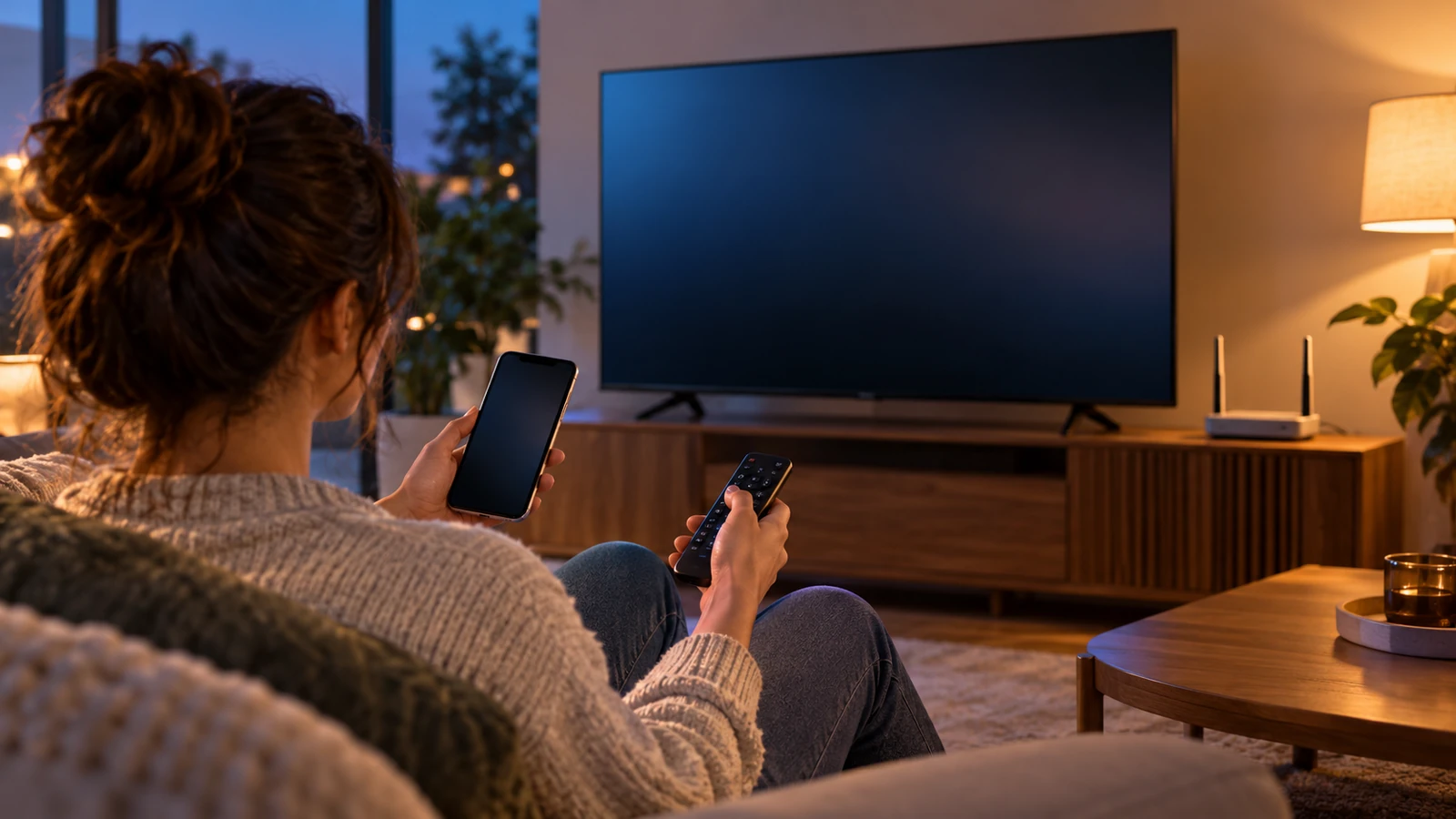
If Netflix says “Your TV isn’t part of the Netflix Household for this account”, first decide whether you are at your main home, temporarily away, or living at a different address. At home, check the connection and the verification option offered. During a trip, use temporary access. After a permanent move, update the household from a supported TV on the main home connection.
The useful first question is what changed just before the warning: the account, the internet connection, the device, or your location. This guide gives you a way to separate those changes, follow the appropriate Netflix instructions, and record a clear result before trying something else. It covers English-language menus relevant to US and UK readers; available options can vary by device and account.
Start with the exact warning on the screen
A household warning, a simultaneous-stream limit, and a VPN error need different investigations. Photograph the message for your own reference, then compare it with the categories below. This prevents a familiar-looking error from sending you through the wrong settings.
| Message or symptom | What to investigate | Useful first observation |
|---|---|---|
| A household association warning | The account, home connection, and device-verification route. | Does another device using this account work at home? |
| An account-in-use or too-many-viewers warning | The simultaneous-stream allowance and other active playback. | Does stopping another stream change the result? |
| An explicit VPN or proxy warning | Network routing or a VPN service. | Does Netflix identify a different country for the connection? |
| A general account problem | The separate account-error instructions. | Can the owner sign in on another device in the household? |
Netflix explains simultaneous-stream errors separately. A plan determines concurrent playback capacity; household association is a different check. Buying more streaming capacity is therefore a poor diagnostic experiment when the screen is asking you to verify a household.
If the wording instead concerns an account problem, Netflix directs users to sign in on another device in the same household, then reopen Netflix on the affected device. Follow that specific branch before treating it as the household warning covered here.
What Netflix means by a household
Netflix defines a household around the main place where you watch and the devices using its internet connection. Its household explanation says association uses IP addresses, device identifiers, and account activity. It also says it does not use GPS to determine a device’s precise physical location.
This gives us two different things to examine: which account the device is using, and which internet connection it is using. A familiar profile picture answers neither question completely. Likewise, a TV being in the same room as your router does not tell you whether it has connected through that router or through another saved network.
Think of this as a troubleshooting model rather than a way to reproduce Netflix’s detection system. Netflix does not publish every factor or threshold used in its checks. A successful network comparison can help isolate a problem; it cannot certify how the company has classified your account.
Make a short record before changing settings
Write down the affected device, the account owner’s email address, the network in use, and the most recent change. Keep the email address private. If several people are helping, nominate one person to make account changes while everyone else records what their devices do.
This is particularly useful after a router replacement. Otherwise, one person may update the household while another switches the TV to a hotspot and a third requests a fresh code. Even if playback starts, you will not know which change mattered or which configuration you need to retain.
- Account: confirm the subscription signed into the affected app, rather than relying on the profile name.
- Connection: record whether the device uses home Wi-Fi, Ethernet, mobile data, or another internet service.
- Change: note a move, new provider, new router, replacement streaming box, or recent hotel stay.
- Comparison: choose one other device and one title to use consistently during checks.
At home: compare the devices before updating the household
Start with the TV or streaming player that normally uses your main home internet. Check its network settings and then check the phone or computer you are using to help. If the TV uses a streaming stick, inspect that stick’s settings; the television’s own Wi-Fi settings describe a different device.
For an informative comparison, keep the Netflix account and location unchanged while you align the connection. Try playback on the comparison device, then on the blocked device. Record the actual outcome, including a different error message. A change from one warning to another is useful information, even when the title still does not play.
If ordinary internet access also fails, solve that first. Our guide to Wi-Fi working on some devices but not others helps separate a device connection fault from a service-specific problem. A device that cannot reach other websites does not yet provide a clean test of household verification.
Different network names do not settle the question
Netflix’s update guidance expressly includes wired and wireless internet. It also notes that different internet services or external IP addresses can lead to additional verification. Ethernet is therefore a valid home connection; changing every wired device to Wi-Fi is not a universal requirement.
A network name is a label, not a full map of the connection. Your two Wi-Fi bands may belong to one router, while a second router may use another internet subscription. Before buying equipment or renaming networks, identify which router each device reaches and which service supplies that router.
| Your setup | What to check | What the check can clarify |
|---|---|---|
| TV on Ethernet, phone on Wi-Fi | Whether both connect through the intended home router. | Whether you are comparing wired and wireless access to the same service. |
| Two differently named Wi-Fi networks | Which router and internet subscription supplies each network. | Whether the names represent one connection or separate services. |
| Home broadband plus a mobile hotspot | Which one the blocked device currently uses. | Whether the device is following an unintended connection. |
| New provider or replacement router | Saved networks on the TV and streaming player. | Whether your test actually uses the new main connection. |
| Mesh equipment or an extender | The upstream router, including any separate modem or backup line. | Whether the visible access point tells the whole story. |
Update the household after a permanent change
Use a supported TV on the connection you intend to keep using. Netflix publishes the current household-update procedure; the screen examples below come directly from that help page.
- Open the TV app’s help or settings menu and choose Manage Netflix Household.
- Choose the household-update option and request the verification email. A text option may appear when the account has no email address.
- Open the account owner’s message and approve the request, then confirm the update.
- Allow the TV to complete the process and test playback before changing another setting.
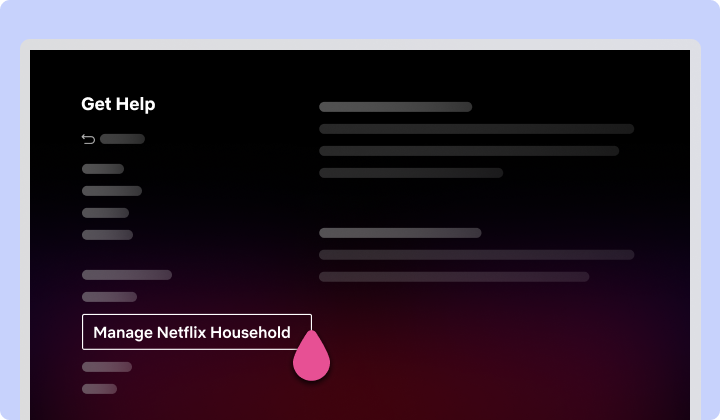
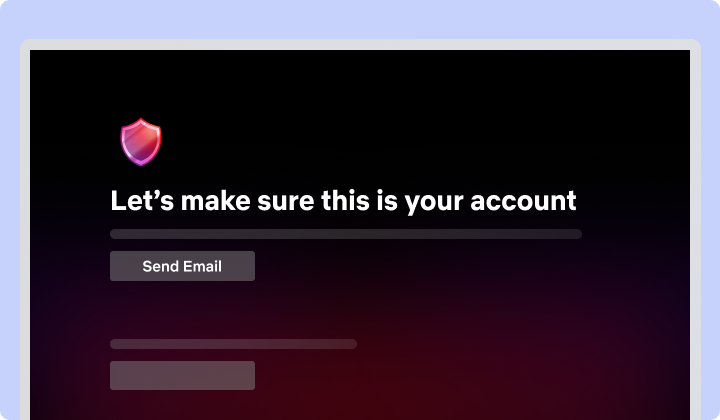
The verification link expires after 15 minutes. If the management option is unavailable on that TV, Netflix says to use another TV device. Its guidance also says people who do not watch on a TV do not need to establish a household manually.
After completing the update, repeat your original comparison on the home connection. Use the same device and title so that you can distinguish a successful association from a result caused by an unrelated switch. If it fails again, keep the confirmation and the new warning for support.
Use the device-check route when it is offered
Netflix’s household-error guide offers a phone-assisted TV check: follow its troubleshooting prompts, keep the phone on home Wi-Fi, and scan the TV’s QR code. Apple TV lacks this particular option.

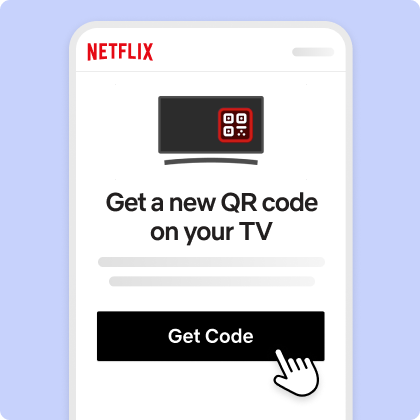
These official images show the connection check and QR-code request. They are published interface illustrations, not photographs of our devices. Your app may arrange the controls differently. Match the meaning of the prompt rather than expecting every screen to reproduce the picture exactly.
A QR code displayed inside this article is an example, not a live verification request. Start the process from your own TV and use the code it generates. That keeps the phone’s action tied to the session you are actually trying to complete.
Where available, Confirm Device uses an account-owner confirmation message. Complete that flow and return to the TV.
Traveling: use temporary access instead of moving the home
Use a non-Kids profile to request temporary access on the blocked device. Retrieve the account owner’s code and enter it before its 15-minute expiry.
Separate the purpose of the trip from the fact that the device is blocked. A hotel television can need verification without becoming the permanent center of your account. Keep a note of where you are and which device you used; that makes a later home-versus-travel comparison much easier.
Netflix’s outside-the-home guidance also covers frequent visits to a second location. It recommends opening Netflix and briefly streaming from a mobile device or computer on the main home connection once a month, then doing the same at the second location. International travel can change the available catalog and downloads.
Build that check into trip preparation while you still have access to the home connection. Also check that you can open the account owner’s inbox. Discovering an old recovery email address after arriving at a rental creates a different problem from deciding which on-screen option to use.
Keep verification links, temporary codes, and QR codes separate
Several flows involve a phone or an email, so it is easy to call all of them “the Netflix code.” Label what you are trying to finish before requesting another message. The table below is a reading aid for the different tasks, not a claim that one token can replace another.
| What you are doing | What you receive or use | Where you finish |
|---|---|---|
| Changing the permanent household | An account-owner verification link. | The household-update confirmation. |
| Watching temporarily away from home | A temporary access code. | The blocked TV, app, or browser requesting it. |
| Checking a TV through a phone | The TV’s generated QR code. | The linked phone-and-TV process. |
| Changing account contact information | The account-security verification requested for that change. | The relevant account-information page. |
Netflix documents request limits and a 24-hour block after repeated incorrect entries. Follow the displayed wait instead of requesting or guessing more codes.
Check account access if the verification cannot reach you
Inspect the account’s primary email address instead of assuming that an address attached to a profile is the same thing. Netflix treats primary account details and profile details separately. Updating contact information can require identity verification; account recovery has its own process if you cannot sign in.
Ask the account owner to handle that change. Once the correct contact method is confirmed, return to the particular task you were completing. Recording “message not received” separately from “message received but rejected” will help support distinguish delivery from verification problems.
If you cannot finish on a TV, use the available account tools on a device where you can sign in. Avoid treating the absence of a television menu as proof that the account has no supported recovery or support route.
Review old hotel TVs and unfamiliar signed-in devices
Netflix’s device-management instructions link to Manage Access and Devices. You can end a selected device’s session there, or sign out all devices when appropriate. Review the account owner’s needs before taking the broader action.
The device list has limits: Netflix says entries can take up to 48 hours to appear, some inactive devices are omitted, and information can be incomplete. Its Windows app may appear as an Edge browser. An unfamiliar label therefore needs investigation; it is not, by itself, proof of account compromise.
Compare the device type, recent profile, and activity time with your own use. A hotel TV you recognize and an unexplained active session are different findings. Record which session you removed and retest the blocked home device, rather than removing several devices and changing the network at the same time.
Investigate routing when Netflix reports a VPN or the wrong location
For an explicit VPN or proxy error, Netflix’s network-error guidance recommends checking the connection, including VPN services bundled with other software. It uses Fast.com and its expanded results to inspect the reported client country, with ISP follow-up when the result does not match the connection.
Treat that as a separate diagnostic branch. If you deliberately turn off a VPN for a comparison, note exactly which device or router setting you changed. A browser-only change and a router-level change affect different parts of your setup, so the result needs that context.
A correct country display does not prove household membership. Equally, moving to another room does not show that the connection changed. Keep those observations distinct: physical location, network route, account identity, and service response are related questions, but none answers all the others.
Living elsewhere: check the account arrangement
A permanent second address is a different situation from a short visit. Netflix’s extra-member documentation describes an additional paid arrangement with separate account credentials, subject to plan, billing, and country eligibility. A separate subscription is another available route.
Check the actual options in the owner’s account before relying on a price or a button shown in an older tutorial. Eligibility differs across billing arrangements, and Netflix says extra members must be in the country where the owner started the membership. This guide does not quote a universal US or UK add-on price.
The practical decision is whether the person is temporarily visiting or needs ongoing access from another home. Resolving that question first can save a long sequence of network changes that never addresses the account arrangement.
Use a two-device result sheet if the error keeps returning
The following is a worksheet to complete yourself, not a report of tests we performed. Choose one main-home TV and one phone or computer. Keep the account fixed, change only the connection or verification action you are investigating, and write the exact result in the final column.
| Check | What to hold steady | What to record |
|---|---|---|
| Main-home comparison device | Account and chosen title. | Connection used, playback result, and any warning. |
| Blocked TV on the intended home service | Account, title, and physical location. | Which router it uses and whether the original warning remains. |
| One verification action | Connection and affected device. | Action selected, completion time, and confirmation received. |
| Playback after verification | Same account, device, and title. | Whether playback starts or the wording changes. |
| Later recurrence | The configuration that last worked. | What changed before the warning returned. |
For example, if the comparison phone plays successfully but the TV remains blocked on the intended home service, record that narrow difference. It does not prove that the TV is broken. It tells support that basic account access and playback work on at least one device, while the TV’s association still needs investigation.
If both devices fail, retain their exact messages separately. Two failed playback attempts may still be two different problems. This is why a useful record contains wording and connection details rather than only “Netflix doesn’t work.”
Give Netflix Support a concise account of the problem
Use Netflix’s official contact page when the appropriate flow fails repeatedly. A short, specific description is more useful than a long list of unrelated resets. You can adapt the following wording with your real observations.
“My main-home TV shows a household warning. The device is a Roku, Fire TV, Apple TV, or smart-TV app, as applicable. It uses my main home internet by Wi-Fi or Ethernet. My comparison device can or cannot play on that connection. I completed the verification action offered at the recorded time, and the TV then showed this exact result.”
Include the device model and app version if available, the recent change that preceded the issue, and whether the account owner received the message. Provide sensitive account details only through the official support process. Ask which route applies to that device and account before making another permanent change.
The objective is a stable, understood setup: the intended account, the intended home connection, the appropriate verification flow, and a playback check you can repeat. Once you have that result, keep the configuration that produced it and stop changing unrelated settings.
Sources and image credits
Reviewed 25 October 2026 against Netflix’s public English-language help pages. Menu availability, billing eligibility, and account prompts can change. This article provides a documented troubleshooting workflow; it does not claim hands-on tests on every device or guaranteed restoration of access.
- Netflix household warning: device checks, temporary access, code limits, and the Apple TV exception.
- Updating a household and the household definition: permanent updates, connection guidance, and association factors.
- Using Netflix away from home and extra-member arrangements: travel and ongoing access from another household.
- Device sign-out and account-information changes: account access and the limits of the device list.
- Concurrent-stream warnings, VPN-related network errors, and the separate account-problem message: alternative diagnostic branches.
The four inline interface examples are original, unmodified illustrations published by the Netflix Help Center on its household-update and household-error pages. Copyright Netflix. They show example screens, not a signed-in user’s private account. The main image is an expressive living-room illustration, separate from the official interface examples.
You may also like
 Technology & How-To
 Android Auto Keeps Disconnecting? How to Fix USB and Wireless Dropouts
Android Auto keeps disconnecting? Separate USB, wireless and app failures, check Galaxy USB mode, compare connection methods and…
 Technology & How-To
 Google Photos Stopped Backing Up from Your PC? What Changed and How to Fix It
Google Photos stopped backing up your computer folders? Understand the Drive for desktop change, configure browser folder backup…
 Technology & How-To
 Samsung Secure Folder Forgot PIN and No Reset Option: What You Can Do
Forgot your Samsung Secure Folder PIN with no reset option? Follow the supported account recovery checks, preserve accessible…