
USB-C Charging Works but File Transfer Does Not: 12 Fixes for Android and Windows
A phone that charges normally over USB-C but will not transfer photos or files is not necessarily broken. Power delivery and data transfer are separate capabilities: a cable may supply power while lacking usable data wiring, or Android may deliberately leave the connection in charging-only mode. Windows can also recognize the USB device without mounting it as an accessible file-transfer device.
Contents
- First, identify what actually fails
- Fix 1: Use a USB-C cable that actually carries data
- Fix 2: Unlock Android and switch USB mode to File transfer
- Fix 3: Check for permissions and an empty-looking device
- Fix 4: Restart Windows Explorer and both devices
- Fix 5: Inspect Device Manager without installing random drivers
- Fix 6: Check whether the USB port or a hub is at fault
- Fix 7: Distinguish Android file transfer from iPhone behavior
- Fix 8: Copy a small test file before moving your entire library
- Fix 9: Alternative methods when USB is unreliable
- When is hardware repair worth considering?
- Frequently asked questions
- Why does my USB-C cable charge but not transfer data?
- Does USB debugging have to be enabled?
- Why does my phone appear as an empty folder?
- Is a USB-C to USB-C cable always better than USB-A to USB-C?
- Sources and verification
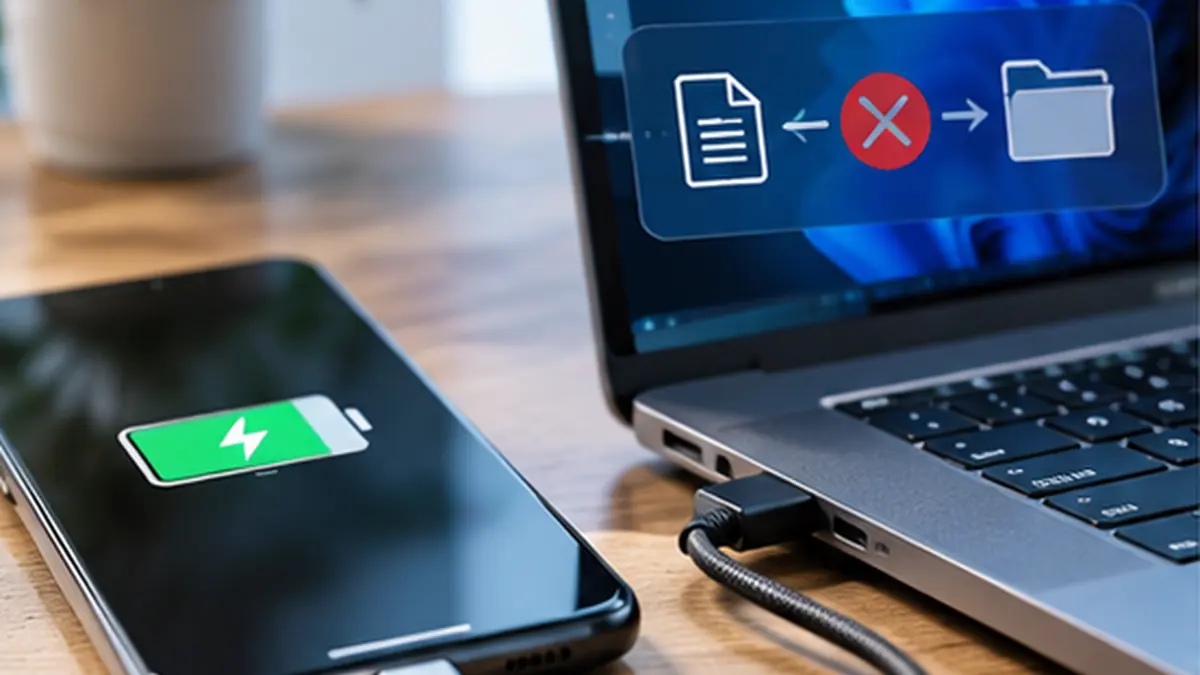
A phone that charges normally over USB-C but will not transfer photos or files is not necessarily broken. Power delivery and data transfer are separate capabilities: a cable may supply power while lacking usable data wiring, or Android may deliberately leave the connection in charging-only mode. Windows can also recognize the USB device without mounting it as an accessible file-transfer device.
Quick answer: Unlock the phone, connect it with a known working data-capable USB cable, tap the USB notification, choose File transfer / Android Auto or File Transfer (MTP) where available, and check File Explorer > This PC. If that fails, test the same phone and cable on another port or computer. The outcome tells you which component to investigate next.
First, identify what actually fails
- Charges, but no notification: Possible charge-only cable, damaged data pins, restricted USB access, or connection detection issue.
- USB notification appears, but no files in Windows: The phone may still be in charging mode; MTP recognition, Windows Explorer, or drivers might be the problem.
- Phone appears, but storage looks empty: Unlock it again, accept any permission prompt, and select the intended internal-storage folder.
- Copy starts but stalls: Suspect an unstable cable or port, insufficient storage, large transfers, or a file-system/application interruption.
- Only photos transfer: You may be using Photo transfer (PTP) instead of general File transfer (MTP).
Do not factory-reset a phone for this symptom. Start with non-destructive checks.
Fix 1: Use a USB-C cable that actually carries data
USB-C describes the connector shape, not a guarantee of supported transfer features. Some inexpensive charging cables are designed primarily for charging or have faulty data connections. A cable can charge a phone at full speed yet fail the file-transfer handshake.
- Try the USB-C cable that came with a device whose data transfer you have already tested, or another clearly labeled data-capable cable.
- Connect directly to the computer, bypassing a USB hub, docking station, keyboard port, or extension cable.
- If the laptop has several ports, test each one. Avoid a visibly damaged connector.
- Connect a different phone to the same computer using that cable. This helps isolate the phone from the cable/port.
Example: If Cable A charges but never triggers a USB notification, while Cable B immediately shows Android’s USB options on the same phone and computer, the cable is the likeliest cause. This is an observation—not proof that the phone’s software is perfect.
Fix 2: Unlock Android and switch USB mode to File transfer
Google’s Android help provides this exact Windows workflow:
- Unlock the phone and leave its screen on.
- Connect it to the Windows PC using the data-capable cable.
- Pull down Android’s notification shade.
- Tap Charging this device via USB (wording varies with manufacturer and Android version).
- Under Use USB for, choose File transfer.
- In Windows, open File Explorer > This PC, then open the connected phone and look for Internal shared storage.
On some phones, USB preferences appear under Settings > Connected devices > USB, but that entry may show only when a wired connection is active. A phone’s USB notification can disappear after unplugging—that is normal.
Fix 3: Check for permissions and an empty-looking device
If the computer shows the phone icon but not its folders, unlock the phone once more and look for an authorization prompt. Some devices restrict file access until the user approves the connection. File Explorer may take a moment to enumerate thousands of media files. Try opening DCIM/Camera or Download before assuming that all storage has been erased.
A modern Android file system does not necessarily present every private app folder over MTP. Apps may deliberately protect their data. Seeing fewer folders than expected is not, by itself, evidence of lost files.
Fix 4: Restart Windows Explorer and both devices
Disconnect safely, restart the phone, restart Windows, reconnect, and reselect File transfer. If the phone appears intermittently in File Explorer, close and reopen File Explorer. Prefer a normal reboot before changing driver packages or advanced USB settings.
Fix 5: Inspect Device Manager without installing random drivers
- Right-click Start and choose Device Manager.
- Connect the phone with USB mode set to File transfer.
- Check Portable Devices, Universal Serial Bus controllers, and Other devices for a device that appears or disappears when you reconnect.
- If there is a warning symbol, open its Properties and note the error code.
- Use Windows Update and the computer/phone manufacturer’s official support pages for supported drivers.
Do not download mysterious “universal MTP drivers” from advertising-heavy third-party websites, and do not remove unrelated USB controllers in Device Manager. If Windows shows the phone and it charges but an MTP warning persists on multiple known-good cables, a driver issue becomes more plausible.
Fix 6: Check whether the USB port or a hub is at fault
Try a direct port on the laptop rather than a hub. A loose USB-C connection may still charge while data signaling drops out. Gently inspect both connectors for lint or damage. Never insert metal objects into the phone port; turn the device off and follow the manufacturer’s cleaning guidance if cleaning is needed.
If the same phone and cable work on another computer, focus on the original Windows system. If several phones fail on one port only, focus on that port or hub.
Fix 7: Distinguish Android file transfer from iPhone behavior
On iPhone, a USB connection does not work exactly like Android MTP. Windows may show photos through supported import methods, while broader documents are accessed via Apple Devices, iCloud, or each app’s supported sharing workflow. Follow Apple’s supported Windows transfer instructions rather than looking for Android’s Use USB for menu on an iPhone.
Fix 8: Copy a small test file before moving your entire library
Copy a single small photo to the desktop. Then try a larger video. If small files succeed but large ones fail, check the device’s available space, cable stability, and whether the phone locked or suspended the transfer. Use Copy, verify the destination, and delete originals only after checking the transfer. Do not use Move for the first test.
Fix 9: Alternative methods when USB is unreliable
- Quick Share for Windows: Google’s supported wireless option for compatible Android and Windows devices.
- Google Drive: Upload files from the phone, then download them on the computer when you have connectivity and sufficient storage.
- Google Photos: Useful for media backup, but syncing to a cloud account is not the same as copying every local folder.
If you need to shrink an image before sharing it, the site’s image resizer and image compressor can help with copies—but they will not repair a failed USB connection.
When is hardware repair worth considering?
If multiple tested data cables, multiple computers, and the correct unlocked USB mode all fail—and the USB-C connector is loose, damaged, or exposes intermittent charging—have the phone port inspected by an authorized technician. Record the tests you completed. Backup your files using a supported wireless method before repair if possible.
Frequently asked questions
Why does my USB-C cable charge but not transfer data?
Charging and data signaling use different electrical paths and protocols. Some cables do not support usable data transfer, and a damaged data conductor can fail even while charging continues.
Does USB debugging have to be enabled?
No. Ordinary Android MTP file transfer does not require developer options or USB debugging. Avoid enabling debugging for routine photo copying.
Why does my phone appear as an empty folder?
Check that the phone is unlocked and that File transfer—not Photo transfer or Charging—is selected. Remember that app-private folders may remain inaccessible by design.
Is a USB-C to USB-C cable always better than USB-A to USB-C?
Not automatically. Either can transfer files when the cable, ports, and devices support data. Verify capability, not connector shape alone.
Sources and verification
- Google Android Help: Transfer files between your computer and Android device — the official unlock, USB-mode and troubleshooting sequence.
- Google Android Help: Quick Share — an optional alternative; availability depends on supported hardware and software.
Editorial check: October 12, 2026. Menus differ by Android manufacturer and Windows build; follow the labels on your device.
You may also like
 Technology & How-To
 USB Works on PC but Not on TV? How to Find the Cause
Diagnose a USB drive that works on a computer but not a TV. Separate detection, missing files and…
 Technology & How-To
 WhatsApp “Waiting for This Message”: Fixes for iPhone, Android and Web
Fix WhatsApp’s waiting-message notice by comparing your phone and linked devices, checking updates and protecting existing chat data.
 Technology & How-To
 WhatsApp iOS 15.5 Requirement: What Changes on November 30, 2026?
WhatsApp raises its iPhone minimum to iOS 15.5 on November 30, 2026. Check your version, older iPhone eligibility…