
WhatsApp “Waiting for This Message”: Fixes for iPhone, Android and Web
Fix WhatsApp’s waiting-message notice by comparing your phone and linked devices, checking updates and protecting existing chat data.
Contents
- Recognize the message before changing settings
- Start with a simple phone-versus-computer comparison
- For the phone: work through the least disruptive checks
- 1. Ask the sender to open WhatsApp
- 2. Check whether the problem affects other messages
- 3. Update the app on both sides
- 4. Reopen the app or restart the device
- For WhatsApp Web or Desktop: check the phone first
- Refresh Web before replacing the linked session
- Unlink only the affected device when needed
- Missing older history is a different problem
- Do not confuse security notices with unreadable content
- A backup restore is not the default fix for one stuck message
- When it still does not work
- Official references and visual credits
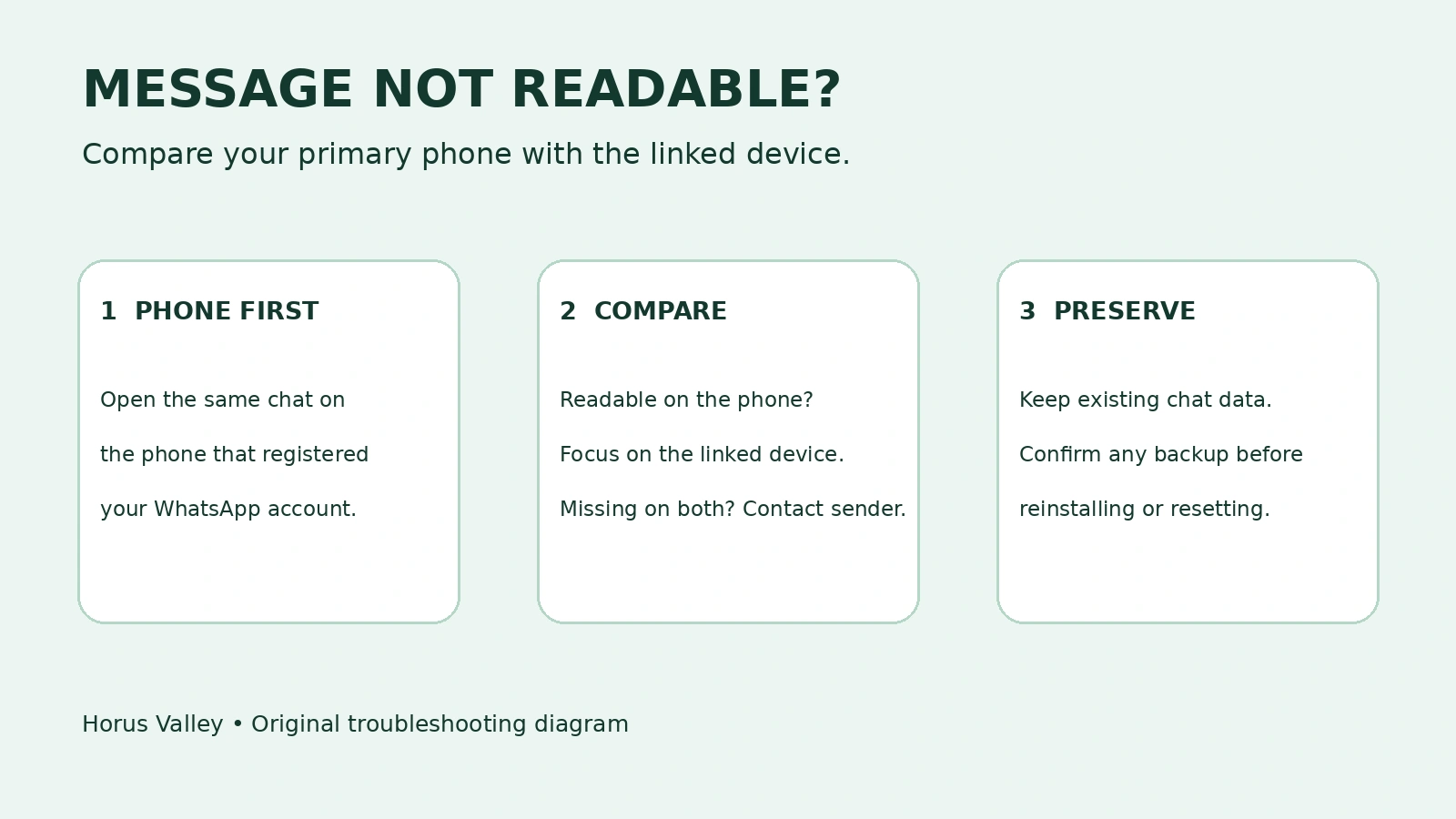
If WhatsApp shows “Waiting for this message,” begin with your primary phone and the sender’s phone. Keep both connected, have the sender open WhatsApp, and check whether the message is readable on your phone or only missing on a linked device. Avoid deleting the app as a first step.
This guide separates three different situations: a placeholder inside a chat, older history missing from a computer, and a backup that did not restore. They can look similar when you are worried about losing a conversation, but they require different decisions.
Reviewed October 28, 2026. Instructions are based on WhatsApp, Apple and Google documentation. The source screenshot below illustrates the wording; it is not a screenshot from a Horus Valley account test.
Recognize the message before changing settings
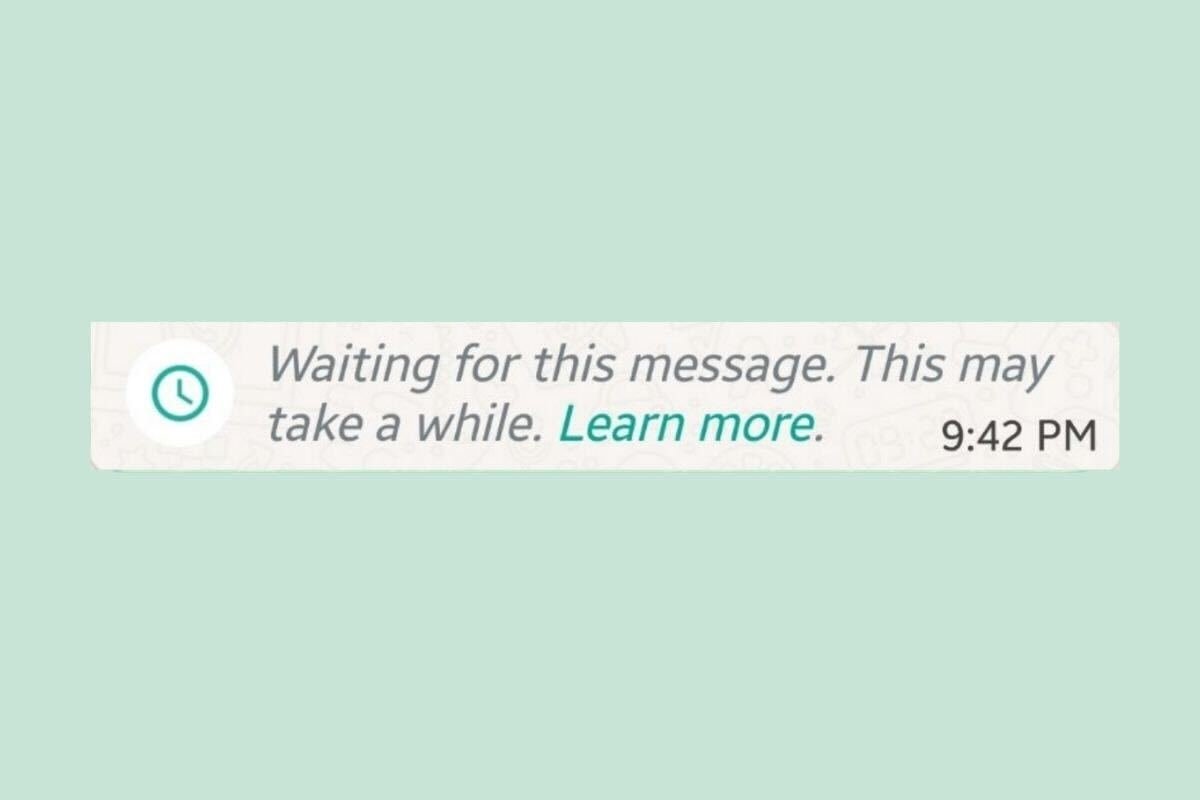
Source screenshot: Malavida — WhatsApp waiting-message illustration. The original published asset is reproduced without changing its message text. Colors and layout can differ between app versions.
The placeholder can follow a failed delivery, a reinstall, an older WhatsApp build or a move to another primary phone. WhatsApp’s dedicated help article recommends connection checks, updating both ends, asking for a resend and checking the primary device. A linked-device problem may also call for unlinking and relinking that device.
| What you see | First place to check | Useful next decision |
|---|---|---|
| A waiting placeholder inside a chat | The same chat on your primary phone | Determine whether the message is missing there too |
| A linked-device notice asking you to check your phone | Your primary phone | If readable there, investigate the linked device |
| Older chats missing from Web, without that placeholder | The phone’s existing chat history | Check history-sync limitations |
| A clock beside a new outgoing message | Connection and delivery status | Treat it as a sending issue first |
| A restore error during setup | The backup and restore process | Preserve the old data and investigate recovery separately |
Start with a simple phone-versus-computer comparison
Open the same conversation on the phone used to register the account. Look for the particular message, rather than checking only whether the chat exists. Next, compare it with the browser or desktop app. Record which device can read the content.
For example, if a delivery address is visible on the phone but not the laptop, you already have a readable copy. You can use the phone for the immediate task while investigating the computer. If neither device can read it, ask the sender whether they can still see the original.
That comparison is a diagnostic aid, not a claim that every placeholder has the same technical cause. It prevents a common mistake: removing working phone data to fix a problem visible only on the computer.
For the phone: work through the least disruptive checks
1. Ask the sender to open WhatsApp
Ask the sender to open the conversation while you are online. If the content is urgent and remains unreadable, request a fresh copy of the text or attachment. This is more useful than assuming a particular number of minutes will guarantee recovery.
A practical request is: I can see your message placeholder but cannot read the content. Please open our chat on your phone. If it stays stuck, could you send the message again? This is an example you can adapt, not wording supplied by WhatsApp.
2. Check whether the problem affects other messages
Try one ordinary message to a trusted contact and see whether a webpage loads. Record whether the difficulty affects one conversation, several conversations or all traffic. A page loading does not prove WhatsApp’s own connection is working, but it helps narrow the investigation.
WhatsApp’s connection guide includes refreshing Web, restarting the device and testing another network. For a computer on restricted office or campus Wi-Fi, a permitted alternative connection can help identify a network-specific problem. Do not change a workplace network’s rules yourself.
3. Update the app on both sides
Updating only your copy leaves the other participant’s app unchecked. Ask them to review updates too. Use the official store for the device; a third-party download claiming to unlock pending encrypted messages is not a normal update route.
| Platform | Where to look | What to check |
|---|---|---|
| Android | Google Play → profile → Manage apps & device → available updates | Install a WhatsApp update if one is offered |
| iPhone | App Store → account/profile → App Updates | Update WhatsApp if listed; older iOS layouts may differ |
| Web | The browser and the open WhatsApp Web tab | Use a current supported browser and refresh the page |
| Desktop app | The app’s official update route or store | Check the installed app, not just your browser |
The Android path is documented by Google Play, and the iPhone path by Apple. An Update button is relevant when a newer release is available to that device. Seeing Open instead does not tell you whether the sender has updated.
4. Reopen the app or restart the device
WhatsApp’s general troubleshooting guide includes closing and reopening the app, checking the connection and restarting the device. Try one change at a time, then check the same message again. Repeating a long sequence without checking between steps makes it harder to tell what helped.
For WhatsApp Web or Desktop: check the phone first
WhatsApp has a separate explanation for the linked-device version of the notice. Its starting points are to view the message on the phone, have the other person open WhatsApp and ensure both participants have current app versions.
If the content is available on your phone, compare a fresh message across the devices. If fresh messages arrive but an older item remains absent, distinguish that from the computer being disconnected altogether. It is useful evidence when deciding whether to investigate session state or history availability.
Refresh Web before replacing the linked session
For a browser-only problem, refresh the WhatsApp Web page and check the computer’s connection. A tab that looks open may still have lost its working connection. If the page reports a connection problem, address that before expecting message synchronization to catch up.
Unlink only the affected device when needed
If simpler checks do not resolve the linked-device problem, follow WhatsApp’s unlink instructions and its device-linking guide. Keep your primary phone available so that you can reconnect the session.
- On the primary phone, open Linked devices. On Android this is commonly under the three-dot menu; on iPhone, look in WhatsApp Settings.
- Select the affected browser or desktop session and choose Log out. Confirm you selected the intended device.
- Open official WhatsApp Web or the official desktop app and follow its linking prompts.
- Use Link a device on your primary phone and complete the requested verification.
- After linking, check a recent conversation before deciding whether the problem has changed.
This targets a linked session. It does not require deleting the primary phone’s WhatsApp account or clearing its app storage. If an older computer session contains information you can still read, preserve what you need before removing that session.
WhatsApp explains that linked devices connect independently and can work without the phone staying continuously online. Bringing the phone online is a specific troubleshooting step here, not a statement that Web must always mirror a live phone connection.
Missing older history is a different problem
According to WhatsApp’s linked-device history documentation, linking sends a copy of recent history, and not every message and chat is synchronized. Desktop can show more history than Web; the phone is the place to check the full available history.
Consider this example: a laptop displays today’s messages but cannot find a conversation from months ago. That pattern alone does not establish an encryption error. Search the phone first. Repeatedly unlinking and relinking the laptop is not evidence that the older material will become available.
| Your comparison | What it helps establish | What it does not prove |
|---|---|---|
| Phone can read the message; computer cannot | A readable copy exists on the phone | That the phone app needs reinstalling |
| New messages work; some older history is absent on Web | The session can receive at least some traffic | That all older history must sync |
| Neither side can read the original, but a resend works | Fresh delivery is working | That the old placeholder was recovered |
| A new message also cannot be sent | There is a broader delivery symptom to investigate | That the account was hacked |
Do not confuse security notices with unreadable content
A security-code-change notice is separate from a waiting placeholder. WhatsApp says security codes can change after a reinstall, a phone change or adding or removing a paired device. That notice alone does not establish an account compromise.
If you need to verify a contact, use the security-code comparison described in WhatsApp’s documentation and a trusted way to communicate with that person. Changing notification settings is not a substitute for fixing a missing message. Likewise, an ordinary encryption banner is not an invitation to disable encryption.
A backup restore is not the default fix for one stuck message
Before considering a reinstall or restore, identify what data still exists and which backup actually completed. WhatsApp’s backup troubleshooting page explains that it cannot reconstruct chat history from its servers. On iPhone, restoring also depends on the relevant account and phone number.
An older backup may omit messages you received later. Treat “restore” as a recovery decision with a known backup date, not as a refresh button for a single unreadable item. If your backup is itself stalled, work through our WhatsApp backup stuck at 99% guide first.
If chats were actually deleted, our guide to recovering deleted WhatsApp messages without a backup addresses a different question: whether another usable copy survives. Do not apply a deletion-recovery workflow merely because a message is pending.
When it still does not work
Keep a short record before contacting support: the exact wording, affected device, app version, whether the same message is readable on the phone, and whether fresh messages work. Include whether either participant recently changed phones or reinstalled the app. Leave message content and verification codes out of public reports.
An example report is: The placeholder appears on my desktop app, but the message is readable on my primary phone. New messages reach both devices. I have checked updates and refreshed the connection. What should I check next for this linked session? Replace those observations with your own.
There is no guaranteed recovery timer in the dedicated help instructions reviewed for this article. If the information is urgent and the sender still has a readable copy, a new message is the practical way to obtain it while you investigate the original.
Official references and visual credits
- WhatsApp: waiting-message placeholder
- WhatsApp: linked-device notice asking you to check your phone
- WhatsApp: message history on linked devices
- WhatsApp: connection troubleshooting
- WhatsApp: unlink a device
- WhatsApp: link a device
- WhatsApp: linked-device behavior
- WhatsApp: security-code-change notifications
- WhatsApp: backup and restore troubleshooting
- WhatsApp: general troubleshooting
- Apple: manual app updates
- Google: Android app updates
Visuals: original Horus Valley decision diagram; published WhatsApp placeholder screenshot from Malavida, credited beside the image. The diagram is an explanatory graphic, not an app screenshot. Instructions were researched; no account migration, chat recovery or private conversation was tested.
You may also like
 Technology & How-To
 USB Works on PC but Not on TV? How to Find the Cause
Diagnose a USB drive that works on a computer but not a TV. Separate detection, missing files and…
 Technology & How-To
 WhatsApp iOS 15.5 Requirement: What Changes on November 30, 2026?
WhatsApp raises its iPhone minimum to iOS 15.5 on November 30, 2026. Check your version, older iPhone eligibility…
 How-To Guides
 Microsoft Authenticator Backup Not Restoring on a New Phone? Fix Missing Accounts and Codes
Microsoft Authenticator missing accounts after changing phones? Fix Android and iPhone backup recovery, work account re-registration, wrong codes,…