
Microsoft Authenticator Backup Not Restoring on a New Phone? Fix Missing Accounts and Codes
Microsoft Authenticator missing accounts after changing phones? Fix Android and iPhone backup recovery, work account re-registration, wrong codes, and the upcoming 2027 Android backup change safely.
Contents
- Quick answer: choose the correct recovery route
- Why Microsoft Authenticator backup may look incomplete
- Step 1: protect the old phone before making changes
- Step 2: restore on Android in 2026
- Step 3: restore on iPhone using iCloud
- Why Restore from backup or Begin recovery does not appear
- Fix “Sign in to add your account” or “Action required”
- No old phone and no access to the work account?
- Recover a personal Microsoft account when the app is gone
- Third-party codes missing: recover the protected service, not just the app
- Notifications still go to the old phone
- January 2027: the Android backup method is changing
- Three real-world recovery scenarios
- Scenario A: Samsung to Samsung, backup enabled but list is empty
- Scenario B: iPhone to Android, six-digit codes do not transfer
- Scenario C: lost work phone, “approve a sign-in” loop
- Common “quick fixes” that can cause more damage
- Before you trade in the old phone: a practical checklist
- Official screenshots and step-by-step sources
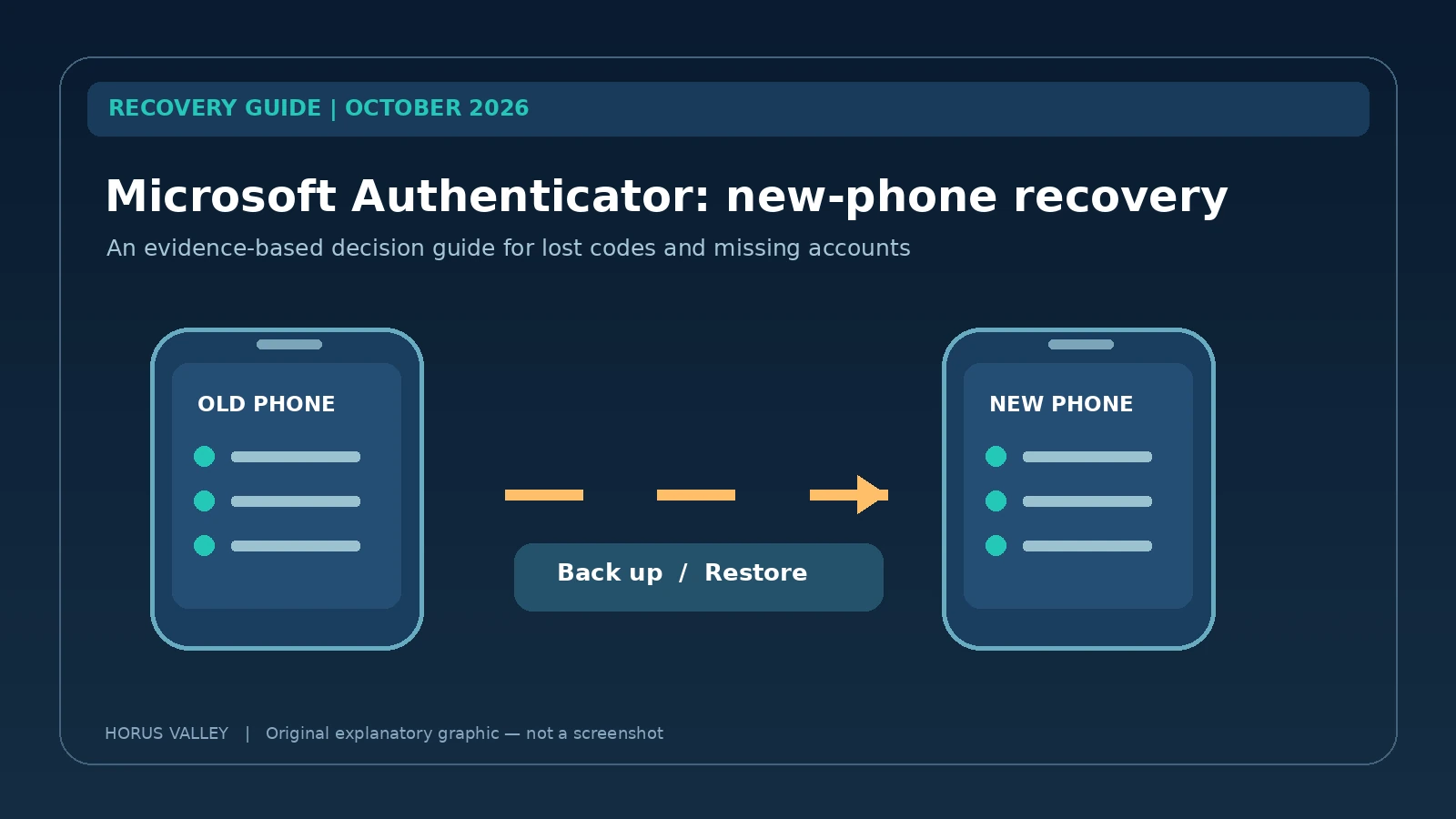
If Microsoft Authenticator is empty after a phone upgrade, do not erase your old phone or remove your last working sign-in method. Your recovery path depends on whether a backup existed, whether the old and new devices use the same operating system, and whether you need an ordinary six-digit code or a work/school approval. There is no universal one-button transfer that reproduces every authenticator credential. This guide explains what Microsoft actually restores and offers a safe order of operations for Android and iPhone.
Updated 28 October 2026. The instructions below distinguish features that work now from Microsoft’s announced Android backup change for January 2027. Start with the official Microsoft restore instructions and the Entra transfer guide.
Quick answer: choose the correct recovery route
| Your situation | First safe action | What will not work |
|---|---|---|
| Old phone still works | Verify its backup and enroll the new phone before erasing anything | Deleting the old app before the new login succeeds |
| Android to Android, backup enabled | Choose Restore from backup with the original personal Microsoft recovery account | Signing into a different recovery account |
| iPhone to iPhone, backup enabled | Check iCloud Drive, Keychain and Authenticator iCloud inclusion | Assuming an Android backup works on iOS |
| Switching Android to iPhone or back | Use each protected service’s official re-enrollment process | Cross-platform Microsoft Authenticator backup restore |
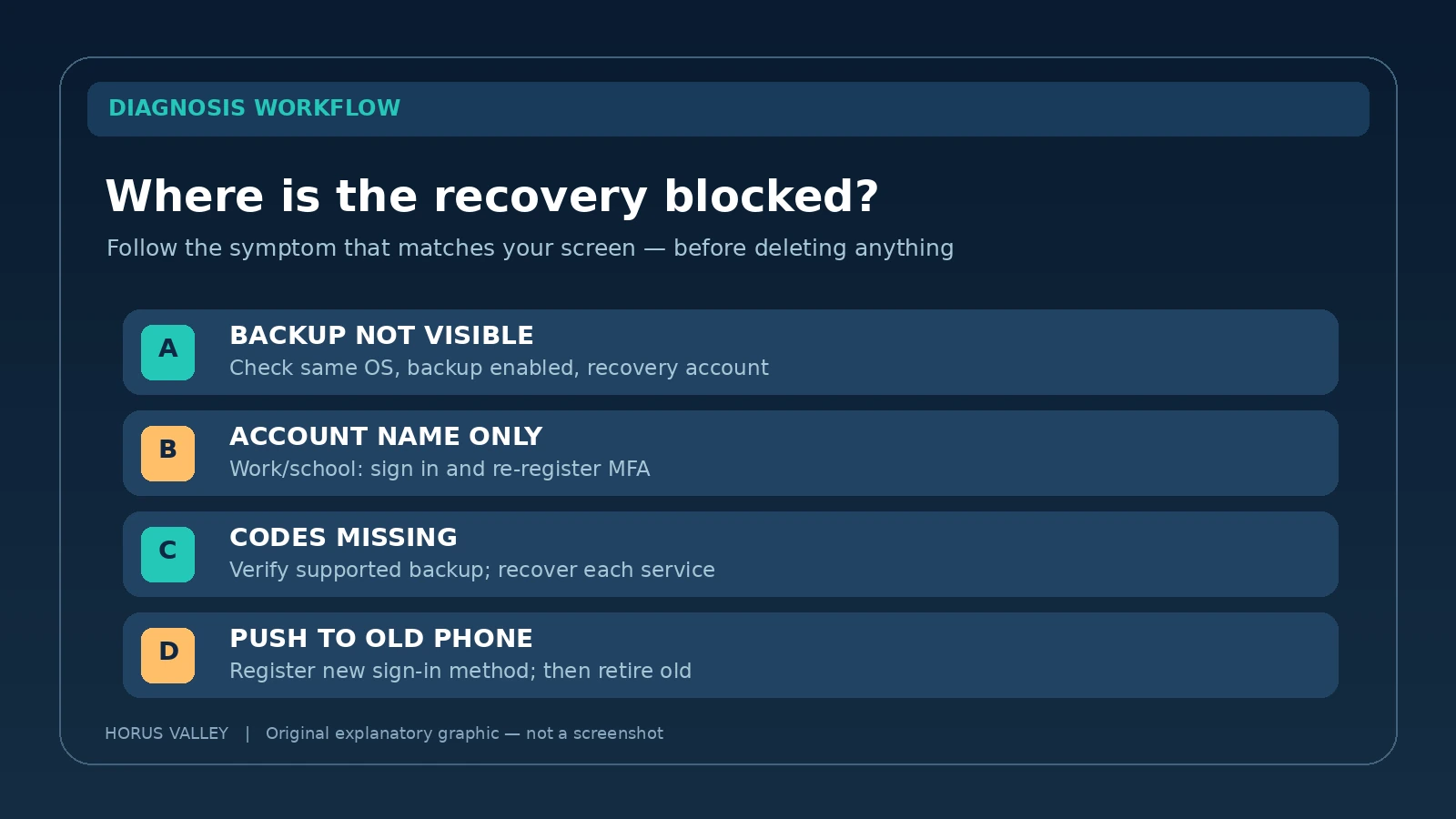
| Work or school tile says Sign in to add your account | Sign in again and register the new phone in Security info | Assuming a restored name means MFA works |
| Lost phone and no usable backup | Use pre-registered recovery methods or provider / IT help desk | A tool that claims to reconstruct secret keys from email alone |
The most important principle is to test at least one live sign-in on the new device before revoking the old one. A restored list of account names may look successful while a notification or passkey is still tied to the retired handset. Microsoft explicitly says to keep the old device available until work or school registrations have been completed.
Why Microsoft Authenticator backup may look incomplete
Authenticator supports several different security mechanisms. A time-based one-time password (TOTP) entry generates a short code roughly every 30 seconds. Push approvals and passwordless sign-in involve additional account registration. Device-bound passkeys are yet another category. These mechanisms are not interchangeable, and Microsoft does not promise to clone every credential from one device to another.
When the new phone displays an account name but asks you to sign in, that may be normal rather than proof of a broken backup. Microsoft’s support pages state that work or school account credentials are not backed up; the restored account name is a reminder to register the new handset. For personal Microsoft accounts, a TOTP-only entry can return, but a passwordless credential still needs attention. Third-party TOTP entries generally restore if they were part of a supported backup.
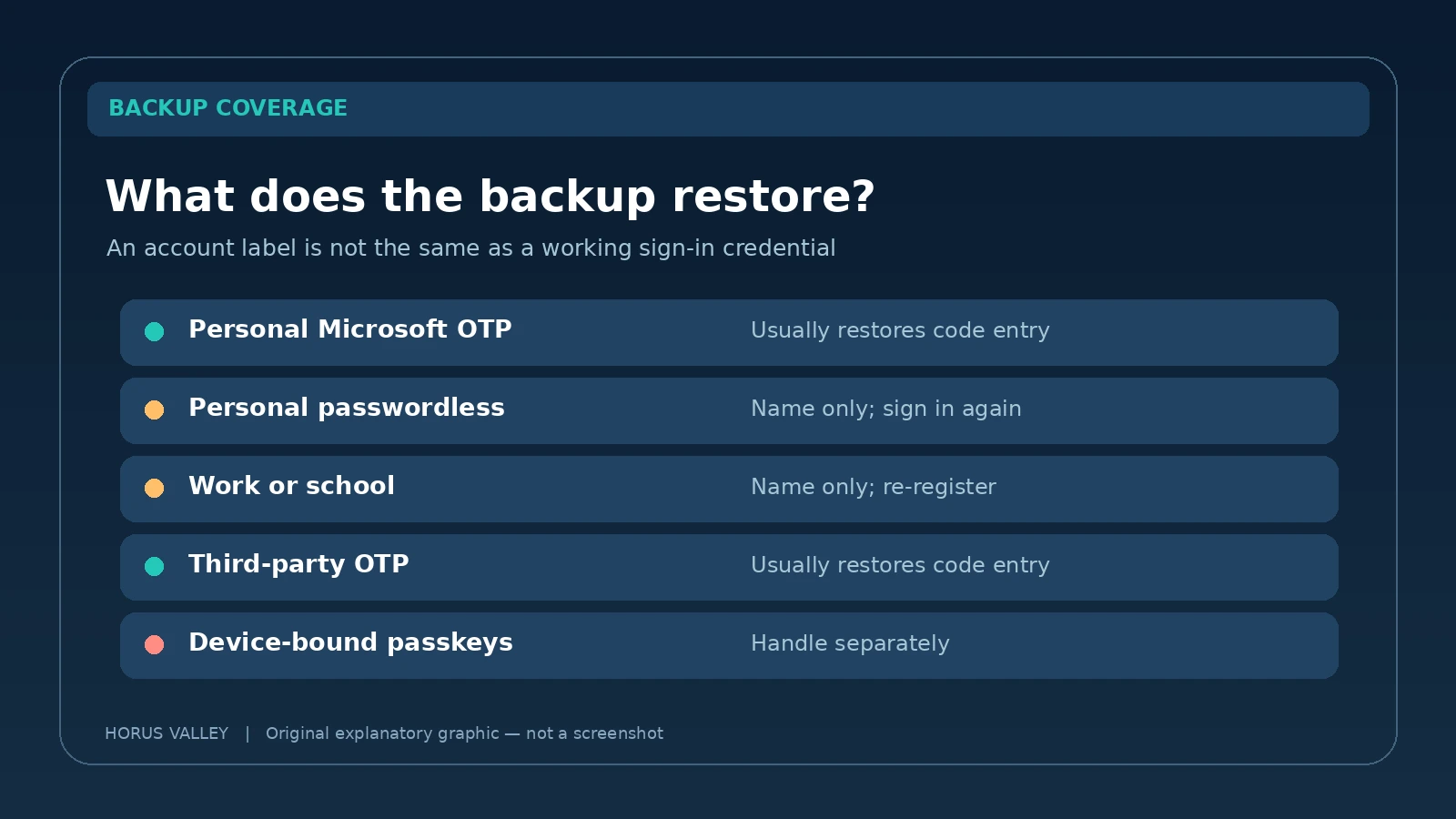
| Type of entry | Expected backup result | Next action |
|---|---|---|
| Microsoft personal account using only OTP | Code entry restored if backed up | Test a fresh code |
| Microsoft personal passwordless | Name restored, credential may need setup | Sign in and set up device again |
| Work / school Entra account | Name only | Re-register approved MFA method |
| Amazon, Facebook, LinkedIn and similar TOTP | Saved one-time-code entry when eligible | Verify with service-specific login |
| Authenticator passkey on old device | Not automatically cloned as an ordinary OTP backup | Create / confirm passkey on new device |
Step 1: protect the old phone before making changes
- Charge the old handset, make sure it unlocks, and confirm Authenticator still displays the relevant accounts.
- Record which accounts are personal Microsoft, work or school, and third-party services. Do not photograph QR enrollment codes or write down live OTP secrets.
- Check whether you have another approved verification method: a hardware security key, trusted session, previously generated recovery code, alternate phone or email, or a second registered authenticator.
- Verify you can sign in to your recovery account independently of the app you are trying to restore; otherwise you may create a circular verification problem.
- Keep the old phone powered and available while testing new-phone access. Revoke old registration only after success.
If the old phone is stolen, the security priority changes: use your provider’s official account-security procedures to protect exposed sessions and enrollment methods. Do not preserve an unsafe device merely to complete a transfer.
Step 2: restore on Android in 2026
As of October 2026, Microsoft’s Android instructions use Authenticator > Settings > Cloud Backup with a personal Microsoft account designated as the recovery account. That personal account does not have to be the employer identity you protect with Authenticator; work credentials still require their own registration later.
- On the old Android handset open Microsoft Authenticator, open its menu and choose Settings.
- Turn on Cloud Backup if it is available and not already enabled. Select the personal Microsoft recovery account and confirm the backup completes.
- On the new Android handset install the official Microsoft Authenticator app from Google Play.
- At the initial welcome/recovery screen choose Restore from backup (some versions say Begin recovery), before adding or signing into other accounts.
- Authenticate with the same personal Microsoft recovery account that was used on the old phone. Wait for supported code entries and account names to appear.
- For each work or school item, follow its sign-in or registration prompt; then test at least one approval on the new handset.
Do not disable Cloud Backup on the old phone as a troubleshooting experiment. Microsoft explains that turning off the toggle and confirming can delete the stored backup. That action makes sense only in a planned correction when the existing backup is wrong and the original, working account entries are still safely available on the old phone.
For the authentic interface, refer to the Microsoft backup instructions. Its current screenshots and menu terms take priority if a future app release changes a button name.
Step 3: restore on iPhone using iCloud
Microsoft’s documented iOS backup requirements differ from Android. The old iPhone should have iCloud Drive, iCloud Keychain and iCloud Backup enabled, and Authenticator must be allowed in the Saved to iCloud list. You need the relevant Apple Account; a Microsoft recovery sign-in is not a replacement for checking the iCloud backup on iOS.
- On the original iPhone review Settings > Apple Account > iCloud and enable the iCloud services listed by Microsoft.
- Search the Saved to iCloud list for Authenticator and ensure its toggle is on. Use the current iOS wording if the layout differs.
- Update Authenticator; Microsoft’s troubleshooting guidance specifically calls for version 6.8.33 or later and opening the app at least once on the old phone.
- On the replacement iPhone sign into the intended Apple Account and install Authenticator from the App Store.
- Open Authenticator and follow the available recovery/onboarding flow, then sign in to any accounts marked for further setup.
- If the iCloud-backed entries still do not appear, Microsoft suggests reinstalling Authenticator on the new device after confirming the old phone remains intact.
Never uninstall Authenticator from the only iPhone containing working codes when you have not verified a recoverable backup. Reinstalling on the empty replacement phone is much less dangerous than experimenting on the sole remaining original device. Microsoft’s iOS backup checklist gives the most current Apple Settings labels.
Why Restore from backup or Begin recovery does not appear
A restore option may be absent because the app has already entered its normal signed-in state or because onboarding has changed. Microsoft advises selecting recovery before signing in. If accounts are already present on the new handset, signing out or removing them to reach the recovery flow can also remove entries on that device. Only do so if those new entries are safely recoverable and you understand which installation you are changing.
- Check platform: Android backups are not restorable on iPhone and vice versa.
- Check identity: the recovery account must be the one previously used for the backup, not merely any Microsoft email address.
- Check timing: backups must exist before the original device is wiped or lost; installing a fresh app does not manufacture a backup.
- Check iOS settings: iCloud availability, Keychain, Authenticator toggle and app version matter.
- Check work accounts: restoring only the name is expected. Do not mistake an incomplete MFA registration for a failed file transfer.
- Check onboarding: read the current official recovery page and use its version-appropriate sign-out guidance rather than clearing all app data blindly.
Fix “Sign in to add your account” or “Action required”
This message is particularly common on work or school accounts. The new handset has the account name, but the service has not yet enrolled it for approvals. Microsoft’s official transfer article contains a genuine app screenshot of “Sign in to add your account.” That actual Microsoft screen is linked here instead of being redrawn to look like a real app capture.
- Open that account tile in the new Authenticator installation and choose its sign-in or setup option.
- If it asks for verification, complete an already enrolled alternate method or approve on the old phone while it is still active.
- For a work or school account, visit Security info after successful sign-in and choose Add sign-in method or the organization-approved Authenticator option.
- Finish the QR pairing or login process on the replacement phone; never share the QR code or number-matching challenge with anyone.
- Perform a test sign-in. Remove an obsolete old-phone method only after the new method works, or follow an administrator’s policy.
If the employer enforces passkeys, the transfer may require creating a new passkey on the replacement device. A passkey synced in a credential manager may have a different recovery path from a device-bound passkey. The organization controls which methods are allowed; if self-service setup is blocked, use its help desk rather than a workaround that weakens MFA.
No old phone and no access to the work account?
For company and education accounts, a missing old phone may create a verification loop: you need Authenticator to access Security info, but you need Security info to re-register Authenticator. If Sign in another way offers a previously enabled method, try that first. Otherwise, request assistance from your organization’s identity administrator or IT help desk.
The administrator may reset your MFA registration, issue an organization-approved Temporary Access Pass (TAP), or use another recovery workflow supported by its identity policies. This is an authorized identity check, not a bypass. The administrator may need to verify employment or student identity before helping. Microsoft’s Entra instructions emphasize completing re-registration before removing a working old device.
Recover a personal Microsoft account when the app is gone
If a personal Microsoft account requires the missing authenticator, look for an official alternative on the Microsoft sign-in screen: a registered passkey, recovery code, security key, alternate email or phone number, or a session you can already access. The available options depend on the account’s actual configuration and risk protections; not every account will offer SMS or email. Use Microsoft’s account recovery guidance and official recovery form when applicable, and do not assume these processes can override every enforced two-factor requirement.
A scammer who promises to “remove the Authenticator lock” without verification is not a substitute for official recovery. Never forward a one-time code, login QR image, security information change link, password or recovery phrase to someone contacting you through social media or messaging.
Third-party codes missing: recover the protected service, not just the app
Authenticator can generate codes for services such as Amazon, Facebook and LinkedIn, but Microsoft does not control those services’ identity checks. If a third-party TOTP entry was backed up, it may reappear after the correct same-platform restore. If no backup survives and the old phone is gone, recovery depends on the individual website whose account needs that missing secret.
- Try a provider-issued backup code, hardware security key, saved passkey or already authorized session.
- On that provider’s official Security / Two-factor authentication page, look for a documented way to replace the authenticator after identity verification.
- If there is no working method, contact that provider’s support—not a third-party recovery service—and follow its identity checks.
- Once access returns, register a new authenticator and safely save the provider’s new backup/recovery codes.
A valid Microsoft account password does not recreate a secret originally issued by a separate website. Do not upload your lost-account details to random QR “decoder” sites or promise yourself that cloud phone backup necessarily contains usable TOTP secrets.
Notifications still go to the old phone
A code entry and a push registration are separate. Microsoft notes that approvals can still be sent to a previously used device even after Authenticator is installed on a new phone. If you can still unlock the original device, use it to approve a sign-in, register the replacement in the account’s security settings, test the new notification, and then retire the obsolete device.
When the new phone has been registered but does not receive notifications, check the app’s notification permission, network connectivity, date and time, battery optimization, VPN settings, and—on managed devices—compliance requirements. These are the official first-line checks from Microsoft Authenticator troubleshooting. If a company policy manages the device, coordinate changes with IT rather than disabling corporate protections.
January 2027: the Android backup method is changing
Microsoft has announced that starting January 2027, Android Authenticator backup will no longer use a Microsoft personal account to enable the backup. Its support documentation says users will instead need to enable Microsoft Authenticator in Google One backup. This is a planned change announced before the rollout. As of 28 October 2026, the documented current Android instructions still describe the Cloud Backup option and a Microsoft personal recovery account. Do not interpret a future product note as confirmation that Google One restoration is already live for every device.
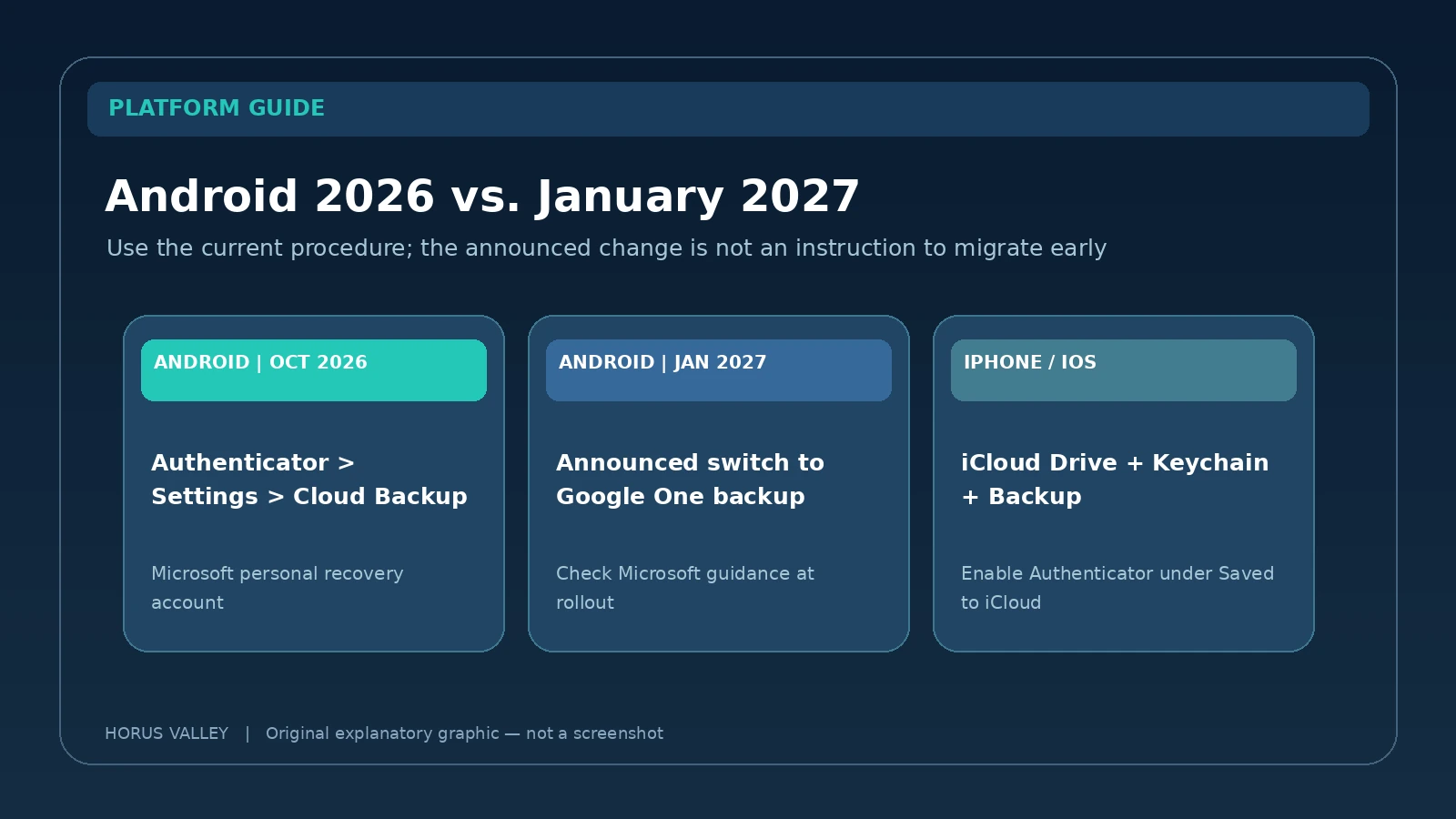
| Platform or date | Documented approach | Important caveat |
|---|---|---|
| Android: October 2026 | Cloud Backup linked to a personal Microsoft recovery account | Check the original backup before moving |
| Android: starting January 2027 | Planned Google One-backed integration | Follow rollout-specific Microsoft instructions when available |
| iOS: current | iCloud Drive, iCloud Keychain and iCloud Backup for Authenticator | Apple Account and toggles matter |
| Android ↔ iOS | No supported cross-platform backup restore | Enroll each service independently |
A blog post written today should not tell the reader to enable Google One as if it were the only valid October 2026 recovery workflow. It should also avoid promising how old backups migrate in January: Microsoft’s current backup article is the authoritative place to check migration instructions once the change launches.
Three real-world recovery scenarios
Scenario A: Samsung to Samsung, backup enabled but list is empty
The user moves from one Android phone to another, signs in to a Microsoft work account, and sees no third-party OTP entries. The first hypothesis is not data loss: the app may have bypassed the dedicated Restore from backup flow or used a different personal Microsoft account. The safe path is to confirm that the old phone still holds entries and that Cloud Backup was enabled with the expected recovery account. Only then should the user follow Microsoft’s new-device recovery steps, and only after testing should the original phone be retired.
Scenario B: iPhone to Android, six-digit codes do not transfer
The old iPhone includes Facebook and personal Microsoft one-time codes. The new Android app remains blank even with correct credentials. This is a documented platform limitation, not proof that the user chose a wrong password. The user should retain the old iPhone and use each provider’s official process to enroll Authenticator on the Android phone, confirm the new codes, save backup methods and finally remove the retired authenticator where supported. The iPhone’s iCloud-backed Authenticator backup cannot be restored as an Android backup.
Scenario C: lost work phone, “approve a sign-in” loop
An employee loses their only phone. The company login asks for Authenticator approval, which they cannot supply. Downloading the app on another phone does not authorize that handset as an approved device. If no other registered verification method works, the appropriate action is to contact the IT help desk and request verified MFA re-registration or an approved temporary method. Never accept an unsolicited link from an individual claiming to be the IT administrator.
Common “quick fixes” that can cause more damage
| Tempting action | Why it is risky | Safer alternative |
|---|---|---|
| Factory reset the old phone | May destroy the only working authenticator | Test new sign-ins first |
| Toggle off Cloud Backup to refresh it | Can delete a usable saved backup | Confirm backup state and follow Microsoft steps |
| Delete all accounts from the new app immediately | May remove the new device’s only usable factor | Inventory and secure alternate access first |
| Send QR screenshots to support strangers | May reveal the sign-in secret | Use only official provider enrollment |
| Turn off MFA everywhere | Weakens account protection | Add additional safe verification methods |
| Assume names mean approvals work | Registration may still target the old device | Perform a new-device login test |
Before you trade in the old phone: a practical checklist
- You can sign into the primary Microsoft personal account with the new phone or another independent factor.
- Every important work or school account is re-registered, and a real sign-in request reaches the new phone.
- Third-party TOTP codes appear and have been tested with their respective services.
- Any necessary passkeys work on the new device, including device-bound work passkeys that had to be recreated.
- You have a separate recovery method for the primary email account and a secure copy of service-specific backup codes.
- You reviewed old-device enrollment and removed it only after the replacement works; if the old device was stolen, you also protected open sessions.
If the situation does not match any standard path, stop before wiping or reinstalling the only working app. Preserve the old phone, verify recovery access, then consult your service provider or organization’s support team.
Official screenshots and step-by-step sources
The images embedded in this article are original editorial diagrams, not screenshots of Microsoft Authenticator. For authentic interface screenshots, use Microsoft’s current visual references: the restored work-account screen with “Sign in to add your account”, the restore / action-required account screens, and the backup settings documentation. Their images are hosted by the original publisher rather than copied into this commercial article without confirmed image-republication permission.
- Microsoft Learn — transfer Authenticator to a new phone (updated 2026): account types, passkeys and work registration.
- Microsoft Support — back up Authenticator: current Android/iOS backup settings, January 2027 announcement.
- Microsoft Support — restore Authenticator: recovery screens, limitations, missing recovery option.
- Microsoft Support — troubleshoot Authenticator: push delivery, date, VPN, device and connectivity issues.
- Intel Support — Authenticator transfer tutorial: supplementary visual walkthrough; check Microsoft for updated interface labels.
- Horus Valley — recover Google Authenticator codes: separate product; do not confuse Google Authenticator synchronization with Microsoft Authenticator backup.
You may also like
 Technology & How-To
 USB Works on PC but Not on TV? How to Find the Cause
Diagnose a USB drive that works on a computer but not a TV. Separate detection, missing files and…
 Technology & How-To
 WhatsApp “Waiting for This Message”: Fixes for iPhone, Android and Web
Fix WhatsApp’s waiting-message notice by comparing your phone and linked devices, checking updates and protecting existing chat data.
 Technology & How-To
 WhatsApp iOS 15.5 Requirement: What Changes on November 30, 2026?
WhatsApp raises its iPhone minimum to iOS 15.5 on November 30, 2026. Check your version, older iPhone eligibility…