
WhatsApp iOS 15.5 Requirement: What Changes on November 30, 2026?
WhatsApp raises its iPhone minimum to iOS 15.5 on November 30, 2026. Check your version, older iPhone eligibility and chat-backup steps.
Contents
- What changes on November 30, 2026?
- First, find your actual iOS version
- Does this mean WhatsApp will stop on iPhone 6s, 7 or the original SE?
- Protect your conversations before making changes
- Update iOS, then update WhatsApp
- If Software Update says you are up to date
- If you need another iPhone, move carefully
- A short checklist before the deadline
- Official sources and image credits
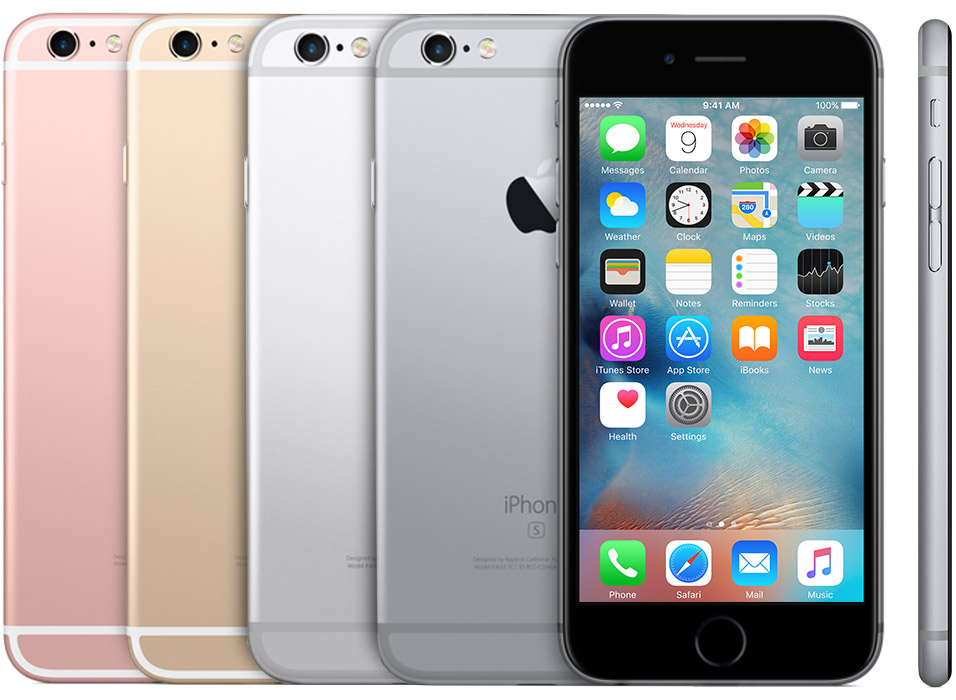
WhatsApp will require iOS 15.5 or later on iPhone starting November 30, 2026, according to its supported operating systems page. Until that change, the listed minimum is iOS 15.1. If your iPhone already runs iOS 15.5 or a later version, this particular cutoff does not put it below the minimum.
The useful question is the version installed on your phone, rather than its age alone. Some older iPhones can run a version above the new minimum. Check that before assuming you need to replace your device or remove WhatsApp.
Requirements checked October 28, 2026. The screenshots below are genuine Apple Support illustrations, credited beside each image. They demonstrate where settings are located; their example versions are not the minimum required by WhatsApp.
What changes on November 30, 2026?
| Item | Before the change | From November 30, 2026 |
|---|---|---|
| Minimum iPhone operating system listed by WhatsApp | iOS 15.1 | iOS 15.5 |
| iPhone running iOS 15.1–15.4.x | Meets the currently listed OS minimum | Needs a supported iOS update |
| iPhone running iOS 15.5 or later | Meets the listed OS minimum | Meets this announced OS threshold |
| Android | Separate platform requirements | This iPhone deadline does not define Android support |
WhatsApp says it gives users in-app notices before support for their operating system ends. Its support page does not specify a universal shutdown hour or a detailed sequence of failures for every phone. Treat the date as a reason to prepare early, and follow any notice shown inside your own app.
An unsupported-system warning and an account ban are different problems. The first points you toward the installed software and update options. An account restriction requires the relevant WhatsApp review or support process. Buying another phone is not a sensible first response until you know which message you are seeing.
First, find your actual iOS version
On your iPhone, open Settings → General → About and look for iOS Version or the software-version field. Apple documents this location. Note the complete number, including the digits after the first dot.
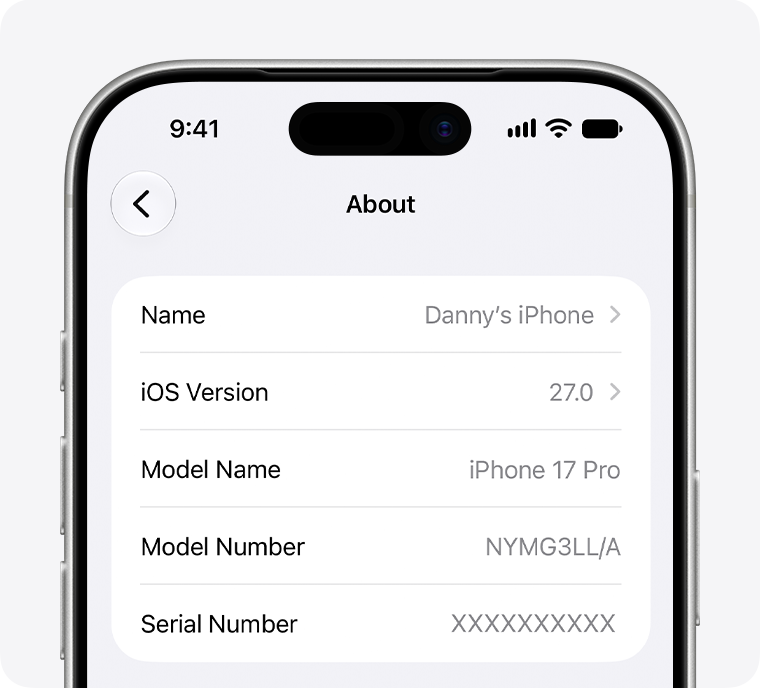
Image source: Apple Support — find your software version. This official example shows iOS 27.0 on an iPhone 17 Pro. Your screen may use older labels or styling; the field to read is the installed software version, not the device name.
Read version numbers by their components. For example, 15.8 is later than 15.5, while 15.4.1 remains earlier than 15.5. A longer number is not automatically a newer release. Likewise, iOS 16, 17, 18 and later major versions are above this particular minimum.
| What you find | What it means for this cutoff | Next step |
|---|---|---|
| iOS 15.1, 15.2, 15.3 or 15.4.x | Below the announced future threshold | Check for an iOS update before November 30 |
| iOS 15.5 or a later 15.x release | At or above the threshold | Keep iOS and WhatsApp updated |
| iOS 16 or a later major version | Above this threshold | Investigate other causes if WhatsApp has a problem |
| An app version number in the App Store | Not your installed iOS version | Return to Settings → General → About |
Does this mean WhatsApp will stop on iPhone 6s, 7 or the original SE?
Not automatically. Apple lists iOS 15.8.x releases for iPhone 6s and 6s Plus, iPhone 7 and 7 Plus, and iPhone SE (1st generation) in its security releases record. Those releases are later than iOS 15.5. This means those models can clear the announced OS threshold if they are updated appropriately.
For instance, an iPhone 7 left on iOS 15.4 needs attention, while the same model on an eligible 15.8.x release is above the minimum. That comparison is an inference from Apple’s release compatibility and WhatsApp’s stated minimum; it is not a promise of indefinite support for that model.
| Device group | How to interpret the announcement |
|---|---|
| iPhone 6s / 6s Plus | Can run an iOS 15 release above 15.5; check the installed version |
| iPhone 7 / 7 Plus | Can also clear the threshold through an appropriate iOS 15 update |
| iPhone SE (1st generation) | Do not confuse its age with an inability to reach iOS 15.5 |
| iPhone 5s / 6 / 6 Plus | Apple lists these with the older iOS 12 branch; they cannot meet an iOS 15.5 minimum |
| Newer iPhone already above iOS 15.5 | This particular minimum is already satisfied |
Do not use this table as a shopping list. First check the exact model in About, then the version actually installed. A phone being eligible for an update does not tell you whether its owner has installed it, and satisfying one app requirement does not establish the phone’s remaining security-support lifetime.
Protect your conversations before making changes
Separate the operating-system update from chat recovery. An iOS update is not a reason to delete WhatsApp. If the app still opens, use the opportunity to check your backup before experimenting with reinstalls, resets or a replacement phone.
- Open WhatsApp settings or your profile menu, then Chats → Chat Backup.
- Check the time and size of the last successful backup. A backup that started but never completed is not the same as a verified recent copy.
- Use Back Up Now if you need a newer copy, and allow it to finish.
- Keep access to the phone number and Apple Account associated with the backup. If you enabled encrypted backups, retain the recovery method you configured.
These backup controls are described in WhatsApp’s iPhone backup guide. A whole-device backup and the in-app WhatsApp backup are different controls; identify which one you have rather than assuming the presence of an iCloud subscription proves your chats are protected.
If a backup is frozen, deal with that issue while the old chats remain accessible. Our WhatsApp backup stuck at 99% guide explains a separate troubleshooting sequence. Keep a record of the latest completed backup before taking actions that could remove local data.
Update iOS, then update WhatsApp
Follow Apple’s update instructions: prepare a device backup, connect to power and Wi-Fi, and open Settings → General → Software Update. Install an available supported release, following the prompts. The button may say Download and Install or Update Now, depending on the software already on the phone.
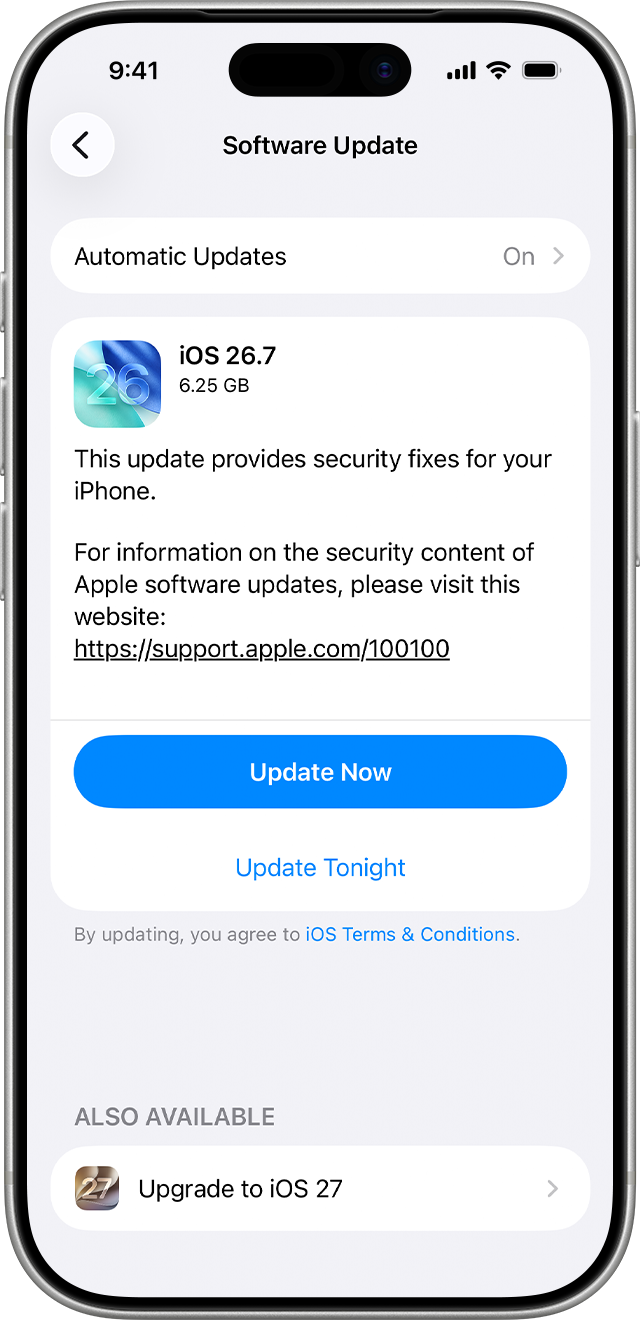
Image source: Apple Support — update your iPhone or iPad. This is Apple’s complete example Software Update illustration. It shows newer releases on a newer iPhone; an older device will display the releases available for that model. You do not need the exact version pictured to satisfy an iOS 15.5 minimum.
Do not search for an unofficial iOS 15.5 download just because the announcement names that version. It is a minimum. An eligible later release offered through Apple’s normal update process also clears the threshold.
After the update finishes, check About again, update WhatsApp through the App Store if an update is offered, and reopen the app. Check a recent conversation and send a test message to a trusted contact. Those checks help you confirm ordinary use on your device; they do not replace checking the published system requirement.
If Software Update says you are up to date
That message needs to be read together with the installed version. If the phone is already on iOS 15.5 or later, the announced threshold is satisfied. If the version is lower, identify why a suitable update is not appearing rather than repeatedly reinstalling WhatsApp.
- Confirm the model and installed iOS version in About.
- Check the update screen on a reliable connection and note any error text.
- If an update fails or does not appear, use Apple’s official troubleshooting or computer-update route linked from its update article.
- For a managed work or school phone, consult the administrator about update restrictions.
- If the hardware cannot run a sufficiently recent iOS release, plan a supported replacement and preserve your chat data first.
WhatsApp has its own guidance for prompts to update iOS. Updating WhatsApp in the App Store cannot change the iOS version installed on the phone. Conversely, an OS update does not guarantee that you have installed the latest available WhatsApp build. Check each independently.
If you need another iPhone, move carefully
A replacement is relevant when the existing phone cannot meet the requirement or has another reason to be retired. Before registering WhatsApp elsewhere, confirm your backup or the official transfer option and keep access to the number used by the account.
WhatsApp’s iPhone restore guide explains that an iCloud restore depends on an existing backup, and that the backup screen shows its time and size. Messages received after the backup are not recovered from that older copy. Check the date against the conversations you want to retain.
Keep the old device until you have checked the new one. Compare recent chats and important attachments rather than treating a successful sign-in as proof that every conversation transferred. If you cannot receive the registration code, our iPhone verification-code troubleshooting guide addresses that separate problem.
Be cautious with claims that a modified WhatsApp build can permanently bypass OS support. WhatsApp recommends the official app and an updated operating system. An unsupported workaround also makes it harder to distinguish an app problem from an OS compatibility problem.
A short checklist before the deadline
- Read the iOS version in About.
- If it is below 15.5, check for an eligible Apple update.
- Verify your most recent completed WhatsApp backup.
- Update the operating system and WhatsApp separately.
- Read in-app notices and recheck the official requirement before making a purchase or deleting anything.
For an iPhone already running iOS 15.5 or later, this announcement alone does not require a new phone. For one running an earlier version, the next useful step is to establish whether it can update. That distinction avoids both an unnecessary purchase and a rushed migration.
Official sources and image credits
- WhatsApp: supported operating systems and November 30, 2026 requirement
- WhatsApp: prompts to update iOS
- Apple: find the software version — About illustration
- Apple: update your iPhone or iPad — Software Update illustration
- Apple: security releases — device and OS compatibility
- WhatsApp: back up iPhone chat history
- WhatsApp: restore iPhone chat history
- Apple: identify your iPhone — iPhone 6s product image
Apple images © Apple Inc., reproduced as explanatory source illustrations with attribution. The original interface assets have not been relabeled as an iOS 15.5 screen or as a Horus Valley device test. Source availability and attribution do not establish an open-content license. Requirements and on-screen labels can change.
You may also like
 Technology & How-To
 USB Works on PC but Not on TV? How to Find the Cause
Diagnose a USB drive that works on a computer but not a TV. Separate detection, missing files and…
 Technology & How-To
 WhatsApp “Waiting for This Message”: Fixes for iPhone, Android and Web
Fix WhatsApp’s waiting-message notice by comparing your phone and linked devices, checking updates and protecting existing chat data.
 How-To Guides
 Microsoft Authenticator Backup Not Restoring on a New Phone? Fix Missing Accounts and Codes
Microsoft Authenticator missing accounts after changing phones? Fix Android and iPhone backup recovery, work account re-registration, wrong codes,…