
USB Works on PC but Not on TV? How to Find the Cause
Diagnose a USB drive that works on a computer but not a TV. Separate detection, missing files and video codec problems before formatting.
Contents
- Choose the symptom that matches your TV
- 1. Confirm the exact TV model and what its USB port supports
- 2. Connect directly and check the source menu
- 3. Use a spare drive to separate drive problems from TV problems
- 4. Check FAT32, exFAT or NTFS before considering a format
- 5. If the drive is visible but files are missing, check the media browser
- 6. If one video fails, inspect the codecs instead of renaming it
- 7. Convert a short test copy before processing a whole film
- 8. Treat a TV format prompt as a separate decision
- When to contact the manufacturer
- Sources and image credits
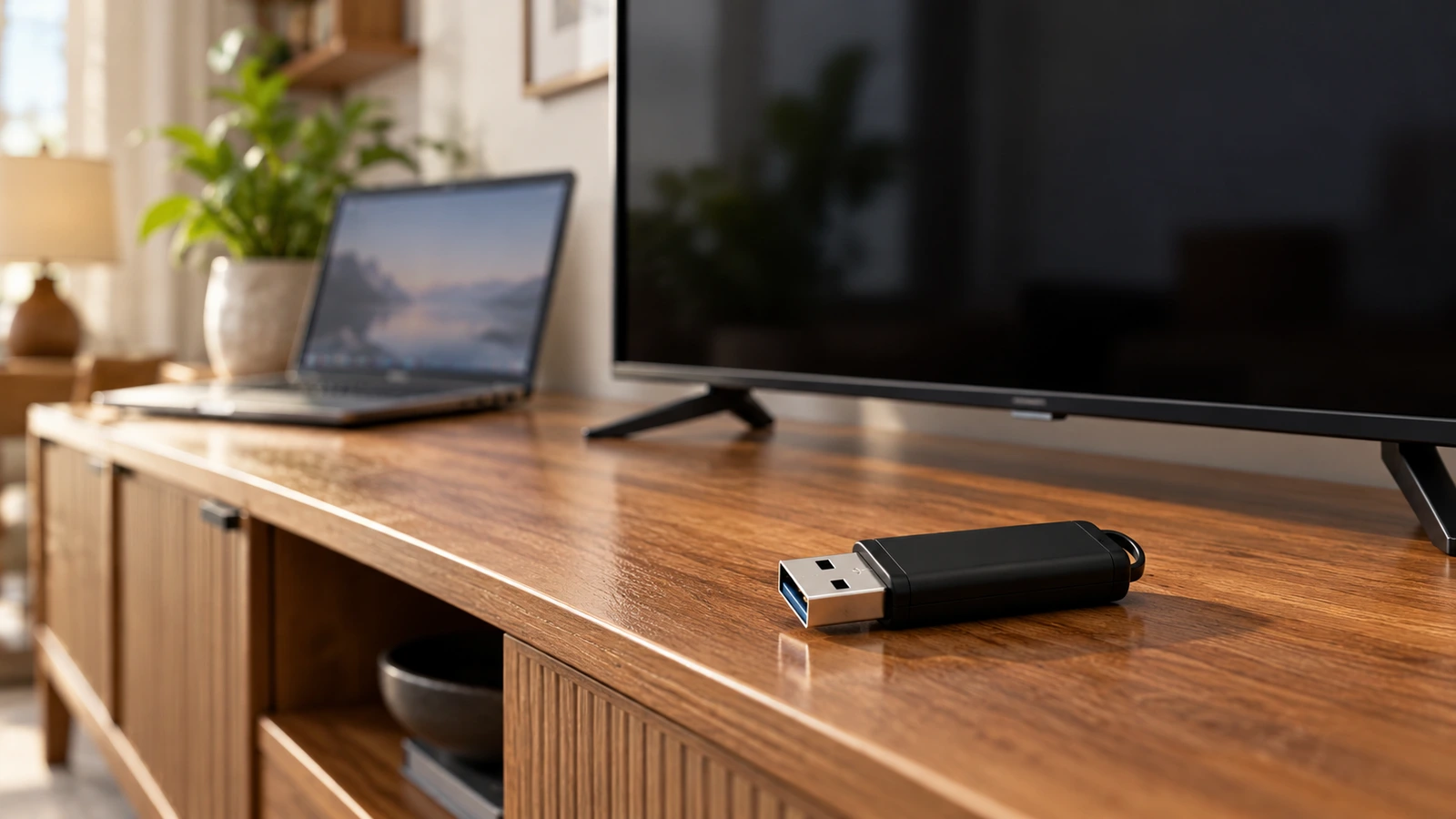
If a USB drive works on your computer but not on your TV, first identify what the television cannot do: detect the drive, list its files or play a particular video. Check the TV’s USB playback specifications, connect the drive directly and try one small, known-compatible file before changing its format.
A computer can read storage layouts and decode video formats that a TV may not support. Successful playback on a laptop therefore does not prove that the drive, video codec or audio track is compatible with the television.
This guide gives you a practical way to narrow down the cause while protecting the files already on the drive. Copy important files somewhere else and check that the copies open before accepting any format or storage-registration prompt.
Reviewed October 28, 2026. Model-specific manuals take priority over general advice. The two software screenshots are genuine images from the official HandBrake documentation; their older interface is identified in the captions.
Choose the symptom that matches your TV
| Symptom | Investigate first | Useful first test |
|---|---|---|
| USB drive does not appear anywhere | Connection, port, power and supported storage format | Connect directly and open the TV’s media/source menu |
| Drive appears, but the folder looks empty | Media category, file support and folder limits | Select Videos or Photos, then test a small compatible file |
| Photos work, but a video will not start | Container, video codec, resolution and bitrate | Compare that file with the TV’s playback specification |
| Video has a picture but no sound | The selected audio track and supported audio codec | Try another available audio track |
| A large file will not copy to the drive | File-system limits on the computer | Check whether the drive uses FAT32 |
| TV offers to format or register the drive | The intended use of the drive | Confirm media playback versus recording or app storage |
1. Confirm the exact TV model and what its USB port supports
Use the model code in the television’s settings or on its label, then open the matching manufacturer manual. Do not rely only on the brand name or screen size. Two televisions from the same company can support different storage formats and media features.
- Can this model play video from USB, or is the port intended for another purpose?
- Which file systems and drive capacities are listed for media playback?
- Does the manual identify a particular USB port for an external hard drive?
- What video and audio codecs, resolutions and frame rates are supported?
- Are recording, app storage and ordinary media playback documented separately?
Sony’s BRAVIA compatibility page has different tables for different TV families. For example, one listed group supports FAT32 and NTFS, while other groups also list exFAT. A format that works on a friend’s Sony television is therefore not enough evidence for your own model.
Make a short note of the model code and the relevant manual section before testing. That small preparation prevents repeated conversions or purchases based on a specification for another product.
2. Connect directly and check the source menu
Remove an unnecessary USB hub or extension cable and connect the drive directly to a supported TV port. Open the television’s media player or connected-device menu rather than waiting only for a pop-up. If you have several USB devices connected, simplify the setup for the test.
Samsung’s connection guide illustrates using Connected Devices to locate a flash drive. It also identifies a dedicated HDD port on applicable models and recommends external power for suitable hard drives. Its menus and port labels are examples for the covered products, not universal instructions for every television.
Use the power adapter supplied for an externally powered drive. If a portable HDD repeatedly disappears or fails to start, compare its power needs with the port specification. A drive receiving enough power from a computer may behave differently on a TV.
Do not treat a blue USB connector as proof of video-format compatibility. The port’s connection capabilities and the TV’s media decoder are separate parts of the problem. A faster connection does not make an unsupported audio track playable.
3. Use a spare drive to separate drive problems from TV problems
If available, use a spare drive whose format the TV manual supports. Put only a small photo and a short video that meet the documented specifications on it. Choose files you are allowed to copy, and keep the originals elsewhere.
| Controlled test | What the result suggests | What remains unproven |
|---|---|---|
| Spare drive works; original drive does not | The original drive or its setup needs investigation | That the original drive is physically faulty |
| Same photo works on both drives, but one video fails | The TV is reading at least some media | That the video and audio codecs are supported |
| Two compatible drives fail in the same port | Recheck port purpose, menu and TV specifications | That a repair is definitely required |
| A short converted copy works; original video fails | File compatibility is a stronger lead | That reformatting the drive would help |
For example, keep the same photo while comparing two drives. Then keep the working drive while comparing two videos. If you change the drive format, port and video file together, a successful result will not tell you which change mattered.
4. Check FAT32, exFAT or NTFS before considering a format
On Windows, open File Explorer, right-click the drive and look in Properties for its file system. This is an inspection step; it does not require choosing Format. Note the drive capacity and the size of the file you want to play.
| File system | Main point for this problem | What to verify |
|---|---|---|
| FAT32 | Has an individual-file limit just below 4 GiB | Whether your video exceeds the limit and the TV supports this format |
| exFAT | Can store files larger than FAT32 allows | Whether the exact TV model supports exFAT playback |
| NTFS | Can also store large files | Whether this TV can read NTFS for the intended use |
| Another format | Computer readability does not establish TV support | Check the manual before changing the drive |
SanDisk explains the FAT32 file-size limit as the reason a large file can fail to copy even when a drive has plenty of free space. This is a limit on one file, not a statement that the whole drive can hold only 4 GB.
Suppose a 64 GB drive has plenty of empty space, but a 6 GB video will not copy onto it. If the drive is FAT32, deleting a few more photos will not remove that per-file limit. You need a compatible way to store or reduce that particular file.
Use exFAT or NTFS only if the television supports it. If a model supports only a format whose file-size limit your video exceeds, an appropriately encoded smaller copy may be a better route than choosing a format the TV cannot read.
5. If the drive is visible but files are missing, check the media browser
Make sure you are browsing the appropriate media category. A Photos view is not a useful test of whether video files are listed. Sony documents several media-player paths depending on model, including Photos, Music, Videos and Connected Devices.
Test a small set of files in a simple folder rather than a crowded library. Samsung’s USB media guide notes that file and folder counts can affect what covered models display. Its numerical limits are product-dependent; they should not be copied as universal limits for all TVs.
Check that you actually copied the file rather than a shortcut or a file that still requires a cloud download. Open the copy from the USB drive on the computer before moving it to the TV. If only the original computer location works, investigate the copy first.
6. If one video fails, inspect the codecs instead of renaming it
A filename such as holiday.mp4 identifies a container, not every encoding choice inside it. HandBrake’s container documentation explains that MP4 and MKV can hold different video and audio tracks. Changing a file extension does not convert those tracks.
LG’s USB codec guide says playback depends on the extension, codec and other supported specifications. Its tables apply to the models identified there. Do not take one table’s HEVC, AV1 or audio support as a promise for every LG television.
Use a media-information tool to inspect the original file. MediaInfo’s documentation identifies fields including video codec, bitrate, frame rate and audio codec. Compare the report with your model’s manual, rather than comparing only the filename extension.
| File detail | Why it matters | What to compare |
|---|---|---|
| Container | Organizes video, audio and other streams | MP4, MKV or another format listed by the TV |
| Video codec | Determines how the picture is encoded | H.264, HEVC or another supported codec |
| Audio codec and track | Can explain picture without sound | Supported audio type and selected language track |
| Resolution and frame rate | May exceed a model’s playback limits | The limits for that codec and container |
| Bitrate and encoding profile | Two files with the same extension may still differ | The manual’s detailed playback constraints |
7. Convert a short test copy before processing a whole film
If the TV already reads the drive and the file is incompatible, use a short copy to test a supported encoding. Keep the original unchanged. This avoids spending hours converting a large library before you know whether the settings work.
HandBrake’s official presets include General presets using MP4, H.264 video and AAC stereo, including Fast 1080p30 and Fast 720p30. These are practical starting points for many devices, but you must still check the TV’s own limits. A preset is not a guarantee for an unidentified television.
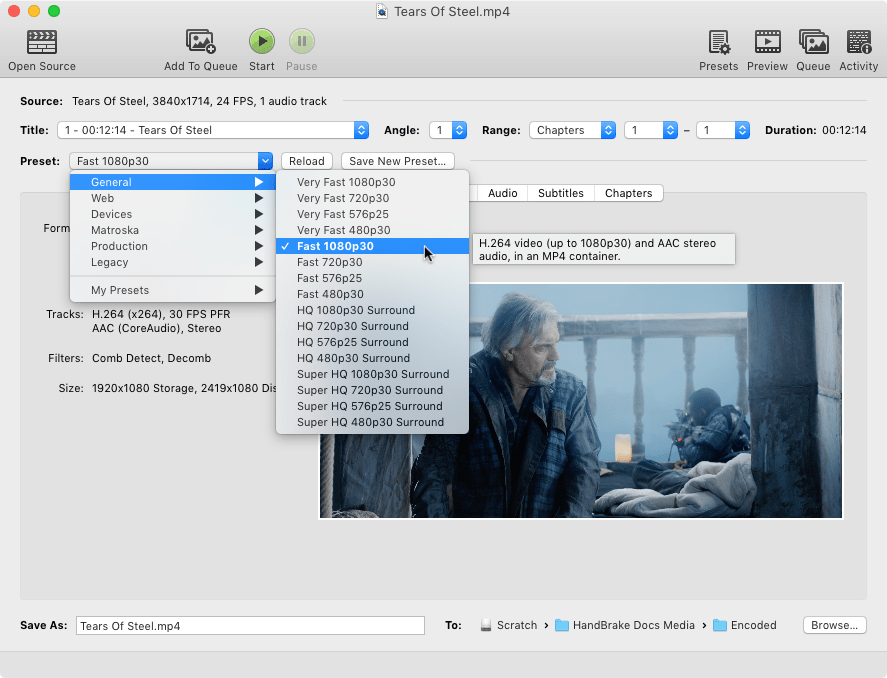
Screenshot credit: Bradley Sepos / HandBrake Team, official HandBrake Quick Start, CC BY-SA 4.0. This is the original documentation screenshot from the 1.1.0 interface. Current releases can look different; it illustrates the preset selector, not a test performed for this article.
- Open your source video in the official HandBrake application.
- Choose a preset that fits the TV’s documented capabilities; review the resulting video and audio settings.
- Use a short sample, or a short source clip, before converting the complete video.
- Choose a new output filename and location so you retain the original.
- Encode, copy the result to the supported USB drive and test it on the TV.
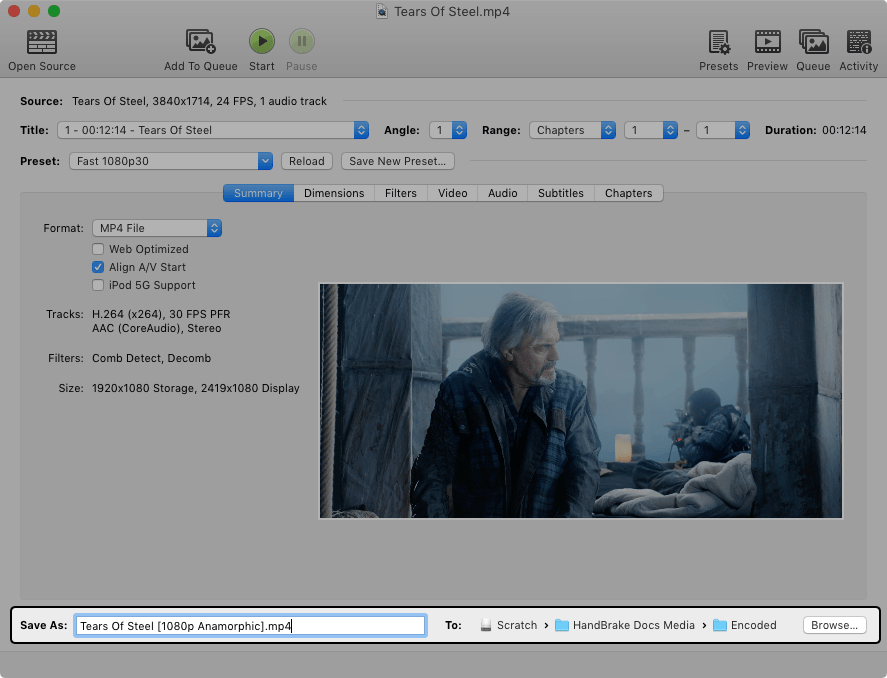
Screenshot credit: Bradley Sepos / HandBrake Team, HandBrake Quick Start, CC BY-SA 4.0. Original documentation image from the older 1.1.0 interface, showing the output destination field. A destination is the new file’s location, not a command to format the USB drive.
If the test plays correctly, check picture, sound and any subtitles you need before converting the complete video. A successful first frame is not enough to verify the whole viewing experience. Also check that the final output fits the drive’s file-size limit.
HandBrake is a video converter, not a USB repair tool. If the television cannot see the drive at all, converting its videos does not address that earlier detection problem. Return to the drive, port and file-system checks.
8. Treat a TV format prompt as a separate decision
Media playback, TV recording and internal/app storage can have different requirements. Sony distinguishes playback from device-storage registration in its compatibility documentation. Read what the TV is asking to configure before accepting a prompt.
Before any format, verify the backup, identify the correct drive by its label and capacity, and confirm the target file system in the model’s manual. A spare test drive is preferable when you are still uncertain. Do not initialize a drive containing the only copy of important files.
If you are trying to free space on a phone before copying videos to USB, our phone-storage troubleshooting guide explains the separate distinction between device storage, cloud storage and deleted-file folders. Freeing phone storage does not change a TV’s codec support.
When to contact the manufacturer
Contact support if compatible test media on a supported spare drive still fails after checking the documented connection procedure. Provide the TV model, software version, drive format and capacity, port used, file specifications and exact error message.
Describe the result precisely: The TV sees the drive and plays a JPEG, but this MP4 fails. Its video codec is … and its audio codec is … . A short test using … settings does/does not play. That is more informative than saying only that USB does not work.
Hardware repair becomes a question for the manufacturer after the compatibility and controlled-test results are clear. Avoid assuming the USB port is broken merely because one high-resolution video works on a laptop and fails on the TV.
Sources and image credits
- Sony: BRAVIA USB HDD compatibility, file systems and power
- Sony: USB connection and media playback
- Samsung Australia: Connected Devices and USB connection
- Samsung Hong Kong: USB media playback and product-dependent limits
- LG: supported USB video codecs
- SanDisk: FAT32 file-size errors
- HandBrake: container formats
- HandBrake: official presets
- HandBrake: Quick Start and original screenshots
- MediaInfo: information available for supported formats
Visuals: an expressive article cover, plus two genuine HandBrake documentation screenshots credited above. Screenshots were converted to lossless WebP without changing their interface content; their CC BY-SA 4.0 license is retained. Research does not constitute a physical test of any reader’s television or USB drive.
You may also like
 Technology & How-To
 WhatsApp “Waiting for This Message”: Fixes for iPhone, Android and Web
Fix WhatsApp’s waiting-message notice by comparing your phone and linked devices, checking updates and protecting existing chat data.
 Technology & How-To
 WhatsApp iOS 15.5 Requirement: What Changes on November 30, 2026?
WhatsApp raises its iPhone minimum to iOS 15.5 on November 30, 2026. Check your version, older iPhone eligibility…
 How-To Guides
 Microsoft Authenticator Backup Not Restoring on a New Phone? Fix Missing Accounts and Codes
Microsoft Authenticator missing accounts after changing phones? Fix Android and iPhone backup recovery, work account re-registration, wrong codes,…