
WhatsApp Backup Stuck at 99%? Safe Fixes for Android and iPhone
WhatsApp backup stuck at 99%? Follow safe, official troubleshooting steps for Android Google backups and iPhone iCloud backups without risking your chats.
Contents
- Quick answer: protect your chats first
- Why a backup can stop at 99%
- First check: is this backup creation or restoration?
- Android: 8 safe troubleshooting steps
- 1. Check the backup status and account
- 2. Stabilize your internet and power
- 3. Check both phone and Google storage
- 4. Reduce the backup size without deleting chats
- 5. Restart WhatsApp and the phone
- 6. Check Google Play services and WhatsApp updates
- 7. Check permissions and account sync
- 8. If it still fails, preserve the original
- iPhone: 7 checks for an iCloud backup stuck at 99%
- 1. Verify your Apple Account and iCloud availability
- 2. Check the WhatsApp backup screen
- 3. Keep a steady connection and charge
- 4. Check local iPhone storage
- 5. Reduce large media
- 6. Restart and update safely
- 7. Seek support before reinstalling
- What if WhatsApp is stuck restoring at 99%?
- Android vs iPhone: what matters most
- Mistakes that can permanently cost you chats
- Frequently asked questions
- Does 99% mean the backup is corrupted?
- Can I close WhatsApp during a backup?
- Will clearing WhatsApp cache delete my chats?
- Does WhatsApp backup use Google Drive space?
- Should I uninstall WhatsApp to fix a backup stuck at 99%?
- Why are videos missing after restoring?
- Can WhatsApp recover a deleted cloud backup?
- Final checklist before changing phones
- Official sources and references
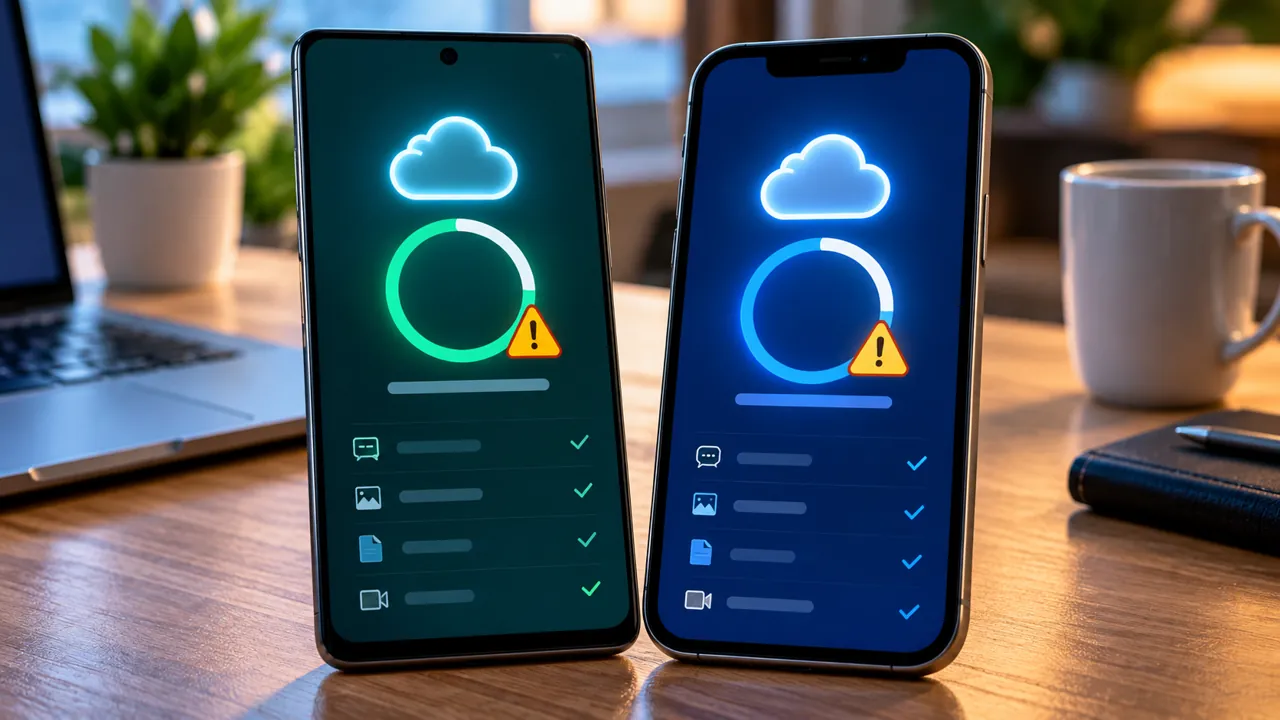
A WhatsApp backup stuck at 99% can mean a large media upload is still processing, your cloud storage is full, or the connection was interrupted. This guide separates Android Google Account backups from iPhone iCloud backups and explains how to troubleshoot without accidentally deleting the only copy of your chats.
Quick answer: protect your chats first
- Keep WhatsApp installed and do not delete an existing cloud backup while troubleshooting.
- Connect the phone to power and a stable Wi-Fi network; avoid switching networks mid-backup.
- Check free space on the phone and in the correct cloud account.
- Reduce backup size by excluding videos if necessary.
- Restart the phone and retry only after checking the latest backup date.
Critical: A stuck progress indicator is not proof that a usable backup exists. Do not uninstall WhatsApp, clear its app storage, factory-reset the phone, or delete a Google/iCloud backup merely to fix 99%. WhatsApp says it cannot restore your chats from its servers.
Why a backup can stop at 99%
The final percentage does not reliably identify the failed component. Possible causes include unstable connectivity, low device storage, exhausted Google or iCloud capacity, large videos, account or permission issues, and ongoing media processing. WhatsApp notes that even a 100% notification may remain visible while background media work completes.
First check: is this backup creation or restoration?
- Creating a backup: You still have your chats on the original phone. Preserve them and verify the last successful backup date.
- Restoring a backup: You are setting up WhatsApp and downloading an existing backup. Confirm the correct phone number and cloud account; avoid skipping restore if the backup is important.
- Transferring to a new phone: Keep the old phone and its chat history intact until the new phone is verified.
Android: 8 safe troubleshooting steps
1. Check the backup status and account
- Open WhatsApp and tap the three-dot menu → Settings → Chats → Chat backup.
- Note the date/time of the last successful backup, selected Google Account, and approximate backup size.
- Verify that you are signed into the intended Google Account on your Android device.
- If the phone has dual SIM, keep the SIM associated with your WhatsApp number active.
A Google Account backup is tied to the account and phone number. WhatsApp states that a new backup to the same Google Account overwrites the previous one, so verify your current chats before retrying.
2. Stabilize your internet and power
- Connect to a reliable Wi-Fi network and plug the phone into power.
- Turn Wi-Fi off and back on if connectivity appears broken.
- If necessary, try a different stable network or mobile data, considering possible data charges.
- Avoid moving between Wi-Fi networks during the same backup, which WhatsApp warns can cause timeouts.
3. Check both phone and Google storage
- On Android, open Settings → Storage and check free device space.
- Open Google One storage using the same Google Account and check remaining cloud capacity.
- If full, remove only unneeded files after reviewing them; allow time for storage figures to update.
Google confirms that Android WhatsApp backups count toward Google Account storage. The account also shares space with Drive, Gmail, and Google Photos. Deleting the existing WhatsApp cloud backup is permanent and should not be used as routine cleanup.
4. Reduce the backup size without deleting chats
- Open WhatsApp → Settings → Chats → Chat backup.
- Turn off Include videos for the next backup.
- Tap Back up and allow the new attempt to complete on stable power and internet.
This is Google’s documented space-saving method. It excludes videos from the future backup, so do not assume those videos will be restorable from that new cloud copy. Save essential videos separately before excluding them.
5. Restart WhatsApp and the phone
- Close WhatsApp normally; if necessary, use Settings → Apps → WhatsApp → Force stop.
- Restart the phone using its normal restart command.
- Reopen WhatsApp and retry the backup.
WhatsApp includes restart and force-close among its official stuck-backup troubleshooting options. Do not choose Clear storage or Clear data in Android app settings.
6. Check Google Play services and WhatsApp updates
- Open Google Play Store and check for an official WhatsApp update.
- Open Android Settings → Apps → Google Play services → App details and install an available update, if offered.
- Check for an available Android system update and restart if instructed.
Menu labels vary by phone. Avoid installing modified WhatsApp APKs or random “backup repair” utilities.
7. Check permissions and account sync
- Open Settings → Apps → WhatsApp → Permissions and review Photos and videos access where applicable.
- Open Settings → Accounts → your Google Account → Account sync and check whether sync is functioning.
- If an account error persists, follow WhatsApp’s official account troubleshooting guidance before removing a Google Account from the device.
Removing and re-adding a Google Account is more disruptive: it can temporarily remove synced data from the phone and require reauthentication. Only do so when you know the account credentials and have checked what is synced.
8. If it still fails, preserve the original
Record the exact error text, Android version, WhatsApp version, backup size, and account storage status. Contact WhatsApp support from Settings → Help. Do not uninstall WhatsApp unless you have independently verified a restorable backup or have an appropriate migration plan.
iPhone: 7 checks for an iCloud backup stuck at 99%
1. Verify your Apple Account and iCloud availability
- Open iPhone Settings and tap your name to verify the Apple Account.
- Open Settings → your name → iCloud and review available iCloud storage.
- Check that iCloud Drive is enabled and WhatsApp has the necessary iCloud access; exact menu names vary by iOS version.
2. Check the WhatsApp backup screen
- Open WhatsApp → Settings → Chats → Chat Backup.
- Check the last backup date and size.
- Do not delete the app if no recent successful backup exists.
3. Keep a steady connection and charge
Use stable Wi-Fi and power. WhatsApp recommends trying another network if an upload or download remains stuck. Avoid switching connections repeatedly during a backup.
4. Check local iPhone storage
- Open Settings → General → iPhone Storage.
- Review remaining space and the largest apps.
- Offload or remove only content you understand and can recover. Do not delete WhatsApp or its documents and data.
5. Reduce large media
If the backup is unusually large, review WhatsApp → Settings → Storage and Data → Manage Storage. Save important media elsewhere before removing anything. Where available, disable Include Videos in Chat Backup to reduce future upload size.
6. Restart and update safely
Restart iPhone normally and check for official WhatsApp and iOS updates. Avoid changing your Apple Account or signing out of iCloud without understanding the consequences for synced content.
7. Seek support before reinstalling
If the backup still fails, note the exact error and contact WhatsApp support. Reinstallation is especially risky when the latest backup has not completed. WhatsApp’s restore instructions require the same phone number and sufficient space on both iPhone and iCloud.
What if WhatsApp is stuck restoring at 99%?
Restoration is different from uploading a new backup. Confirm that the Google Account or Apple Account and phone number match those used to create the backup. Ensure adequate local storage and a stable connection. On iPhone, WhatsApp notes that a restore requires sufficient space on both iCloud and the device. If the app reports a corrupted backup, WhatsApp may not be able to repair it. Preserve the original phone and any accessible chat history rather than repeatedly reinstalling.
Android vs iPhone: what matters most
- Android: Check Google Account quota, Google Play services, account permissions, and the number tied to the backup.
- iPhone: Check Apple Account, iCloud Drive access, iCloud quota, and free iPhone storage.
- Both: Avoid deleting backups or app data; verify the last successful backup before changing phones.
Mistakes that can permanently cost you chats
- Deleting your only Google Account WhatsApp backup to “make room.”
- Uninstalling WhatsApp before verifying that a usable backup exists.
- Using a different phone number or cloud account during restoration.
- Assuming the last 99% screen guarantees a completed backup.
- Using unverified third-party recovery software and providing it with private chats or account credentials.
Frequently asked questions
Does 99% mean the backup is corrupted?
No. A percentage alone cannot diagnose corruption. Network issues, storage limits, and remaining media processing can produce similar symptoms. WhatsApp says backups can become corrupted when creation is interrupted, but that conclusion requires more evidence.
Can I close WhatsApp during a backup?
A normal app restart is an official troubleshooting option for a stuck backup. However, repeatedly interrupting the process may cause incomplete backups. Avoid force-stopping unless the backup appears genuinely stalled.
Will clearing WhatsApp cache delete my chats?
On Android, clearing cache is generally different from clearing app storage, but menus vary. Never select Clear storage, Clear data, or delete WhatsApp files unless you understand the consequences and have a verified backup.
Does WhatsApp backup use Google Drive space?
Yes. Android WhatsApp backups count toward the Google Account storage quota, shared with Google Drive, Gmail, and Google Photos.
Should I uninstall WhatsApp to fix a backup stuck at 99%?
Not as an early troubleshooting step. If your latest cloud backup is incomplete, uninstalling could put your only accessible chat history at risk. Preserve the original device and follow official guidance.
Why are videos missing after restoring?
Videos are included only if the relevant Include videos option was enabled when the backup was created. Excluding videos reduces backup size but changes what can be restored.
Can WhatsApp recover a deleted cloud backup?
Do not count on it. Google says deleting an Android WhatsApp cloud backup is permanent, and WhatsApp says it cannot restore your chat history from its own servers.
Final checklist before changing phones
- Confirm the latest successful backup date, not just the progress percentage.
- Confirm the correct cloud account and phone number.
- Check cloud and device storage.
- Save irreplaceable photos and videos separately.
- Keep the old phone untouched until chats are verified on the new one.
Official sources and references
- WhatsApp Help Center: Can’t back up or restore your chat history (Android)
- WhatsApp Help Center: Can’t back up or restore your chat history (iPhone)
- WhatsApp Help Center: About Google Account backups
- Google Drive Help: Manage your storage and WhatsApp backup size
- WhatsApp Help Center: Restore chat history on iPhone
Editorial note: Instructions are based on WhatsApp and Google support documentation. Android and iOS menu labels vary by device and version. This article does not guarantee recovery of an incomplete or corrupted backup.
You may also like
 Technology & How-To
 USB Works on PC but Not on TV? How to Find the Cause
Diagnose a USB drive that works on a computer but not a TV. Separate detection, missing files and…
 Technology & How-To
 WhatsApp “Waiting for This Message”: Fixes for iPhone, Android and Web
Fix WhatsApp’s waiting-message notice by comparing your phone and linked devices, checking updates and protecting existing chat data.
 Technology & How-To
 WhatsApp iOS 15.5 Requirement: What Changes on November 30, 2026?
WhatsApp raises its iPhone minimum to iOS 15.5 on November 30, 2026. Check your version, older iPhone eligibility…