
Why Can’t I Receive Verification Codes on My iPhone? 17 Fixes for SMS & OTPs
Can’t receive verification codes on iPhone? Check SMS delivery, Unknown Senders, Apple Account codes, eSIM, bank OTPs, roaming, and safe fixes.
Contents
- Quick answer: find the problem path first
- First, identify which verification code is missing
- Quick diagnosis: choose the right path
- 1. Check cellular signal and the correct phone line
- Step 1: check Airplane Mode and signal
- Step 2: check the SIM or eSIM line
- Step 3: check the number used by the service
- Step 4: test a normal SMS
- 2. Look for codes in filtered Messages folders
- A note about “Delete After Use”
- Screenshot note
- 3. Confirm that the service has your correct number
- 4. Restart the iPhone and check for an iOS update
- 5. Check blocked contacts and messaging restrictions
- 6. Understand why toggling iMessage is usually not the answer
- 7. Check whether the sender uses short codes or international SMS
- 8. Stop requesting codes repeatedly
- 9. Fix Apple Account verification code problems
- 10. What to do when bank verification codes do not arrive
- 11. Google, WhatsApp, and other app-specific verification
- 12. Check eSIM, Dual SIM, and recent number transfers
- 13. International travel and roaming issues
- 14. When to reset network settings—and when not to
- 15. Troubleshooting by symptom
- 16. A safe support checklist
- 17. Prevent future verification lockouts
- The bottom line
- Official sources and further reading
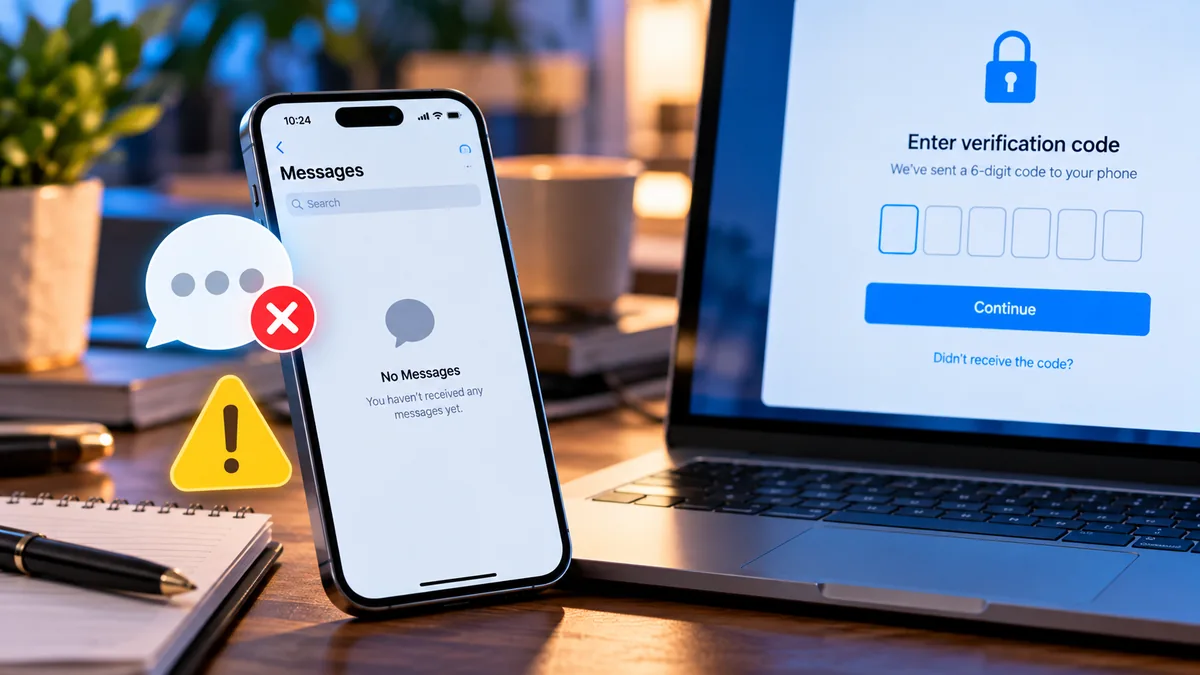
Updated October 24, 2026. If you are asking, “Why can’t I receive verification codes on my iPhone?”, the fastest answer is to identify where the code should arrive before changing settings. A bank OTP sent by SMS, an Apple Account code shown on a trusted device, an authenticator code, and an email code use different delivery paths.
This guide covers the current iPhone message-filtering labels, including the iOS 26 Unknown Senders flow, plus carrier delivery, Apple Account sign-in, bank OTPs, Google and WhatsApp codes, eSIM, Dual SIM, roaming, and safe recovery steps. It starts with low-risk checks and tells you when the problem belongs to the iPhone, the carrier, or the service sending the code.
Quick answer: find the problem path first
| What you see | Most likely area to check first | Do not do this first |
|---|---|---|
| No ordinary SMS arrives either | Active SIM/eSIM, cellular signal, carrier service, roaming | Do not factory-reset the iPhone. |
| Normal SMS works but one bank or app code does not | Account number, short-code or international SMS delivery, provider cooldown | Do not keep tapping Resend. |
| The code arrived but you cannot find it | Unknown Senders, spam/transaction filters, notifications | Do not assume the sender never delivered it. |
| Apple Account sign-in asks for a code | Trusted Apple device, trusted phone number, Apple’s alternative method | Do not use an unofficial “unlock” service. |
| The issue started after changing phones or carriers | eSIM activation, Dual SIM line, number porting, carrier provisioning | Do not delete the eSIM before speaking with the carrier. |
First, identify which verification code is missing
Not all codes use the same delivery channel. A traditional SMS one-time password travels through your carrier’s messaging network. An Apple Account sign-in code may appear as a notification on a trusted Apple device, or arrive by text or automated call. An authenticator app generates codes locally, while an email code depends on your mailbox. Fixing iMessage will not necessarily repair an SMS delivery failure, and changing SMS settings will not fix an authenticator clock or a blocked email.
Check the sign-in screen for the exact delivery method, the masked destination number or address, and any alternative such as “Call me,” “Use another method,” or “Didn’t get a code?” Never share a verification code with a caller or someone claiming to be technical support.
Quick diagnosis: choose the right path
Ordinary texts also fail: Start with cellular service, active SIM/eSIM, and carrier troubleshooting.
Regular SMS works, but one service never sends a code: Check the number on that account, rate limits, sender restrictions, and the service’s support.
The code arrives but no alert appears: Look in filtered message folders and review notifications.
Apple Account sign-in is blocked: Use a trusted device or the official alternative verification method.
The issue began after changing phones or carriers: Confirm eSIM activation, porting completion, and the selected line.
For another account-access problem, see Google Passkeys Not Working on a New Phone. A passkey or trusted-device prompt may be safer than repeatedly requesting an SMS code.
1. Check cellular signal and the correct phone line
Step 1: check Airplane Mode and signal
Open Control Center and confirm Airplane Mode is off. If your cellular signal is weak, move to an area with coverage and try again after a short wait.
Step 2: check the SIM or eSIM line
Open Settings → Cellular—called Mobile Data in some regions. Confirm the relevant SIM or eSIM line is switched on.
Step 3: check the number used by the service
If you have Dual SIM, verify that the service is sending to the number associated with the active line. An app account may still be linked to your old number even when the new line provides data and calls.
Step 4: test a normal SMS
Ask someone you trust to send a normal SMS to your number. If ordinary texts also fail, the problem is broader than a single website.
SMS generally requires cellular messaging service; Wi-Fi by itself is not a guarantee that ordinary SMS will work. Apple notes that SMS over Wi-Fi can be available when Wi-Fi Calling is enabled and supported. If you are abroad, confirm that your plan supports roaming and incoming messages.
2. Look for codes in filtered Messages folders
An SMS can arrive without appearing in your main conversation list or triggering a notification. Open Messages, select the Filter control, and inspect folders for Unknown Senders, spam, transactions, promotions, or other filtered messages. On newer iOS versions, the filter menu also offers Manage Filtering. The exact folder names vary by iOS release and region.
In iOS 26, Apple documents a Screen Unknown Senders setting. If it is enabled, messages from people or services you have not interacted with may go to the Unknown Senders filter. Apple also says that time-sensitive messages such as verification codes can have their own notification control. To review it, open Settings → Apps → Messages → Unknown Senders → Allow Notifications, where the available categories can vary by country and region.
If you recognize the sender, open the message from Messages → Filters → Unknown Senders and mark the sender as known when that option is available. Do not permanently disable every spam protection merely to receive one code; adjust the relevant setting temporarily if needed and restore it afterward.
A note about “Delete After Use”
On supported iPhone versions, Settings → General → AutoFill & Passwords → Verification Codes → Delete After Use can remove a code after it has been used with AutoFill. This setting should not normally prevent delivery, but it can make a code seem to have disappeared after it was filled automatically. Turn it off temporarily if you need to keep a code visible while diagnosing the issue.
Apple’s current instructions for unknown senders and one-time-code AutoFill are linked in the official sources at the end of this guide.
Screenshot note
Apple changes menu names and locations between iOS versions and regions. There is no single screen that matches every iPhone, so the steps above use Apple’s current labels rather than a device-specific screenshot. If your menu differs, search Settings for Unknown Senders, AutoFill & Passwords, or Verification Codes.
3. Confirm that the service has your correct number
A service may be sending the code successfully—to a number you no longer own. Review the last digits shown on the login screen. Include the correct country code when updating an account, and check whether your carrier or service expects the leading zero to be omitted after the country prefix. If you recently moved from a physical SIM to eSIM, changed numbers, or transferred your number between networks, verify that the port is fully complete.
If you cannot access the old number, use the provider’s documented recovery process. Do not repeatedly request codes for an inaccessible number, and never pay an unofficial intermediary to “unlock” two-factor authentication.
4. Restart the iPhone and check for an iOS update
Restarting can clear a temporary registration or network state problem. After the phone reconnects, ask for one new code and wait for the service’s stated delivery window. Check Settings → General → Software Update for a supported update. Back up important data before major updates and use a reliable connection and adequate battery power.
If you recently set up a new iPhone and have wider Messages problems, Apple also recommends confirming the line is enabled and checking Messages configuration. This is more relevant when regular messaging is affected than when only a bank’s short code fails.
5. Check blocked contacts and messaging restrictions
Open the iPhone’s blocked-contacts settings, which may be located under Settings → Privacy & Security → Blocked Contacts on newer versions or within Phone/Messages settings on older versions. Review unfamiliar entries carefully. A service can use different sending numbers, so unblocking a single number is not a guaranteed fix.
Third-party call and SMS filtering apps, carrier spam filters, business-text restrictions, and device-management policies may also affect delivery. If your employer manages the phone, ask its administrator before changing security controls. Avoid disabling protections globally unless you understand the consequences.
6. Understand why toggling iMessage is usually not the answer
Blue-bubble iMessages use Apple’s internet-based service, whereas SMS and many verification texts rely on carrier messaging. Switching iMessage off and on may help with iMessage activation or new-device messaging issues, but it is not a general fix for missing bank OTPs. Apple specifically distinguishes these message types in its support guidance.
If ordinary iMessages are broken after a new-device setup, Apple’s documented sequence includes Settings → Apps → Messages, toggling iMessage, opening Send & Receive, and selecting the correct phone number. Apply those steps only when that symptom matches your situation.
7. Check whether the sender uses short codes or international SMS
Banks and online services often send from short codes, alphanumeric sender IDs, or international messaging gateways. Carrier anti-spam systems may restrict certain routes, especially after number porting, account changes, or roaming. A service-specific failure does not prove the iPhone is defective.
When contacting your carrier, provide the approximate timestamp, the service name, your country, whether you can receive ordinary SMS, and whether you recently ported your number. Ask whether incoming application-to-person (A2P) messages, short codes, or international SMS are restricted on your line. Do not provide the actual OTP.
8. Stop requesting codes repeatedly
Many services limit verification attempts to prevent abuse. Pressing Resend repeatedly can invalidate an earlier code, trigger a temporary lock, or make diagnosis harder. Wait for the timer shown by the service, request one fresh code, and use only the newest valid code. Delivery can be delayed by the sender, a messaging aggregator, or the carrier; a delayed message is not always evidence of an iPhone problem.
If you have already made many attempts, stop requesting codes and wait for the service’s stated cooldown. Trying a new request every few seconds can extend the lock rather than solve it.
9. Fix Apple Account verification code problems
If the missing code is for your Apple Account, look first at other trusted Apple devices signed in to the same account. Apple may display a sign-in prompt there. If you do not have access to one, choose “Didn’t Get a Code?” or “Can’t get to your devices?” and request a text message or phone call to your trusted number when that option is offered.
If the trusted number is outdated and you cannot access trusted devices, follow Apple’s official account recovery instructions. Recovery can take time; third-party services cannot legitimately bypass Apple’s security checks. Visit Apple’s two-factor authentication guide for the current flow.
When you regain access, add another trusted number or another supported sign-in method. Do not remove the only trusted device or authenticator until you confirm that a replacement method works.
10. What to do when bank verification codes do not arrive
First verify that the bank has your current phone number and that you are using its genuine app or website. Check whether the bank offers an in-app approval, hardware token, phone call, or another authorized authentication method. If regular SMS arrives but banking codes do not, contact the bank’s official support and ask whether the account has a delivery block or verification hold.
For financial accounts, avoid installing “OTP fixer” apps, forwarding messages to strangers, or giving remote-access permissions to anyone offering help. If you unexpectedly receive a code you did not request, do not share it; change the account password through the official app if you suspect unauthorized access.
11. Google, WhatsApp, and other app-specific verification
For Google sign-in, check whether the account offers a passkey, Google Prompt, backup codes, or another previously configured recovery method. For WhatsApp registration, verify the complete international number and use only the in-app resend or call options after the countdown. Some services impose cooldowns that must expire before another attempt.
A working phone number does not guarantee that every provider will deliver a message. If only one platform fails, consult its current support documentation and check whether it is experiencing an incident. Do not remove an existing authenticator or trusted device until you have another working sign-in method.
If you lost access to a Google account after changing phones, use the official recovery path described in this Google account recovery guide as a starting point, then follow Google’s own recovery checks.
12. Check eSIM, Dual SIM, and recent number transfers
After changing iPhones, the data connection can work even if the voice or messaging portion of an eSIM has not been fully provisioned. In Settings → Cellular, verify that the correct line is on, that the displayed number matches the service’s record, and that the carrier shows normal service. If a recent port is pending, the previous SIM may stop receiving before the new line is fully ready.
Do not delete an eSIM profile just to troubleshoot unless the carrier confirms you can reinstall it. Deleting it can make the problem worse by removing access to the number you need for recovery.
13. International travel and roaming issues
When traveling between the United States, Canada, the UK, and European countries, incoming SMS behavior can depend on the home carrier, roaming partner, account status, and sender’s international routing. Check whether roaming is enabled where required and whether your line can receive ordinary SMS. Some providers refuse to send verification codes to certain number types or destinations.
If you use a travel data-only eSIM, remember that it may not provide a conventional phone number for receiving SMS. Keep your primary number available for authentication if your plan and device support it, and set up backup authentication methods before traveling.
14. When to reset network settings—and when not to
A network settings reset is a last-resort troubleshooting step for broad connectivity problems, not a first response to a missing OTP from one company. Before considering it, test ordinary SMS, confirm your carrier service, check filtered messages, and contact the sender. Resetting network settings can remove saved Wi-Fi configurations and other network preferences; it will not fix a wrong phone number stored on a bank account.
If Apple Support or your carrier recommends a reset, read the on-screen explanation and record important network settings first. Avoid factory resetting the iPhone for a single missing verification message.
15. Troubleshooting by symptom
| Symptom | Best next check |
|---|---|
| No SMS from anyone | Check line activation, signal, carrier provisioning, roaming, and test calls; contact the carrier. |
| Only codes from one bank fail | Verify the registered number, ask about an A2P or short-code restriction, and contact bank support. |
| Messages arrive silently | Inspect filtered folders, Focus modes, and notification settings. |
| Apple code appears on another device | Use the trusted-device prompt rather than waiting for an SMS. |
| Problems began after eSIM transfer | Ask the carrier to confirm voice/SMS provisioning and port completion. |
| Codes arrive too late | Wait for the resend timer and avoid entering expired or superseded codes. |
| Only codes from abroad fail | Ask the carrier and sender about international delivery restrictions. |
16. A safe support checklist
Before contacting support, record your iPhone model, iOS version, mobile carrier, country, whether the issue affects one sender or all senders, and the approximate time of the failed attempt. Also note whether you recently changed your number, installed an eSIM, traveled abroad, or activated spam filtering. This information helps support teams locate the problem without exposing your passwords or one-time codes.
For carrier support, ask whether SMS service and application-to-person messaging are enabled. For the affected website or app, ask whether the verification request was accepted, whether the destination number is correct, and whether there is a cooldown or delivery restriction. Share only non-sensitive diagnostic details.
17. Prevent future verification lockouts
Where supported, configure a second trusted method such as a passkey, authenticator app, backup codes, or another trusted device. Store backup codes securely and offline, update recovery phone numbers before switching carriers, and verify your account recovery options before international travel. Prefer phishing-resistant sign-in methods when offered; SMS codes remain useful but are vulnerable to interception, SIM-swap fraud, and social engineering.
The bottom line
The fastest solution is to identify the delivery channel and scope of the problem. If all texts fail, investigate the mobile line and carrier. If only one website fails, check its registered number and sender restrictions. If the code is for an Apple Account, use a trusted device or Apple’s official alternatives. If the code arrived but disappeared, check filtered folders and the Delete After Use setting. Work through the low-risk checks before changing network settings or attempting account recovery.
Official sources and further reading
- Apple Support: If you can’t send or receive messages on your iPhone or iPad
- Apple Support: Get a verification code and sign in with two-factor authentication
- Apple Support: View conversations from unknown senders in Messages
- Apple iPhone User Guide: Screen and filter text messages
- Apple iPhone User Guide: Automatically fill in one-time verification codes
You may also like
 Technology & How-To
 USB Works on PC but Not on TV? How to Find the Cause
Diagnose a USB drive that works on a computer but not a TV. Separate detection, missing files and…
 Technology & How-To
 WhatsApp “Waiting for This Message”: Fixes for iPhone, Android and Web
Fix WhatsApp’s waiting-message notice by comparing your phone and linked devices, checking updates and protecting existing chat data.
 Technology & How-To
 WhatsApp iOS 15.5 Requirement: What Changes on November 30, 2026?
WhatsApp raises its iPhone minimum to iOS 15.5 on November 30, 2026. Check your version, older iPhone eligibility…