
Google Passkey Not Working on a New Phone? Safe Fixes
Google passkey not working on a new phone? Check the right account, password manager, screen lock, QR/Bluetooth sign-in, and safe recovery path.
Contents
- Quick fix: match the exact passkey error
- The missing-passkey paradox: Google shows the key but this phone cannot use it
- First, identify which kind of Google passkey failed
- The safe two-minute diagnostic before changing settings
- Fix 1: Google says “No passkeys available on this device”
- Fix 2: Restore Google Password Manager passkeys on a new Android phone
- Fix 3: Restore passkeys after switching to a new iPhone
- Fix 4: Moved from Android to iPhone—or iPhone to Android
- Fix 5: Fingerprint or Face ID prompt never appears
- Fix 6: QR-code sign-in fails on a laptop or desktop
- An unusual Android edge case: signed out and tried the same phone again
- Fix 7: New passkey exists, but Google still rejects it
- Fix 8: “Try another way” does not show the option you need
- Fix 9: A school or work Google Workspace account behaves differently
- Fix 10: Remove a lost phone’s passkey only after you regain access
- Three controlled tests that identify the real failing layer
- Test A: credential availability
- Test B: provider or browser routing
- Test C: cross-device versus local sign-in
- Supported devices, browsers and platform caveats
- Prove the new sign-in path works before retiring your old phone
- After you sign in: prevent another lockout
- The shortest safe route by failure type
- Official documentation and further reading
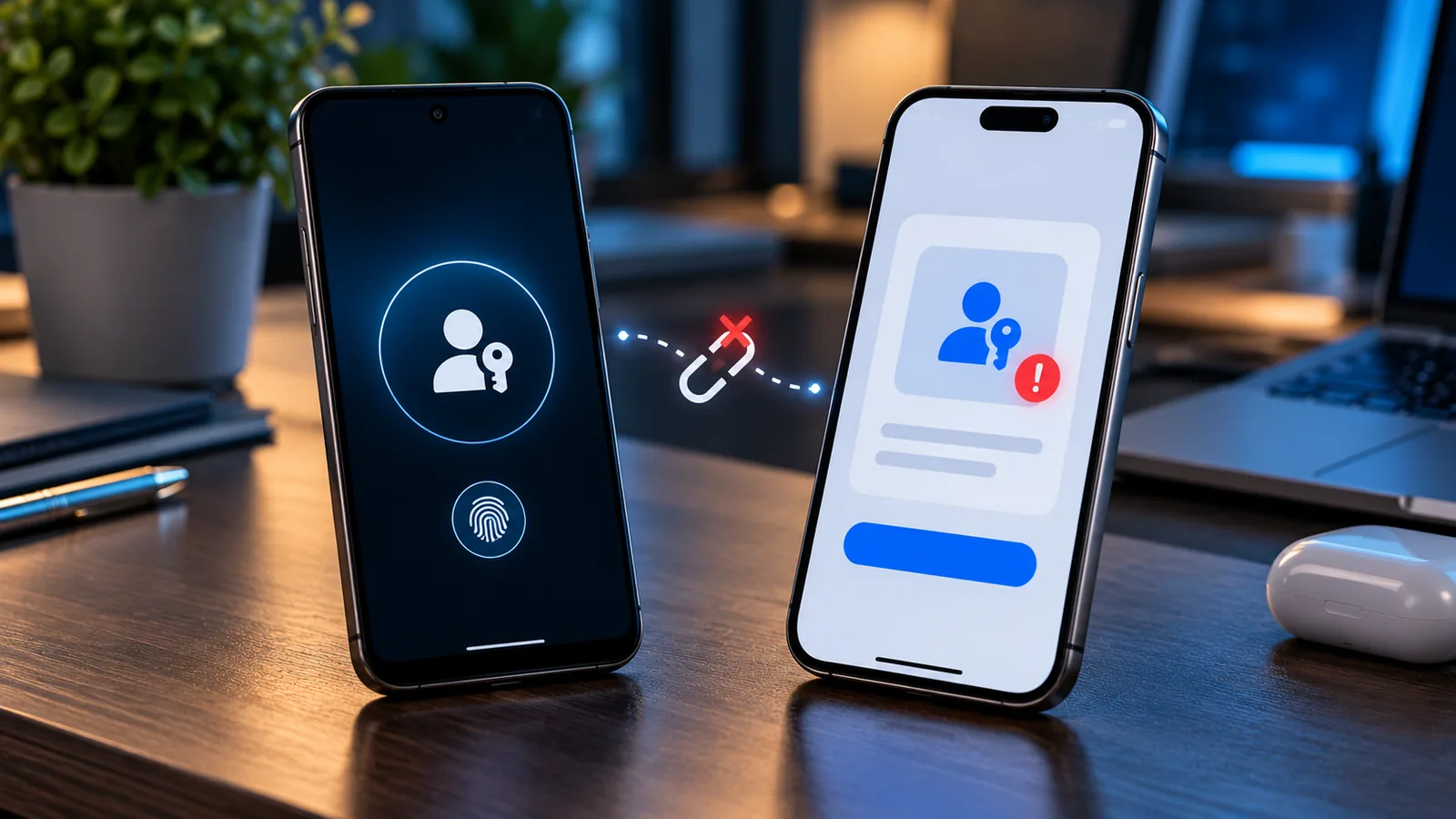
If a Google passkey is not working on a new phone, choose Try another way if Google offers it and you need access now. Then check the exact Google Account, the credential manager that holds the passkey, the phone screen lock, and Bluetooth/QR only when signing in to a computer. Keep the old device and at least one fallback sign-in method until the new path has worked.
Changing phones does not automatically mean your passkey is broken. A Google Account may list a passkey created on the old phone while the new phone cannot use its private credential. A synchronized passkey may exist in Google Password Manager, Apple Passwords/iCloud Keychain, or another supported manager, whereas a device-bound passkey may not move at all. This guide shows the least-destructive fix for each case, including Android-to-iPhone and iPhone-to-Android upgrades.
Safety first: Keep your last signed-in device, password, security key, and available recovery methods intact until you have tested a replacement sign-in. Never share a verification code, backup code, screen-lock PIN, or live QR login code with a “support” contact.
Quick fix: match the exact passkey error
| What you see | Likely checkpoint | Safe first action |
|---|---|---|
| “No passkeys available on this device” | Wrong account, provider or unsynced/device-only passkey | Check the account and credential manager, then use Try another way |
| Google still asks for your old phone | Old trusted passkey or second-factor prompt | Use a registered alternative; do not reset the old device |
| Fingerprint or Face ID never appears | Screen lock, credential provider, or OS/browser integration | Test unlocking the phone; select the right passkey provider |
| QR scans but does not finish | Cross-device sign-in and proximity verification | Enable Bluetooth on phone and computer; restart the QR request |
| Passkey exists but sign-in is rejected | Different account, new credential trust, or site-side issue | Verify account and consider Google’s up-to-seven-day security delay |
| Works in Chrome but not an app | Different credential provider or app/browser support | Try the supported browser, then inspect the app’s selected provider |
| Passkey works for websites but not for Google itself | Different relying account and security enrollment | Check Google Account’s own registered passkeys in Security |
| Company account shows password anyway | Workspace administrator policy | Ask IT whether passwordless sign-in is enabled |
Decision rule: If the passkey is missing, investigate where it is stored. If it is visible but cannot unlock, investigate device security and trusted-account status. If it works on the phone but not a computer, investigate cross-device communication. This prevents an unnecessary deletion from turning a small sign-in issue into account recovery.
The missing-passkey paradox: Google shows the key but this phone cannot use it
| You can see… | What that tells you | What it does not prove |
|---|---|---|
| A device listed under Google Account passkeys | Google has a registration associated with that passkey | That the new phone possesses a usable private credential |
| An item in a password/passkey manager | That manager stores or synchronizes a credential record | That the browser or app is using this manager now |
| A biometric or PIN dialog | The platform can request device authentication | That the requested credential is registered to this exact account |
| A QR sign-in prompt on a laptop | A cross-device sign-in route may be available | That the passkey has been copied to the laptop |
The relying service retains a public-key registration, while a passkey-capable device or provider makes the private signing credential available. These are distinct roles. An old registered credential is not proof that the new device has synchronized it. Use the Google developer documentation on supported passkey environments to understand why the selected manager and OS version matter.
First, identify which kind of Google passkey failed
The phrase “Google passkey” can describe two different credentials. The distinction matters because changing Google Password Manager settings does not always change how you authenticate to the Google Account itself.
| Credential | Used to sign in to | Where to verify |
|---|---|---|
| A passkey registered to your Google Account | Gmail, Google Account and other Google sign-in experiences | Google Account → Security & sign-in → Passkeys and security keys |
| A passkey stored by Google Password Manager for another site | An individual website or app that supports passkeys | Google Password Manager in Chrome/Android, plus that website’s settings |
| A passkey stored in Apple Passwords/iCloud Keychain | The website or account for which it was created | Passwords app on iPhone, and iCloud Keychain synchronization |
| A hardware-key or local-device passkey | The account registered to that security key or device | Original physical key or platform-specific credential store |
A website keeps a public registration that lets it verify a passkey, while the password manager or device protects the private credential. Therefore a passkey appearing in the site’s account settings does not prove that the new phone has an accessible copy. Similarly, a passkey saved in Google Password Manager for a shopping app is not proof that your Google Account login has a passkey registered. Google’s passkey documentation describes local and synchronized credential storage.
The safe two-minute diagnostic before changing settings
- Confirm the target account: At the Google sign-in screen, check the full email address. Separately check which Google Account is signed into Chrome or Android, or which Apple Account is syncing Passwords.
- Check the original device: If you still have the old phone, see whether it offers the working passkey. Do not sign out or wipe it during diagnosis.
- Check screen lock: Lock the new phone and unlock it with its current PIN, Face ID, Touch ID or supported Android lock. A disabled screen lock can block passkeys.
- Check the provider: Open the passkey/password manager used to store the credential. Look for the correct account or website; a provider switch can hide an otherwise intact credential.
- Check the sign-in path: Is the passkey requested on the phone itself, or are you using a phone to approve a computer login? Only the latter typically needs the cross-device QR/Bluetooth procedure.
- Preserve a fallback: If sign-in is urgent, tap Try another way and use only an authentication method Google actually offers to your account.
Write down just the symptom and which device/provider displays it; do not record secrets. You can repeat this check after each fix. A successful login in a different browser or with a different manager narrows the fault without claiming to identify it definitively.
Fix 1: Google says “No passkeys available on this device”
This message means the current sign-in attempt cannot find an eligible passkey through the selected device and provider. It does not necessarily mean the Google Account was deleted, that the password is wrong, or that passkey storage has been wiped.
- Check the account on screen. A personal and a Workspace Google Account may have similar names. Verify the intended account before editing credentials.
- Inspect the passkey registry. If already signed in somewhere, open Google Account passkeys and security keys and review what the Google Account recognizes. These entries may reference an old device.
- Open the right manager. On Android, use Google Password Manager or the passkey provider selected in Settings. On iPhone, examine the Passwords app or your chosen provider. Look for an entry for the correct website or Google sign-in.
- Confirm sync and unlock. Check that the new device uses the same manager account and that protected credentials have finished becoming available. You may be asked for a previous Android screen lock or Google Password Manager PIN to unlock encrypted data.
- Retry with the appropriate account and provider. Use a fresh, genuine sign-in page in an updated browser. Choose another offered method if the key is still missing.
If a passkey appears in the Google Account list but not on the phone, do not treat those lists as contradictory: registration at Google and actual availability in the selected credential manager are separate checks. If it never existed in that provider, you will generally need to authenticate another way and create a new passkey, rather than forcing a nonexistent copy to appear.
Fix 2: Restore Google Password Manager passkeys on a new Android phone
Google says passkeys saved in Google Password Manager can be backed up and synchronized across eligible Android devices, with access protected by device authentication. The new handset must be using the same account and be capable of unlocking the encrypted credentials. See Google’s Android passkey-management instructions.
- Sign in to the same Google Account used by the old Android device, and complete the normal setup process. Do not assume transferring photos, SIM cards or app icons transferred each passkey.
- Enable a supported screen lock. If the phone can unlock normally, check for available system and Google Play services updates without factory-resetting it.
- Open Google Password Manager through the app, or Chrome → Settings → Google Password Manager (menu names vary). Find the account/website entry in Passkeys.
- If prompted for an old Android screen-lock PIN, pattern, or password, read the request carefully. It may be required to unlock synchronized encrypted passkeys. This is not the same as changing your current phone unlock code.
- If using a third-party passkey manager, go to Android Settings and search for Passwords, passkeys, autofill or credential provider. Make sure the intended manager is supported, unlocked and selected.
- Retry signing in on the new device. If the key remains absent, preserve access on the old device and use another offered Google login method before registering a replacement passkey.
Important distinction: The Google Password Manager PIN encountered on supported Chrome/desktop setups may be different from a physical phone’s screen-lock PIN. Google documents both mechanisms in its Chrome passkey help. Do not guess repeatedly or reset your credential vault merely to bypass a forgotten unlock method. If a vault-recovery path is offered, read the consequences first.
Fix 3: Restore passkeys after switching to a new iPhone
Apple passkeys saved in iCloud Keychain become available on approved Apple devices signed in to the same Apple Account. They are not guaranteed to appear merely because the new iPhone shares the same number as the old one. Apple requires iCloud Keychain and two-factor authentication for its passkey flow; see Apple’s iPhone passkey guide.
- On the new iPhone, confirm the Apple Account is the one used with the original passkey. This can differ from the Google Account whose email address you enter at sign-in.
- Open Settings → your name → iCloud → Passwords & Keychain (you may need See All), then check whether Sync this iPhone is enabled. Apple may require the device to be approved for Keychain use.
- Confirm the iPhone has an active device passcode and that Face ID/Touch ID or passcode unlock works. Reopen the Passwords app and inspect its passkey entries.
- If you deliberately saved passkeys in Google Password Manager instead of Apple Passwords, check Chrome’s iOS autofill/passkey-provider setup and the Google Account signed into Chrome. Google’s current instructions require iOS/iPadOS 17 or later for its passkey-storage flow.
- Open a genuine Google sign-in screen again. Where offered, select the passkey source that actually contains the credential. Use Try another way when the key is not available.
If iCloud Keychain is off or the new iPhone is not yet approved, fixing that setup can help restore synced Apple Passwords credentials. It will not necessarily transfer a passkey that was created only on the old Android phone or on a hardware security key. Apple’s iCloud Keychain setup documentation explains the device approval and recovery model.
Fix 4: Moved from Android to iPhone—or iPhone to Android
Changing ecosystems is different from upgrading within one. An iCloud Keychain credential does not automatically become an Android-local credential merely because Chrome is installed. Conversely, an Android passkey stored in one manager may not be discoverable through Apple Passwords. Some compatible password managers provide cross-platform availability, but the correct path depends on the particular provider and operating-system setup.
| Phone change | What not to assume | Practical route |
|---|---|---|
| Android → iPhone | Every Android-created passkey has been copied into Apple Passwords | Check where it was stored; configure a supported matching manager, use old phone for cross-device approval, or sign in another way and create a new credential |
| iPhone → Android | iCloud Keychain appears automatically in Google Password Manager | Keep the old iPhone available for its passkey; use a legitimate fallback and register a new credential on Android |
| Android → Android | A copied phone backup proves the credential vault unlocked | Use the same Google Password Manager account and satisfy the secure unlock prompt |
| iPhone → iPhone | Same SIM number means passkeys must appear | Check Apple Account, iCloud Keychain, trusted-device approval and Passwords app |
| Old phone gone | No other sign-in option exists | Try registered alternatives and official recovery; create replacement only after regaining access |
Google’s developer examples distinguish cross-device authentication from synchronized credential storage. A one-time QR approval lets a phone sign in a nearby computer or compatible device, but it does not clone the private passkey onto that computer or new phone. That difference explains many apparently successful transfers followed by another missing-passkey prompt.
Fix 5: Fingerprint or Face ID prompt never appears
Passkeys use the device’s local unlock as proof that you control it. Google does not receive the actual fingerprint or face scan. A failed biometric sensor does not automatically mean the passkey itself is lost: supported platforms often offer a device PIN or passcode fallback. See Google Account Help and Apple’s passkey guide.
- First verify that the device unlocks normally using its configured PIN/passcode. If the screen lock was removed, turn it on before expecting the device-held passkey to work.
- Check whether your browser or app is using the passkey provider you intended, not an empty profile or a second credential manager.
- Update the browser and device OS when updates are available; Google lists minimum supported browser and OS versions and warns that private/incognito mode can restrict some passkey actions.
- If a biometric prompt opens but fails, choose a genuine Use PIN/passcode option when the operating system offers it. Do not enter that PIN into a website form asking to “verify your passkey.”
- Retry one sign-in from a standard browser session. If the credential still cannot be found, return to the missing-passkey/provider steps, not a factory reset.
A passkey credential being visible in a manager and a biometric prompt appearing are separate milestones. Failure at the unlock stage calls for OS, screen-lock and provider checks, while failure before any credential appears points to account selection or storage discovery.
Fix 6: QR-code sign-in fails on a laptop or desktop
When you select a phone passkey to sign in on a Windows, macOS or Linux computer, the computer may show a QR code. This is a cross-device authentication request. Google says the phone and computer must be nearby and Bluetooth must be enabled. QR scanning alone is not proof the request has completed. Google’s sign-in instructions document the standard flow.
- On the computer, open the real Google sign-in website and confirm the intended email address. Where available, choose Try another way → Use your passkey or a similar option.
- Turn on Bluetooth on both devices, keep them close together, and allow any required local browser or OS Bluetooth permission. Ensure the phone has internet access for the authentication transaction.
- Use the phone’s normal camera or compatible QR scanner to scan the code on the computer screen. Approve the sign-in only if you initiated it.
- If the phone opens a page but nothing completes, restart the sign-in attempt to obtain a fresh QR code, confirm the correct account and provider, and try an updated supported browser.
- If the phone shows no usable key at all, the underlying problem is the passkey’s availability on the phone, not Bluetooth. Return to Fix 1–4 instead.
Do not: photograph or share the live QR code, turn off account security, or assume Bluetooth alone replaces internet connectivity. QR and Bluetooth support device proximity, while actual authentication still follows browser and account checks.
An unusual Android edge case: signed out and tried the same phone again
Google’s account help notes a specific six-hour condition for passkeys automatically registered on an Android device: after you sign out, you may be able to use that device’s passkey to sign back in for up to six hours; after that, another sign-in method may be needed, and a successful Android sign-in can register a new passkey. This is not a universal six-hour expiry for all passkeys, all devices or third-party credentials. See Google’s current instructions.
If the device has been signed out for longer and the former key is rejected, avoid assuming the credentials have been stolen or permanently lost. Use a method Google actually offers for your account; once signed in, review your passkeys and registered devices. Do not manufacture a workaround by disabling screen lock or resetting the phone.
Fix 7: New passkey exists, but Google still rejects it
Google states that a new passkey may need up to seven days before it is available for some account sign-in contexts. A previously trusted passkey or hardware security key may help establish trust in a new method. A fresh failure does not necessarily mean the passkey is damaged. The specific Google prompt matters; there is no universal waiting period for every passkey on every website.
- Confirm the new passkey appears under Passkeys and security keys for the intended Google Account.
- Read the exact warning on the sign-in page. Distinguish a missing credential from a new-method waiting period or sensitive-action re-verification.
- Use a previously trusted sign-in method where available. Keep that method accessible during the waiting period.
- Do not repeatedly delete and recreate passkeys to try to force a trust change. That can destroy an otherwise viable fallback and is not a documented shortcut.
- If the sign-in is for a work/school account, check with the administrator; a policy may explain why a passkey is not permitted as the only factor.
Google also has a “Skip password when possible” preference under account security settings. Turning it off can make password-first sign-in preferable if you need a fallback; it is not a repair for a missing private key. You can still have a passkey registered. Google’s help article explains this distinction.
Fix 8: “Try another way” does not show the option you need
The recovery methods offered depend on what was previously enrolled and what Google considers appropriate for the account. You cannot add a backup code, recovery phone or security key retroactively from outside a locked account. A familiar logged-in browser or old phone is therefore valuable—do not sign it out while investigating.
- At the sign-in screen, look for Try another way and review only the options Google offers: password, another signed-in phone, an existing security key, a previously generated backup code or an established recovery method.
- If an option is absent, do not assume a hidden menu will unlock it. Avoid cycling through random devices, VPN locations or browser identities.
- If no legitimate method works, visit Google Account Recovery directly and answer its questions as accurately as possible.
- Prefer a device, browser and location where you previously signed in. Google explicitly recommends this context in its recovery guidance.
- After recovering the account, create and test a new passkey, review recovery options, and consider the lost device’s security before deleting obsolete credentials.
Account recovery is an identity-verification process, not a passkey “reset.” Google does not promise access on a fixed schedule, and paid social-media “recovery agents” cannot legitimately bypass Google’s ownership verification. For additional guidance, see Horus Valley’s Gmail recovery without an old phone number and lost Google Authenticator codes guide.
Fix 9: A school or work Google Workspace account behaves differently
An organization can allow passkeys as a second factor without permitting them to replace the password entirely. Google Workspace also includes administrator controls over allowed passkey types, and some policies can restrict users to physical security keys. See Google Workspace administrator guidance.
- Check whether you are signing into the managed account or your personal Gmail account. They may use separate policies and security methods.
- If a passkey completes a second verification step but still requires a password, ask your admin whether passwordless sign-in is enabled for your organizational unit.
- If the account suddenly rejects passkeys saved on phones, ask whether passkey restrictions, security-key requirements, or browser/device management policies changed.
- Do not disable mandatory organizational protections or create unauthorized credentials to work around company policy.
Fix 10: Remove a lost phone’s passkey only after you regain access
If an old device was sold, lost or stolen, protect the Google Account and device sessions after confirming a currently usable sign-in method. The exact removal action depends on how the passkey was created. Google notes that some automatically registered Android passkeys are handled by signing the associated Android device out under Your devices, while passkeys you created yourself may have a Remove action on the passkeys page.
- Verify a working alternative login on a device you still control; if needed, add and test a new passkey first.
- Review Passkeys and security keys and identify the obsolete entry. Do not delete an entry merely because its label looks unfamiliar.
- Under Google Account Security → Your devices, inspect sessions and sign out a genuinely lost or stolen device following Google’s prompts.
- If you use Apple Passwords or another password manager, review obsolete entries there too—but understand that deleting one local entry may not remove registrations on every site.
- Check recent security activity and recovery methods. If device theft may have exposed access, follow Google’s account-security instructions and change your password when appropriate.
The detailed Google Account security checklist on Horus Valley explains how to review sessions, suspicious activity, linked apps and recovery settings. This is more useful after restoration than deleting everything in a hurry.
Three controlled tests that identify the real failing layer
Instead of random browser resets, the following repeatable checks help localize a problem without claiming laboratory results or requiring risky changes.
Test A: credential availability
- On a device where you are already signed in, review the Google Account’s own registered passkeys. Record only the device/provider names, not account secrets.
- On the new phone, open the intended password/passkey manager and look for the corresponding account or site.
- If Google lists a passkey but the manager cannot offer it, work on sync/provider/device availability rather than the Google password.
Test B: provider or browser routing
- Try the same legitimate sign-in page in one supported, updated browser profile with the intended account.
- If another supported browser or provider exposes the passkey, the problem may be browser/profile integration rather than a missing credential.
- Do not clear synced password-manager data or browser profiles as a test. Keep the working route intact while fixing the other route.
Test C: cross-device versus local sign-in
- Attempt local sign-in on the phone where the passkey should exist.
- Then, if relevant, start a computer login using that same phone via QR/Bluetooth.
- Local sign-in working while the computer path fails points toward proximity, browser or cross-device configuration. Local sign-in failing first points toward the provider or credential.
Interpreting the result: These tests are diagnostic observations—not proof that a device is defective. They tell you which settings to investigate next and can help you describe the issue accurately to a legitimate administrator or manufacturer support channel.
Supported devices, browsers and platform caveats
Google lists minimums of Android 9 or later and iOS 16 or later for Google Account passkey use, and Chrome 109+, Safari 16+, Edge 109+ or Firefox 122+ for supported browsers. Computer support includes Windows 10+, macOS Ventura+ and ChromeOS 109+. Those broad minimums do not mean every password manager feature works on every OS version: Google Password Manager’s iOS passkey-storage documentation, for example, specifies iOS 17 or later. Check Google Account minimum requirements against the specific iOS Chrome credential-provider requirements.
Passkeys are resistant to common phishing because authentication is bound to a genuine website or app. This does not make a phone immune to malware, social engineering, a stolen unlocked session, or a compromised recovery method. Confirm the real login domain and never follow instructions to reveal your screen-lock PIN to a webpage.
Prove the new sign-in path works before retiring your old phone
- On the new phone, sign in to the correct account and create or verify a passkey using your chosen credential provider.
- Lock the screen and retry a fresh sign-in in a normal browser session. Where appropriate, also test the cross-device QR flow on a computer with Bluetooth enabled on both devices.
- Check Google Account Security for recovery options and keep a separate trusted verification method.
- Only then sign out the old device if you no longer use it; remove an obsolete passkey according to Google’s documented method. For a lost or stolen phone, prioritize securing your account and the device immediately.
A successful sign-in proves this path worked for that test, not that every browser, managed account or future high-risk action will accept it immediately. Google says a newly created passkey may take up to seven days to be available in some sign-in situations. Avoid promising that re-creating a credential will bypass a security waiting period.
After you sign in: prevent another lockout
- Test the replacement. Create a new passkey only on a personal, trusted device and then confirm it signs in before retiring the previous method.
- Keep an independent fallback. Verify available recovery email and phone details, a supported security key, or other legitimate 2-Step Verification method. Store any generated backup codes privately and offline.
- Record the provider—not the secret. Know whether important passkeys live in Apple Passwords, Google Password Manager, another trusted manager, or a physical key.
- Check the lost device. When the old phone is gone, review signed-in devices, passkeys and recent security activity, but only after successful access is secured.
- Before the next upgrade: make sure you can unlock the credential manager, still know its recovery prerequisites, and have a separate method for Google Account login.
The shortest safe route by failure type
For “No passkeys available,” confirm the Google Account and which manager stores the credential; choose an existing verification method before creating a new key. For no fingerprint/Face ID prompt, verify the device screen lock and OS/browser support. For QR failures on a computer, keep the phone close, check Bluetooth on both devices and use a fresh QR. For old-phone requests or recovery prompts, protect the last signed-in session and use only Google’s official recovery flow. For work accounts, check administrator policy. Each branch fixes a different layer, so wiping browser data or deleting passkeys should never be the default first step.
Official documentation and further reading
- Google Account Help — Sign in with a passkey instead of a password
- Google Chrome Help — Manage passkeys on Android
- Google Chrome Help — Google Password Manager on computers
- Google Chrome Help — Passkeys in Chrome on iPhone and iPad
- Apple Support — Use passkeys to sign in on iPhone
- Apple Support — Make passwords and passkeys available with iCloud Keychain
- Google Account Help — Tips to complete account recovery
- Google Workspace Admin Help — Allow users to skip passwords
- Google for Developers — How passkeys work
Editorial note: The steps above reflect the cited public Google and Apple documentation checked on October 24, 2026. Exact menus and recovery methods vary by device, OS, browser, credential manager and account policy. This guide cannot guarantee account recovery or bypass security checks; it does not report hands-on tests that were not performed.
You may also like
 Technology & How-To
 Android Auto Keeps Disconnecting? How to Fix USB and Wireless Dropouts
Android Auto keeps disconnecting? Separate USB, wireless and app failures, check Galaxy USB mode, compare connection methods and…
 Technology & How-To
 Netflix Says Your TV Isn’t Part of the Household? How to Fix It
Fix a Netflix household warning by separating home verification, permanent household updates and temporary travel access, with genuine…
 Technology & How-To
 Google Photos Stopped Backing Up from Your PC? What Changed and How to Fix It
Google Photos stopped backing up your computer folders? Understand the Drive for desktop change, configure browser folder backup…