
How to Recover a Gmail Account Without Your Old Phone Number
Lost access to your old phone number? Learn legitimate Gmail recovery steps using familiar devices, recovery email, backup codes, passkeys and Google’s official process.
Contents
- What recovery is possible without the old phone number?
- Step 1: use the official Google Account Recovery page
- Step 2: try a familiar device, browser, and location
- Step 3: use your recovery email if Google offers it
- Step 4: check a device that is still signed in
- Step 5: use backup codes, passkeys, or a security key when available
- Step 6: enter an old password accurately when asked
- What to do if you lost the phone and the SIM card
- If you forgot both your password and recovery number
- If Google says it could not verify the account belongs to you
- Why account recovery can be delayed
- What if your Gmail account was hacked?
- What if you no longer remember the Gmail address?
- After recovery: secure the account before doing anything else
- Mistakes that make Gmail recovery harder
- A realistic recovery decision guide
- Official Google sources
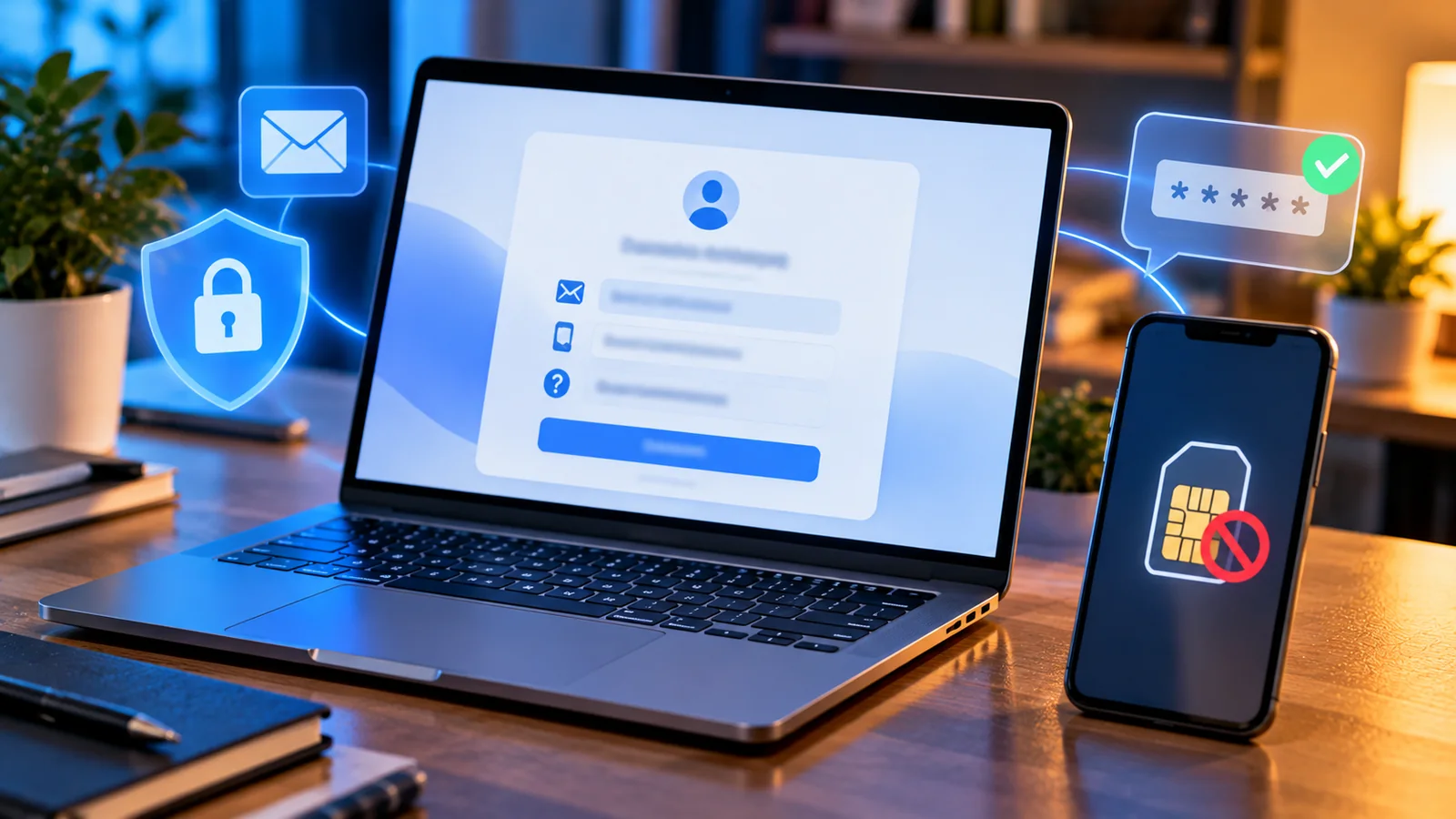
Losing your old phone number can make a Gmail sign-in feel impossible, especially when Google keeps offering to send a verification code to a SIM you no longer control. But the number is not always the only recovery signal. Depending on the account and what you previously configured, Google may offer a recovery email, an existing signed-in device, a passkey, a backup code, or another identity check. No single alternative is guaranteed to appear for every account.
This guide explains the legitimate ways to recover a personal Google Account when your old phone number is unavailable. It also covers the harder situations: a lost phone, a forgotten password, two-step verification, an inaccessible recovery email, a recent security change, and the message “Google couldn’t verify this account belongs to you.”
Start here: Open Google Account Recovery directly. Use a device, browser, and location where you have previously signed in. Do not pay a stranger to “bypass” verification; there is no legitimate universal shortcut.
What recovery is possible without the old phone number?
| What you still have | Best route to try | Important limitation |
|---|---|---|
| Recovery email | Follow the official recovery flow and choose the offered email challenge | Only works if Google offers and recognizes it |
| A device still signed in | Check security settings or approve an available Google prompt | May require additional reauthentication |
| Backup codes saved previously | Use a valid unused code when the 2-Step Verification screen offers it | Codes must have been generated beforehand |
| Passkey or security key | Select an offered passkey or security-key sign-in method | Requires an already registered credential |
| An old password | Enter the most recent password you remember during recovery | Password alone may not establish ownership |
| No device, email, code, or password | Attempt official recovery from familiar circumstances | Recovery may not succeed |
Step 1: use the official Google Account Recovery page
- Go to accounts.google.com/signin/recovery by typing the address yourself.
- Enter the Gmail address or Google Account identifier.
- Follow the questions shown for your account; screens vary according to its security history.
- When the old phone is shown, look for Try another way or another option if it is actually available.
- Use the strongest legitimate method you still control, and complete the instructions on screen.
- If you regain access, immediately review security settings and update recovery information.
Google explicitly notes that not all people see the same recovery questions. A screenshot from someone else’s account is not a reliable promise that you will receive the same options. If a code is sent to a device or address you no longer control, do not guess codes or ask an unknown person to forward them.
Step 2: try a familiar device, browser, and location
Google’s official recovery tips recommend using a computer, phone, or tablet that you regularly used for the account, with the same browser and from a familiar location such as home or work. This helps Google assess the request in context. It is not a bypass, and familiar-device recovery still may fail.
- Try the laptop or tablet where you last successfully used Gmail, YouTube, Google Drive, or Chrome with this account.
- Use the same browser profile if it still exists. Avoid clearing its cookies or resetting the device just before recovery.
- Connect from a network and location you routinely used, when practical and safe.
- Avoid rapidly switching between VPN endpoints, unfamiliar devices, and many browsers while troubleshooting.
- Answer all questions as accurately as possible; do not fabricate account details.
Step 3: use your recovery email if Google offers it
If a recovery email address was already added and you still control it, Google may offer to send a code there. Open the mailbox yourself, check spam or junk folders, and enter the code only on the real Google sign-in page. A recovery email is distinct from the Gmail inbox you are trying to regain access to.
Google may instead ask for an email address where it can contact you. That is not the same as a guarantee of instant account restoration. Follow the exact on-screen instructions and verify any message’s origin before clicking links.
Step 4: check a device that is still signed in
A phone, tablet, or browser session already signed into your Google Account can be valuable. If it is your device and the session is still active, open Google Account Security to review recovery options and recent activity. Google may ask you to verify again before changing sensitive settings.
Do not sign out, wipe, or factory-reset the only working device before you have restored another secure sign-in method. If a Google prompt appears on an existing device, check the details carefully and approve it only if you personally initiated the sign-in.
Step 5: use backup codes, passkeys, or a security key when available
If you previously enabled 2-Step Verification and saved backup codes, a valid unused backup code may let you sign in when the relevant option is offered. Backup codes are one-time credentials: keep them private, and never send them to a recovery “agent.” Google explains the options in Sign in with backup codes.
A previously registered passkey or hardware security key may also appear as an alternative sign-in method. Passkeys can be stored on a device or in a compatible credential manager, and access depends on how they were created. You cannot retroactively generate a backup code or passkey for a locked-out account.
Step 6: enter an old password accurately when asked
Google recommends entering the most recent password you remember. If you do not recall the last password, use a previous password that you genuinely remember. Pay attention to capitalization and spelling. Google says a wrong guess does not automatically remove you from the recovery process, but random guesses are less useful than accurate historical information.
What to do if you lost the phone and the SIM card
- Contact your mobile carrier using its official channels to ask whether your original number can legitimately be replaced or restored. Carrier policies, identity checks, and number-reassignment rules vary.
- Check for another signed-in device or registered passkey before changing anything.
- Look for a previously configured recovery email and stored backup codes.
- Start Google Account Recovery from your usual computer and location.
- If your phone was stolen, secure the mobile account and consider device-location or remote-lock options where appropriate; do not assume remote wiping will help account recovery.
Restoring the old phone number through your carrier can be useful, but it is not always possible, especially if the number has been permanently reassigned. A number controlled by a new subscriber is not a safe recovery method for you.
If you forgot both your password and recovery number
You can still attempt the official recovery flow. Prioritize the most recent password you can remember, familiar devices, and any recovery email or alternative challenge actually presented. Google does not promise recovery based solely on knowing your username, creation date, or personal information.
If the account is managed by an employer or school, consumer Gmail recovery instructions may not apply. Contact your organization’s Google Workspace administrator through a verified internal channel.
If Google says it could not verify the account belongs to you
This message means the available information was not sufficient in that attempt. Google’s recovery guidance says you can try again. Improve the quality of the next attempt: use a familiar device and location, answer more questions, and use the most recent known password. Do not interpret repeated failure as proof that the account was deleted.
| Problem | What to check | Avoid |
|---|---|---|
| Old phone number is the only visible challenge | Look for another method; try familiar device and official recovery | Third-party bypass services |
| Recovery email code never arrives | Check correct mailbox and spam; verify address | Sharing codes with strangers |
| No prompt on old phone | Check whether another signed-in device exists | Resetting the only working device |
| Google cannot verify ownership | Retry with more accurate answers from familiar environment | Inventing passwords or identity evidence |
| Recent recovery-info change | Follow Google’s security waiting-period guidance | Assuming a new number works instantly |
| Work or school account | Contact authorized Workspace admin | Using consumer recovery as guaranteed fix |
Why account recovery can be delayed
Google may impose a security waiting period on some account-recovery requests. Its account recovery delay guidance explains that delays can protect accounts against unauthorized access. Google also says changes to recovery information may take up to seven days to take effect in some situations. Neither detail is a universal countdown for every account. Follow the actual status and instructions shown to you.
Avoid following internet posts that promise a guaranteed recovery after an exact number of hours. The timing depends on the account and the checks Google requires.
What if your Gmail account was hacked?
If you suspect someone changed the password, recovery phone, or email, use Google’s official secure a hacked Google Account guidance. If you regain access, review recent security events, signed-in devices, third-party access, forwarding rules, and Gmail filters. Change your password to a unique one and enable a strong second factor.
Do not assume a “Google recovery specialist” on social media is genuine. Google warns against services that claim to recover passwords or accounts for a fee. Never disclose your password, verification code, backup code, or passkey to anyone.
What if you no longer remember the Gmail address?
Account-name recovery is a different process from password recovery. Google’s Find your email flow may ask for a recovery phone or email and the name on the account. If you have neither, check legitimate records on your own devices, such as the address shown in another signed-in Google app or emails sent to trusted contacts. Do not try to access someone else’s account.
After recovery: secure the account before doing anything else
- Open Google Account Security and check recent security activity.
- Replace the outdated recovery phone number with one you control, when Google permits the change.
- Add or verify a recovery email address you can access independently.
- Review signed-in devices and remove sessions you do not recognize.
- Enable or review 2-Step Verification, passkeys, and any backup codes; store codes securely offline.
- Inspect Gmail forwarding settings, filters, and third-party app access for unexpected changes.
- Keep a current backup of essential account data and record recovery methods securely.
Mistakes that make Gmail recovery harder
- Paying someone who claims to bypass Google’s ownership checks.
- Sharing verification codes, backup codes, or screenshots of security prompts.
- Resetting or selling the only device that remains signed in.
- Changing browser, network, and location repeatedly without reason.
- Using unofficial links from emails, videos, or social-media comments.
- Expecting Google to show every recovery option on every account.
- Assuming that having the old phone number alone guarantees recovery.
A realistic recovery decision guide
| Your situation | First action | Second action |
|---|---|---|
| Still signed in somewhere | Review Google Account Security | Add valid recovery methods if allowed |
| Have recovery email | Start official recovery | Complete offered email challenge |
| Have backup codes | Choose backup-code sign-in if offered | Update security after access |
| Lost SIM but carrier can replace number | Ask carrier about lawful number restoration | Use official Google recovery |
| No usable factors | Attempt recovery on familiar device/location | Accept that success is not guaranteed |
Official Google sources
How to recover your Google Account or Gmail — Google’s main recovery instructions and restrictions.
Tips to complete account recovery steps — familiar devices, previous passwords, and recovery-email guidance.
Why your account recovery request is delayed — security-related waiting periods.
Sign in with backup codes — how previously saved codes can work.
Secure a hacked or compromised Google Account — steps after suspected unauthorized access.
Editorial note: Google changes sign-in challenges dynamically. This guide describes legitimate possibilities, not a guaranteed method to override verification or recover every locked account. Last reviewed: October 15, 2026.
You may also like
 Technology & How-To
 NHS App Prescription Not Showing? Check GP Approval, Pharmacy Status and Tracking
Find out why a prescription or medicine is missing from the NHS App in England. Separate repeat requests,…
 Technology & How-To
 Google Wallet Not Working After Switching Phones? Fix Card Setup and Tap to Pay
Google Wallet transferred but tap to pay fails? Separate card verification, bank approval, NFC, screen lock and device…
 Technology & How-To
 iCloud Family Sharing Not Working? Why You Still See 5GB and How to Fix It
Still seeing 5GB after joining an iCloud family plan? Check the account, invitation, sharing settings, personal plan and…