
NHS App Prescription Not Showing? Check GP Approval, Pharmacy Status and Tracking
Find out why a prescription or medicine is missing from the NHS App in England. Separate repeat requests, GP approval, pharmacy preparation and tracking limits.
Contents
- Choose the problem that matches your screen
- Step 1: Separate requesting from approval and collection
- Step 2: Check why a repeat medicine cannot be requested
- Repeat prescriptions and repeat dispensing are different
- If the whole repeat service is unavailable
- Step 3: Confirm which pharmacy has the prescription
- If you have no nominated pharmacy
- Step 4: Understand what tracking can and cannot show
- No tracking is different from no prescription
- Read the status at the right level
- Step 5: Check notifications separately from prescription access
- Step 6: Check identity access and the active profile
- If the medicine is needed urgently
- Prepare one clear follow-up instead of repeating the request
- Message for the GP surgery
- Message for the pharmacy
- When NHS App technical support is the right route
- Sources and limits of verification

If a prescription is not showing in the NHS App, first identify which part is missing: the medicine you want to request, the GP’s decision on a request, or the pharmacy’s preparation status. Those are different stages. A medicine can be unavailable to request without being cancelled, and an approved request does not mean the pharmacy has finished preparing it.
This guide is for patients using NHS App prescription services in England. It explains how to find the right screen, check the chosen pharmacy, understand tracking limits and give the right information to the GP surgery, pharmacy or technical support team.
If you have run out of prescribed medicine and need it urgently, do not wait for the app display to change. Contact your GP surgery or pharmacy. Out of hours, use the official NHS 111 route described below. An app-support request is not an urgent medicine-supply service.
Choose the problem that matches your screen
| What is missing or unclear? | Start by checking | Who can help? |
|---|---|---|
| A medicine is absent from the repeat-request list | Prescription type, review requirements and practice permissions | Your GP surgery |
| Your request is waiting for GP approval | The request date and the surgery’s process | Your GP surgery |
| Approval is shown but collection readiness is unclear | The chosen pharmacy and the relevant prescription | The pharmacy; ask the GP if issue or destination is disputed |
| The app says tracking is unavailable | Whether that pharmacy and prescription are covered | The pharmacy for supply status |
| A medicine is rejected or cancellation is displayed | The exact wording and which stage it concerns | The GP, or the pharmacy if it specifically says cancelled by pharmacy |
| All repeat services fail or an error code appears | Identity access, GP linkage and the error reference | The GP surgery and NHS App technical support |
Step 1: Separate requesting from approval and collection
Open Prescriptions in the app. Review the request section for the GP’s decision, then the approved-prescription section for the issued prescription and any pharmacy updates. NHS instructions use labels such as Requested medicines and Your approved prescriptions; the presentation can vary with the GP’s clinical system and the features available to you.
Think of these as three checkpoints: did you submit a request, was it approved and issued, and is the medicine ready to collect or deliver? Write down the last checkpoint you can verify. Do not use one screen as proof that every later step has happened.
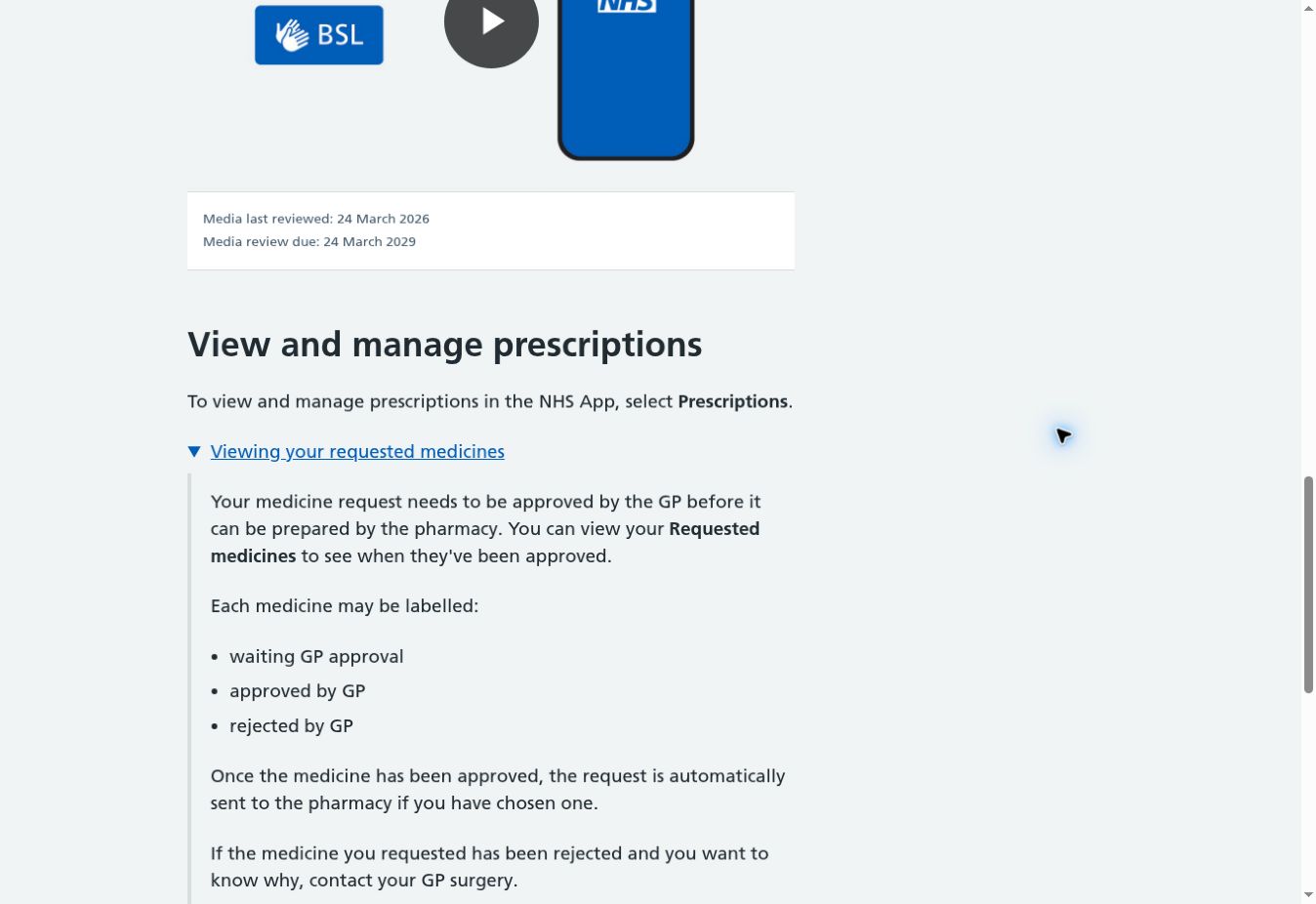
The screenshot above comes from the NHS patient help page. It shows the distinction between waiting for a GP decision, approval and rejection. It is public guidance, not a screenshot of an individual’s prescription or proof that an order has been submitted.
Step 2: Check why a repeat medicine cannot be requested
The repeat-request list is not a list of every medicine you have ever been prescribed. NHS England’s prescription-feature guidance distinguishes repeat ordering from one-off prescriptions and repeat dispensing. It also explains that a pending request, an early request date or a required medicine review can affect availability.
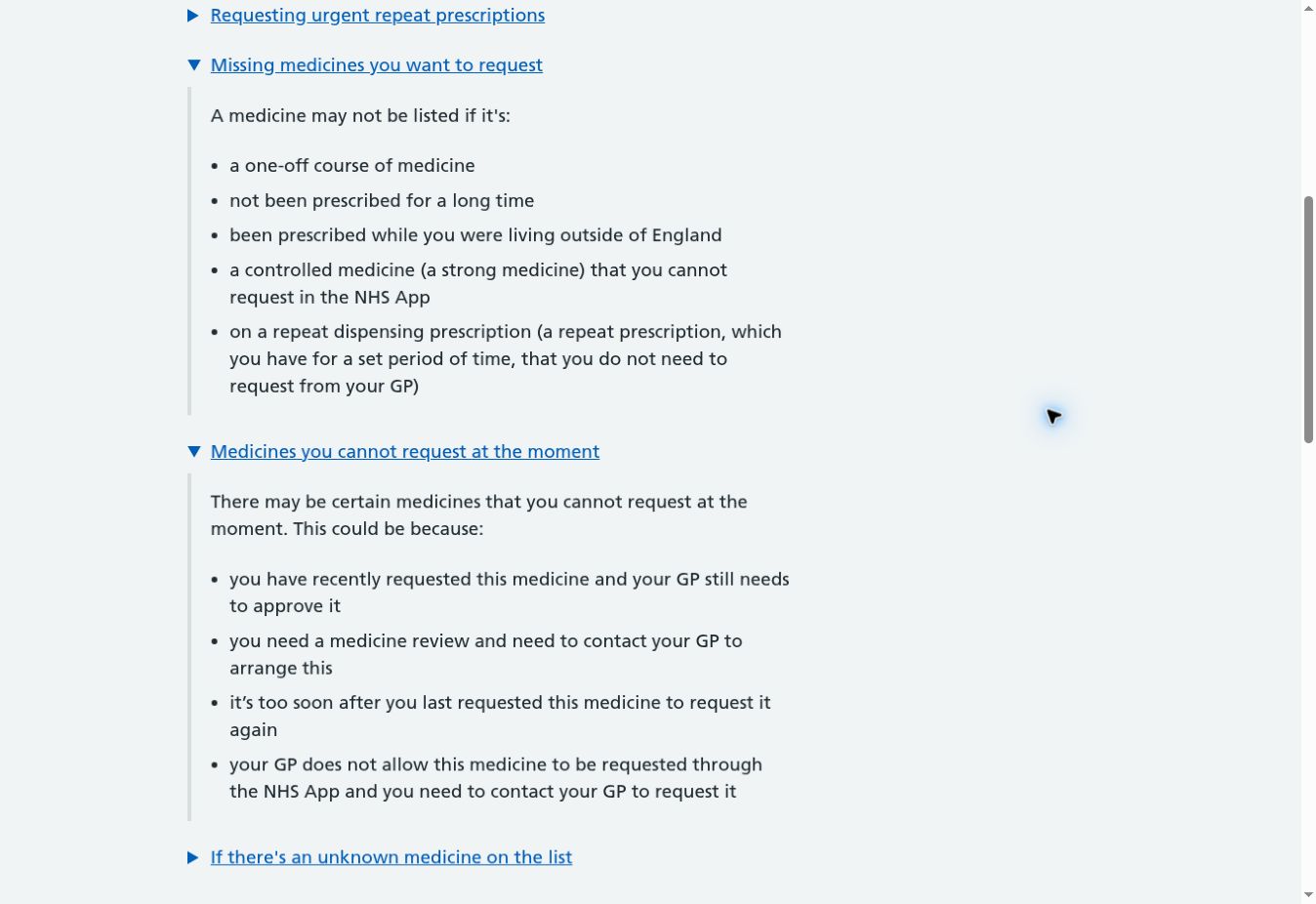
Use the explanation shown beside the item, if available. Ask the surgery whether it is an active repeat medicine, whether a review is due, and when it can next be requested. For a medicine issued by a hospital or another service, clarify who is responsible for the next supply rather than assuming it must appear as a GP repeat.
Repeat prescriptions and repeat dispensing are different
A repeat prescription normally involves requesting the next supply through the GP’s agreed route. Under repeat dispensing, the GP may have arranged for the pharmacy to manage supplies for a period, so you do not request every supply in the same way. NHS repeat-prescription guidance explains that distinction.
A medicine may be visible somewhere in your record without being available to order through the repeat-request screen. If the pharmacy manages it, ask the pharmacy what is due and whether an authorisation or review is needed. Do not submit another request simply to make an item appear in a particular app view.
If the whole repeat service is unavailable
Record any error code, including 3C if that is what appears. The NHS staff troubleshooting guide lists possible issues such as practice permissions, a recent surgery move or merger, or a clinical-system change. That does not identify the cause in your account; it gives the surgery specific settings and linkage to check.
Ask whether your online repeat-prescription access is enabled and whether the practice can see the correct patient account. If it is a known practice-system change, ask which approved ordering route to use while access is restored. A new app installation cannot by itself change permissions held in the GP’s system.
Step 3: Confirm which pharmacy has the prescription
Under Prescriptions, inspect Your chosen pharmacy. Check the branch, not just the chain’s name. If you recently changed pharmacy, NHS guidance warns that an outstanding request may still arrive at the previous nominated pharmacy.
Follow the NHS chosen-pharmacy instructions to review or change the nomination. Do not assume changing the setting reroutes something already issued. Ask where that particular prescription was sent before placing another order or travelling between branches.
If you use an online-only pharmacy, its registration and delivery arrangements also matter. If medicines come directly from your GP practice, or you act for somebody else, the app may not let you change the pharmacy in the same way. Ask the relevant service how to manage that arrangement.
If you have no nominated pharmacy
The NHS explains that eligible digital prescriptions can be collected using the barcode shown in the app when no pharmacy is chosen. A barcode identifies the prescription; it is not confirmation that a pharmacy has already prepared its contents. Take it to the pharmacist and allow for preparation or stock checks.
Look at every prescription associated with the request. NHS guidance notes that one prescription can contain up to four medicines, so a larger request can generate more than one prescription and barcode. Checking only the first card can therefore leave part of the request unaccounted for.
Step 4: Understand what tracking can and cannot show
Prescription tracking is being introduced through participating pharmacy systems. NHS England’s service overview describes updates at prescription and individual-item level, with notification availability also being rolled out. Do not assume every pharmacy provides the same detail.
The technical tracking guidance lists limits for electronic repeat dispensing and post-dated prescriptions before their effective date. A medicine’s record, the repeat-order list and the tracking view are not interchangeable.
That guidance also describes older prescriptions moving to a past-prescriptions view and eventually leaving the tracking display. If you are looking for a completed supply, inspect the past section rather than assuming it should stay in the current collection queue. Do not use the tracking screen as your complete long-term medication record.
No tracking is different from no prescription
If the app says the pharmacy does not provide tracking, there is no app-based readiness result to interpret. Ask the pharmacy about that supply if you need an update. Reinstalling the app will not make a pharmacy system start participating in tracking.
If an entry disappears entirely, confirm its status with the GP or pharmacy. Published technical guidance lists cancelled prescriptions among exclusions, while patient help also describes cancellation labels that may be displayed. Absence alone cannot tell you whether something was cancelled, completed, archived or never issued.
Read the status at the right level
| Status or message | What to establish next | Avoid assuming |
|---|---|---|
| Waiting for GP approval | Whether the surgery has processed the request | That the pharmacy can already dispense it |
| Approved by GP | The issued prescription’s destination and preparation status | That it is ready at the counter |
| Pharmacy preparing | Read the item details and allow the normal preparation process | That routine preparation is a technical failure |
| Part ready | Which individual items are ready and which are outstanding | That every medicine is available |
| Ready for delivery or dispatched | The pharmacy’s collection or delivery arrangements | That the parcel has arrived at your address |
| Cancelled or rejected | Ask the GP why; contact the pharmacy if it specifically cancelled it | A reason for changing or stopping treatment from the label alone |
The NHS patient guide explains these labels and directs cancellation questions to the relevant service. When the status is ordinary preparation and there is no urgency or other problem, it does not need to trigger an immediate call. If you are about to run out, explain that when seeking help rather than waiting solely for a status update.
Step 5: Check notifications separately from prescription access
Open the app to check the available prescription details even if no alert arrived. NHS England says readiness notifications depend on the pharmacy’s tracking rollout and notification permissions. A silent phone does not establish that a request failed.
The NHS notification instructions give the route Profile → Notifications, then the link to your device settings. Allow notifications on each device you use. The page says changes may take up to 24 hours; that is a notification-setting timescale, not a promised prescription-approval time.
Browser access to NHS App services does not produce the same app push alerts. The NHS page also identifies restrictions when the app is hidden on iOS or installed in an Android private space. Check those settings if access works but alerts do not, rather than sending another medicine request.
Step 6: Check identity access and the active profile
NHS full-access guidance says identity verification is needed for services such as requesting repeats. Signing in successfully is not always the same as having full access. Follow the official verification route if the home screen asks you to prove who you are.
If you recently changed GP surgery, ask the new practice about your online linkage and the information available to it. Do not keep creating NHS login accounts to try to retrieve the same prescription. Record what is missing and let the practice check its connection and permissions.
When acting for someone else, check the active person before reading the medicine list. NHS family and carer guidance describes the linked profile and the banner naming the person you are acting for. The GP determines the access granted; you cannot assume every function available in your own profile is also available in theirs.
If the medicine is needed urgently
For routine repeats, NHS guidance advises requesting in advance and allowing around five working days for the prescription-and-supply process. That is planning guidance, not a reason to wait if you have already run out or need help sooner.
The NHS emergency-prescription page explains options including the GP, pharmacy and 111 online emergency prescription service for people who have completely run out of their repeat medicine. For a medicine that is not prescribed as a repeat, use NHS 111 online or call 111 to discuss the available options.
The emergency-prescription service specifically says to call 111 and speak to an adviser if you also have symptoms. Its online form is for a limited emergency supply of regularly prescribed medicine and has eligibility exclusions; follow the instructions on that service rather than assuming every missing prescription can be replaced through it.
A pharmacy may be able to provide certain emergency supplies after checking the situation, and a charge may apply. Supply is not guaranteed for every medicine or circumstance. Give the service the medicine details and when you are due to take it; follow its advice instead of treating an app display as a clinical instruction.
Prepare one clear follow-up instead of repeating the request
Before contacting someone, collect the request date, exact screen wording, intended pharmacy, whether the GP has approved it, and whether the medicine is needed urgently. Keep medication details and identifying information inside the official healthcare channel. Avoid posting prescription barcodes, NHS numbers or health-record screenshots publicly.
Message for the GP surgery
I requested my repeat medicine on (date), or cannot find it in the repeat-request list. The NHS App shows (exact wording). My chosen pharmacy is (branch). Could you confirm whether the request is available, whether any review or online-access issue needs resolving, and, if issued, which pharmacy received it? I will run out on (date), if relevant.
Message for the pharmacy
The NHS App shows GP approval for my request dated (date), but collection or delivery status is unclear. Could you confirm whether you have received the prescription, which items are ready and whether anything remains outstanding? I recently changed my nominated pharmacy / have more than one prescription, if applicable.
These are suggested descriptions, not forms that guarantee priority. Replace the examples with what you can verify. If the GP says it was issued but the pharmacy cannot find it, ask the two services to confirm the prescription reference and destination through their usual process before requesting a duplicate.
When NHS App technical support is the right route
| Question | Start with |
|---|---|
| Can this medicine be renewed, and is a review required? | GP surgery or prescribing clinician |
| Was the prescription received, and is the medicine ready? | Chosen or receiving pharmacy |
| Are online repeat permissions or the practice connection correct? | GP surgery |
| Does an app error persist after the practice checks its settings? | NHS App technical support |
| Have you run out and need medicine urgently? | The GP/pharmacy or appropriate NHS 111 route |
Use the official NHS App technical-support page for persistent software or access problems. Include the error reference, device and app version, time of the problem, affected function and what the surgery or pharmacy has already checked. The support service cannot give medical advice or replace the prescriber’s decision.
Sources and limits of verification
Reviewed October 27, 2026. We checked NHS patient help alongside NHS England’s prescription-feature and tracking guidance. The embedded images are actual screenshots of public NHS instructions, not a logged-in app, a submitted order or a patient record. No account was accessed and no prescription was requested.
Some official patient pages retain older review dates, and the published descriptions of medicine records, ordering and tracking have different scopes. Features also vary by practice and pharmacy. This guide therefore does not promise universal tracking, infer cancellation from a missing entry, or claim a fixed approval or dispensing deadline.
- NHS: request or view prescriptions — patient states and source of the screenshots.
- NHS England: prescriptions in the NHS App and practice troubleshooting — ordering and access limits.
- NHS England: prescription tracking and tracking scope — rollout and view-specific exclusions.
- NHS: choosing a pharmacy, ordering repeats, and emergency supplies.
- NHS: notifications, full access, and family and carer access.
You may also like
 Technology & How-To
 USB Works on PC but Not on TV? How to Find the Cause
Diagnose a USB drive that works on a computer but not a TV. Separate detection, missing files and…
 Technology & How-To
 WhatsApp “Waiting for This Message”: Fixes for iPhone, Android and Web
Fix WhatsApp’s waiting-message notice by comparing your phone and linked devices, checking updates and protecting existing chat data.
 Technology & How-To
 WhatsApp iOS 15.5 Requirement: What Changes on November 30, 2026?
WhatsApp raises its iPhone minimum to iOS 15.5 on November 30, 2026. Check your version, older iPhone eligibility…