
iCloud Family Sharing Not Working? Why You Still See 5GB and How to Fix It
Still seeing 5GB after joining an iCloud family plan? Check the account, invitation, sharing settings, personal plan and Apple One assignment before deleting data.
Contents
- Find the matching symptom first
- Step 1: Make sure the 5GB number is an allowance
- Step 2: Verify the account and invitation on both devices
- Do not share one account to share storage
- Shared storage does not automatically share your photo library
- Step 3: Check that iCloud+ is shared, not just the family group
- A shared entertainment service does not prove storage is shared
- Step 4: Switch from a personal iCloud+ plan when needed
- If Use Family Storage is missing, check the situation before changing accounts
- Apple One: inspect the account receiving the storage
- Step 5: Check whether the shared pool is actually full
- Worked example: access works, but the next upload does not fit
- Verify the repair at two separate stages
- Avoid fixes that remove access before you have a replacement
- What to send Apple Support when the account checks pass
- Sources and verification

If iCloud Family Sharing is not working and you still see 5GB, first check the Apple Account on the affected device, the accepted family invitation, and whether an iCloud+ plan is actually being shared. Being listed in a family is different from using its storage subscription. Apple says members on the free 5GB plan normally join the shared storage automatically; members who already pay for their own iCloud+ plan can choose whether to switch.
Start with the account and subscription checks below before buying another plan or deleting photos. The aim is to identify whether you have a membership problem, a plan-selection problem, a full shared pool, or an unrelated iPhone-storage warning.
Find the matching symptom first
| What you see | What to check first | Next useful action |
|---|---|---|
| The affected account still shows a 5GB allowance | Account identity, invitation status and shared subscription | Work through Steps 1–3 |
| You still see your personal paid plan | Whether you chose to use the family’s storage | Review the switching option before cancelling anything |
| The family plan is visible but says storage is full | Remaining space in the shared pool | Use the capacity check in Step 5 |
| iPhone Storage is almost full despite spare cloud space | Which storage screen produced the warning | Address device storage separately |
| The plan looks correct but photos or backup remain stuck | The specific app’s status or error | Verify sharing, then troubleshoot that service |
| The switch to shared storage is missing | Member versus subscriber view, current plan and Apple One accounts | Use the missing-button checks below |
Step 1: Make sure the 5GB number is an allowance
Read the label around the number. “5GB used” is not the same as “5GB total,” and a storage-usage figure beside a family member is not necessarily that person’s maximum allowance. Write down the total plan size and available space, rather than using a cropped number or an old notification to diagnose the problem.
For cloud usage, open Settings → your name → iCloud. For local capacity, open Settings → General → iPhone Storage. Apple explains these as two different storage resources. Joining a 200GB cloud plan does not add 200GB of physical capacity to your phone.
If the warning is about the device itself, follow our iPhone storage troubleshooting guide. Continue here when the unresolved issue is access to the family subscription.
Step 2: Verify the account and invitation on both devices
On the affected person’s device, check the Apple Account shown at the top of Settings. Compare it privately with the account invited to the family. A familiar display name is not enough when someone has an older account, a replacement phone, or separate accounts for different Apple services.
- Open Settings → Family on the organiser’s device.
- Select the intended member and check the invitation status.
- If the invitation is still pending, use the resend option where offered.
- On the invited person’s device, open Settings → their name → Invitations, or respond to the original invitation.
- After acceptance, review the family membership on the affected device before returning to the subscription screen.
These invitation controls are documented in Apple’s Family Sharing setup guide. An invitation that was sent is not evidence that the intended account accepted it. Equally, someone who is already a member should not keep requesting new invitations as a substitute for checking the subscription.
Do not share one account to share storage
Family Sharing is designed for separate Apple Accounts. Do not sign your partner’s or child’s phone into your own iCloud account to make its allowance look larger. That changes which account the device uses for personal information and creates a different problem from sharing a subscription.
For a child, confirm that the Child Account and family connection have been completed. Apple’s setup guidance notes that choosing a child age range while setting up a device does not by itself finish the account and family setup needed for shared services.
Shared storage does not automatically share your photo library
Apple’s Family Sharing privacy guidance distinguishes the content from its storage usage: members can see how much space each person uses, while individual files and documents remain private. Sharing a subscription does not by itself publish a person’s private photo library to the family. Shared Albums, Shared Photo Library and shared folders are separate sharing choices; inspect those separately if your concern is who can see an item.
Step 3: Check that iCloud+ is shared, not just the family group
The person providing the storage should open Settings → Family → Subscriptions → iCloud+ and follow the sharing controls shown there. On a Mac, the documented route is System Settings → Family → Subscriptions → iCloud+, then the sharing option. Apple’s iCloud User Guide confirms these paths.
Check the subscription itself rather than assuming the family organiser must own it. Another member can provide the shared iCloud+ plan. If the organiser sees no paid storage under their own account, ask which family member actually purchased the subscription and inspect that person’s sharing settings.
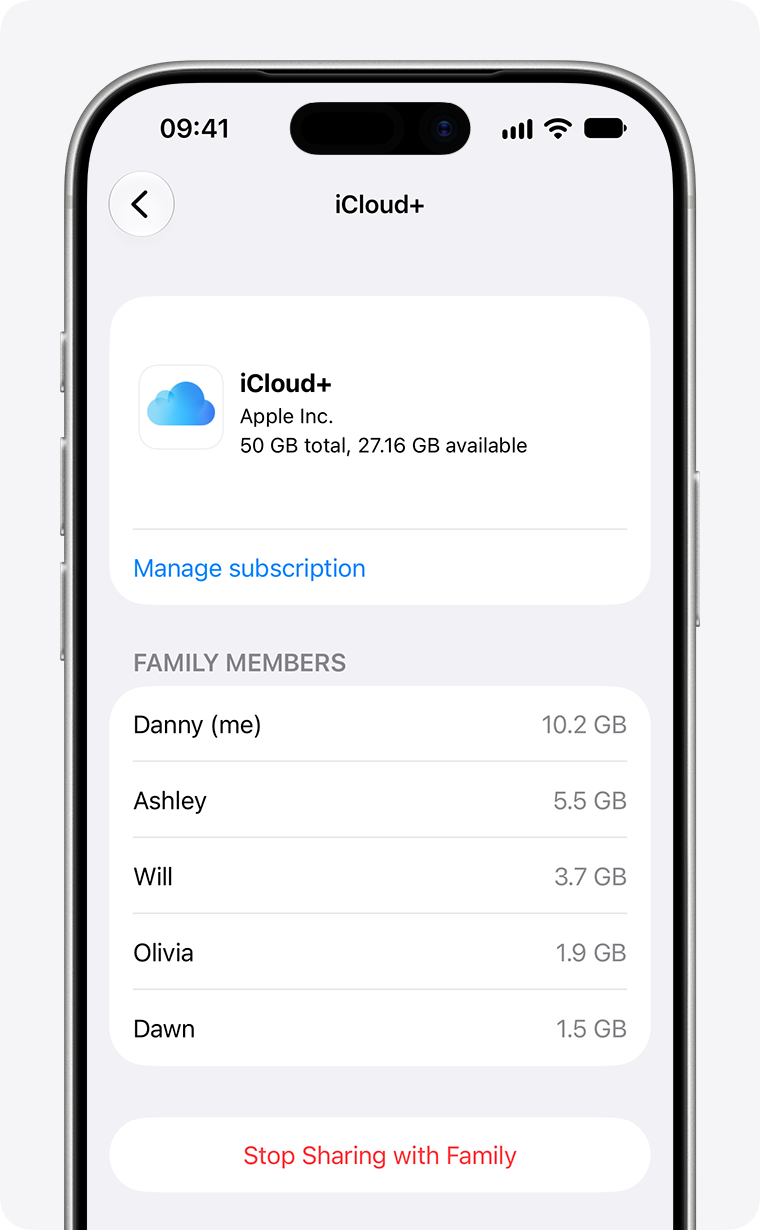
In Apple’s example above, the subscription screen lists a total allowance, available space and each member’s usage. It illustrates the information to inspect, not the storage capacity your own family should have. Do not tap the control for stopping sharing while trying to check the figures.
A shared entertainment service does not prove storage is shared
If Apple TV or another subscription works for the family, record that as evidence that some family features are functioning. It does not tell you which account is supplying iCloud storage or whether the affected person is using that storage. Check iCloud+ by name instead of repeating a successful test with an unrelated service.
Step 4: Switch from a personal iCloud+ plan when needed
For an eligible member choosing to leave their personal paid plan for the family’s shared plan, Apple documents these controls in its shared iCloud+ instructions:
- iPhone or iPad: Settings → Family → Subscriptions → iCloud+ → Use Family Storage.
- Mac: System Settings → Family → Subscriptions → iCloud+ → Use Shared Plan.
Review the confirmation and the resulting subscription view. Apple says switching from an individual iCloud+ plan to the shared family plan includes a refund for the unused portion of that personal plan. Do not treat an unrelated cancellation as equivalent to this switching process.
A member’s separate 200GB iCloud+ subscription and somebody else’s separate family plan do not automatically become one bigger allowance for that member. Apple One has additional storage rules, covered below; avoid applying the standalone-plan rule to every bundle arrangement.
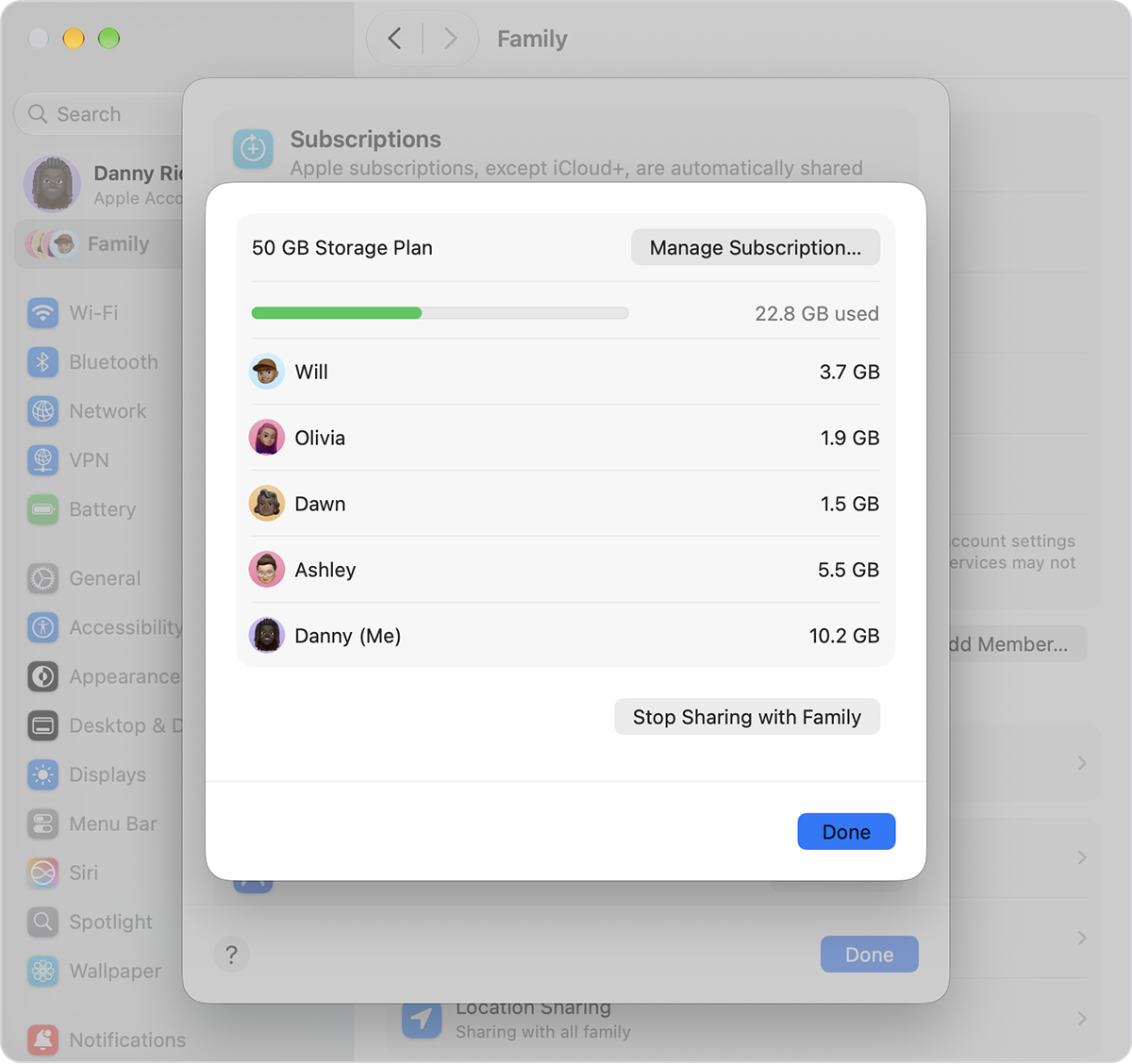
This Mac illustration from Apple shows the shared usage breakdown. It does not show the switching button in a before-and-after test. Your screen depends on whether you are viewing the subscription as its provider or as a participating member.
If Use Family Storage is missing, check the situation before changing accounts
The absence of one button is not enough to identify the cause. First establish what the screen already says: is the family plan in use, is a personal plan selected, or is no shared iCloud+ subscription listed? Then check that you are looking on the affected member’s device rather than only on the storage provider’s device.
- Confirm membership and the Apple Account in Step 2.
- Have the actual plan provider inspect sharing in Step 3.
- Check whether the member is already using the shared plan; look for its allowance and usage instead of searching indefinitely for an onboarding control.
- If Apple One is involved, review the account assignment described below.
- If the interface will not load or reports an account error, use Apple’s connection checks rather than changing the family group.
Apple’s iCloud connection guidance recommends checking System Status, the account in use and software updates. Also confirm a working internet connection. Reopen Settings after a correction; restarting the affected device is a reasonable refresh check, but it is not proof that a server-side subscription issue has been repaired.
Check Apple System Status when you troubleshoot. This article does not establish an ongoing outage or promise a particular waiting period. If the plan remains unavailable with no relevant service incident and the account checks are correct, collect the evidence for Apple Support.
Apple One: inspect the account receiving the storage
If you use different Apple Accounts for iCloud and media purchases, the account paying for Apple One can matter. Apple says the included iCloud+ storage is initially applied to the account used for media purchases and subscriptions; it provides an option to assign it to the account you use for iCloud instead.
For that specific arrangement, Apple’s documented route is Settings → your name → Subscriptions → Apple One → Manage iCloud+. Choose the intended account and review the confirmation. Follow Apple’s separate-account instructions; do not replace this targeted setting with signing everybody into the payer’s account.
Apple One can also coexist with additional iCloud+ storage in some arrangements. What happens to an existing subscription depends on the relative plan sizes and trial status. Apple’s Apple One storage guide explains the cases. If a total allowance or charge seems unexpected after a bundle change, compare the active subscriptions and account assignment before cancelling a plan.
Step 5: Check whether the shared pool is actually full
Once access is confirmed, capacity is a different question. A shared allowance is not a separate full allowance for every member. Review the family’s total usage and remaining space; do not multiply the displayed plan size by the number of people listed underneath it.
The storage breakdown can also include a Family category. Apple defines that as space used by family members in its storage-category guide. It is not necessarily an extra copy of your own photo library. Record the category labels before deciding that the same files are counted twice.
Worked example: access works, but the next upload does not fit
Imagine a 200GB shared plan with 195GB already used. A member can access that plan, but a further 12GB upload would exceed its remaining 5GB by roughly 7GB. Removing and reinviting that person does not create the missing capacity. These are illustrative figures, not a measurement from an account we tested.
| Item | Example | Interpretation |
|---|---|---|
| Total shared allowance | 200GB | The family pool |
| Already used | 195GB | Existing stored content |
| Remaining | About 5GB | Not enough for the proposed upload |
| Additional data proposed | 12GB | Around 7GB beyond the remaining allowance |
Do not add a device’s entire photo-library size to that calculation if much of the library is already stored in iCloud. Estimate the additional data still needing upload. For a backup, inspect the backup’s own size information rather than assuming it equals the phone’s physical capacity.
Apple’s iCloud storage-management guide explains that a full allowance can interrupt backups, photo uploads and other iCloud services. Decide with the plan provider whether to review stored content or increase capacity. Before deleting anything important, use Apple’s instructions for making independent copies. Sharing access is not a reason to delete another person’s content.
Verify the repair at two separate stages
A successful fix has two checkpoints: the intended account can use the subscription, and the particular task that failed can now complete. A larger number in Settings confirms neither that all photos have finished uploading nor that a full device backup exists.
| Checkpoint | Before changing anything | Evidence to look for afterwards |
|---|---|---|
| Identity and membership | Which account and invitation status? | The intended account is in the expected group |
| Subscription access | Free, personal paid, or shared plan? | The intended shared allowance is available |
| Capacity | How much room remains? | Enough room for the task being attempted |
| Original task | What exact error or pause appeared? | That task succeeds or presents a different, identifiable issue |
Change one relevant setting at a time and note the result. For example, if accepting a pending invitation exposes the shared subscription, record that before restarting every device. If the correct plan was already available, stop treating membership as the fault and investigate the task that still fails.
For an unfinished device backup, use our iCloud Backup troubleshooting guide and verify the last successful completion. For a photo that reaches the cloud but not a PC, use our iPhone-to-Windows iCloud Photos guide. Those are later troubleshooting branches, not prerequisites for sharing a plan.
Avoid fixes that remove access before you have a replacement
Do not leave the family, stop sharing the subscription, cancel a plan, or erase a device as a first experiment. Apple’s leaving-Family-Sharing guidance explains that shared purchases and services can become unavailable. Child accounts have additional restrictions that vary by age and region.
There is also a limit on switching to a different family group: Apple’s setup guide states once per year. Removing and reinviting people casually can turn a storage question into a membership problem. A child’s account should not be deleted to troubleshoot an allowance display.
If you are deliberately changing who provides storage, plan the transition with the family first. Check who uses the current allowance, what subscription will replace it and how you will verify access afterwards. If nobody can confirm the replacement entitlement, resolve that question before stopping the existing share.
What to send Apple Support when the account checks pass
Use Apple’s official support channel when the intended member has accepted the invitation, the provider is sharing an active plan, and the allowance is still wrong or unavailable. Prepare the device model, software version, exact message, approximate time, current allowance and whether Apple One or a separate personal plan is involved.
Our family provider can see an active shared iCloud+ plan of (capacity). The affected member has accepted the invitation and is using the intended Apple Account. Their device is (model and software version), and it shows (allowance or exact message) under (screen name). Their previous plan was (free/personal paid/Apple One). We checked (specific steps), but the result is unchanged. Please check the subscription access for this member.
Keep passwords, verification codes, payment-card details and photo libraries out of public posts. A cropped allowance screen and the exact error are more useful for an initial explanation than an unfiltered screenshot collection. Provide account identifiers only through the official support flow when requested.
Sources and verification
Reviewed October 27, 2026. The principal sharing guide is dated September 16, 2026. The illustrated iPhone and Mac screens are Apple’s published examples, reproduced from its support page; we did not sign in to a family account or run a live subscription-switching test. The comparisons, capacity example and verification worksheet are editorial tools for applying the documented instructions.
- Apple: Share iCloud+ with your Family Sharing group — shared plans, switching controls and official illustrations.
- Apple: Set up Family Sharing — membership, invitations and family-switching limits.
- Apple: iCloud storage versus device storage — the two storage views.
- Apple: Apple One with different Apple Accounts and Apple One storage arrangements — account assignment and bundle exceptions.
- Apple: iCloud connection checks, storage management and leaving a family group — escalation and consequences of disruptive changes.
You may also like
 Technology & How-To
 USB Works on PC but Not on TV? How to Find the Cause
Diagnose a USB drive that works on a computer but not a TV. Separate detection, missing files and…
 Technology & How-To
 WhatsApp “Waiting for This Message”: Fixes for iPhone, Android and Web
Fix WhatsApp’s waiting-message notice by comparing your phone and linked devices, checking updates and protecting existing chat data.
 Technology & How-To
 WhatsApp iOS 15.5 Requirement: What Changes on November 30, 2026?
WhatsApp raises its iPhone minimum to iOS 15.5 on November 30, 2026. Check your version, older iPhone eligibility…