
Why Your iPhone Storage Is Still Full After Deleting Photos (Safe Fixes)
Deleted hundreds of photos but your iPhone still says storage full? Diagnose Photos, iCloud, System Data and apps safely without losing pictures.
Contents
- The two-minute diagnosis: identify the storage that is actually full
- Decision table: match the symptom before changing anything
- Step 1: protect your photos before deleting anything permanently
- Step 2: review Recently Deleted — but understand the 30-day window
- Step 3: check whether Optimize iPhone Storage is the real answer
- Step 4: if Photos is not the largest category, stop cleaning Photos
- Messages and attachments
- Files, offline downloads and streaming apps
- Apps versus app data
- Step 5: understand System Data without falling for miracle fixes
- Three worked examples: how to choose the right fix
- Example A: deleting 12 GB of videos but gaining little space
- Example B: Photos drops by 8 GB but the device stays nearly full
- Example C: iCloud is full but local storage is not
- A safer measurement method: calculate net space recovered
- What not to do when you are desperate for space
- When the problem deserves Apple Support
- The bottom line
- Sources and further reading
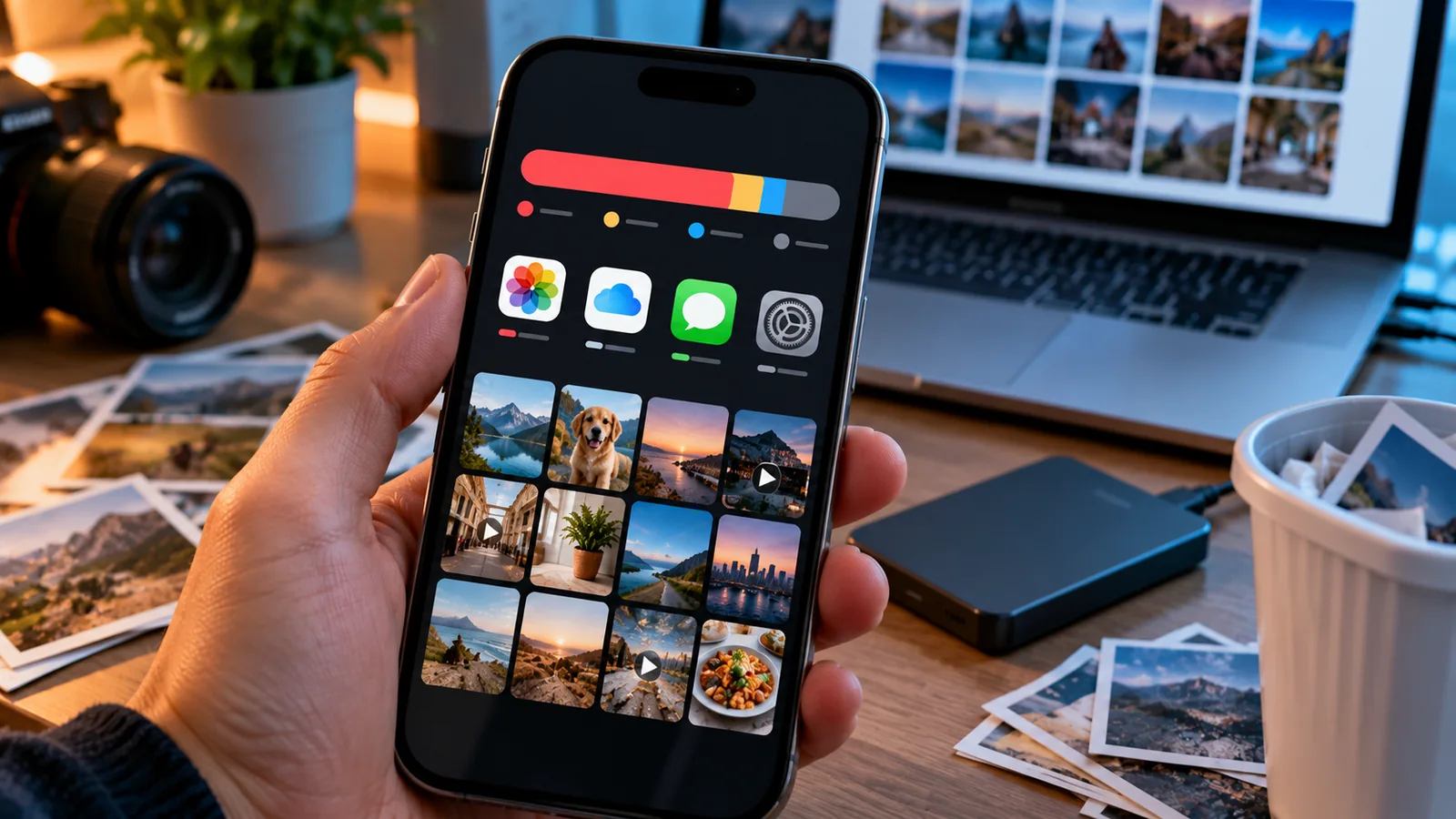
If your iPhone storage is still full after deleting hundreds of photos, stop deleting pictures for a moment. First identify which storage category is actually full. Deleted items may remain in Recently Deleted, but the space may instead belong to Messages, app downloads, Files, or System Data. And if iCloud Photos is enabled, deleting a photo is not a safe way to keep it in the cloud while removing it from just one iPhone.
The safest fix is a diagnosis, not a cleanup app or a factory reset. This guide gives you a repeatable before-and-after method, a symptom-based decision table, and a backup-first workflow so you can recover space without accidentally losing your library.
The two-minute diagnosis: identify the storage that is actually full
- Open Settings → General → iPhone Storage. Let the storage graph and app list finish loading. Write down the total used and the top three categories or apps.
- Tap Photos in the app list and record its reported size. Check whether Photos is truly the largest consumer.
- Separately open Settings → [your name] → iCloud to check cloud storage. Do not confuse that number with the device-storage graph.
- Open Photos → Recently Deleted (under Utilities in current layouts; navigation differs on older iOS). Look at what is there, but do not permanently delete anything yet.
- If you use iCloud Photos, inspect Settings → [your name] → iCloud → Photos to see whether syncing is enabled and whether Optimize iPhone Storage is selected.
Apple documents separate device and iCloud storage views in its photo-storage guide. The numbers describe different resources: an iPhone with 128 GB of built-in capacity does not gain 200 GB of physical space when you purchase a 200 GB iCloud plan.
Decision table: match the symptom before changing anything
| Photos remains large; Recently Deleted contains videos | Review those videos and verify backups before permanent deletion | Do not select Delete All without checking important items |
|---|---|---|
| Photos is small, but the phone is still full | Sort iPhone Storage by apps; inspect Messages, Files and downloads | Do not delete more irreplaceable photos |
| iCloud storage is full; iPhone has free space | Review iCloud Photos, backups and iCloud Drive separately | Do not assume buying device storage is possible |
| Photos library is optimized; local space changes gradually | Allow syncing and optimization under suitable power and network conditions | Do not repeatedly toggle iCloud Photos to force space |
| System Data is unusually large | Update iOS if possible, restart and remeasure; check app data | Do not install a cleaner promising to erase all system files |
| Storage shows different numbers after a deletion | Wait for the calculation, restart, then compare again | Do not assume every delay means corruption |
Step 1: protect your photos before deleting anything permanently
Apple says that with iCloud Photos enabled, deleting a photo or video on one device deletes it on the other devices signed in to the same Apple Account. That synchronization is useful, but it makes casual bulk deletion risky. See Apple’s iCloud storage guidance.
- Confirm whether iCloud Photos is on and whether syncing has finished. A stalled upload is not a verified backup.
- For irreplaceable photos, export an independent copy to a computer or external drive and open a sample of the exported files.
- If using another cloud photo service, check its deletion and device-sync behavior separately. Do not assume it works like Apple Photos.
- Only after verifying a recoverable copy should you permanently delete media you no longer need.
Critical distinction: Optimize iPhone Storage keeps a synchronized library accessible while storing space-saving versions locally when appropriate. Deleting a photo removes it from the synchronized library; optimization and deletion are not interchangeable.
Step 2: review Recently Deleted — but understand the 30-day window
When you delete a photo in Photos, it normally moves to Recently Deleted and remains recoverable for up to 30 days. The exact storage impact can vary by sync state and iOS version. If you are sure the contents are no longer needed, open the album, authenticate, select the relevant items and permanently delete them. Apple explains the recovery window in its support documentation.
For a safer test, choose a small group of unimportant, already-backed-up videos rather than deleting the entire album. Record the Photos storage figure first, remove the test items permanently, then recheck after iOS has had time to recalculate. This is a suggested reproducible diagnostic, not a benchmark performed by Horus Valley.
Step 3: check whether Optimize iPhone Storage is the real answer
If you want to keep all photos in iCloud but reduce their local footprint, use iCloud Photos with Optimize iPhone Storage rather than manually deleting synchronized photos. Go to Settings → [your name] → iCloud → Photos and look for the storage optimization control. Apple’s interface may group it differently on newer iOS versions, so follow the labels shown on your device. Apple explains the mechanism.
Optimization is not an immediate, fixed-size compression job. iOS manages local originals and space-saving versions according to available storage and usage. You need sufficient iCloud capacity and a completed sync for the intended library to be available. Keep the phone connected to reliable Wi-Fi and power when practical; do not promise yourself an exact number of gigabytes or a deadline.
Step 4: if Photos is not the largest category, stop cleaning Photos
Messages and attachments
In Settings → General → iPhone Storage, inspect Messages if it appears near the top. Long conversations can contain locally stored videos, photos and voice clips. Review the conversation and attachment previews before deleting. Be especially careful with messages you need for records, travel or work.
Files, offline downloads and streaming apps
Look at the Files app, including On My iPhone and Downloads, then check offline content inside apps such as streaming, podcast, map or video editors. Removing an offline download may recover local space without deleting the account or your online purchase, but confirm the app’s rules first. Files also has its own Recently Deleted area, separate from Photos.
Apps versus app data
The iPhone Storage screen may offer Offload App or Delete App. Offloading generally removes the app while keeping its documents and data; deleting an app can remove associated local data. Neither option is universally safe. Before deleting a messaging, authenticator, notes or creative app, verify how its data is backed up and restored.
Step 5: understand System Data without falling for miracle fixes
System Data includes caches, logs and other system-managed resources. It is not a folder you can safely empty in one tap. If it seems unexpectedly large, note the number, restart the phone, allow storage calculation to complete, and check for an available iOS update. Avoid promises that clearing Safari history or force-quitting apps will reliably recover a particular amount of System Data.
A backup-and-restore process can sometimes be a last-resort troubleshooting option, but it carries time and data-restoration risks. It should not be the first response to an unexplained graph. Confirm a usable backup and account credentials before considering any reset.
Three worked examples: how to choose the right fix
Example A: deleting 12 GB of videos but gaining little space
Suppose a 128 GB phone reports 124 GB used, with Photos using 52 GB. You delete videos totaling approximately 12 GB but the graph still reads 124 GB. If the videos remain in Recently Deleted, the next useful action is to verify their backup and review that album, not buy an iCloud plan. The figures are illustrative; no device test is claimed.
Example B: Photos drops by 8 GB but the device stays nearly full
Imagine Photos falls from 40 GB to 32 GB, while a video-editing app rises from 9 GB to 17 GB because it retained rendered exports. The unchanged overall storage figure is not evidence that Photos deletion failed: the net change is approximately zero. Inspect the editor’s projects and exported files rather than deleting more family photos.
Example C: iCloud is full but local storage is not
A 256 GB iPhone may have 90 GB free locally while the owner’s 5 GB iCloud allowance is full. Deleting local app caches will not resolve the cloud quota. Review the iCloud storage categories, backup choices and library sync status instead. This illustrates why the two storage dashboards must be checked separately.
A safer measurement method: calculate net space recovered
Use free space after minus free space before. For example, 3.4 GB free before cleanup and 8.1 GB free afterward means approximately 4.7 GB recovered. Measure only after the storage graph has settled, and note any new downloads or app activity during the interval. Do not infer that one cleanup step caused every change in the total.
| Before | Free space, Photos size, largest app | Establishes a baseline |
|---|---|---|
| After a single safe change | Which items changed and whether sync completed | Avoids mixing causes |
| After recalculation | Free space and category changes | Tests whether the action helped |
| If numbers disagree | Check iCloud and large app downloads | Prevents repeated unnecessary deletion |
What not to do when you are desperate for space
- Do not turn off iCloud Photos and choose removal options without reading exactly what happens to local copies.
- Do not empty Recently Deleted until you have checked for important media and verified any backup you rely on.
- Do not install a third-party cleaner that claims unrestricted access to iOS system storage.
- Do not delete an authenticator, messaging app or creative project merely because it is large; verify recovery first.
- Do not erase the iPhone before ruling out the largest actual storage categories and checking a restorable backup.
When the problem deserves Apple Support
Contact Apple Support if storage calculations remain inconsistent after a restart and reasonable waiting period, if Photos will not open or delete items, if iCloud sync repeatedly fails with an unexplained error, or if a backup cannot be verified. Share your iPhone model, iOS version, free space, top storage categories and the steps already tried; avoid sharing personal photos or account credentials.
The bottom line
An iPhone can stay full after deleting photos for several unrelated reasons. The effective sequence is measure → protect your library → identify the actual category → make one safe change → measure again. Recently Deleted matters, but it is not a universal explanation. The biggest mistake is deleting more photos before establishing whether Photos is still consuming the space.
Sources and further reading
- Apple Support: Manage your photo and video storage — device versus iCloud storage and optimization.
- Apple Support: Manage your iCloud storage — synchronized deletion and Recently Deleted.
- Apple iPhone User Guide: Manage storage — iPhone storage controls.
You may also like
 Technology & How-To
 Android Auto Keeps Disconnecting? How to Fix USB and Wireless Dropouts
Android Auto keeps disconnecting? Separate USB, wireless and app failures, check Galaxy USB mode, compare connection methods and…
 Technology & How-To
 Netflix Says Your TV Isn’t Part of the Household? How to Fix It
Fix a Netflix household warning by separating home verification, permanent household updates and temporary travel access, with genuine…
 Technology & How-To
 Google Photos Stopped Backing Up from Your PC? What Changed and How to Fix It
Google Photos stopped backing up your computer folders? Understand the Drive for desktop change, configure browser folder backup…