
iCloud Backup Stuck or Taking Too Long? Diagnose Slow Uploads Without Losing Data
iCloud backup stuck for hours? Estimate upload time, check Next Backup Size, fix failed backups, and protect photos before resetting your iPhone.
Contents
- Identify the symptom before changing settings
- Step 1: Check the last successful backup date
- Step 2: Check the size of the next backup
- Step 3: Test Wi-Fi and upload speed
- Example: why a backup can take many hours
- Step 4: Leave the iPhone charging and connected
- Step 5: Update iOS and try a different network if the backup fails
- iCloud Photos is not the same as iCloud Backup
- A safer two-copy check
- When the backup switch is greyed out
- What not to do
- A practical upload-time estimator: is the backup really stuck?
- Decision tree: pick the right fix instead of trying everything
- What actually counts toward the next backup?
- A worked storage example
- How to check whether the backup completed successfully
- Backup, iCloud Photos sync, and iCloud restore are different jobs
- If you need to replace or repair the iPhone today
- Advanced checks that do not destroy data
- When to stop troubleshooting and contact Apple
- What is established, estimated, and unknown?
- Official references and verification links
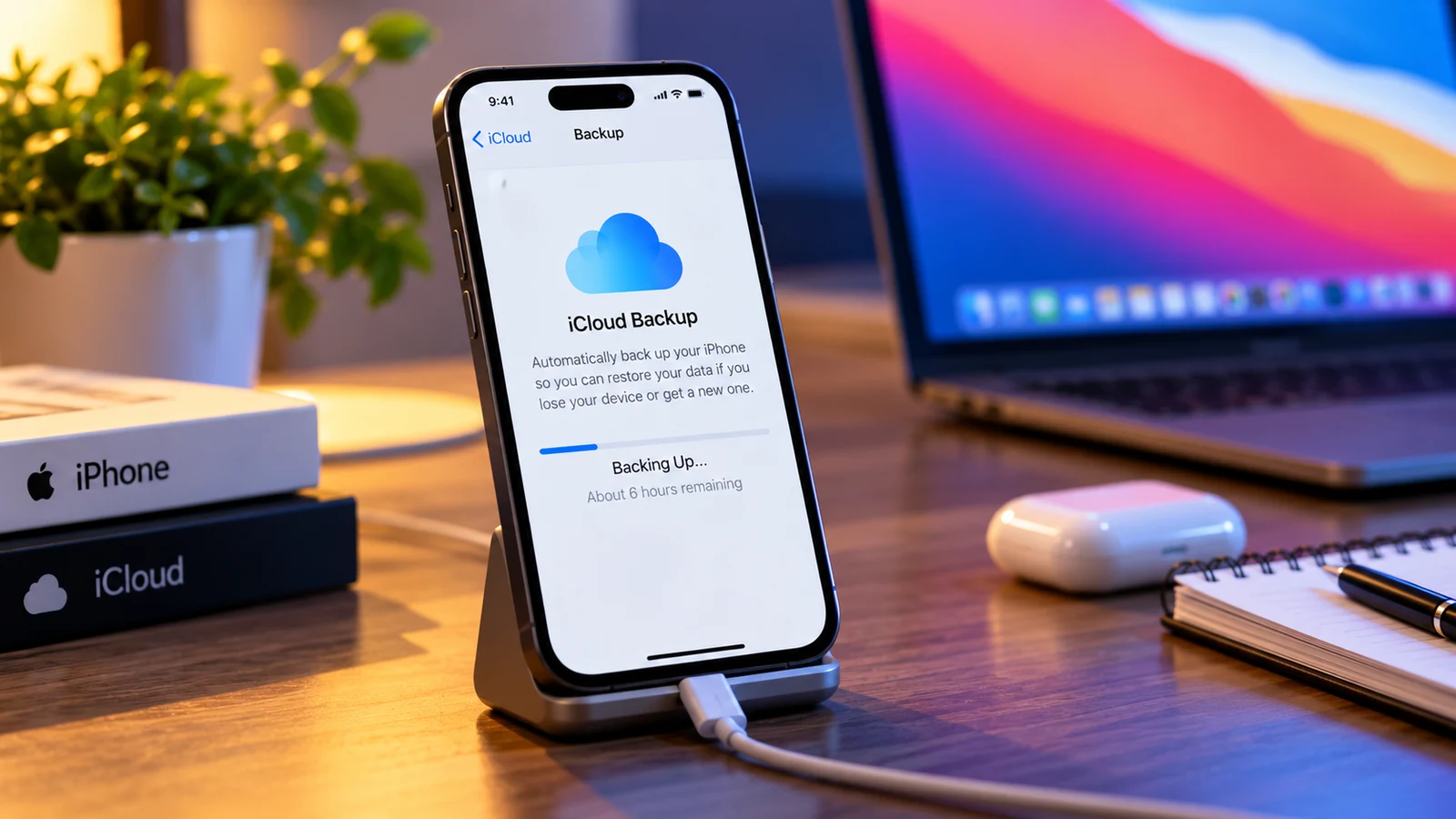
If your iPhone says its iCloud backup is taking hours, do not erase or reset the device to “start fresh.” A backup that has not completed may be your only pending copy of certain app data. Apple’s official guidance recommends checking Wi-Fi and upload speed and, when the backup is simply slow, leaving the device on power and Wi-Fi for up to 24 hours.
Identify the symptom before changing settings
| Symptom | What to inspect first | Risk to avoid |
|---|---|---|
| Backup progress seems frozen | Upload speed and network stability | Erasing the iPhone before a verified backup |
| Not enough iCloud storage | Next Backup Size and available space | Deleting data you still need |
| Last backup could not be completed | Wi-Fi, iOS updates and another network | Assuming the photos are already safe |
| Back Up Now is unavailable or greyed out | Restore in progress or management profile | Removing work/school restrictions without authorization |
| Photos visible in iCloud but no device backup | Distinguish iCloud Photos from iCloud Backup | Treating photo sync as a complete device backup |
Step 1: Check the last successful backup date
Open Settings, tap your name, open iCloud, then iCloud Backup. Record the date and time of the last successful backup and the status of the current attempt. The wording may vary slightly with iOS version. If the last successful backup was days ago, treat current unsaved changes as at risk until you verify a new backup.
Step 2: Check the size of the next backup
Apple directs users to Settings → your name → iCloud → Storage / Manage Account Storage → Backups → this device to inspect Next Backup Size. The estimate may take a few minutes to appear. Compare the estimate with available iCloud space. If there is insufficient capacity, reduce the backup data you do not need or consider more storage; do not delete irreplaceable photos or app data just to force the backup.
Step 3: Test Wi-Fi and upload speed
Backups upload data, so a fast download speed alone does not prove that the connection can finish quickly. Check whether other devices are consuming upload bandwidth, whether the network is stable, and whether the iPhone can stay connected. Apple suggests trying another Wi-Fi network when backups fail. Use a trusted network rather than public Wi-Fi when practical.
Example: why a backup can take many hours
A hypothetical 8 GB of data uploaded at a sustained 5 Mbps takes roughly 3.6 hours under ideal conditions (8 × 8,000 ÷ 5 ÷ 3,600), before protocol overhead, interruptions and changing upload speeds. This is a calculation example, not a measurement of iCloud performance. Real backups may take much longer.
Step 4: Leave the iPhone charging and connected
If the backup is taking longer than expected, Apple’s troubleshooting guidance says to leave the device connected to power and Wi-Fi for 24 hours. Keep the phone in a safe, ventilated location and do not interrupt it merely because progress seems slow. If the backup still fails, Apple recommends archiving important data before repeating troubleshooting.
Step 5: Update iOS and try a different network if the backup fails
For the message that the last backup could not be completed, Apple advises checking Wi-Fi, updating iOS, trying another Wi-Fi network and verifying storage. Complete any update only after considering your existing backup situation and maintaining sufficient battery/power.
iCloud Photos is not the same as iCloud Backup
Photos that are synchronized using iCloud Photos are handled separately from the device backup. Seeing pictures at iCloud.com can help confirm photo syncing, but it does not establish that every app, setting or local file is backed up. Conversely, photos not yet uploaded or stored only in a local app may still be at risk. Verify important pictures and documents independently before reset or replacement.
A safer two-copy check
- Confirm the last successful device backup date.
- Check whether important photos are visible in iCloud Photos, if enabled.
- Copy irreplaceable documents to another secure location if possible.
- Confirm that the copied files actually open.
- Only then consider advanced repair or a device replacement.
When the backup switch is greyed out
Apple notes that a restore may still be running, or a configuration profile may restrict backup settings. Check Settings → General → VPN & Device Management for profiles if applicable. For an organization-managed iPhone, ask the administrator instead of deleting profiles indiscriminately.
What not to do
Do not factory reset an iPhone with an incomplete backup, delete the only copies of large photos, or assume a progress estimate is a guarantee. If backup fails after the documented steps, contact Apple Support with the exact error, iOS version and last successful backup time. Avoid sharing passwords or verification codes with unofficial helpers.
A practical upload-time estimator: is the backup really stuck?
A useful way to distinguish a slow backup from a suspiciously stalled one is to calculate a lower-bound transfer time. This is an independent arithmetic illustration, not an Apple prediction. Use the estimated amount of data that needs uploading, not the iPhone’s total storage capacity. A first backup and a later incremental backup may transfer very different amounts.
Formula: ideal hours ≈ backup size in GB × 8,000 ÷ upload Mbps ÷ 3,600. This assumes decimal gigabytes and uninterrupted throughput. The real time may be longer because the connection is shared, throughput varies, and preparation or server-side processing can add delays.
| Data to upload | 2 Mbps upload | 5 Mbps upload | 10 Mbps upload | 20 Mbps upload |
|---|---|---|---|---|
| 2 GB | 2.2 h | 53 min | 27 min | 13 min |
| 8 GB | 8.9 h | 3.6 h | 1.8 h | 53 min |
| 20 GB | 22.2 h | 8.9 h | 4.4 h | 2.2 h |
| 50 GB | 55.6 h | 22.2 h | 11.1 h | 5.6 h |
For example, a household might report 100 Mbps download but only 3 Mbps upload. An 8 GB upload at 3 Mbps has a theoretical minimum of about 5.9 hours. That makes an overnight backup plausible even without a software fault. Conversely, if a small incremental backup repeatedly fails on two stable networks, the failure message matters more than the timer.
Decision tree: pick the right fix instead of trying everything
| What you see | First check | Then do | Avoid |
|---|---|---|---|
| “Not Enough iCloud Storage” | Next Backup Size versus available iCloud space | Exclude unneeded backup data or add capacity | Deleting the only copy of files |
| “Last Backup Could Not Be Completed” | Wi-Fi connection, iOS update, free cloud space | Retry on another trusted Wi-Fi network | Factory reset as a first fix |
| Progress barely moves, no error | Upload Mbps and estimated data size | Keep charging on Wi-Fi; allow up to 24 hours per Apple | Repeatedly restarting the same upload |
| Backup control greyed out | Ongoing restore or device-management profile | Wait for restore; ask administrator about restrictions | Removing management profiles without permission |
| iCloud Photos seems paused | Photos sync status rather than Backup status | Follow Apple Photos sync guidance separately | Assuming sync progress equals backup progress |
These branches are intentionally conservative: the goal is to preserve existing data before attempting disruptive fixes. A change in estimated remaining time by itself does not prove corruption or a failed backup.
What actually counts toward the next backup?
The amount stored on an iPhone is not necessarily the amount iCloud Backup must upload. Apple distinguishes information already synchronized with iCloud from data included in device backups. For instance, when iCloud Photos is enabled, the photos and videos synchronized to iCloud are not duplicated inside the device backup in the same way. This does not mean every photo has finished syncing or that every app’s data is protected.
Open Settings → [your name] → iCloud → Storage (or Manage Account Storage) → Backups → this device. Wait for Next Backup Size to calculate. Compare it with the remaining cloud storage. Review the list of apps included in the backup carefully: switching off an app’s backup can mean that its data will not be recoverable from a future iCloud device backup. Do not disable a category merely to make a progress bar move.
A worked storage example
Suppose your plan has 50 GB total, 46 GB is already used, and the estimated next backup needs 7 GB of additional available space. The shortfall is 3 GB. That does not mean deleting 3 GB of photos from your iPhone is the correct action. First establish which items are synced, which are included in backups, and whether you have independent copies. Freeing unused cloud data, reducing safely replaceable backup categories, or upgrading capacity may be appropriate depending on your needs.
How to check whether the backup completed successfully
After a retry, return to Settings → [your name] → iCloud → iCloud Backup and look for the last successful backup date and time. This is more useful than relying on a vanished progress indicator. Record the date before and after the attempt. If the displayed successful backup timestamp does not advance, do not assume the new attempt protected your latest changes.
For especially important documents, use a second verification method: confirm that a copied file opens from another secure location. Checking the backup date and verifying separate copies answer different questions. Neither proves that every third-party app can be restored exactly as expected.
Backup, iCloud Photos sync, and iCloud restore are different jobs
| Process | Purpose | What progress means | Common mistaken assumption |
|---|---|---|---|
| iCloud Backup | Preserve eligible device settings and app data | Device backup creation/upload | All synced photos must be inside that backup |
| iCloud Photos | Synchronize photos/videos across devices | Media upload/download sync | The entire iPhone is backed up |
| Restore from iCloud Backup | Recover eligible data to a device | Downloading and reconstructing data | A slow restore means backup upload is stuck |
| Computer backup | Create a local device backup | Transfer to a Mac/PC | Every cloud-synced item is automatically included |
If the screen says Restoring from iCloud, you are troubleshooting a restore, not a backup upload. Apple has separate guidance for restore failures. Do not apply backup-storage remedies to a restore problem without checking the actual message.
If you need to replace or repair the iPhone today
When waiting another day is not practical, prioritize a verified second copy before changing the device. On a Mac, use Finder to make a device backup; on Windows, use the Apple Devices app or the supported iTunes workflow. Connect by cable, select the device, and follow the current on-screen backup instructions. If you choose an encrypted local backup, save the encryption password securely: losing it can prevent restoring that encrypted backup.
A computer backup is a fallback, not a promise that all iCloud-synced content is included. Review Apple’s guidance about what a computer backup includes and confirm the local backup completed before erasing, trading in, or sending the device for service. If the phone is managed by an employer or school, follow their device-handling rules.
Advanced checks that do not destroy data
Try a second trusted network: this helps distinguish a home router or ISP upload problem from a device/account problem. Avoid changing several settings simultaneously; otherwise you will not know which step mattered.
Check for an iOS update: Apple includes software updates among its steps when the last backup could not be completed. If you are worried about irreplaceable local data, preserve what you can first and make sure the phone has adequate power before updating.
Look at device management: when the option is greyed out, a configuration profile or ongoing restore may explain it. Do not remove work or school profiles as a generic fix.
Check Apple’s service status: a temporary service issue can be relevant, but an “all green” status does not diagnose your individual network or device. The status page is a supporting check, not proof that your backup should complete within a fixed time.
When to stop troubleshooting and contact Apple
If the backup still cannot finish after the Apple-recommended power/Wi-Fi waiting period, a different trusted network, sufficient iCloud storage, and applicable software updates, preserve important files and contact Apple Support. Bring the exact error text, iPhone model, iOS version, approximate Next Backup Size, available iCloud space, upload speed, and last successful backup date. This evidence makes the support conversation more specific and reduces repeated generic steps.
What is established, estimated, and unknown?
| Claim | Evidence level | Practical meaning |
|---|---|---|
| Apple advises power and Wi-Fi for 24 hours when a backup is unusually slow | Official Apple troubleshooting | Allow time before escalating a slow backup |
| A 20 GB upload at 5 Mbps needs at least about 8.9 hours | Arithmetic under ideal assumptions | A long wait may be normal on slow upstream links |
| The iPhone’s storage used equals bytes uploaded in the next backup | Not established | Use Next Backup Size, not total device storage |
| A completed iCloud Photos sync guarantees a restorable full-device backup | False equivalence | Verify device backup separately |
| A frozen-looking estimate proves Apple’s servers are broken | Not established | Inspect network, storage, and error details |
Official references and verification links
Apple Support: If you cannot back up to iCloud — storage, failed backups, slow uploads, greyed-out settings.
Apple Support: How to back up iPhone or iPad with iCloud — manual and automatic backup steps.
Apple Support: Problems backing up to a computer — local-backup troubleshooting.
Apple Support: Restore from iCloud Backup failed — a separate restore workflow.
Apple Support: iCloud Photos is not syncing — media synchronization problems.
Apple System Status — service availability.
You may also like
 How To
 UK 72-Hour Emergency Kit: The Official Be Ready Checklist and a Practical Household Plan
A practical UK 72-hour emergency kit guide with water calculations, food, power-cut preparation, and family checklists.
 How To
 UK 72-Hour Emergency Kit: Be Ready Checklist, Water Calculator and Family Plan
UK Be Ready 72-hour emergency kit explained: official checklist, water quantities by household size, power-cut plan and affordable…
 How To
 Microsoft Account Locked? How to Recover Access Without Losing Data
Locked out of your Microsoft account? Identify the correct recovery route, handle verification problems, and protect Outlook, Windows…