
Microsoft Account Locked? How to Recover Access Without Losing Data
Locked out of your Microsoft account? Identify the correct recovery route, handle verification problems, and protect Outlook, Windows and OneDrive data.
Contents
- Critical distinction: recovery form versus account reinstatement
- Step 1: Identify which problem you actually have
- Step 2: Unlock a personal Microsoft account when Microsoft offers a challenge
- Step 3: If the account is locked but you cannot receive a verification code
- Step 4: Use the account recovery form only when it applies
- Step 5: What if you already have a recovery code?
- Step 6: Protect your files and devices while you recover access
- Step 7: Separate personal accounts from work and school accounts
- Step 8: After you regain access
- Mistakes that can make recovery harder
- Official sources and further reading
- Important 2026 clarification: security-info replacement is not the same as account reinstatement
- Recovery-code exception: check whether you saved a 25-digit code
- Verification-code rate limits and recovery-code caveats
- Before you reset Windows: a data-preservation checklist
- Related Horus Valley troubleshooting guides

A locked Microsoft account can interrupt Outlook email, OneDrive access, Microsoft 365 subscriptions, Xbox purchases, and sign-in on Windows. The safest next step is not always to reset your password. First, identify the exact message shown on the sign-in screen: a security challenge, an account suspension, an incorrect password, and a missing verification method are different problems with different remedies.
Start here: Open Microsoft’s account sign-in page by typing the address yourself. If you cannot sign in, use Microsoft’s sign-in help guidance. Do not share verification codes, passwords, or recovery answers with anyone claiming they can unlock your account.
Critical distinction: recovery form versus account reinstatement
Microsoft uses different processes for different failures. If you have forgotten a password or lost access to some verification methods, start with the sign-in helper. The account recovery form guidance explains how to establish ownership when the form is available. Microsoft says it normally emails a result within 24 hours and allows up to two recovery-form attempts per day after an unsuccessful request.
If Microsoft specifically says your account is locked and the normal human-verification option does not appear, follow the aka.ms/ link shown on the actual sign-in screen to request reinstatement. Microsoft says its online-safety team reviews that request and cautions against submitting duplicate reinstatement requests because they may slow the process. Do not treat the recovery form and reinstatement request as interchangeable. Microsoft account lock guidance.
Two-step verification limit: If two-step verification was enabled and you no longer have access to any alternate verification method, Microsoft’s recovery-form guidance states that support cannot bypass those protections. Be wary of third-party services promising a guaranteed unlock.
Verification code not arriving? Before requesting more codes, check the correct mailbox and spam folder, and consider a previously configured alternative method. Microsoft’s verification troubleshooting guidance warns that excessive repeat requests can trigger temporary blocks.
Step 1: Identify which problem you actually have
| What you see | Likely category | Safest first action |
|---|---|---|
| “Your account has been locked” | Account lock or suspension | Follow the on-screen unlock or reinstatement instructions |
| “Let’s prove you’re human” | Security verification challenge | Complete the official challenge on the Microsoft page |
| “Password incorrect” | Credential issue | Use Microsoft’s password-reset route |
| You cannot access the email, phone, or authenticator | Lost verification method | Try an available alternative; check whether recovery form applies |
| “Account doesn’t exist” | Username, alias, or account-status issue | Check spelling and use the sign-in helper |
| Work or school account is blocked | Organization-managed identity | Contact the organization’s IT administrator |
This table is a navigation aid, not a diagnosis of why Microsoft took action. A message can change as Microsoft evaluates your account.
Step 2: Unlock a personal Microsoft account when Microsoft offers a challenge
- Visit
https://account.microsoft.com/in your browser. - Enter the email address, phone number, or alias associated with your personal Microsoft account.
- Read the entire lock notice before selecting an option. If the page offers a human-verification or security-code challenge, complete the method actually displayed.
- If Microsoft asks you to change your password, create a unique password that you have not used on another site.
- After access returns, review security activity and available recovery methods.
Important: Do not assume every locked account can be unlocked with an SMS code. Microsoft documents a separate reinstatement path for accounts where the normal human-verification option is absent. If the screen shows a link beginning with aka.ms/, follow that link from the genuine Microsoft sign-in page and submit the requested information. Microsoft says its online safety team reviews reinstatement requests and advises against submitting duplicate requests while one is pending.
Source: Microsoft account has been locked.
Step 3: If the account is locked but you cannot receive a verification code
Start by checking whether another verification method is offered. Verify that you are checking the correct recovery mailbox or phone, that messages are not being filtered, and that you are not repeatedly requesting codes in a way that causes confusion. If you changed devices, consider whether you still have access to the original authenticator or an already signed-in trusted device.
The next route depends on whether two-step verification was enabled and whether you still have any approved alternative method. Microsoft’s recovery-form guidance explicitly warns that when two-step verification is enabled and all alternate verification methods are inaccessible, support cannot bypass the protections to recover the account through the standard form.
Do not pay a third party promising to override Microsoft identity checks. Microsoft’s support agents cannot simply change your account details or send an unauthorized password reset link.
Source: Help with the Microsoft account recovery form.
Step 4: Use the account recovery form only when it applies
If the problem is proving ownership of a personal Microsoft account and Microsoft’s sign-in helper directs you to the recovery form, prepare before submitting:
- Get an email inbox you can currently open. Microsoft uses this address to communicate about the request.
- Gather previous passwords you genuinely remember, historical account information, and details of Microsoft services you used.
- For Outlook or Hotmail, gather real contact addresses and exact subject lines from past correspondence when available.
- If Xbox information is requested, use the console information for a device you have actually used with that account.
- Fill in the form from a familiar device and familiar location if possible.
- Submit once, then check the contact mailbox for Microsoft’s response.
Microsoft says it generally sends the recovery-form outcome within 24 hours. If unsuccessful, its guidance permits up to two attempts per day. Better evidence is more useful than repeatedly resubmitting unchanged answers.
Do not confuse two forms: A recovery form that attempts to verify account ownership is not the same as a reinstatement request after a terms-of-use suspension. Follow the route shown by Microsoft for your specific sign-in message.
Source: Microsoft recovery form instructions.
Step 5: What if you already have a recovery code?
Microsoft describes a 25-digit recovery code that users can generate in advance from account security settings. If you previously stored one securely, Microsoft’s recovery-code instructions explain how to use it during the supported sign-in flow. You cannot download an old recovery code after losing access. Generating a new code invalidates earlier codes, and additional security waiting periods can apply.
Source: How to get a Microsoft account recovery code.
Step 6: Protect your files and devices while you recover access
A locked cloud account does not automatically mean that local files already stored on your computer have been deleted. Equally, it does not guarantee that every OneDrive file is present locally. Before reinstalling Windows, resetting your PC, unlinking OneDrive, or deleting a Windows profile, check which files exist on the device and whether any folder is cloud-only. Avoid actions that could overwrite or remove the only remaining copy of important files.
If you can still open Windows using an existing sign-in method, preserve access while you work through Microsoft account recovery. Copy essential locally available documents to a secure backup you control, where permitted. Do not sign out of every device as a reflex; a working session may help you review account settings, although it cannot override Microsoft’s verification rules.
For Microsoft 365 subscriptions or Xbox purchases, retain receipts and account details for legitimate support interactions, but do not assume a receipt alone will bypass account ownership verification.
Step 7: Separate personal accounts from work and school accounts
A personal Outlook.com, Hotmail, Live, or Microsoft account uses consumer recovery guidance. A company or university login managed through Microsoft Entra ID is controlled by an organization. If the screen identifies your work or school account, use your employer’s or institution’s approved self-service password reset flow or contact IT. Do not submit a consumer recovery form for an organization-managed account.
Source: Microsoft sign-in troubleshooting.
Step 8: After you regain access
- Change a compromised or reused password and update it wherever else it was used.
- Review recent account activity and security alerts through Microsoft’s official security dashboard.
- Confirm your recovery email, phone, and authenticator methods are current.
- Consider generating and securely storing a recovery code before you need it.
- Check Outlook forwarding and account rules if you suspect unauthorized access.
- Review OneDrive and Microsoft 365 data and subscriptions for unexpected changes.
- Enable stronger sign-in protections and keep your recovery methods independent of a single device.
Mistakes that can make recovery harder
Using unofficial unlock services: Anyone asking for a verification code or password is a potential account-takeover risk.
Treating a suspension as a forgotten password: Password resets do not necessarily reverse policy-related account locks.
Using the wrong recovery form: Account ownership recovery and suspension reinstatement have different processes.
Assuming all two-step verification can be bypassed: Microsoft’s published limitations are strict when every alternate method is unavailable.
Erasing the computer before checking local files: An unnecessary reset can destroy useful locally stored information.
Submitting repeated suspension appeals: Microsoft advises waiting for the online safety review rather than submitting duplicate requests.
Official sources and further reading
- Microsoft account has been locked
- I can’t sign in to my Microsoft account
- Help with the Microsoft account recovery form
- Account recovery unsuccessful
- Microsoft account recovery codes
Screenshot plan — not yet fulfilled: Genuine current screenshots of the Microsoft sign-in screen, the relevant lock notice, the sign-in helper, and the recovery form should be inserted immediately after their respective steps as local importer image blocks. No simulated or AI-generated UI screenshot should be substituted. Screens may vary by account state and cannot all be captured from a public, unauthenticated session.
Important 2026 clarification: security-info replacement is not the same as account reinstatement
If you know your password but have lost access to all security information, Microsoft’s verification-code troubleshooting guidance describes an “I don’t have any of these” flow that replaces security information and normally imposes a 30-day waiting period before you can sign in. This is not a shortcut around two-step verification and is not identical to the separate reinstatement review for accounts locked for suspected policy violations. If you still have one working verification method, use it to add a replacement before removing the old method. Do not remove all security proofs simultaneously. Source: https://support.microsoft.com/en-us/accounts-billing/manage/troubleshoot-microsoft-verification-code-issues
If Microsoft presents an account-reinstatement link beginning with aka.ms/ on the official lock screen, follow that exact link. Microsoft advises against submitting repeated reinstatement requests because doing so may delay review. This differs from the account recovery form, which Microsoft says may be retried up to twice daily after an unsuccessful verification attempt. Source: https://support.microsoft.com/en-us/accounts-billing/manage/microsoft-account-has-been-locked and https://support.microsoft.com/en-us/accounts-billing/manage/help-with-the-microsoft-account-recovery-form
Recovery-code exception: check whether you saved a 25-digit code
A Microsoft account recovery code is a 25-digit code created in advance. If you saved one securely, Microsoft’s official procedure may offer it during account recovery. An existing code cannot be retrieved from an account you cannot access, and generating a new code invalidates earlier codes. Depending on two-step verification and account security state, a waiting period may still apply. Do not enter this code into a third-party website or send it to support impostors. Source: https://support.microsoft.com/en-us/accounts-billing/manage/how-to-get-a-microsoft-account-recovery-code
Verification-code rate limits and recovery-code caveats
If Microsoft displays “Try another verification method”, repeatedly requesting new SMS or email codes can make the problem worse. Microsoft recommends using another verification method already attached to the account, trying a different network where appropriate, and allowing time for a temporary block to clear. Its guidance says a day may help, but some cases require longer, potentially up to a week. This is not a guaranteed unlock deadline. Official verification-code troubleshooting.
If you previously generated a 25-digit Microsoft account recovery code, Microsoft’s documented sign-in flow may allow you to use it. You cannot retrieve an old code while locked out, and generating a replacement invalidates older recovery codes. Importantly, even after a valid recovery code is used, accounts with two-step verification enabled may still be subject to a 30-day waiting period for security changes. Do not advertise recovery codes as a universal bypass. Official recovery-code guidance.
Before you reset Windows: a data-preservation checklist
A Microsoft account sign-in failure is not by itself a reason to reset Windows. If you can still sign in to a local Windows profile, preserve your files before changing device configuration. If the device is BitLocker-encrypted, identify and securely store the correct recovery key before attempting recovery operations; Microsoft explicitly warns about this in its Reset your PC documentation.
| Proposed action | What it can affect | Safer first step |
|---|---|---|
| Retry official account recovery | Access to the online account; does not itself reinstall Windows | Use Microsoft’s sign-in helper and follow the specific error message |
| Reset this PC — Keep my files | Keeps personal files but removes applications and settings | Back up important data and confirm BitLocker recovery information |
| Reset this PC — Remove everything | Removes personal files, apps, and settings | Do not use to fix an online account lock; secure an independent backup first |
| Delete files from a synced OneDrive folder | Deletions can sync to OneDrive and other devices | Do not delete or reorganize sync folders while troubleshooting access |
| Assume every OneDrive file is available offline | Online-only files are not actually stored on the device | Check OneDrive status icons and verify which files are locally available |
Microsoft explains that OneDrive Files On-Demand uses a blue cloud icon for online-only files, which require internet access, while files explicitly marked Always keep on this device are downloaded locally. See Microsoft’s Files On-Demand guide. Do not promise that a local backup contains online-only files unless they have been downloaded and verified.
If a Windows reset has already been started, follow Microsoft’s instructions rather than abruptly powering off the computer. This guide cannot guarantee recovery of unsynced files or encrypted data without the required credentials and keys.
Related Horus Valley troubleshooting guides
If you can sign in but OneDrive is failing to synchronize, see our OneDrive sync troubleshooting guide. If you face a BitLocker recovery screen instead of an online Microsoft account lock, see our BitLocker recovery-key guide. These are different issues and require different steps.
You may also like
 How To
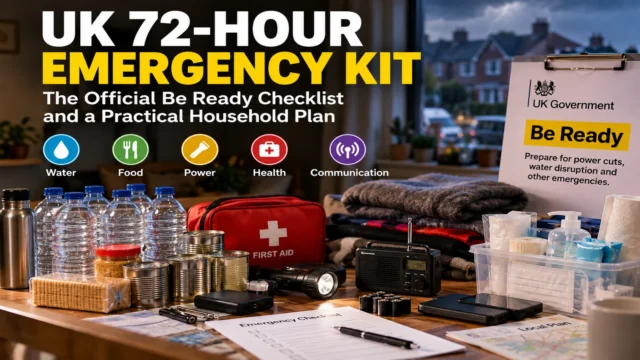
 UK 72-Hour Emergency Kit: The Official Be Ready Checklist and a Practical Household Plan
A practical UK 72-hour emergency kit guide with water calculations, food, power-cut preparation, and family checklists.
 How To
 UK 72-Hour Emergency Kit: Be Ready Checklist, Water Calculator and Family Plan
UK Be Ready 72-hour emergency kit explained: official checklist, water quantities by household size, power-cut plan and affordable…
 How To
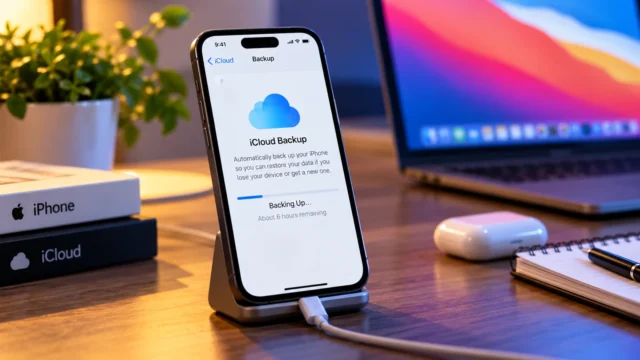
 iCloud Backup Stuck or Taking Too Long? Diagnose Slow Uploads Without Losing Data
iCloud backup stuck for hours? Estimate upload time, check Next Backup Size, fix failed backups, and protect photos…