
BitLocker Recovery Screen After a Windows Update? How to Find Your Key Safely
How to recover the correct 48-digit BitLocker key after a Windows update, avoid risky TPM resets and preserve your encrypted files.
Contents
- BitLocker recovery screen: what the numbers mean
- Step 1: Decide which account originally set up the PC
- Step 2: Find a personal BitLocker key in your Microsoft account
- Step 3: If it is a work or school device, contact the organization
- Step 4: Search for printed, USB or securely stored copies
- Why a photo of the recovery screen is not sufficient
- Step 5: Understand why the screen appeared after an update
- What to do after unlocking the PC so it does not happen again
- What if the Microsoft account lists a key but it does not work?
- The crucial limitation: what if no recovery key exists?
- Common recovery myths that can permanently cost you data
- A privacy-first recovery worksheet you can complete in five minutes
- Trusted Microsoft references and update policy
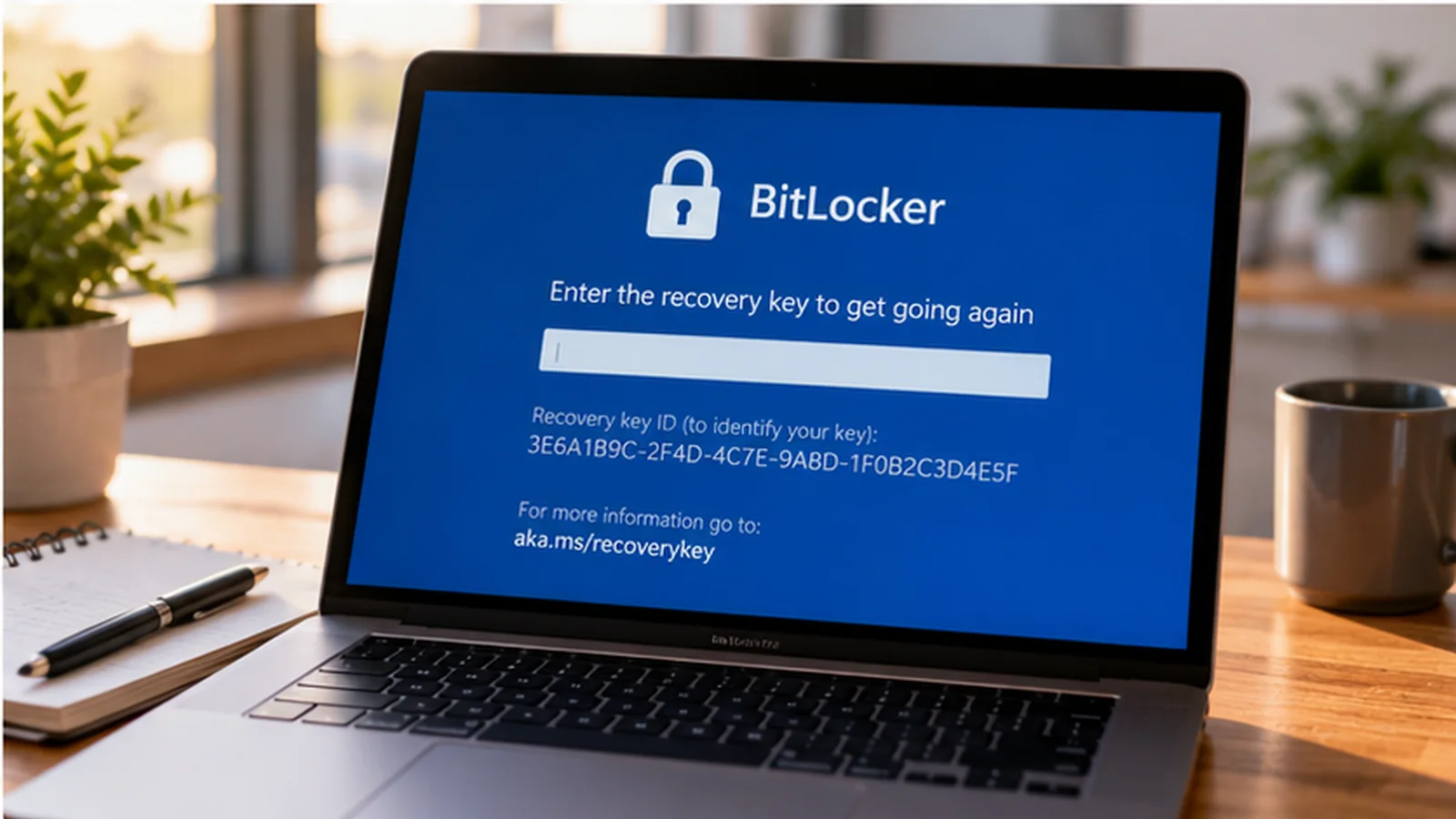
You install a Windows update, restart the PC and find a blue screen demanding a 48-digit BitLocker recovery key. The files appear to be trapped behind a lock you never consciously set. This can be alarming, especially if the laptop holds work files or family photos. Yet the appearance of the recovery screen does not necessarily mean Windows deleted your data, your drive failed or an attacker broke into your account. BitLocker is protecting an encrypted drive because the normal automated unlock did not complete.
The important next decision is not whether to reset Windows. It is where the correct recovery key was saved and whether the PC is personal, employer-managed, school-managed or previously owned by somebody else. Microsoft’s official Find your BitLocker recovery key guide lists several storage locations. This article turns that information into a safe decision tree and explains what to do if none of the keys you find matches the screen.
Do not reset, format, reinstall Windows, clear the TPM or randomly change Secure Boot settings just to dismiss the prompt. Those actions may make recovery harder or destroy access to encrypted files. Find the matching 48-digit key first. Microsoft does not have a universal master key and cannot recreate a lost recovery key.
BitLocker recovery screen: what the numbers mean
The recovery screen asks for a 48-digit recovery password, often displayed as groups of six digits. It also shows a Recovery Key ID, which identifies the specific key record. These are not interchangeable. The ID is an identifier; the 48-digit code is what unlocks the encrypted drive. If a Microsoft account lists multiple saved keys, compare the ID shown on the device with the corresponding ID in the account before entering the code.
| What you see | Meaning | What to do |
|---|---|---|
| “Enter recovery key” | Windows needs the special recovery secret | Use another device to find the saved key. |
| Recovery Key ID | A label for identifying the correct key entry | Match it against IDs in your Microsoft or organization account. |
| A 48-digit number | The actual BitLocker recovery password | Type into the recovery field on the original machine only. |
| Several keys under one account | You may have multiple drives or past encryption protectors | Match the ID; don’t use the first key blindly. |
| Account hint on Windows 11 24H2 or later | A clue about which account may hold the key | Try the hinted account first, while verifying the address carefully. |
If a website or caller asks you to paste your BitLocker key into a chat, stop. A recovery key is highly sensitive because it grants access to an encrypted drive when used with that drive. Keep it out of screenshots and public forums.
Step 1: Decide which account originally set up the PC
The most common mistake is searching the current email address while the recovery key belongs to an account used during the computer’s original setup. Think about whether a partner, parent, previous owner, employer or school IT department first configured Windows. Microsoft notes that a key can reside in the Microsoft account of the person who enabled encryption, not necessarily the person sitting in front of the PC today.
Windows Device Encryption can be enabled automatically on supported hardware when the device is set up using a personal Microsoft account or work/school account. This means even someone who never clicked a button labelled “BitLocker” may encounter the recovery screen. See Microsoft’s Device Encryption explanation.
Step 2: Find a personal BitLocker key in your Microsoft account
Use a different phone, tablet or PC. Open the official Microsoft recovery-key portal by typing https://aka.ms/myrecoverykey into the address bar, or follow the link from Microsoft’s support article. Sign in using the Microsoft account that originally set up or protected the locked Windows device. If you have multiple Microsoft accounts, check them systematically.
Then:
- Open the list of BitLocker recovery keys associated with your account.
- Compare the Recovery Key ID on the locked computer with the listed key identifiers.
- Select the matching key; note its 48-digit recovery password privately.
- Carefully enter the 48 digits on the locked PC and follow the on-screen instructions.
- Once Windows starts, back up the key to a secure location so the next firmware update does not turn into the same emergency.
Some Microsoft interfaces change their layout over time. The key is to use the legitimate Microsoft domain and to match the recovery key ID—not to follow a particular screenshot of an outdated portal. If the first account has no saved key, do not take that as proof no key exists: check other setup accounts or organization storage.
Step 3: If it is a work or school device, contact the organization
An employer or college may keep recovery keys in Microsoft Entra ID or another managed directory. Microsoft’s guidance points users to https://aka.ms/aadrecoverykey where an authorized work/school sign-in may provide device information and recovery keys. In many organizations only IT administrators can release a key to an employee after identity verification.
If your employer supplied the laptop, do not sign in with a private account to look for corporate keys or reset the company-managed drive. Contact the service desk and send them the Recovery Key ID, the device’s asset tag, and the context of the update through the organization’s normal support channel. Never send the actual recovery password via insecure messaging unless your organization instructs you to use an approved secure process.
| Device background | Where the key may be | Sensible next action |
|---|---|---|
| Personally purchased and configured by you | Your personal Microsoft account | Check aka.ms/myrecoverykey, matching Key ID. |
| Set up by a family member | That person’s Microsoft account | Ask them to retrieve the matching key privately. |
| Employer-owned | Company directory or IT key escrow | Ask the IT help desk; do not factory reset. |
| School-issued | Education directory / help desk | Use the school’s official IT support process. |
| Bought used or refurbished | Possibly previous owner’s stored key | Contact seller or refurbisher; ownership alone does not bypass encryption. |
| Printed or saved recovery record | Paper, USB or a secure password manager | Check identifier and all 48 digits carefully. |
Step 4: Search for printed, USB or securely stored copies
During setup or encryption activation, BitLocker may offer to save or print the recovery key. Search the place you store important computer documents, password-manager secure notes or a USB drive used for backup. A text file called something similar to “BitLocker Recovery Key” might hold the necessary digits. Microsoft documents both printout and USB storage as possible locations.
If a file is on a USB stick, use a trusted second computer to inspect it if the locked machine cannot open it. Treat the USB stick carefully: it may contain personal recovery secrets. A sheet showing a six-digit group or a short identifier alone is not necessarily the 48-digit recovery password.
Why a photo of the recovery screen is not sufficient
A photograph can preserve the Recovery Key ID, which helps you find a match. It does not magically create or reveal the missing password. If you photographed the screen before finding your account, keep the photo private and remove it from unneeded cloud shares after use.
Step 5: Understand why the screen appeared after an update
BitLocker relies partly on device integrity measurements to decide whether Windows can automatically unlock a protected system volume. Changes involving UEFI/BIOS firmware, the Trusted Platform Module (TPM), Secure Boot settings, the boot path or other security-sensitive components can cause recovery to be requested. This is expected security behavior under certain conditions; it is not proof a specific Windows quality update is defective.
Microsoft explains that firmware and TPM updates may require suspending BitLocker protection in a managed way before a planned change, then resuming it afterward. See Microsoft Learn: BitLocker recovery known issues and the recovery overview.
Changes to drives, boot settings or recovery configuration can also trigger the prompt. The exact cause may need event logs, firmware history and IT investigation after successful unlock. Avoid promising that every post-update recovery event has the same root cause.
What to do after unlocking the PC so it does not happen again
Once the correct key gets you back into Windows, back up the recovery key again using Microsoft’s official instructions. Check that the backup belongs to the current protection configuration and is accessible from another device. For a personally managed machine, a secure Microsoft account backup plus a separate protected offline copy can reduce the chance of lockout. For organizational devices, follow IT policy.
If you are planning a BIOS/UEFI or TPM firmware update, read the manufacturer’s official documentation and Microsoft’s guidance on temporarily suspending BitLocker. Do this before the next planned firmware operation, while Windows is functioning and your key is known—not while stuck at the recovery screen. Some changes need multiple reboots; do not blindly copy PowerShell commands with indefinite suspend settings without understanding the security implications. After maintenance, confirm that encryption protection has resumed.
What if the Microsoft account lists a key but it does not work?
First, verify that you copied the key corresponding to the exact Recovery Key ID shown on the locked machine. Check that all digits are entered accurately. Make sure you are not mixing a personal Microsoft account, an organizational account and a previous setup account. An old device image or replacement motherboard may mean the saved records differ from the current device.
Do not post the entire 48-digit key for strangers to “verify.” If a device is managed by a school or business, IT can investigate key escrow and device identity. If a key is clearly a match but entry fails, follow the device manufacturer’s official troubleshooting path and consider professional data recovery advice before attempting any destructive procedure. An error after entering a valid key may indicate a separate boot or drive issue, not that encryption can be bypassed.
| Symptom | Likely interpretation | Next safe action |
|---|---|---|
| Microsoft account has no recovery keys | Key may be in another account or organization storage | Check alternate setup accounts, IT, printed/USB copies. |
| Key ID mismatches | Different drive or protector | Search all stored records; do not force an unrelated key. |
| Key found but machine immediately asks again after restart | Firmware/configuration measurement issue may persist | Once unlocked, record evidence and use approved firmware/BitLocker procedures. |
| Company laptop, cannot access account | Key controlled by the organization | Contact IT with device ID and Recovery Key ID. |
| No key in any location | Encrypted files may be inaccessible | Stop destructive resets and assess options with the device owner/IT. |
| A website promises a “BitLocker master unlock tool” | Potential scam or unsafe program | Do not install it or pay for a supposed universal key. |
The crucial limitation: what if no recovery key exists?
Microsoft explicitly says Microsoft Support cannot recreate a lost BitLocker recovery key. Strong disk encryption is designed so that possession of the hardware or a Windows install USB does not automatically grant access to its encrypted data. If you cannot recover the key and cannot undo the change that triggered recovery, an eventual Windows reset or reinstall can remove files from the encrypted system drive. Do not describe that as a harmless “fix.”
Before accepting data loss, make a complete inventory of possible recovery locations: personal accounts, family setup account, workplace directory, school directory, printed sheet, USB backup, managed IT escrow and secure off-device copies. If the laptop has legal or business data-retention requirements, involve the owner and IT administrator before any reset. A shop may help assess the device but should not promise to defeat BitLocker cryptography without the necessary material.
Common recovery myths that can permanently cost you data
“Clearing the TPM resets the BitLocker password.” Clearing or changing TPM state can trigger or complicate recovery; it does not create a missing 48-digit key. “Formatting Windows keeps my files.” A destructive reset may remove them. “The Key ID is the key.” The ID identifies which 48-digit recovery password you need. “If the recovery screen followed Windows Update, Microsoft must have a universal unlock.” Microsoft does not have a master password for user-encrypted disks.
Another misconception: a PC running Windows Home cannot use encryption. Device Encryption is supported on a broader set of Windows editions and compatible devices, including certain Home configurations. That’s why even a personal laptop with no visible BitLocker management console may need a recovery key.
A privacy-first recovery worksheet you can complete in five minutes
Write down, on paper kept in a private place, four nonsecret identifiers: (1) device make/model and serial number, (2) whether it is personal or organizational, (3) the Recovery Key ID from the blue screen, and (4) likely Microsoft/work/school accounts that configured it. Next to each candidate account, mark “checked — found matching ID,” “checked — no match,” or “need owner’s approval.”
Do not write the 48-digit key in a public support ticket or shared group chat. This worksheet reduces repeated guessing and enables an IT technician to help efficiently without exposing the secret prematurely. If you find a matching key, use it on the locked computer and update your secure backup after Windows is restored.
Trusted Microsoft references and update policy
Checked 19 October 2026: Find your BitLocker recovery key; Back up your BitLocker key; Device Encryption in Windows; BitLocker recovery overview; BitLocker recovery known issues; and firmware/TPM update considerations. Use the current Microsoft pages if the interface wording changes.
Bottom line: The safe response to a BitLocker recovery screen is to locate and match the correct 48-digit key, not to try a series of risky settings changes. Start with the account or organization that configured the device, verify the Key ID, and protect your files by avoiding resets until all legitimate recovery locations have been exhausted.
You may also like
 Technology & How-To
 Android Auto Keeps Disconnecting? How to Fix USB and Wireless Dropouts
Android Auto keeps disconnecting? Separate USB, wireless and app failures, check Galaxy USB mode, compare connection methods and…
 Technology & How-To
 Netflix Says Your TV Isn’t Part of the Household? How to Fix It
Fix a Netflix household warning by separating home verification, permanent household updates and temporary travel access, with genuine…
 Technology & How-To
 Google Photos Stopped Backing Up from Your PC? What Changed and How to Fix It
Google Photos stopped backing up your computer folders? Understand the Drive for desktop change, configure browser folder backup…