
Google Wallet Not Working After Switching Phones? Fix Card Setup and Tap to Pay
Google Wallet transferred but tap to pay fails? Separate card verification, bank approval, NFC, screen lock and device certification before resetting your new phone.
Contents
- Start with the exact message or behaviour
- Why a card can appear after transfer but still need setup
- Step 1: Check the account and payment setup
- Check the country and the particular card
- Step 2: Complete verification through the bank's offered method
- Step 3: Handle a card-setup rejection as an issuer request
- A clearer way to describe the issue to the bank
- Step 4: Check NFC and the default wallet
- Step 5: Separate screen unlock from payment authentication
- Step 6: Inspect device certification and software
- If setup is complete but the terminal still does not respond
- Before deleting cards or clearing app data
- Changing phones can affect transport payments and returns
- London: finish a journey with the same card or device
- New York: keep the same payment choice for fare-cap tracking
- Keep purchase records for returns
- Give the right evidence to the right support team
- Official sources and verification
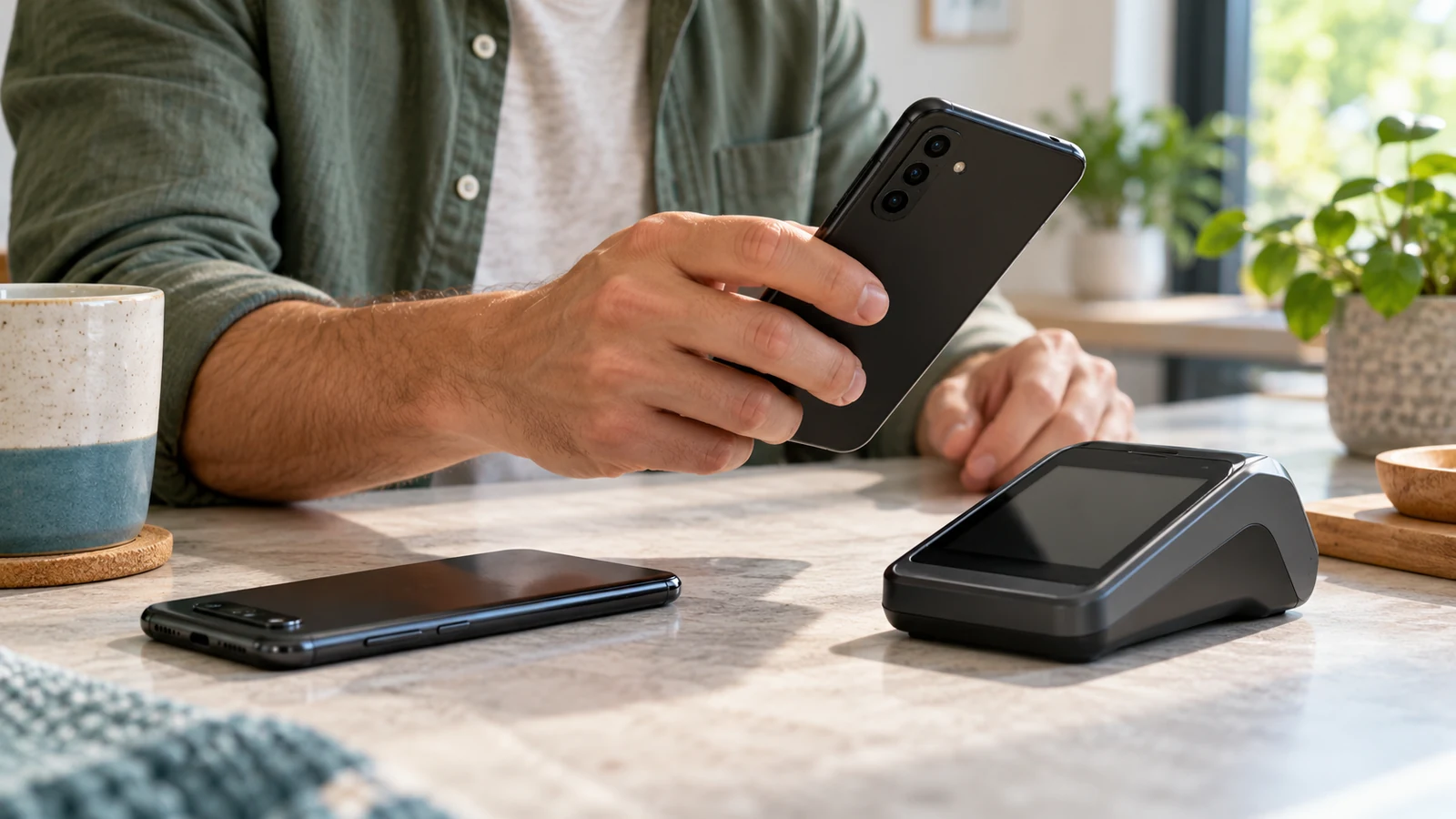
If Google Wallet is not working on your new phone, check whether the card has finished tap-to-pay setup before reinstalling anything. A transferred app or a visible card does not prove that the new device is ready to make contactless payments. The next step depends on what fails: card verification, approval by the bank, the phone’s security checks, or communication with the payment reader.
This guide covers Google Wallet on Android phones, with official resources for US and UK cards. It separates setup failures from declined purchases and includes a record you can use when contacting your bank or Google. Smartwatch enrolment, individual transit passes and country-specific payment features may require separate instructions.
Start with the exact message or behaviour
| What happens | First thing to check | Best next route |
|---|---|---|
| The card appears but asks to finish setup | Outstanding card verification | Complete the method offered for that card |
| Card setup cannot be completed | The exact error and issuer approval | Use the bank-approval section below |
| The phone reports a security or certification problem | Play Protect certification and software | Inspect the device; involve its manufacturer if necessary |
| Nothing happens near a reader | NFC, default wallet, unlock and positioning | Use the device-settings checks |
| The terminal responds but declines payment | Merchant acceptance and the issuer’s response | Confirm the result with the merchant and bank |
| The bank code goes to an old number | Contact details held by the bank | Use the bank’s approved verification or update route |
Record the wording before dismissing it. A phone-security warning is a different lead from a bank declining a request to add a card. Repeating the same general reset for both makes it harder to tell which stage changed.
Why a card can appear after transfer but still need setup
Google’s Wallet overview explains that moving the app to another phone still requires setting up cards for tap-to-pay transactions. Seeing a saved card establishes that the app can show that payment method; it does not establish the new phone’s contactless readiness.
The bank may need to register the replacement device. For example, Chase’s device-replacement guidance describes registering cards on the new device and explains that the old device has its own Digital Account Number, or token. That is why “the same card worked on my old phone” is useful background, but not proof that the replacement has been approved.
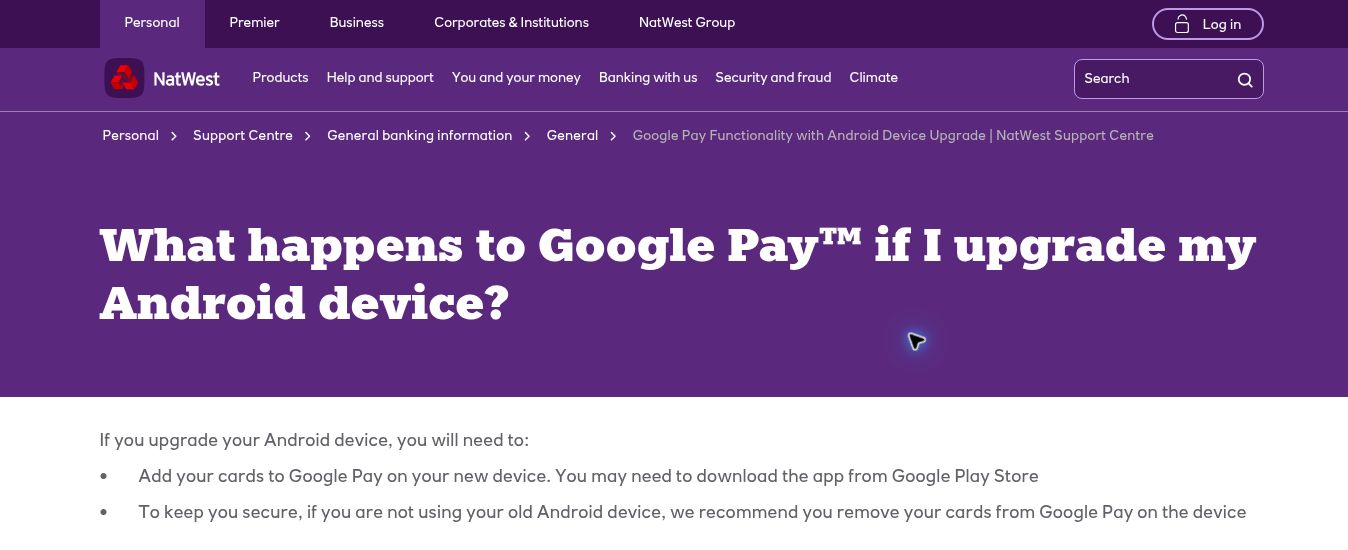
NatWest’s official answer, shown above, likewise tells customers to add cards on the new Android device and remove them from an old device they no longer use. These are examples of issuer guidance, not a promise that every bank uses the same screens or approval process.
Step 1: Check the account and payment setup
- Open Google Wallet on the replacement phone and confirm the intended Google Account from its profile menu.
- Open Payment setup from the profile or account menu where shown.
- Inspect the message associated with the intended card, rather than relying on its artwork.
- If setup is incomplete, follow the offered completion and verification flow.
- Review the resulting status before attempting a purchase.
Google documents the setup screen in its tap-to-pay guide. Menu names and placement can vary. If you have several accounts, check which one you are actually using before adding duplicate payment methods or changing account settings.
Check the country and the particular card
Use Google’s supported-payment-method list for the United States or United Kingdom, or choose the correct country on that page. Check the card category and exclusions, not just the bank’s name. The issuer decides which of its products can be used.
A physical card’s contactless symbol, or the ability to pay with it on a website, does not by itself answer whether that card supports Google Wallet contactless payments. Do not change your Google Account’s country as an experiment to bypass an eligibility problem.
Step 2: Complete verification through the bank’s offered method
Google’s card-verification instructions state that the code comes from your bank, not Google Wallet. Available methods depend on the issuer and region; these can include email, text, a call, or approval through the bank’s app or website. Use the choices actually offered for your card.
- Check that the destination phone number or email matches the details your bank holds.
- Confirm the relevant SIM can receive ordinary SMS, and check filtered messages when a text is expected.
- If the offered code does not arrive, use the resend or alternative-method option in the official flow.
- If the bank’s details are outdated, contact the issuer through its app or the number on your card.
If changing phones also interrupted the mobile line, our eSIM transfer troubleshooting guide helps distinguish an installed profile from a number that can actually receive SMS. A working Wi-Fi connection does not establish that the intended mobile number is receiving bank messages.
Keep verification within the app or bank channel you opened. Do not post a code, full card number, security code or account screenshot in a support forum. If your issuer offers a different approval method, follow its instructions rather than assuming every bank must send a text.
Step 3: Handle a card-setup rejection as an issuer request
For the specific error “Couldn’t finish card setup for tap to pay”, Google’s card-setup troubleshooting page says the issuer declined the request to add the card. It directs you to the bank for approval of that addition. This is different from asking whether the physical card is active or whether the account has money.
First check that the name, billing address and card information entered in the official setup flow match the bank’s records. Where the issuer provides an Add to GPay option in its own app or website, Google also documents that route. Its absence does not prove the card is unsupported; the bank may simply not offer that particular enrolment button.
A clearer way to describe the issue to the bank
I am trying to add my existing card to Google Wallet on a replacement Android phone. The failure happens during card setup, before any purchase, and the message is (exact wording). Please check the digital-wallet provisioning request for this device and whether an approval or verification step is outstanding. The request was made at approximately (time and time zone).
Use your own facts in that description. Ask for a reference and the next action the bank wants you to take. Do not describe it as a declined shop transaction when no purchase was attempted. If the first response only confirms that the physical card works, clarify that the question is about adding it to a digital wallet.
Repeatedly entering the same details does not establish why approval failed. If multiple issuers reject their own cards, record each result separately while checking the phone’s eligibility too. Do not infer that one issuer’s approval guarantees another’s, or that Google can override a bank’s decision.
Step 4: Check NFC and the default wallet
On Samsung Galaxy devices, Samsung’s connection guide gives the path Settings → Connections → NFC and contactless payments. Turn NFC on, then inspect the default wallet or contactless-payment setting and select the intended app.
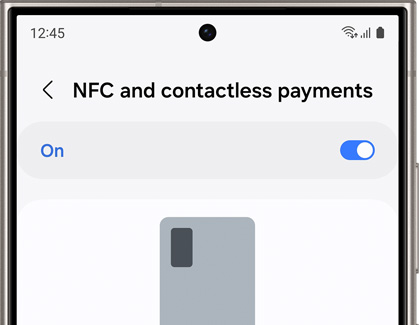
The official Samsung image above illustrates the NFC switch only. It does not show a card being approved or Google Wallet selected as the default. Those are separate checks. On other Android phones, search Settings for NFC or contactless payments and use the manufacturer’s instructions; the Galaxy menu labels are not universal.
When Google Wallet and another wallet are installed, confirm which app Android sends contactless payments to. Opening the intended app is not a substitute for checking that setting. If the replacement model lacks NFC, a software setting or app reinstall cannot add the missing hardware.
Step 5: Separate screen unlock from payment authentication
Google Wallet requires a supported screen lock. Google’s purchase-verification guide lists PIN, pattern, password and Class 3 biometric unlock. Some methods that unlock a phone are not accepted for Wallet purchase verification.
If the phone asks for verification, complete the Android screen-lock prompt on the phone. Do not assume that a face-unlock animation or a trusted-unlock feature means payment authentication is complete. The Wallet prompt is for the device’s screen lock, not a request to type your bank-card PIN into the app.
For troubleshooting, open Wallet and resolve any verification request before approaching the reader again. Keep the screen lock enabled. Removing it to avoid the prompt creates another security and setup problem rather than resolving the original one.
Step 6: Inspect device certification and software
Open Google Play Store → profile icon → Settings → About and check Play Protect certification. Google explains in its certification guide that device certification is separate from Play Protect’s malware scanning. Turning off the protection does not fix an uncertified device.
Update Wallet through Google Play and check the phone’s normal software-update controls. A replacement phone may differ from the old one in its software build or certification even when both can install the app. Record the status and any security message before escalating.
If the device runs modified software, is rooted or has an unlocked bootloader, review Google’s security requirements and the manufacturer’s supported recovery route. Do not use unofficial payment-bypass tools, disable security controls, or attempt firmware changes simply to test a card. If a stock device unexpectedly reports a security failure, give the manufacturer the model, build and certification result.
If setup is complete but the terminal still does not respond
Google’s transaction troubleshooting guide recommends checking unlock, NFC, the payment app and positioning. Hold the phone near the reader for a few seconds and adjust its position using the antenna location specified for your model. A thick case can interfere with the signal.
Make a controlled comparison when you next have a legitimate purchase to make: note the card selected, the reader’s reaction and the exact phone message. If another reader is available, ask the merchant whether you can try it. Avoid an uncontrolled sequence of taps when you do not know whether an earlier attempt was accepted.
| Observation | What it helps distinguish | Next action |
|---|---|---|
| No reader response and no phone indication | Readiness, authentication or NFC communication | Recheck the device path and positioning |
| A reader responds but rejects the payment | A transaction-stage failure rather than a missing tap alone | Ask the merchant and issuer about the response |
| The phone shows a checkmark but the cashier reports failure | The displays disagree about the outcome | Confirm the sale and payment status before paying again |
| A different eligible card works on that phone and reader | A useful comparison pointing toward a card-specific issue | Record both results for the affected issuer |
A comparison is evidence, not a guarantee: different cards can use different networks or approval decisions. Confirm the intended purchase with the merchant and check the bank’s transaction record if the outcome is unclear. A pending entry should be described as pending when requesting help.
Before deleting cards or clearing app data
Do not make removal of every card, deletion of Google Play services data, or a factory reset the first step. Google’s setup guide lists data clearing, account removal and some screen-lock changes among circumstances that can remove payment cards. You may then have to complete issuer verification again.
If you and the official support team decide to re-add one affected card, first confirm that you can complete its verification method. Write down the original message and make one deliberate change. Repeating broad resets without recording the result removes useful diagnostic information.
When retiring the old phone, follow its bank and device-security instructions before selling or giving it away. If it was lost or stolen, use the official lost-device and issuer channels promptly; preserving access for troubleshooting is not a reason to leave a missing device unsecured.
Changing phones can affect transport payments and returns
London: finish a journey with the same card or device
Transport for London tells passengers to use the same card or device when touching in and out. Do not start a rail journey with the old phone and treat the new phone or physical card as an interchangeable way to finish it. If a change or failure occurs during travel, ask staff for the appropriate route rather than experimenting at gates.
New York: keep the same payment choice for fare-cap tracking
OMNY’s fare-cap guidance likewise calls for the same card or device for trips; a physical card and its mobile-wallet version do not count together toward one cap. Check the operator’s instructions when changing devices instead of assuming that matching bank-card details preserves every transport benefit automatically.
Keep purchase records for returns
Chase recommends bringing the device used for a Google Pay purchase and keeping the receipt for a return. If that phone is unavailable or has already been retired, ask the merchant and issuer how they can identify the original payment. Do not disclose a full card number or verification code to someone offering to “transfer” a refund.
Give the right evidence to the right support team
| Prepare | Example of a useful description |
|---|---|
| Failure stage | Adding card, verifying it, completing setup, or paying at a reader |
| Exact message | Record the full wording and where it appears |
| Device details | Model, Android build, Wallet version and certification result |
| Issuer and card category | Identify the relevant bank and product through its secure channel |
| Time and changes tried | Include the time zone and the result of each relevant check |
| Payment outcome if applicable | No purchase attempted, declined, pending, or confirmed by the merchant |
Contact the issuer for approval, verification, suspension or a declined card request. Use the phone manufacturer’s support for an unexpected device-security or hardware issue. For Wallet behaviour that remains unexplained, start from the Google Wallet Help Centre and its available support routes. Keep the case reference when another team is involved so you can explain what has already been checked.
Official sources and verification
Reviewed October 27, 2026. This article combines current Google instructions, manufacturer settings and issuer examples; it does not report a payment test or an account-specific bank approval. The Samsung image is a published manufacturer illustration, and the NatWest image is a real public-page screenshot. Neither contains a private account or a demonstrated successful payment.
- Google Wallet overview, adding cards and setup errors, and card verification.
- Google tap-to-pay setup, transaction troubleshooting, purchase authentication, and Play Protect certification.
- Samsung Galaxy connection settings — source of the NFC illustration.
- NatWest on replacing an Android phone and Chase on replacement devices and returns. Issuer examples are not universal service promises; use Google’s current requirements for device compatibility.
- TfL’s same-device guidance and OMNY fare-cap guidance for those specific transport systems.
No universal waiting period, current widespread outage, or guaranteed issuer approval has been established. If the instructions shown for your own card differ, follow the issuer’s current flow and report the exact point at which it stops.
You may also like
 Technology & How-To
 USB Works on PC but Not on TV? How to Find the Cause
Diagnose a USB drive that works on a computer but not a TV. Separate detection, missing files and…
 Technology & How-To
 WhatsApp “Waiting for This Message”: Fixes for iPhone, Android and Web
Fix WhatsApp’s waiting-message notice by comparing your phone and linked devices, checking updates and protecting existing chat data.
 Technology & How-To
 WhatsApp iOS 15.5 Requirement: What Changes on November 30, 2026?
WhatsApp raises its iPhone minimum to iOS 15.5 on November 30, 2026. Check your version, older iPhone eligibility…