
eSIM Transfer Failed? Fix Activation on iPhone, Samsung and Pixel Without Losing Your Number
An eSIM transfer failure can be stressful because the phone number you use for calls, banking and verification may be involved. Yet an incomplete transfer does not always mean your number is lost. The correct recovery depends on whether the old line is still active, whether the carrier supports device-to-device transfer, and whether the new phone's eSIM activation has already completed.
Contents
- Diagnose the problem before trying again
- Step 1: Confirm the basics without changing either eSIM
- Step 2: iPhone-to-iPhone transfer
- Step 3: Samsung Galaxy transfer
- Step 4: Google Pixel and other Android phones
- When does a QR code help?
- What if you deleted the old eSIM already?
- Why mobile service can fail even after transfer says complete
- What not to do during recovery
- Frequently asked questions
- Can I use the same phone number on both eSIMs at once?
- Can I transfer an eSIM without the old phone?
- Does deleting an eSIM cancel my phone plan?
- Can a failed eSIM transfer block banking OTP texts?
- Official sources
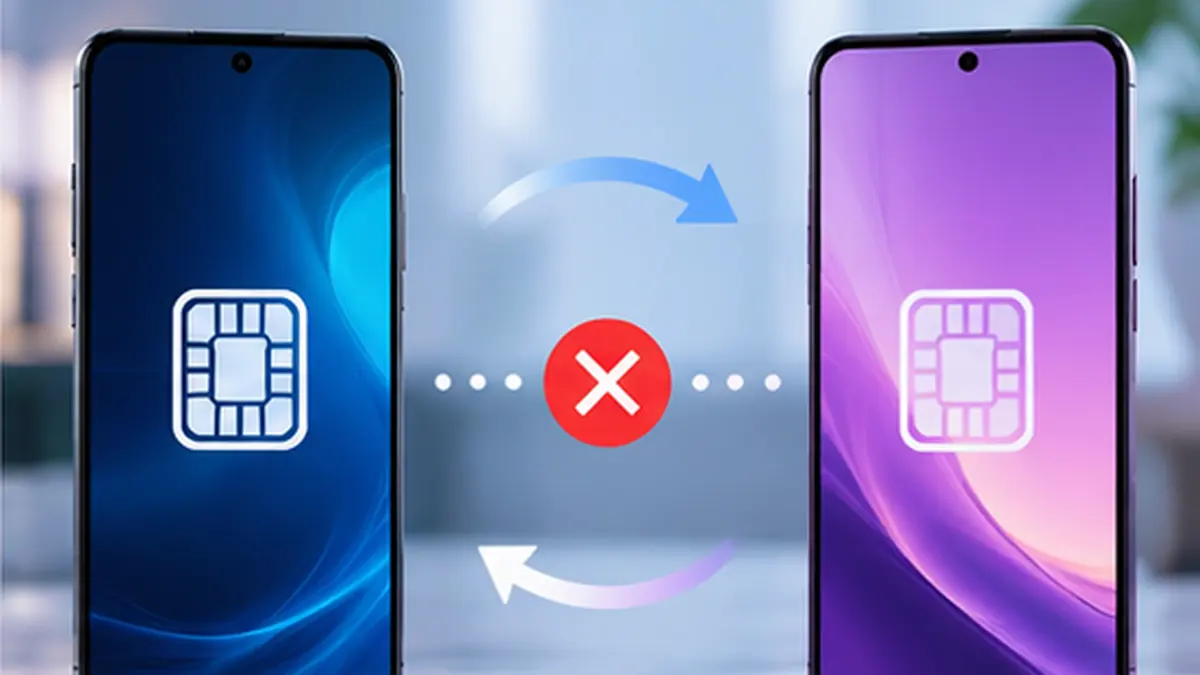
An eSIM transfer failure can be stressful because the phone number you use for calls, banking and verification may be involved. Yet an incomplete transfer does not always mean your number is lost. The correct recovery depends on whether the old line is still active, whether the carrier supports device-to-device transfer, and whether the new phone’s eSIM activation has already completed.
Most important rule: Do not erase or delete the eSIM from the old phone as your first troubleshooting step. Keep both phones, Wi-Fi access and your carrier’s account details available while you check the activation state. Some successful transfers deactivate the old eSIM automatically; that is different from manually deleting it before the new one works.
Diagnose the problem before trying again
- No transfer option: Carrier, model, region or operating-system support may differ. Check the carrier’s official transfer method.
- Transfer starts but fails: Possibly network or authentication failure. Keep phones nearby and retry after updating.
- Old phone works but new says No Service: New profile may not be active. Check the new phone’s line status and contact the carrier if needed.
- Old line stopped working and new is inactive: Contact the carrier through another phone or over Wi-Fi for provisioning assistance.
- QR code rejected: The code may be expired, used or not assigned to your account; ask the carrier for approved activation instructions.
Important: A failed device-to-device transfer is not the same thing as copying photos and contacts. You can transfer your files separately while the carrier restores cellular service.
Step 1: Confirm the basics without changing either eSIM
- Keep both phones charged and connected to a stable Wi-Fi network.
- Update the new phone to the latest officially available operating-system version appropriate for its model.
- Check the carrier’s website to confirm it supports eSIM on the target phone and the specific transfer method.
- Ensure the old phone is unlocked and nearby; Bluetooth may be required for automatic transfer.
- Note whether the old device can still place a cellular call and receive an ordinary SMS.
- Check the new device for SIM / Cellular settings, and whether the new line is listed as On, Activating, or Inactive.
If you use two phone numbers, identify the exact number to transfer before proceeding. Do not casually disable both lines at once.
Step 2: iPhone-to-iPhone transfer
Apple’s eSIM Quick Transfer works only when the carrier supports it and the relevant device/software requirements are met. On supported setups:
- Place both iPhones near one another, with Wi-Fi and Bluetooth available.
- Keep the old iPhone unlocked and signed in with the appropriate Apple Account.
- On the new iPhone, open Settings > Cellular (called Mobile Service in some regions).
- Choose Add eSIM or Set Up Cellular and look for an option to transfer a number from a nearby iPhone.
- Follow the verification and confirmation prompts on both phones.
- Wait for the new line to activate and verify calls and SMS before wiping the old device.
If the option is missing, it does not necessarily indicate a fault: the carrier may require its app, a QR code or direct activation instead. Apple’s official page explains the carrier-dependent paths. Apple: Set up eSIM on iPhone.
Step 3: Samsung Galaxy transfer
Samsung describes an eSIM Instant Transfer workflow on supported Galaxy models and carriers. The menu path can vary, but often follows:
- On the new Galaxy, open Settings > Connections > SIM manager > Add eSIM.
- Choose Transfer SIM from another phone when offered.
- Approve the transfer on the old device and enter the displayed verification code when asked.
- Select the intended phone number and confirm.
- Wait for the new device to download and activate the eSIM profile.
Samsung also documents carrier QR-code activation. Do not assume a Galaxy-to-Galaxy transfer is available on every network or regional model. Samsung: Galaxy eSIM and supported carriers.
Step 4: Google Pixel and other Android phones
Google’s Pixel help explains that on supported devices and networks, a SIM or eSIM transfer may appear during initial phone setup or later in Settings:
- On the new Pixel, navigate to Settings > Network & internet > SIMs.
- Choose Add SIM and look for Transfer SIM from another device if supported.
- Follow prompts with the old device nearby.
- If the automatic method is unavailable, ask your carrier how to download or activate a replacement profile.
For some supported automated Pixel transfers, Google lists requirements including Android 12 or later on both devices, current Google Play services and a screen lock. These are not universal requirements for every carrier-issued QR-code method. Google Pixel: Transfer a SIM to a new phone.
When does a QR code help?
A carrier may issue a QR code or activate a line through its account app. QR codes are not necessarily reusable. If scanning says the code is invalid, previously used, or unavailable, request carrier help. Avoid screenshots of QR codes shared publicly: activation credentials are sensitive.
The carrier may ask for your EID or IMEI to provision the correct device. Find these through the phone’s official settings or packaging as instructed; share them only with the legitimate carrier, not in comments or support scams.
What if you deleted the old eSIM already?
Don’t assume a deletion can simply be undone from the phone’s Recycle Bin. Contact the carrier and ask for a replacement eSIM profile or reprovisioning. You can still use Wi-Fi in the meantime for account access where supported. Replacing an eSIM profile may require identity checks, account-owner authorization or a new QR code depending on local rules.
If your old line still works, leave it untouched until a successful activation step or a carrier representative instructs otherwise. If the old line was deactivated as part of an incomplete transfer, don’t repeatedly reset both phones: ask the network operator to check the line’s provisioning status.
Why mobile service can fail even after transfer says complete
- The new SIM profile is installed but disabled in Cellular/SIM settings.
- The carrier has not completed provisioning or security verification.
- You accidentally selected a secondary line as the mobile-data or calling default.
- Cellular coverage is weak or the operator is experiencing an outage.
- A locked phone or incompatible model does not support the selected carrier profile.
- A carrier profile or eSIM download is stuck; the operator may need to resend provisioning information.
Test a normal voice call and an SMS after activation. Cellular data working does not always prove that every call and messaging service is fully provisioned.
What not to do during recovery
- Do not factory-reset either phone before making a verified backup.
- Do not delete the old working eSIM just because the new phone shows an error.
- Do not buy an “eSIM unlock” service from an unrelated website.
- Do not post your EID, IMEI, QR code or account PIN online.
- Do not assume a successful photo/data transfer means the cellular number has transferred.
Frequently asked questions
Can I use the same phone number on both eSIMs at once?
Ordinarily a line is provisioned according to your carrier’s rules, and transferring it typically moves service rather than producing two independent active copies. Ask your carrier about any supported number-sharing service.
Can I transfer an eSIM without the old phone?
Often there is a carrier-assisted route, such as a replacement activation, but it varies by carrier, country and ownership checks. Use the operator’s official app, website or store.
Does deleting an eSIM cancel my phone plan?
Deleting a profile from a device does not necessarily cancel the carrier contract, but it may remove the credentials needed to use the line. Ask the carrier about reprovisioning; don’t treat deletion as a safe transfer step.
Can a failed eSIM transfer block banking OTP texts?
Yes, if the phone number is temporarily unable to receive SMS. Restore line provisioning first. Never share verification codes with anyone claiming to fix your number.
Official sources
- Apple Support — Set up eSIM on iPhone.
- Samsung Support — Galaxy eSIM and supported network carriers.
- Google Pixel Help — Transfer your SIM to a new phone.
- Google Pixel Help — Set up a new eSIM.
Editorial check: October 12, 2026. Transfer options are carrier-, device-, region- and software-dependent.
You may also like
 Technology & How-To
 Phone Receives Calls but Not SMS Verification Codes? Fix OTP Delivery on Android and iPhone
When your phone can make and receive calls but SMS verification codes never arrive, the mobile line is…
 Technology & How-To
 How to Tell If a microSD Card Is Fake: Test Real Capacity Before Losing Your Files
A microSD card can display 512 GB or 1 TB on a computer while physically containing far less…
 Technology & How-To
 Bluetooth Headphones Connected but No Sound in Windows 11? Fix Output and Audio Issues
A Windows 11 PC may say your Bluetooth headphones are Connected even when no sound reaches them. Bluetooth…