
How to Tell If a microSD Card Is Fake: Test Real Capacity Before Losing Your Files
A microSD card can display 512 GB or 1 TB on a computer while physically containing far less working flash memory. In one common form of storage fraud, a modified controller reports a false size. Initial files may copy successfully; later writes can corrupt or overwrite earlier data once the real memory fills. That is why checking the capacity shown in File Explorer is not enough.
Contents
- What is a fake-capacity microSD card?
- Warning signs: useful clues, not proof
- The difference between reported capacity and verified capacity
- Worked example: is 119 GiB suspicious on a 128 GB card?
- Before testing: protect your data
- Method 1: Verify with F3 on macOS or Linux
- Method 2: Testing a Windows microSD card
- How to interpret capacity-test results
- Can files on a fake card be recovered?
- Protect your future photos and documents
- Frequently asked questions
- Can a 64 GB microSD show 1 TB in Windows?
- Is a cheap memory card automatically fake?
- Will formatting detect fake capacity?
- Does F3 damage a healthy card?
- Sources and technical documentation
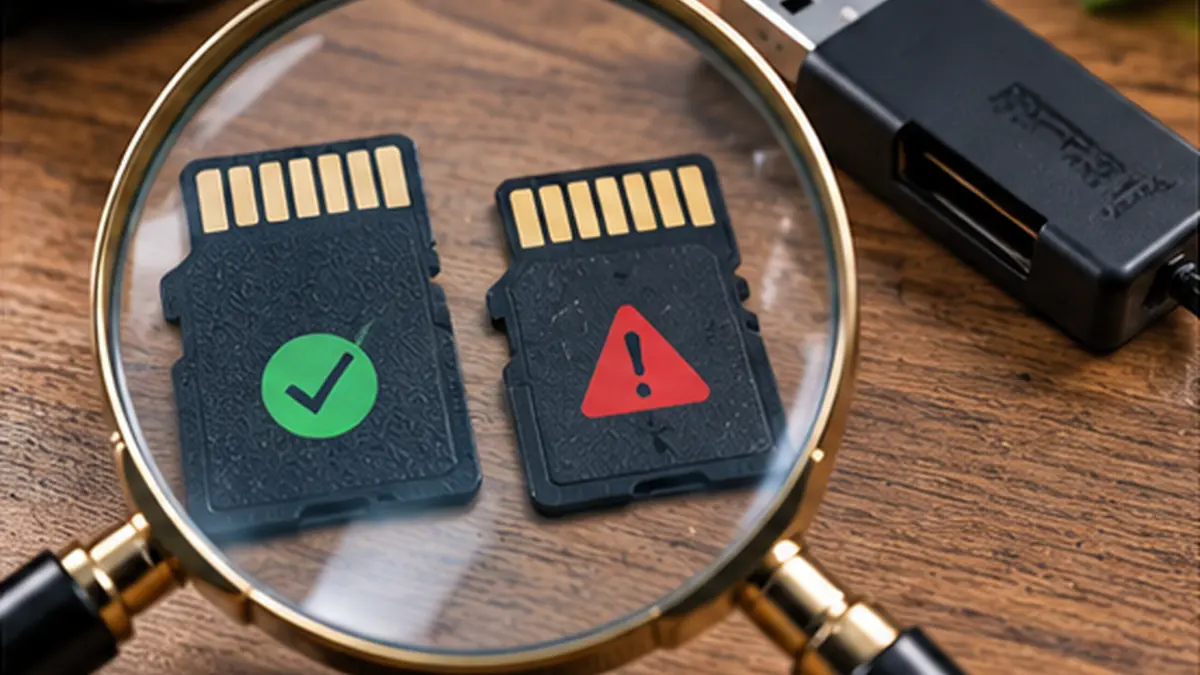
A microSD card can display 512 GB or 1 TB on a computer while physically containing far less working flash memory. In one common form of storage fraud, a modified controller reports a false size. Initial files may copy successfully; later writes can corrupt or overwrite earlier data once the real memory fills. That is why checking the capacity shown in File Explorer is not enough.
The safest approach: If the card contains valuable files, stop writing to it and back them up first. Test a brand-new, empty card with a complete write-and-read verification tool from a trusted source, such as F3 on supported systems. A card that cannot correctly read back data written across its advertised space should not be trusted with important files.
What is a fake-capacity microSD card?
There are at least three different problems that people call “fake SD cards”:
- Counterfeit branding: A card carries copied packaging or an unauthorized logo, regardless of whether the storage size is correct.
- False reported capacity: The controller advertises more usable space than exists. This creates a high risk of overwrite or data loss.
- Genuine but defective or worn-out card: The branding and nominal capacity may be legitimate, but the storage media has read/write errors.
A successful capacity test supports the claim that the tested space can store and return data. It does not independently prove that the brand, warranty or endurance rating is authentic.
Warning signs: useful clues, not proof
- Price dramatically below established retailers: Particularly for large capacities. A bargain is only a warning sign, not a diagnosis.
- Implausible capacity shown on a very old or unknown device: Some devices have compatibility limits. Confirm compatibility before accusing a card of fraud.
- Photos work at first, then become unreadable: May indicate overwritten data or an unstable card, but also occurs with filesystem or device failures.
- Repeated copy errors or folders mysteriously disappearing: More meaningful when reproduced with a different reader.
- Inconsistent printing or missing reliable seller information: Can suggest counterfeit packaging but won’t prove actual flash capacity.
If you bought the card from an unknown marketplace seller, keep the packaging, order details, and a record of testing results for a possible refund claim.
The difference between reported capacity and verified capacity
An advertised 128 GB product and Windows reporting roughly 119 GiB can be perfectly normal. Manufacturers typically use decimal gigabytes (1 GB = 1,000,000,000 bytes), while some operating systems show capacity using binary units (1 GiB = 1,073,741,824 bytes) but sometimes label them “GB.” File-system formatting also consumes a small amount of space.
Worked example: is 119 GiB suspicious on a 128 GB card?
128,000,000,000 ÷ 1,073,741,824 ≈ 119.2 GiB. That difference is expected from the unit conversion; it is not proof of fraud. More important is whether the card can consistently store and read data throughout its claimed address range.
Before testing: protect your data
- Copy existing photos, videos and documents to another healthy storage device first, preferably with another backup of irreplaceable items.
- Confirm sample copied files actually open; a “copy complete” dialog does not guarantee perfect data.
- Avoid formatting the card or running repair utilities until you have a verified backup.
- Use a trustworthy reader; replace a defective USB reader before concluding that the card is fake.
- If the card repeatedly disconnects or throws read errors, consider a professional data-recovery service for irreplaceable content instead of stressing it with repeated full tests.
Full-capacity testing normally writes across free space, so perform it on a new or safely emptied card. It can take hours on slow media and will cause significant writes. The F3 project’s f3write fills available space with test data; f3read checks whether that data can be recovered correctly.
Method 1: Verify with F3 on macOS or Linux
F3 (Fight Flash Fraud) is an open-source tool whose project documentation describes write/read validation against advertised flash capacity. Work with a mounted filesystem path, not a raw block device:
- If needed, back up the card and ensure sufficient free space for the capacity test.
- Install F3 from the project’s official repository or a trusted operating-system package manager.
- Identify the mounted volume directory for the card. Carefully confirm its name and avoid running against an unrelated drive.
- Run
f3write /path/to/mounted/card(substitute the actual mounted directory). - Once writing finishes, run
f3read /path/to/mounted/card. - Inspect the report for read/write discrepancies and the amount of reliably verified space.
- Remove the F3 test files afterward only once you have identified them correctly; do not delete your own files by mistake.
These examples are filesystem-level operations. The F3 project also describes f3probe for block devices; its --destructive mode can erase existing data. Do not copy raw-device or destructive examples unless you fully understand the target and have backups.
Method 2: Testing a Windows microSD card
Windows users commonly encounter H2testw, a test utility that writes files and verifies them afterward. If you choose it, download only from a verified reputable publisher or distribution source, not an unknown “H2testw Pro” clone, and scan the installer or archive before running it. The F3 project notes compatibility between some F3 test file formats and H2testw, but they are separate programs.
A basic Windows testing workflow is:
- Insert a new or backed-up card with a reliable USB reader.
- Identify the card’s drive letter correctly in File Explorer.
- Choose the entire available capacity rather than a tiny sample if you need confidence about the advertised size.
- Allow write and verification stages to complete; a write-only test does not prove that files are readable.
- Save or photograph the result for return or warranty follow-up.
Do not trust a screenshot of the drive’s capacity, a speed-only benchmark, or a ten-second “authenticity scanner” as equivalent to a full readback test.
How to interpret capacity-test results
Pass, all tested sectors correctly read back: Encouraging. The card passed this specific test under these conditions, but that is not a lifetime reliability guarantee.
Only a fraction of advertised space verifies: Strong evidence of false capacity or serious underlying storage failure. Stop using the card for valuable data.
Random read/write errors across the card: Could reflect a defective card, unstable reader, damaged port, or power problem. Recheck the reader and another computer; don’t write off precious data with further destructive tests.
Very slow writes but correct reads: A performance concern, not necessarily counterfeit capacity. Sustained write speed can fall when cache fills, the card overheats or the reader is limited. Compare only with credible specifications using suitable hardware.
Can files on a fake card be recovered?
It depends on what has already been overwritten or corrupted. Data that was actually overwritten may be unrecoverable. If the card still mounts, stop writing, make a backup of accessible files, and consider professional recovery for important material. Do not attempt to “fix” fake capacity by creating a smaller partition and then assume lost photos reappear—partitioning cannot restore overwritten bytes.
Protect your future photos and documents
- Buy from manufacturer-authorized or reliable retailers and keep the receipt.
- Verify new large-capacity cards before storing one-of-a-kind files.
- Keep copies of critical photos on another device or cloud account; removable flash is not a standalone backup.
- Eject storage safely from computers and power down cameras before card removal when the manufacturer requires it.
- Format in the target camera or device only after safeguarding existing data and confirming compatible filesystem/capacity.
Frequently asked questions
Can a 64 GB microSD show 1 TB in Windows?
A tampered storage controller may misreport capacity, so yes, the operating system can display an advertised size it has not verified. A full write/read test is the practical check.
Is a cheap memory card automatically fake?
No. Price alone is not proof. Seller reliability, documentation, genuine packaging and actual capacity testing together provide stronger evidence.
Will formatting detect fake capacity?
Not reliably. A quick format typically does not write and verify every advertised address. It also risks removing existing file-system structures. Back up before formatting.
Does F3 damage a healthy card?
Its normal capacity test writes a large amount of data, contributing to ordinary flash wear, and fills available space. The raw-device f3probe --destructive option can destroy existing data. Do not run either casually on a card containing important files.
Sources and technical documentation
- F3 — Fight Flash Fraud, official project and README.
- F3 documentation: usage and H2testw compatibility.
Editorial check: October 12, 2026. Storage capacity tests identify verified behavior, not product provenance; protect data before writing test files.
You may also like
 Technology & How-To
 Will AI Affect 40% of Jobs? What the IMF Estimate Really Means
The IMF says AI could affect about 40% of jobs worldwide. Understand exposure versus job loss and which…
 Technology & How-To
 Phone Receives Calls but Not SMS Verification Codes? Fix OTP Delivery on Android and iPhone
When your phone can make and receive calls but SMS verification codes never arrive, the mobile line is…
 Technology & How-To
 Bluetooth Headphones Connected but No Sound in Windows 11? Fix Output and Audio Issues
A Windows 11 PC may say your Bluetooth headphones are Connected even when no sound reaches them. Bluetooth…