
Bluetooth Headphones Connected but No Sound in Windows 11? Fix Output and Audio Issues
A Windows 11 PC may say your Bluetooth headphones are Connected even when no sound reaches them. Bluetooth pairing and selecting the active playback output are different steps. Often Windows is sending audio to the laptop speakers, a monitor, or a different headset profile.
Contents
- Step 1: Confirm the headphones actually play audio elsewhere
- Step 2: Choose the correct output in Windows 11
- Step 3: Check the Volume mixer when only one application is silent
- Step 4: Disconnect other audio devices temporarily
- Step 5: Reconnect Bluetooth cleanly
- Step 6: Use Microsoft's Bluetooth troubleshooter
- Step 7: Update approved Bluetooth and audio drivers
- Step 8: If the audio is very quiet or sounds like a phone call
- Step 9: Try the audio format setting only if it exists
- Step 10: Test after sleep or restart to narrow down the cause
- What should you avoid?
- Frequently asked questions
- Why are my Bluetooth headphones connected but Windows plays through speakers?
- Why can I hear Zoom or Teams but not music?
- Does removing the Bluetooth device delete audio files?
- Are Bluetooth drivers the first thing to reinstall?
- Official sources
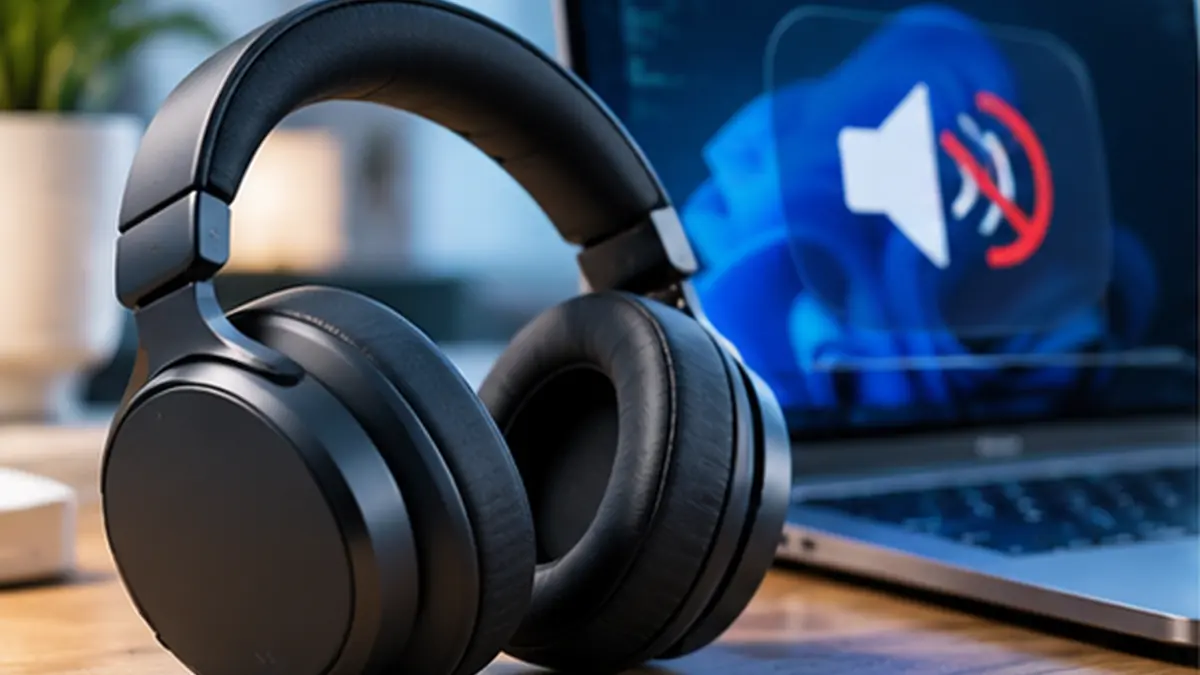
A Windows 11 PC may say your Bluetooth headphones are Connected even when no sound reaches them. Bluetooth pairing and selecting the active playback output are different steps. Often Windows is sending audio to the laptop speakers, a monitor, or a different headset profile.
Quick fix: Start audio playback, open Settings > System > Sound, and select your headphones under Output. Check Windows volume, the headphone’s physical volume, and the application’s audio output. If the headphones are connected but do not appear as a playback option, continue with the Bluetooth-specific steps below.
Step 1: Confirm the headphones actually play audio elsewhere
Charge them, disconnect them from your phone or tablet temporarily, and test their built-in sound or play audio from another device. Some models automatically reconnect to the last phone or use multipoint connections; the PC can appear connected while the headset prioritizes another source. If the headphones are silent everywhere, troubleshoot the headset itself before altering Windows drivers.
Step 2: Choose the correct output in Windows 11
- Play a short video or audio file.
- Open Start > Settings > System > Sound.
- Under Output, select the connected headphones instead of Speakers, HDMI monitor or a dock.
- Raise Windows output volume and any volume control on the headphones.
- In the taskbar Quick Settings audio selector, verify the same output is selected.
Microsoft’s official Bluetooth no-sound guide begins with this output check because pairing alone does not set the intended playback destination reliably every time.
Step 3: Check the Volume mixer when only one application is silent
If YouTube works but a meeting app or game is silent, don’t reinstall Bluetooth immediately:
- Open Settings > System > Sound > Volume mixer.
- Under Apps, find the application while it is playing audio.
- Confirm it is not muted, and its output is the desired headphones or System default.
- Close and reopen the application if it was already running when you connected the headset.
Meeting software may have a separate output selector inside its own Audio / Speaker settings, independent of the Windows default. Choose the headset explicitly there too.
Step 4: Disconnect other audio devices temporarily
A monitor connected over HDMI, a USB headset, game controller, or Bluetooth speaker can compete for default output selection. For one test, disconnect unneeded devices and see whether the headphones become available. Avoid deleting audio devices from Device Manager just to force a temporary preference.
Step 5: Reconnect Bluetooth cleanly
- Go to Settings > Bluetooth & devices > Devices.
- Disconnect and reconnect the headphones, or toggle Bluetooth off, wait a few seconds, and switch it back on.
- Restart the headset using its own documented power controls.
- If still failing, choose Remove device for the headphones—not your entire Bluetooth adapter—then put the headphones into pairing mode and add them again.
- Recheck System > Sound > Output after pairing.
Remember that removing the pairing may also require pairing the headset again with another device later. Keep the manufacturer’s pairing instructions available.
Step 6: Use Microsoft’s Bluetooth troubleshooter
On Windows 11, Microsoft recommends the automated Bluetooth troubleshooter available through the Get Help app. Search Start for Get Help, describe the Bluetooth audio symptom, and follow the guided checks. Built-in troubleshooting paths change between Windows versions, so rely on the current instructions shown by your PC rather than an old screenshot.
Step 7: Update approved Bluetooth and audio drivers
If Windows identifies the headphones but loses audio after sleep, a Windows update or device-driver mismatch may be involved.
- Open Settings > Windows Update and install available supported updates.
- Check your laptop manufacturer’s website for Bluetooth and audio drivers for your exact model and Windows version.
- Inspect Device Manager > Bluetooth and Sound, video and game controllers for warning symbols.
- Restart Windows after official driver installation and test audio again.
Do not run generic driver-updater executables from unknown sites. A third-party package can make the problem worse and create security risks.
Step 8: If the audio is very quiet or sounds like a phone call
Some headsets expose different Bluetooth modes for stereo listening and hands-free microphone calls. When an app actively uses the headset microphone, audio quality may change because of the Bluetooth connection’s supported capabilities. This is not necessarily a defective headphone speaker.
Try closing a voice-chat or meeting app, test a music track, and check the app’s input and output device selection. If you need higher-quality playback during meetings, consider using the laptop’s microphone as the input while keeping the Bluetooth headset as output, if your equipment and software permit it.
Avoid promising that a universal “disable hands-free mode” tweak works on all versions of Windows: current devices and Bluetooth audio features differ.
Step 9: Try the audio format setting only if it exists
Microsoft documents an Advanced sound properties or output-format check on certain connected Bluetooth devices, including a common 2-channel 16-bit 48 kHz format. If your headphones expose that menu, try a supported default format rather than applying an arbitrary high bit depth or sample rate. Some headsets won’t show the option, and that’s not an error by itself.
Step 10: Test after sleep or restart to narrow down the cause
- Works until sleep: Test disconnecting and reconnecting after wake; check manufacturer driver updates and power-management guidance.
- Fails only with a single app: Check app-specific speaker selection and volume mixer.
- Works with speakers but never with any Bluetooth headset: Focus on the PC’s Bluetooth/audio stack rather than your particular headphones.
- Works with another PC but not this PC: Check local Bluetooth driver, updates and settings.
- Cuts out only far from the PC: Test closer to reduce potential wireless interference and obstacles.
What should you avoid?
Do not factory-reset Windows, uninstall every audio device, alter the registry using unverified scripts, or download “Bluetooth booster” software for an output-selection problem. Make one change at a time and test playback again so you know what fixed it.
Frequently asked questions
Why are my Bluetooth headphones connected but Windows plays through speakers?
The active playback device can remain Speakers or HDMI despite the Bluetooth link being connected. Select the headset under Settings > System > Sound > Output.
Why can I hear Zoom or Teams but not music?
Your meeting app and media player may use different audio outputs or headset profiles. Check each application’s speaker selection and Windows Volume mixer.
Does removing the Bluetooth device delete audio files?
No, removing a Bluetooth pairing is not a file-delete operation. You may need to pair the accessory again, but music and saved files remain on the PC.
Are Bluetooth drivers the first thing to reinstall?
Usually not. First check output selection, volume, app routing, other connected devices, and re-pairing. Follow Microsoft and the computer manufacturer’s driver guidance if necessary.
Official sources
- Microsoft Support — Fix Bluetooth connected but no sound in Windows.
- Microsoft Support — Fix audio issues when no sound plays from speakers or headphones.
Editorial check: October 12, 2026. Menus and Bluetooth audio profiles vary by adapter, driver and device.
You may also like
 Technology & How-To
 Will AI Affect 40% of Jobs? What the IMF Estimate Really Means
The IMF says AI could affect about 40% of jobs worldwide. Understand exposure versus job loss and which…
 Technology & How-To
 Phone Receives Calls but Not SMS Verification Codes? Fix OTP Delivery on Android and iPhone
When your phone can make and receive calls but SMS verification codes never arrive, the mobile line is…
 Technology & How-To
 How to Tell If a microSD Card Is Fake: Test Real Capacity Before Losing Your Files
A microSD card can display 512 GB or 1 TB on a computer while physically containing far less…