
How to Update Passport Details on UKVI: New Passport and eVisa
Add a new passport to your UKVI account, check the update before travel, and choose the correct route if you cannot sign in or your eVisa details are wrong.
Contents
- Choose the correct UKVI service first
- What a passport update changes
- Check the pending-application restriction
- What to have ready before you start
- How to add your new passport to your UKVI account
- Submitted is not the same as checked for travel
- Is there a guaranteed passport-update processing time?
- If the new passport is not showing
- A concise message for UKVI support
- Renewed your passport while outside the UK?
- Before travelling with the replacement passport
- Keep a short record until the change is resolved
- Official sources and image attribution
Renewed your passport? Update your UKVI account before travelling with the replacement document. Start from the official UKVI account update page, sign in using the identity details currently associated with your account, and follow the instructions for adding or changing your travel document. Then check the result rather than relying only on a submission message.
A new passport, a lost verification phone and an incorrect immigration status are different problems. Choosing the right service first avoids submitting a passport update when you actually need account recovery or an eVisa error report. This guide focuses on passport changes and the checks that matter before travel.
Guidance checked October 26, 2026. The screenshots below show public government instructions. Horus Valley has not accessed a reader’s account, submitted an update or tested an individual traveller’s permission to board.
Choose the correct UKVI service first
| Your situation | Start here | What to establish |
|---|---|---|
| You renewed your passport and can access your account | Update your UKVI account details | The replacement travel document has been added correctly |
| You lost access to your registered phone or email | Account recovery | You can receive verification messages and access the existing account |
| Your eVisa shows the wrong status or incorrect personal details | Report an error with your eVisa | The immigration record or displayed details need correction |
| The Home Office created your account and you have never been able to access it | Follow the eVisa error-reporting guidance | This is the particular access problem covered by that service |
| Your passport changed while you are outside the UK | Read the travel guidance before choosing the update route | Whether your document is biometric and exactly which details changed |
For a sign-in problem, use our separate UKVI account login troubleshooting guide. If the record itself is wrong, see how to correct a UK eVisa error. The passport update process does not replace either route.
What a passport update changes
Your UKVI account connects your identity and contact information with access to your digital immigration status. Updating a renewed passport helps keep the document you intend to travel with associated with that account. It also helps ensure your account details and share codes reflect the correct information.
The update service covers passport or travel-document details, name, mobile number, email address and home or postal address. The official guidance also describes correcting a date of birth, adding or changing nationality, adding another passport and changing a photograph where needed. Different changes can require different evidence.
Changing an account detail does not extend immigration permission, grant a different visa or amend a citizenship application. If the underlying immigration status is wrong, identify that separately rather than trying repeated passport submissions.
Check the pending-application restriction
GOV.UK says you cannot change your name or passport or travel-document details in the account while you are waiting for a decision on a visa application. This restriction should not be expanded into a claim that every account change is blocked. If a passport renewal overlaps with an undecided application and imminent travel, seek UKVI guidance for that situation before assuming the normal online update will be available.
What to have ready before you start
- Your new passport or travel document, with the number, expiry date and personal details clearly readable.
- The identity document or UKVI customer number currently associated with the account.
- Access to the phone number or email address used for sign-in verification.
- An identity document proving a changed name, date of birth or nationality, if relevant.
- Your travel date, if you need to explain an urgent unresolved problem later.
The document used for sign-in is not necessarily the passport you have just received. The public guidance lists passports, national identity cards, valid or expired biometric residence cards, expired biometric residence permits and a UKVI customer number among possible sign-in identifiers. Use the identifier associated with your existing account and the options the service actually offers.
An expired document being usable to identify an account is not proof that it is valid for travel. Keep the account-access question separate from the passport and immigration evidence you must carry.
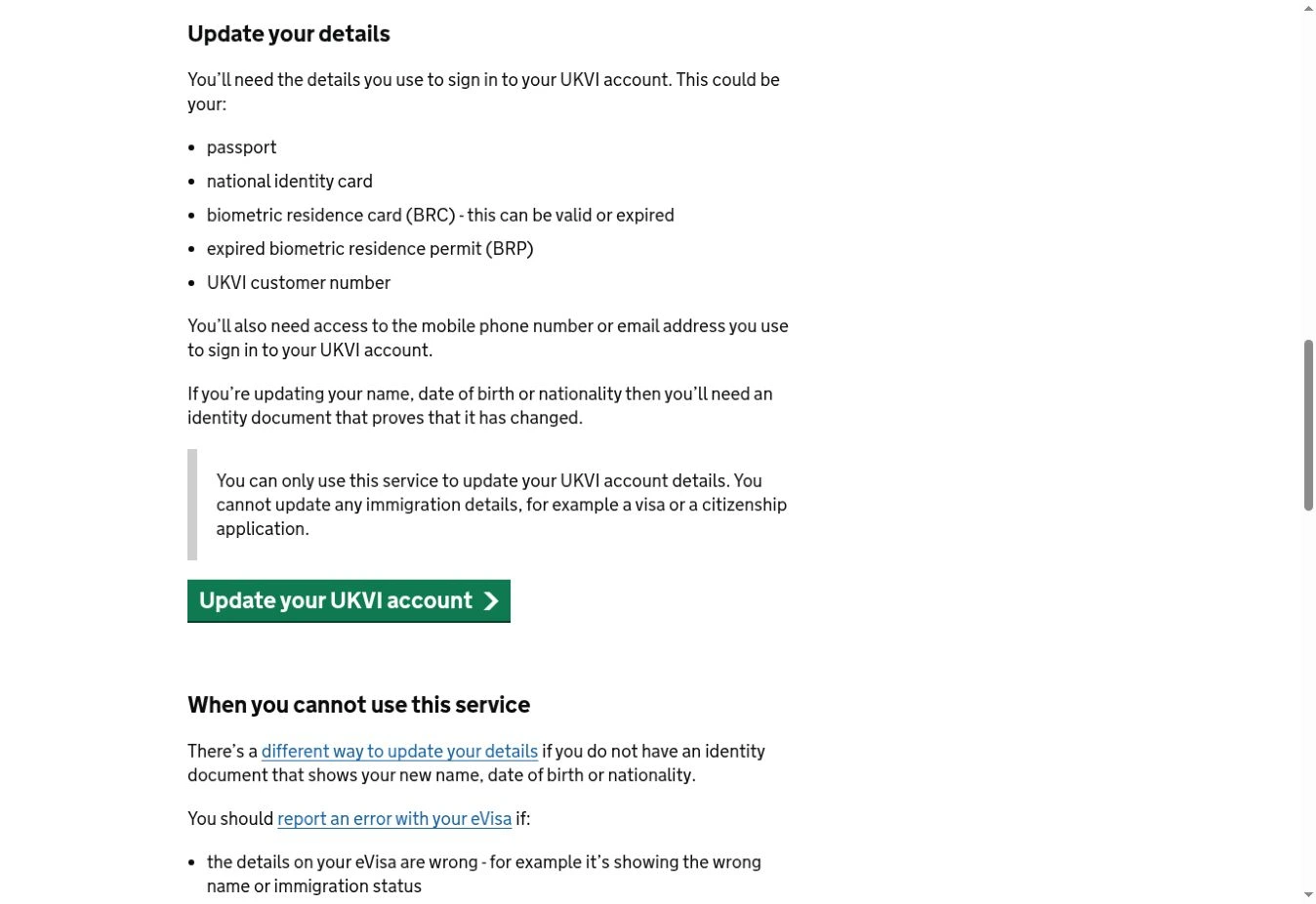
The screenshot comes from the GOV.UK update guidance. It shows the official starting button and the distinction between updating account details and changing immigration information. Wording or layout inside a signed-in account can differ.
How to add your new passport to your UKVI account
- Open the official guidance. Check that you are on GOV.UK and use its “Update your UKVI account” link to enter the service. Avoid starting from an unsolicited message asking for identity documents.
- Sign in to the existing account. Use the identity details currently linked to it and complete the verification step using your registered contact method.
- Choose the relevant identity-document update. Follow the current prompts for adding or changing a passport or travel document. Do not assume an older screenshot describes every screen you will see.
- Enter the replacement details carefully. Check the passport number character by character, the expiry date and any name or nationality change. Follow any document-upload or identity-verification instructions shown.
- Review and submit. Correct any transcription errors before sending the request. Save the confirmation text, date and any reference the service provides.
- Check what happened afterwards. Follow any UKVI follow-up instructions and revisit the account to verify the intended travel document and personal details.
If the service asks for further evidence or an additional verification step, follow the instructions for your case. Do not post a passport to an address copied from an unofficial guide or assume everyone must send their original document. The public entry page does not establish one identical evidence process for every type of change.
UKVI also publishes official identity-document update videos, including versions for changes with and without a name or nationality change. Use the version relevant to your circumstances alongside the live instructions.
Submitted is not the same as checked for travel
Use three separate checkpoints. A message acknowledging your request tells you something was submitted. The account showing the expected document is a different check. A carrier being able to verify your permission against the document used for the journey is another. Treating all three as one event can hide a mismatch until check-in.
| Checkpoint | Evidence to keep | What it does not prove |
|---|---|---|
| Request submitted | Dated acknowledgement and any reference | That every requested change is already reflected in the account |
| Account details checked | A private note of the document details displayed and any UKVI confirmation | Guaranteed boarding or entry on a particular journey |
| Journey details checked | Travel passport, matching passenger information and any additional immigration evidence | That an unrelated visa, transit or destination requirement is satisfied |
Look for the replacement document in the account where the service lets you review your details. Check the passport number and expiry date as well as the name. If you hold more than one passport, make sure the one you intend to present for travel has been added. Do not remove useful information or resubmit simply because the layout differs from a guide.
Is there a guaranteed passport-update processing time?
No universal passport-update completion deadline was confirmed in the public guidance reviewed for this article. Follow the timeframe, confirmation or follow-up instruction given for your own request. A trip approaching soon is a reason to seek help with the unresolved update, not a reason to assume it must have completed.
The official eVisa error page says an eVisa should usually appear immediately after it is linked to an account, but can take up to 24 hours. That statement concerns eVisa visibility after linking. It is not a promise that a replacement passport will be verified or added within 24 hours.
If the new passport is not showing
First, establish what is missing. Can you access the account? Can you see your immigration status? Is the replacement passport absent, or are the displayed personal details wrong? Record the exact message and which service displayed it. These answers determine the next route more reliably than a generic description such as “my eVisa is not working”.
- Check any acknowledgement and follow-up email, including requests for evidence you have not completed.
- Confirm you are using the existing account and its sign-in identifier rather than treating a new passport number as proof that a new account is needed.
- Compare the submitted details with the replacement passport and note any discrepancy.
- Return to the official update guidance and use its help options if the update remains unresolved.
- Use the error-reporting route if the problem fits that service’s stated conditions, rather than assuming every pending passport change is an eVisa error.
If verification messages go to a phone or email you cannot access, start with official UKVI account recovery. If you can view the eVisa but cannot generate a share code, the error page specifically covers that situation; our eVisa share-code troubleshooting guide explains that separate problem.
A concise message for UKVI support
Use the following as a drafting aid in the official support channel. Replace the general wording with accurate details and provide identity information only where that official channel requests it.
I renewed my passport and submitted an update to my existing UKVI account on DATE. I can access the account, but the replacement travel document is not showing as expected. My request reference is REFERENCE, if applicable. My intended travel date is DATE. The latest message I received says MESSAGE. Please confirm whether further evidence or another action is required and which official route I should follow.
If you cannot sign in, change the message to describe that access problem instead. Do not send an entire passport image, verification code or account password in a public comment or social-media reply. A precise description and chronology are more useful than repeated requests containing different versions of the facts.
Renewed your passport while outside the UK?
The official travel-with-eVisa guidance makes a specific distinction between biometric and non-biometric passports. Whether you can update the account yourself depends on both the document and the details that changed.
| Document and change | Published route | Important qualification |
|---|---|---|
| Biometric passport: number or expiry date changed | Update the UKVI account | Follow the live service instructions |
| Biometric passport: name or nationality changed | The travel guidance permits updating the account | Identity evidence and other applicable restrictions still matter |
| Biometric passport: other personal details changed | Ask UKVI to update the account | Fingerprints and a photograph at a visa application centre may be needed |
| Non-biometric passport: number or expiry date changed | Update those passport details in the account | The published self-update route is limited to those details |
| Non-biometric passport: other personal details changed | Ask UKVI to update the account | Biometric enrolment may be needed |
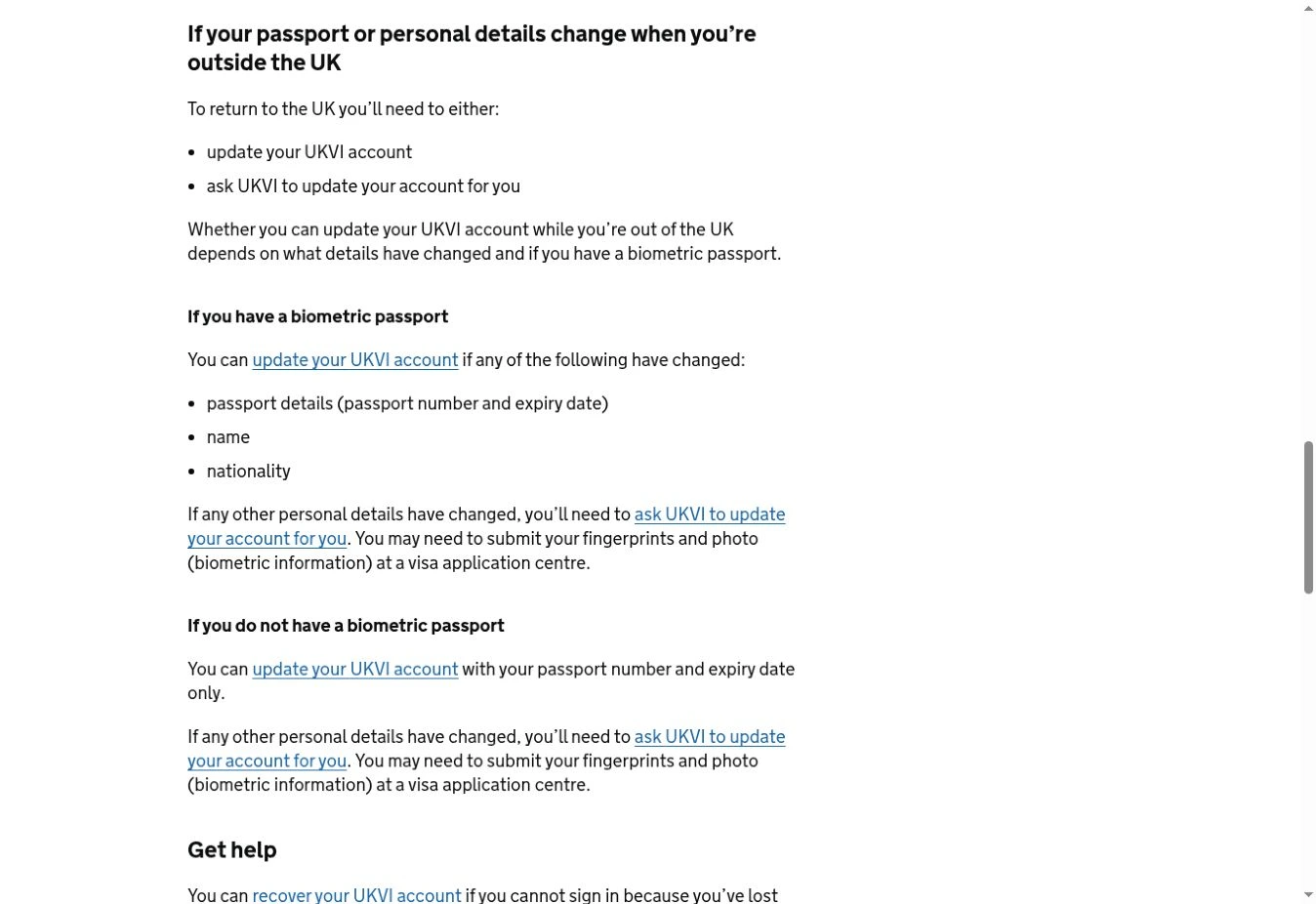
Use the live travel page’s link for asking UKVI to make a change; do not treat a general account-update form as suitable for every overseas case. The guidance says biometric enrolment may be required, not that every traveller must attend a visa application centre.
Before travelling with the replacement passport
- Carry a valid travel document added to the account. A submitted request alone is not the same evidence as checking the resulting details.
- Compare passenger information with the travel document. Check the passport number, name and other requested details in the airline or other carrier’s system.
- Review the eVisa and UKVI record. Resolve a wrong status or incorrect personal details through the appropriate official route.
- Consider additional proof. GOV.UK says a travel share code can be supplied as additional evidence. It is valid for 90 days and can be used more than once during that period.
- Keep relevant valid physical immigration evidence if you have it. Do not assume an expired residence card becomes valid for boarding because it can identify your account.
- Check the rest of the journey. An eVisa is not an ETA and does not replace destination or transit requirements.
A share code does not substitute for updating the passport you intend to use. If a carrier cannot check your permission, the official guidance says to ask the carrier to contact the UK Border Force carrier support hub. That is a support route for carriers, not a public passenger helpline or a guarantee that a boarding problem will be resolved.
If you have become a British or Irish citizen, read the citizenship-specific instructions on the travel page. GOV.UK points to a British or Irish passport or a certificate of entitlement, as applicable. The ordinary eVisa passport-update advice should not be applied indiscriminately to that situation.
Keep a short record until the change is resolved
Make a private note of the date you submitted the update, the service used, the reference provided, any request for further evidence, what your account currently shows and the date of any support contact. Keep document numbers out of shared screenshots. This record helps you explain an unresolved change without claiming that an acknowledgement proves completion.
For example, a traveller with an unchanged name and a replacement biometric passport issued abroad should first check the passport-update route described above. Someone who cannot receive a login code needs to restore account access. Someone whose eVisa displays an incorrect immigration status needs the error route. These are illustrative situations, not accounts of cases handled or outcomes tested by Horus Valley.
Official sources and image attribution
- GOV.UK: update your UKVI account — permitted account changes, sign-in requirements and the pending-application restriction.
- GOV.UK: travel with your eVisa — travel-document matching, overseas changes, additional proof and carrier help.
- GOV.UK: report an error with your eVisa — problems covered by the error service and the eVisa visibility distinction.
- UKVI official identity-document update videos — demonstrations for different change scenarios.
- Open Government Licence v3.0 — attribution for reused government guidance screenshots, subject to stated exclusions.
The two instructional screenshots reproduce public guidance, not a private application or account interface. Government instructions and service screens can change; check the linked official pages before acting.
You may also like
 Technology & How-To
 USB Works on PC but Not on TV? How to Find the Cause
Diagnose a USB drive that works on a computer but not a TV. Separate detection, missing files and…
 Technology & How-To
 WhatsApp “Waiting for This Message”: Fixes for iPhone, Android and Web
Fix WhatsApp’s waiting-message notice by comparing your phone and linked devices, checking updates and protecting existing chat data.
 Technology & How-To
 WhatsApp iOS 15.5 Requirement: What Changes on November 30, 2026?
WhatsApp raises its iPhone minimum to iOS 15.5 on November 30, 2026. Check your version, older iPhone eligibility…