
Printer Offline but Connected? Fix It on Windows 11
Diagnose an offline printer on Windows 11 by checking the actual queue, USB or network connection, printer address, spooler, drivers, and shared host.
Contents
- The quickest route to the right fix
- 1. Separate the printer's own operation from Windows printing
- 2. Check the exact printer queue Windows is using
- When you cannot find “Use Printer Offline”
- 3. For Wi-Fi or Ethernet, verify the local route
- 4. Compare the printer address with the Windows port
- 5. For USB printers, test the cable path directly
- 6. Clear a blocked job, then restart the Print Spooler
- 7. Reinstall through a route your Windows PC supports
- Check Windows protected print mode before repeating an old installer
- 8. Check the host for a shared office printer
- 9. Use an optional connection test without overreading it
- 10. Verify the repair with the original document
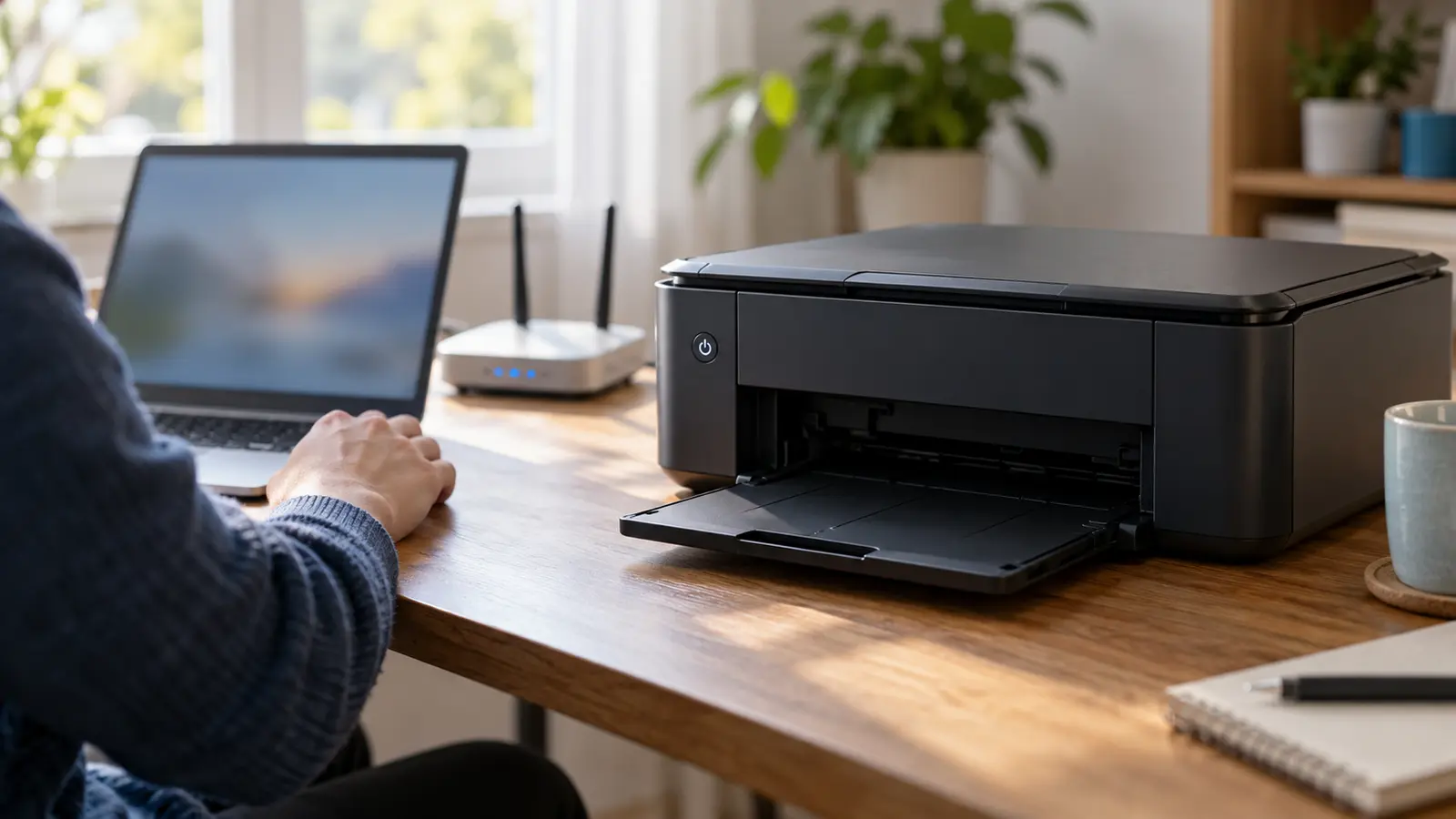
Your printer is switched on, its Wi-Fi light looks normal, and Windows still calls it offline. That message describes the state of a particular Windows print queue; it does not, by itself, identify a failed printer or a broken internet connection.
The useful first question is where printing stops: at the printer, between devices on the local network, inside the Windows queue, or in one application. Work through the matching checks below, testing after each change. You can often narrow the fault before reinstalling anything.
This guide focuses on Windows 11 and covers Wi-Fi, Ethernet, USB, and printers shared through another computer. Menu names can vary with your Windows build and printer software.
The quickest route to the right fix
Wake the printer, check its display for a paper or cover error, and try its own report or copy function. Next, open Settings > Bluetooth & devices > Printers & scanners, choose the intended printer, and inspect Open print queue. Cancel an obsolete stuck job, then try one Windows test page. Microsoft's offline-printer guidance also recommends the printer troubleshooter in the Get Help app.
If the test page fails, follow your connection type. A USB printer needs a working USB path. A network printer needs the correct local address and network access. A shared printer also depends on its host computer.
| What you observe | What it helps isolate | Start here |
|---|---|---|
| The printer cannot make its own copy or report | A condition inside the printer | Read the printer display and model-specific manual |
| Another device prints locally, but this PC cannot | A difference in the PC's route, queue, or driver | Compare the network and selected Windows queue |
| No local device prints over Wi-Fi | Printer network connection or a shared network condition | Check the printer's current network details |
| USB works directly but fails through a dock | The cable, dock, adapter, or USB path | Test the direct connection again |
| A Windows test page prints, but one document does not | The application, document, or its selected printer | Test another file in the same app |
| Printing fails only after a router change | Saved Wi-Fi settings or an outdated printer address | Reconnect and compare current addresses |
| A printer shared by another PC disappears | The host, sharing configuration, or permissions | Check the host before changing the client |
These are diagnostic clues rather than guaranteed diagnoses. For example, a phone may print through a manufacturer's cloud service while a laptop uses a local Windows queue. The phone's success is a stronger comparison when both devices use the same local printer connection.
1. Separate the printer's own operation from Windows printing
Use the printer's control panel to print a status or configuration report. On a multifunction model, an ordinary photocopy is another useful check because it does not need Windows. Follow your model's instructions; there is no universal button sequence for every HP, Canon, Epson, or Brother printer.
If a report fails, note the exact message on the device. An open cover, missing paper, jam, or consumable error can stop a job before network settings matter. If the report succeeds, the printer has demonstrated that it can produce a page, but its connection to this PC still needs checking.
Record three details before making changes: the exact printer model, how this computer reaches it, and whether any other device can print. Keeping these observations together prevents a successful hardware test from being mistaken for proof that the Windows queue is correctly configured.
For a simple restart, turn the printer off, disconnect its power for about 30 seconds, and reconnect it. Allow startup to finish. Restarting a shared office router affects other users, so reserve that step for evidence of a network problem. Microsoft's general printer troubleshooting guide covers the basic power and connection checks.
2. Check the exact printer queue Windows is using
A printer can appear more than once after different installations or connection methods. A USB queue and a Wi-Fi queue may share nearly identical names. The application may also remember an old selection even after you change the Windows default.
- Open Settings > Bluetooth & devices > Printers & scanners.
- Select the entry that matches your intended printer and connection.
- Open Printer properties and use Print Test Page on the General tab where available.
- Return to the application and confirm that its print dialog selects the same working entry.
If two similar entries exist, test them separately and note which one produces a page. Keep the working entry until you have confirmed the other is obsolete. Brother's offline and paused printer guide specifically addresses duplicate printer entries and distinguishes Windows 11 queue steps from older Windows menus.
If you want a fixed default, first turn off Let Windows manage my default printer in Printers & scanners, then choose Set as default for the intended entry. A default selection chooses a destination; it does not repair a failed connection.
When you cannot find “Use Printer Offline”
Older instructions often direct you to a Printer menu containing Use Printer Offline and Pause Printing. The modern Windows 11 queue does not necessarily expose those legacy controls. Do not spend time searching for a checkbox your interface does not offer.
Use the queue controls actually displayed, the Get Help troubleshooter, and the connection checks below. If you are using an older interface that does show an offline or paused setting, clear it only when it has been selected unintentionally. This distinction matters when following screenshots made for Windows 10 or an older driver package.
3. For Wi-Fi or Ethernet, verify the local route
A Wi-Fi light confirms less than a successful print. The printer may have joined a different network, retained the previous router's settings, or obtained a new address. Internet browsing on your PC does not test its ability to reach the printer locally.
Find the printer's current network details on its screen, network report, or router device list. Check its network name and address against your present setup. After changing the router or Wi-Fi password, reconnect the printer using the manufacturer's model-specific procedure.
On a typical home network, place both devices on the normal trusted network while testing. A guest network or client-isolation setting may prevent devices from reaching one another. Conversely, a PC using Ethernet and a printer using Wi-Fi can communicate when the router connects those segments. Sharing the exact radio band is not a universal requirement; the printer must support its chosen band, and the network must permit communication.
If the printer provides a local administration page, try opening its current address in a browser on the affected PC. A page that identifies the correct model is useful evidence that this PC can reach that device's web service. It does not prove that the printing service works. A page that fails to load is also inconclusive by itself: the web service may be disabled or unavailable.
If a VPN is involved, check whether its settings permit local network access. Use an approved comparison with the VPN disconnected where appropriate; on a work-managed PC, ask IT to check the route. Keep firewall protection enabled and investigate the specific blocked service instead of treating a broad security change as a printer repair.
For a wider device-by-device problem, our guide to Wi-Fi working on some devices but not others explains how to structure the comparison.
4. Compare the printer address with the Windows port
This step is most useful when a network printer worked before a router restart or replacement. Windows may still have a queue aimed at an older address.
Open the printer's Printer properties and look for Ports. Note the selected port before changing anything. The port's name is only a label; for a Standard TCP/IP port, its configured address is the important detail. Other connection types, including WSD and IPP, may expose different controls.
Windows PowerShell can provide a read-only inventory:
Get-Printer | Select-Object Name, PrinterStatus, DriverName, PortNameGet-Printer lists installed printers and their properties. Use the result to connect the queue's visible name with its driver and port. It reports Windows' view; it is not an independent physical test of the printer.
For port details, use:
Get-PrinterPort | Format-List Name, Description, PrinterHostAddress, PortNumberGet-PrinterPort lists installed printer ports. Address fields can be absent for some port types. A blank field does not automatically mean that a port is defective.
If the selected Standard TCP/IP port contains an obsolete address, use the manufacturer's supported setup method to correct or recreate that connection. For a compatible printer, Windows' Add device process may be the appropriate route. Preserve the original details until a replacement queue passes a test page.
Do not replace every WSD or IPP connection with a RAW TCP/IP port. Protocol support varies by device and configuration. Microsoft's standard TCP/IP port-monitor documentation explains the distinction between print transport and SNMP status monitoring, although that document describes the legacy Windows Server implementation rather than current Windows 11 menu layouts.
5. For USB printers, test the cable path directly
Connect the printer straight to the PC, temporarily bypassing a dock or hub. Try another suitable USB port and, if available, a known-working printer data cable. Keep the printer powered on while Windows detects it.
Make one change at a time. If direct USB works, reconnect the original dock or adapter and repeat the same one-page test. That comparison is more useful than changing the printer driver, cable, and network settings together and losing track of what helped.
If Windows shows an unknown USB device or a descriptor error, investigate USB detection before queue settings. Our USB Device Descriptor Request Failed guide covers that different failure. If several dock-connected devices are unreliable, the USB-C dock troubleshooting guide provides a related isolation method, although its display-specific steps do not apply to printer queues.
Microsoft's printer-not-found guidance covers basic recognition checks. Do not assign an arbitrary LPT or network port to a USB printer simply because its original entry is offline.
6. Clear a blocked job, then restart the Print Spooler
Open the intended printer's Open print queue view. Cancel an obsolete job that is blocking progress, then wait for the queue to update. If all queued documents can be discarded, use Cancel all where available. Keep the original documents so you can submit them again.
If the queue remains stuck:
- Press Windows + R, type
services.msc, and press Enter. - Locate Print Spooler.
- Right-click it and choose Restart.
- Submit a single test page and watch whether it leaves the queue and physically prints.
Microsoft documents these steps in its stuck print-job guide. Restarting the spooler interrupts printing on that PC; on a print server, it can affect multiple users.
Manual clearing of the spool folder is an escalation when ordinary cancellation fails. Stop the spooler first, inspect %windir%\System32\spool\PRINTERS, remove only the pending spool files inside that exact folder, and start the service again. This discards queued work for printers using that spooler. Do not delete the folder itself or apply this to a managed server without its administrator.
If the service repeatedly stops, record which job or application triggers it. Microsoft's Print Spooler troubleshooting page treats recurring service failure as a separate issue. Repeatedly clearing the queue may restore a test temporarily while leaving the underlying trigger unresolved.
7. Reinstall through a route your Windows PC supports
Once the connection works, a fresh queue or updated driver may help. Before removing a printer, record its name, connection, driver, and any settings you need, such as duplex or paper trays. For a workplace queue, obtain the approved installation method.
Remove the affected entry in Printers & scanners, then use Add device and test the newly installed queue. Microsoft's installation guide provides the supported Windows workflow. If automatic discovery fails, use the manual option appropriate to your actual connection.
For drivers, start with Windows Update or the manufacturer's official page for the exact model and Windows architecture. Microsoft's driver guidance identifies an important exception: some ARM-based PCs have problems with manufacturer installers. On those systems, use Add device, unless the manufacturer supplies specific Windows-on-ARM instructions.
Check Windows protected print mode before repeating an old installer
If printing changed after a security setting was enabled, inspect Windows protected print mode under Printers & scanners. Microsoft explains that enabling it removes queues using third-party drivers; compatible printers can be reinstalled through the supported Windows print stack. Check the printer's compatibility before choosing a driver route.
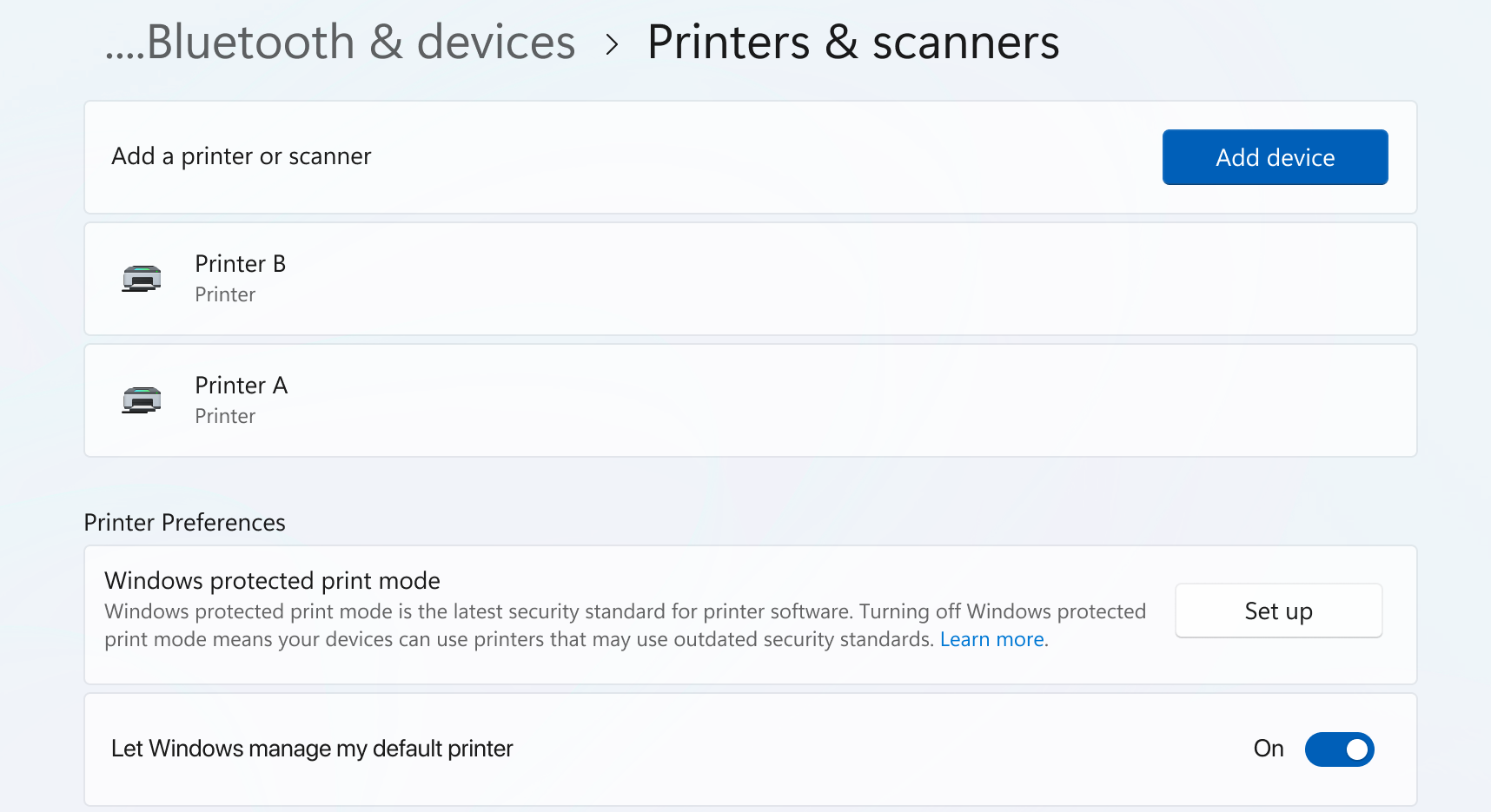
Microsoft Windows 11 settings reference, reproduced from Microsoft's documentation. Used with permission from Microsoft. This screenshot locates the setting; enabling it is not a required offline-printer troubleshooting step.
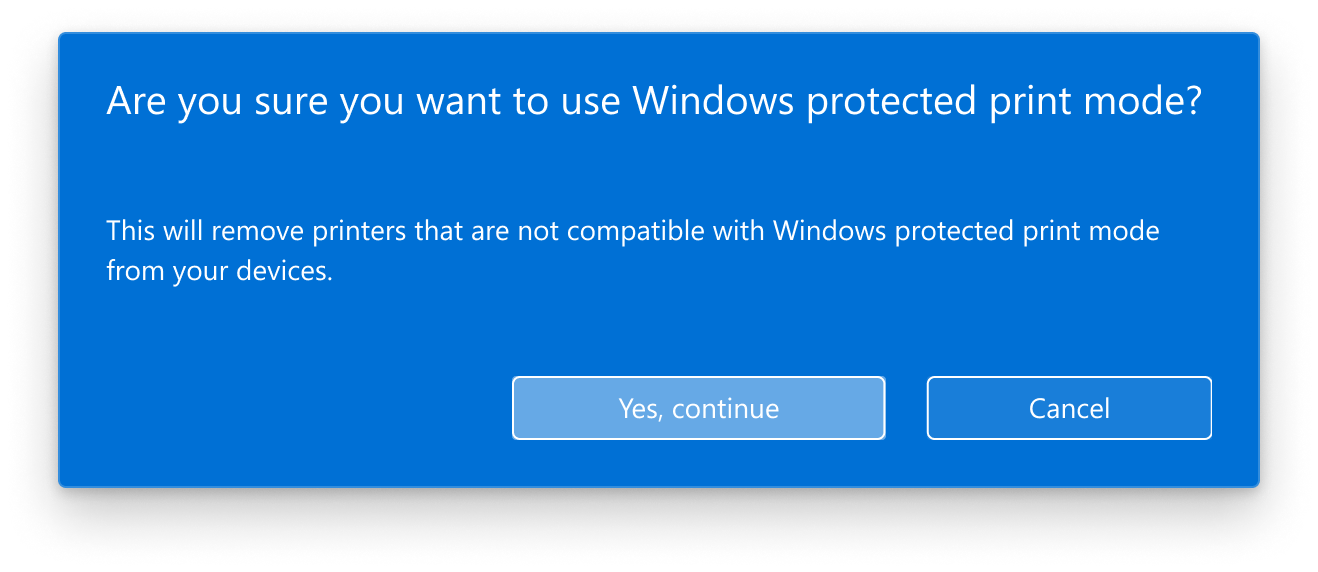
Microsoft Windows 11 setup prompt, reproduced from Microsoft's documentation. Used with permission from Microsoft. Read compatibility and removal notices before changing this mode.
See Microsoft's Windows protected print mode overview for the supported behavior. On an organization-managed PC, a policy may control the setting. A legacy installer failing in this situation is not evidence that the printer's Wi-Fi has failed.
8. Check the host for a shared office printer
A queue reached through another computer has an extra dependency. The host must be running, reachable, and able to print itself. Establish that baseline before removing the client PC's queue.
With the host's actual computer name, try opening its network location in File Explorer. If Windows cannot reach the host at all, investigate that connection or name-resolution problem. If it is reachable, verify the printer's share name and authorized credentials. Network discovery and file-and-printer sharing should match the organization's trusted-network policy.
Use Microsoft's shared-printer connection guide for the client and host checks. For a cloud-managed service such as Universal Print, involve the print administrator rather than applying local TCP/IP port changes to an unrelated cloud queue.
9. Use an optional connection test without overreading it
If your model documentation confirms a particular TCP printing service, test that service from Windows PowerShell. The following example is for a printer confirmed to use RAW TCP port 9100. Replace the example address with the current printer address:
Test-NetConnection -ComputerName 192.168.1.50 -Port 9100Microsoft's Test-NetConnection reference documents TCP-port testing. TcpTestSucceeded: True means this PC established a TCP connection to that address and port. It does not verify the driver, document rendering, or physical output. A failed test may reflect a wrong address, a blocked service, or a protocol the printer does not offer. Test the service your device actually supports; a 9100 failure says little about an IPP-only setup.
A ping result is another limited observation. Treat a response as evidence of an answering device, and a timeout as a reason to investigate further. Combine network observations with the printer identity and a real test page before deciding what failed.
| Test result | What it establishes | What to check next |
|---|---|---|
| Printer report prints locally | The printer can produce that report | The PC-to-printer route |
| Correct printer web page opens | Its web service is reachable from this PC | Queue address and supported print service |
| Confirmed print port accepts TCP | That endpoint accepted a connection | Driver, queue, and document path |
| Windows test page prints | This Windows queue produced a basic page | The failing application's settings |
| Original document prints after repair | That job succeeds under current conditions | Repeat after normal sleep or restart |
10. Verify the repair with the original document
When a Windows test page succeeds, reopen the application that originally failed. Select the working printer explicitly, test a short new document, then retry the original file. Match paper size and available trays; Letter and A4 settings can matter when the printer is waiting for a different medium. Microsoft's application printing guide separates file-specific problems from Windows-wide failures.
If the problem returns after sleep or a router restart, compare the new printer address with the recorded one and note whether waking the printer restores printing. For a direct-IP setup whose address keeps changing, a correctly configured router reservation can make that address stable. NETGEAR's address-reservation explanation illustrates the principle. Use your own router's instructions rather than assigning a guessed static address that might conflict with another device.
Keep a brief repair note: the failing queue, connection type, decisive test, and successful change. If support is still needed, those details let the technician distinguish a local queue fault from a network or printer problem without repeating every step.
You may also like
 Technology & How-To
 Android Auto Keeps Disconnecting? How to Fix USB and Wireless Dropouts
Android Auto keeps disconnecting? Separate USB, wireless and app failures, check Galaxy USB mode, compare connection methods and…
 Technology & How-To
 Netflix Says Your TV Isn’t Part of the Household? How to Fix It
Fix a Netflix household warning by separating home verification, permanent household updates and temporary travel access, with genuine…
 Technology & How-To
 Google Photos Stopped Backing Up from Your PC? What Changed and How to Fix It
Google Photos stopped backing up your computer folders? Understand the Drive for desktop change, configure browser folder backup…