
USB Device Descriptor Request Failed on Windows 11: Complete Troubleshooting Guide
Fix Unknown USB Device (Device Descriptor Request Failed) in Windows 11 and 10 with safe, step-by-step checks for ports, cables, drivers, and power settings.
Contents
- What the USB device descriptor error actually means
- Before changing anything: protect your files and equipment
- Fast diagnosis: identify whether the problem follows the device or the PC
- Step 1: remove the hub and test a direct connection
- Step 2: compare with a known-good device
- Find the exact failure in Device Manager
- Fix 1: fully restart Windows and power-cycle the device
- Fix 2: uninstall only the failing Unknown USB Device entry
- Fix 3: install Windows updates and the correct chipset/USB drivers
- Fix 4: investigate USB power management only when symptoms justify it
- Temporarily test a hub power-management setting
- Fix 5: test a dock, external drive enclosure, or USB-C adapter separately
- Fix 6: isolate Fast Startup or sleep-related problems
- Advanced diagnostics for persistent failures
- Use the Windows USB event history
- Compare failure in BIOS or pre-boot diagnostics
- Check for physical damage without risky cleaning
- Decision table: what to do next
- Common mistakes that can make the situation worse
- When the device is probably defective
- When to contact support or a repair technician
- Official references and further reading
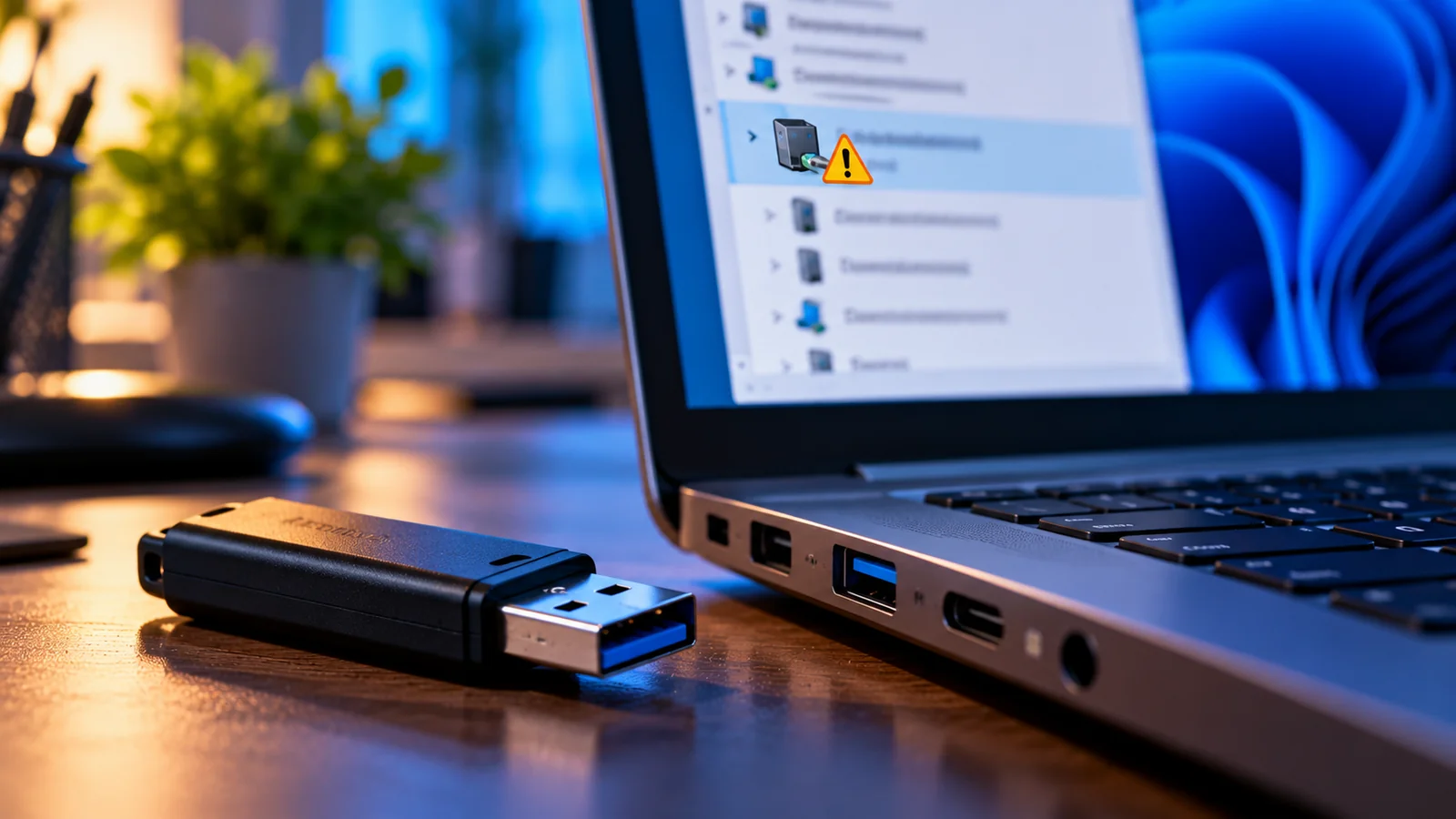
Seeing Unknown USB Device (Device Descriptor Request Failed) in Windows 11 or Windows 10 can make a flash drive, external hard drive, phone, keyboard, dock, or other peripheral appear completely unusable. The message usually means Windows could not complete an early USB identification exchange. It does not automatically mean the files on a storage device are lost, and it does not necessarily mean you need a new driver.
This guide follows a diagnostic order: protect data, isolate the cable and port, check Device Manager, refresh the connection, repair Windows-side drivers, then investigate power management and hardware. Skip any step that could put valuable files at risk. The correct fix depends on whether the failure follows one device, one cable, one port, or the entire computer.
What the USB device descriptor error actually means
When a USB device is plugged in, the computer detects the electrical connection and requests information that identifies the device and its capabilities. That early process is called enumeration. If communication fails, Windows may display a generic entry under Universal Serial Bus controllers rather than the product name. The Device Manager status may show Code 43, but check the exact code: similar-looking errors can have different causes.
Microsoft documents USB enumeration failures as a separate troubleshooting category. A descriptor request can fail because of unstable power, a damaged connector, a faulty or charge-only cable, a malfunctioning peripheral, a hub or dock problem, firmware, or the computer’s USB controller stack. Installing a random driver package is not a reliable first response.
Before changing anything: protect your files and equipment
- If the failing device is a USB drive or external SSD/HDD containing important data, do not format, initialize, repartition, or run destructive disk utilities just to make it appear.
- Do not repeatedly force a loose connector into a port. Stop if you notice a burning smell, visible corrosion, bent contacts, or unusual heat.
- For an external hard drive, listen for repeated clicking or spin-up failure. If the data is irreplaceable, consider a professional recovery service before more tests.
- Disconnect unnecessary USB devices before troubleshooting, but safely eject functioning storage drives first.
- If a device is encrypted with BitLocker or other encryption, preserve the recovery key before making system or firmware changes.
Fast diagnosis: identify whether the problem follows the device or the PC
| Same device fails on two computers | Device, cable, enclosure, or its power source may be at fault | Try a known-good data cable; avoid software changes on the first PC |
|---|---|---|
| Several devices fail on one USB port | Port or internal hub may be damaged | Use another physical port; arrange hardware inspection if persistent |
| Device works directly but fails through a hub | Hub, adapter, cable length, or power budget issue | Connect directly or use a suitable powered hub |
| Device works on another port of the same PC | Port-specific issue more likely | Inspect and clean externally; avoid inserting metal tools |
| Every USB device fails after a Windows update | System controller, firmware, or driver issue possible | Proceed to Windows and manufacturer driver checks |
Step 1: remove the hub and test a direct connection
- Unplug the problem device and any intermediate USB hub, monitor, keyboard passthrough, or dock.
- Connect the device directly to a known-working port on the computer.
- For desktop PCs, compare a rear motherboard port with a front-panel port.
- If the device uses USB-C, test a compatible data-capable cable and another supported USB-C port.
- If an external drive has its own power adapter, confirm that it is the correct manufacturer-approved adapter and is working.
USB-C cables are not interchangeable in capability: some support charging only, while others carry data at different speeds. A device that charges but never appears in Windows may be connected through a cable without the needed data conductors. Never assume that charging proves data communication is working.
Step 2: compare with a known-good device
Connect a working mouse or ordinary flash drive to the suspect port. If the known-good device also fails, the computer or port becomes the stronger suspect. Then test the original device on a second computer. This simple comparison often saves more time than reinstalling drivers repeatedly.
Find the exact failure in Device Manager
- Right-click Start and select Device Manager, or press Windows + X and choose it.
- Expand Universal Serial Bus controllers.
- Look for Unknown USB Device (Device Descriptor Request Failed) or a device marked with a yellow warning triangle.
- Right-click the entry and choose Properties. Read the General → Device status message and record any code.
- Open Events to inspect recent device setup events. The Details tab can show hardware IDs or instance paths, but an enumeration failure may prevent a normal vendor ID from appearing.
If you instead see a storage drive with a healthy USB entry but no drive letter, this is a different problem. Check Disk Management cautiously; do not initialize or format an unknown disk that contains data. If you see Code 28 or a named device with missing drivers, prioritize the vendor’s actual device driver rather than this descriptor troubleshooting sequence.
Fix 1: fully restart Windows and power-cycle the device
- Save work and safely disconnect functioning removable storage.
- Unplug the failing USB device.
- Choose Start → Power → Restart. Use Restart, not simply closing the laptop lid.
- After Windows has fully loaded, reconnect the device directly.
- For a self-powered peripheral, switch off or unplug its power supply according to the manufacturer’s instructions, wait briefly, then reconnect.
A restart rebuilds many software and controller states. If the problem only happens after sleep or hibernation, document that pattern: it may point to a resume or power-management issue rather than a permanently defective peripheral.
Fix 2: uninstall only the failing Unknown USB Device entry
- Open Device Manager → Universal Serial Bus controllers.
- Right-click the exact Unknown USB Device (Device Descriptor Request Failed) entry and choose Uninstall device.
- If Windows offers a separate option to delete driver software, do not select it unless you know you are removing the correct manufacturer driver.
- Disconnect the peripheral and restart the PC.
- Reconnect it directly and wait for Windows to attempt enumeration again. You can also use Action → Scan for hardware changes.
This step removes the failed device instance so Windows can detect it afresh. It is safer than uninstalling every USB host controller at once. Warning: removing all controllers can temporarily disable a USB keyboard or mouse, especially on desktops without alternate input methods.
Fix 3: install Windows updates and the correct chipset/USB drivers
- Open Settings → Windows Update and check for updates.
- Review relevant optional driver updates carefully, rather than installing unrelated drivers.
- Identify the exact laptop or motherboard model using the manufacturer’s system information page.
- Visit its official support site and look for applicable chipset, USB controller, Thunderbolt/USB4, dock firmware, or BIOS/UEFI updates.
- Follow the vendor’s installation order and restart when instructed.
Do not download generic “USB driver repair” tools from advertisements or third-party driver sites. Many USB controllers use drivers built into Windows; the relevant vendor update may be for the chipset or platform firmware. Firmware updates carry additional risk: keep the computer connected to reliable power and follow the manufacturer’s precautions.
Fix 4: investigate USB power management only when symptoms justify it
USB selective suspend lets Windows reduce power to idle devices. It is a normal power-saving feature, and Microsoft recommends leaving it enabled by default. Disabling it permanently is not a universal repair. Consider a temporary diagnostic change only if the error occurs consistently after sleep, waking, or idle periods.
Temporarily test a hub power-management setting
- In Device Manager, expand Universal Serial Bus controllers.
- Open the properties of the relevant USB Root Hub or Generic USB Hub, if present.
- If there is a Power Management tab, note its existing setting.
- For a controlled test, clear Allow the computer to turn off this device to save power and restart.
- If there is no improvement, restore the original setting. Some systems do not expose this tab.
Some power plans expose USB selective suspend setting in advanced power options; others, especially newer Windows 11 systems, do not. Avoid registry edits or blanket disabling of power management. If a temporary change helps, seek a chipset, firmware, or peripheral-driver fix rather than leaving unnecessary battery-draining settings in place.
Fix 5: test a dock, external drive enclosure, or USB-C adapter separately
A dock introduces its own USB hub, controller, firmware, power adapter, and upstream cable. If the device works when plugged directly into the laptop but fails through a dock, update the dock’s firmware using the official manufacturer utility, verify its power supply, and test another upstream cable. For external SSDs, the USB-to-NVMe/SATA enclosure may be the failing component even when the storage media is intact.
- For a bus-powered hard drive, inadequate current may cause repeated connection sounds or drive spin-up attempts. Use the enclosure’s approved power solution.
- For a phone, unlock it and select the appropriate USB data or file-transfer mode after the USB connection is recognized. A charge-only cable can prevent enumeration.
- For printers and scanners, test direct USB first and install the manufacturer’s package only once Windows can see the USB hardware.
- For game controllers and specialized peripherals, check firmware and known compatibility issues on the vendor’s support pages.
Fix 6: isolate Fast Startup or sleep-related problems
If a complete Restart works but a shutdown followed by power-on does not, Windows Fast Startup may be relevant. Record the difference before changing settings. You can temporarily test Fast Startup through Control Panel → Power Options → Choose what the power buttons do when the option is available, then restore your preferred configuration if it makes no difference. A failure after sleep may instead point to controller firmware or selective-suspend behavior. Do not treat either power feature as the root cause without a reproducible test.
Advanced diagnostics for persistent failures
Use the Windows USB event history
Device Manager’s Events tab can show installation and start failures. For IT administrators, Microsoft documents USB Event Tracing for Windows (ETW) techniques that can distinguish enumeration, startup, and resume failures. These traces require care and technical experience; most home users should not need to collect them.
Compare failure in BIOS or pre-boot diagnostics
If the computer manufacturer provides pre-boot USB diagnostics, test a simple known-good USB keyboard or drive there, following the vendor’s instructions. Failure outside Windows increases suspicion of physical hardware, firmware, or power delivery. However, a pre-boot test cannot prove every specialized USB peripheral will work in Windows.
Check for physical damage without risky cleaning
Power off the computer before inspecting a port. Use a flashlight to look for bent contacts, debris, liquid damage, or a loose connector. Avoid metal objects, excessive force, liquids, and compressed-air techniques prohibited by the manufacturer. A physically damaged port should be repaired professionally.
Decision table: what to do next
| USB drive fails on every computer | Test another cable or enclosure if removable; assess data recovery | Formatting or initializing the drive |
|---|---|---|
| Only one PC port fails | Use other port and arrange repair | Forcing connectors or repeatedly hot-plugging |
| Only dock connection fails | Direct connection, dock firmware and power test | Reinstalling unrelated Windows drivers |
| Failure starts after sleep | Restart test, firmware, temporary power-setting experiment | Permanent blanket power changes |
| All USB devices fail | Check manufacturer diagnostics, chipset, BIOS, hardware service | Uninstalling every controller without backup input |
| Unknown device shows Code 43 | Isolate hardware and refresh failed instance | Assuming Code 43 proves a driver is missing |
Common mistakes that can make the situation worse
- Formatting an unreadable drive: enumeration failure happens before normal file-system access. Formatting does not repair a broken cable or controller and may destroy recoverable data.
- Installing a driver by guesswork: an unknown device may not have supplied a valid hardware ID. Use official drivers only after identifying the hardware.
- Disabling USB selective suspend everywhere: this may increase power consumption and conceal a driver problem without fixing it.
- Updating BIOS as a first step: firmware updates should be model-specific and justified by the manufacturer’s notes.
- Ignoring the cable: charging alone does not demonstrate a working data path.
- Confusing a missing drive letter with failed USB enumeration: these require different diagnostics.
When the device is probably defective
Hardware becomes the leading explanation when the same peripheral fails with multiple verified data-capable cables and ports, on more than one computer, while other USB devices work normally. For a removable enclosure, test the enclosure separately if safe and supported. If the device contains valuable data, do not open sealed drives or perform invasive repair attempts without considering warranty and recovery implications.
When to contact support or a repair technician
Seek help if the USB connector is damaged, the device overheats, the PC repeatedly loses all USB ports, the problem persists in pre-boot tests, or critical data is involved. Share the exact Device Manager message, error code, PC model, Windows version, affected USB ports, and results from another computer. These details are more actionable than saying only “USB not recognized.”
Official references and further reading
- Microsoft Support: Fix USB-C problems in Windows — connection and recognition troubleshooting.
- Microsoft Support: Error codes in Device Manager — interpret device status and error codes.
- Microsoft Learn: USB selective suspend — default power-management recommendations.
- Microsoft Learn: Debugging USB device issues with ETW — advanced enumeration diagnostics.
- Microsoft Learn: USB ETW and power management — advanced suspend and resume analysis.
Bottom line: Start with a known-good cable, a direct port, and a second computer. Confirm the exact error in Device Manager. Only then refresh the failed device entry, update Windows and model-specific chipset software, and investigate power-management or firmware patterns. If the failure follows a storage device everywhere, prioritize protecting its data over aggressive troubleshooting.
You may also like
 Technology & How-To
 Can Your Phone Photos Reveal Your Location? How to Check EXIF and Remove GPS Metadata
Phone photos may contain GPS coordinates and EXIF metadata. Learn how to check a real file, remove location…
 Technology & How-To
 External Monitor Not Detected Through USB-C Dock? Diagnose and Fix It on Windows 11
A symptom-first guide to Windows 11 USB-C dock display failures. Isolate cables, DP Alt Mode, Thunderbolt, USB4 and…
 Technology & How-To
 iCloud Photos Not Syncing Between iPhone and Windows PC? Safe Fixes Without Losing Photos
Find exactly where iCloud photo syncing fails between iPhone and Windows, protect originals from accidental deletion, and fix…