
External Monitor Not Detected Through USB-C Dock? Diagnose and Fix It on Windows 11
A symptom-first guide to Windows 11 USB-C dock display failures. Isolate cables, DP Alt Mode, Thunderbolt, USB4 and DisplayLink before changing drivers or buying hardware.
Contents
- Start here: the 90-second safe diagnosis
- Read the symptom before changing settings
- Know which kind of dock you have before downloading a driver
- A controlled A/B test that identifies the failed link
- Step 1 — Verify the monitor, input, cable and power
- Step 2 — Confirm Windows is configured to use the display
- Step 3 — Restart the video path without resetting Windows
- Step 4 — Determine why one monitor works but two do not
- Step 5 — Update the correct component, in the correct order
- Step 6 — Separate DisplayLink USB graphics from native video failures
- Step 7 — Check the failure timing: boot, sleep, reconnection or a Windows update
- Four realistic example scenarios with interpretations
- Scenario A: USB keyboard and Ethernet work, both screens remain dark
- Scenario B: one 4K monitor is stable, two 4K screens fail
- Scenario C: everything works until the laptop wakes from sleep
- Scenario D: a “universal” USB dock needs a DisplayLink driver
- Practical decision table: what to try, and what not to buy yet
- What not to do while troubleshooting a USB-C dock
- When to contact the laptop, dock or display maker
- How to confirm the problem is actually solved
- Takeaway: diagnose the video path, not the USB-C shape
- Official references and related Horus Valley guides
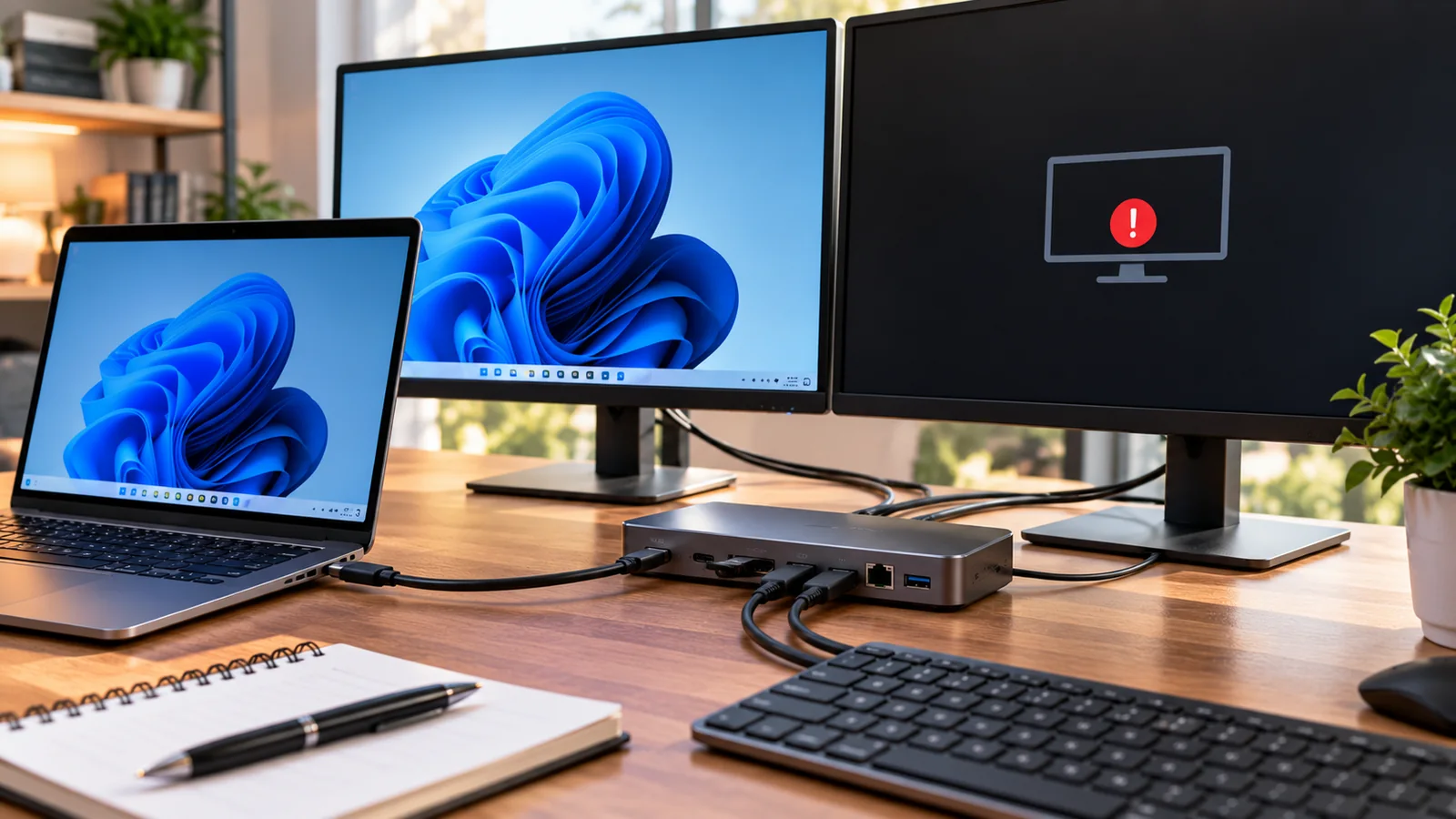
If your external monitor is not detected through a USB-C docking station on Windows 11, do not buy a new dock or reinstall Windows yet. First test the monitor directly with the laptop, verify that the laptop’s actual USB-C port supports the dock’s video technology, and reconnect one monitor to the powered dock using its recommended host cable. Then press Windows + P and select Extend, and check Settings → System → Display → Multiple displays → Detect if available. The result of those checks tells you whether to investigate the display, cable, host port, dock, driver, or dual-monitor bandwidth.
A common trap: a dock can charge a laptop, connect a USB mouse, and provide Ethernet while its monitor output stays blank. USB-C describes the connector; it does not by itself guarantee DisplayPort Alt Mode, Thunderbolt, USB4 video, or a compatible video cable. Microsoft documents the “Display connection might be limited” warning and its possible hardware and cable causes in its USB-C troubleshooting guide. This article is for Windows 11 laptops and compatible Windows 10 setups, including Dell, Lenovo, HP and other brands; model-specific instructions still take priority.
Start here: the 90-second safe diagnosis
- Look at the monitor: does it show “No signal,” stay black with the power LED on, or report a signal but display nothing? Verify the correct HDMI/DisplayPort input on the monitor itself.
- Remove complexity: unplug extra screens and nonessential USB devices after safely ejecting any external drives. Keep the dock on its approved power adapter where required.
- Check the actual host cable and port: connect the dock directly to the laptop’s documented video-capable USB-C/Thunderbolt port. Avoid a USB-C extension or charge-only lead.
- Try Windows display controls: Windows + P → Extend, then Display settings → Multiple displays → Detect (if offered).
- Bypass the dock: test the same monitor using a known-good direct HDMI connection or an appropriate direct USB-C video adapter; note exactly what works.
- Change only one component: one host cable, one dock output, or one monitor input at a time, and record what changed.
These are diagnostic tests, not a promise of a one-minute repair. A working HDMI connection proves the display and one output path work, but it does not prove the laptop’s USB-C port supports video. A direct USB-C video test is meaningful only if that particular laptop port and adapter both support video. Microsoft’s external-monitor guidance likewise prioritizes connections, changing cables, and testing displays on another system before driver changes.
Read the symptom before changing settings
| What you observe | Most useful first check | What it suggests—not proof |
|---|---|---|
| Dock charges the laptop and USB mouse works, but no monitor appears | Verify host USB-C video specification; test monitor directly | USB data or charging works; native video capability may still be missing |
| Monitor says “No signal” and Windows does not detect it | Correct monitor input; replace video cable; test dock video output | Physical signal path or negotiation may be failing |
| Monitor appears in Windows but stays black | Check Win + P, display mode, refresh rate and input | Signal is partially detected; configuration or handshake is possible |
| One external display works, two do not | Disconnect the working one; test each alone, then at 1080p/60Hz | Display-count, dock output sharing, MST or bandwidth may be involved |
| Only fails after sleep, lid close or reconnect | Cold reconnect dock, restart once, check vendor updates | A resume or firmware handshake issue may be involved |
| Everything works directly, not through the dock | Confirm dock power, host cable and exact dock model | Dock-path incompatibility or fault is more likely |
| A “Display connection might be limited” warning appears | Check correct USB-C port, host specs and cable capability | Windows sees a mode-compatibility problem |
| A DisplayLink dock works for USB but not video | Check DisplayLink software and USB enumeration | Missing or damaged DisplayLink driver may be relevant |
Know which kind of dock you have before downloading a driver
Look for the exact model number on the dock, its box or vendor page. Do not guess from the port shape, price, or number of HDMI connectors. Some docks use the laptop GPU’s native DisplayPort video; some are Thunderbolt/USB4 docks; some use DisplayLink USB graphics with a separate driver; and some combine technologies with different video outputs on one unit. Plugable’s comparison of DisplayLink and Alt Mode MST outputs explains why the correct fix changes with the technology.
| Dock or video path | Needs from the computer | Typical software requirement | Important limit |
|---|---|---|---|
| USB-C DisplayPort Alt Mode | Video-capable USB-C port, matching cable and dock | GPU and platform drivers; normally no DisplayLink driver | Native GPU output; host and dock display limits apply |
| Thunderbolt or USB4 dock | Compatible TB/USB4 host and suitable certified cable; some docks fall back with reduced features | Vendor/platform software and firmware as applicable | Fallback and output limits are model-specific |
| MST hub/dock using DP Alt Mode | Native DP signal and host/GPU MST support | Usually no separate USB graphics driver | One video link is shared between streams; not every output combination works |
| DisplayLink USB graphics dock | Supported USB data host, dock with DisplayLink chipset | Supported DisplayLink driver/software | Uses USB data; performance and policy constraints differ |
| USB-C charging/data hub without video | Nothing in itself establishes a video path | Installing video drivers cannot create absent hardware features | External display ports may not exist or be usable |
A USB-C port that accepts a charger or external SSD does not automatically support video. The DisplayPort official FAQ explains Alternate Mode, and Horus Valley already has a separate step-by-step guide: How to tell if your USB-C port supports video output. Check your exact laptop model and port; one USB-C port on the same chassis may behave differently from another. Do not treat a USB-C icon alone as proof without the hardware manual.
A controlled A/B test that identifies the failed link
Rather than “try everything,” use the following four tests. Keep the laptop, monitor and resolution constant whenever possible. Disconnect any external storage safely first. Photograph or write down the combination and the exact error message, because changing multiple parts simultaneously makes the result hard to interpret.
| Test | Connection | Result to record | What you learn |
|---|---|---|---|
| A | Laptop → built-in HDMI/DP → monitor (if available) | Picture / no picture | Checks monitor and that laptop output path, not USB-C capability |
| B | Laptop → compatible USB-C video adapter → same monitor | Picture / no picture | Tests native USB-C video support on a documented video-capable port |
| C | Laptop → powered dock → one monitor output | Picture / no picture | Checks the dock path, upstream cable and dock output |
| D | Known-compatible second laptop → same dock/cable/monitor | Picture / no picture | Helps separate host-specific problems from the dock/display path |
Interpretation: If A and B work but C fails, the dock path deserves priority. If A works but B and C fail, verify USB-C video support and the cable before blaming Windows. If the dock works with a second compatible laptop, investigate the first computer’s configuration, controller, firmware or documented limitations. If the same dock fails with two known-compatible hosts and different known-good video cables, a dock or power-supply fault becomes more plausible. None of these tests alone proves a specific chip is damaged.
If you lack a second laptop, substitute another known-working dock or a second known-good display cable and record the narrower conclusion. A powered USB hub connected to a data-only port is not an adequate test of DisplayPort Alt Mode; a specialized USB graphics adapter such as DisplayLink uses a different approach. Use the manufacturer specification to choose a comparison that tests the intended signal path.
Step 1 — Verify the monitor, input, cable and power
Start at the screen. Use the monitor’s physical controls to choose the actual input (HDMI 1 versus HDMI 2 or DisplayPort), not a similarly named input. Turn the screen on and check whether its on-screen menu appears even with the cable disconnected. If its own menu never appears, troubleshoot the monitor’s power or hardware first. Where possible, test a known-good monitor with a direct laptop output, then reuse the same video cable at the dock.
Check both ends of HDMI or DisplayPort cables for secure seating, bent plugs, physical strain or an adapter in the chain. Replace a suspect cable with one whose specifications match the required resolution and refresh rate. A passive USB-C charge cable, or a cable designed only for USB data, may not provide the video and dock features you need. Use the dock vendor’s supplied upstream lead or a replacement explicitly approved for the host’s USB-C/TB/USB4 capabilities; do not assume every cable with matching ends is interchangeable.
Dock power can matter. A dock that requires a separate AC adapter may enumerate USB devices but behave inconsistently if it is underpowered; some bus-powered docks have other limits. Verify that the adapter belongs to the dock and meets the manufacturer’s requirements. Do not substitute a higher-voltage supply or experiment with damaged connectors. If you see heat damage, smell burning, or experience sparking, disconnect the equipment and arrange a professional inspection.
Step 2 — Confirm Windows is configured to use the display
- With the screen powered and connected, press Windows + P; choose Extend or Duplicate rather than PC screen only.
- Open Settings → System → Display. Expand Multiple displays and choose Detect if the option is present.
- If the display appears, use Identify and rearrange screen numbers so the pointer moves in the expected direction.
- Select the monitor and temporarily use a conservative resolution and refresh rate, such as 1920×1080 at 60Hz if supported by that monitor. Revert if the setting gives no stable picture.
- If no display appears, stop repeatedly pressing Detect and return to a physical-path or device-compatibility test.
The exact wording may vary with Windows updates and the GPU driver. Microsoft’s multiple-monitor setup guide documents Detect, Identify, Extend and arrangement controls. If Windows cannot receive a valid video signal from the laptop/USB-C path, software detection alone cannot invent one. If the laptop screen itself is black as well, follow the different diagnostic process in Laptop turns on but the screen is black rather than assuming the dock is solely responsible.
Step 3 — Restart the video path without resetting Windows
If the setup used to work and stopped after sleep or hot-plugging, save open work, safely eject storage attached to the dock, disconnect the laptop from the dock and power down connected displays if practical. Unplug the dock’s approved power adapter for the duration specified by the vendor; Dell’s dock setup guidance includes a 10-second power-cycle after firmware update for applicable models. Restore dock power first, then connect the host cable, then attach one display. Wait for Windows to finish enumerating devices before judging the result. Dell’s official docking setup guide gives model-aware instructions.
Next, restart Windows normally once if the screen is still missing. A normal restart is less destructive than random driver removal or an operating-system reset. If Windows is responsive but displays are blank or frozen, Windows + Ctrl + Shift + B can request a graphics-driver reset on supported Windows sessions; it may beep or flash the display, but does not replace physical and firmware tests. Do not keep repeating hot-unplug/replug cycles while an external drive is writing files.
Step 4 — Determine why one monitor works but two do not
Two screens failing in different ways is not the same issue as one screen receiving no signal. Test each external monitor alone, on each intended output while the other is disconnected. Then connect both, first at moderate settings (such as 1080p/60Hz if both support that mode). Review the dock manual for shared or mutually exclusive outputs, the laptop’s external-display count, its GPU capabilities, and its MST/Thunderbolt/USB4 features. A simple HDMI splitter usually duplicates an image; it is not a substitute for independent extended desktop output. Microsoft explicitly distinguishes splitters from extended multi-monitor setups.
Why lowering resolution is a useful test: one 3840×2160 image has four times as many active pixels as one 1920×1080 image. At the same refresh rate, the signal demands are substantially different, though actual link bandwidth also depends on timing, bit depth, lane allocation, compression and protocol overhead. So if two 4K displays fail but each works alone and both operate together at 1080p/60Hz, investigate link bandwidth and dock output limits—not Windows “forgetting” the second screen. The lower setting is a diagnostic probe, not a guaranteed permanent cure.
Some USB-C paths allocate lanes to native DisplayPort video while also supporting USB data; the tradeoff varies by hardware generation and implementation. Thunderbolt and USB4 docks use different transport and may offer higher capabilities on a fully compatible host, but connecting a premium dock to a basic USB-C port does not grant that port new features. Check both ends of the specification and use the dock manufacturer’s tested display-resolution table. Plugable’s September 2026 guide gives a practical comparison of Alt Mode, MST, DisplayLink and Thunderbolt.
Step 5 — Update the correct component, in the correct order
If a previously working configuration fails after an update or behaves intermittently with a proven video-capable host and compatible dock, check Windows Update and the exact laptop and dock model on the manufacturers’ official support pages. Possible relevant updates include GPU driver, chipset/USB controller driver, Thunderbolt/USB4 software, dock firmware and—in a small number of model-specific cases—BIOS. Do not install DisplayLink software for a dock that does not use DisplayLink. Similarly, a generic driver installer cannot add DP Alt Mode to a hardware port that lacks it.
- Identify the laptop model, Windows version/build, dock brand/model and dock power adapter. Save those details.
- Confirm the laptop supports the dock’s video method using official manuals and compatibility lists.
- Install ordinary supported Windows updates and restart if required.
- Check the OEM’s graphics/chipset/USB4 or Thunderbolt updates appropriate to the exact computer.
- If the dock maker documents a relevant firmware update, read its release notes and power requirements; follow its instructions without interruptions.
- For a genuine DisplayLink-based output, check its required supported driver and whether the device appears in Device Manager.
Dell provides separate setup, driver and firmware guidance for its WD19/WD22 families; certain models have had documented flicker or blanking issues addressed by specific dock firmware. These fixes are not universal version prescriptions for HP, Lenovo, Plugable or every Dell unit. See Dell’s WD19/WD22TB4 monitor-blanking note. On a managed business laptop, let IT handle firmware, Thunderbolt device authorization or BIOS security settings. Firmware changes can trigger BitLocker recovery on some systems; make sure you have an appropriate backup and authorized recovery method before proceeding.
Step 6 — Separate DisplayLink USB graphics from native video failures
If the manufacturer states the dock uses DisplayLink, installing or repairing the vendor-supported driver may be necessary. A DisplayLink dock can transport display data over ordinary USB data in ways different from DP Alt Mode, although it has performance and deployment tradeoffs. DisplayLink devices may enumerate as USB interfaces rather than direct GPU-connected monitors. Conversely, DisplayPort Alt Mode and standard MST docks use native GPU video and normally do not need the DisplayLink USB graphics driver. A hybrid dock may have two DisplayLink ports and other ports driven by native video, which is why you must identify the specific output being tested.
For a genuine DisplayLink failure, inspect Device Manager for unknown USB devices and check the vendor’s driver status. DisplayLink’s official diagnostics describes supported checks for missing enumeration and vendor-specific device IDs. Do not use Hardware IDs copied from a forum as proof of a defect on another chipset, and do not uninstall unrelated GPU or USB drivers blindly. Corporate security policy may block required software; escalate to IT rather than trying to bypass that control.
Step 7 — Check the failure timing: boot, sleep, reconnection or a Windows update
| When failure occurs | What to record | Safer first action |
|---|---|---|
| Immediately when newly installed | Laptop/port specs, dock model, USB-C cable, one monitor result | Verify compatibility and one-monitor direct test |
| After sleep or opening lid | Sleep/wake state; lid position; external monitor power | Normal restart; dock power cycle if vendor permits |
| After Windows driver update | Update date, GPU driver version, history of working state | OEM-supported graphics rollback or update only if justified |
| After moving desk or changing cable | Cable brand/model, port used, monitor input | Swap with approved known-good cable and original port |
| After adding second 4K display | Resolution, refresh rate, which screen works alone | Try each separately, then lower resolution on both |
| Only in an office-managed laptop | Company dock policy, docking authorization, IT updates | Contact IT; do not change BIOS security policy |
On hybrid or discrete-GPU laptops, external outputs may be routed through integrated graphics even if a dedicated graphics card handles rendering. Do not disable the integrated display adapter because an external monitor is blank. If a suspected driver regression is reproducible, check the laptop maker’s known-issue notices and supported driver versions. Choose a rollback only when the affected driver and timing actually match; otherwise you may remove a security or stability fix without solving the underlying hardware path.
Four realistic example scenarios with interpretations
Scenario A: USB keyboard and Ethernet work, both screens remain dark
A Windows laptop charges through a USB-C dock and a keyboard works, but neither dock monitor output appears in Display settings. The operator checks the product manual and discovers the chosen USB-C port is data/charging only, while a different USB-C port supports DP Alt Mode. The meaningful fix is to use the documented video-capable port—or a supported USB graphics dock if native output is unavailable—not to repeatedly reinstall monitor drivers. This is an illustrative diagnostic scenario, not a test performed on a named laptop.
Scenario B: one 4K monitor is stable, two 4K screens fail
Both monitors work one at a time via a DP Alt Mode dock, but the second monitor disappears when they operate together at high refresh rates. Lowering the settings temporarily allows both to display. This pattern makes host display limits, shared DP bandwidth, MST topology or mutually exclusive dock ports worth checking. It does not prove a particular bandwidth number or guarantee that buying a Thunderbolt dock will help: first verify the host supports the technology and the desired combined display mode.
Scenario C: everything works until the laptop wakes from sleep
An office setup works from a cold start but the external screen occasionally shows No Signal after sleep. The user records the wake pattern, saves work, power cycles the dock according to its vendor instructions, and checks official update notes for the precise model. A dock or graphics firmware handshake problem is plausible. The result of a single successful restart cannot prove the underlying defect is fixed; the issue must be observed over subsequent normal sleep/wake cycles.
Scenario D: a “universal” USB dock needs a DisplayLink driver
A driver-based dock is plugged into an otherwise functioning Windows PC; Ethernet and USB storage appear, but its specified DisplayLink video outputs remain absent. Reading the model documentation reveals that software-managed USB graphics is required. The user checks whether DisplayLink software is installed and permitted by the organization, and updates only that subsystem. A different dock with native DP Alt Mode might require no such driver. The lesson is to distinguish dock architecture from an apparently identical connector.
Practical decision table: what to try, and what not to buy yet
| Evidence you have | Likely next action | Do not assume |
|---|---|---|
| USB-C port is data-only in the official manual | Use built-in video output or vetted USB graphics solution | A passive adapter can manufacture native video |
| Direct USB-C video works but the dock fails | Inspect dock power/upstream cable and exact firmware compatibility | Windows needs to be reinstalled |
| Only one dock HDMI port fails | Try a different verified video output; inspect output-sharing rule | The laptop GPU is defective |
| Two monitors work singly but not together | Review display limits, MST and resolution/refresh rate | Any “dual 4K” marketing applies to this laptop |
| DisplayLink output fails with USB data functional | Check supported DisplayLink driver and security policy | Install all graphics driver packages found online |
| Monitor itself fails on two computers | Test monitor cable/power/input and contact display maker | Dock firmware is responsible |
| Screens intermittently blank after sleep | Record pattern; vendor power cycle/updates | A factory reset is the safest first move |
What not to do while troubleshooting a USB-C dock
- Do not factory-reset Windows because a dock monitor is blank; it rarely diagnoses the physical signal path and can cause data loss.
- Do not clear BIOS, disable TPM, or bypass corporate Thunderbolt security controls on speculation.
- Do not flash a random dock firmware image or interrupt a vendor-approved update.
- Do not wipe USB controllers or graphics drivers indiscriminately before basic cabling and port compatibility tests.
- Do not rely on a charge-only cable simply because the laptop receives power.
- Do not assume a DisplayLink driver helps a native DP Alt Mode dock—or the reverse.
- Do not keep disconnecting a dock with active external storage transfers; eject removable media and save work first.
- Do not buy another expensive dock until you know the host display specification, required number of monitors and combined resolution.
When to contact the laptop, dock or display maker
Contact the laptop manufacturer if a documented video-capable USB-C port cannot drive a known-good compatible display directly, especially across tested ports and with official drivers. Contact the dock manufacturer if a known-compatible laptop and screen work directly but fail through the dock with its correct power adapter and approved host cable. Contact the monitor manufacturer if its own menu, input selection or power behavior is faulty even on another host. Contact your IT department first for a managed laptop, an authorization prompt or a vendor firmware policy you are not allowed to change.
When requesting support, attach this concise record: laptop make/model and exact USB-C port; dock brand/model and power adapter; upstream and monitor cables; display make/model; Windows build; GPU and dock firmware versions if known; number of screens; each resolution and refresh rate; observed error; whether direct video works; whether another compatible host works; and whether the failure started after a change. This information is more actionable than writing “the second monitor is broken” or sending a generic screenshot of Display settings.
How to confirm the problem is actually solved
- With one monitor attached through the dock, confirm Windows detects the correct display and Extend works.
- Connect the intended second display; verify both can extend independently and operate at a documented supported mode.
- Open a normal workload for a short period and watch for blackouts, flicker and unexpected disconnects.
- If the original problem involved sleep or hot-plugging, repeat the same transition several times under normal conditions.
- Confirm that USB storage, Ethernet and laptop charging (if supported) still work; repairing video should not silently break another dock function.
- Record final host port, cable, resolution and driver/firmware versions so you can restore the configuration.
Takeaway: diagnose the video path, not the USB-C shape
The fastest reliable route is: identify the dock technology → check the exact host port → test one screen directly → test one through the dock → test the second screen → update only the confirmed component. USB-C charging is not proof of video capability, and a dock with working USB ports can still fail its video negotiation. Make one change at a time and use vendor documentation for performance limits. If you cannot reproduce a functioning native video path, do not spend money on a replacement until you know whether DisplayLink or another supported solution is appropriate.
Official references and related Horus Valley guides
- Microsoft — Troubleshoot external monitor connections in Windows
- Microsoft — Fix USB-C problems and limited display connections
- Microsoft — How to use multiple monitors in Windows
- DisplayPort — Official FAQ about DisplayPort over USB-C and Alternate Mode
- Dell — Set up and update a docking station
- Dell — Model-specific WD19 and WD22TB4 monitor blanking
- Plugable — DisplayLink versus native Alt Mode MST outputs
- Plugable — September 2026 guide to dock architectures
- DisplayLink Support — USB device not recognized and diagnostic steps
- Horus Valley — How to tell whether your USB-C port supports video
- Horus Valley — Laptop turns on but screen stays black
- Horus Valley — USB Device Descriptor Request Failed in Windows
Editorial note: Last reviewed 20 October 2026. Menu labels, firmware versions, charging limits and supported external display modes depend on the precise product and software release. The example scenarios above are explanatory, reproducible diagnostics—not claims of laboratory tests performed by Horus Valley.
You may also like
 Technology & How-To
 Can Your Phone Photos Reveal Your Location? How to Check EXIF and Remove GPS Metadata
Phone photos may contain GPS coordinates and EXIF metadata. Learn how to check a real file, remove location…
 Technology & How-To
 iCloud Photos Not Syncing Between iPhone and Windows PC? Safe Fixes Without Losing Photos
Find exactly where iCloud photo syncing fails between iPhone and Windows, protect originals from accidental deletion, and fix…
 Technology & How-To
 Google Messages RCS Stuck Verifying Your Number? Safe Fixes That Work by Symptom
RCS stuck on Connecting, Verifying your number or error 3100? Follow Google’s official guidance, test SMS and dual…