
How to Tell If Your USB-C Port Supports Video Output: A Practical Test Guide
Find out whether a USB-C port can output video, test DP Alt Mode, check Thunderbolt and USB4, and fix adapters and docks that show a black screen.
Contents
- The two-minute compatibility check
- What USB-C does—and does not—tell you
- Step 1: read the official specification, not the online store headline
- Step 2: use port symbols carefully
- Step 3: understand DisplayPort Alt Mode
- Step 4: Thunderbolt and USB4 can provide another route
- Step 5: check the monitor and the complete signal path
- Step 6: how to test a Windows 11 laptop
- Step 7: Windows laptop supports charging but monitor stays black
- Step 8: how to test on a Mac
- Step 9: how to tell whether an Android phone supports USB-C video
- Step 10: tablets and game handhelds need device-specific checks
- Step 11: understand video-capable versus charging-only USB-C cables
- Step 12: USB-C to HDMI adapters cannot bypass a missing host video path
- Step 13: why a hub can have HDMI but still fail
- Step 14: one external monitor works but two do not
- Step 15: the monitor displays video but does not charge the laptop
- Step 16: black screen after sleep, docking or an OS update
- Step 17: USB-C diagnostic table in plain language
- Step 18: how to choose the right accessory once support is confirmed
- Three realistic examples
- Conclusion
- Official sources and further reading
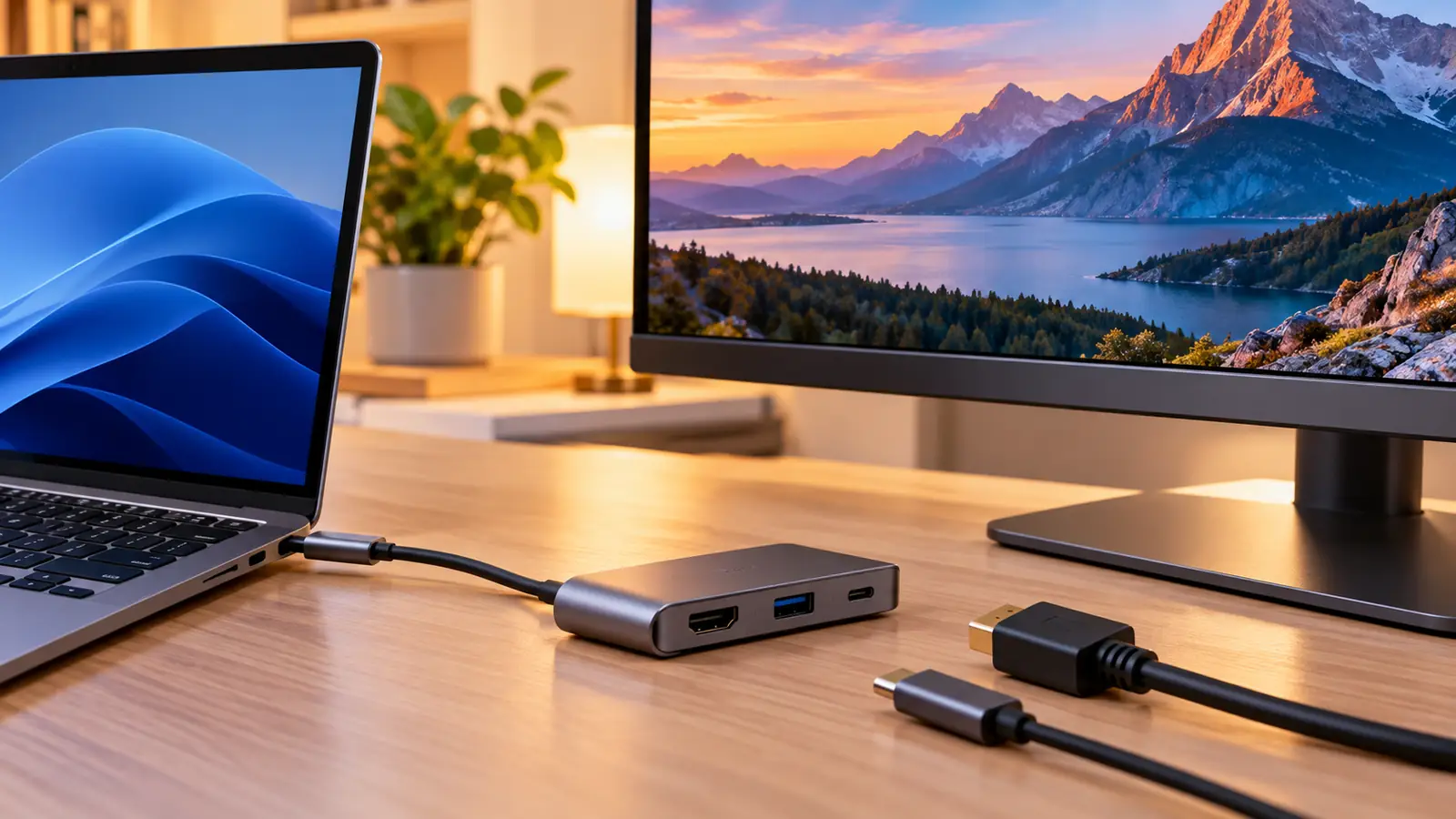
USB-C looks simple: one small reversible connector for phones, laptops, tablets, docks, chargers and external displays. The confusing part is that USB-C describes the connector, not a guarantee that every port can output video. Some USB-C ports are for charging or data only. Others carry DisplayPort Alt Mode, Thunderbolt or USB4 video capabilities, depending on the host hardware and specifications. A USB-C-to-HDMI adapter cannot create conventional video output from a port that lacks the required host support.
Before buying a dock or blaming a new monitor, you need to identify your exact device and port, inspect its documented features, then perform a clean hardware test. This guide explains the logos and specifications, how to check Windows laptops, Macs, Android devices and USB-C monitors, and what to do when a supposedly compatible port still shows a black screen. It also distinguishes native display output from USB graphics adapters that use software and external processing.
The two-minute compatibility check
- Find the exact model number and variant of the laptop, tablet or phone—not just the marketing family name.
- Open the manufacturer’s official product specifications or hardware manual. Search for DisplayPort over USB-C, DP Alt Mode, USB-C with video, Thunderbolt, or the exact USB4/display wording.
- Check the port itself for a DisplayPort, Thunderbolt or other relevant marking, while treating the manual as the authority; many products lack printed symbols.
- Confirm the monitor has the intended video input and the cable/adapter supports the required signal and resolution.
- Test directly with a known-good compatible display and cable, avoiding complex hubs during the first test.
- If the manual says data/charging only, a conventional USB-C-to-HDMI cable is not a valid fix. Use a built-in HDMI/DisplayPort output or a separately supported USB graphics solution instead.
The official DisplayPort FAQ explicitly recommends checking device documentation for DisplayPort Alt Mode; a DP symbol near the connector is only a helpful clue.
What USB-C does—and does not—tell you
USB-C is the physical connector and associated interface family. It can carry power and USB data, and some combinations of host and accessories can negotiate alternate uses of wires for display signals. But the presence of the same-shaped port on two laptops does not prove that both support external monitors.
A device can support fast USB data yet have no video path on that connector. Another might charge through USB-C and offer DisplayPort Alt Mode, while a third uses Thunderbolt or USB4. The advertised version alone does not tell you every feature in an individual implementation. Read the complete port specification rather than assuming that “USB-C 3.x” means HDMI output.
Step 1: read the official specification, not the online store headline
Search the maker’s support site using your exact model, product number or serial-based support identification. In the technical specifications, inspect each listed USB-C port independently. Good explicit descriptions include “USB-C with DisplayPort 1.4,” “DisplayPort Alt Mode,” “Thunderbolt 4 with display output,” or “USB4 with DisplayPort tunneling,” but naming varies by manufacturer and generation.
Beware ambiguous phrasing such as “USB-C 10 Gbps,” “charging supported,” or “Power Delivery.” Those statements do not by themselves establish video capability. If the hardware manual documents different USB-C ports, verify you have connected to the specific video-enabled port rather than a similar-looking data-only one.
Step 2: use port symbols carefully
A lightning-bolt symbol may identify a Thunderbolt connector on supported equipment, and a stylized DP marking can indicate DisplayPort support. However, port labeling is inconsistent across manufacturers and devices, and some icons represent power or charging only. A simple USB trident or battery icon is not evidence of video capability.
The DisplayPort organization notes that compatible devices may have a DP logo next to the connector. The absence of a logo does not definitively mean there is no video. If markings conflict with the manual, use the device’s exact specification and manufacturer support resources as the final reference.
Step 3: understand DisplayPort Alt Mode
DisplayPort Alternate Mode allows a compatible USB-C host to use the connector to carry DisplayPort video. The host, cable and display/adapter negotiate capabilities using the USB-C and USB Power Delivery mechanisms. If the host lacks DP Alt Mode or another supported video method, merely plugging in a passive USB-C-to-HDMI adapter cannot enable a GPU signal that is not available.
Some USB-C docks convert the incoming DisplayPort signal to HDMI for the monitor. Others provide a native DisplayPort connection, and some have more complicated multi-display chipsets. That distinction matters because a dock containing an HDMI port does not guarantee it can receive video from any USB-C laptop.
Step 4: Thunderbolt and USB4 can provide another route
Many laptops with documented Thunderbolt ports support video through docks or adapters, and USB4 systems may support display capabilities specified by their implementations. But marketing terms and generations alone are not a substitute for checking the device’s own manual, its maximum supported displays and its controller capabilities.
A Thunderbolt-certified dock also has compatibility requirements. Certain high-bandwidth displays, multiple-monitor combinations and power delivery arrangements may need the right cable, firmware and graphics hardware. If a product says Thunderbolt, check the required generation and operating-system support on both sides rather than assuming universal operation.
Step 5: check the monitor and the complete signal path
Write the signal path on paper: laptop USB-C output → USB-C cable → dock/adapter → HDMI or DisplayPort cable → monitor input. Every component must carry the needed signal. If one segment is charge-only, the display will remain blank even when the laptop supports video.
For a USB-C monitor, check whether the monitor’s USB-C port is labeled for video input or only for its USB hub/upstream data function. Some monitors have multiple USB-C sockets with different roles. On the monitor’s on-screen menu, select the matching input. For a TV or HDMI monitor, confirm the USB-C-to-HDMI adapter explicitly supports your host’s video mode, rather than only providing USB data ports.
Step 6: how to test a Windows 11 laptop
Connect a known-good compatible display directly to the laptop’s documented video-capable USB-C port, using the appropriate cable/adapter. Power the monitor and select the input. Press Windows + P and choose Duplicate or Extend. Then open Settings → System → Display and use Detect when available. If another external display works on the same path, investigate the first monitor and cable rather than concluding the port lacks video.
If Windows shows “Didn’t detect another display,” confirm the specification before trying drivers. Update graphics and USB/Thunderbolt drivers from the laptop manufacturer or Windows Update, not from random driver download sites. Restart once after appropriate updates. Device Manager can help identify installed controllers, but seeing a USB controller entry is not proof that a specific USB-C port supports DP Alt Mode.
Step 7: Windows laptop supports charging but monitor stays black
Charging and video are negotiated separately. A laptop may charge perfectly through a USB-C hub even when the hub cannot carry a display signal from that particular host. Test without the dock, then with a known-good video cable, and compare to the laptop’s built-in HDMI port if present.
If direct video works but a dock fails, inspect dock firmware, cable quality, compatibility and power requirements. If direct video fails despite an explicit video specification, test a second display and contact the manufacturer with the exact model, port, operating-system version and adapter. Do not force-reset firmware or change BIOS options from an unrelated forum post.
Step 8: how to test on a Mac
Apple’s Mac models can differ in the number and specifications of supported external displays. Find your exact Mac model and read Apple’s official technical specifications and external-display support pages. USB-C ports on supported Macs may provide different capabilities than similarly shaped ports on other computers; the hardware generation and display configuration matter.
Use a Mac-compatible USB-C/Thunderbolt display or adapter, select the monitor’s input, then inspect System Settings → Displays. If the display remains blank, disconnect intermediate hubs and try a direct cable, then check Apple’s model-specific recommendations. A cable that charges a MacBook is not automatically a video-capable cable.
Step 9: how to tell whether an Android phone supports USB-C video
Many Android phones have USB-C charging but do not support wired external-display output. Others support a wired display mode, screen mirroring or a desktop interface through USB-C. Search the exact phone model on the manufacturer’s official support site for USB-C video output, DisplayPort Alt Mode, wired external display, or manufacturer features such as supported desktop modes.
Do not generalize from the brand or from the fact the phone charges quickly. A USB-C cable that transfers photos is not proof of video. Test using a known-supported adapter or direct USB-C display only after the maker confirms capability. Certain phones support wireless casting while lacking wired DisplayPort output; those are separate features.
Step 10: tablets and game handhelds need device-specific checks
USB-C-equipped tablets, handheld game systems, cameras and mini PCs vary widely. Some can drive an external monitor through DP Alt Mode; others use proprietary docks, need external power or allow video only in a particular operating mode. A device-specific support page is more reliable than a generic online list of all “USB-C-compatible products.”
If the manufacturer specifies a supported dock, cable or power supply, start with that configuration. Avoid assuming that a USB-C device will behave exactly like a laptop because the connector fits physically.
Step 11: understand video-capable versus charging-only USB-C cables
USB-C cables can differ in data speed, power rating, length, shielding and support for the signaling required by a given video mode. Some low-cost charging cables are fine for power but unsuitable for higher-bandwidth display setups. A USB-C cable between a compatible host and compatible USB-C monitor should be explicitly specified for the intended display mode, not purchased solely by connector shape.
For a USB-C-to-HDMI configuration, the adapter may have its own requirements; sometimes the cable after the adapter is a standard HDMI cable. High resolutions and refresh rates need enough bandwidth across the host, adapter, cable and monitor. If 1080p works but 4K at a high refresh rate does not, consider the signal chain’s capabilities before blaming Windows.
Step 12: USB-C to HDMI adapters cannot bypass a missing host video path
Most conventional USB-C-to-HDMI adapters rely on video output supported by the host (often DisplayPort Alt Mode). If the laptop exposes only ordinary USB data, no amount of driver updating transforms that port into a native display source. Returns and refunds are easier if you check the specification before buying.
A separate class of USB graphics adapters uses an internal graphics chip and driver/software, such as products based on technologies from providers including DisplayLink. Those can sometimes add display output over a USB data connection, subject to OS, security, performance and DRM restrictions. They are not the same as native USB-C DisplayPort Alt Mode and are not appropriate for every use case, especially gaming, low-latency video or protected content.
Step 13: why a hub can have HDMI but still fail
The HDMI socket on a dock tells you what connector it offers downstream, not what video signal it receives upstream. A host may lack DP Alt Mode, the dock might require Thunderbolt, the USB-C cable may be wrong, or the monitor input may be set incorrectly. Some powered docks also require their own power adapter or a minimum laptop capability.
Read both the dock compatibility list and the laptop port specification. For a reliable test, remove extension cables, connect the dock directly, attach one known-good display and check the exact input. Multiple-monitor combinations add bandwidth and chipset complexity, so verify one monitor first.
Step 14: one external monitor works but two do not
This often points to display-count limits, bandwidth, dock chipset behavior, GPU restrictions or how the system handles Multi-Stream Transport (MST). Windows and macOS can handle some dock architectures differently. The fact that one monitor works proves there is some video path, not that the port can drive every multi-display configuration advertised by a dock vendor.
Check the computer’s documented maximum external displays, the dock’s limits and cable bandwidth. Set both monitors to lower resolutions/refresh rates temporarily to test whether bandwidth is the limiting factor. If the system’s official specifications limit the display count, software tweaks are not a reliable workaround.
Step 15: the monitor displays video but does not charge the laptop
Video and USB Power Delivery are separate negotiated functions. A monitor may accept video over USB-C but provide insufficient wattage to charge a laptop under load. Another cable may support video but not the desired charging current. Check the monitor’s USB-C power output, the laptop’s required power and whether the selected port supports input charging.
If the battery percentage drops while the external monitor works, the connection may be delivering less power than the computer consumes. Use the laptop’s original power adapter or a manufacturer-approved power source as needed. Don’t use an uncertified adapter to force a higher power level.
Step 16: black screen after sleep, docking or an OS update
When a display used to work, the port probably had video capability before the failure. Start with reversible steps: wake the monitor, check input source, reconnect the cable, disconnect the dock and test directly, restart the computer, and recheck display settings. Manufacturer graphics, dock and firmware updates may be appropriate when a documented bug affects the model.
If the external monitor works before login but not afterward, investigate OS display arrangements and user-session settings. If the display is intermittent, try another known-good cable at the desired resolution. Consistent failure on one physical port but not another suggests a port or controller issue worth professional inspection.
Step 17: USB-C diagnostic table in plain language
- USB-C phone charges but TV stays blank: the phone may not support wired video; check the exact model.
- Laptop works via HDMI but not USB-C: inspect whether the selected USB-C port supports DP Alt Mode or equivalent.
- One USB-C monitor works only at 1080p: check supported resolutions, refresh rates, cable and adapter bandwidth.
- Dock charges laptop but HDMI is dead: power delivery is not proof of native display capability.
- Monitor’s USB-C hub works but no picture: its USB-C port may be configured for data, or the host/cable lacks video support.
- Display works directly but not through hub: check hub/dock technology, compatibility and cable.
- Everything worked yesterday: investigate settings, sleep state, cable damage and updates before assuming the hardware never supported video.
Step 18: how to choose the right accessory once support is confirmed
After the manufacturer confirms video output, decide whether you need direct USB-C to USB-C video, USB-C to DisplayPort, USB-C to HDMI, or a dock. The simplest compatible direct cable normally leaves fewer variables to troubleshoot. Match the monitor resolution and refresh rate, and check if the host’s video mode and adapter explicitly support them.
For mixed accessories, read the maximum video format and power specifications rather than only marketing phrases such as “8K-ready.” A monitor may advertise 4K/144 Hz while the adapter supports only a lower refresh rate. If you need docking with charging, networking and several monitors, choose a dock tested with your exact laptop family.
Three realistic examples
Example A: Budget laptop, one USB-C charging/data port, HDMI built in. The manual lists USB-C 5 Gbps and charging but no display support. Use HDMI for video instead of buying several USB-C video dongles.
Example B: Laptop manual says DisplayPort 1.4 via USB-C, yet monitor remains black. Test direct with a known-good cable and correct monitor input, use Windows + P, check Display settings and manufacturer graphics updates. A functioning second monitor can help isolate the fault.
Example C: Android phone supports wireless casting but not USB-C video. A USB-C-to-HDMI cable may still show nothing. Use the supported wireless-casting method or a phone model with documented wired display output; do not assume casting implies DP Alt Mode.
Conclusion
The reliable answer to “Does my USB-C port support video?” is the exact host specification plus a controlled cable-and-display test. USB-C shape, charging success and USB data speed are not enough. Look for DisplayPort Alt Mode, documented Thunderbolt/USB4 display capability or the manufacturer’s explicit wired-video claim, then confirm every element in the signal path. If native video is unsupported, a standard USB-C-to-HDMI adapter will not invent it; investigate other built-in ports or a clearly compatible USB graphics option.
Official sources and further reading
You may also like
 Technology & How-To
 Can Your Phone Photos Reveal Your Location? How to Check EXIF and Remove GPS Metadata
Phone photos may contain GPS coordinates and EXIF metadata. Learn how to check a real file, remove location…
 Technology & How-To
 External Monitor Not Detected Through USB-C Dock? Diagnose and Fix It on Windows 11
A symptom-first guide to Windows 11 USB-C dock display failures. Isolate cables, DP Alt Mode, Thunderbolt, USB4 and…
 Technology & How-To
 iCloud Photos Not Syncing Between iPhone and Windows PC? Safe Fixes Without Losing Photos
Find exactly where iCloud photo syncing fails between iPhone and Windows, protect originals from accidental deletion, and fix…