
Google Messages RCS Stuck Verifying Your Number? Safe Fixes That Work by Symptom
RCS stuck on Connecting, Verifying your number or error 3100? Follow Google’s official guidance, test SMS and dual SIMs, and avoid risky resets.
Contents
- Start with the symptom: choose a targeted RCS repair
- Step 1: Verify your number, SMS access and active SIM
- If normal SMS does not arrive
- Step 2: Make Google Messages the default SMS app and update core components
- Step 3: Fix the dual-SIM or eSIM mismatch
- Step 4: Handle a phone or carrier change without losing messages
- When you still have the old Android phone
- When the old phone is lost, broken or unavailable
- If you switched from iPhone to Android
- Step 5: Separate an RCS outage from a phone-only problem
- Step 6: Use low-risk cleanup before clearing Google Messages data
- Safe first checks
- Why “Clear storage” deserves a backup checkpoint
- What to do when RCS says Connected but messages still fall back to SMS
- RCS and iPhone messaging in 2026: what to check
- Three realistic scenarios you can reproduce safely
- Scenario A: a new Galaxy after transferring a SIM
- Scenario B: two SIMs, but RCS verifies the wrong line
- Scenario C: SMS works but incoming messages from iPhones disappear
- Gather useful evidence before asking Google or your carrier for help
- What not to do: common “fixes” that create new problems
- Final recovery sequence and when to stop troubleshooting
- Official sources and reporting notes
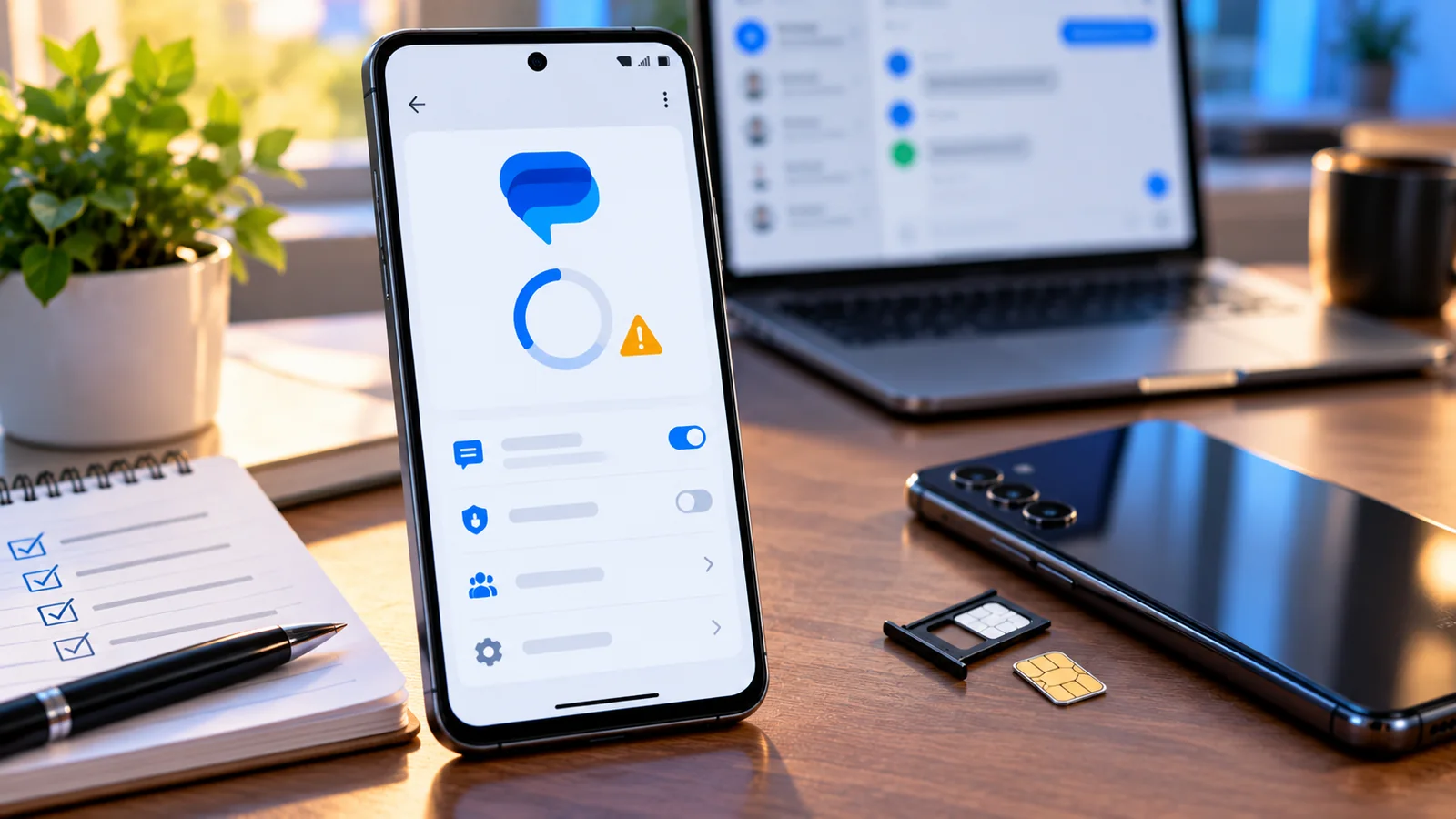
Google Messages RCS stuck on “Verifying your number,” “Connecting,” or “Trouble connecting. Awaiting retry”? First confirm that your Android phone can receive a normal SMS, that Google Messages is the default texting app, and that the correct active SIM is selected. Then open Google Messages > profile icon > Messages settings > RCS chats to read the exact status. If the app offers Verify your number or Retry, use that prompt once and give registration time to complete. Avoid clearing app storage or resetting the phone as an opening move.
Fastest safe route: Update Google Messages and Google Play services; verify mobile data and incoming texts on the phone number you are registering; check the default SMS app and dual-SIM settings; and allow the verification attempt to finish. Google says Connecting means number verification is in progress, while Trouble connecting. Awaiting retry signals trouble verifying the number. For a retry state lasting more than 30 minutes, Google recommends Details > Submit feedback. The exact menu labels can vary across phone brands and app versions. Google’s RCS status guide and official RCS FAQ are the primary references.
A key distinction: a number showing as verified in a Google Account does not prove its RCS registration has succeeded in Google Messages. Similarly, ordinary SMS working does not confirm your carrier’s RCS provisioning is functioning. This guide uses a stepwise diagnostic approach, not a purported laboratory test or guaranteed universal fix. It covers Pixel, Samsung Galaxy and other Android phones, including users who changed a device, SIM or carrier.
Start with the symptom: choose a targeted RCS repair
| Symptom / message | What it suggests | First check | When to escalate |
|---|---|---|---|
| Connecting / Verifying your number | Number verification is still in progress | Receive SMS, confirm number, wait for one attempt | If it moves to an error or persists unusually long |
| Trouble connecting. Awaiting retry | Registration encountered a problem | Use Verify your number or Retry if shown; collect exact message | After more than 30 minutes in this state, Details / Submit feedback |
| RCS disabled by your carrier | Carrier provisioning/availability is blocking RCS | Contact carrier, share device model and SIM details | Carrier support, not random local reset |
| Not supported | RCS unavailable for current setup | Connection, carrier eligibility, phone and app support | Carrier or Google support after basics |
| Connected, but one contact receives SMS | Peer may not support RCS or might be offline | Check that contact and compose-bar send method | If all contacts fail, recheck connection |
| RCS broke after number port | Registration may not have caught up with carrier activation | Verify incoming SMS/calls and carrier port completion | Carrier support if ordinary SMS is impaired |
| Only second SIM fails | Default call/data SIM mismatch or per-line provisioning | Review call/data defaults and line selected in Messages | Carrier support for dual-SIM RCS eligibility |
| Galaxy shows error 3100 | May reflect known carrier-partner issue affecting some devices in 2026 | Record error, update app and check carrier status | Carrier/Google reporting; avoid destructive reset |
The table is not a fault-code decoder provided by Google; it is an editorial decision framework built from Google’s documented statuses and separately sourced reports. A single symptom may have several causes. Record the wording and whether calls, SMS and mobile data work before changing anything, so you can describe the failure accurately if support becomes necessary.
Step 1: Verify your number, SMS access and active SIM
- Open Google Messages. Tap your profile picture or initials, then Messages settings > RCS chats. Some older interfaces display Chat features.
- Check the displayed number including country code. If you recently changed SIM cards, ensure it is the number that currently receives your texts.
- If Verify your number appears, tap it, confirm the requested number and let the verification SMS process run. Google says this confirmation involves SMS.
- Have a trusted person send a normal text to your number. Also test a call if practical. Verify the message arrives on the intended SIM rather than an inactive second line.
- Confirm the SIM has service, the plan is active, and you can use a real internet connection. Testing mobile data as well as Wi-Fi can help separate network-path issues.
- Return to the RCS status screen and note whether it changed to Connected, stayed at Connecting, or produced another message.
Do not send yourself repeated verification codes by turning RCS on and off every few seconds. Google does not publish a guaranteed maximum time for every Connecting state; its specific 30-minute feedback advice applies to the Trouble connecting. Awaiting retry status. If verification prompts are absent, Google says to use Details > Submit feedback. Receiving a verification SMS in your inbox is useful evidence, but not a guarantee that the back-end registration step completed. Official verification steps.
If normal SMS does not arrive
Treat that as the primary problem before troubleshooting advanced RCS settings. Ask your carrier whether the number has finished activation or porting, whether SMS is provisioned, and whether there are any blocks on incoming service or verification traffic. Check that you are not using a suspended SIM or forwarding messages only to another phone. Do not assume a banking or app OTP failing means all SMS is blocked: verification short codes may be handled differently by networks. Document the difference for support, rather than trying to bypass verification.
Step 2: Make Google Messages the default SMS app and update core components
- Open Android Settings and locate Default apps > SMS app (wording varies by manufacturer). Select Google Messages.
- Open the Google Play Store, find Google Messages and install an available update.
- Check Android system updates and Google Play system updates using your phone’s software update menus.
- Ensure Google Play services is up to date using supported update controls. Update Carrier Services if that app is installed; not every phone exposes it.
- Restart the phone normally after completing pending updates, then reopen RCS chats to observe the new status.
Google identifies the default-SMS-app setting, internet/SMS connectivity, Android version and Google Play services as prerequisites in its official troubleshooting guide. Google states RCS requires Android 5.0 or later, although a particular carrier or hardware implementation can impose additional availability conditions. A Play Store update can fix a product issue, but it cannot override a carrier-side block or complete a stalled number port. Avoid sideloading outdated APKs from unknown sites simply because an old forum post reported success with one version.
Step 3: Fix the dual-SIM or eSIM mismatch
On a phone with two active SIMs or an eSIM plus a physical SIM, registration can be confusing if calls, data and texting default to different lines. Google’s published guidance specifically says that, where both SIM slots are populated, the Call SIM should be configured as the Data SIM for troubleshooting. This is a useful diagnostic check, not a blanket instruction to delete an eSIM profile or permanently move data plans.
- Go to Settings > Network & internet > SIMs or the equivalent Samsung SIM manager.
- Identify the number you want RCS to use. Write down which line is the default for calling and which for mobile data.
- Where practical and supported, temporarily set the desired line as the default for both calls and data; consider charges on different data plans.
- Check which line receives verification texts. Reopen Google Messages RCS settings and retry the in-app verified flow once if offered.
- If you cannot change these defaults without unwanted roaming or charges, ask the carrier whether RCS is supported for your specific dual-SIM configuration.
Do not remove or erase an eSIM to “reset” RCS. Reprovisioning an eSIM may require a carrier-issued QR code and can interrupt voice or data service. If the problem appeared only after a SIM swap, mobile number portability event or carrier migration, verify the carrier has fully activated messaging features on the new line. This separates a local application problem from line provisioning.
Step 4: Handle a phone or carrier change without losing messages
When you still have the old Android phone
If a number moved from an old Android device, inspect the old phone’s RCS status before disabling anything. Google provides instructions to switch RCS off when a move to a non-RCS device or a different messaging app has caused missing messages. However, Google also cautions that toggling RCS can remove you from RCS group chats. For an ordinary troubleshooting delay on the same functioning phone, do not repeatedly disable it. When deregistration is genuinely needed, perform it once, record what you changed, and re-enable service on the intended new device.
When the old phone is lost, broken or unavailable
Google offers a dedicated RCS deactivation portal for users who cannot access the previous phone. That portal is a special-purpose recovery path, not a recommended first step for every Connecting message. It may ask for number verification. Use the portal only for the number you own and follow its instructions; do not let anyone else request verification codes or perform deregistration for you. A successful deactivation can help resolve delivery routing, but the new phone must still meet RCS eligibility requirements.
If you switched from iPhone to Android
iMessage is separate from Google Messages RCS registration. If contacts using iPhones cannot reach your number after the switch, Apple recommends turning off iMessage and FaceTime on the old iPhone, or using Apple’s official online deregistration process if you no longer have it. This fixes an Apple message-routing problem; it is not guaranteed to fix an Android RCS number-verification failure. Apple’s support guide explains the difference. Diagnose whether messages fail specifically from iPhones or from all senders.
| Situation | What is actually being registered | Appropriate action | Avoid |
|---|---|---|---|
| Old Android still has the number | Google Messages RCS number and messaging delivery | Check old/new RCS and use Google deregistration when justified | Repeated off/on cycles |
| Old phone cannot boot | Old RCS enrollment may remain associated | Use official Google disable-chat portal if missing texts | Untrusted “RCS unlock” services |
| Moved iPhone to Android | iMessage may still route sender messages to Apple | Apple deregistration plus normal Android verification | Conflating iMessage with RCS |
| Carrier port still processing | New network has not finished activating line services | Verify SMS and mobile network with carrier | Delete SIM/eSIM settings blindly |
| New SIM works for calls, not texts | SMS provision may differ from voice | Ask carrier about incoming SMS service | Reset phone or disable account security |
Step 5: Separate an RCS outage from a phone-only problem
In August 2026, 9to5Google documented reports of an RCS error labeled 3100, especially among some Samsung Galaxy users after a device or carrier switch. Google’s statement to the publication described the issue as involving carrier partners and said it was working on a fix. This is a documented episode, not proof that every phone showing 3100—or every Connecting status in October—has the same cause. Check current carrier notices and service reports before spending time on increasingly invasive local resets.
- Note the phone model, Android version, Google Messages version, carrier and whether the number was recently ported.
- Test an ordinary SMS and data connection and record whether each works.
- If someone on the same carrier with another supported phone is experiencing the identical new failure, a shared service problem becomes more plausible—not proven.
- Check the operator’s own status or customer-support channel; don’t rely on an unsourced social media outage map alone.
- Provide support with the exact RCS status, any numeric code, time of first failure, SMS test result and whether SIMs were changed.
Stop rule: If the carrier explicitly disables RCS, or multiple clean devices show the same registration fault on one network, repeated app resets are unlikely to be the most useful next step. Preserve your diagnostics and ask the carrier about provisioning or an active service incident.
Step 6: Use low-risk cleanup before clearing Google Messages data
Safe first checks
- Restart Android normally and verify automatic time/date are enabled; an incorrect system clock can interfere with some secure services, although it is not a confirmed root cause in every RCS incident.
- Temporarily test a stable mobile-data connection if Wi-Fi is unreliable. If your phone cannot reach the internet at all, follow the related Horus Valley Android Wi-Fi connection troubleshooting guide first.
- Check that background data and device-wide data restrictions are not stopping Google Messages from using the connection; change only settings you understand.
- Open Settings > Apps > Google Messages > Storage & cache and choose Clear cache if your device offers it. Cache removal is less disruptive than clearing all storage.
- After a normal restart, observe one fresh registration attempt rather than rapidly switching RCS back and forth.
Why “Clear storage” deserves a backup checkpoint
Some Google Messages community guidance suggests clearing the application’s storage after ordinary checks fail, and affected users reported successes during earlier incidents. However, a full app-data reset can erase application-specific settings and local state, and effects can vary by software version and phone. Google’s general support does not promise that every draft, RCS setting or unsynced piece of information survives this operation. Back up irreplaceable conversations using your supported device backup method and verify the backup state before proceeding. Do not describe an app-data reset as risk-free, and never substitute it for a carrier provisioning fix.
A reasonable escalation sequence is: capture the status and evidence; verify SMS/network/SIM; apply official app updates; clear cache; submit feedback; consult the carrier; then consider app storage reset with a checked backup and clear consent to losing local settings. Never clear data for Google Play services, remove security accounts, disable two-step verification, or factory reset solely because an anonymous comment says it helped. Those steps can cause account or credential problems far larger than an RCS delay.
| Action | Why use it | Potential downside | Priority |
|---|---|---|---|
| Check RCS status and incoming SMS | Identifies verification or network obstacle | No data loss | First |
| Update Messages and relevant services | Addresses known software defects | Interface or version changes | First |
| Check dual-SIM defaults | Identifies line mismatch | Possible mobile-data charges | Early |
| Clear Google Messages cache | Removes temporary app cache | Usually minimal | After basic checks |
| Use official RCS deactivation | Corrects previous-device routing in relevant cases | Can disrupt RCS groups and registration | Only when justified |
| Clear Google Messages storage | Resets app-local registration/configuration | Loss of local app settings/state; backup needed | Late, optional |
| Clear Google Play services data / factory reset | Broad system reset | May affect saved credentials and data | Not a routine RCS fix |
What to do when RCS says Connected but messages still fall back to SMS
A connected status confirms registration on your phone; it does not mean every conversation will use RCS. Google explains that RCS requires eligible participants and is subject to network/device support. If a recipient does not have RCS turned on or connectivity is unavailable, a conversation may use SMS/MMS instead. Inspect the send icon or message information in the compose bar. Look for a difference between a problem affecting all contacts and one affecting only one. Google explains send methods.
To avoid missing urgent texts while registration is failing, consider the setting for Automatically resend as text (SMS/MMS) under Messages settings > RCS chats, where available. Carrier SMS/MMS charges and delivery behavior may apply. If an option to send media by an SMS link appears, Google warns that the linked media may be accessible through a public link not controlled by Google. Do not use that method for sensitive images or assume fallback traffic has the same privacy properties as an encrypted RCS conversation.
RCS and iPhone messaging in 2026: what to check
Android-to-iPhone RCS is possible on supported networks. Apple says iPhone RCS requires iOS 18 or later and a participating carrier, and the setting is under Settings > Apps > Messages > RCS Messaging where available. Google and Apple began rolling out beta end-to-end encryption across supported Android/iPhone RCS conversations in May 2026; availability is gradual and should not be assumed for every chat or recipient. If an iPhone contact lacks RCS carrier support, SMS fallback is not an indication that your own Android number verification failed. See Apple’s RCS guide and Google’s rollout announcement.
Three realistic scenarios you can reproduce safely
Scenario A: a new Galaxy after transferring a SIM
Illustrative case: A user moves an active SIM from an older Galaxy to a new one. Phone calls and standard SMS work; Google Messages keeps showing Awaiting retry. Instead of wiping the phone, the user records the status, checks the default SMS app, updates Messages and Google Play services, and confirms which SIM handles calls/data. Because the issue began with the transfer, they check Google’s prior-device guidance. If the phone reports 3100 and the carrier acknowledges a provisioning problem, they submit the details and avoid repeated resets. This is an example workflow, not a test we performed.
Scenario B: two SIMs, but RCS verifies the wrong line
Illustrative case: A traveller’s personal number receives texts on SIM 1, while the phone uses SIM 2 for cheaper data. RCS registration stalls. Rather than deleting either plan, the user notes the original defaults, checks which line is selected in Google Messages, and temporarily aligns call and data defaults if costs and device policy allow. If the line then registers, the mismatch was a useful clue; if it still fails, carrier eligibility or provisioning remains possible. This controlled comparison changes one variable at a time and never guarantees a specific result.
Scenario C: SMS works but incoming messages from iPhones disappear
Illustrative case: A person switched from iPhone to Android and receives ordinary SMS from Android contacts, but messages from some Apple contacts do not arrive. Before resetting Google Messages, they check whether the sender is using iMessage to the old Apple number. Apple’s official deregistration procedure is the targeted route. The user should then test one new SMS from an iPhone. If RCS remains at Connecting for everyone, that is a separate issue requiring Google/carrier diagnostics. This prevents treating every missing message as the same RCS bug.
Gather useful evidence before asking Google or your carrier for help
| Information to capture | Example of useful description | Why it matters |
|---|---|---|
| Exact RCS status | “Trouble connecting. Awaiting retry” for 42 minutes | Separates waiting from error |
| Phone model and Android version | Galaxy model / Android build number | Helps identify device-specific behavior |
| Google Messages and Play services versions | Version strings from App details | Checks whether patch is available |
| Carrier and line type | Carrier, physical SIM or eSIM, dual-SIM enabled | Tests provisioning and per-line rules |
| Recent changes | Ported number yesterday / switched devices this week | Highlights likely trigger |
| Basic tests | Incoming SMS works, mobile data works, calls work | Separates SMS and data failures |
| Actions already tried | Updated app, cache cleared once, not storage | Prevents destructive repetition |
| Error code or screenshot | Code 3100; redact phone number | Documents a known symptom without exposing identity |
Open RCS chats and use Details > Submit feedback where Google offers it, especially if Awaiting retry persists longer than 30 minutes. For carrier support, ask whether your number is provisioned for RCS/Jibe messaging on the current device and SIM, whether a port is complete, and whether there is a known registration incident. You do not need to provide a full screenshot exposing your phone number, personal texts or verification tokens to a public forum. If support asks for a diagnostic screenshot, crop or redact account identifiers before sharing in nonsecure channels.
What not to do: common “fixes” that create new problems
- Do not factory reset solely for a number-verification message. It is a high-impact operation with no guarantee of curing carrier provisioning.
- Do not repeatedly toggle RCS as a normal diagnostic loop. Google warns this can remove people from group chats.
- Do not uninstall security tools or turn off two-factor authentication just because a post recommends it. Protect access to the Google account first.
- Do not erase the eSIM without verified reactivation instructions from the carrier.
- Do not install an old, unsigned or repackaged Messages APK. The fact that a downgrade reportedly helped someone in 2025 does not make it safe in 2026.
- Do not conflate Google Account phone-number verification with RCS verification. The account profile may show a verified number while the messaging service is still Connecting.
- Do not share OTPs, RCS verification codes or complete phone numbers with strangers offering an “activation fix.”
Final recovery sequence and when to stop troubleshooting
- Observe and record the exact RCS state in Google Messages.
- Confirm the correct active line receives standard SMS and can access the internet.
- Set Google Messages as the default SMS app; install app and Play-services updates.
- For dual SIM, compare data/call defaults without deleting service profiles.
- Use Verify your number or Retry only where offered and allow a normal attempt to complete.
- For a prior-device routing problem, use the official RCS deactivation instructions once, understanding group-chat effects.
- If an error persists or the carrier has disabled RCS, submit a detailed report to Google/carrier rather than escalating to unsafe system resets.
- When Connected, test with one known RCS-enabled contact and separately test normal SMS fallback; stop if both expected delivery methods work.
RCS activation problems are frustrating because a single screen can hide several independent layers: phone-number ownership, SMS reachability, carrier provisioning, internet connection and application registration. A targeted test at each layer is more informative than doing every reset found online. There is no ethical basis for promising that one cache clear or network toggle will fix all users. If your ordinary calls and texts work while RCS provisioning is blocked, SMS remains a practical temporary messaging path; check rates and privacy before relying on fallback for sensitive information.
Official sources and reporting notes
- Google Messages Help — Turn on RCS chats: exact status meanings, 30-minute feedback trigger, deactivation warning and send-method behavior.
- Google Messages Help — RCS chats FAQ: SMS verification prompt, default app, dual-SIM condition and availability.
- Google Messages Help — Cannot turn on RCS chats: app updates, default texting app, Android and Play services prerequisites.
- Google Messages Help — End-to-end encryption and unreadable messages: supported scope and messaging-app change warnings.
- Google Messages — RCS deactivation portal: when a previous device is not accessible.
- Apple Support — Deregister iMessage: missing texts after moving from iPhone.
- Apple Support — Turn on RCS on iPhone: iOS and carrier support rules.
- Google — Android/iPhone RCS encryption beta rollout (May 2026).
- 9to5Google — RCS 3100 reports and carrier-partner statement (August 2026): reported incident, not a universal diagnostic rule.
Editorial review date: October 20, 2026. This guide draws on Google and Apple product documentation, dated reporting about a specific 2026 incident, and a transparent, repeatable diagnostic framework. The three scenarios are illustrative, not fabricated tests. Interfaces differ by carrier, country, Android build and OEM; actions with data-loss or group-chat risks are labeled rather than presented as routine fixes. No technician tested a real phone, measured recovery success rates or confirmed a live outage for all networks during this review.
You may also like
 Technology & How-To
 Can Your Phone Photos Reveal Your Location? How to Check EXIF and Remove GPS Metadata
Phone photos may contain GPS coordinates and EXIF metadata. Learn how to check a real file, remove location…
 Technology & How-To
 External Monitor Not Detected Through USB-C Dock? Diagnose and Fix It on Windows 11
A symptom-first guide to Windows 11 USB-C dock display failures. Isolate cables, DP Alt Mode, Thunderbolt, USB4 and…
 Technology & How-To
 iCloud Photos Not Syncing Between iPhone and Windows PC? Safe Fixes Without Losing Photos
Find exactly where iCloud photo syncing fails between iPhone and Windows, protect originals from accidental deletion, and fix…