
Laptop Turns On but Screen Is Black? How to Diagnose and Fix It
Laptop powers on but shows a black screen? Follow a safe diagnostic guide for Windows 11, external monitors, graphics drivers, LCD tests and data protection.
Contents
- First identify which kind of black screen you have
- Step 1: Check charging, brightness and the obvious display controls
- Step 2: Disconnect accessories and eliminate display-routing problems
- Step 3: Reset the Windows graphics driver with a keyboard shortcut
- Step 4: Perform a controlled restart, not an immediate factory reset
- Step 5: Connect a known-working external monitor or TV
- Step 6: Look for the manufacturer logo or firmware setup screen
- Step 7: Use the Dell LCD built-in self-test if your model supports it
- Step 8: If you see a black screen with a cursor, restart Windows Explorer
- Step 9: Enter Windows Recovery and Safe Mode only if the laptop reaches Windows startup
- Step 10: Update or roll back the display driver carefully
- Step 11: Investigate a black screen immediately after a Windows update
- Step 12: Check sleep and lid-related patterns
- Step 13: Distinguish a failed backlight from a completely failed boot
- Step 14: Interpret beeps, blinking lights and fan behavior
- Step 15: Decide whether to back up data or seek repair
- Common scenarios and the safest next move
- Things you should not do while diagnosing a black screen
- When professional repair is the right choice
- A practical maintenance plan after the screen works again
- Official sources and further reading
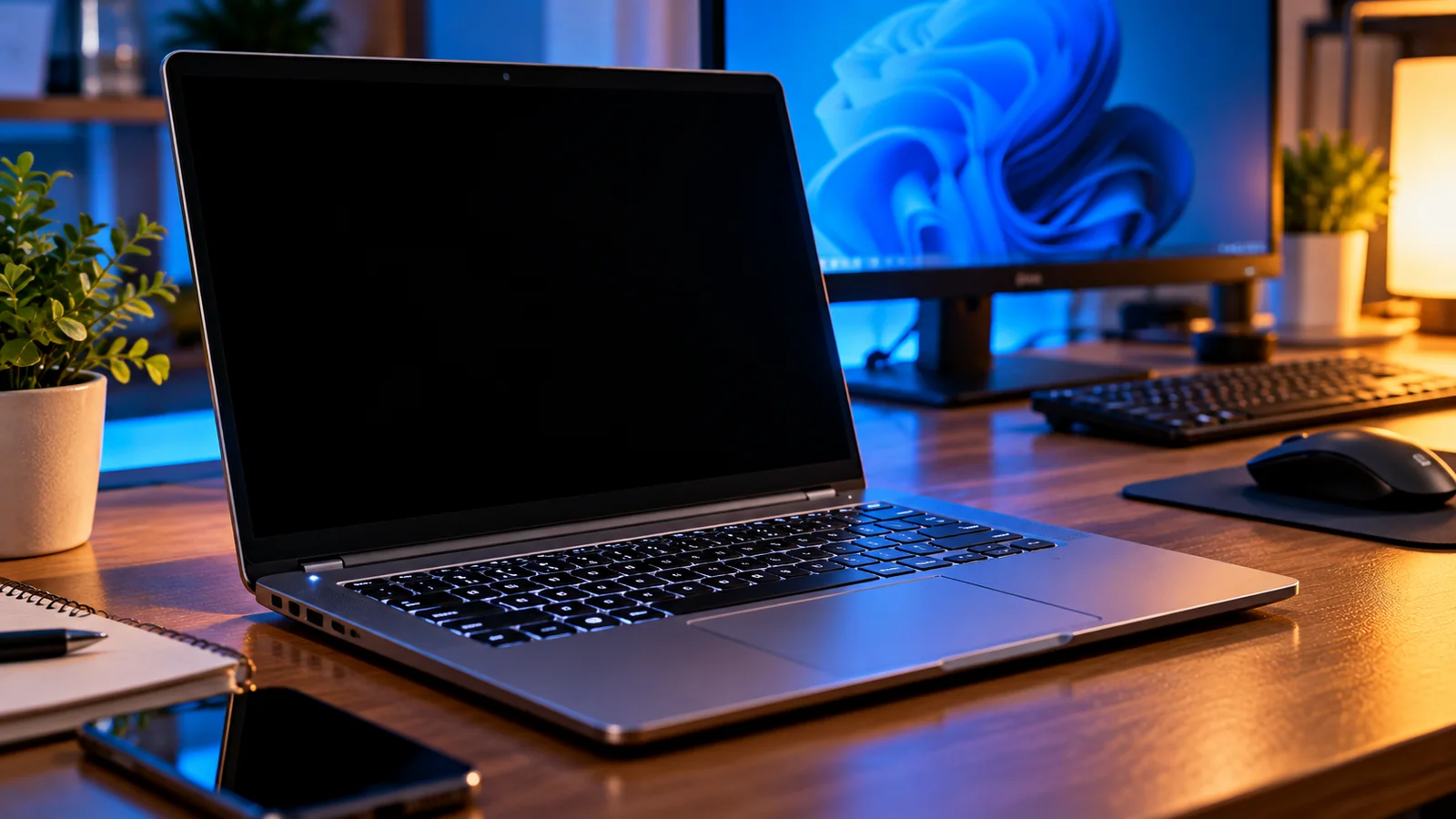
You press the power button, hear the fan or see the keyboard lights, but the laptop screen stays completely black. Does that mean the screen is broken, the graphics card has failed, or Windows will not start? Not necessarily. A laptop that powers on without a picture can have a simple brightness or display-mode problem, a stuck graphics driver, a failed LCD or backlight, or a more serious power-on self-test (POST) issue. The safest way to find out is to diagnose what the laptop can actually do before replacing parts or reinstalling Windows.
This practical guide covers Windows 11 laptops from Dell, HP, Lenovo, ASUS, Acer and other manufacturers. The basic checks also apply to many Windows 10 systems, although menus and recovery screens may differ. Start with the low-risk tests and stop when the symptoms point to a hardware failure.
Important: Do not factory-reset Windows, format the drive, flash the BIOS, or open the laptop just because the display is black. These steps are not required for initial diagnosis and may cause data loss or additional damage.
First identify which kind of black screen you have
| What you observe | What it may mean | Best first test |
|---|---|---|
| Power light and fan, no manufacturer logo | Display path or hardware POST issue | Brightness, external monitor, manufacturer diagnostics |
| Manufacturer logo appears, then black | Windows boot, driver or display-mode issue | Graphics reset and Windows Recovery |
| Black screen with movable mouse pointer | Explorer, login process or graphics driver | Task Manager and Explorer restart |
| External monitor works, built-in screen does not | LCD panel, cable, backlight or display settings | Built-in screen diagnostics |
| No lights, no fan, no charging indication | No-power issue rather than a screen-only issue | Adapter, outlet and manufacturer power checks |
| Blinking LEDs or repeated beeps | Hardware diagnostic code on some models | Look up exact model-specific code |
A black screen is a symptom, not a diagnosis. A laptop may be running Windows without displaying an image, or it may never have completed its startup hardware checks. That distinction determines whether software fixes are even possible.
Step 1: Check charging, brightness and the obvious display controls
- Connect the original or a manufacturer-approved compatible charger directly to a known-working wall outlet. Avoid a questionable USB-C hub or dock for the initial test.
- Observe the charging LED, power button and keyboard indicators. A lit LED indicates some power is present, but does not prove that the system has booted.
- Increase screen brightness using the dedicated brightness keys; on some models you must hold Fn.
- Look closely at the screen in a dim room. A faint picture may suggest a backlight issue, although this observation is not a definitive test.
- If the machine is very hot, smells burnt, has visible liquid damage, or has a swollen battery, stop using or charging it and seek qualified repair.
Dell specifically recommends brightness checks and testing an external display when a laptop has power but no picture. Exact keyboard combinations vary by model, so check the keyboard icons and device manual rather than relying on one universal shortcut.
Step 2: Disconnect accessories and eliminate display-routing problems
Unplug USB drives, SD cards, external monitors, docks, adapters, printers and other nonessential peripherals. Leave the charger connected if needed. A docking station can route video to another screen, and some peripherals can interfere with startup. Restart once with only the essentials connected.
If you recently used a projector or second monitor, Windows may still be using an unexpected display mode. Once Windows has loaded, press Windows + P, then use the display-mode selector to choose PC screen only. If you cannot see the menu, you can cautiously cycle through the modes with the keyboard, but avoid repeated blind inputs when unsure of the current state.
Step 3: Reset the Windows graphics driver with a keyboard shortcut
If Windows is running but the display has stopped responding, press Windows + Ctrl + Shift + B once. Microsoft documents this shortcut as a way to reset the graphics driver. You may hear a beep or see a brief screen flicker. Wait several seconds to see whether the image returns.
This shortcut is useful for a Windows display problem. It will not repair a broken LCD panel, a failed motherboard or a machine that has not booted far enough to run Windows. If it does nothing, proceed with diagnosis rather than repeatedly pressing it.
Step 4: Perform a controlled restart, not an immediate factory reset
If there is no response and you cannot shut down normally, hold the power button until the device powers off; Microsoft describes holding it for about 20 seconds for a forced restart in its blank-screen guidance. Wait briefly, then turn it back on. A forced shutdown can discard unsaved work, so use it only when ordinary controls are unavailable.
Do not confuse a controlled power-off with removing an internal battery. Modern laptops frequently have sealed batteries, and opening the case can create safety and warranty issues. If the device repeatedly fails to start, note the power-light pattern before switching it off.
Step 5: Connect a known-working external monitor or TV
- Turn off the laptop and connect a working monitor using a supported HDMI, DisplayPort or USB-C video output. Not every USB-C port supports video.
- Select the correct input source on the external monitor.
- Turn the laptop on and allow enough time for it to boot.
- If necessary, use Windows + P after Windows has started to select the external screen or duplicate mode.
- If the external screen works, back up important files before experimenting further.
A working external display suggests the laptop is able to produce a video signal. It shifts suspicion toward the internal display, backlight, cable, hinge wiring or a configuration affecting the built-in screen. It does not identify the exact defective part. If both screens stay black, a system-wide startup or graphics problem is more likely, but a bad cable or wrong monitor input must still be ruled out.
Microsoft recommends testing another display and cable when diagnosing external monitor connections. See Microsoft: Troubleshoot external monitor connections.
Step 6: Look for the manufacturer logo or firmware setup screen
On startup, observe whether a manufacturer logo, firmware settings or preboot diagnostic screen appears. If you can see these screens clearly but Windows later goes black, the built-in panel and basic video path are at least capable of showing an image. That makes a Windows driver, startup process or display-mode issue more plausible.
If there is no logo and no image even before Windows should start, do not begin by reinstalling Windows. Use model-specific hardware diagnostics and look for power, POST or display failure indicators. Firmware access keys vary: many devices use F2, F10, F12, Esc or Delete, but only the manufacturer manual for your exact model is authoritative.
Step 7: Use the Dell LCD built-in self-test if your model supports it
Many Dell laptops support an LCD built-in self-test (BIST). With the computer off and charger connected, the documented method on supported models is to hold D while pressing Power. The screen should cycle through solid colors. This test helps separate a panel-level display problem from software or graphics-output issues.
- Power off the Dell laptop and disconnect unnecessary peripherals.
- Connect the approved AC adapter.
- Hold the D key and press Power, continuing to hold D until the color test begins.
- Observe whether solid colors appear correctly or whether lines, distortion or a blank screen persist.
- Record the result and compare it with the Dell documentation for the exact model.
The shortcut is manufacturer- and model-specific; do not assume it works on HP, Lenovo, ASUS or every Dell laptop. Dell also provides other hardware diagnostics, including motherboard tests on selected models. Follow the manufacturer guide rather than trying arbitrary key combinations. Official reference: Dell: Troubleshoot power issues on a laptop.
Step 8: If you see a black screen with a cursor, restart Windows Explorer
A visible and movable pointer suggests Windows may have reached a graphical session even though the desktop is not loading. Press Ctrl + Shift + Esc to open Task Manager. If it appears, locate Windows Explorer, select it and choose Restart. If Explorer is not listed, use Run new task, enter explorer.exe, and confirm.
Microsoft lists restarting Explorer as a relevant step for a black screen with a cursor. If Task Manager never opens and no external display works, this procedure may not be accessible. Do not keep typing blind commands that could affect files.
Step 9: Enter Windows Recovery and Safe Mode only if the laptop reaches Windows startup
When a Windows update or display driver is suspected, Safe Mode loads Windows with a reduced set of components. If the display works in Safe Mode, a normal-startup driver, service or app becomes a stronger possibility. The recovery interface may appear automatically after repeated failed boots, or you may access it from a functioning Windows session using the recovery settings.
- If Windows Recovery Environment is visible, select Troubleshoot → Advanced options → Startup Settings → Restart.
- After restart, choose the appropriate Safe Mode option, commonly 4/F4 for Safe Mode or 5/F5 for Safe Mode with Networking.
- Once in Safe Mode, check whether the display remains stable.
- If the problem began immediately after a graphics driver update, inspect the driver rollback option before installing anything else.
- Restart normally after making one controlled change and record whether the problem returns.
Microsoft describes interrupting startup to reach Recovery when other access methods are unavailable, but repeated forced shutdowns are disruptive and may be inappropriate on a device with a failing drive or unfinished firmware update. Prefer built-in recovery entry methods when possible. Some recovery operations require a BitLocker recovery key; locate it before taking actions that may prompt for one.
Step 10: Update or roll back the display driver carefully
If the screen works in Safe Mode or on an external display, open Device Manager → Display adapters. Check the adapter status. When the issue started immediately after a driver update, open Properties → Driver → Roll Back Driver if available. Otherwise use Windows Update or the laptop manufacturer’s official driver page to obtain a compatible graphics driver.
Avoid downloading random “graphics repair” or driver-updater tools. A laptop with switchable integrated and discrete graphics may need manufacturer-tested drivers and installation order. If the laptop is managed by an employer or school, consult IT before modifying drivers.
Step 11: Investigate a black screen immediately after a Windows update
When the manufacturer logo appears and the black screen begins only as Windows loads, note whether the issue started after an update, sleep, hibernation, or driver installation. A recent update is a useful clue, not proof of causation. Try the graphics reset, Safe Mode and driver rollback first.
If you have a suitable restore point and a working recovery screen, System Restore may return system configuration to an earlier state. Microsoft lists it as a troubleshooting option for recent blank-screen problems. Review its explanation before proceeding: system restore is not the same as restoring all personal files, and installed apps or settings can be affected.
Step 12: Check sleep and lid-related patterns
If the laptop displays normally after a full restart but goes black after waking from sleep, investigate graphics-driver updates, power settings, docking behavior and external monitor reconnection. Record whether the problem occurs only with the lid closed, only when disconnected from power, or only after an external display is unplugged.
A lid sensor or display cable fault can sometimes produce a symptom that changes when the hinge moves. Do not repeatedly flex the lid or press on the panel to test it. If a physical display issue is suspected, stop and seek qualified service.
Step 13: Distinguish a failed backlight from a completely failed boot
If the laptop is clearly operating and the screen looks almost black, a very faint image seen under suitable lighting can point toward a backlight or brightness problem. This observation is imperfect and not a substitute for diagnostics. A black internal display with a working external monitor is also compatible with a faulty panel, display cable, or related circuitry.
If you see vertical lines, cracked glass, flickering when the hinge moves, or obvious liquid damage, hardware service is more appropriate than reinstalling Windows. Do not attempt a do-it-yourself repair around a swollen battery or exposed electronics.
Step 14: Interpret beeps, blinking lights and fan behavior
| Sign | Possible interpretation | Next step |
|---|---|---|
| Power LED on; Caps Lock responds | Some parts of the system are receiving power | Test screen and external output |
| Repeating beep or LED sequence | Potential model-specific POST diagnostic code | Record pattern and consult model manual |
| Fan runs briefly, then stops | May be a normal cycle or startup fault | Compare with manufacturer diagnostics |
| External screen works | Video path is functioning at least partially | Back up data; investigate built-in screen |
| No image on any display and no logo | POST, graphics, motherboard or display issue | Use official hardware diagnostics |
| Battery bulge, odor, heat or liquid damage | Potential safety hazard | Stop using and arrange service |
A spinning fan does not prove that Windows has started, and a keyboard backlight does not guarantee that the display panel is healthy. Many manufacturers encode faults in blinking LEDs or beep patterns, but those patterns are not universal. Search your exact model and its official service manual rather than using a generic chart.
Step 15: Decide whether to back up data or seek repair
If the laptop works on an external monitor, use that opportunity to copy essential files to a separate, trusted storage device or approved cloud account. If Windows does not boot but the storage drive may still be healthy, a qualified technician may be able to retrieve files without reinstalling the operating system. On encrypted drives, recovery may require the appropriate BitLocker key or account credentials.
Avoid Windows Reset, factory recovery, partition deletion or storage formatting until your data is protected and the actual cause is understood. A black screen does not mean the SSD has failed. Conversely, if the drive is failing, repeated restarts and invasive experiments can make recovery more difficult.
Common scenarios and the safest next move
| Scenario | Recommended sequence |
|---|---|
| Laptop black from the moment you press Power | Charger → brightness → accessories → external screen → model diagnostics |
| Logo visible, then screen goes black | Graphics reset → Safe Mode → driver rollback → recovery |
| Black screen with mouse cursor | Ctrl+Shift+Esc → restart Explorer → Safe Mode if necessary |
| External monitor works but laptop screen stays black | Back up files → LCD diagnostics → professional display inspection |
| Screen works only after forced restart | Track sleep/driver pattern → check updates and power behavior |
| No power indicators at all | Troubleshoot charger and power hardware, not Windows display settings |
Things you should not do while diagnosing a black screen
- Do not repeatedly force-shut down a machine that may be installing firmware.
- Do not factory-reset Windows as your first troubleshooting step.
- Do not remove internal components unless you are qualified and the manufacturer permits it.
- Do not use a metal object or pressure on the LCD panel to test it.
- Do not ignore a swollen battery, burning smell or liquid damage.
- Do not flash or downgrade BIOS firmware on speculation.
- Do not pay for replacement parts until tests narrow down the failure.
When professional repair is the right choice
Seek a reputable service center when built-in display diagnostics fail, the panel is visibly damaged, there is liquid damage, the laptop shows a repeatable POST error, or no display appears on a known-working external monitor after basic checks. Ask the technician to document the fault and provide a quote before replacing the screen, cable, graphics board or motherboard. If personal files are sensitive, discuss data handling and whether the storage drive needs to be accessed.
A practical maintenance plan after the screen works again
Once the laptop is stable, make a current backup, install manufacturer-approved display and firmware updates only when appropriate, and keep recovery information such as your BitLocker key accessible in a secure location. Note whether the original problem occurred after an update or when waking from sleep. If it recurs, that history will help distinguish a persistent driver issue from intermittent hardware failure.
Official sources and further reading
- Microsoft Support — Troubleshooting blank screens in Windows.
- Microsoft Support — Troubleshoot external monitor connections.
- Dell Support — Troubleshoot power issues on a Dell laptop.
- Dell Support — How to fix a black screen or display issues.
Editorial note: Device behavior and available diagnostics vary by brand and exact model. This article is a diagnostic guide, not a guarantee that a hardware defect can be repaired without service. Last reviewed October 2026.
You may also like
 Technology & How-To
 Can Your Phone Photos Reveal Your Location? How to Check EXIF and Remove GPS Metadata
Phone photos may contain GPS coordinates and EXIF metadata. Learn how to check a real file, remove location…
 Technology & How-To
 External Monitor Not Detected Through USB-C Dock? Diagnose and Fix It on Windows 11
A symptom-first guide to Windows 11 USB-C dock display failures. Isolate cables, DP Alt Mode, Thunderbolt, USB4 and…
 Technology & How-To
 iCloud Photos Not Syncing Between iPhone and Windows PC? Safe Fixes Without Losing Photos
Find exactly where iCloud photo syncing fails between iPhone and Windows, protect originals from accidental deletion, and fix…