
Mac System Data Too Large? Find and Reduce It Safely
Find what is taking up Mac storage, review local backups and app data, understand purgeable space and snapshots, and recover room without bulk deletion.
Contents
- Choose the next step from the evidence
- 1. Understand the numbers before deleting files
- 2. Start with files you can identify and replace
- 3. Review local iPhone and iPad backups through Finder
- 4. Understand Time Machine snapshots before removing recovery points
- 5. Use an optional read-only folder-size check
- 6. Review app-managed storage at its source
- Virtual machines and developer tools need their own checks
- 7. Distinguish cloud downloads from cloud deletion
- 8. Use safe mode for temporary maintenance when appropriate
- 9. Investigate storage that keeps growing
- 10. Verify what changed with a short before-and-after record

A large System Data bar can make it look as though macOS has swallowed your SSD. The label is less specific than it appears: it groups files that do not fit into other storage categories. It is not a single folder with a safe “delete everything” button.
The practical goal is to recover usable space while keeping your documents, app data, and recovery options intact. Start by checking the actual storage pressure, identify the files or applications responsible, and make one targeted change at a time. The size of the category alone cannot tell you which files are expendable.
This guide covers current macOS storage settings, local iPhone backups, Time Machine snapshots, caches, cloud downloads, and large app-managed files. Instructions use macOS Ventura or later unless an older-version difference is stated.
Choose the next step from the evidence
Open Apple menu > System Settings > General > Storage and let the categories finish calculating. Record the available space, the System Data figure, and any specific task that fails because of insufficient space. Apple's storage overview explains the category and the built-in tools for recovering room.
| What you find | What to investigate | First useful action |
|---|---|---|
| System Data is large, but normal work and updates succeed | Category size versus actual storage pressure | Record the figures and review identifiable large files |
| The Mac cannot save, copy, or install | A real shortage on the target disk | Move or remove a known expendable file first |
| Space dropped after backing up an iPhone | Local device backups | Inspect Finder's Manage Backups list |
| Backup disk has been disconnected | Local snapshots and backup status | Reconnect the backup disk and verify a recent backup |
| One application triggers repeated growth | Its downloads, cache, projects, or disk image | Use that app's storage controls |
| Files were deleted but little room appeared | Trash, snapshots, ongoing downloads, or measurement differences | Check the same disk and compare again |
Treat these as routes for investigation rather than diagnoses. For example, an offline backup drive makes local snapshots worth understanding; it does not prove that snapshots account for the whole System Data category.
1. Understand the numbers before deleting files
Apple's Storage settings guide describes System Data as a changing category that can contain logs, caches, temporary files, app support files, plug-ins, and other runtime resources. Some of those resources are managed automatically by macOS. Others belong to apps whose storage you can review through the app itself.
There is no useful universal target such as “every Mac should have exactly 20 GB of System Data.” A computer used mainly for browsing has different files from one running development tools, virtual machines, video projects, and multiple user accounts. A large category calls for identification, not an assumption that its full size is recoverable.
Also distinguish free space from available space. Apple's Disk Utility information guide explains that available space can include purgeable space that macOS can reclaim when needed. Tools reporting different definitions can therefore display different numbers without either showing the size of a folder you can simply empty.
If Storage shows several volumes, use All Volumes and make sure you are investigating the one involved in the failing task. Apple's storage-space guide and APFS space-sharing explanation clarify that volumes can share a container's free space. Do not add those shared capacities together as though they were separate physical SSDs.
2. Start with files you can identify and replace
In Storage, open categories that have an information button. Review large documents, downloads, applications, and other items you recognize. Use Show in Finder when you need to inspect an item before deciding. Apple's find-and-delete guide describes these category-based controls.
Useful first candidates include an installer you have finished using, a duplicate export, or an offline download that can be obtained again. Open or verify an important file before moving its only copy elsewhere. If you move files to an external disk, confirm the copied version is readable before removing the original from the Mac.
| Type of content | Appropriate way to review it | What to preserve |
|---|---|---|
| Old installers and duplicate exports | Finder or Storage's document browser | Anything still needed for installation or a project |
| Local iPhone or iPad backups | Finder > device > General > Manage Backups | A current, usable recovery option |
| Downloaded media | The app that downloaded it | Purchases, projects, and files that cannot be downloaded again |
| App caches | The app's documented cache controls | Unsynced work and data whose purpose is unclear |
| App support folders | The owning application's guidance | Databases, settings, libraries, and saved work |
| Time Machine local snapshots | Time Machine and Disk Utility | Recovery points you may still need |
| Cloud-backed local files | The cloud app's local-download controls | Confirmed cloud copies and offline access you need |
| macOS runtime resources | System-managed maintenance | System, virtual-memory, and protected operating files |
Review the Trash before emptying it. Moving a file into the Trash does not immediately finish the storage-recovery process, and emptying it removes the ordinary opportunity to put it back. Keep your backup decision separate from your cleanup decision.
If an external disk is missing, resolve that before relying on it for your only copy. Our external-drive troubleshooting guide for Windows and Mac covers recognition problems.
3. Review local iPhone and iPad backups through Finder
Device backups can occupy substantial local space, especially if the Mac has backed up several devices over time. Check them as a distinct candidate rather than assuming they are part of System Data; macOS may display them under a more specific category such as iOS Files.
- Connect the relevant iPhone or iPad to the Mac and select it in Finder.
- Open the General tab and choose Manage Backups.
- Match each entry to a device and backup date.
- Use Show in Finder if you need to inspect the selected backup's location.
- Delete an entry only after deciding it is no longer required for recovery.
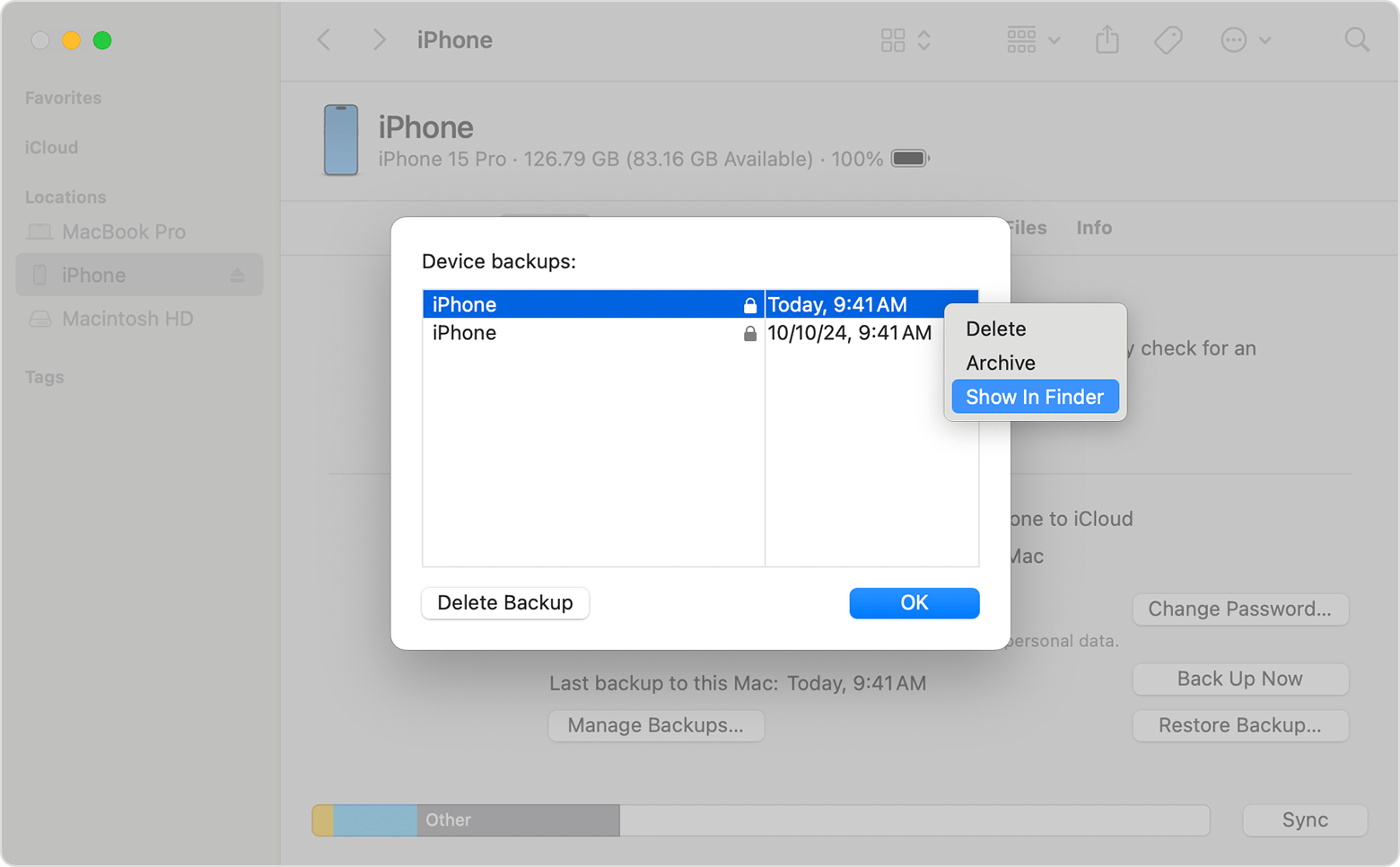
Reference screenshot: Apple's guide to locating and managing device backups. The example illustrates Finder's controls; its device names and dates are not information about your Mac.
Apple notes that a deleted backup cannot be recovered through this backup-management workflow. Archive protects a backup from being replaced by later backups; it does not move it off the SSD or reduce its size. Avoid editing or deleting individual internal files from a backup package to make it smaller.
If you intend to rely on an iCloud device backup instead, verify that it actually completed. Our iCloud Backup troubleshooting guide can help with that separate upload issue. An enabled backup switch alone does not establish that a recent recovery copy exists.
4. Understand Time Machine snapshots before removing recovery points
Time Machine can keep local snapshots on the same disk as your files, allowing recovery of earlier versions even when the usual backup disk is unavailable. Apple's local-snapshot overview explains that these are separate from the backups stored on your external backup disk.
A snapshot on the Mac is not protection against losing that Mac's SSD. Reconnect your normal backup disk and check the latest completed backup before making decisions about recovery history. Apple's Time Machine backup guide explains how to check progress and the latest backup from the menu-bar control.
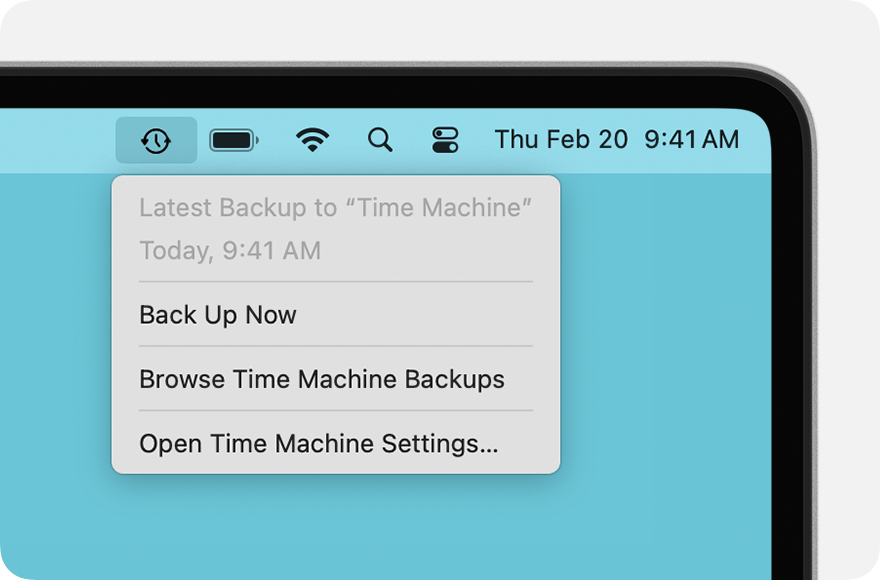
Reference screenshot: Apple Support, Back up your Mac with Time Machine. This is an interface example from Apple's documentation, not confirmation that a backup has completed on your device.
Apple states in its dedicated snapshot article that macOS counts space used by local Time Machine snapshots as available and removes snapshots as they age or space is needed. Their presence is therefore not a reason to delete every snapshot you can find.
To inspect snapshots, open Disk Utility, choose View > Show APFS Snapshots, and select the relevant volume. Apple's snapshot-viewing guide describes the table and its metadata. Viewing it is a diagnostic step. A listed snapshot is not, by itself, proof of a fault or a guaranteed amount of recoverable space.
If you choose Apple's manual local-snapshot cleanup method after checking your backup, open System Settings > General > Time Machine > Options, set the backup frequency to Manually, allow a few minutes for local snapshots to be removed, and then restore your previous automatic schedule. Follow the dedicated article for older macOS versions. This temporarily changes backup behavior and can remove local recovery points; do not leave automatic backups disabled by accident.
5. Use an optional read-only folder-size check
Finder and an app's storage settings are sufficient for many users. If you are comfortable with Terminal, the following command summarizes three locations in your own account without deleting anything:
du -sh ~/Downloads ~/Movies ~/Library/CachesApple's published du manual documents the summary and human-readable options. The results help you choose a location to investigate; they do not establish that everything inside it is safe to remove.
If a folder does not exist, you may see an error for that path. If the command reports denied access, the result may be incomplete. An unreadable directory is not an empty directory. You do not need to broaden permissions or scan the entire startup disk to make this initial comparison useful.
These folder totals will not necessarily reconcile with the Storage category or every APFS snapshot. They answer a narrower question: how much readable file storage is found under the locations you named. A large Caches result should lead you to identify its owning app; a small result should stop you from spending time clearing that location in hopes of a large gain.
6. Review app-managed storage at its source
A folder under Library can hold much more than temporary data. App support directories may contain local databases, downloaded assets, projects, settings, and work that has not synchronized elsewhere. Inspect the owning app's storage or download settings before touching its internal files.
When an app offers Clear Cache, Remove Download, or an equivalent documented action, read what that specific action removes. Test the app after one change. If the space quickly returns, note which activity recreated it; repeatedly clearing generated data may not address the reason it grows.
Virtual machines and developer tools need their own checks
An app-managed virtual disk can make a folder look unexpectedly large. Docker's Mac storage documentation distinguishes the maximum size of its disk image from the space actually consumed on the host. A reported maximum is not a promise that deleting the file would free that many bytes.
Use Docker Desktop's resource settings and supported cleanup tools to inspect its actual usage. Protect needed images, containers, and data first. Docker warns that reducing the disk image's maximum size deletes the current image and its containers and images; resizing it is not a harmless display adjustment.
Apply the same ownership check to other virtual-machine files, simulator downloads, or video-render libraries. Identify the app and whether the data is generated, downloaded, or your only saved work. A file's large size does not make its role obvious.
7. Distinguish cloud downloads from cloud deletion
Cloud storage can reduce local use, but it introduces a separate decision about where your files should remain available. In iCloud Drive, removing a local download and deleting the underlying file are different operations.
After confirming an item has synchronized, use Finder's Remove Download where available if you want the cloud copy to remain while removing its local download. Apple's iCloud Drive file guide explains this control and Keep Downloaded for files you need offline.
Do not use ordinary deletion as a substitute for removing a local download: deletion can propagate through the synchronized account. Also consider your next trip or unreliable connection before making important files cloud-only.
Apple's storage-optimization guide describes the built-in recommendations. Evaluate them against your cloud quota and offline needs. Buying cloud storage and freeing the Mac's SSD are not the same operation.
Likewise, a full Google account is a different limit from a full Mac. Our Google storage guide covers that account-level problem. Clearing local System Data does not increase an online storage allowance.
8. Use safe mode for temporary maintenance when appropriate
Apple notes that starting in safe mode can clear certain system caches and temporarily provide room for a task such as an update. It does not guarantee a permanent reduction in System Data, because resources can be recreated during normal use.
Save your work, shut down normally, and identify whether the Mac uses Apple silicon or Intel in About This Mac. Follow Apple's safe-mode instructions for the matching hardware:
- Apple silicon: With the Mac shut down, hold the power button until startup options appear. Select the startup volume, hold Shift, and choose Continue in Safe Mode.
- Intel: Start or restart the Mac and immediately hold Shift until the login window appears.
Sign in as requested, then restart normally to leave safe mode. Repeat the original save, copy, or update task. Record whether the task succeeds, rather than judging the outcome only from a smaller category bar.
Leave system-managed folders and protected operating files alone. Deleting unknown contents from /System, /Library, or /private can affect the operating system or applications. A safe-mode comparison is not authorization to remove those directories or disable macOS protections.
9. Investigate storage that keeps growing
If space repeatedly disappears, compare the timing with app activity: a media download, device backup, virtual machine, large project, or a process that keeps generating files. Pause the suspected activity through its normal controls, then compare the same storage view again.
Memory pressure is another relevant observation. In Activity Monitor > Memory, look at Memory Pressure and Swap Used. Apple's memory-usage guide explains that swap uses startup-disk space to support RAM. This is a runtime resource, not a cache directory to empty manually.
If a particular workload corresponds with sustained growth, keep its name and timing for support. A restart may change temporary usage, but an isolated improvement does not establish the cause. Conversely, the System Data label alone cannot diagnose a memory problem, malware, or a failing SSD.
If the disk reports errors, files become unreadable, or the Mac cannot maintain enough room for basic work, prioritize a verified backup and a support assessment. Avoid escalating an unidentified storage problem into a bulk deletion or an erase-and-reinstall procedure.
10. Verify what changed with a short before-and-after record
Use the same disk, storage view, and task after each significant change. Allow the storage calculation to update. A category can shrink while another category grows as files are classified differently, so compare usable capacity as well as the labels.
| Record | Before the change | After the change |
|---|---|---|
| Target disk or volume | Its exact name | Confirm the same target |
| Available space | The value and tool used | New value from the same tool |
| System Data | Category value after calculation | Updated category value |
| Action taken | Identified file, backup, or app control | What was actually removed or moved |
| Original problem | Failed save, copy, or update | Whether that exact task now succeeds |
| Recovery protection | Latest verified backup | Backup access and automatic schedule restored |
If the original task succeeds and the Mac retains usable room, you may have addressed the practical problem even if System Data remains a large category. If it still fails, keep the error message and your observations rather than assuming that another round of cache clearing will fix it.
For a support request, provide the macOS version, disk capacity, available space, the largest identified owner of data, backup status, and the changes already attempted. That record makes it easier to distinguish an app-specific growth problem, a misleading comparison, and a persistent disk-space shortage.
You may also like
 Technology & How-To
 USB Drive Empty but Space Used? Find the Missing Data Safely
Find why an accessible USB looks empty while space remains occupied, using visibility checks, Trash review and device-versus-volume…
 Technology & How-To
 Windows 11 Clipboard History Not Working? Find What Failed
Separate Windows clipboard history failures from ordinary paste, app restrictions, cloud sync and Remote Desktop with a two-item…
 Technology & How-To
 Chrome Keeps Reloading Tabs? Stop the Right Kind of Refresh
Find why Chrome tabs reload with targeted Memory Saver settings, controlled comparisons, extension checks and diagnostics that protect…