
Laptop Battery Stuck at 0% Plugged In? Diagnose the Cause Safely
Find out whether a laptop stuck at 0% points to its charger, battery, firmware or Windows reading. Includes a diagnostic worksheet and real battery-report examples.
Contents
- Separate a charging failure from a frozen percentage
- Use a comparison with one variable changed
- Do not use the unplug test as your first experiment
- Charge limits do not explain every low reading
- Keep a short diagnostic record before buying parts
- Start with the message Windows shows
- 1. Check the outlet, charger, cable, and charging port
- 2. Run a controlled charging test with the laptop off
- 3. Perform a safe power reset
- 4. Recheck the Windows battery devices
- 5. Generate and interpret the Windows battery report
- 6. Check BIOS or UEFI before blaming Windows
- 7. Check charge limits, heat, and battery-care modes
- 8. Update drivers or firmware only when power is stable
- Brand-specific diagnostic starting points
- Should you buy a replacement battery?
- When to stop troubleshooting and seek service
- A practical decision tree
- What not to do
- Sources and technical references
- Sources added for this update

Quick answer: A laptop stuck at 0% while plugged in needs three checks before you buy a battery: a correct compatible charger connected directly, battery and adapter detection in firmware, and the manufacturer’s battery diagnostic. Windows showing a plug does not prove the battery is receiving charge. Save your work before testing; stop using a swollen or physically damaged battery.
Last reviewed: October 26, 2026. If a Windows laptop stays at 0% while the charger is connected, the battery is not automatically proven dead. The problem may be an underpowered or unrecognized adapter, a USB-C cable or port, a stuck Windows battery device, a charge-limit setting, a worn battery, or a hardware fault. Start with the exact message Windows shows and test the power path in a safe order.
Separate a charging failure from a frozen percentage
The most useful question is not simply “is the battery dead?” It is whether the computer recognizes the adapter, recognizes the battery and can store any charge. Record those observations separately. A working wall-powered laptop establishes that some power reaches the system; it does not establish that the charging path to the battery is healthy.
| Observation | What it suggests | Next useful action |
|---|---|---|
| Adapter is Unknown or incorrectly rated in supported BIOS screens | Adapter identification, compatibility or connection needs investigation | Check the exact model specification and a known-good approved charger |
| Battery is absent in firmware as well as Windows | Detection or hardware issue beyond the Windows percentage display | Run model-specific preboot diagnostics; arrange service if unresolved |
| Manufacturer battery test reports a failure | Evidence for battery service, subject to the exact failure code | Record the code and confirm replacement compatibility and warranty |
| Percentage rises while shut down but not during heavy use | Available charging power, workload, heat or power-management behavior needs checking | Retest directly with the correct adapter and the laptop cool and idle |
| Battery and adapter pass checks, but Windows alone remains at 0% | A reporting or software issue becomes more plausible | Compare firmware status, restart and follow the documented battery-device refresh |
| The chassis bulges or the battery is visibly swollen | A safety problem, regardless of the percentage | Stop using and charging; contact the manufacturer for safe handling and service |
Use a comparison with one variable changed
Start with the same laptop, a cool ventilated surface and a direct charger connection. Record the adapter’s model and rating, the connection type, the Windows message and any firmware adapter reading. If you can safely test an approved compatible replacement charger, change the charger first and repeat the same checks. Changing the dock, cable, charger, driver and power settings together makes the result difficult to interpret.
For a USB-C setup, the adapter’s headline wattage does not establish how much power reaches the laptop through a particular dock and cable. Test the laptop’s documented charging input directly. If direct charging works, investigate the dock’s power-delivery specification and the cable before concluding that the battery recovered because of a Windows fix. Do not substitute a random barrel charger or a cable with visible damage.
Do not use the unplug test as your first experiment
If the laptop has already shut down immediately when disconnected, that is useful evidence: it has no usable battery reserve at that moment. Repeating the shutdown risks unsaved work and does not distinguish failed cells from a disconnected battery or charging-circuit problem. Keep it on a reliable compatible supply long enough to save essential files, provided there are no safety signs, then use the manufacturer’s diagnostics.
If the laptop later reports a meaningful charge and diagnostics permit continued use, a brief normal unplugged-use check can help confirm it holds power. Save your work first. Do not run the battery to zero deliberately to “wake it up,” and do not interpret a few seconds of operation as a complete battery-health test.
Charge limits do not explain every low reading
A device deliberately stopping near its configured charge ceiling is different from one remaining at 0%. Read the threshold rather than disabling battery-care features indiscriminately. A conservation setting can explain a plateau near its limit; it does not establish that a persistent zero reading is normal. Record the setting, change it only according to the model’s instructions and compare the result.
Keep a short diagnostic record before buying parts
| Check | What to record | Why it helps |
|---|---|---|
| Device and supply | Exact laptop model, approved adapter rating, direct connection or dock | Prevents purchasing an unsuitable replacement |
| Windows | Exact percentage and charging message | Distinguishes a frozen reading from a detection warning |
| Firmware | Battery presence, adapter recognition and charging status if available | Provides evidence outside the operating system |
| OEM diagnostic | Test name, result and error/validation code | Helps support determine the next service step |
| Battery report | Design and full-charge capacity, date and missing fields | Adds historical context without treating estimates as a definitive diagnosis |
For example, “Windows says 0%; BIOS says adapter Unknown; a second approved adapter is correctly detected” supports investigating the original power supply or its connection. “Both approved adapters are detected; the battery test fails” supports a different service conversation. These examples illustrate reasoning only; they are not repair outcomes measured by Horus Valley.
A helpful support message is: “My MODEL remains at 0% on a direct compatible charger. The adapter is recognized as RESULT, the battery is detected as RESULT, and the diagnostic reports CODE. I tried ACTION and observed RESULT. There is/is not visible swelling or damage.” Share serial numbers and service tags only in the manufacturer’s private support channel.
Start with the message Windows shows
The wording beside the battery icon is a useful clue, but it is not a diagnosis. Use this table to choose the first check instead of uninstalling drivers or buying a battery immediately.
| What you see | What it can indicate | First useful check |
|---|---|---|
| 0% available (plugged in, charging) | The adapter is detected, but charge may not be reaching the battery or Windows may be reporting the state incorrectly | Use the original, correctly rated adapter and run a powered-off charging test |
| Plugged in, not charging | An intentional charge limit, weak or incompatible adapter, driver state, battery fault, or charging-circuit problem | Check the charger wattage, OEM battery-care setting, and battery diagnostics |
| The laptop turns off as soon as you unplug it | The battery has no usable reserve, is disconnected, or has failed | Back up files on stable AC power, then run the manufacturer’s battery test |
| Battery not detected | A battery connection, controller, firmware, or hardware problem is more likely | Check BIOS/UEFI and the manufacturer’s preboot diagnostics |
| The percentage drops while plugged in | The laptop may be using more power than the charger or dock supplies | Test with the correct charger while the laptop is idle or off |
Evidence limit: a single 0% reading cannot identify the failed part. A laptop may run normally from AC power even when its battery is not charging, and a battery-health percentage is different from the current charge percentage. The menu names and diagnostic tools also vary by laptop model and Windows build.
Screenshot fallback: this update uses verified text paths rather than a device-specific screenshot. Microsoft and laptop manufacturers expose different BIOS, battery-care, and Windows menu layouts; follow the labels on your model and use the linked official support page for model-specific screens.
1. Check the outlet, charger, cable, and charging port
Before changing Windows settings, inspect the entire physical power chain. Microsoft says that a charger can be incompatible, too weak, connected to the wrong port, or paired with a cable that does not meet the computer’s power requirements. A laptop can therefore appear to work while the battery remains at 0%.
- Connect directly to a known-good wall outlet for the test; bypass a dock, extension lead, or power strip if practical.
- Use the charger supplied for the laptop or an approved replacement with the required voltage and wattage.
- Check the adapter, cable, connector, and port for fraying, bent pins, looseness, discoloration, or unusual heat. Stop using damaged equipment.
- If the laptop supports USB-C charging, connect the charger directly to a port that accepts power input. USB-C is a connector shape, not a guarantee that every port or cable can charge the laptop.
- If a second charger is available, test only one that is compatible and correctly rated. Never use a barrel adapter simply because the plug fits.
Microsoft’s charging guidance explains why a low-power USB charger or unsuitable cable may make a PC charge slowly or continue discharging while connected: PC charging slowly or discharging while plugged in. For a USB-C-specific problem, see our separate guide to USB-C laptop charging failures.
2. Run a controlled charging test with the laptop off
If the laptop is cool, undamaged, and connected to the correct adapter, save your work and shut it down fully. Leave the charger connected for about 30–60 minutes, then start the laptop and check whether the indicator or percentage changed.
This is a diagnostic interval, not a promise that a severely degraded battery will recover. Note three things:
- Does the charging LED change when the adapter is connected?
- Does the laptop charge while it is off but not while it is under load?
- Does the battery still show 0% after the restart?
If it charges only while powered off, suspect insufficient adapter power, heavy CPU/GPU use, heat, a dock, or firmware behavior. If nothing changes with a known-good charger, continue with detection and hardware checks instead of leaving a suspect battery connected indefinitely.
3. Perform a safe power reset
A power reset can clear a temporary embedded-controller state. It cannot repair failed battery cells, a damaged DC jack, or a motherboard charging circuit. The exact procedure depends on the model, so check its manual first.
- Save open files and shut down Windows.
- Disconnect the charger and external accessories.
- Remove a user-removable battery only when the manufacturer’s instructions explicitly allow it. Do not pry open a sealed battery enclosure.
- With the charger disconnected, hold the power button for roughly 15–20 seconds if the model’s instructions support that procedure.
- Reconnect the correct charger, start the laptop, and check the battery status.
Some models have a reset pinhole or a special key sequence. Do not insert a pin or tool into an unidentified opening. A power reset is not a factory reset, but shutting down can lose unsaved work.
4. Recheck the Windows battery devices
A stale ACPI battery device can produce an incorrect or frozen reading. This step is most useful when Windows sees a battery but the status conflicts with what the charger and hardware appear to be doing.
- Right-click Start and open Device Manager.
- Expand Batteries.
- Look for entries such as Microsoft AC Adapter and Microsoft ACPI-Compliant Control Method Battery. Names may vary.
- If the ACPI battery entry is present, right-click it and select Uninstall device. Do not remove unrelated devices.
- Restart Windows. It should rediscover the battery device.
- Check whether the percentage or charging message changes.
Dell includes battery-driver reinstallation among its troubleshooting steps, but a driver refresh is not proof that the battery itself is healthy. If the battery category is absent, the adapter is unknown in BIOS, or the laptop dies immediately when unplugged, move to the manufacturer’s diagnostics rather than repeating the same driver step.
5. Generate and interpret the Windows battery report
Windows can create an HTML battery report with design capacity, estimated full-charge capacity, recent usage, and capacity history. The report is useful for separating a worn battery from a display or communication problem, but it is not a complete hardware diagnosis.
- Open Start and search for Command Prompt.
- Choose Run as administrator if Windows requests permission.
- Enter the command below and press Enter.
- Open the HTML file at the path printed in the terminal.
- Under Installed batteries, compare Design Capacity with Full Charge Capacity, when both are available.
powercfg /batteryreport
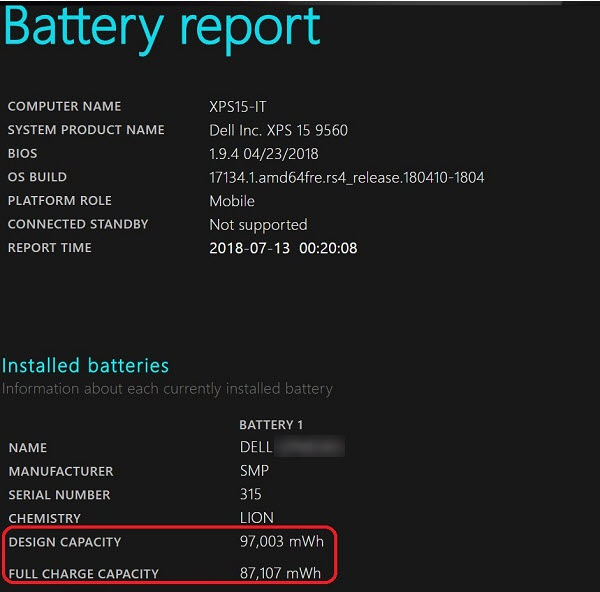
Dell’s published example shows the Installed batteries fields. The pictured values belong to Dell’s example, not your laptop or a device tested by Horus Valley. Use the numbers in your own report.
The approximate capacity-retention calculation is:
Full Charge Capacity ÷ Design Capacity × 100
For example, 24,000 mWh compared with a 48,000 mWh design capacity suggests about 50% estimated retention. It does not mean the current charge should display 50%. If the report has blank fields, 0 mWh, or implausible jumps, the battery, controller, firmware, or reporting layer may be at fault.
| Report field | What it means | Important caution |
|---|---|---|
| Design Capacity | Nominal capacity when new | Not the current charge level |
| Full Charge Capacity | Estimated maximum capacity now | Can be inaccurate when reporting is faulty |
| Cycle Count | Accumulated charge-cycle information when exposed | May be missing on many laptops |
| Recent Usage | Recorded charge state and activity | Can be incomplete after resets or reinstallations |
| Capacity History | Trend in estimated full capacity | A sustained trend is more useful than one unusual reading |
For a fuller explanation of the command and capacity fields, see How to Check Laptop Battery Health in Windows 11. Microsoft’s reference is Caring for your battery in Windows.
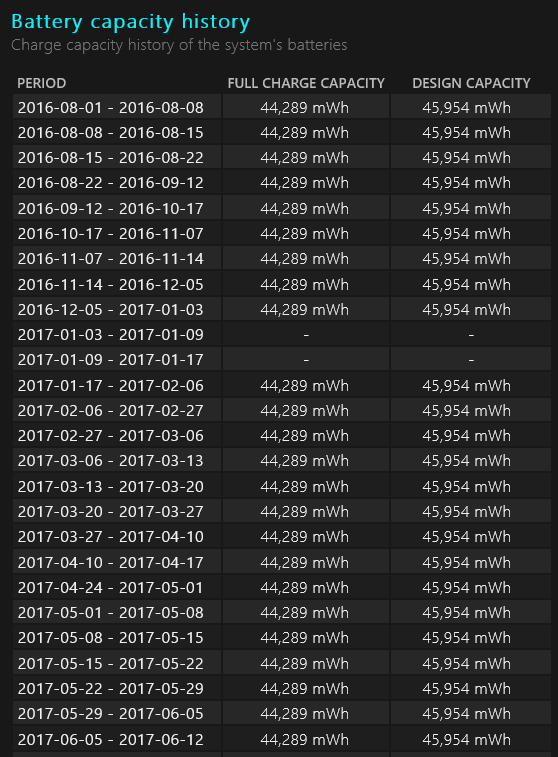
The second Dell example shows how estimated capacity can be recorded over time. A history of estimates is context; it does not identify a failed adapter, battery connector or charging component by itself.
6. Check BIOS or UEFI before blaming Windows
Firmware-level information helps separate an operating-system display problem from a charger or battery detection fault. Restart the laptop and open BIOS/UEFI or the manufacturer’s preboot diagnostics using the documented key for the exact model.
Look for:
- Battery presence or battery health.
- AC adapter type and wattage.
- Charging status or a diagnostic failure code.
- A battery-care or charge-threshold setting.
On supported Dell laptops, an adapter shown as Unknown or with the wrong wattage can point to an incompatible charger, damaged identification pin, connector problem, or charging-port fault. Dell documents this in its AC adapter troubleshooting guide.
If BIOS does not detect the battery at all, Windows driver changes are unlikely to fix the underlying problem. Record the exact wording or failure code before contacting the manufacturer.
7. Check charge limits, heat, and battery-care modes
Some laptops intentionally stop charging around 60%, 80%, or another configured threshold to reduce battery wear. Lenovo Conservation Mode, ASUS Battery Health Charging, HP battery-management settings, and similar tools can make a healthy battery appear to stop charging. A deliberate limit at 0% is not normal behavior.
- Open the manufacturer’s battery-care utility or BIOS power section.
- Check for Standard, Adaptive, Primarily AC Use, Conservation, or Custom Threshold modes.
- Compare the displayed percentage with the configured limit.
- Let a hot laptop cool naturally in a ventilated place, then repeat the test with the correct charger.
Do not place the laptop in a refrigerator or freezer, expose it to condensation, or continue charging a swollen battery. Heat can temporarily inhibit charging, but persistent 0% behavior after the device is cool requires further diagnosis.
8. Update drivers or firmware only when power is stable
An OEM BIOS, chipset, or power-management update can sometimes address charging logic, but a firmware update interrupted by unstable power can make a computer unusable. Do not bypass a manufacturer’s minimum battery requirement.
- First establish a stable outlet and adapter.
- Identify the exact laptop model and revision.
- Download firmware only from the manufacturer’s official support page.
- Follow the manufacturer’s update instructions and keep the charger connected.
- Do not run a BIOS update simply because Windows reports 0% if the adapter itself is unreliable.
If Windows Update or an OEM updater refuses to continue because the battery is below a threshold, treat that as a safety condition rather than something to override.
Brand-specific diagnostic starting points
| Brand | Start here | What the result can tell you |
|---|---|---|
| Dell | BIOS adapter type, SupportAssist, and battery diagnostics | Unknown wattage can indicate an adapter or identification-path problem; a failure code points toward the battery |
| HP | HP Battery Check or HP Hardware Diagnostics | A failure ID helps document a battery or adapter fault |
| Lenovo | Lenovo Vantage battery health and Conservation Mode | Separates an intentional charge threshold from abnormal 0% behavior |
| ASUS | MyASUS System Diagnosis and Battery Health Charging | Checks battery condition and configured charge limits where supported |
| Acer | Acer Care Center or the model’s official support diagnostics | Provides model-specific battery and service information |
Tool names and availability vary by model and region. Use the support page for the exact device rather than applying BIOS instructions from another laptop.
Should you buy a replacement battery?
A replacement is reasonable when the manufacturer’s diagnostic reports battery failure, the pack no longer stores usable charge, or the battery report shows severely reduced capacity together with matching symptoms. It is not the first purchase to make when BIOS cannot recognize the charger, the DC jack is loose, or the laptop has a board-level charging fault.
Before ordering a battery, record the exact model, part number, connector type, voltage, and diagnostic result. Use an OEM-approved or properly specified replacement from a reputable source. Do not buy a battery solely because Windows displayed 0% once. If the laptop shows 100% and then dies as soon as it is unplugged, compare that symptom with our guide to a laptop battery that says 100% but dies suddenly.
When to stop troubleshooting and seek service
Stop using and charging the laptop, if safe to do so, when you notice swelling, a lifting trackpad or case, smoke, sparks, leaking fluid, a chemical smell, or dangerous heat. Do not pierce, compress, open, freeze, or attempt to revive a lithium-ion battery.
Arrange qualified service when:
- The battery is absent in BIOS or the manufacturer’s diagnostic returns a failure code.
- The charging port is visibly damaged or only works when the plug is held at an angle.
- The laptop shuts down immediately when disconnected from AC power.
- A known-good, correctly rated charger produces no change.
- The battery becomes unusually hot during a short controlled test.
Back up important files while the laptop has stable AC power. Keep the model number, charger wattage, battery report, BIOS adapter status, and diagnostic code available for the technician.
A practical decision tree
- Check for swelling, smoke, leaks, sparks, or dangerous heat. If present, stop and seek service.
- Test the outlet, original charger, cable, supported port, and adapter wattage.
- Power off and run the 30–60 minute controlled charging test.
- Perform the model-approved power reset.
- Recheck Device Manager and generate a battery report if Windows is usable.
- Check BIOS/UEFI adapter recognition and run the manufacturer’s battery diagnostic.
- Resolve adapter or port problems before purchasing a battery; replace the battery only when evidence points to the pack.
- Update firmware only after power is stable and the manufacturer’s requirements are met.
What not to do
- Do not use a random charger because its connector fits.
- Do not assume every USB-C port or cable can deliver laptop-level charging power.
- Do not repeatedly deep-discharge a lithium-ion battery to “calibrate” a stuck 0% reading.
- Do not uninstall unrelated devices in Device Manager.
- Do not flash BIOS firmware on an unstable power connection or bypass minimum-charge checks.
- Do not freeze, heat, puncture, or open a swollen battery.
- Do not leave a visibly damaged or overheating laptop charging unattended.
Sources and technical references
- Microsoft Support: PC is charging slowly or discharging while plugged in — charger, cable, port, and power requirements.
- Microsoft Support: Caring for your battery in Windows — battery care, reporting, and safety context.
- Dell Support: How to Troubleshoot Dell Laptop Battery Issues — diagnostics, drivers, BIOS settings, and adapter recognition.
- Dell Support: How to Troubleshoot AC Adapter Issues — adapter and charging-circuit checks.
- HP Support: HP Battery Check — hard reset and battery diagnostic workflow.
- Lenovo Support: Battery cannot be charged — adapter, Windows, and battery checks.
Sources added for this update
See Dell’s battery-report guide for the original screenshots and Dell’s battery troubleshooting guide for adapter recognition and charge settings. Screenshot interfaces and diagnostics vary by model. No customer device was tested for this article.
You may also like
 Technology & How-To
 NHS App Prescription Not Showing? Check GP Approval, Pharmacy Status and Tracking
Find out why a prescription or medicine is missing from the NHS App in England. Separate repeat requests,…
 Technology & How-To
 Google Wallet Not Working After Switching Phones? Fix Card Setup and Tap to Pay
Google Wallet transferred but tap to pay fails? Separate card verification, bank approval, NFC, screen lock and device…
 Technology & How-To
 iCloud Family Sharing Not Working? Why You Still See 5GB and How to Fix It
Still seeing 5GB after joining an iCloud family plan? Check the account, invitation, sharing settings, personal plan and…