
How to Check Laptop Battery Health in Windows 11: Battery Report Explained
If your Windows 11 laptop runs for less time than it used to, you do not need to guess whether the battery is worn out. Windows can generate a built-in battery report showing the battery's original design capacity, current full-charge capacity, recent usage and available capacity history. Read the numbers carefully: battery life also depends on screen brightness, workload, temperature and software.
Contents
- How to generate the Windows 11 battery report
- Understand Design Capacity and Full Charge Capacity
- Worked example: interpreting a report
- What the other report sections tell you
- Installed batteries
- Recent usage
- Battery usage and usage history
- Battery capacity history
- Battery life estimates
- Is a high cycle count proof you need a new battery?
- When battery drain isn't battery wear
- How to improve battery longevity safely
- What if powercfg /batteryreport does not work?
- When should you replace the laptop battery?
- Frequently asked questions
- Can I check battery health without installing an app?
- Does Windows 11 show battery health as one percentage?
- Is 80% laptop battery health bad?
- Can reinstalling Windows restore lost battery capacity?
- Sources and verification
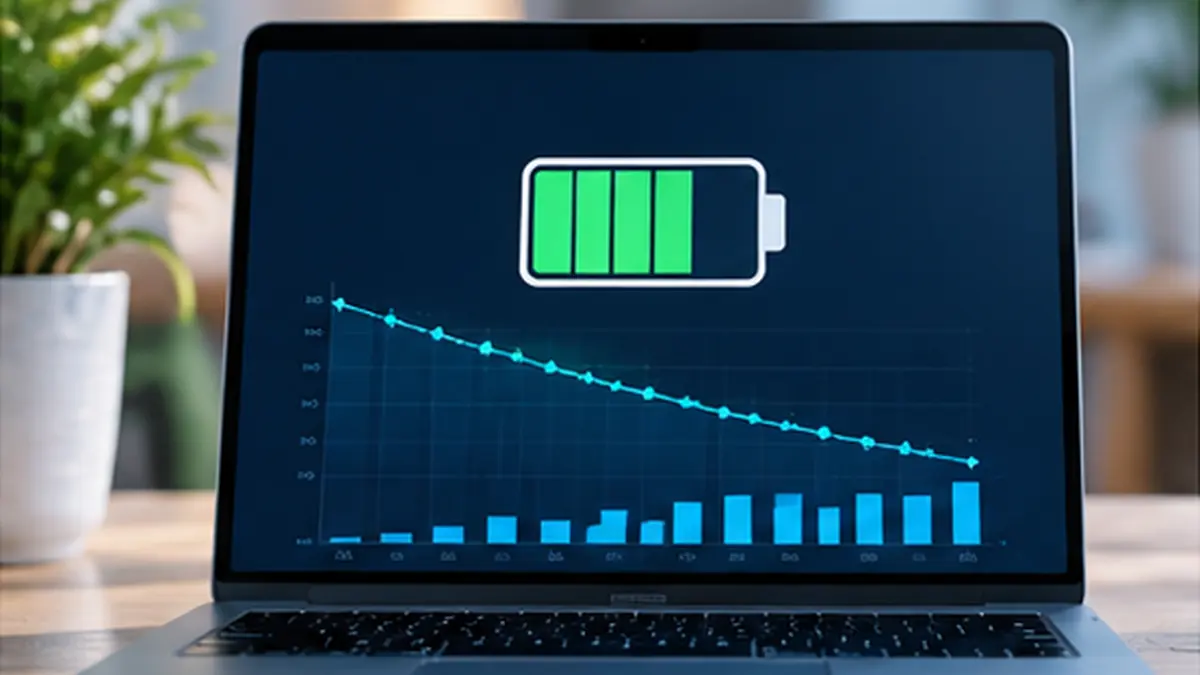
If your Windows 11 laptop runs for less time than it used to, you do not need to guess whether the battery is worn out. Windows can generate a built-in battery report showing the battery’s original design capacity, current full-charge capacity, recent usage and available capacity history. Read the numbers carefully: battery life also depends on screen brightness, workload, temperature and software.
Quick answer: Open Command Prompt or Windows Terminal, run powercfg /batteryreport, open the HTML file at the path Windows prints, and compare Full Charge Capacity with Design Capacity. The ratio gives an approximate capacity-retention percentage—not a complete diagnosis of every battery fault.
How to generate the Windows 11 battery report
- Open Start and search for Command Prompt.
- Select Run as administrator if required; Microsoft’s help shows the elevated method.
- Run
powercfg /batteryreportand press Enter. - Read the message containing the saved .html report’s location. Do not assume it was written to Documents; use the path shown on your PC.
- Open File Explorer, navigate to that folder, and open the HTML file in a browser.
- Keep the report for comparison with future readings, but remember its capacity values are estimates reported by the system’s hardware.
If a work laptop restricts Command Prompt, ask the organization’s IT administrator rather than bypassing device policies.
Understand Design Capacity and Full Charge Capacity
Design Capacity is the battery’s nominal original energy capacity. Full Charge Capacity is the amount of energy it currently estimates it can hold at a full charge. The report commonly expresses these in mWh (milliwatt-hours).
A useful calculation is:
Estimated capacity retention (%) = (Full Charge Capacity ÷ Design Capacity) × 100
Estimated capacity wear (%) = 100 − capacity retention (%)
Worked example: interpreting a report
Suppose your report shows:
- Design Capacity: 57,000 mWh
- Full Charge Capacity: 45,600 mWh
- Capacity retention: 45,600 ÷ 57,000 × 100 = 80%
- Estimated wear from original capacity: 20%
This means the battery estimates it can now hold around four-fifths of its nominal initial energy—not that the laptop will run for exactly four-fifths of the original hours in every workload. Screen, processor and application power consumption can change significantly.
Do not confuse 80% retention with the Windows taskbar showing 80% charged. One describes the battery’s estimated maximum capacity; the other describes today’s charge level relative to that maximum.
What the other report sections tell you
Installed batteries
Look for the manufacturer/model, battery identifiers, Design Capacity, Full Charge Capacity, and Cycle Count where the hardware exposes it. Some systems show a dash or omit cycle count entirely; missing data is not automatically a fault.
Recent usage
This lists recent active or standby behavior as reported by Windows. It can help determine whether a sudden drain corresponds with actual use, sleep, or connected standby. Reported entries are not minute-by-minute laboratory measurements.
Battery usage and usage history
These sections estimate discharge behavior and time spent on AC versus battery. Compare similar days and tasks, not completely different workloads.
Battery capacity history
Look for the long-term trend of full-charge capacity. One unusual reading can reflect recalibration or firmware reporting; a repeated sustained drop is more meaningful than a single day’s fluctuation.
Battery life estimates
These estimates derive from observed power use and capacity. They are not a promise of how long your battery must last. Background tasks, gaming, video calls and display settings can change the outcome.
Is a high cycle count proof you need a new battery?
No. A cycle roughly describes accumulated discharge equivalent to the battery’s full rated capacity, but implementations and manufacturer reporting vary. Capacity retention, unexpected shutdowns, reliability and the device maker’s recommended service guidance are more important than any universal cycle-count cutoff.
A battery showing 75% estimated capacity retention may still be adequate for a desk-bound user; it may be unacceptable for someone who needs long unplugged sessions. Treat cycle count as context, not a standalone verdict.
When battery drain isn’t battery wear
- Bright screen and high refresh rate: Often increase power consumption even with a healthy battery.
- Video calls, virtual machines or gaming: Can make runtime dramatically shorter than web browsing.
- Background indexing or software updates: May cause a temporary jump in energy use.
- Network signal and peripherals: Constant wireless activity or USB accessories can increase drain.
- Heat: Accelerates battery aging over time and may affect performance today.
Use Settings > System > Power & battery > Battery usage when available to identify apps or workloads consuming power. Exact labels vary by Windows release and device.
How to improve battery longevity safely
- Install genuine firmware, chipset and power-management updates from your laptop manufacturer or Windows Update.
- Enable sensible Windows power settings and reduce screen brightness where practical.
- Keep air vents unobstructed; avoid long periods of high heat.
- Use the manufacturer’s battery-care or charge-limit feature if the device supports it, rather than assuming every laptop has the same charging control.
- Avoid habitually storing a battery completely depleted for extended periods. For storage follow the manufacturer’s recommendations.
- Compare new battery reports at reasonable intervals, not every few minutes. Health figures may fluctuate with temperature and calibration.
Microsoft notes that prolonged high charge levels and elevated temperatures can accelerate battery wear. Some vendors offer optional charging limits intended for users who remain plugged in most of the day.
What if powercfg /batteryreport does not work?
No battery detected: You may be on a desktop computer or a device that doesn’t expose a compatible battery to Windows. Check the manufacturer’s diagnostics and Device Manager.
Access denied or can’t create the report: Open an elevated terminal when permitted or choose a writable location using the documented command options. Do not disable workplace security controls.
Capacity looks implausible: A firmware or battery-controller reporting issue is possible. Check manufacturer diagnostics before assuming the cell’s real capacity changed overnight.
Laptop shuts down at 30% despite acceptable retention: A capacity estimate alone may miss voltage or calibration problems. Preserve your work and use manufacturer service diagnostics.
When should you replace the laptop battery?
Consider professional replacement when runtime no longer meets your needs, charge reporting becomes unreliable, or the manufacturer flags the battery for service. If the battery is swollen, bulges the case, lifts the trackpad or produces unusual heat, stop using the device and contact qualified service. Do not puncture or press it. That warning is more urgent than any calculated wear percentage.
For old laptops, check repairability and whether a genuine compatible replacement is available. A non-removable battery is not a reason to try unsupported DIY removal.
Frequently asked questions
Can I check battery health without installing an app?
Yes. powercfg /batteryreport is built into Windows 11 and creates an HTML report. Hardware-vendor diagnostics may provide additional device-specific information.
Does Windows 11 show battery health as one percentage?
The battery report may not provide one universal “health” label. You can calculate an approximate retention percentage from Full Charge Capacity and Design Capacity.
Is 80% laptop battery health bad?
It indicates approximately 80% remaining estimated charge-holding capacity compared with design, if both values are reliable. Whether to replace the battery depends on runtime, safety, warranty and your needs.
Can reinstalling Windows restore lost battery capacity?
No software reinstall physically reverses cell aging. It might fix excessive background drain, inaccurate drivers or power settings—but is not a treatment for chemically aged batteries.
Sources and verification
- Microsoft Support: Caring for your battery in Windows — official battery report command, lithium battery care and swelling warning.
- Microsoft Support: Tips to save battery power in Windows — optional power-saving guidance; settings depend on device and version.
Editorial check: October 12, 2026. Example values are illustrative, not measurements of a specific laptop.
You may also like
 Technology & How-To
 Can’t Copy Text from a PDF? Fix Scans, Restrictions and Garbled Text
Find out why PDF text will not copy, then choose the right fix for scans, copying restrictions, garbled…
 Technology & How-To
 USB Works on PC but Not on TV? How to Find the Cause
Diagnose a USB drive that works on a computer but not a TV. Separate detection, missing files and…
 Technology & How-To
 WhatsApp “Waiting for This Message”: Fixes for iPhone, Android and Web
Fix WhatsApp’s waiting-message notice by comparing your phone and linked devices, checking updates and protecting existing chat data.