
Can’t Copy Text from a PDF? Fix Scans, Restrictions and Garbled Text
Find out why PDF text will not copy, then choose the right fix for scans, copying restrictions, garbled characters or broken reading order.
Contents
- Run a quick selection, search and paste test
- Why two PDFs can look identical but copy differently
- If the PDF is scanned, add OCR or extract recognised text
- Create a searchable PDF in Acrobat
- Extract a short image passage with Horus Valley
- Use Google Drive conversion when cloud processing is appropriate
- If copying is not allowed, check the permissions
- If copied PDF text becomes gibberish or symbols
- If words copy but the reading order is wrong
- If the problem started after compression or conversion
- Check the result before reusing the text
- Frequently asked questions
- Why can I copy one page but not another?
- Can I copy text without paying for Acrobat?
- Does OCR change how the PDF looks?
- Why does searching find a word but copying it gives the wrong text?
- Sources and test scope
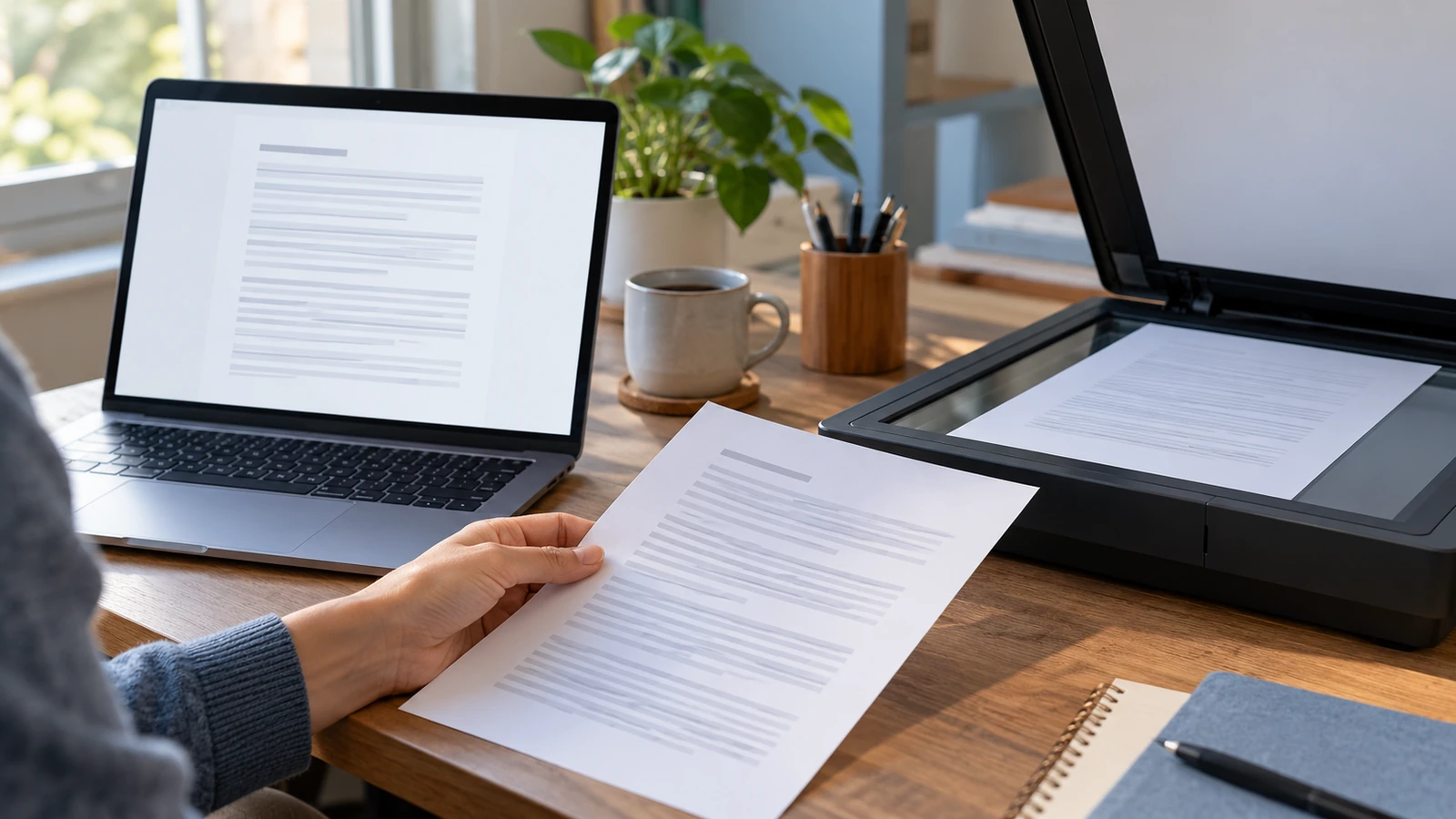
If you can’t copy text from a PDF, first check whether the page contains selectable text, whether copying is permitted, and whether the copied characters are correct. Image-only pages need optical character recognition (OCR). A document with copying restrictions needs an authorised copy or help from its owner. Text that selects but pastes as nonsense needs a different investigation, often involving the file’s text representation or conversion.
Start with one sentence on the page that is causing trouble. A PDF can contain ordinary text, scanned images and recognised text in the same document, so a successful test on its cover does not establish that every page will work. The aim is to recover usable text while preserving the original file.
Run a quick selection, search and paste test
- Save a separate working copy if you plan to convert or recognise the document.
- Choose the reader’s text-selection tool rather than its hand or drawing tool, then drag across a visible word.
- Search for a distinctive word from that same page using the reader’s search control.
- Copy one sentence and paste it into a plain-text editor. On a computer, the usual shortcuts are Ctrl+C/Ctrl+V on Windows or Command+C/Command+V on macOS.
- Repeat on another affected page and check the document’s copying permissions before choosing a repair.
These observations narrow the problem; they are not a complete technical diagnosis. Search may miss a word because an existing OCR layer misread it, while letters converted into vector outlines can look sharp without behaving as text. PDF-XChange’s documentation identifies image-based content, curves and security restrictions as distinct reasons its text-selection tool may not copy words.
| What happens | What to investigate | Useful next step |
|---|---|---|
| Nothing selects and page search finds nothing | Image-only content or lettering stored as shapes | Use OCR on an authorised working copy |
| Text selects, but Copy is unavailable | Document permissions or the current selection mode | Check the Security summary in a reader |
| Selection works, but pasted letters are wrong | Faulty text mapping, OCR errors or conversion problems | Try a second reader, then a fresh source export if available |
| Some pages work and others do not | A mixture of text pages and scanned pages | Test and process the affected pages |
| Copy works, but columns or rows are scrambled | Reading order or fixed page layout | Extract smaller sections and verify their order |
| Copying fails in unrelated documents and apps | A viewer, destination or clipboard problem | Test harmless text outside the PDF |
Why two PDFs can look identical but copy differently
For this guide, we created a fictional reading card containing the phrase copper lantern. We saved it as a PDF with digital text, rendered the page to an image at 144 dpi, and placed that image into a second PDF without adding a text layer. We also combined the two pages and ran English OCR on the image to create a separate searchable PDF.
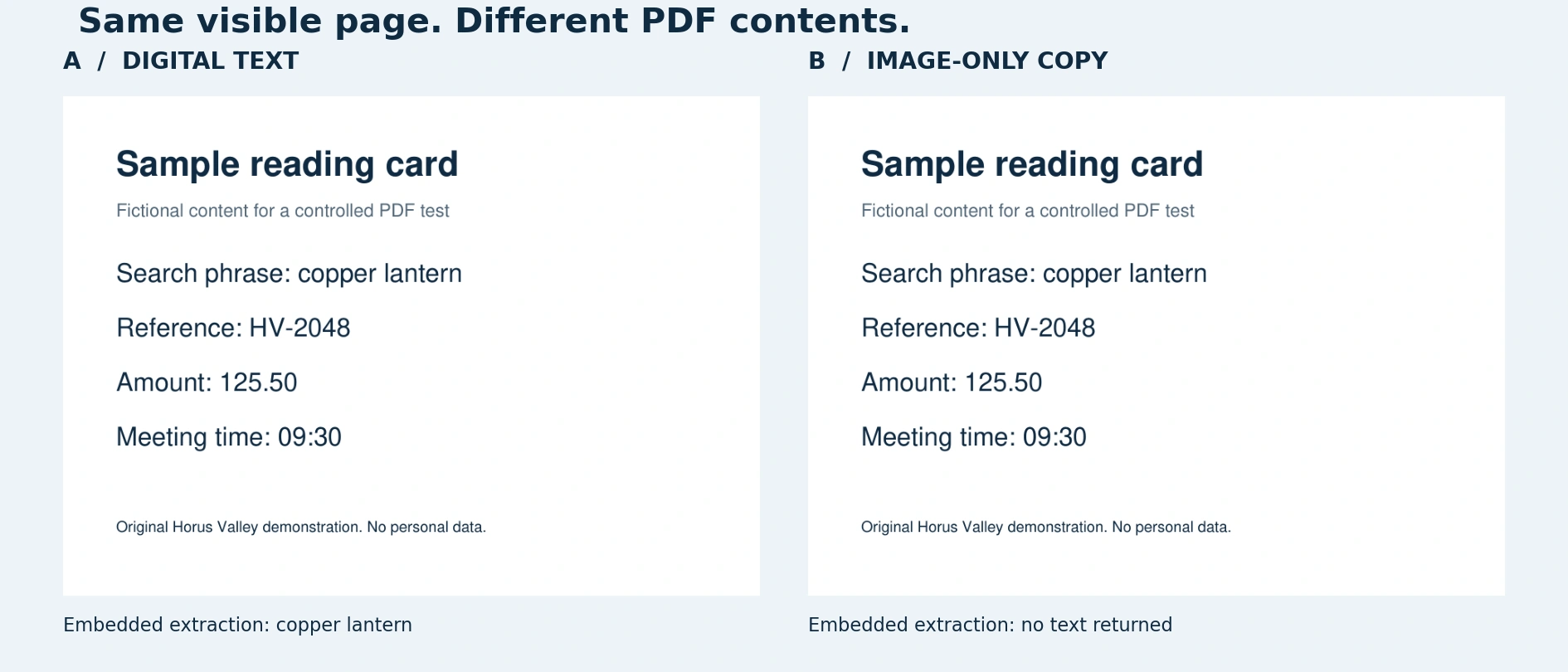
| Controlled sample | Did embedded-text extraction find “copper lantern”? |
|---|---|
| Digital-text PDF | Yes |
| Image-only PDF | No; extraction returned no text |
| Mixed PDF containing both pages | Yes on the text page; no on the image-only page |
| Image processed with English OCR | Yes in the recognised text layer |
We used PyMuPDF 1.26.6 for extraction and Tesseract 5.3.4 for OCR. This tests those particular clean sample files and that phrase. It does not measure OCR accuracy on handwriting, poor scans or other languages, and it is not a hands-on test of Acrobat, Word, Google Docs or Horus Valley’s browser tools. The Tesseract documentation explains how its PDF output combines an image with a searchable text layer.
The practical lesson is that a readable page image does not itself supply copyable characters. Conversely, finding text in one page of a mixed document says little about an image-only attachment later in the file.
If the PDF is scanned, add OCR or extract recognised text
Create a searchable PDF in Acrobat
In an Acrobat version that includes the feature, follow Adobe’s current text-recognition instructions: open the file, choose All tools > Scan & OCR, and select In this file. Choose the page range and recognition language, then run Recognize Text. Save a separate result and test the affected page again. Feature availability depends on your Acrobat product and entitlement; the ability to read a PDF does not mean that every OCR or export feature is included.
Choose the language that matches the source rather than assuming the application interface language is correct. After recognition, search for a distinctive word and paste a short sentence into a text editor. Compare names, reference numbers, punctuation and decimal separators with the visible original before using the result.
Extract a short image passage with Horus Valley
If you need a short passage as text, Horus Valley’s Image to Text OCR accepts an image and offers Arabic, English or combined recognition. Its published page describes local browser processing. For an authorised image-only PDF, you can prepare the needed page as a clear JPG or PNG using PDF to JPG, then recognise that image and review the output.
This route produces extracted text for reuse. Do not assume it inserts a searchable layer back into the original PDF or preserves a complex page layout. If you need only one paragraph, review that paragraph before processing a large document. An empty extraction result from PDF to Text has a different meaning: that tool extracts existing embedded text and does not perform OCR.
Use Google Drive conversion when cloud processing is appropriate
For a document you are comfortable uploading, Google’s computer workflow is to place the PDF in Drive, right-click it and choose Open with > Google Docs. Google recommends a file of 2 MB or less, upright pages and sharp, high-contrast text for this conversion route. This is guidance for image-to-text conversion, not a claim that Drive cannot store larger PDFs.
Review the converted document carefully. Google specifically cautions that tables, columns, lists, footnotes and endnotes may not be detected properly. Use an approved local workflow instead when the document’s handling requirements rule out uploading it.
If copying is not allowed, check the permissions
In Acrobat Reader, Adobe’s copying instructions say to right-click the document, open Document Properties, then review the Security tab and its Document Restrictions Summary. Check the copying entry rather than treating every unavailable toolbar button as proof that the file is locked.
Being able to open and read a file does not establish that copying is enabled. If the owner has restricted it, ask for an authorised copyable version or the required permissions. If you created the document, adjust the permitted operations in your source or authorised PDF workflow and save a new copy. OCR is a way to recognise image text; it is not a substitute for permission to reuse a restricted document.
For a work or university file, describe the task you need to complete: for example, copying a short approved quotation or extracting an accessible reading version. A request for the original source file or an accessible export may be more useful than asking vaguely to “unlock the PDF”.
If copied PDF text becomes gibberish or symbols
Here the page may already contain extractable text, but its relationship to the visible characters is unreliable. Existing OCR can also recognise the wrong letters. Begin by copying the same short sentence in a second trusted reader and pasting into plain text. Compare the result character by character, including accented letters and symbols.
- If only one reader fails, investigate that reader or its current file session before altering the document.
- If multiple readers produce the same wrong characters, request the source document or a fresh PDF export from the sender.
- If the PDF came from your own document, export again from the original application and repeat the same sentence test.
- If you must use OCR on an authorised copy, treat the output as recognised text that needs checking, not as an exact transcription.
A screenshot containing readable words is still an image until text recognition is applied. Enlarging that screenshot does not recreate missing character data, and renaming a file does not convert its contents. Keep the source or an earlier working export whenever possible.
If words copy but the reading order is wrong
PDF pages store fixed positions; recovering paragraphs and tables requires interpreting those positions. Microsoft explains that Word tries to reconstruct document objects during conversion and works best with PDFs that are mostly text. Tables, footnotes and other complex elements can convert poorly, and a graphics-heavy page may remain an uneditable image.
For a paragraph, try copying one column or a smaller selection at a time. For a table, compare each row label and its values with the original after extraction. A neatly formatted pasted table can still pair a number with the wrong label. If the author can provide the spreadsheet or text source, use it to check the conversion.
When you use Word desktop to open a PDF, follow its conversion prompt and work on the converted copy. Do not assume every PDF will become a clean editable document. If copying works normally but Windows clipboard history is the problem, use the separate Windows 11 clipboard-history guide to investigate that feature.
If the problem started after compression or conversion
Return to the version that last copied correctly and test the same sentence. Some workflows rebuild pages as images, leaving a visually readable result without the previous text layer. Compare the actual output rather than assuming a smaller file preserved every feature. The guide to compressing scanned PDFs covers the separate task of reducing size while checking readability and searchability.
If you have only the image-based output, OCR may restore usable recognised text, but it cannot promise the exact original characters or structure. Test the final file after the last compression step: a successful intermediate OCR result does not prove the file you eventually send has the same text layer.
Check the result before reusing the text
- Search for a distinctive word on every affected page type.
- Paste a short passage and compare it with the visible source.
- Check reference codes, names, minus signs, decimal separators and dates individually.
- Inspect column order and table row alignment.
- Confirm you saved the required output: plain text, an editable document or a searchable PDF.
- Reopen the final saved file and repeat the original task.
For confidential documents, choose software that matches your organisation’s handling rules. If you will share a converted PDF, review its content and properties as well; removing PDF metadata and hidden information is a separate workflow from making text copyable.
Frequently asked questions
Why can I copy one page but not another?
The pages may use different content types. A digital-text page can be followed by a scanned appendix with no recognised text. Test the failing page itself and apply the appropriate remedy there.
Can I copy text without paying for Acrobat?
Yes, if the PDF already contains copyable text and its permissions allow copying, a suitable reader or embedded-text extractor may be enough. Image-only pages need OCR; choose an available tool that supports the language and output you need, then verify its result.
Does OCR change how the PDF looks?
Some OCR workflows retain the page image and add recognised text, while editing or conversion workflows can change layout. Compare the saved output with the original. The local sample above demonstrates a searchable image-plus-text result, not a guarantee for every application.
Why does searching find a word but copying it gives the wrong text?
Searchability does not establish transcription accuracy or correct extraction order. Copy a short sample into plain text, check it against the page, and compare another reader or a fresh source export before relying on the extracted version.
Sources and test scope
- Adobe Acrobat Reader: content copying and security checks
- Adobe Acrobat: text selection, image-based text and copying restrictions
- Adobe Acrobat: recognising text in scanned documents
- PDF-XChange: image text, curves and text-selection failures
- Google Drive Help: converting PDFs and images to text
- Microsoft Support: opening and converting PDFs in Word
- Tesseract documentation: command-line recognition and searchable PDF output
Documentation checked on 28 October 2026. Application instructions above are based on the linked vendor documentation. The hands-on experiment was limited to the fictional local samples, PyMuPDF extraction and Tesseract recognition described above. It did not test the listed applications or browser tools, protected documents, handwriting or real-world OCR accuracy.
You may also like
 Technology & How-To
 USB Works on PC but Not on TV? How to Find the Cause
Diagnose a USB drive that works on a computer but not a TV. Separate detection, missing files and…
 Technology & How-To
 WhatsApp “Waiting for This Message”: Fixes for iPhone, Android and Web
Fix WhatsApp’s waiting-message notice by comparing your phone and linked devices, checking updates and protecting existing chat data.
 Technology & How-To
 WhatsApp iOS 15.5 Requirement: What Changes on November 30, 2026?
WhatsApp raises its iPhone minimum to iOS 15.5 on November 30, 2026. Check your version, older iPhone eligibility…