
Scanned PDF Too Large? How to Reduce File Size Without Ruining Text Quality
Shrink scanned PDFs without unreadable text. Compare DPI, grayscale, OCR and browser-based compression, with a detailed quality checklist.
Contents
- Why are scanned PDFs so big?
- First check: is it a scan or a text-based PDF?
- Pick your settings according to the document
- Black text on white paper
- Documents with highlights or colored stamps
- Certificates, IDs or archival material
- Image-heavy brochures and photos
- Method 1: Compress a copy using Horus Tools
- Method 2: Optimize scans in Adobe Acrobat
- Method 3: Scan smarter before you create the PDF
- Compare the output: a quality-control checklist
- Why ZIP does not always shrink a scanned PDF much
- Common mistakes to avoid
- Frequently asked questions
- What is the best DPI for a readable scanned PDF?
- Can I compress a PDF without losing quality?
- Will OCR make a PDF smaller?
- Is it safe to compress scanned contracts?
- Sources and further reading
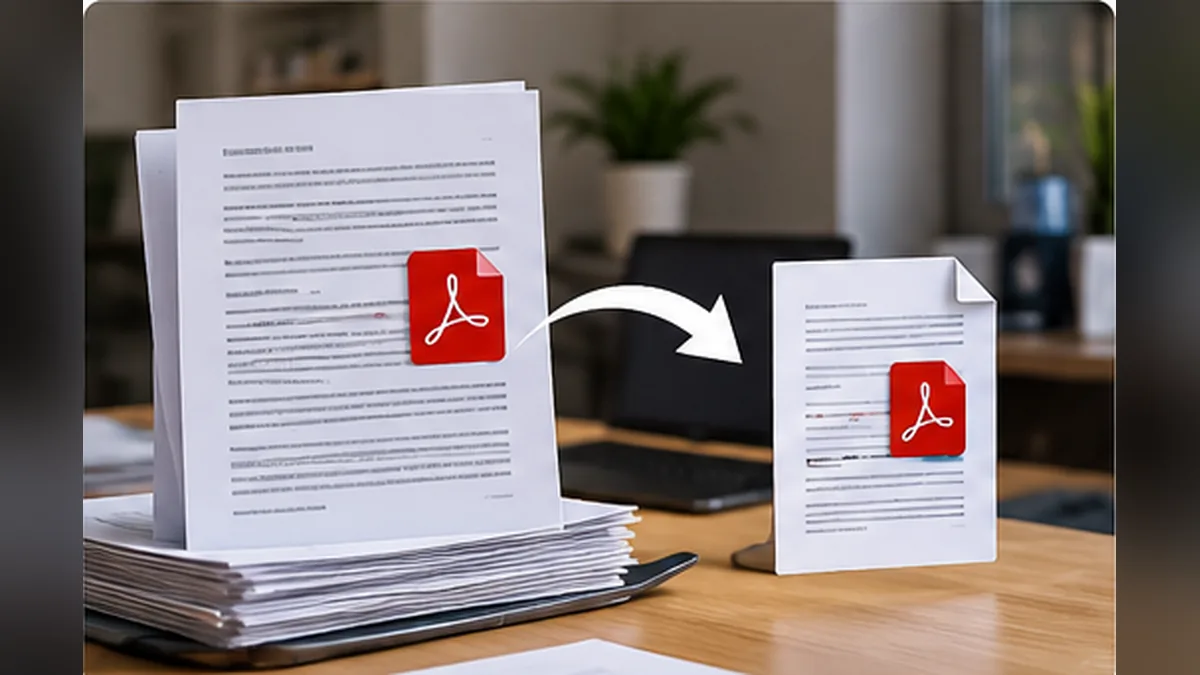
A 12-page scanned document can be larger than a 200-page text PDF. That’s because many scans are effectively photographs of paper stored on every page. Reducing the file size requires a different approach from compressing a PDF that contains mostly real text and vector graphics. The challenge is to make the file easier to upload without destroying small letters, signatures, lines or searchable text.
Start by deciding what you need to preserve. Is the PDF just for reading on a phone, or will someone search, print, sign or archive it? The answer determines which compression techniques are acceptable.
Why are scanned PDFs so big?
A scanner can capture each page as a high-resolution color image. File size rises with the pixel dimensions, color depth, number of pages and compression method. Blank margins, speckled backgrounds and full-color scans of black text can also waste space. A scan saved with lossless settings may be much bigger than one using a carefully chosen lossy format.
Unlike a normal Word-to-PDF export, a pure scan may have no selectable text at all. An OCR layer, when present, can make the scanned page searchable while still displaying the underlying image.
First check: is it a scan or a text-based PDF?
- Open the PDF in a reliable viewer.
- Try selecting one word with the cursor.
- Search for a distinctive word appearing on the page.
- Zoom in closely: image-based characters may show pixels, whereas vector text remains crisp.
A PDF can be a mixture: some pages may have true text, while others are photographs. If your file is searchable, preserve that ability when compressing unless you have a good reason not to.
Pick your settings according to the document
Black text on white paper
For invoices, printed forms and ordinary notes, grayscale or true black-and-white scanning can save considerable space compared with color. If fine lines and small letters matter, do not push resolution too low. Adobe recommends about 300 dpi for grayscale or color scans and 600 dpi for black-and-white scans as good starting points in its adaptive-compression guidance. These are context-specific recommendations, not mandatory values for every document.
Documents with highlights or colored stamps
Keep color if it conveys meaning. Converting a colored correction, security marking or stamp to grayscale may erase an important distinction. Use a moderate compression quality and inspect the smallest colored elements afterward.
Certificates, IDs or archival material
Prioritize legibility, authenticity and preservation over a tiny file. Keep the unmodified original, avoid destructive filters and follow any resolution requirements of the organization receiving the document. Never alter content or remove marks to meet an upload limit.
Image-heavy brochures and photos
Photographs tolerate a different compression strategy from small printed text. Moderate image downsampling can shrink a file substantially, but too much produces visible artifacts.
Method 1: Compress a copy using Horus Tools
Open the Horus PDF Compressor, choose your file, then adjust image quality and page resolution before downloading a new copy. The tool processes documents locally in your browser and allows you to compare file sizes. Start conservatively, check every page, and only increase compression if the result remains readable.
Important limitation: the Horus compressor may rebuild compressed PDF pages as images. That means searchable/selectable text and some links can be lost, particularly under stronger compression settings. Keep the original if those features matter, or limit processing to pages that are already scanned images. Use the tool with care for forms and searchable documents.
Method 2: Optimize scans in Adobe Acrobat
Adobe Acrobat provides scanning and enhancement settings including adaptive compression, color mode, deskewing, background cleanup and optical character recognition (OCR). If you have access to these features, open a copy of the scan, choose scan enhancement or PDF optimization and inspect the output. Use OCR when searchable text is required and verify names, numbers and special characters manually afterward.
Some settings are lossy; for example, lossy JBIG2 compression can be aggressive. For critical records, choose lossless or conservative options when available and keep the original scanned image.
Method 3: Scan smarter before you create the PDF
If you can rescan the paper, start with a sensible resolution and crop excessive blank margins at capture time. Straighten tilted pages and remove unnecessary backgrounds without altering content. For a 20-page black-text document, capturing monochrome or grayscale pages deliberately can produce a more efficient file than taking twenty full-color photographs and attempting to shrink them afterward.
A phone document scanner that automatically detects page edges can also help, but inspect its result for clipped corners, distorted shapes and incorrect automatic exposure.
Compare the output: a quality-control checklist
- Compare original size with compressed size and calculate the reduction.
- Zoom to 100% and 200% to inspect small print, decimal points and punctuation.
- Check a dark signature, a faint stamp, a low-contrast page and any fine grid lines.
- Try selecting and searching for a word if searchability is required.
- Open the new file on a second viewer or phone to catch rendering problems.
- Retain the original until the recipient accepts the new PDF.
For example, going from 24 MB to 6 MB is a 75% reduction: (24 − 6) ÷ 24 × 100 = 75%. A high compression ratio is useful only if the result still meets your purpose.
Why ZIP does not always shrink a scanned PDF much
Scanned pages are often already stored as compressed JPEG-like images. ZIP compression has little additional redundancy to remove from those streams. To achieve a meaningfully smaller PDF you may need image resampling, conversion of color mode or a different image codec—each potentially affects appearance.
Common mistakes to avoid
- Dropping resolution blindly. Tiny letters may become unreadable before the overall page appears blurry.
- Converting every page to an image. This can eliminate selectable text, links and accessibility structure.
- Ignoring privacy. Avoid uploading confidential scans to an unknown server; choose trusted software or a documented local-processing solution.
- Deleting the original. Compression can be irreversible, and future uses may require more detail.
- Assuming OCR is flawless. Searchable text generated from a scan must be checked for critical numbers and names.
Frequently asked questions
What is the best DPI for a readable scanned PDF?
It depends on font size, source quality and whether you are using grayscale, color or black-and-white. Adobe’s scan guidance uses 300 dpi for grayscale/color and 600 dpi for monochrome as practical reference points.
Can I compress a PDF without losing quality?
Sometimes metadata or lossless image optimization provides savings without visible or structural loss. Large reductions in image-heavy scans usually involve trade-offs.
Will OCR make a PDF smaller?
OCR primarily adds searchable text information. Whether it reduces file size depends on the application and how it optimizes the image layer. It is not a universal compression shortcut.
Is it safe to compress scanned contracts?
Use copies, preserve signatures and details, and follow the recipient’s archival/legal requirements. Avoid destructive settings when the document may serve as evidence.
Sources and further reading
- Adobe Acrobat: Scanned PDF settings.
- Adobe Acrobat: Enhance scanned documents.
- Adobe: Compress and optimize a PDF.
The goal is not the smallest possible PDF. The goal is the smallest usable PDF that preserves the details your recipient actually needs.
You may also like
 Technology & How-To
 Can’t Copy Text from a PDF? Fix Scans, Restrictions and Garbled Text
Find out why PDF text will not copy, then choose the right fix for scans, copying restrictions, garbled…
 Technology & How-To
 USB Works on PC but Not on TV? How to Find the Cause
Diagnose a USB drive that works on a computer but not a TV. Separate detection, missing files and…
 Technology & How-To
 WhatsApp “Waiting for This Message”: Fixes for iPhone, Android and Web
Fix WhatsApp’s waiting-message notice by comparing your phone and linked devices, checking updates and protecting existing chat data.